
01Who this is for
- Marketing managers can test subject lines to discover which phrasing yields higher open rates.
- Email designers can compare content layouts to see which generates more clicks.
- Small business owners can use the feature to improve overall campaign performance without guesswork.
02A/B testing in email campaigns, explained
A/B testing, also called split testing, compares two or more email versions to determine which performs better. In HighLevel you can test either subject lines or the body content, but not both in the same campaign. The platform selects a winner after a set duration and sends that version to the remaining contacts.
The feature lives inside the Email Builder. After opening a campaign you toggle the Enable A/B Testing switch, choose the test type, set duration, define the number of variations, and adjust the test size. You add the subject or content variations, optionally let Content AI create alternatives, pick a winning criterion, and then send or schedule the campaign. The system runs the test, records open and click metrics, and automatically delivers the winning email to the rest of the audience.
03How businesses use a/B testing in email campaigns
- Ecommerce store. The store creates two subject lines for a promotion email and chooses Unique Open Rate as the winning criterion. After the test period the platform sends the higher opening subject to the remaining recipients.
- Real estate agency. The agency builds two content versions with different property images and call to action buttons, selects Email Content as the test type, and picks Unique Click Rate to decide the winner. Once the test ends, the version with more clicks is delivered to the rest of the leads.
- Dental practice. The practice enables Content AI to generate alternative copy for a reminder email, sets a four hour test duration, and uses Unique Open Rate as the winning metric. After the test the system automatically sends the best performing copy to the remaining patients.
04The numbers and rules that matter
- Up to six variations per test.
- Test duration can be set (e.g., 4 hours, 8 hours).
05How to set up and use a/B testing in email campaigns in HighLevel
Enable A/B testing for an email campaign
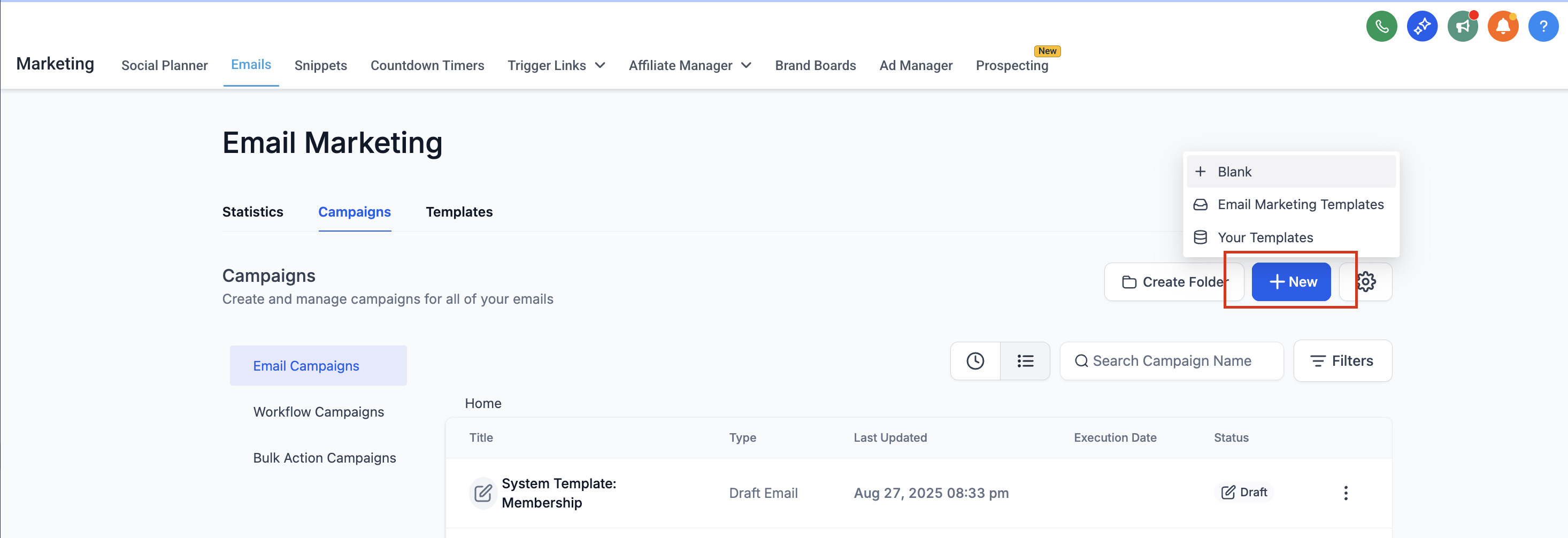
- Open the email campaign in the Email Builder.
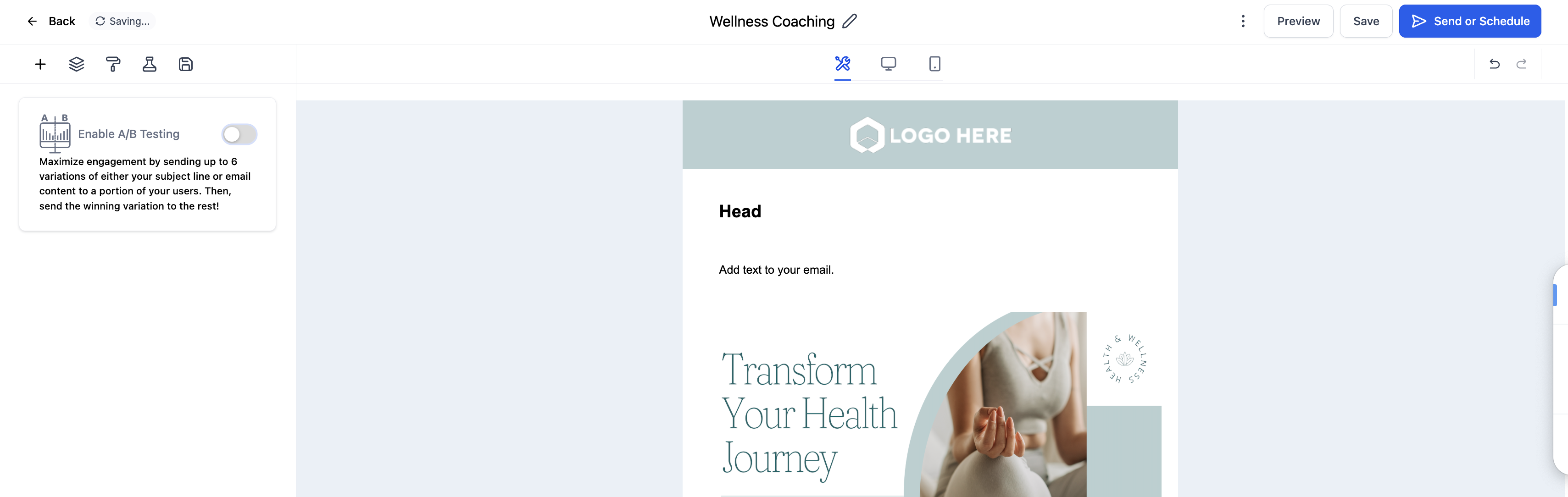
- Toggle the Enable A/B Testing switch on the left panel.
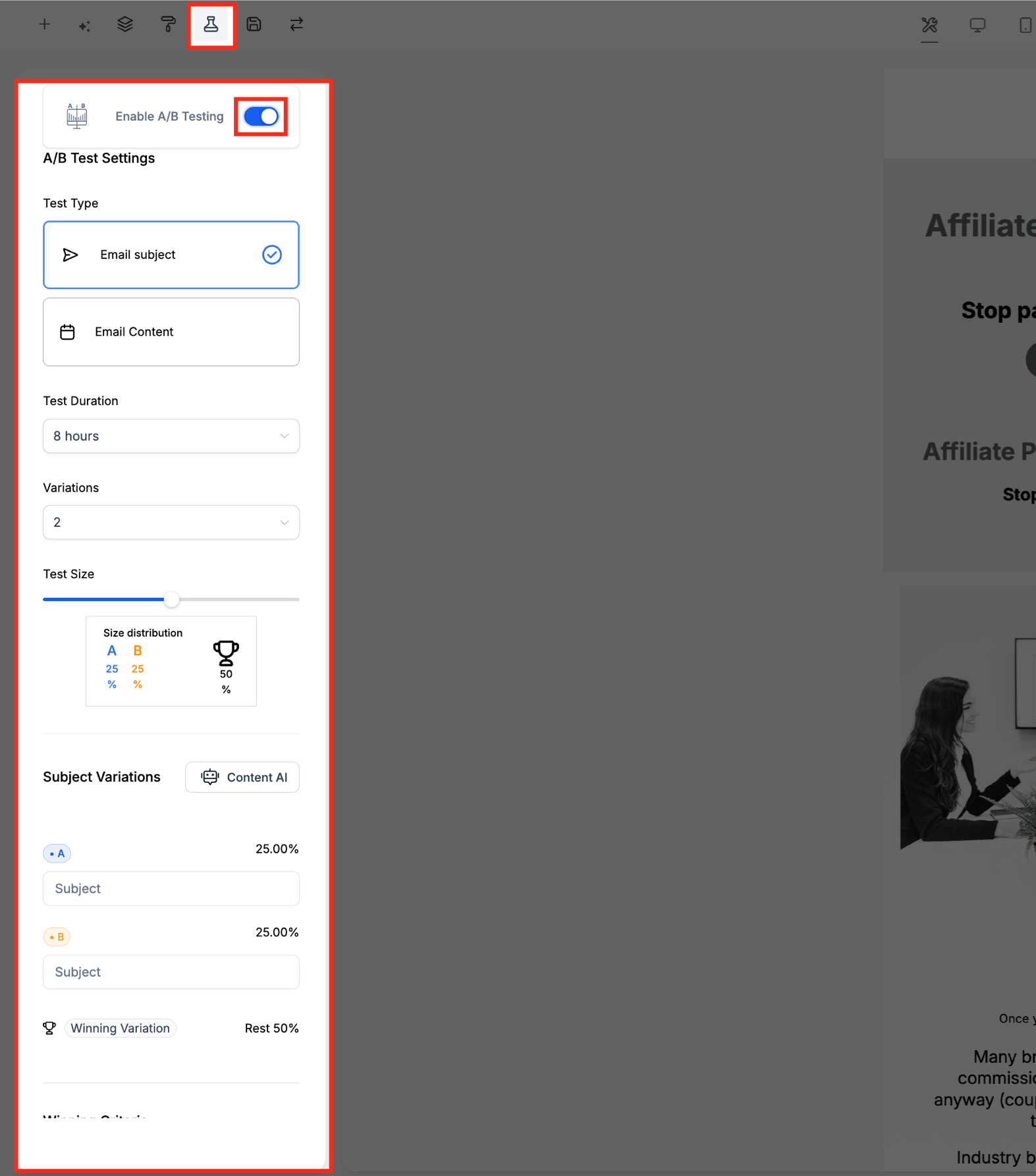
- Select the test type: Email Subject or Email Content.
- Set the test duration, such as 4 hours or 8 hours.
- Choose the number of variations, up to six.
- Adjust the test size using the slider.
- Add your subject variations or content variations.
- Optionally enable Content AI to generate creative variations automatically.
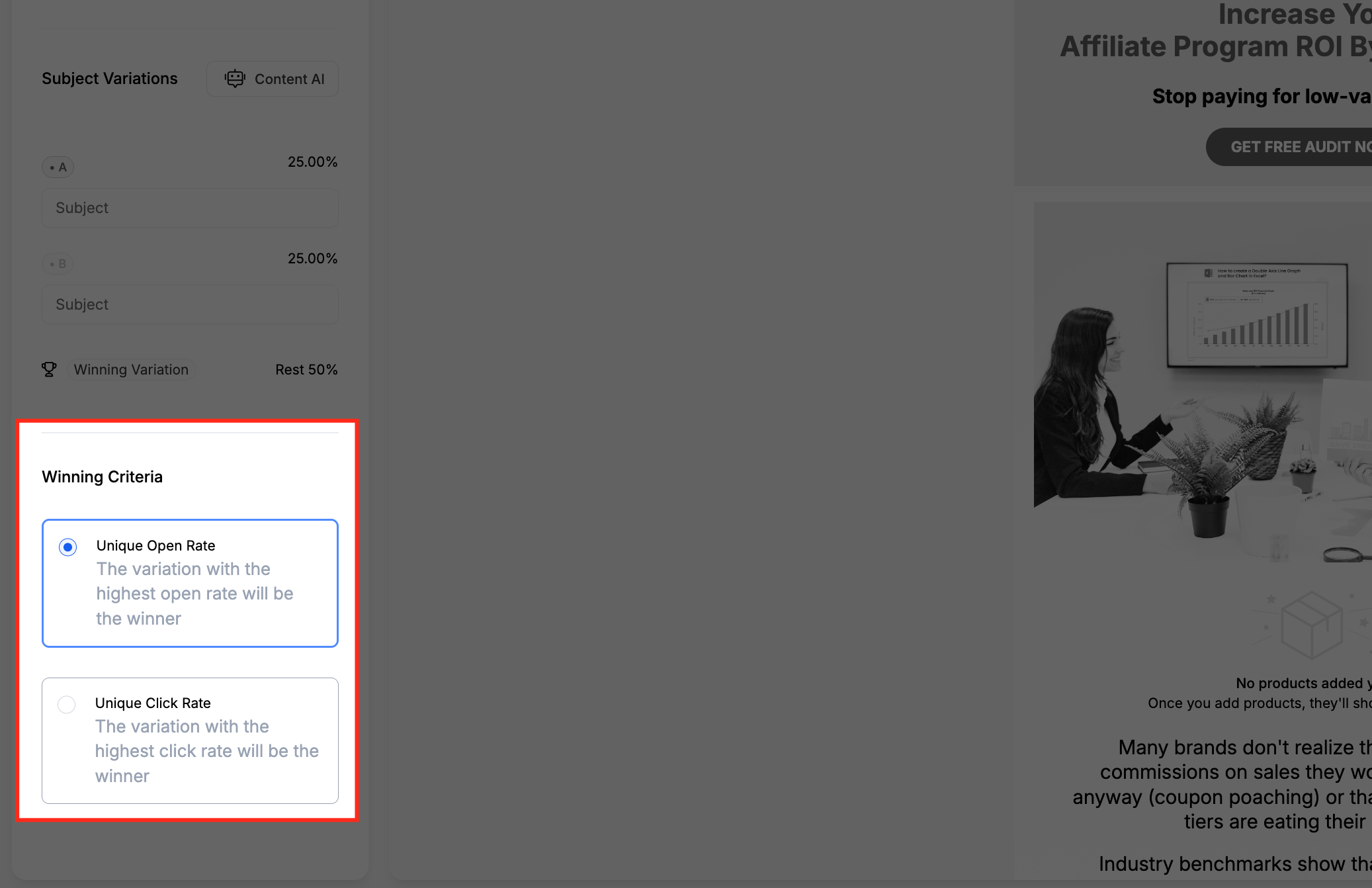
- Choose the winning criteria: Unique Open Rate or Unique Click Rate.
- Click Send or Schedule to launch the test.
06What it looks like in HighLevel
07Settings that matter
- Enable A/B Testing. Activates the split testing mode for the current email campaign.
- Test Type. Determines whether the test compares subject lines or email content.
- Test Duration. Specifies how long the test runs before a winner is selected.
- Number of Variations. Sets how many different versions are tested, up to six.
- Test Size. Controls the percentage of the audience each variation receives during the test.
- Subject Variations. The different subject lines entered for a subject line test.
- Content Variations. The different body versions entered for a content test.
- Content AI. Generates alternative content variations automatically when enabled.
- Winning Criteria. Chooses the metric, Unique Open Rate or Unique Click Rate, that decides the winning version.
08Things to know before you rely on it
- A maximum of six variations can be tested in a single campaign.
- Only one test type, subject or content, may be selected per campaign.
- The test size slider divides the audience; the remaining percentage receives the winning version after the test ends.
09How it connects to the rest of HighLevel
- Send or schedule a regular email campaign in HighLevel Send or schedule email
- How to move the Email Builder edit panel in HighLevel Email Builder panel
- How to set up and use the HighLevel template library Template library
Michael's take

A/B testing in HighLevel gives small businesses a cheap way to learn what truly moves their audience, turning guesswork into data driven tweaks that lift opens, clicks, and ultimately revenue.
Don’t let the test size default to too small a slice; you’ll never get a reliable winner.