
01Who this is for
- Agency owners can link client pages once, avoiding repeated Facebook logins.
- Local restaurant managers can publish to Facebook and Instagram from Social Planner without separate connections.
- Real estate teams can keep property listings synchronized across both platforms with a single setup.
02Unified Facebook Connect, explained
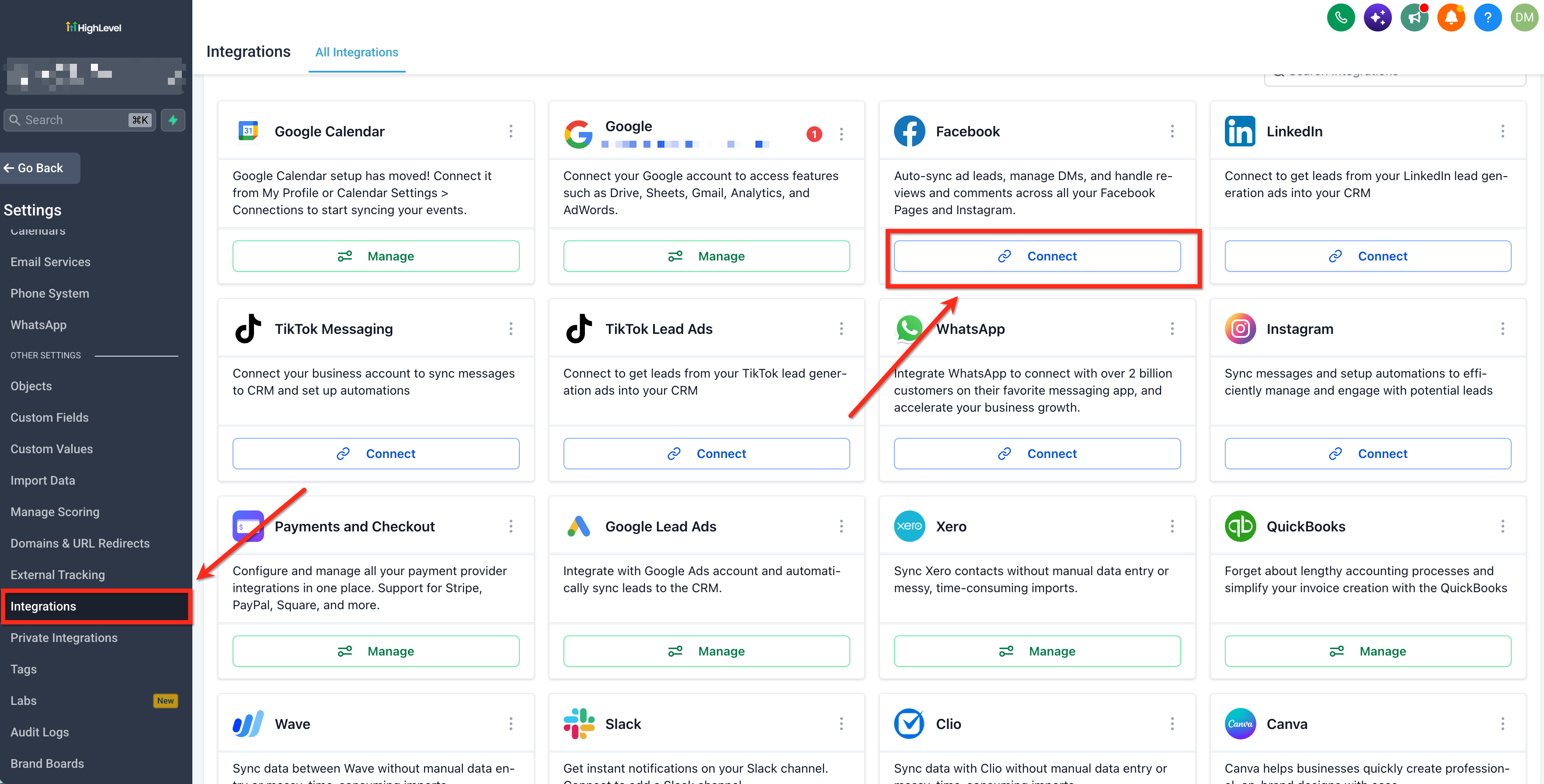
The feature adds a Facebook integration option in Settings > Integrations. When you authorize a Facebook account there, any selected Pages and any Instagram professional accounts attached to those Pages become automatically available in Marketing > Social Planner > Settings > Social Accounts. This eliminates the need to connect the same Facebook account again inside Social Planner.
Synchronization works one way from Integrations to Social Planner. Removing a Page from Integrations also removes it from Social Planner. Directly connected pages inside Social Planner do not push back to Integrations. Instagram Direct Login accounts sync in both directions, so changes appear everywhere.
03How businesses use Unified Facebook Connect
- Digital marketing agency. The agency opens Settings > Integrations, clicks Connect on the Facebook card, signs in with the client’s Facebook account, selects the required Pages, and completes the permission steps. All selected Pages then appear in the Social Planner for scheduling campaigns.
- Local restaurant. The restaurant manager follows the same connection steps, then uses the Social Planner to draft daily specials and promotional posts, which publish to both the restaurant’s Facebook Page and its linked Instagram professional account without additional logins.
- Real estate brokerage. The brokerage connects its Facebook business page through Integrations, enabling the linked Instagram account to appear in Social Planner. Agents can then schedule property showcase posts that publish to both platforms from a single interface.
04Before you start
- Be signed into a subaccount within HighLevel.
- Have a Facebook account that owns the Pages you intend to connect.
05How to set up and use Unified Facebook Connect in HighLevel
Connect your Facebook Page
- Open the subaccount and go to Settings > Integrations.
- Find the Facebook integration card and press the Connect button.
- In the Facebook sign in window, log in with the Facebook account that manages the desired Pages.
- Choose the Facebook Pages you wish to add and fulfill all permission prompts.
- After confirming, the selected Pages become visible in Social Planner.
06What it looks like in HighLevel
07Settings that matter
- Integrations. Controls the Facebook connection that feeds selected Pages and linked Instagram accounts into Social Planner.
- Refresh. Updates missing extra permissions, such as insights access, while keeping publishing capability if publishing rights remain.
- Reconnect. Restarts the Facebook authorization flow to regain publishing permissions that are currently missing.
- Social Accounts. Displays the list of Facebook Pages and Instagram accounts available for publishing within Social Planner.
08Things to know before you rely on it
- Synchronization flows only from Integrations to Social Planner; direct connections made in Social Planner do not sync back.
- Removing a Facebook Page via Integrations also removes it from Social Planner.
- If additional Facebook permissions are missing, the Social Planner will show a Refresh or Reconnect action.
- Instagram Direct Login accounts sync in both directions, unlike Facebook pages.
09How it connects to the rest of HighLevel
- Learn how to set up a chat widget on your website. Chat widget guide
- Read the guide on integrating Facebook conversion leads. Facebook conversion leads
- See the full list of integration options. All integrations
- Check pricing and plan details for HighLevel. Pricing
- Start a free trial of HighLevel. 30 day trial
Michael's take

Be aware that Unified Facebook Connect only syncs from Integrations to Social Planner, so any changes you make directly in Social Planner won’t flow back.
When it works, you get a single login point for both Facebook and the linked Instagram professional account, which eliminates duplicate account setup.