
01Who this is for
- Marketing managers at agencies that run Facebook lead ads and need reliable conversion reporting.
- Sales teams using HighLevel pipelines who want stage changes to be reflected in Meta for retargeting.
- Small ecommerce brands that rely on Facebook ads and require server side event tracking.
02Facebook conversion leads, explained
The integration records lead activity inside HighLevel and forwards it to Facebook through the Conversions API. Two workflow types handle the process: one creates or updates an opportunity when a lead form is submitted, the other sends a conversion event when the lead moves to a predefined pipeline stage. The data travel from HighLevel to Facebook’s server, where Meta can match it with ad interactions.
The pixel lives in Facebook Business Manager under Events Manager. Within HighLevel the workflows are built in Automations > Workflows, using triggers such as “Facebook Lead Form Submitted” or “Pipeline Stage Change”. Each workflow includes a Meta Conversion API action where you paste the Access Token, Pixel ID, and optional custom mapping values.
Custom mapping lets you pass the Facebook Click ID (FBCLID) for funnel events or the Meta Lead ID for lead events. If you enable the mapping, those fields override the platform defaults.
03How businesses use Facebook conversion leads
- Digital marketing agency. The agency creates a pixel in Facebook Business Manager, then builds the two required workflows in HighLevel. When a client’s lead form submits, the first workflow adds the lead to the correct pipeline. When the lead reaches the “Qualified” stage, the second workflow pushes a conversion event to Meta, allowing the agency’s ads to be optimized.
- Real estate brokerage. The brokerage maps its Facebook lead ad form to HighLevel and sets up the workflow that creates or updates an opportunity for each new inquiry. As the property interest moves from “New Lead” to “Showing Scheduled”, the stage change workflow sends a lead event to Facebook, helping the brokerage’s retargeting campaigns.
- Online fitness coach. The coach generates a pixel, then configures a workflow that tags new sign up leads as opportunities. When a lead progresses to the “Paid Membership” stage, the second workflow fires a conversion event to Facebook, providing the platform with accurate data for future ad optimization.
04The numbers and rules that matter
- Generate at least 250 leads per month.
- Upload data at least once per day.
- Lead stage to optimize must occur within 28 days of lead generation.
- Lead stage conversion rate should be between 1% and 40%.
- At least 50 events per 7 days are required for pixel activation.
05Before you start
- Connect the Facebook Business Page to HighLevel with admin permissions (Settings > Integration).
- Map the correct Facebook lead form in Location Settings > Integrations > Facebook Form Field Mapping and ensure the status is enabled.
- Capture and store the Facebook Click ID (FBCLID) in a custom field if you plan to use funnel events.
06How to set up and use Facebook conversion leads in HighLevel
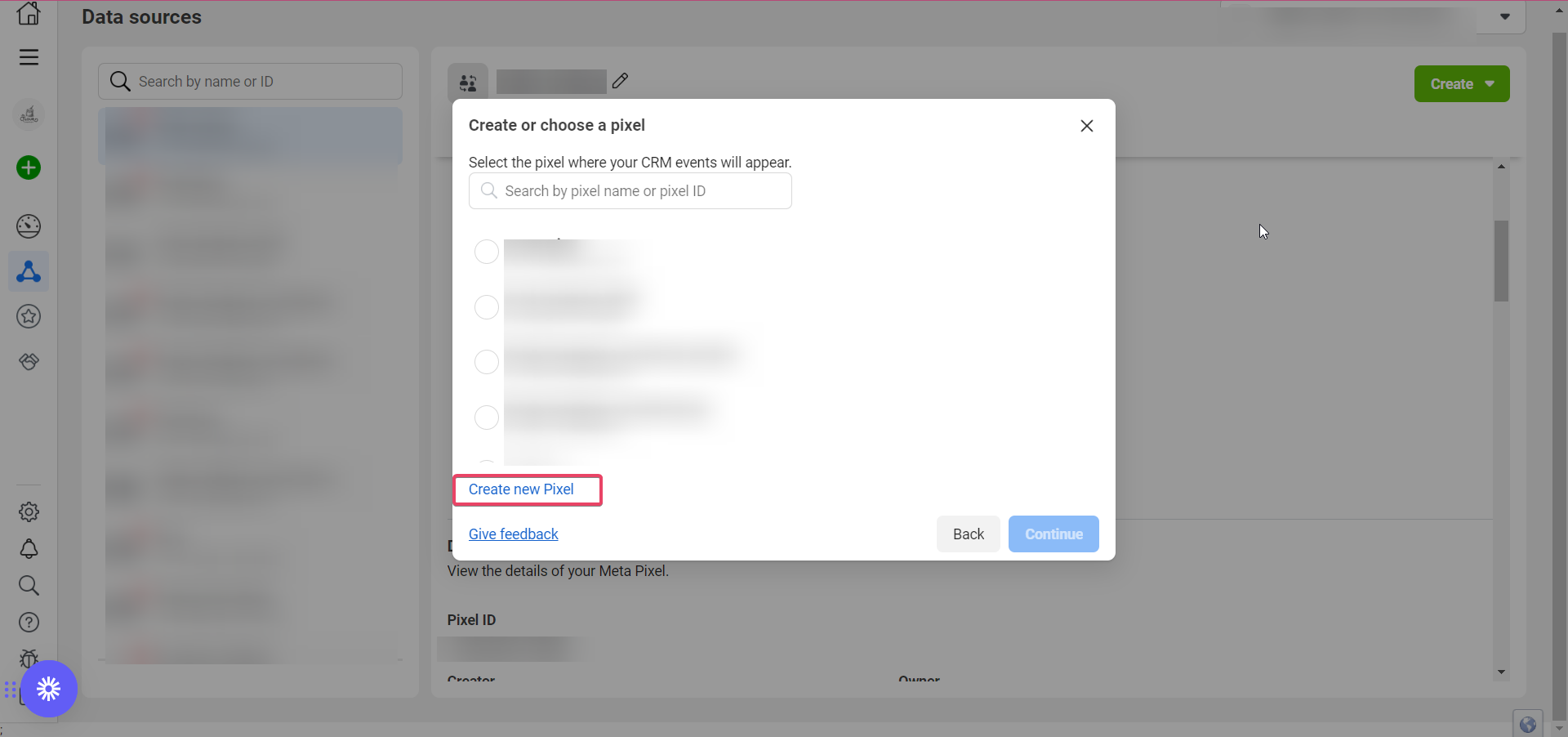
Create a Facebook pixel for Conversions API
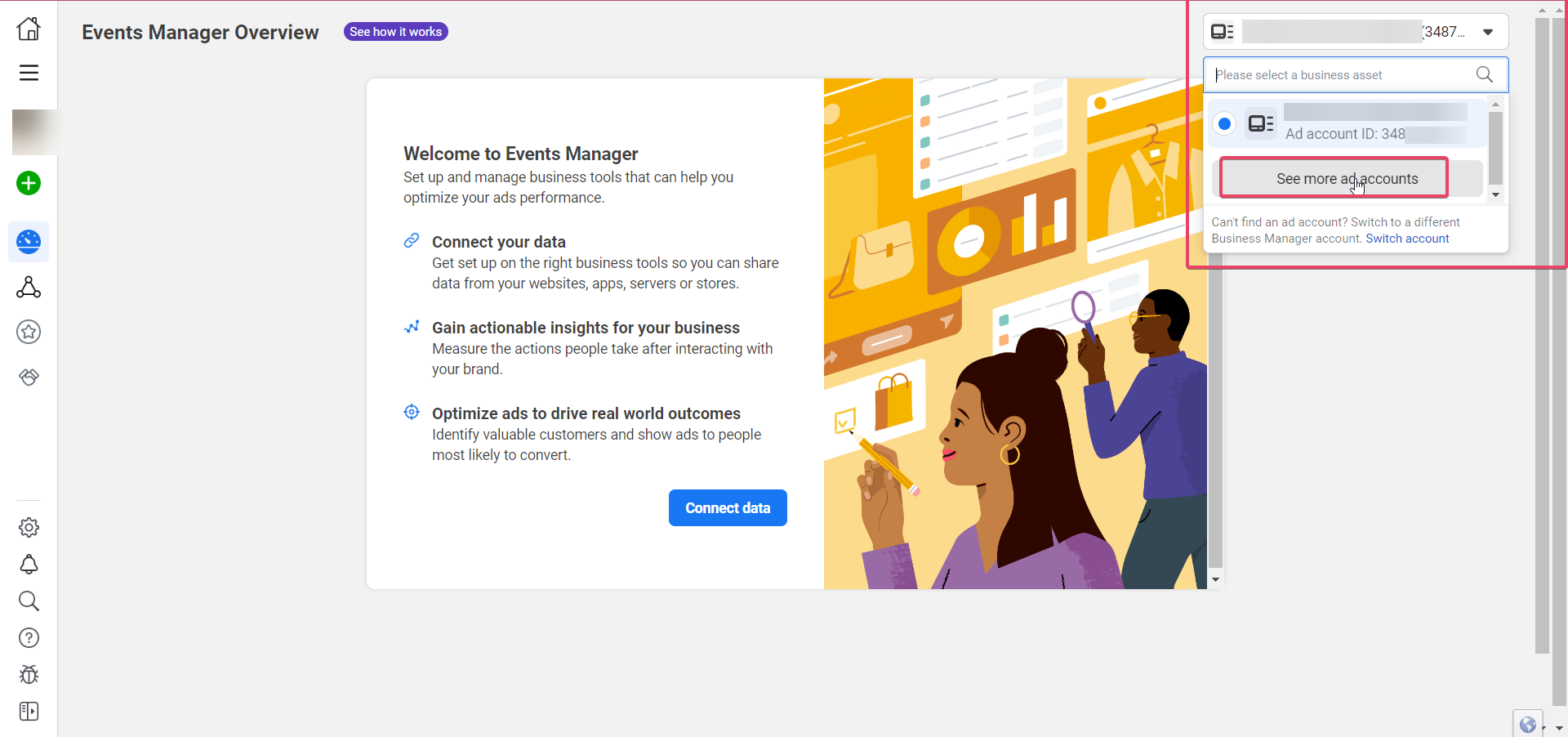
- Open Meta Business Suite and go to Events Manager.
- Verify you are linked to the correct ad account and have admin access to the Facebook page.
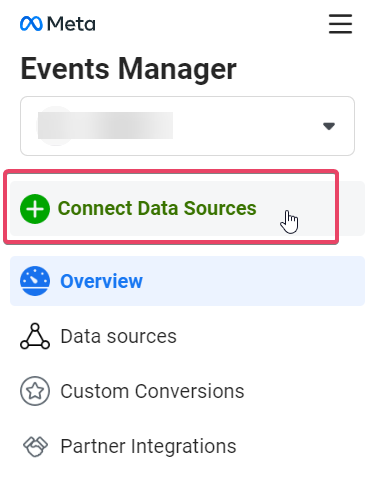
- In the left sidebar, select Connect Data Sources.
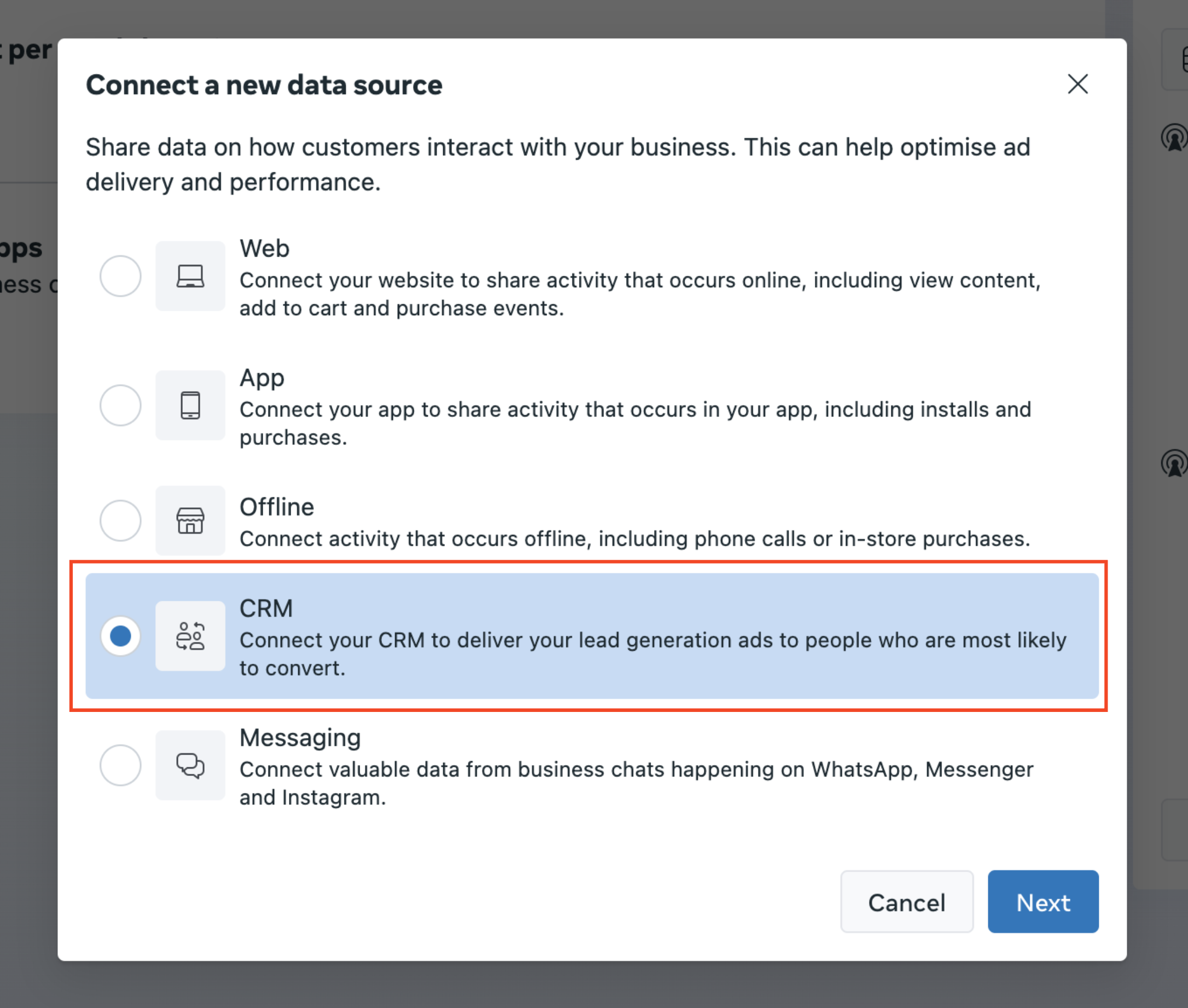
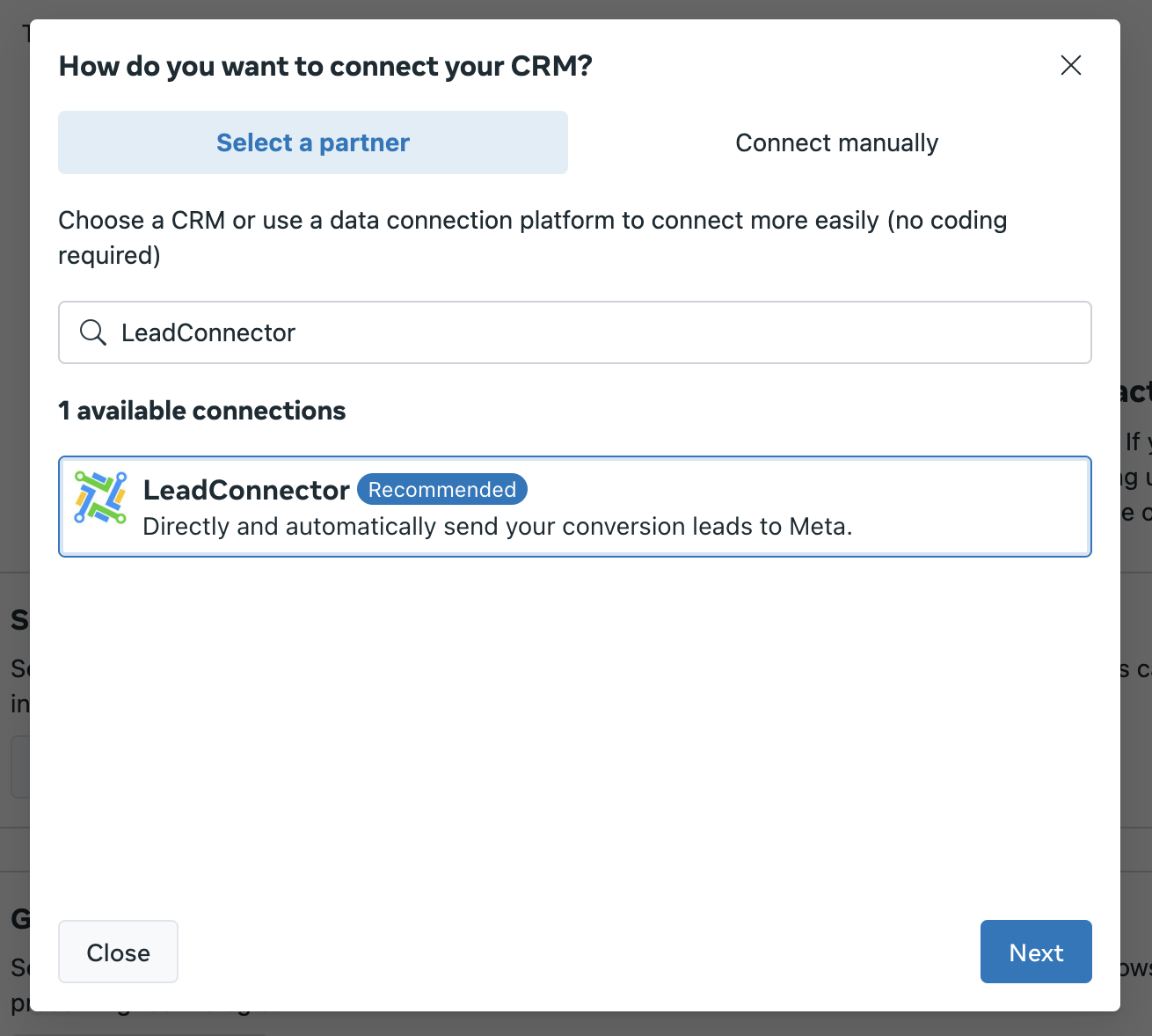
- Choose CRM as the data source and click Next.
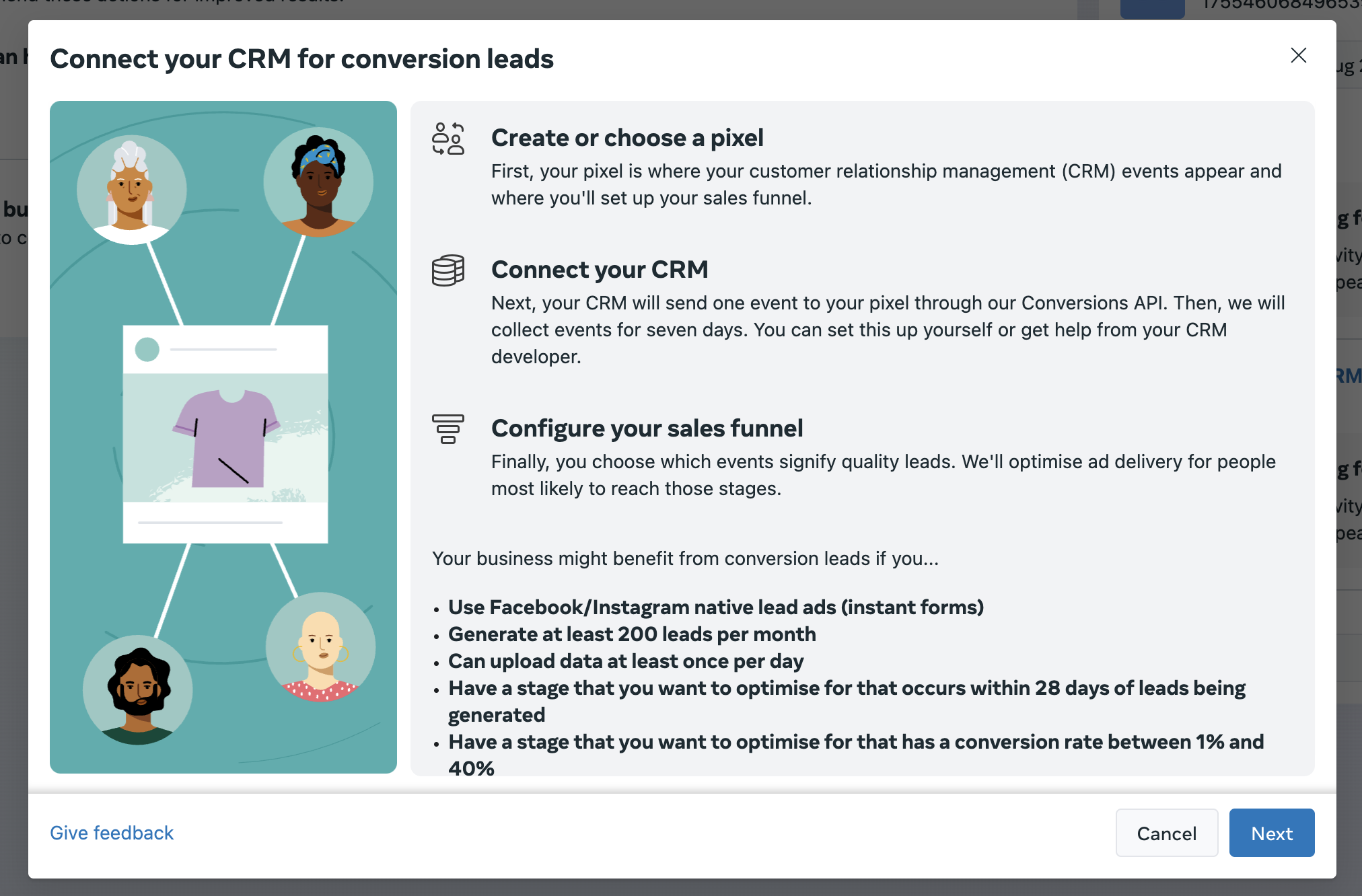
- Create a new pixel (or select an existing one), choose LeadConnector as HighLevel partner, and click Next.
Set up workflow 1: Create or update opportunity
- In HighLevel subaccount, navigate to Automations > Workflows and create a new workflow.
- Set the trigger to “Facebook Lead Form Submitted” and add a filter if you want a specific form.
- Add a “Meta Conversion API” action and enter the Access Token and Pixel ID obtained from Facebook Events Manager.
- Enable custom mapping if needed and specify the stage name for reporting.
- Add a “Create or Update Opportunity” action, select the target pipeline and stage, and map the opportunity name to the lead’s full name.
- Toggle “Allow Duplicate Opportunities”, then publish and save the workflow.
Set up workflow 2: Send conversion data to Facebook
- In Automations > Workflows, create a new workflow.
- Set the trigger to “Pipeline Stage Change”.
- Add a “Facebook Conversion API” action, select “Lead Event” as the event type, and enter the Access Token and Pixel ID from Facebook Events Manager.
- Use the tag icon to set the Stage Name to the appropriate pipeline and stage values.
- Save the action, then save and publish the workflow.
- Test the workflow with the Lead Ads Test Tool by creating a test lead from the selected form.
- Move the test lead to the configured pipeline stage, then verify execution status and the event in Facebook Events Manager.
- Remember that test events are not counted toward the required event volume.
07What it looks like in HighLevel
08Settings that matter
- Allow Duplicate Opportunities. Controls whether the workflow can create a new opportunity even if one with the same name already exists.
- Allow Multiple. Enables the workflow to run for multiple records that meet the trigger criteria.
- Custom Mapping. When toggled on, lets you map FBCLID for funnel events or Facebook Lead ID for lead events, overriding default values.
09Things to know before you rely on it
- At least 50 HighLevel events must be sent daily for seven consecutive days before Facebook accepts them as real events.
- A minimum of two pixel stages must have events configured.
- The integration works best when a business generates at least 250 leads per month.
- The stage you aim to optimize must occur within 28 days of lead creation and have a conversion rate between 1 % and 40 %.
- Test events are not counted toward the required event volume.
10If something goes wrong
- Workflow stuck at “Wait for seven days of HighLevel events”.. Send real data to the pixel daily, ensure at least 50 events are recorded over seven days, and make sure two stages in the pixel have events.
11How it connects to the rest of HighLevel
- Details on troubleshooting Facebook lead ads integration. Facebook lead ads troubleshooting
- How to set up a funnel event pixel for the Conversions API. Funnel event pixel setup
- Using the Facebook Conversions API trigger inside HighLevel workflows. API trigger in workflows
Michael's take

If the FBCLID is not stored, Meta may not be able to properly match the conversion event. Capture the click ID as soon as the lead lands in HighLevel and map it in the workflow before the stage change fires.
If I were setting this up, I’d start with the pixel creation, then build the two workflows exactly as described, testing each step with the Lead Ads Test Tool. Once the dummy lead moves through the pipeline and shows up in Events Manager, I’d feel confident the integration is reliable.