
01Who this is for
- Marketing agencies benefit because they can capture client ad leads automatically and feed them into client pipelines.
- Real estate teams gain a hands free way to collect property interest leads from Facebook ads and start follow up sequences.
02Facebook integration, explained
The integration creates a live link between a Facebook Business Page and a HighLevel subaccount. When a visitor submits a Facebook Lead Ad, the data is pushed into the platform in real time. The feature lives under Settings > Integrations, where a Facebook Instagram card provides the connection point. A Labs toggle enables support for multiple Facebook accounts. Sync options let you choose between importing all historical leads or only leads generated after the connection is made. Messaging toggles let you turn on or off chat access for Facebook and Instagram. Once linked, the Facebook Lead Form Submitted trigger can launch automated email, SMS or task sequences.
03How businesses use the Facebook integration
- Real estate brokerage. The brokerage connects its Facebook advertising Page, maps lead fields to contact records, and sets a workflow to assign new property interest leads to an agent. Each lead appears right away in the platform without manual export.
- Online yoga studio. The studio links its Facebook Page, selects the New Leads Only sync option, and creates a workflow that sends a welcome email and adds the lead to a class interest list. Instagram messaging can also be enabled for appointment chat.
- Car dealership. The dealership adds multiple Facebook Pages through Marketplace, maps each page’s form fields, and activates the messaging toggles. Lead forms from all locations sync to the same platform, allowing a single workflow to schedule test drive follow ups.
04Before you start
- You must have Admin access to the Facebook Page and its Business Manager.
- For multiple account support, the Labs feature "Facebook marketplace migration & multiple account support" must be enabled.
05How to set up and use the Facebook integration in HighLevel
Connect a Facebook page to a HighLevel subaccount
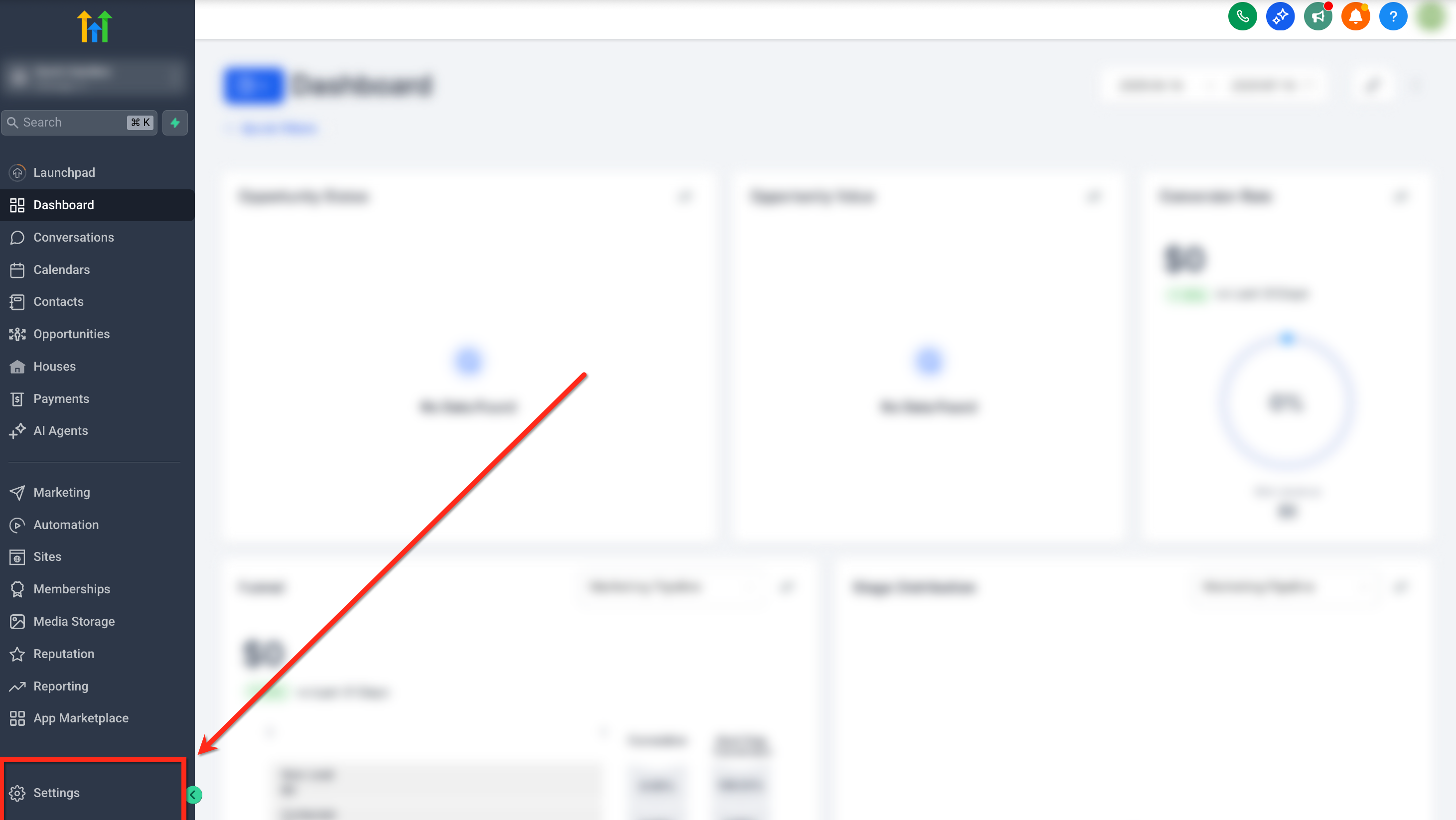
- Open Settings using the icon in the bottom left corner.
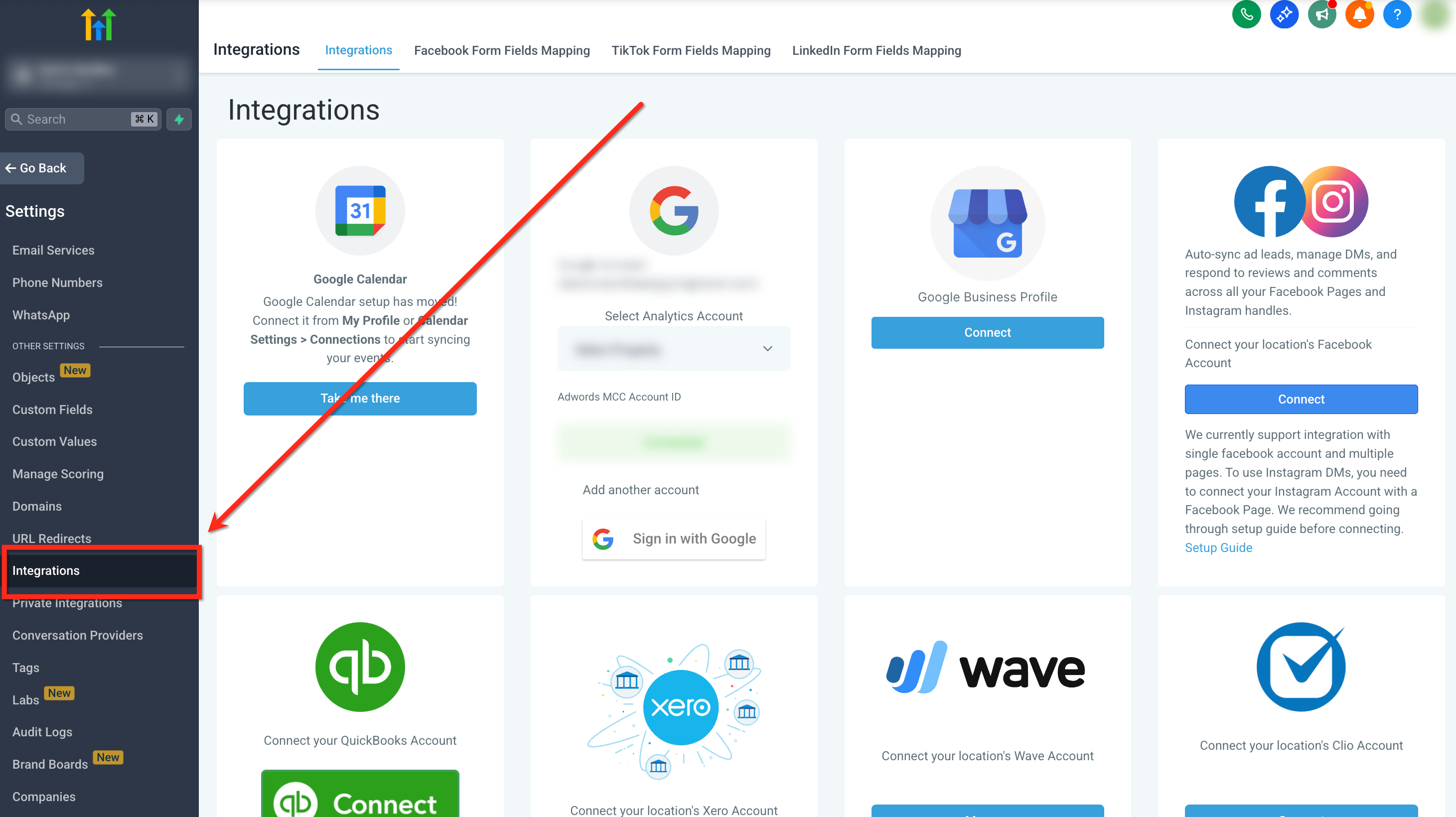
- In the Settings menu, scroll down and select Integrations.
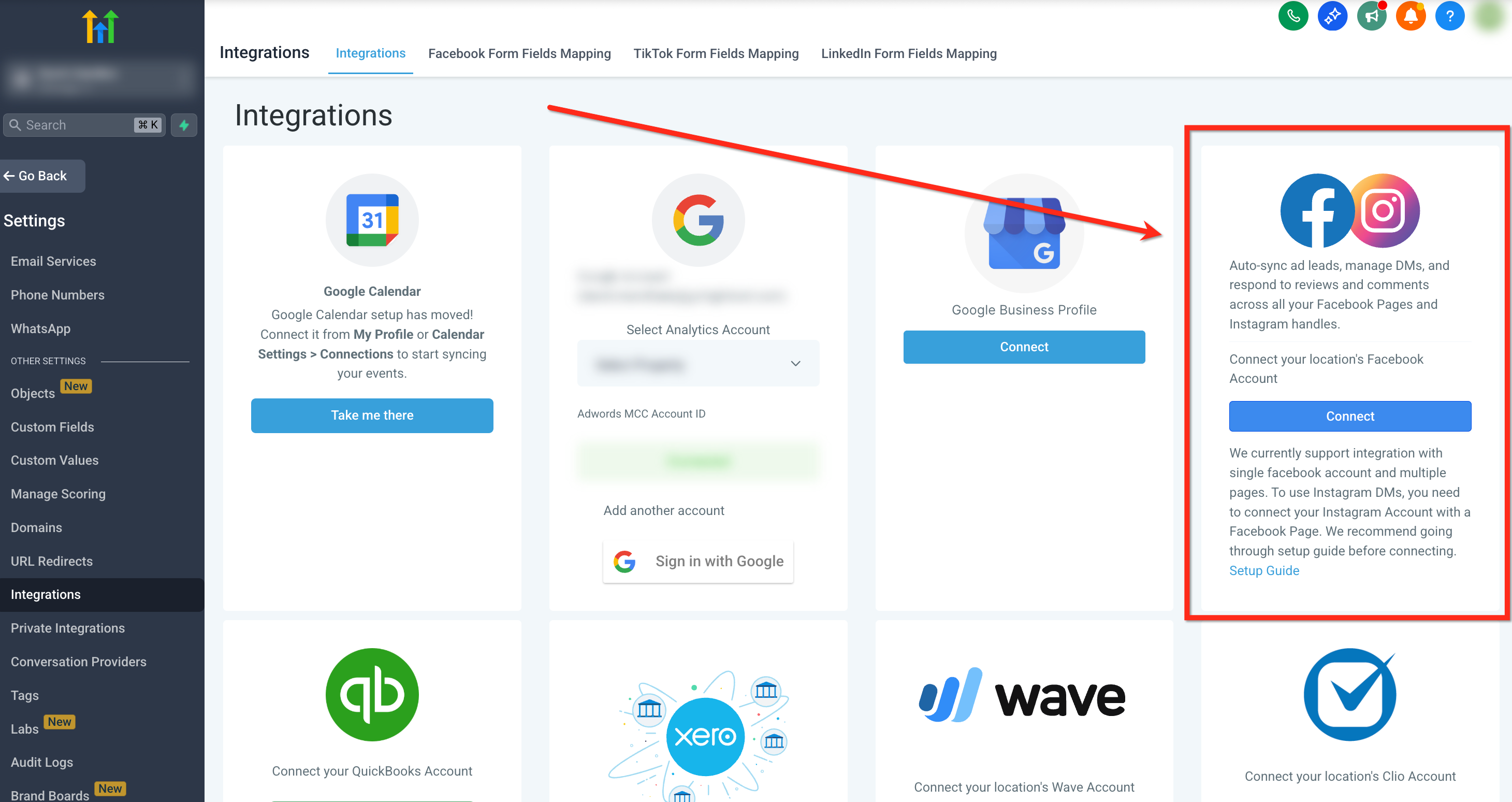
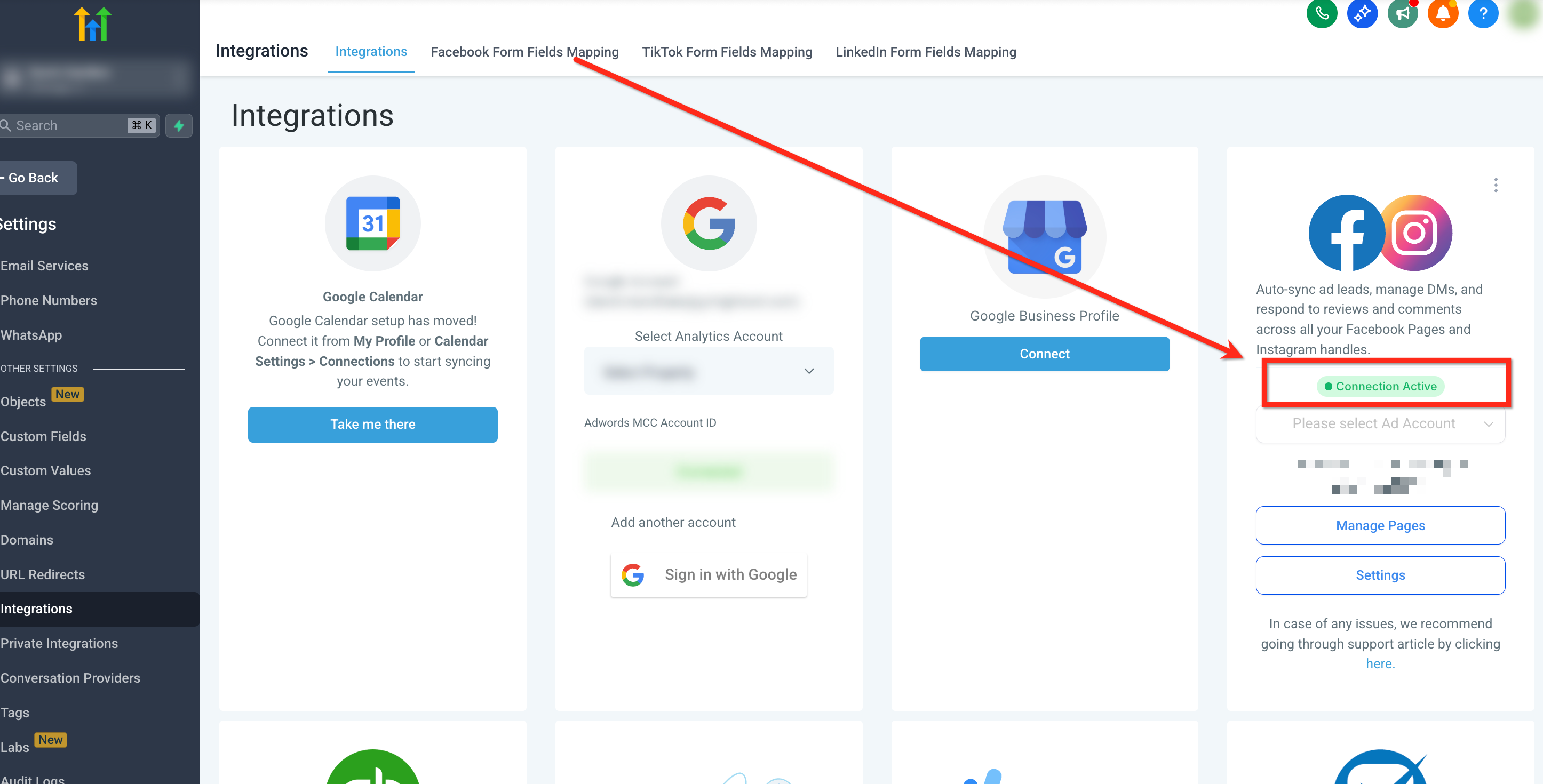
- Find the Facebook Instagram card at the top right of the Integrations screen and click Connect.
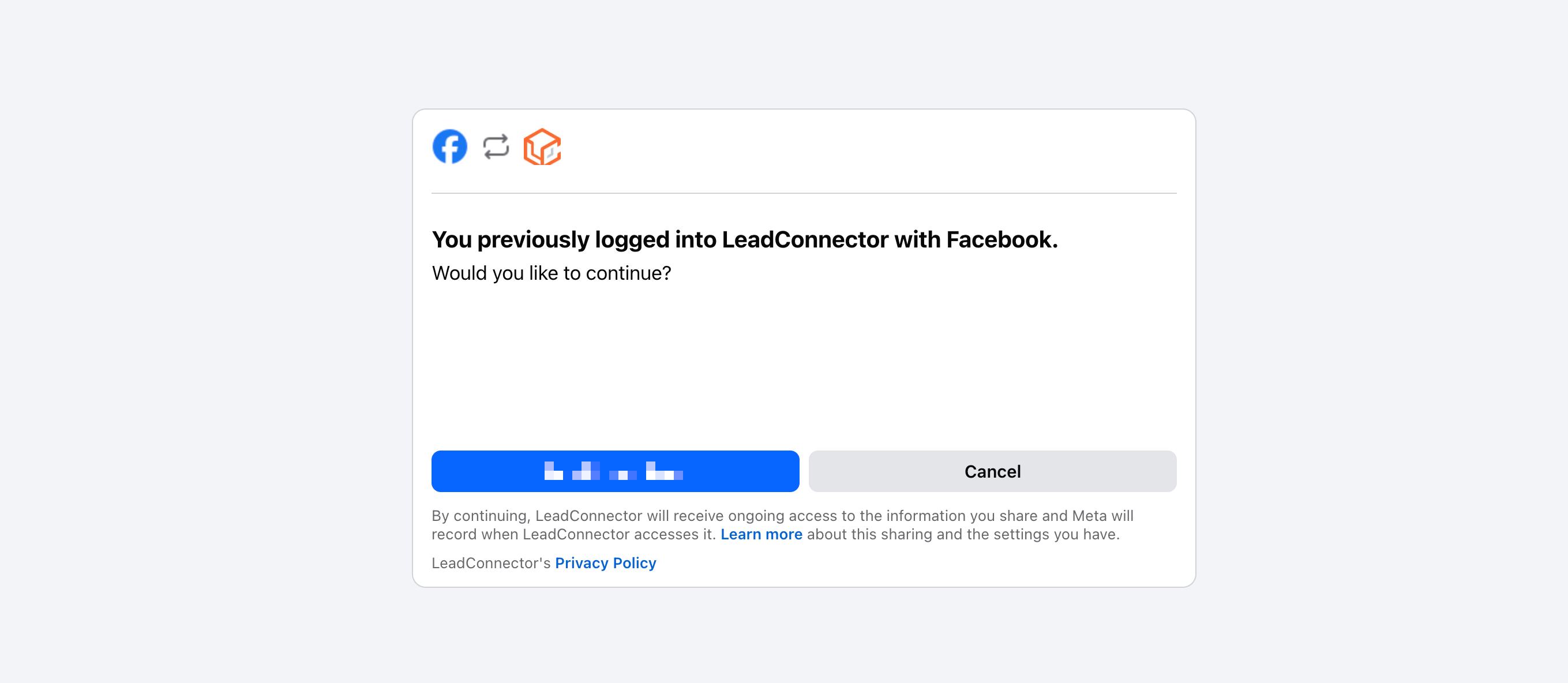
- Log into the desired Facebook account in the pop up window.
- Approve all requested permissions, especially access to leads and page data.
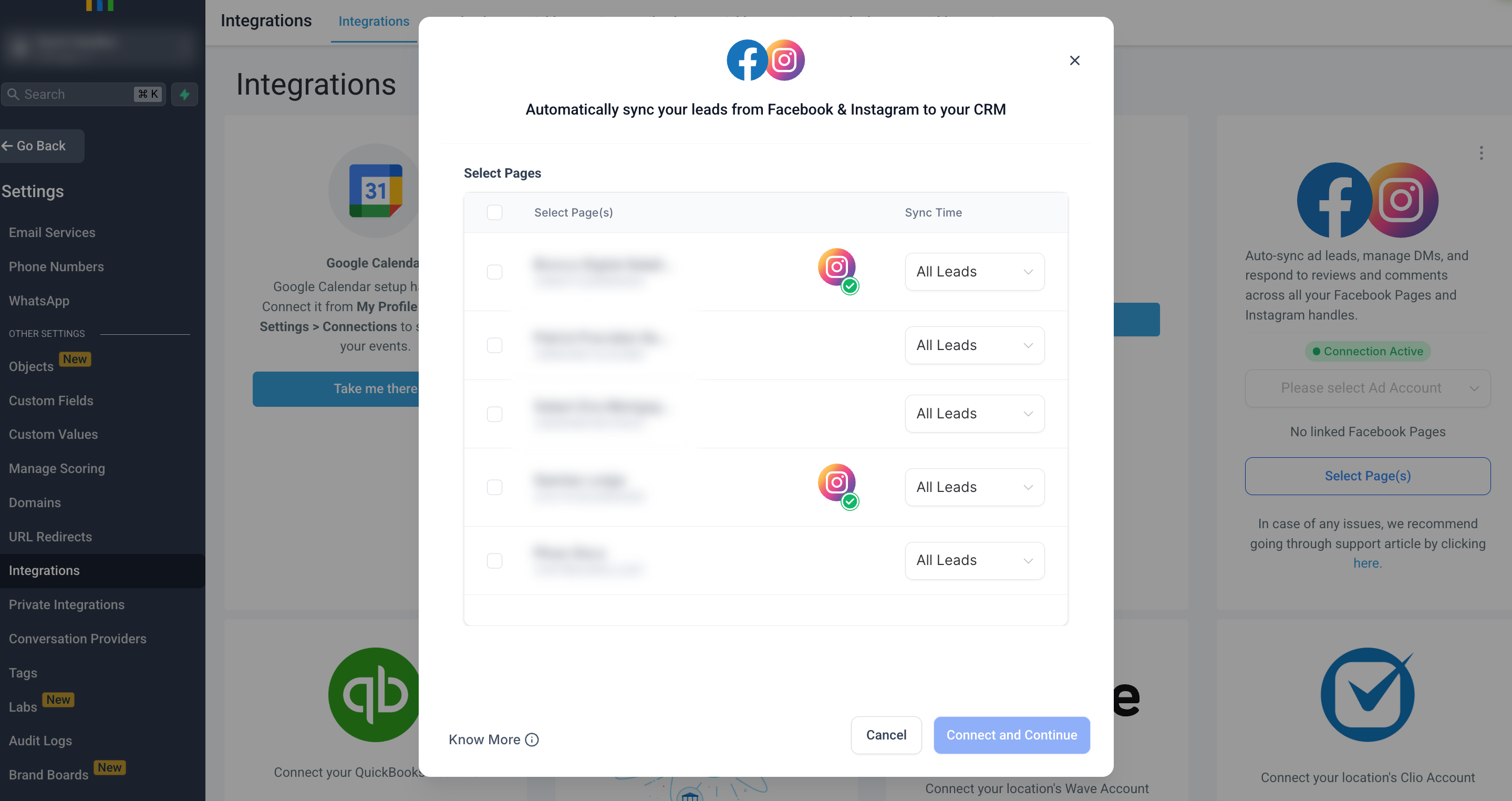
- Choose the Facebook Page you want to sync.
- Select a sync preference, either All Leads or New Leads Only.
- Click Connect and Continue to finalize the integration.
- A green banner will appear confirming the integration was successful.
- Map each Facebook form field to the corresponding platform field.
Connect multiple Facebook accounts via Marketplace
- Open Labs and turn on Facebook marketplace migration & multiple account support.
- Navigate to Settings > Integrations / Marketplace and open the Facebook integration.
- Select the External Connection tab.
- Press Add Account.
- Sign in to Facebook and grant the required permissions.
- Choose the Facebook Pages you want to connect for this account.
- Repeat the sign in and page selection steps to add additional Facebook accounts.
- Open Manage Facebook Account.
- Pick a Facebook account from the dropdown menu.
- Open Manage pages.
- Select the required Pages and click Save.
- Open the Messaging tab.
- Review the connected Facebook Pages.
- Use the Facebook and Instagram toggles to enable or disable messaging for each Page.
- Open Manage forms.
- Select the Facebook Page whose lead forms you wish to handle.
- Review the list of lead forms, their field mappings and sync status.
- Click Refresh forms whenever you need to update the form list.
06What it looks like in HighLevel
07Settings that matter
- Facebook marketplace migration & multiple account support. Activates the ability to add and manage several Facebook accounts within one subaccount.
- Sync preference. Controls whether the integration pulls in all historical leads or only new leads submitted after connection.
- Facebook and Instagram messaging toggles. Turns chat functionality on or off for each connected Facebook Page and its linked Instagram Business account.
08Things to know before you rely on it
- Shops and Ad Accounts can be linked to only a single Facebook account.
- Facebook assets that appear depend on the permissions granted during the authorization flow.
- Search for Facebook Pages becomes available only after the pages finish loading because Meta does not provide native search in that step.
- Multiple Facebook accounts support is currently in Labs and may be subject to change.
09If something goes wrong
- Page not visible during integration. Check that you have Admin rights to both the Facebook Page and its Business Manager, then try the connection again.
- Facebook token expires. When the reconnection prompt appears, follow the token renewal steps provided in the Facebook token expiration guide.
10How it connects to the rest of HighLevel
- Details on Facebook Lead Ads integration and troubleshooting Lead Ads guide
- How to integrate multiple Facebook Pages in a subaccount Multiple pages
Michael's take

Facebook integration is a solid choice for anyone who wants leads flowing straight from ads into their CRM.
If you don’t run Facebook ads or don’t need automated lead capture, you can skip this feature.