
01Who this is for
- Founders of startups that run Facebook ad campaigns and need leads entered without manual entry.
- Small business owners who manage a single Facebook page and want leads to appear in HighLevel.
- Marketing agencies that handle multiple client pages and require separate subaccounts for each client’s leads.
02Facebook lead ads integration, explained
The integration captures lead data from Facebook Lead Ads and pushes it into the selected HighLevel subaccount. When a prospect submits a form on Facebook, HighLevel creates a new contact using the mapped custom fields. The platform then makes the lead available for workflows, pipelines, and follow up messages.
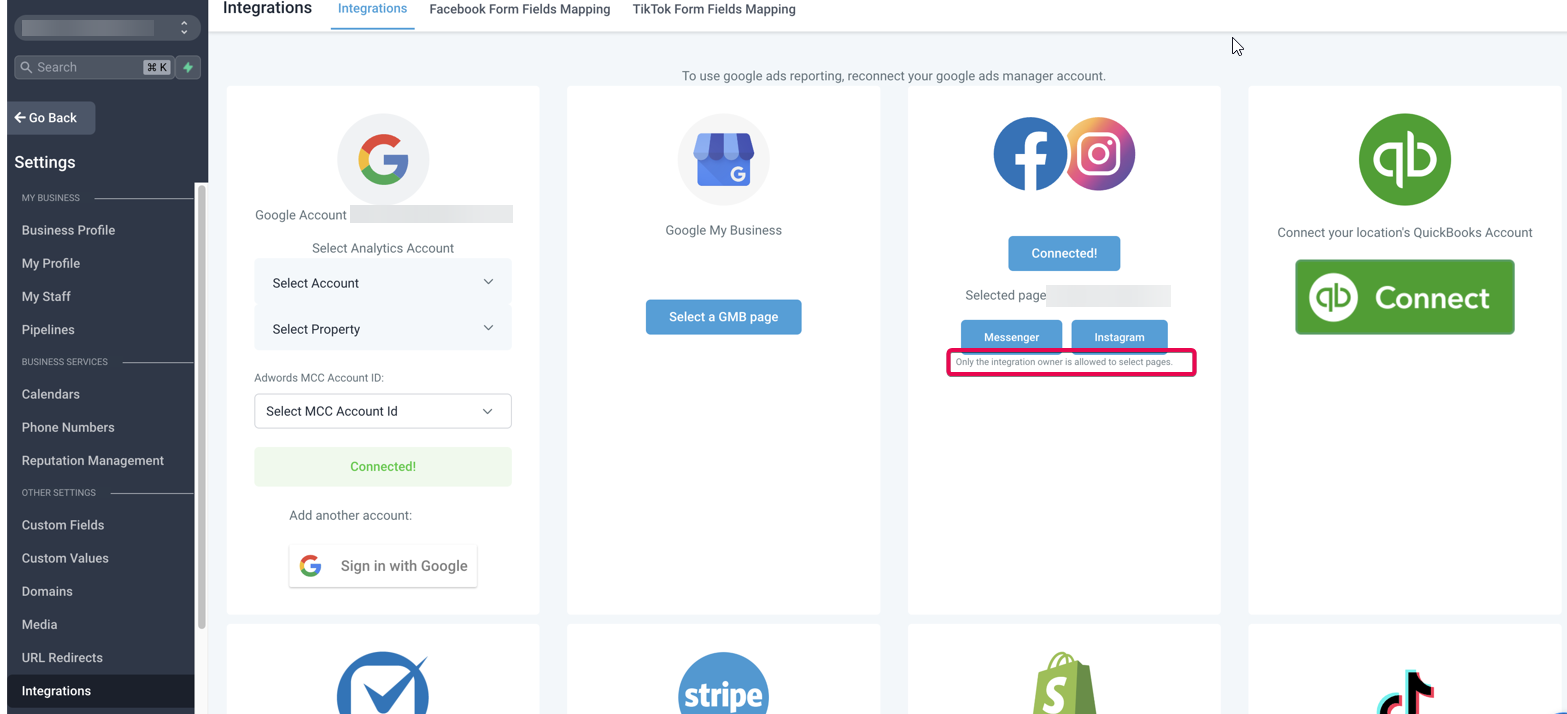
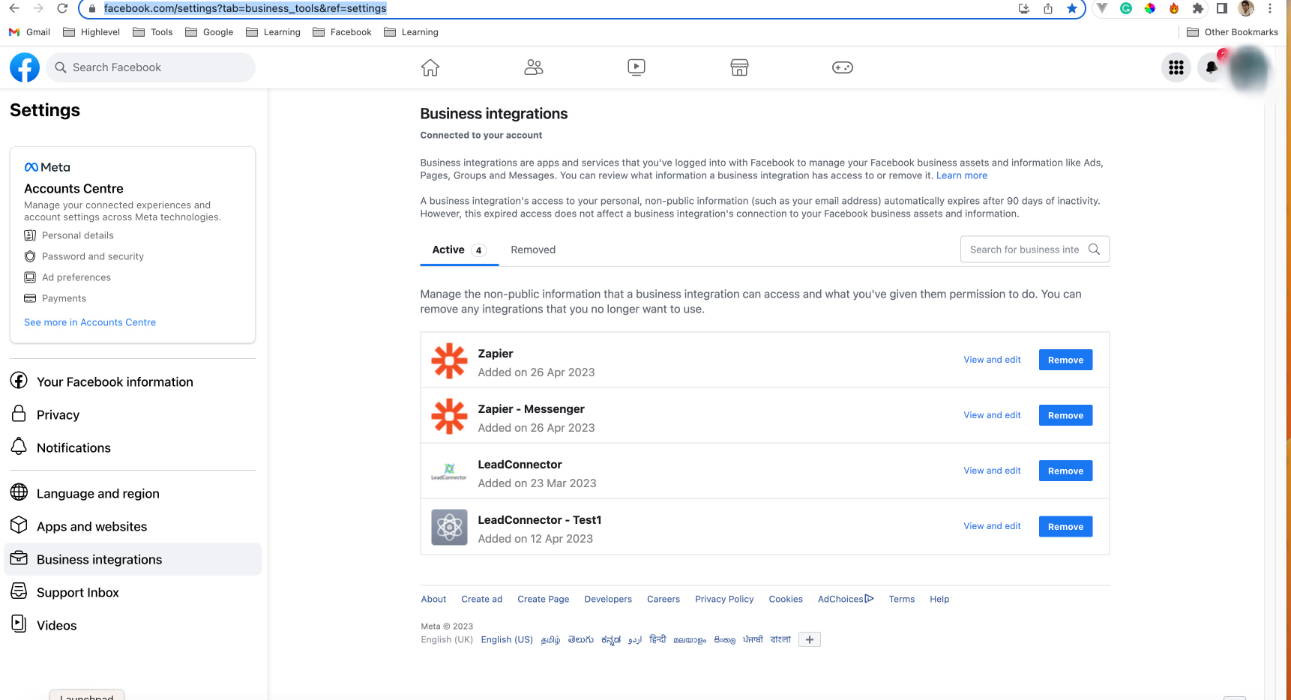
Integration settings live under each location’s Settings > Integrations > Facebook Form Field Mapping. Only the user who performed the integration can see the Facebook page in the dropdown, and that user must be an admin of the page. LeadConnector must also have Lead Access permission inside Facebook Business Manager.
If the Facebook token expires, the connection breaks and a notification is sent. Re authenticating the page restores the flow. Permissions, page ownership, and ad account alignment are required before the integration can be activated.
03How businesses use Facebook lead ads integration
- Dental practice. The practice adds its Facebook page in Settings > Integrations > Facebook Form Field Mapping, selects the lead form, and maps fields such as phone and email to contact records. New patient inquiries appear automatically in HighLevel for scheduling follow up calls.
- Online course provider. The provider assigns LeadConnector lead access permission in Business Suite, then reconnects an expired token following the five step reconnection flow. Leads from Facebook ads populate the platform, triggering enrollment workflows.
- Local real estate agency. Agents use the direct integration steps to link their agency’s Facebook page to a subaccount, map address and price fields, and have each new property inquiry right away recorded for assignment to the appropriate salesperson.
04The numbers and rules that matter
- Supported Custom Fields: TEXT, LARGE_TEXT, NUMERICAL, PHONE, MONETARY, SINGLE_OPTIONS, DATE, DROPDOWN, RADIO OPTIONS, CHECKBOX.
05Before you start
- User must have admin or employee role in Facebook Business Manager.
- User must own both the Facebook page and the ad account used for the lead form.
- LeadConnector must be granted Lead Access permission in the Facebook Business settings.
06How to set up and use Facebook lead ads integration in HighLevel
Directly integrate Facebook Leads Ads with a Subaccount
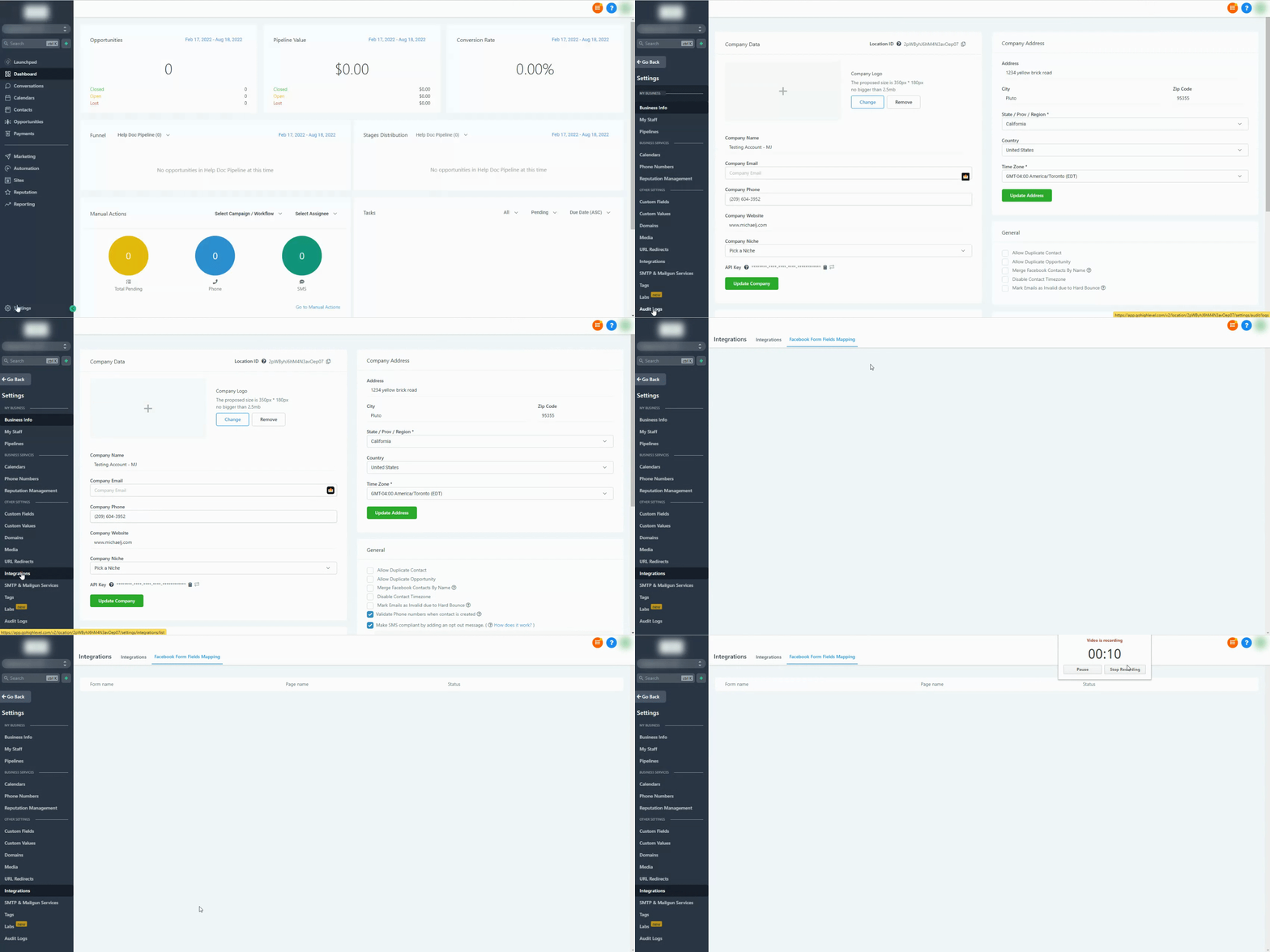
- Open the subaccount where the leads should be stored.
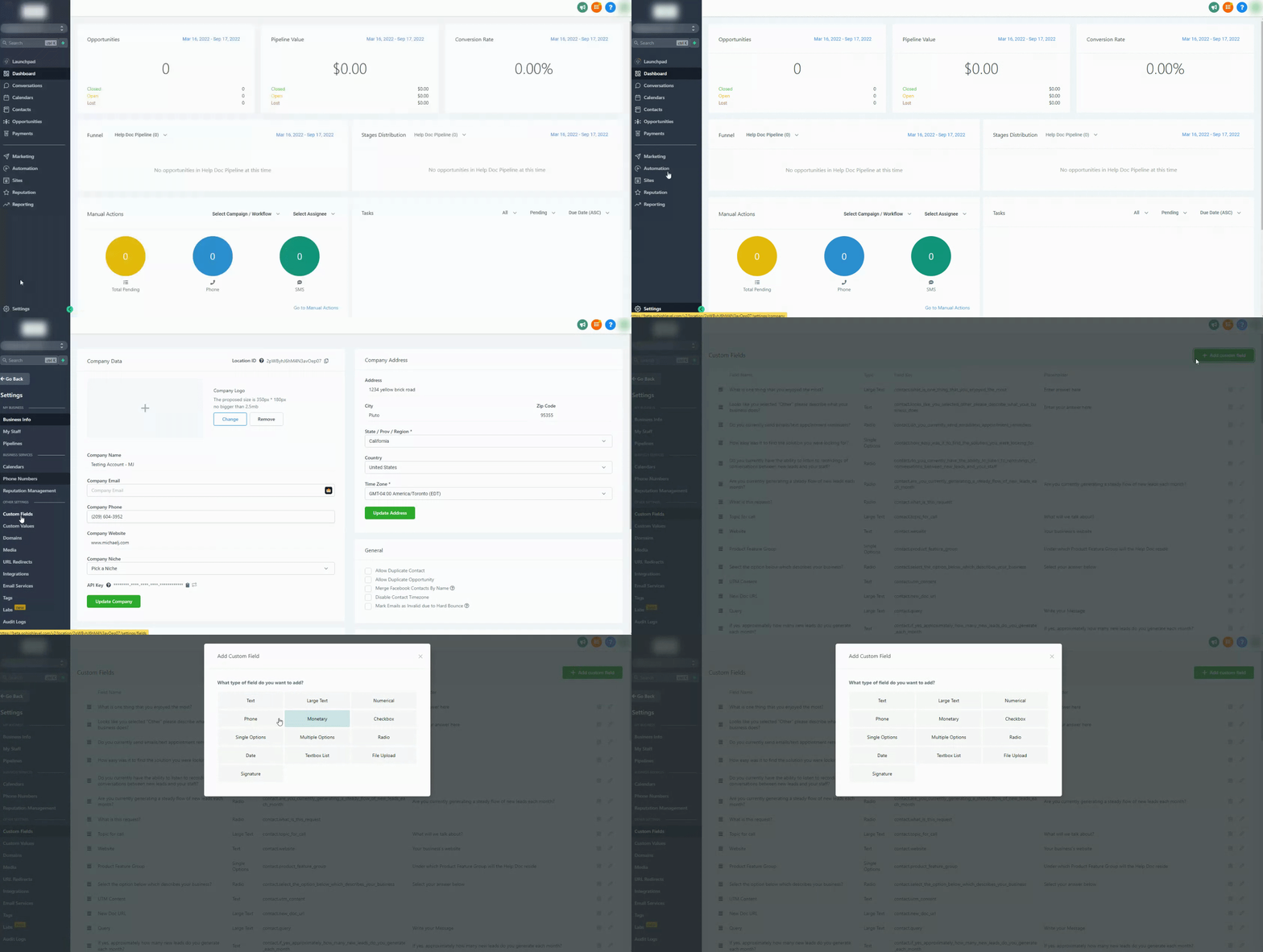
- Click Settings in the left navigation menu.
- Choose Integrations from the Settings submenu.
- Select Facebook Form Field Mapping.
- Pick the Facebook page you administrate and confirm the field mapping.
Reconnect an expired Facebook token
- Select the account named in the expiration email from the Switch To An Account dropdown.
- In the left sidebar, click Settings.
- From the Settings menu, choose Integrations.
- Click the Connected button under the Facebook icon to disconnect, then click Connect again.
- In the pop up, continue as yourself, choose the Facebook page to reconnect, and click Connect Page.
Assign LeadConnector lead access permissions
- Open Business Suite and navigate to Business Settings.
- Select your business from the top left dropdown if not already selected.
- Click Settings at the bottom left, then More Business Settings.
- Choose Integrations in the left menu and open Leads Access.
- Click Assign CRMs to view integrated options.
- Check the circle next to LeadConnector.
- Press Assign to grant permission.
- Confirm that the Page Admin who granted access retains their own access.
07What it looks like in HighLevel
08Settings that matter
- Facebook Form Field Mapping. Controls which Facebook lead form fields are linked to HighLevel custom fields so incoming lead data populates the correct contact attributes.
- LeadConnector Lead Access. Determines whether LeadConnector can read lead data from the Facebook page; required for the integration to pull leads into HighLevel.
09Things to know before you rely on it
- Only the user who performed the Facebook page integration can view that page in the dropdown list.
- The integration requires the user to be an admin of the Facebook page; other users will not see the page.
- Facebook tokens naturally expire after a period of time, requiring re authentication.
- If the page moves to the New Pages Experience, admin access must be granted through Business Manager.
10If something goes wrong
- Lead Ads are not appearing in the subaccount. Confirm you are an admin of the Facebook page, verify the correct lead form is selected in Ads Manager, ensure a blue check appears next to the form in Settings > Integrations > Facebook Form Field Mapping, and test with the Facebook Lead Ads testing tool.
- Facebook token has expired. Follow the five step reconnection procedure to disconnect and then reconnect the Facebook page under Settings > Integrations.
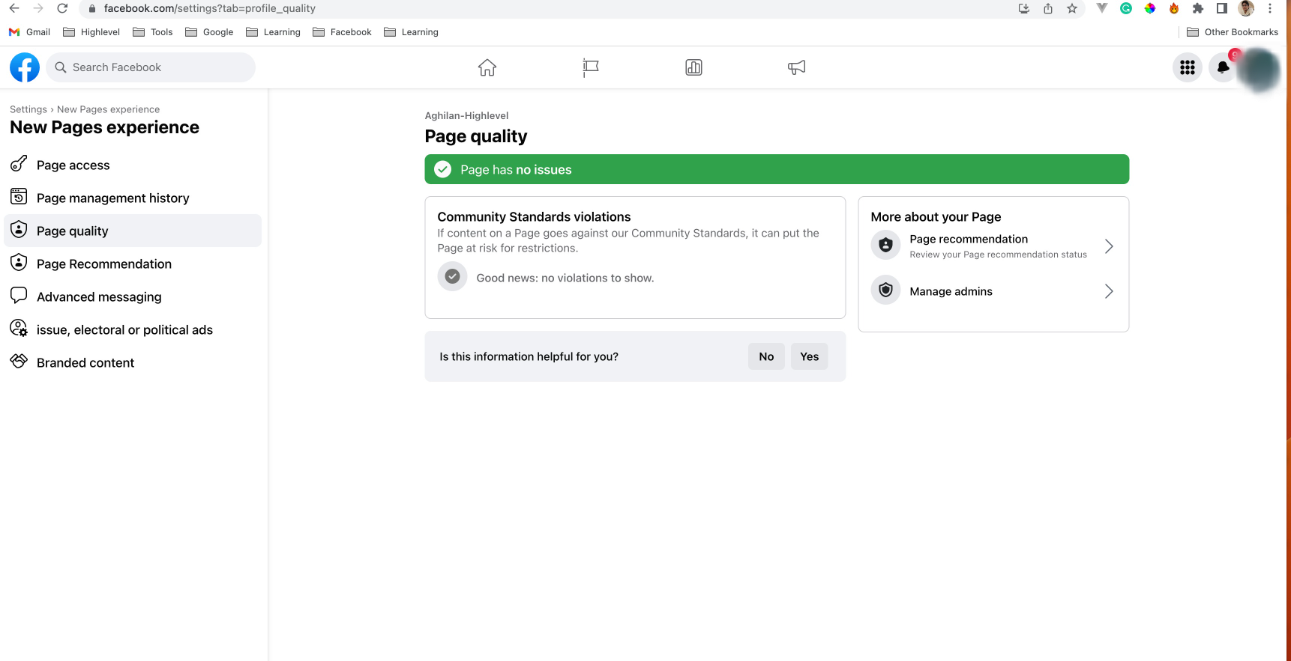
- Page quality issue. Open the Facebook page link provided in the article and submit a support ticket to Facebook.
- Permission issue preventing lead or message fetch. Visit the Facebook permission links in the article and ensure all required permissions are enabled for the page.
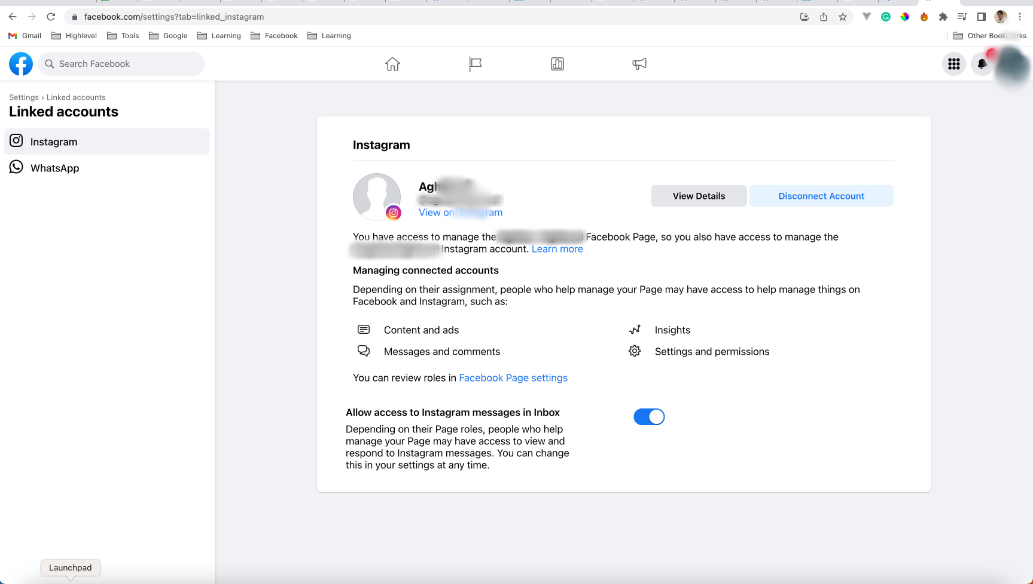
- Instagram messages not syncing. Verify the Instagram account is linked to the Facebook page, ensure messaging is enabled, and perform a hard reset before reconnecting.
- Leads not syncing at all. Check that the user is added as employee or admin, confirm page admin status, verify ad account ownership matches, and restore default access in LeadConnector settings.
11Facebook troubleshooting: Lead ad debugging in HighLevel
Lead ad debugging in HighLevel identifies issues with Facebook lead ad data and connections, allowing businesses to ensure leads are captured accurately.
Lead ad debugging in HighLevel checks the flow of data from Facebook lead ads into your system. It looks for errors that stop leads from arriving where they should.
When a problem is found, the tool pinpoints the step that failed, so you can correct the setting or mapping. This keeps your lead funnel running smoothly.
12How it connects to the rest of HighLevel
- Guide to Facebook conversion leads integration Facebook conversion leads
- How to set up a funnel event pixel for Facebook Conversion API Funnel event pixel
- Adding Facebook Conversion API actions to HighLevel workflows Conversion API in workflows
- HighLevel pricing and plans Pricing
- Start a 30 day HighLevel trial Free trial
Michael's take

Setting up the Facebook Lead Ads integration can save time on manual data entry, especially if you already run Facebook campaigns.
If you rarely use Facebook ads, the integration may provide limited benefit compared to the effort required to maintain permissions and token refreshes.