
01Who this is for
- Small business owners with multiple locations can capture leads from each location’s Facebook page.
- Influencers who run several fan pages can answer messages without switching accounts.
- Marketing agencies that manage client pages can keep lead data separate while using a single HighLevel dashboard.
02Multiple Facebook pages, explained
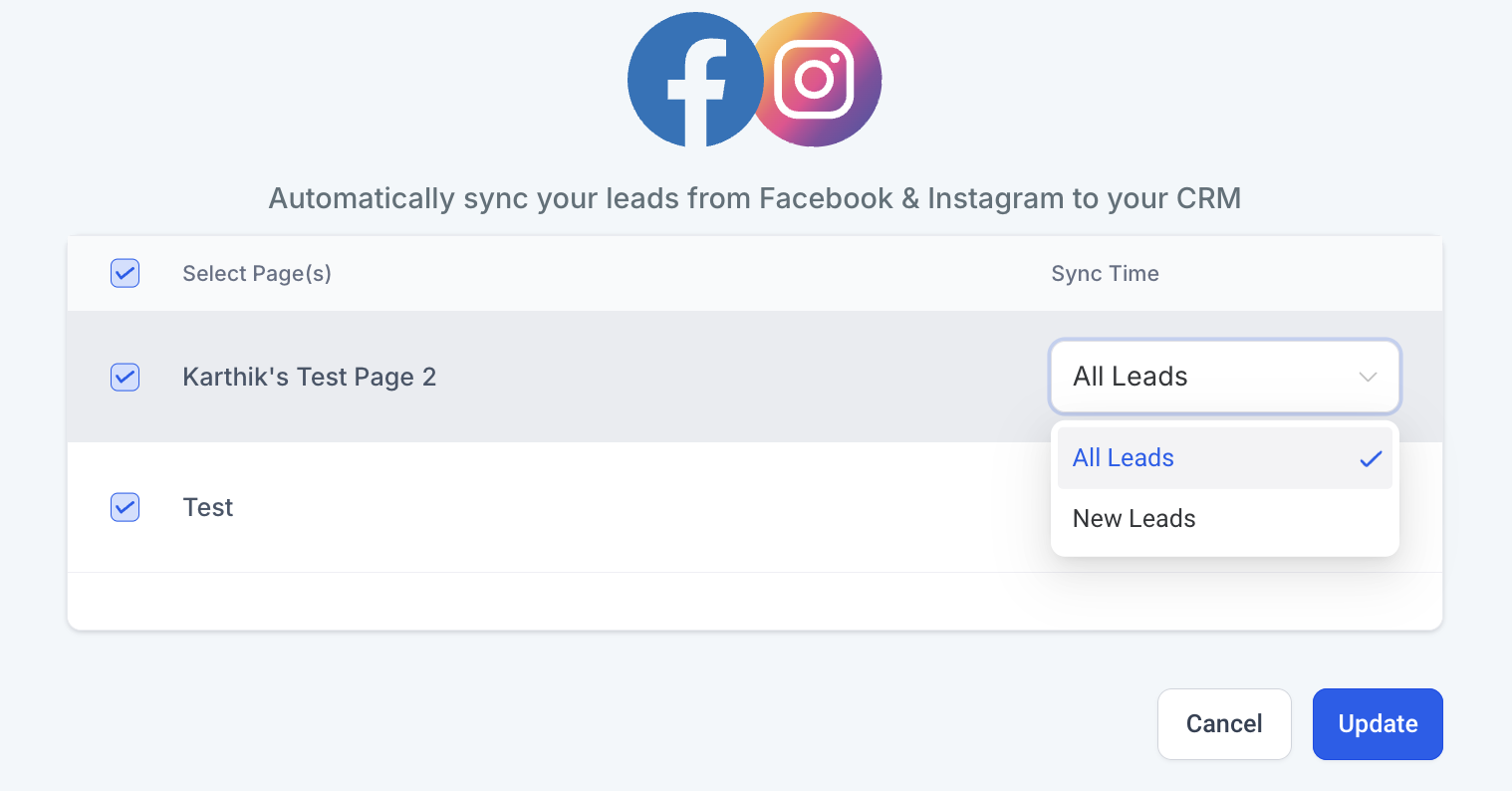
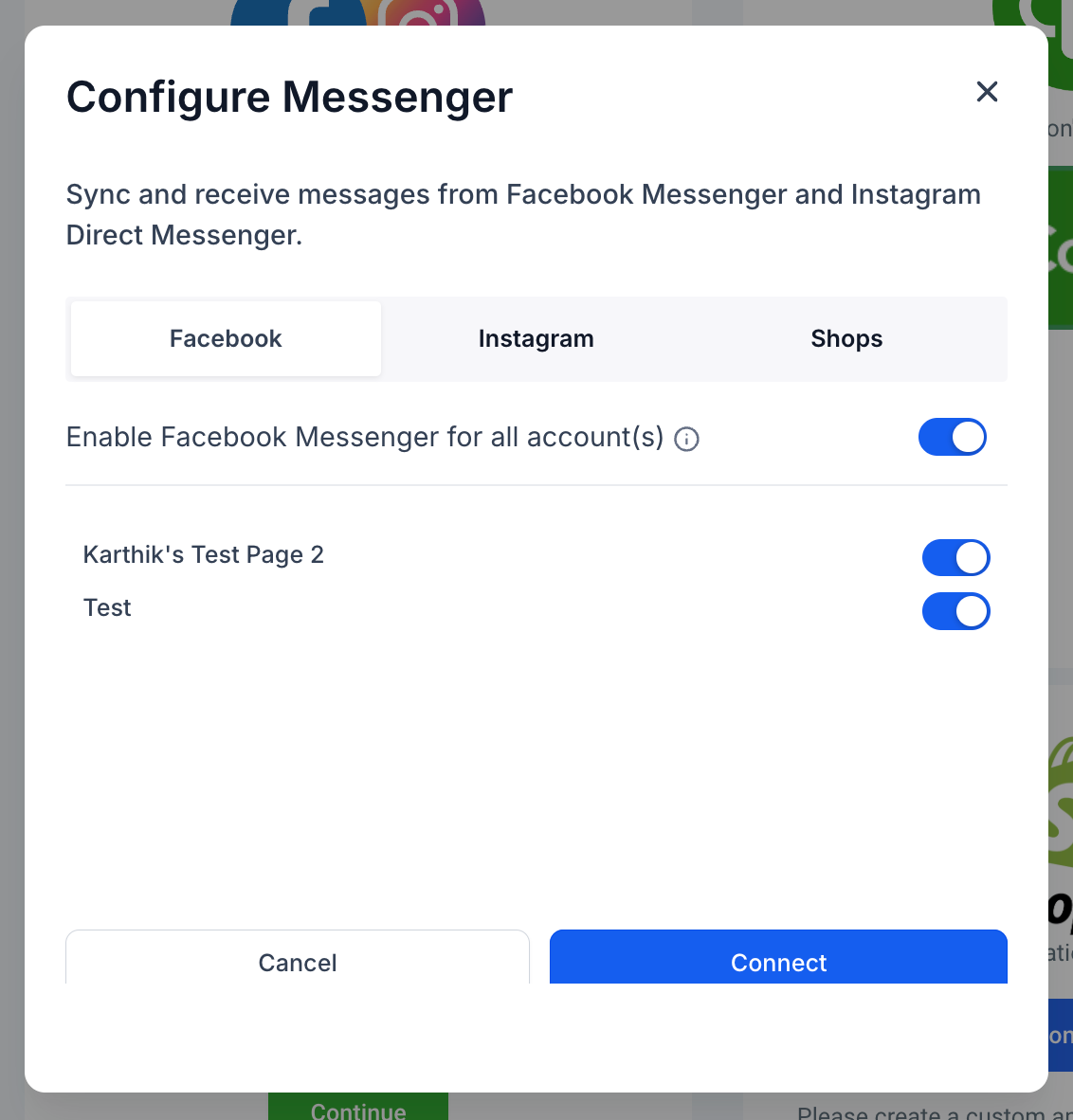
HighLevel now permits several Facebook accounts to be attached to a single subaccount. Each account may contain multiple pages, expanding the previous limit of one account with many pages.
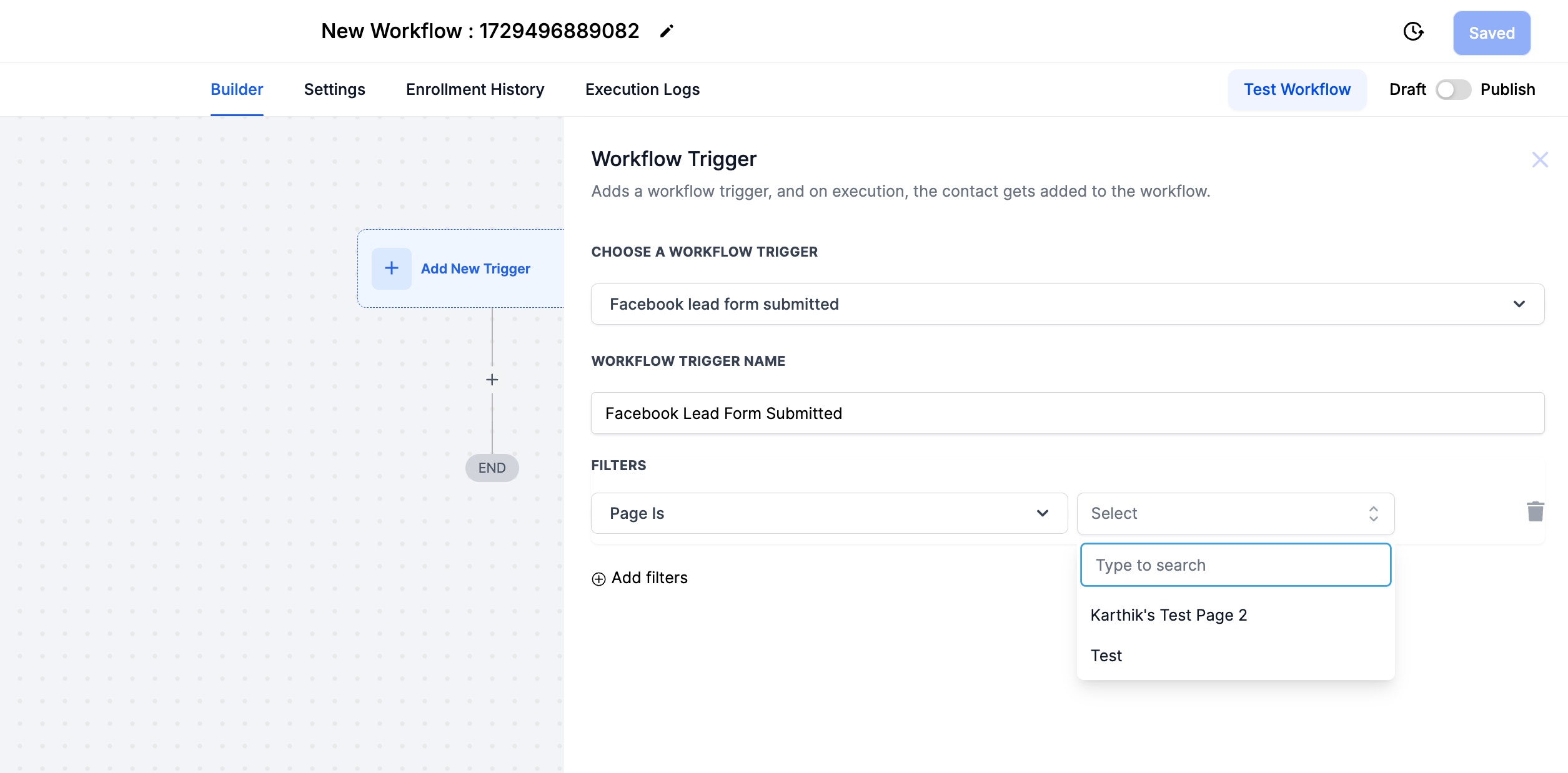
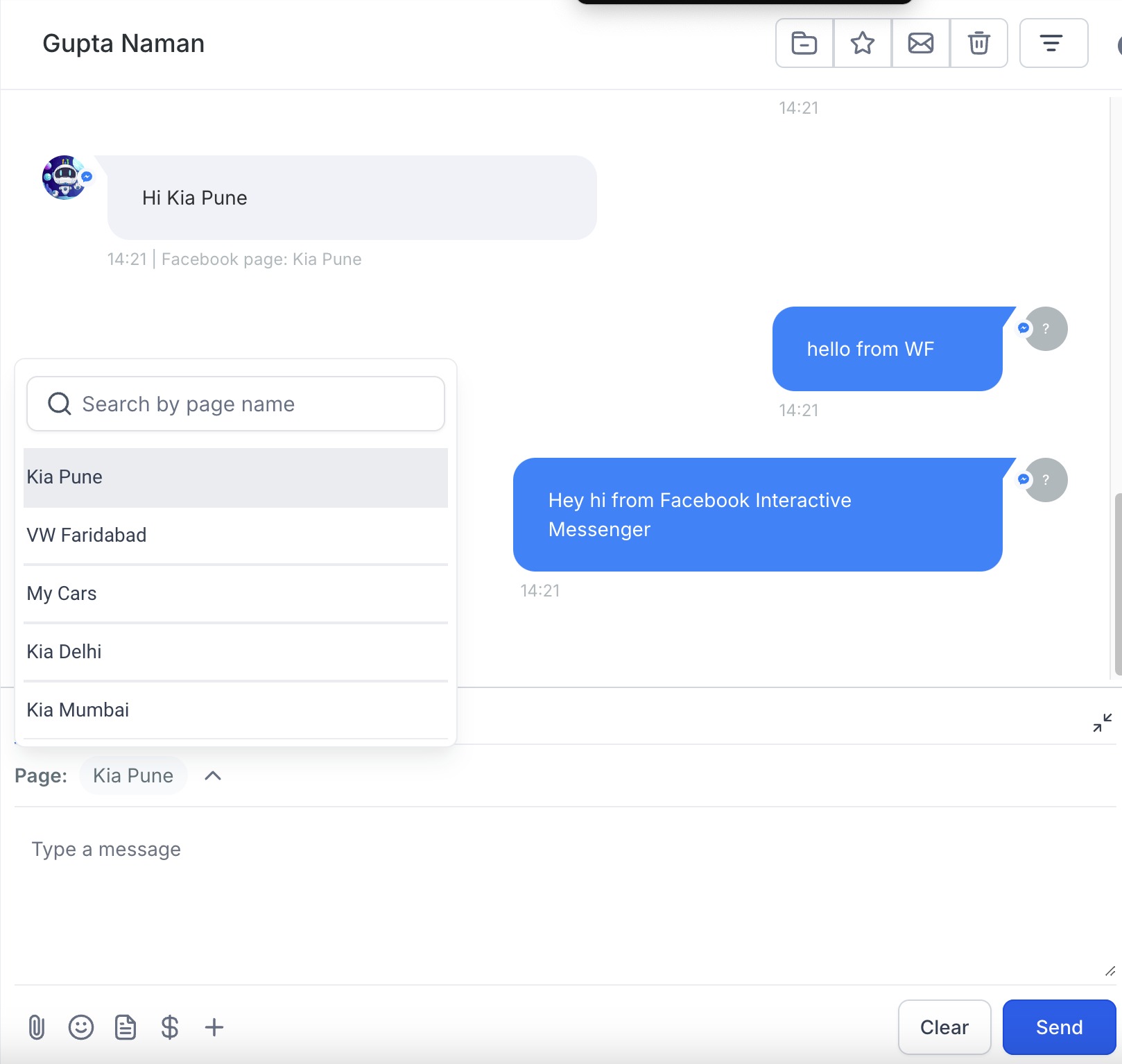
When pages are linked, lead information from Facebook Lead Ads flows automatically into HighLevel and retains the page where the lead originated. Chat messages from Facebook and Instagram appear in the platform’s conversation area, and automation rules can act on any connected page.
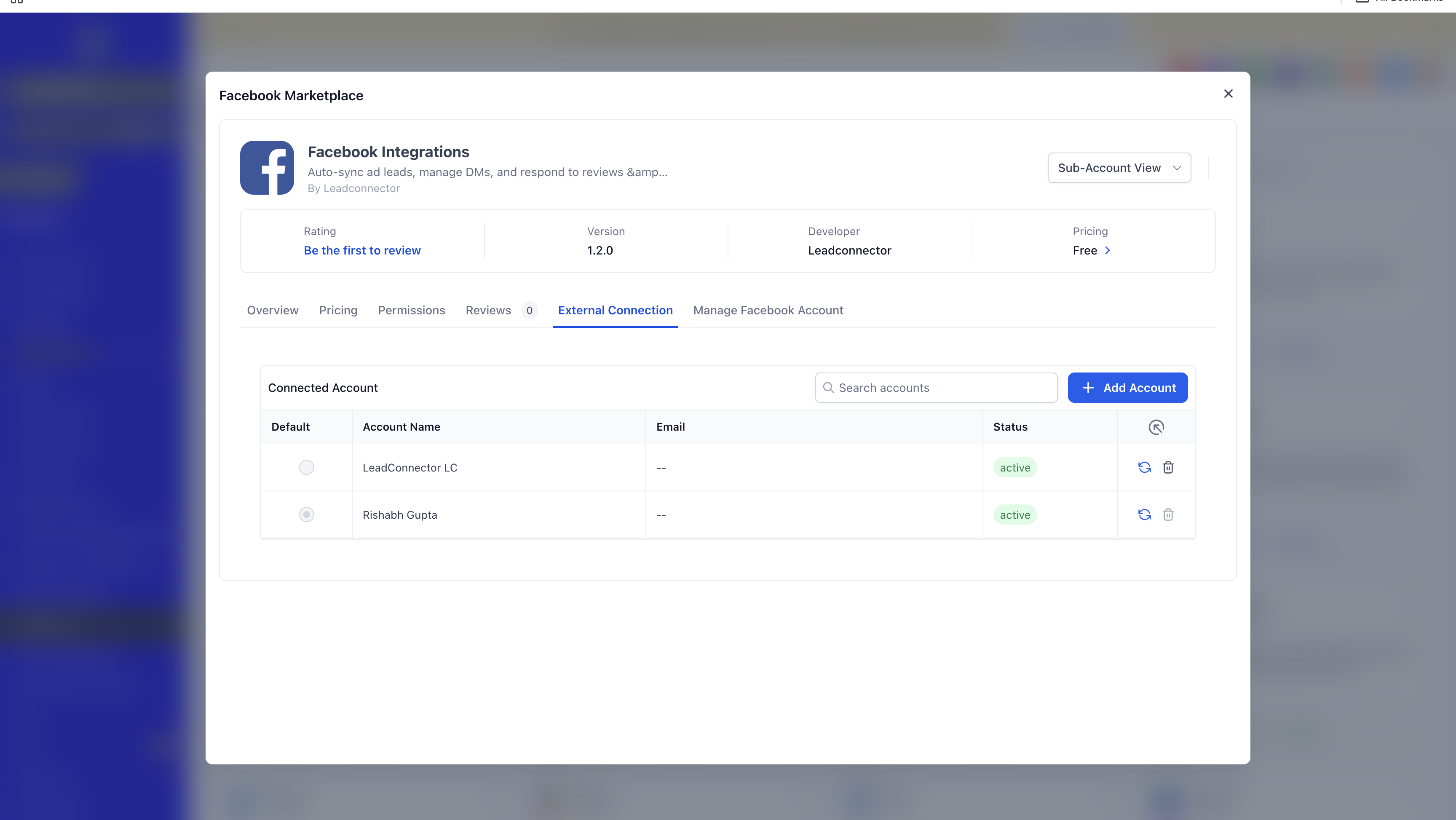
The connection settings are found inside the Facebook Marketplace area of the platform. From there users add accounts, manage page permissions, and can disconnect or reconnect if access changes.
03How businesses use Multiple Facebook pages
- Restaurant chain. The chain adds each outlet’s Facebook page under separate Facebook accounts. Leads from all locations flow into HighLevel with the outlet name attached, and staff reply to messages from the shared inbox.
- Fitness influencer. The influencer connects several fan pages that promote different programs. Comment replies and direct messages arrive in one place, allowing quick engagement without juggling multiple Facebook logins.
- Digital marketing agency. The agency links client Facebook pages across various accounts. It builds workflows that trigger follow up emails when a lead is captured from any client page, keeping each client’s data isolated.
04Before you start
- You must have Admin access to each Facebook page you plan to connect.
- Log in to the Facebook profile that will own the connection.
- During setup, grant every permission HighLevel requests.
05How to set up and use Multiple Facebook pages in HighLevel
Add another Facebook account
- Open Facebook Marketplace.
- Navigate to External Connection.
- Click Add Account.
06What it looks like in HighLevel
07Settings that matter
- External Connection. Controls the addition of new Facebook accounts to the HighLevel subaccount.
- Settings → Integrations. Allows you to disconnect and reconnect Facebook when permissions have changed.
08Things to know before you rely on it
- Shops and Ad Accounts can only be linked to a single Facebook account.
- The HighLevel mobile app does not yet support conversations from multiple Facebook pages.
- Conversation AI does not currently auto respond on messages from multiple pages.
09If something goes wrong
- Facebook page does not appear during connection. Verify you have Admin access to the page, ensure you are logged into the correct Facebook profile, grant all requested permissions, and if needed disconnect then reconnect Facebook in Settings > Integrations.
10How it connects to the rest of HighLevel
- Step by step guide to Facebook integration in HighLevel Facebook integration guide
- Facebook Lead Ads integration: how to set up and manage Lead Ads setup
- HighLevel pricing and plans Pricing page
Michael's take

If I were setting this up for a chain of locations, the first step would be to verify admin rights on each page, then add each account via the Marketplace > External Connection path. After that I’d run a quick test lead to make sure the source attribution shows up correctly.