
01Who this is for
- Founders of startups that run Facebook ad campaigns and need leads to appear in their CRM without manual entry.
- Small business owners with limited sales staff who want automated lead capture and quick follow up.
- Marketing managers who run multiple Facebook pages and require centralized lead handling in HighLevel.
02Facebook lead ads integration, explained
The integration captures lead data generated by Facebook ads and imports it into HighLevel in real time. Once a page is linked, each lead is mapped to a custom field you define, allowing the platform to treat the data like any other contact.
All configuration lives under the subaccount integration settings. From there you can connect pages, map form fields, enable messenger channels, and manually sync or troubleshoot leads. The feature respects Facebook’s permission model, so only users with admin or lead access roles can perform the connection.
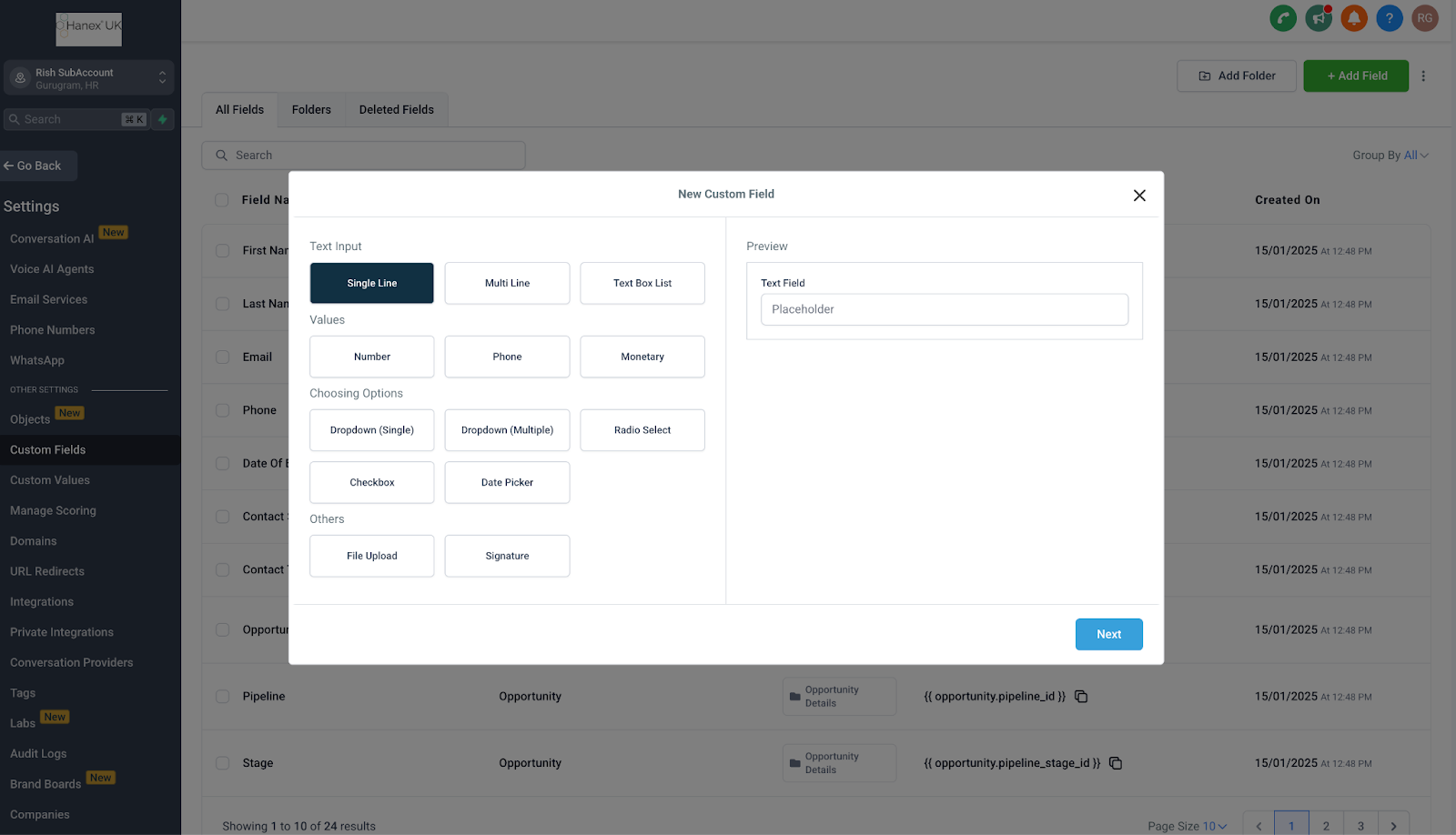
Supported field types include text, large text, numerical, phone, monetary, single options, date and single select dropdowns. Changing field names on the Facebook side may break the mapping, so keep them consistent.
03How businesses use Facebook lead ads integration
- Real estate agency. The agency links its Facebook page to HighLevel, maps lead form fields such as name, phone and property interest, and lets new inquiries flow straight into the sales pipeline for immediate follow up.
- Fitness studio. The studio enables Facebook and Instagram messaging for its page through the integration settings, allowing prospects to start conversations directly from ads and have those chats recorded in HighLevel.
- Consulting firm. The firm manages multiple client Facebook pages from one subaccount, updates the form field mappings when new services are added, and uses the manual sync option to pull any missing leads.
04The numbers and rules that matter
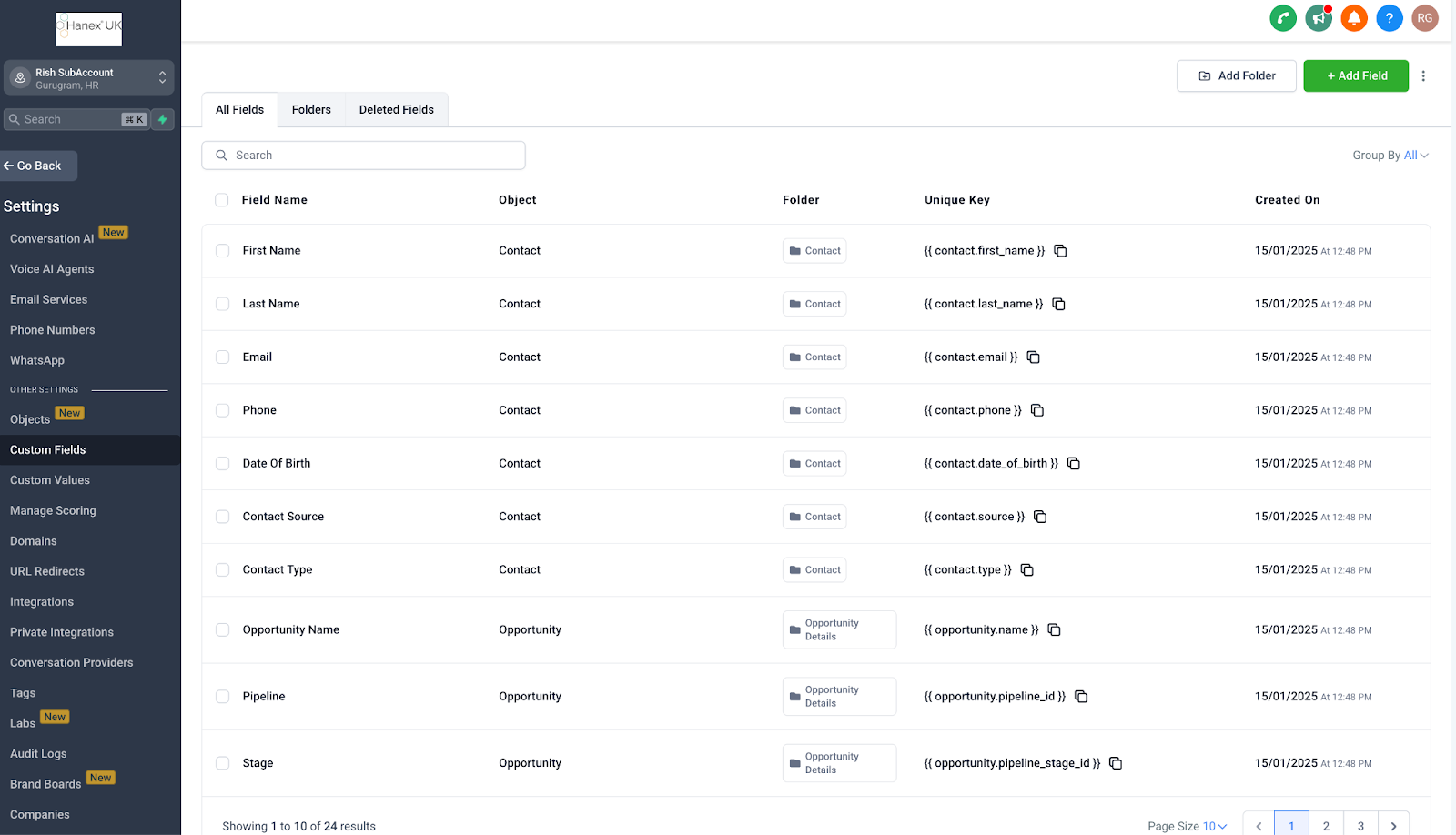
- Supported Custom Fields: TEXT, LARGE_TEXT, NUMERICAL, PHONE, MONETARY, SINGLE_OPTIONS, DATE, DROPDOWN (single).
05Before you start
- Access to the Facebook page and its ad account must be granted.
- The user linking the page must be an admin with Lead Access Permission.
06How to set up and use Facebook lead ads integration in HighLevel
Set up Facebook integration
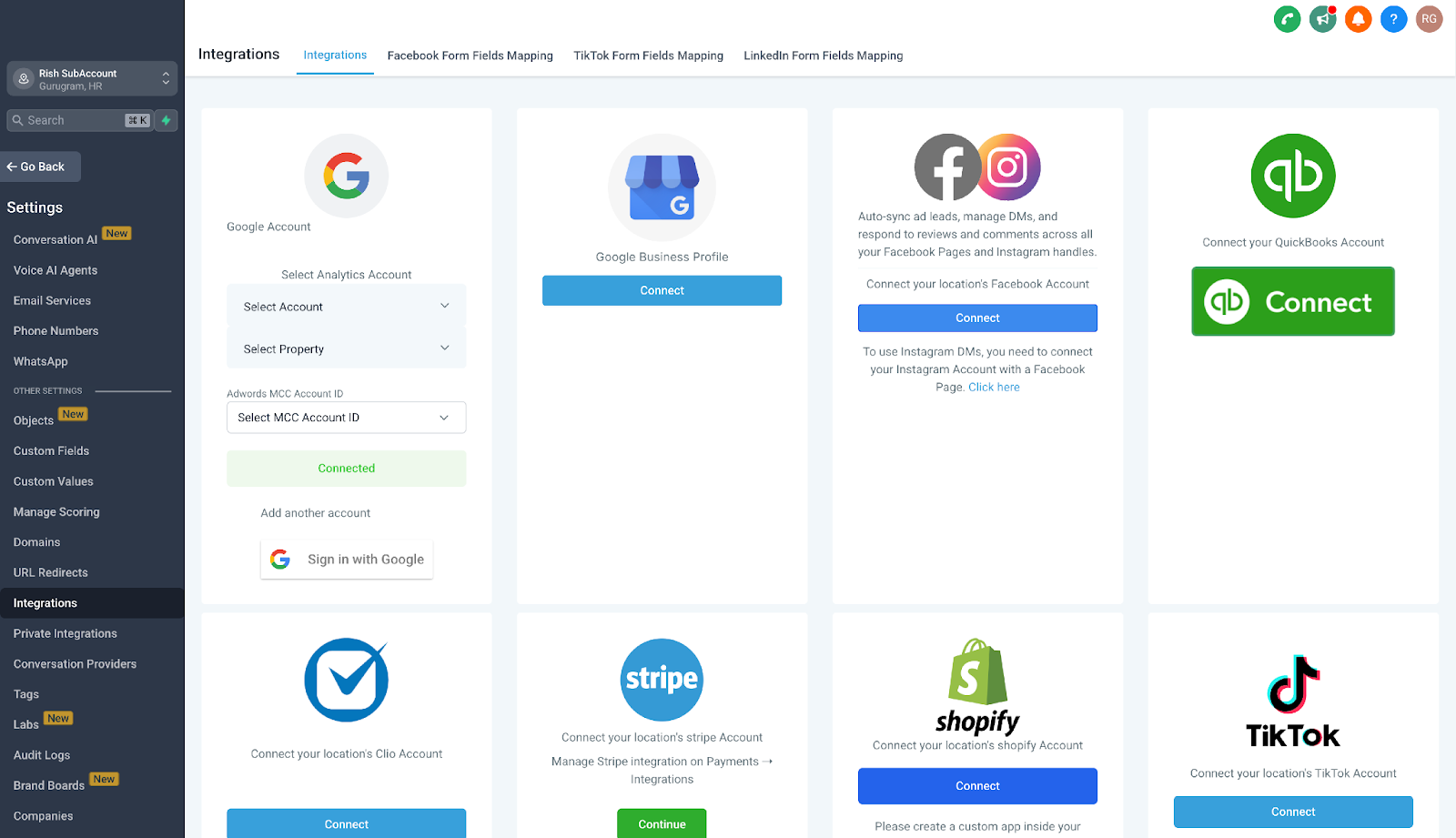
- Navigate to Subaccount > Settings > integration.
- Click the Connect button under the Facebook section.
- Approve the permission requests presented by Facebook.
- Search for and select the desired pages (and ad accounts where shown).
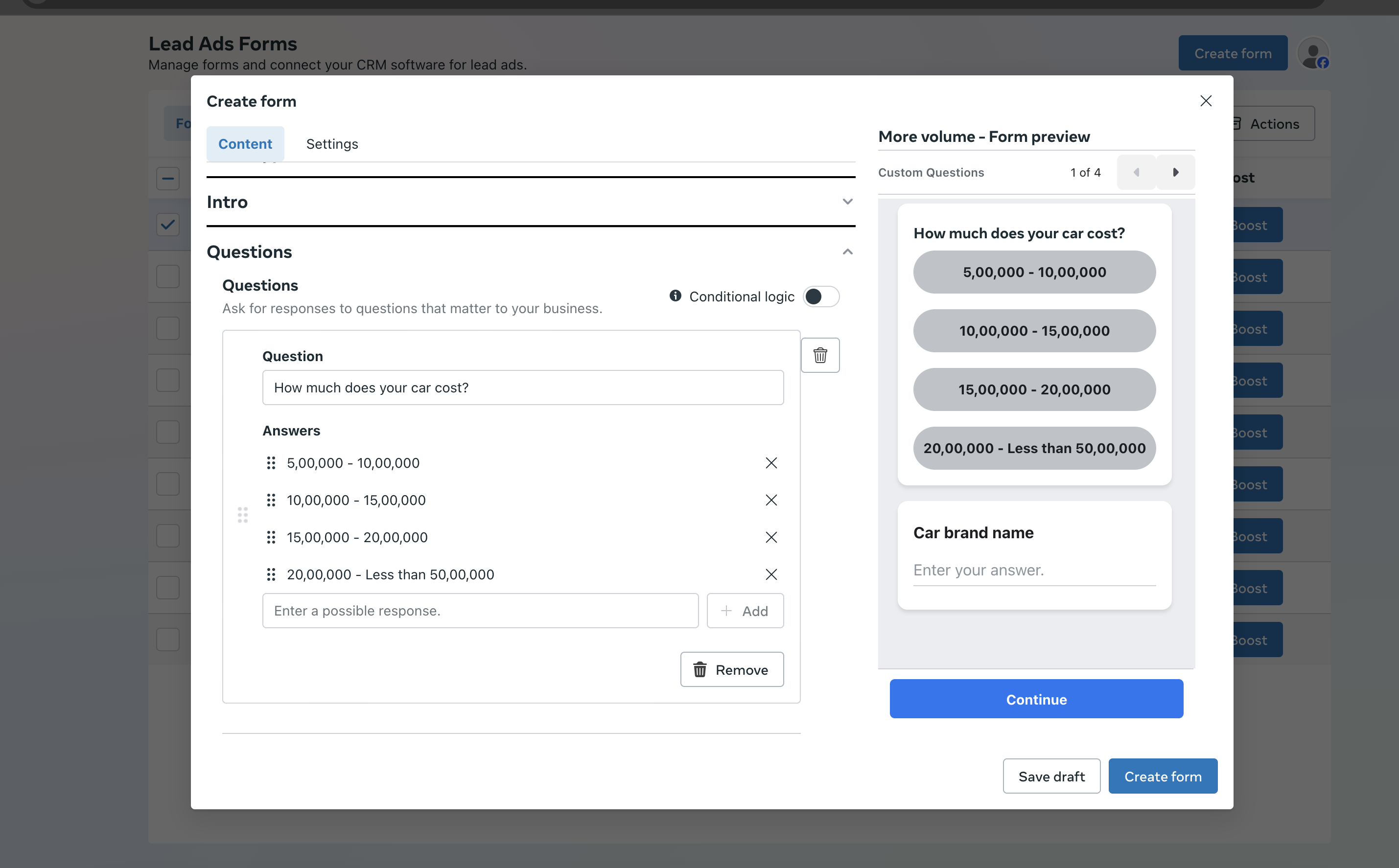
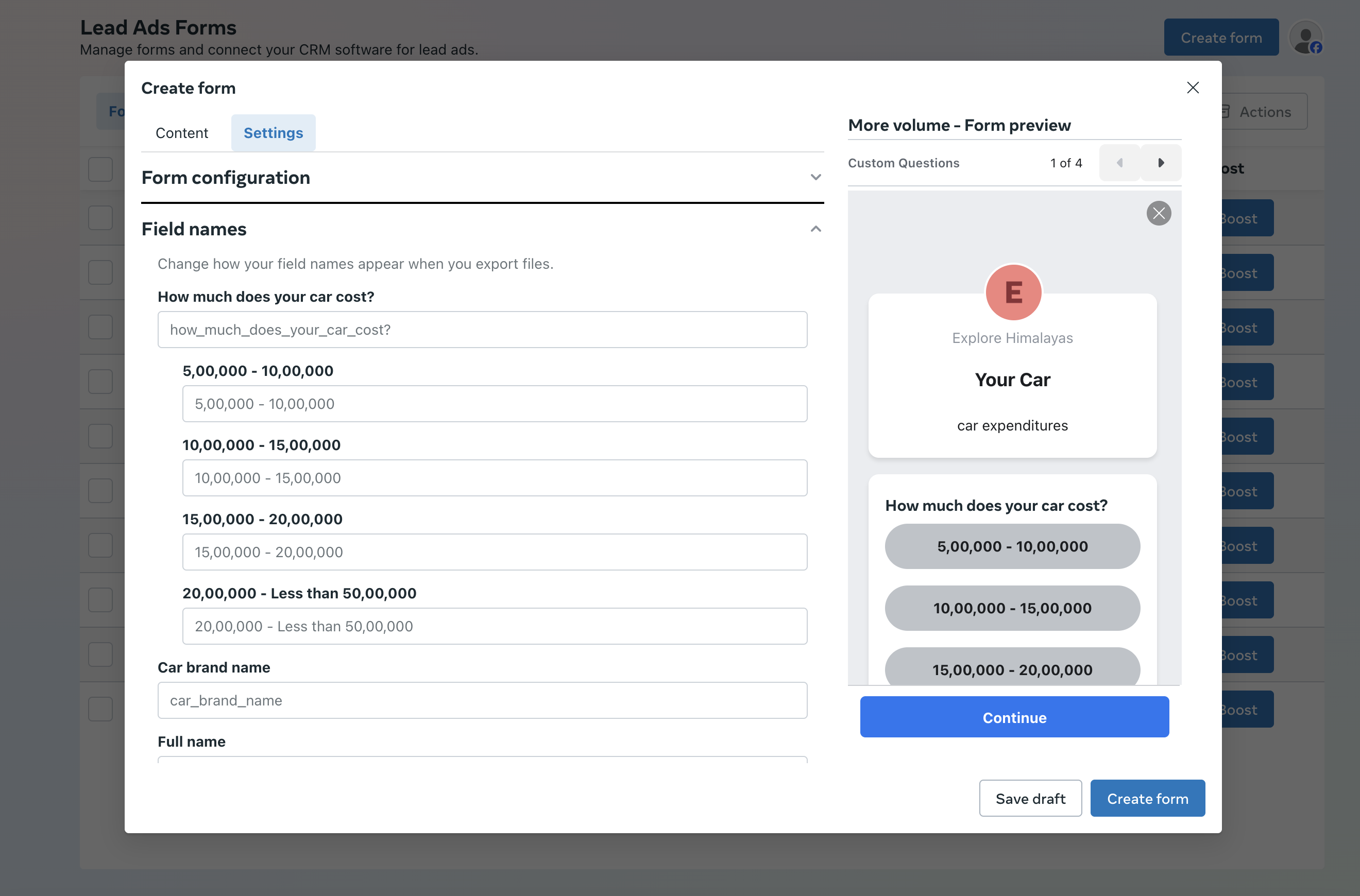
- Create or map the form fields to HighLevel custom fields.
Disconnect Facebook integration
- Open Subaccount > Settings > integration.
- Locate the Facebook card and open the three dot menu.
- Choose Disconnect to remove the connection.
Manage Facebook pages
- Go to Subaccount > Settings > integration.
- Select the Facebook card and click Manage pages.
- Pick the pages you want linked and press Update.
Troubleshoot or sync leads manually
- Open Subaccount > Settings > integration.
- Click the Facebook card and choose Troubleshoot.
- Review missing permissions and run a manual lead sync if needed.
Enable or disable Facebook/Instagram messages
- Enter Subaccount > Settings > integration.
- Open the Facebook card and select Settings from the hamburger menu.
- Toggle the switches for Facebook Messenger and Instagram Direct.
Manage forms
- Visit Subaccount > Settings > integration.
- Select the Facebook form field mapping link at the top.
- Find the target form, edit the field mapping or deactivate it.
07What it looks like in HighLevel

08Settings that matter
- Connect. Starts the authorization flow that links a Facebook page and optional ad accounts to HighLevel.
- Disconnect. Removes the existing link between the selected Facebook page and the HighLevel account.
- Manage pages. Lets you add or remove Facebook pages that are associated with the integration.
- Troubleshoot. Displays permission checks and provides a button to force a manual lead synchronization.
- Settings (messenger). Controls whether Facebook Messenger and Instagram Direct messages are active for the connected page.
- Facebook form field mapping. Defines how each Facebook lead form field maps to a custom field inside HighLevel.
09Things to know before you rely on it
- Only the user who performed the initial connection can select pages to link; other users cannot change the selection.
- Search for pages appears only after all pages finish loading, which may take longer for accounts with many pages.
- Field names on Facebook forms should not be altered after mapping, as changes can break the sync.
10If something goes wrong
- Missing permissions prevent lead sync. Open the Troubleshoot screen, review the listed permission gaps, grant the required admin or lead access rights, and run a manual sync.
11How it connects to the rest of HighLevel
- Step by step guide to Facebook integration in HighLevel Facebook integration guide
- How to add Facebook Conversion API actions in HighLevel workflows Conversion API actions
- HighLevel pricing and plans for access to integrations Pricing page
Michael's take

Wondering if the Facebook lead ads integration is worth the effort for your startup? It takes the manual copy paste out of lead capture, so you can spend more time actually talking to prospects and less time juggling spreadsheets.
If I were setting it up, I’d start by confirming I have admin rights on both the Facebook page and the ad account, then follow the Connect steps in the Subaccount integration tab. A quick run through of the mapping screen ensures the fields line up, and I’d test a real lead submit to see it appear in HighLevel before rolling out any campaigns.