
01Who this is for
- Agencies that bill clients for email usage can control which accounts are rebilled.
- Marketing firms managing multiple client subaccounts need to align billing with client agreements.
02Email rebilling, explained
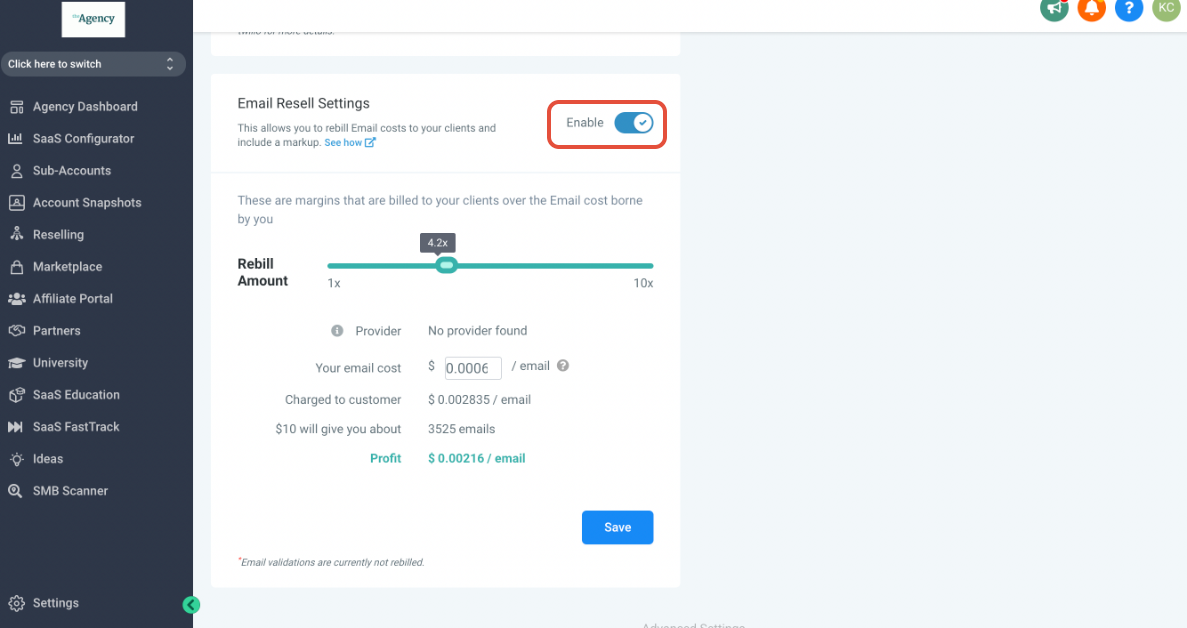
The feature lets an agency turn off Email Rebilling for an individual subaccount. When disabled, the subaccount’s email usage is no longer charged through the agency’s markup system. The toggle resides inside the subaccount’s Manage Client screen under Email Resell Settings.
If an SMTP provider cannot be added, the platform checks the Email Reselling flag for that location. Disabling the rebilling flag removes the block, allowing the SMTP integration to be saved. The change applies only to the selected subaccount; other accounts keep their existing settings.
The setting is accessed from the agency view of the platform. It does not affect any email content or delivery, only how usage is billed.
03How businesses use email rebilling
- Digital marketing agency. The agency disables Email Rebilling on a client’s subaccount to honor a direct billing agreement. The toggle is switched off in the Manage Client screen, preventing agency markup on future email sends.
- Consultancy offering email campaign services. Before connecting a new SMTP provider, the consultant ensures the subaccount’s Email Reselling is off, removing the error that blocks the integration. The change is made via the Email Resell Settings toggle.
- Wholesale SaaS reseller. The reseller turns off Email Rebilling for a partner subaccount to shift billing responsibility. They locate the subaccount, open Manage Client, and toggle the Email Resell Settings off.
04Before you start
- Access the agency view of HighLevel.
- Identify the subaccount that requires the change.
05How to set up and use email rebilling in HighLevel
Disable Email Rebilling for a subaccount
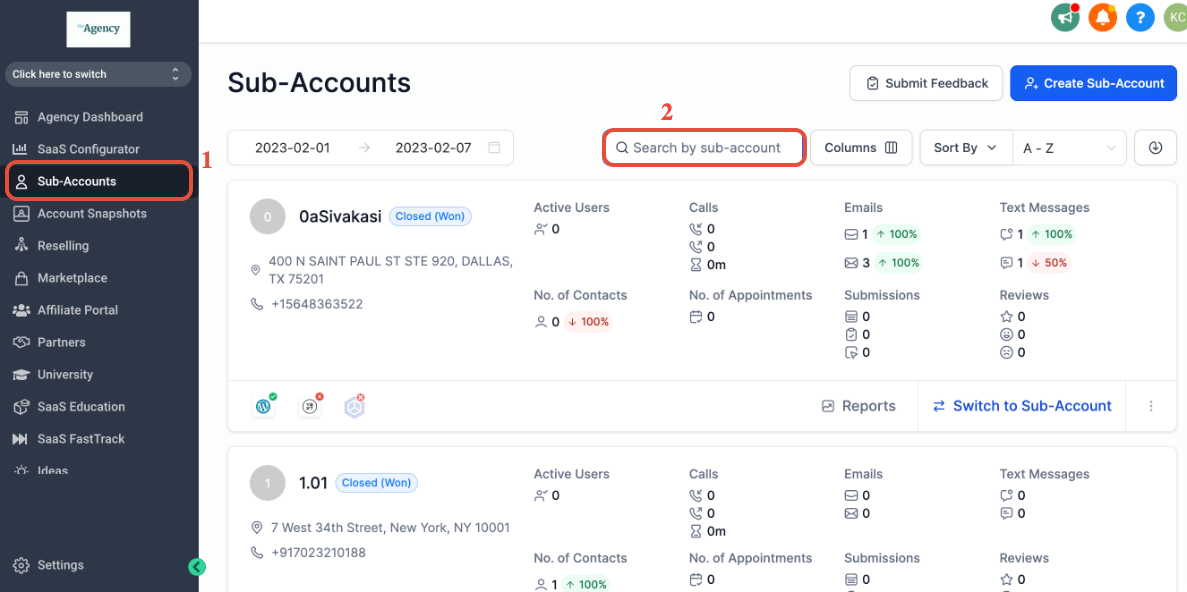
- Open the subaccounts page at app.gohighlevel.com/subaccounts/.
- In agency view, click Subaccounts and locate the desired subaccount.
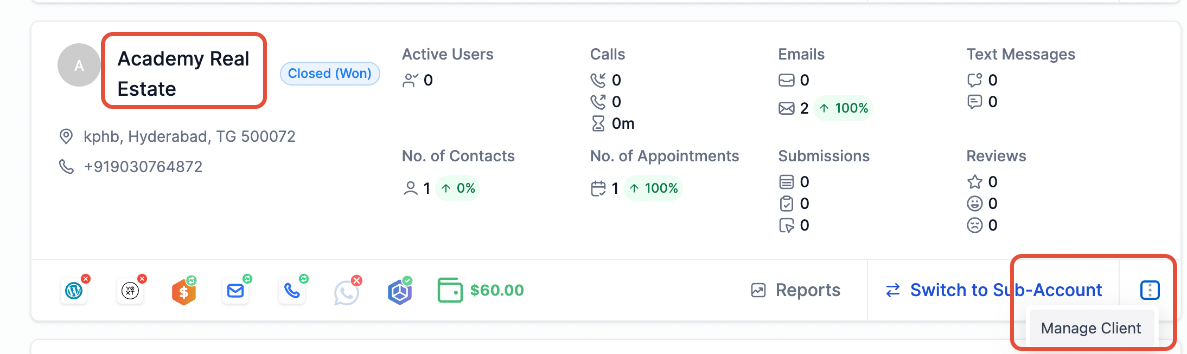
- Select the subaccount name or the three dot menu and choose Manage Client.
- Scroll to Email Resell Settings and toggle the button to turn off Email Rebilling.
06What it looks like in HighLevel

07Settings that matter
- Email Resell Settings. Controls whether a subaccount’s email usage is billed through the agency’s rebilling setup. The toggle enables or disables this billing path.
08Things to know before you rely on it
- The Email Rebilling toggle applies per subaccount only.
- Disabling it does not affect email delivery; it only changes billing.
09If something goes wrong
- Error when adding an SMTP provider due to Email Reselling being enabled.. Disable Email Rebilling for the subaccount using the steps above, then retry adding the SMTP provider.
10How it connects to the rest of HighLevel
- How to set up SMTP providers in HighLevel SMTP provider setup
- HighLevel email warm up and DMARC guide for reliable delivery Email warm up guide
- HighLevel pricing and plans Pricing
Michael's take

Most people run straight to the SMTP integration page and wonder why the warning pops up, missing the fact that the subaccount’s Email Reselling setting is still active. That mismatch is what trips the error.
I’d open the Agency View first, locate the subaccount, and turn off Email Rebilling in the Email Resell Settings before trying the SMTP add on again. It may clear the block and let you finish the integration cleanly.