
01Who this is for
- Email marketers who need to confirm whether campaigns reached each address and why they might have failed.
- Customer support teams that troubleshoot delivery complaints from individual recipients.
- Founders who oversee email deliverability and want to ensure their domain reputation stays healthy.
02Mailgun sending logs, explained
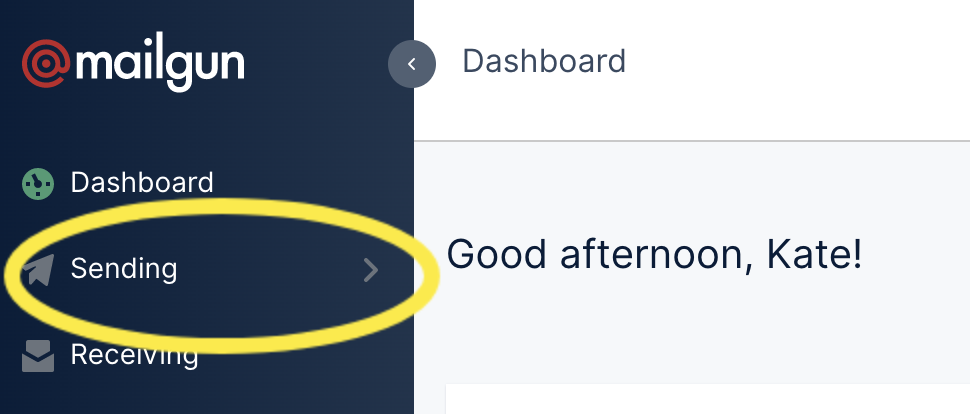
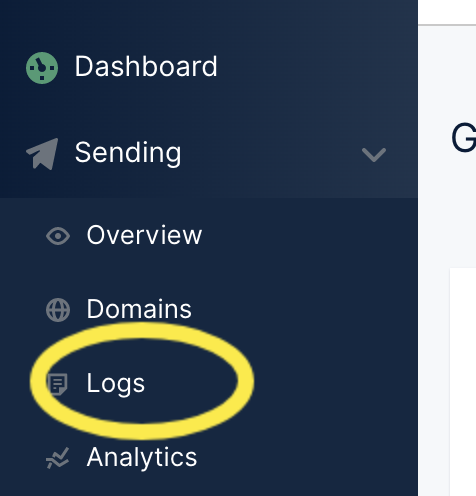
The feature lives in the Mailgun dashboard, not inside HighLevel, but it records every message the platform sends. You open the Mailgun web app, navigate to the Sending > Logs view, and apply a filter for a single recipient. The results list each attempt, its timestamp, and a status code such as delivered, bounced, or rejected.
Once the entry appears, you can open a Quick view to see a preview of the email and the exact delivery outcome. The view helps you decide whether the problem lies with the mailbox provider, your sending configuration, or the recipient’s address.
If the status reveals an error, Mailgun supplies tabs for suppressions, bounces, and unsubscribes. From those tabs you can delete entries or adjust authentication settings to address the cause.
03How businesses use Mailgun sending logs
- Ecommerce store. The store checks a missing order confirmation by filtering the customer's email in Mailgun logs. If the status shows a bounce, the owner removes the address from the Bounces tab so future order emails can be sent.
- SaaS subscription business. When a user reports not receiving a password reset, the team looks up the address in the logs. If the email is flagged as unsubscribed, they delete the entry from the Unsubscribes tab to restore delivery.
- Digital marketing agency. The agency monitors campaign health by opening Quick view for each recipient. For any unauthenticated errors caused by a custom domain, they set the domain’s DMARC policy to none.
04Before you start
- A Mailgun account with login credentials.
- Access to the Mailgun dashboard that hosts the sending domain.
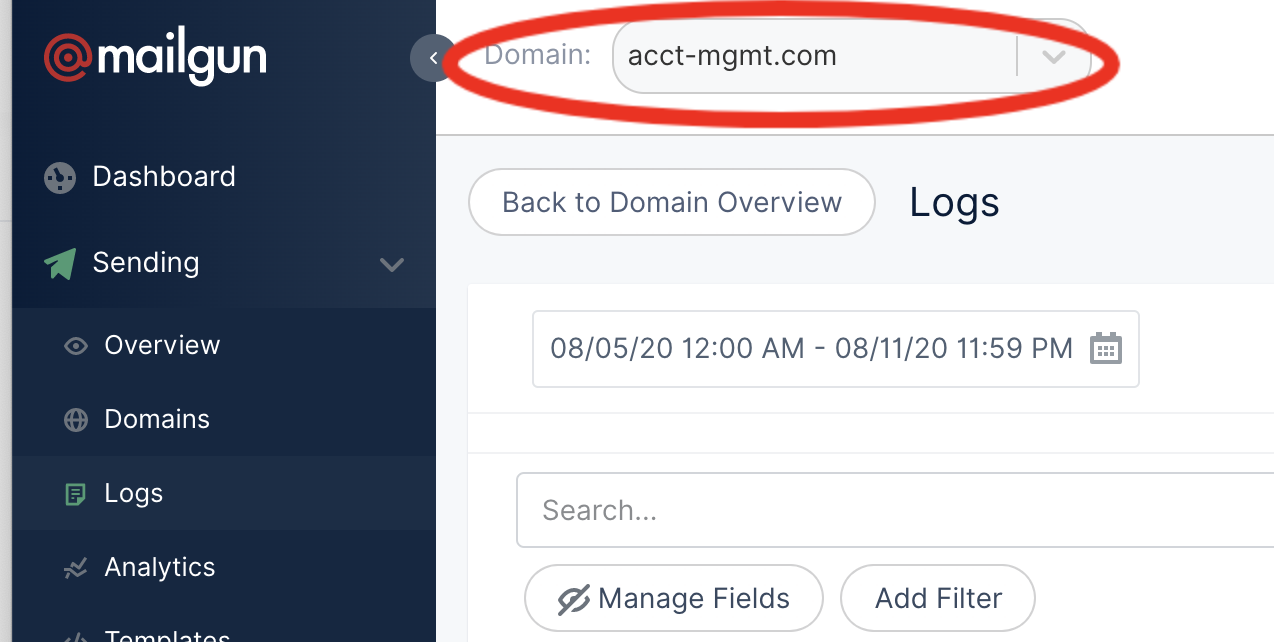
- The domain used for sending must be selected before applying a filter.
05How to set up and use Mailgun sending logs in HighLevel
Find a specific email in Mailgun logs
- Log in to app.mailgun.com/app/dashboard.
- Click the Sending menu.
- Click the Logs option.
- Confirm that the correct domain is chosen.
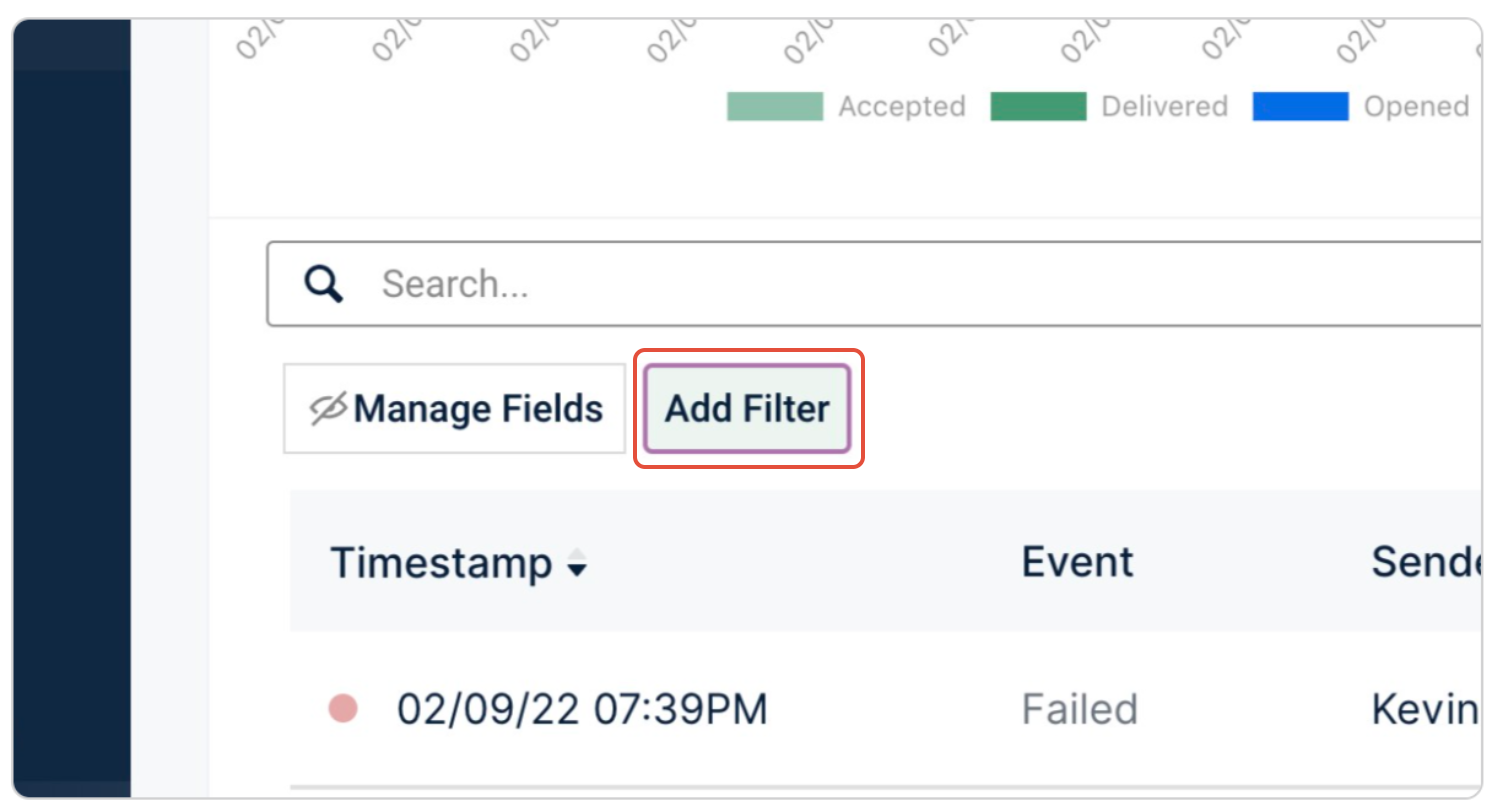
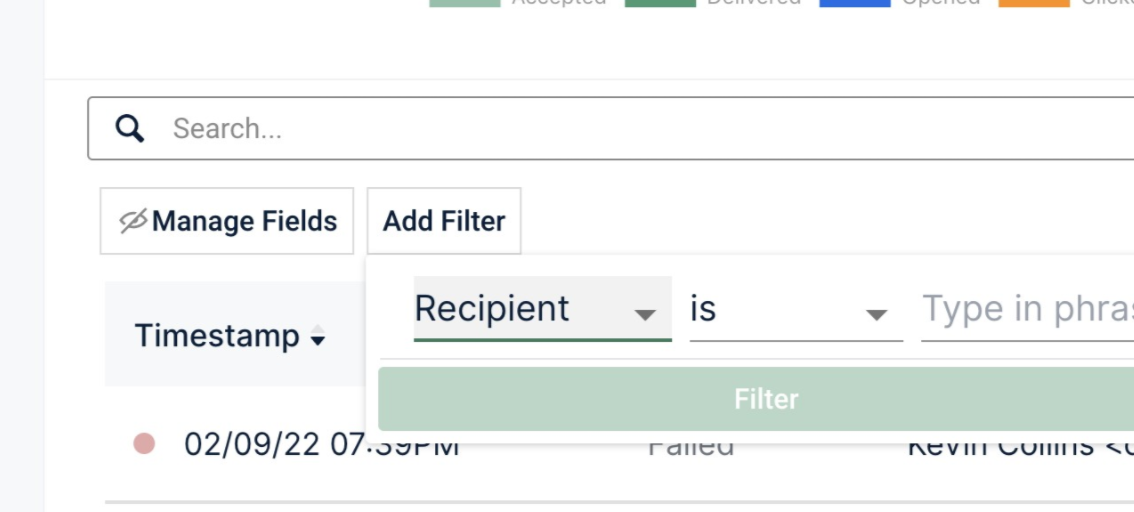
- Click Add Filter.
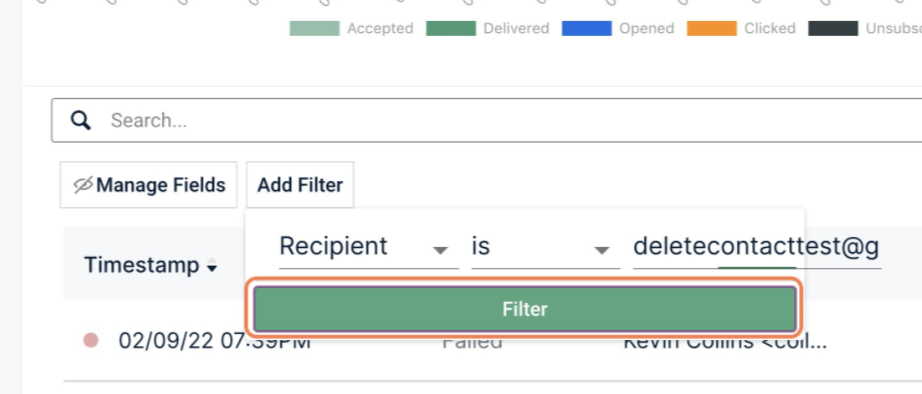
- Select Recipient from the dropdown and paste the email address.
- Click Filter.
Analyze the email result
- Click the gear (⚙) icon next to the located email entry.
- Choose Quick view to see a preview and the delivery status.
Remove a previously bounced address
- Click Sending > Suppressions.
- Select the domain at the top of the page.
- Search for the recipient’s email address.
- Select the address and click the trash icon to delete it.
Remove an accidental unsubscribe
- Switch to the Unsubscribes tab.
- Delete the email address from the list.
Set DMARC to none for a custom domain
- Change the DMARC policy for the custom domain to none.
Switch sender email from a free mail domain
- Replace the sender address that uses a free mail domain with one that uses your own domain or Gmail.
- Update the sender email address setting in HighLevel.
06What it looks like in HighLevel
07Things to know before you rely on it
- Log retention length depends on the Mailgun plan you have subscribed to.
- The Logs view only shows entries for one domain at a time; you cannot search across all domains simultaneously.
- Filters are scoped to the selected domain, so selecting the wrong domain will hide the email you are looking for.
08If something goes wrong
- The status shows delivered but the recipient says they never received the email.. Ask the recipient to check their spam folder, and if nothing is found, contact Mailgun support to see if the receiving provider is silently blocking the message.
- I cannot find the email in Mailgun logs at all.. Verify that the correct domain is selected and that the filter or date range includes the time the email was sent.
09How it connects to the rest of HighLevel
- Browse all email related features in HighLevel. All Email features
- Review HighLevel pricing and plan options. HighLevel pricing and plans
- Start a 30 day trial of HighLevel. Start a 30 day HighLevel trial
Michael's take

Be aware that log data lives only as long as your Mailgun plan allows, and you can only view one domain at a time.
If a recipient says they never got a delivered message, you can check their spam folder or contact Mailgun support.
Using the quick view in the logs lets you see the delivery status and decide whether you need to address a bounce, remove an accidental unsubscribe, or adjust DMARC settings.