
01Who this is for
- Founders of SaaS businesses who need to keep client communication within the platform for easy reference.
- Marketing agencies managing multiple client subaccounts, because each subaccount requires its own verified domain to capture replies.
02Email replies not showing up, explained
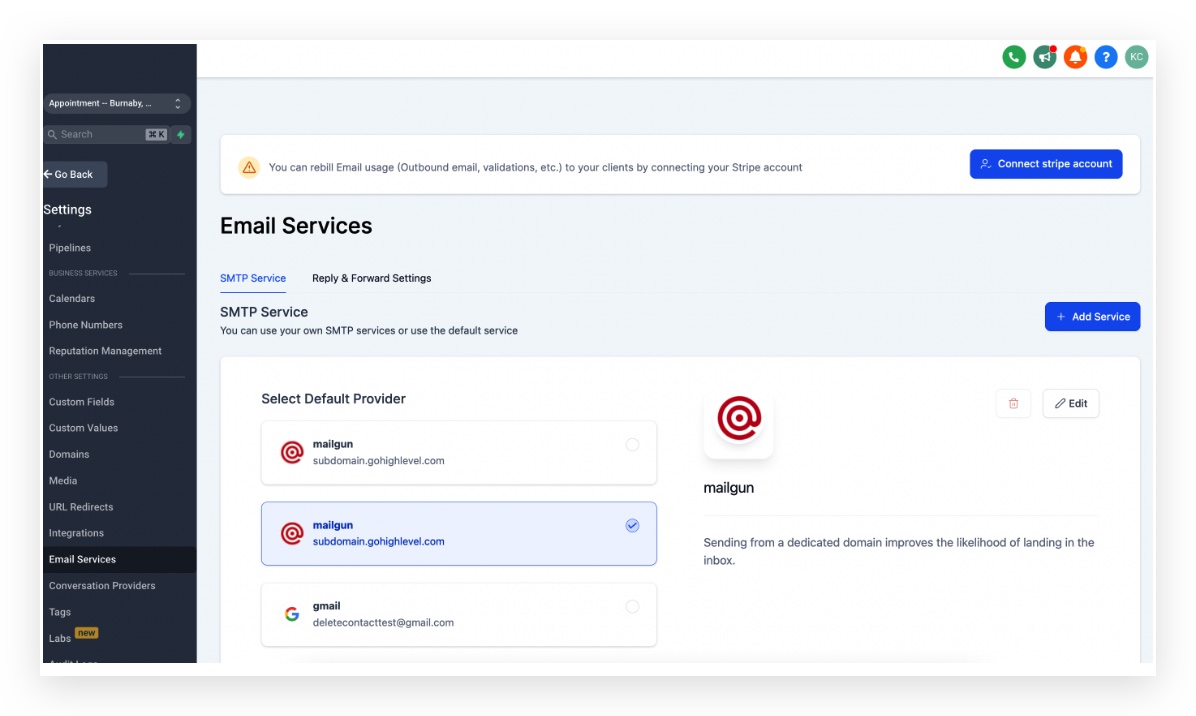
The feature attaches inbound email replies to the original HighLevel conversation. It relies on Mailgun (or LC Email) to receive the reply, match it to the correct subaccount and display it. The settings are found under Settings > Email Services > Location Settings for each subaccount and in the Mailgun dashboard for DNS verification.
03How businesses use email replies not showing up
- Digital marketing agency. The agency sets up a unique subdomain for each client’s sending domain, verifies the MX records point to Mailgun, and watches client replies populate the internal conversation logs.
- Online coaching business. The coach uses a root domain for client outreach, checks the MX record to ensure it only points to Mailgun, and avoids using the same domain for Google Workspace to prevent reply loss.
- Ecommerce store. The store verifies all five DNS records in Mailgun, especially the MX record, so order related email replies are automatically attached to the appropriate HighLevel conversation.
04The numbers and rules that matter
- Both MX records should have priority 10.
- DNS propagation can take up to 24, 48 hours.
05How to set up and use email replies not showing up in HighLevel
Check Mailgun receiving route
- If you are on LC Email, skip this step.
- Otherwise, log in to Mailgun and verify that a receiving route is configured for the domain or subdomain used by the subaccount.
Check MX records
- Open agency view, navigate to Settings > Email Services > Location Settings and copy the domain or subdomain assigned to the subaccount.
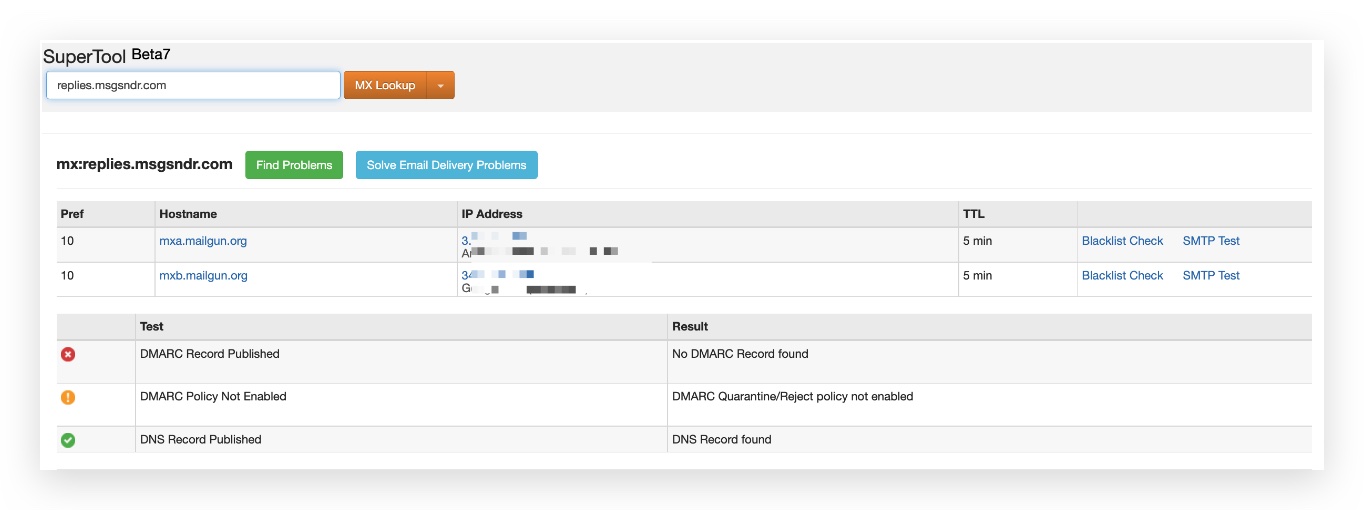
- Visit MX Toolbox and perform a lookup for the copied domain or subdomain.
- Confirm that two MX entries exist and that both point to mxa.mailgun.org and mxb.mailgun.org.
- If the entries are missing, add mxa.mailgun.org and mxb.mailgun.org with a priority of 10 for each.
Check root domain with Google Workspace and Mailgun
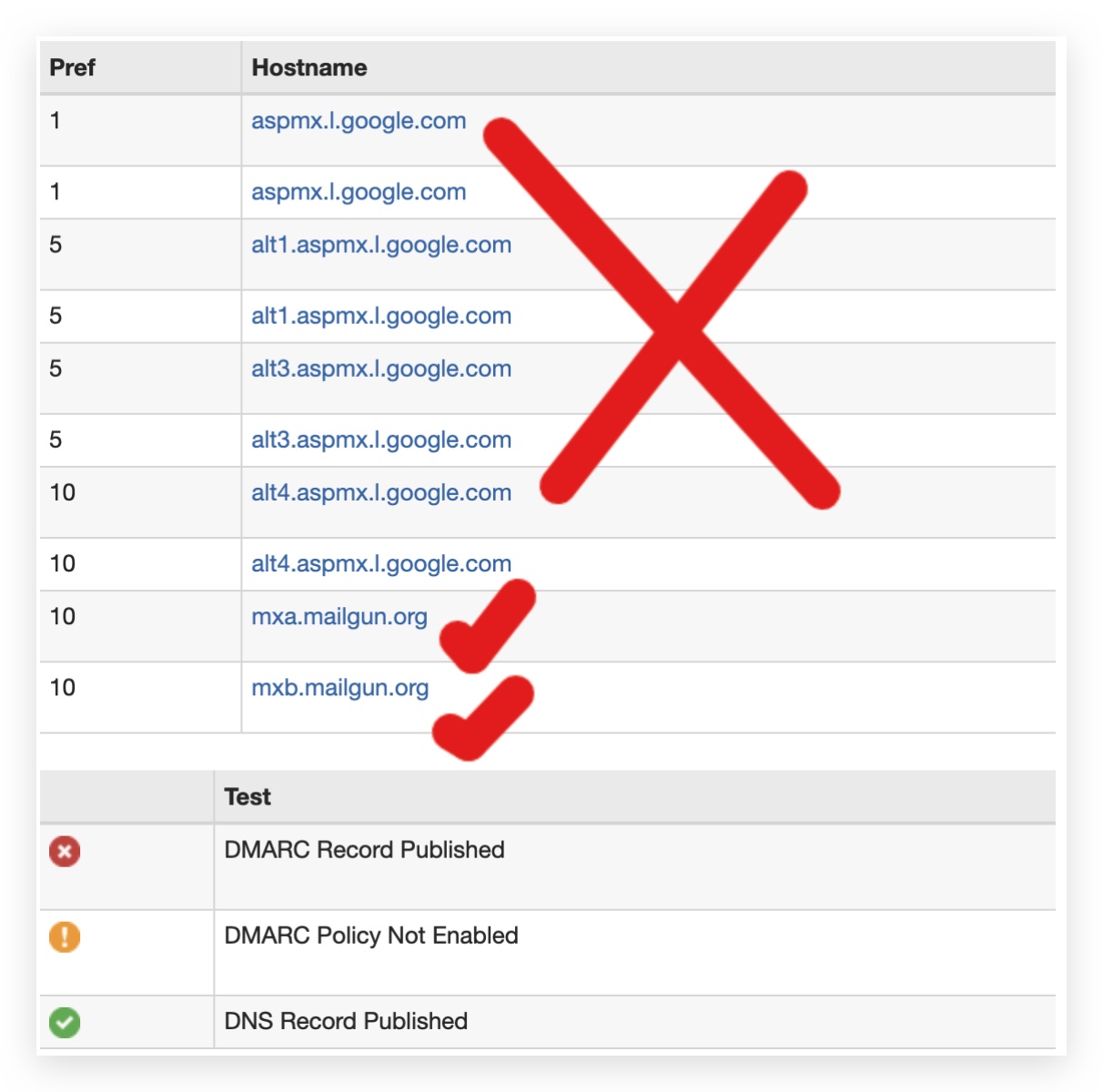
- Use MX Toolbox to look up the MX record for the root domain you plan to use with Mailgun.
- Confirm whether the MX record points to both Mailgun and another email server such as Google Workspace.
- Choose either a subdomain for Mailgun or discontinue using the root domain for the other email service.
Double check DNS records
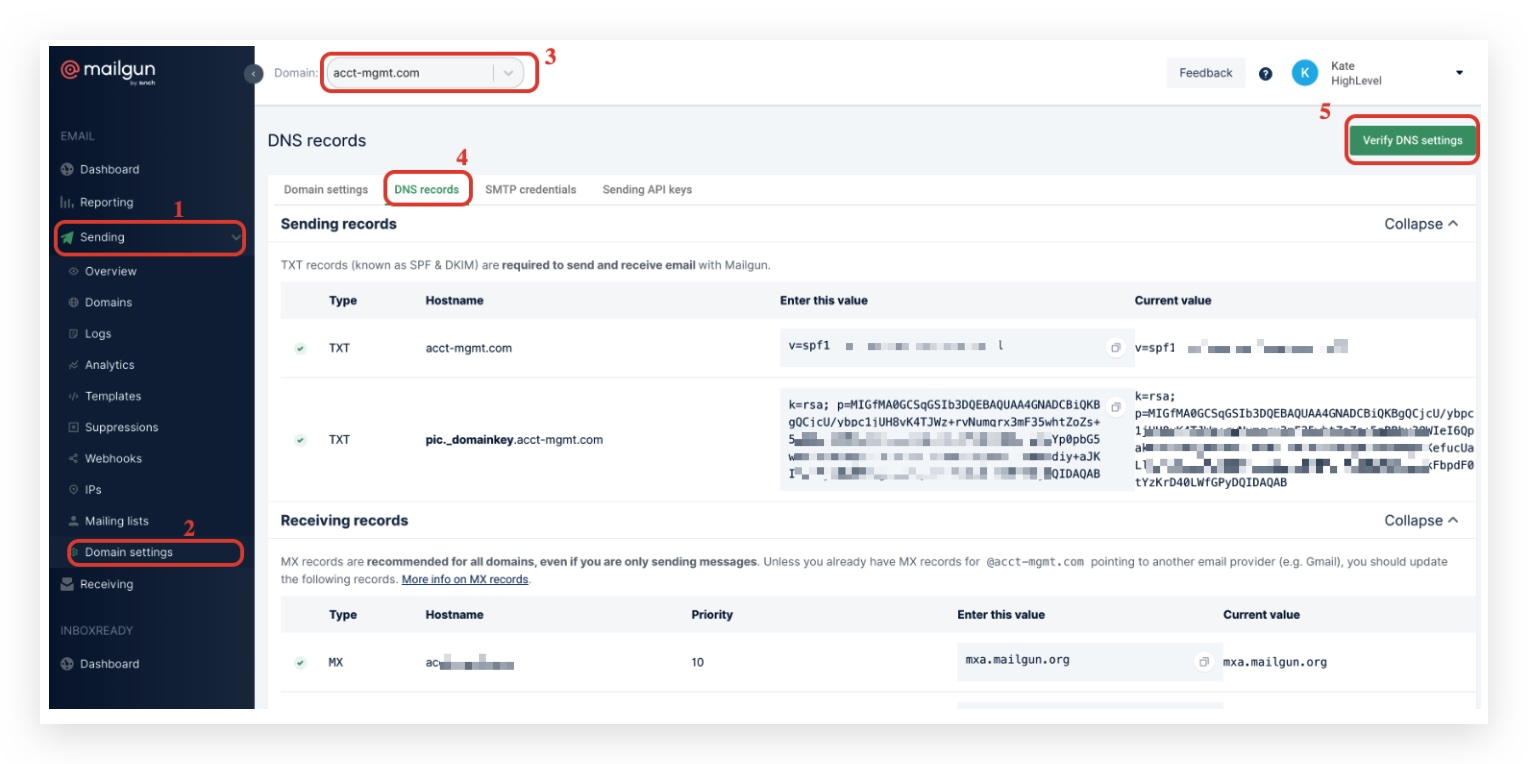
- Log in to Mailgun and expand the Sending tab.
- Select the last menu item labeled Domain Settings.
- Make sure the correct domain or subdomain for the location appears at the top.
- Click the DNS records button in the middle of the screen.
- Press Verify DNS Settings.
- Review the status icons for the five required DNS records, paying special attention to the MX record.
- If any status appears incorrect, click Verify DNS Settings again to refresh the checkmarks.
If using an SMTP provider instead of Mailgun/LC Email
- Ensure the SMTP provider’s inbound settings route replies to the same domain used in HighLevel and that the MX records reflect that provider.
If using WIX as the domain/DNS provider
- Follow the specific guide for WIX domain providers to add the required MX and other DNS records for Mailgun.
06What it looks like in HighLevel

07Settings that matter
- MX record. Directs inbound mail to Mailgun so that email replies can be captured and linked to the appropriate conversation.
- Priority. Determines the order in which mail servers are tried; both Mailgun MX entries should use a priority of 10.
08Things to know before you rely on it
- Only one email server can be assigned to a domain; you must use either Mailgun or another provider, not both.
- Green checkmarks in Mailgun’s DNS verification may appear even when a record is incorrect, re run verification to be sure.
- MX record changes can take up to 24 to 48 hours to propagate before replies are tracked.
09If something goes wrong
- Email replies still do not appear after verification steps. Capture a screenshot of all DNS records from your domain provider and share it with HighLevel support for further analysis.
10How it connects to the rest of HighLevel
- Send a test email in a conversation to confirm reply routing works. Test email in conversation
- Check detailed logs for a specific email in Mailgun to see delivery status. Mailgun email logs
- Review the overall email feature overview for additional settings that may affect reply handling. All Email features
Michael's take

Michael ReimerFounder of CRM Pros, HighLevel Commander and Certified Admin
If the reply thread never shows up, the conversation view looks incomplete, which can be frustrating when you rely on email follow ups.
Get More InformationOpens on HighLevelPublished November 2, 2026 · Updated November 16, 2026