
01Who this is for
- Marketing managers need reliable email sends to nurture leads, so they must verify templates for syntax errors.
- Automation specialists rely on workflows to move contacts; they must ensure each email action triggers correctly.
- Small business owners using HighLevel for outreach must avoid broken emails that halt campaign progress.
02Send email actions, explained
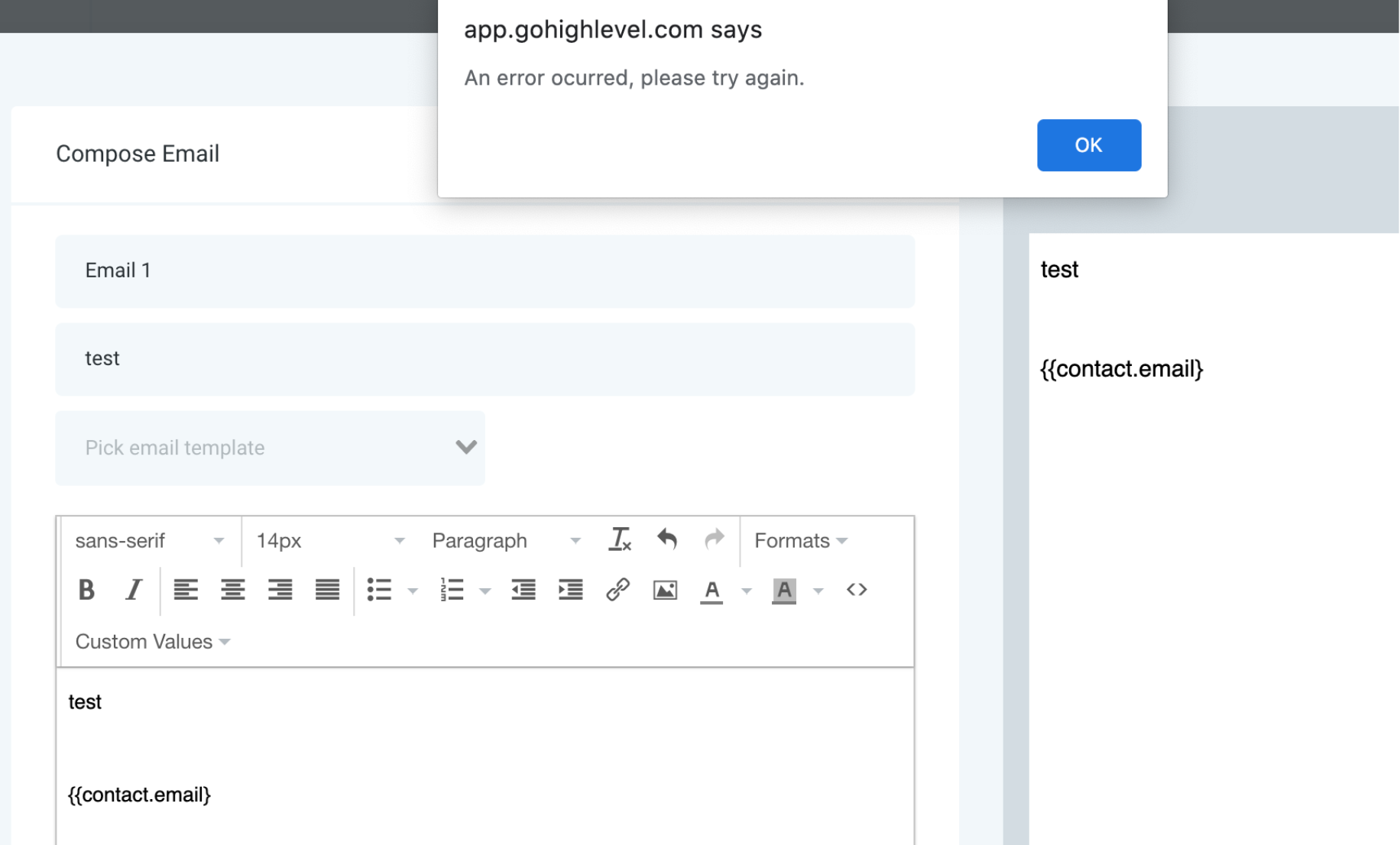
The Send Email trigger is a step inside a workflow that sends a message when the workflow reaches it. If the step encounters a syntax problem or an invalid address, the platform records an error and does not send the email.
The error appears in the workflow editor and prevents any further actions that depend on the email. The platform checks merge fields, custom values, and address formatting before attempting to send.
This feature lives in the workflow builder under the list of actions. Users edit the email content directly in the step, entering merge fields with double curly braces and specifying a From address.
03How businesses use send email actions
- Digital marketing agency. The agency opens the workflow, reviews the email content for missing closing braces or triple opening braces, corrects any merge fields, and ensures all custom values follow the supported syntax. After saving, the email step fires for each client contact.
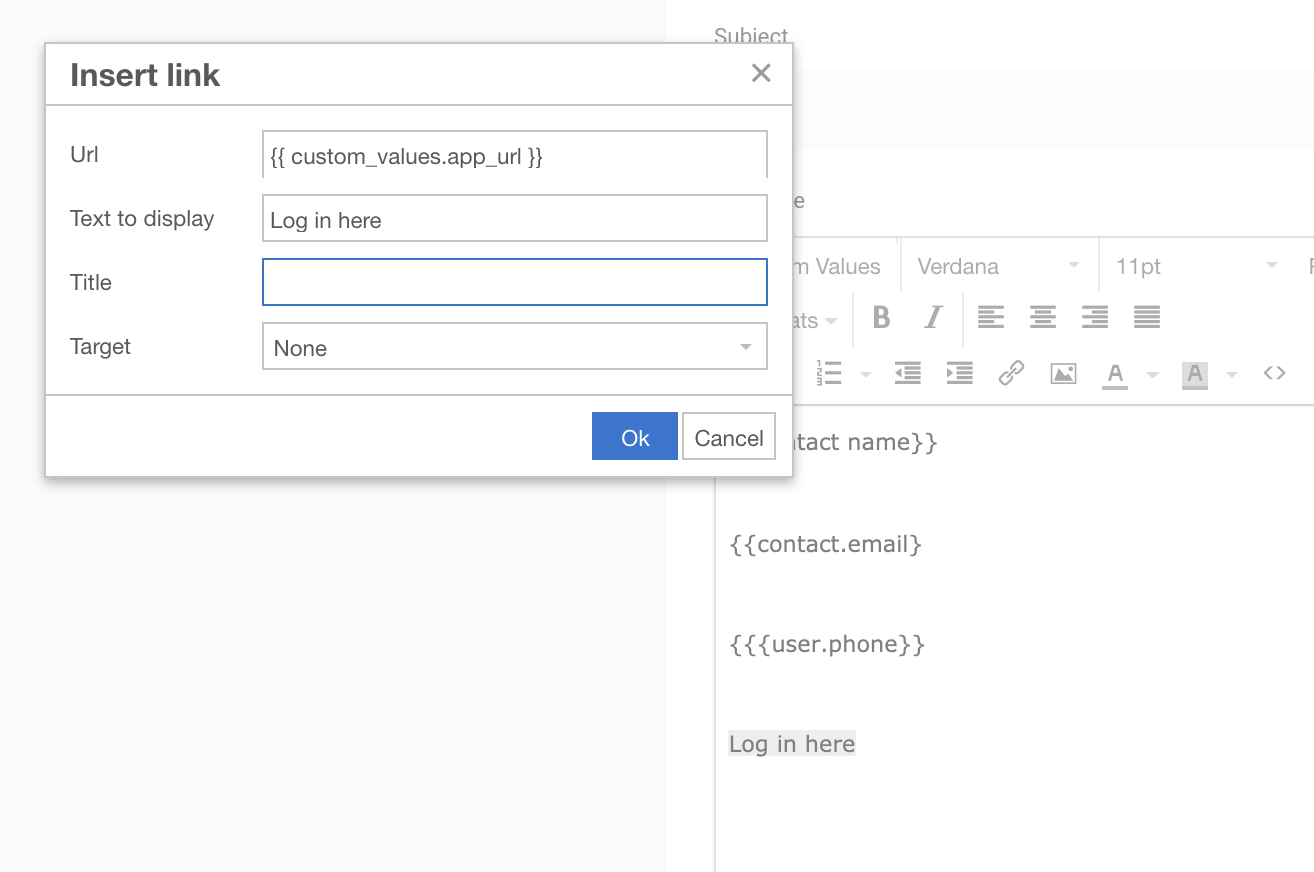
- Ecommerce store. The store checks each link in the email for valid custom values, fixes any that do not match the allowed list, and verifies the From address uses a proper email format. This prevents order confirmation emails from being blocked.
- Fitness studio. The studio reviews the email template for stray characters, confirms that all custom fields resolve correctly, and updates any mistyped recipient addresses. Once corrected, the reminder email is sent automatically as members progress through the enrollment workflow.
04How to set up and use send email actions in HighLevel
Run the Send Email troubleshooting checklist
- Confirm the workflow shows the error message for the Send Email step.
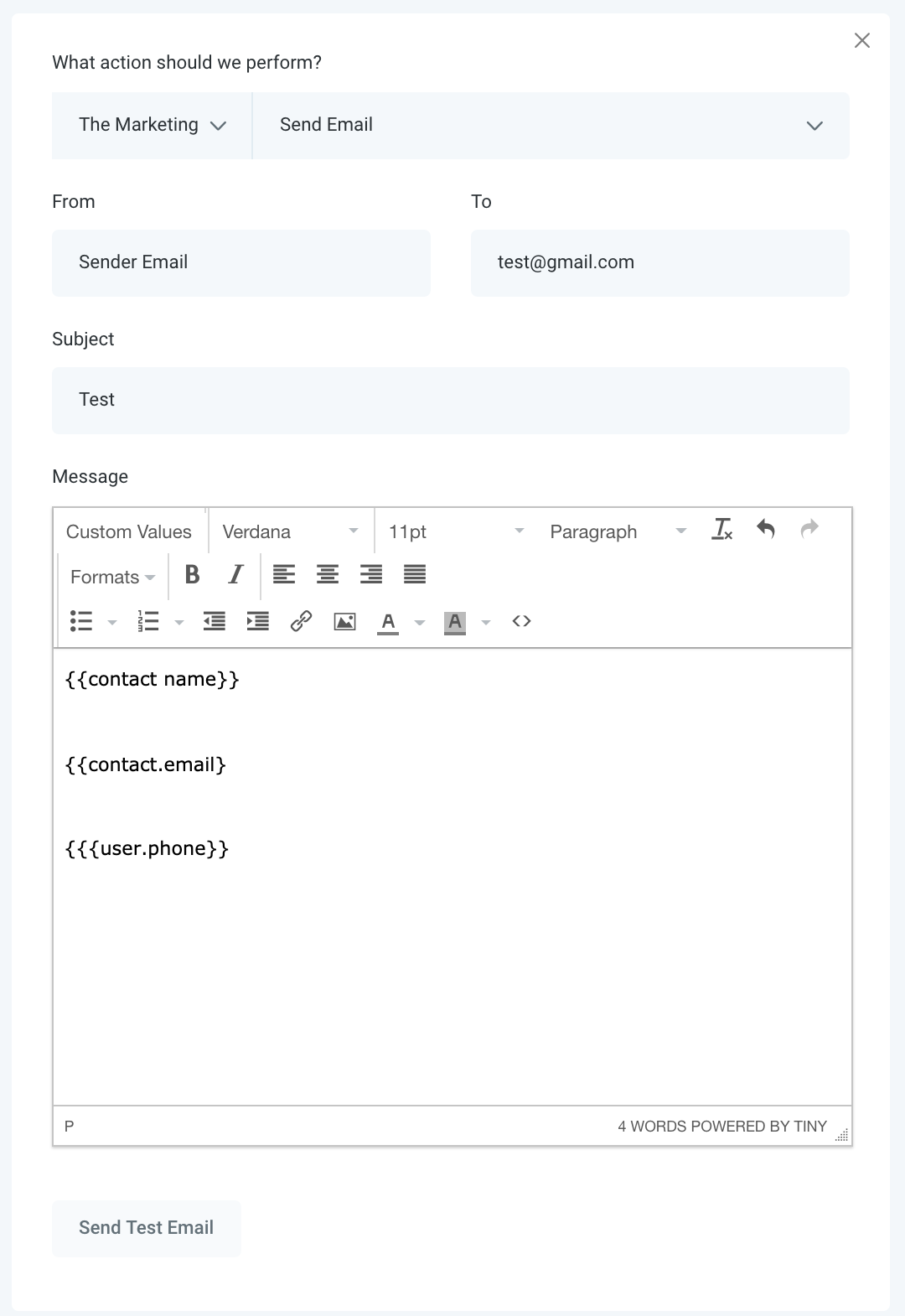
- Inspect the email or SMS content for a missing } or for overusing {{{.
- Verify every custom value, especially links, matches the list of valid custom values.
- Check that each recipient email address follows proper format, such as info@domain.com.
- Ensure the From field contains a correctly formatted email address, not just a company name.
05What it looks like in HighLevel
06If something goes wrong
- Missing closing brace in a merge field. Add the required } so the merge field can be parsed.
- Invalid email address format in the From or recipient field. Replace the incorrect address with a properly formatted email like user@domain.com.
07How it connects to the rest of HighLevel
- Learn how to fix links that do not open in HighLevel emails Email link troubleshooting
- Guide to dedicated sending domain setup for reliable delivery Dedicated sending domain
- HighLevel pricing and plans overview Pricing
Michael's take

When a campaign’s email step shows an error, the email is not sent.
The first thing I would get right is the merge field syntax. Making sure every {{…}} is closed and no {{{ sneaks in.
Once the braces are clean, I’d verify the From address format because a stray name without an email will trip the same error. With those two spots solid, the rest of the checklist usually falls into place.