
01Who this is for
- Founders who have set up email sending with Mailgun and want to consolidate infrastructure within HighLevel.
- Agency owners managing multiple client subaccounts and needing the same domain across them.
02Mailgun sending domains, explained
This feature lets you shift a domain that was verified in Mailgun to the dedicated sending domain facility of LeadConnector Email. After removal from Mailgun, the platform treats the domain as its own sending source, still using Mailgun’s underlying mail servers. The process consists of two parts: a permanent delete in Mailgun and a verification step inside HighLevel.
The domain lives under Settings > Email Services > Dedicated Domain for each subaccount. When you click Add & Verify, the platform reads the DNS records you already have (SPF, DKIM, MX, CNAME) and marks those that match. Once all checks are green, the domain is ready for sending through LeadConnector Email.
03How businesses use Mailgun sending domains
- SaaS startup. The startup removes its Mailgun domain, then adds the same address in each product subaccount under Dedicated Domain. It clicks Add & Verify, watches the DNS checks turn green, and sends a test from Conversations to confirm delivery.
- Real estate agency. The agency deletes the Mailgun domain, adds it in the agency’s LeadConnector subaccount, and relies on the existing SPF and DKIM records. After verification, agents can email listings without changing DNS.
- Ecommerce store. The store follows the same steps, ensuring the order confirmation emails continue to send. After the domain shows all green checkmarks, a test email is sent from the platform’s Conversations area.
04The numbers and rules that matter
- The same domain can be added to more than one subaccount, but reputation is tracked per account.
05How to set up and use Mailgun sending domains in HighLevel
Delete the domain from Mailgun
- Log in to Mailgun and open the Sending > Domain Settings section.
- Select the domain you intend to migrate from the dropdown at the top right.
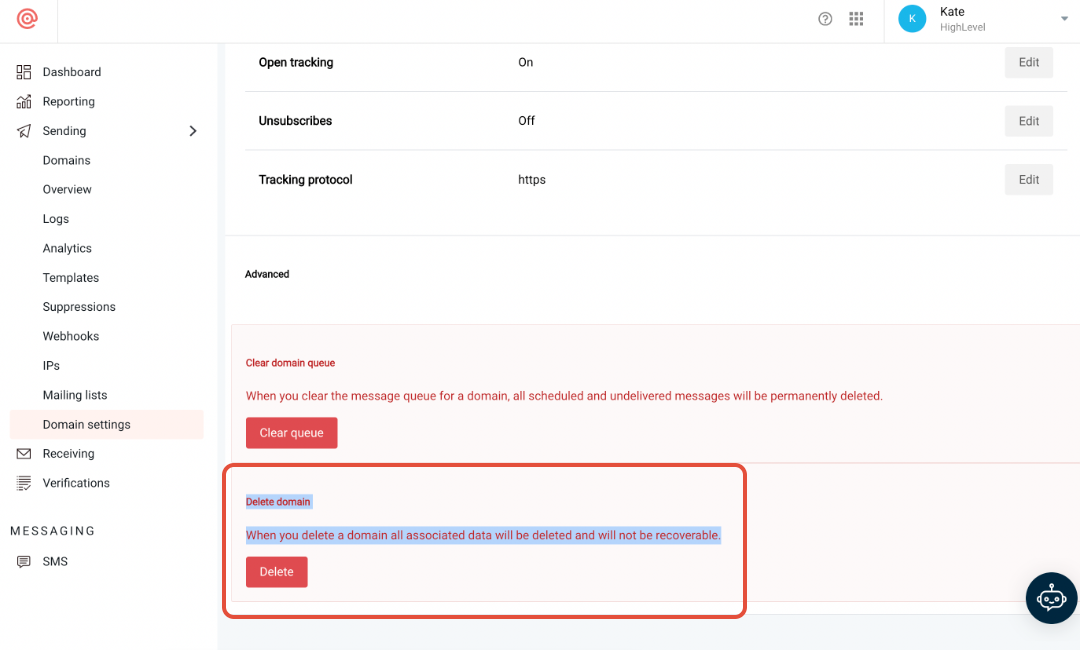
- Scroll down to the bottom of the Domain Settings page.
- Click the Delete button.
- Confirm the deletion when the prompt appears.
Add the domain in LeadConnector
- Open the required subaccount in HighLevel.
- Go to Settings > Email Services > Dedicated Domain.
- Press the + Add Domain button.
- Enter the domain name that was removed from Mailgun.
- Select Add & Verify to start DNS verification.
- Wait until all DNS records display green checkmarks, then send a test email from Conversations.
06What it looks like in HighLevel
07Settings that matter
- Domain Settings. Controls the list of domains managed in Mailgun and provides the option to delete a selected domain.
- Dedicated Domain. Enables a domain to be used for sending email through LeadConnector Email and runs DNS verification for required records.
08Things to know before you rely on it
- Deleting a domain from Mailgun cannot be undone; API keys and SMTP credentials tied to that domain stop working.
- There can be a brief window when emails using the domain cannot be sent between deletion and verification.
- Existing DNS records (SPF, DKIM, MX, CNAME) generally do not need to be changed because LeadConnector uses the same Mailgun infrastructure.
- The same domain can be added to multiple subaccounts, but each account tracks reputation separately.
09If something goes wrong
- Pending emails in Mailgun may be lost after the domain is deleted.. Complete all queued sends and confirm the queue is empty before removing the domain.
- Email sending stops after deletion but before verification in LeadConnector.. Prepare the Dedicated Domain setup in LeadConnector and finish verification immediately after deleting the domain in Mailgun.
10How it connects to the rest of HighLevel
- HighLevel dedicated sending domain setup and management Dedicated sending domain overview
- How to set up SMTP providers in HighLevel SMTP provider guide
- HighLevel pricing and plans Pricing page
Michael's take

Moving a sending domain from Mailgun to LeadConnector Email can feel risky because you are removing a live domain from a service you’ve been using. The permanent delete means any API keys tied to that domain stop working, and you lose access to historical logs.
The upside is that LeadConnector Email sits on the same Mailgun backbone, so you keep all your DNS records and reputation intact while simplifying your stack. Once the domain shows green checkmarks, you get a single place to manage sending and no separate Mailgun account to maintain.