
01Who this is for
- Email marketers, need to monitor Gmail inbox placement for campaigns.
- Bulk senders, require domain and IP reputation data to maintain deliverability.
02Google Postmaster Tools, explained
Google Postmaster Tools is a free Google service that shows how Gmail rates your sending domain and IP. It reports spam rates, domain and IP reputation, authentication pass rates, encryption usage, delivery errors and user feedback.
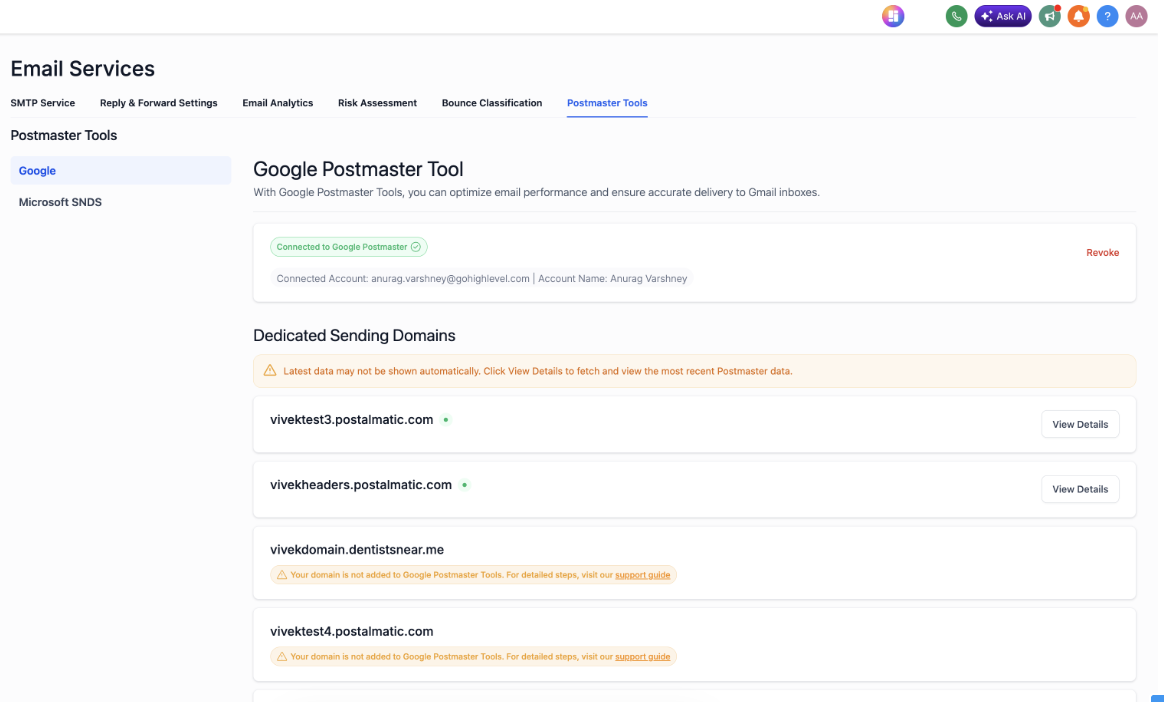
Within HighLevel the integration lives under Settings > Email Services > Postmaster Tools > Google Postmaster Tool. After connecting, the platform pulls the metrics and displays them alongside your other email data, so you can view them without leaving the dashboard.
03How businesses use Google Postmaster Tools
- Digital marketing agency. The agency adds its clients’ dedicated sending domains to Google Postmaster Tools, connects the accounts in HighLevel, and watches the spam rate and reputation dashboards to adjust sending practices for each client.
- Online course provider. The provider links its custom domain to Postmaster Tools, then uses the HighLevel view to verify that SPF, DKIM and DMARC are passing, ensuring course notification emails reach students.
- Non profit organization. The nonprofit connects its fundraising email domain, monitors the delivery error pane in HighLevel, and resolves any authentication or encryption issues that appear.
04The numbers and rules that matter
- Spam rates above 0.1% are a critical signal.
- Aim for spam rates under 0.05% for healthy sending.
- Google updates most dashboards once per day.
- Reputation values typically lag by 1 to 2 days.
- API v2 adds a Compliance Status tab with detailed requirement checks.
05Before you start
- Own a dedicated sending domain and have control over its DNS records.
- Configure SPF, DKIM and DMARC records for that domain.
- Sign in to a Google account that can access the domain in Postmaster Tools.
06How to set up and use Google Postmaster Tools in HighLevel
Set up Google Postmaster Tools
- Open postmaster.google.com and sign in with your Google account.
- Add the email sending domain you control.
- Create the TXT verification record that Google provides and add it to the domain’s DNS.
- Wait a few days for Gmail metrics to start appearing.
Connect Google Postmaster to LeadConnector
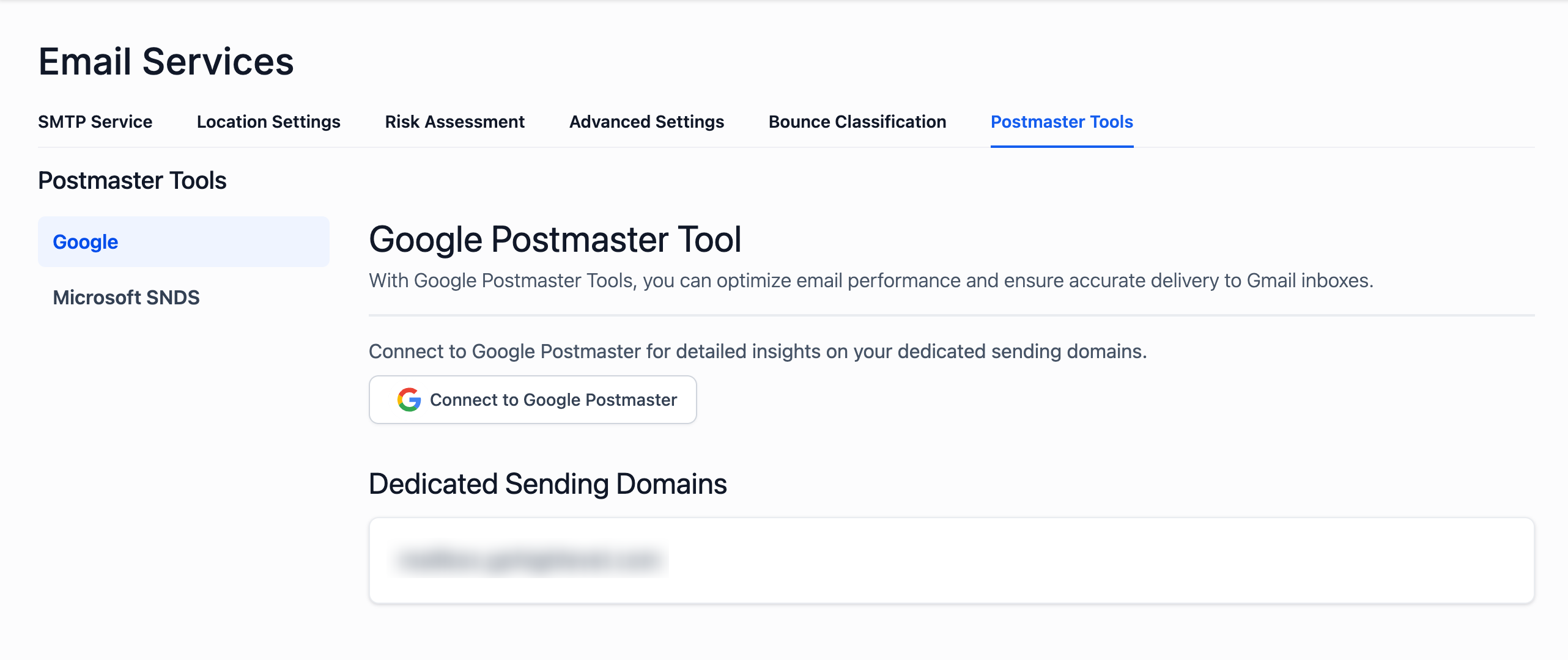
- In HighLevel go to Settings > Email Services > Postmaster Tools > Google Postmaster Tool.
- Click the Connect to Google Postmaster button.
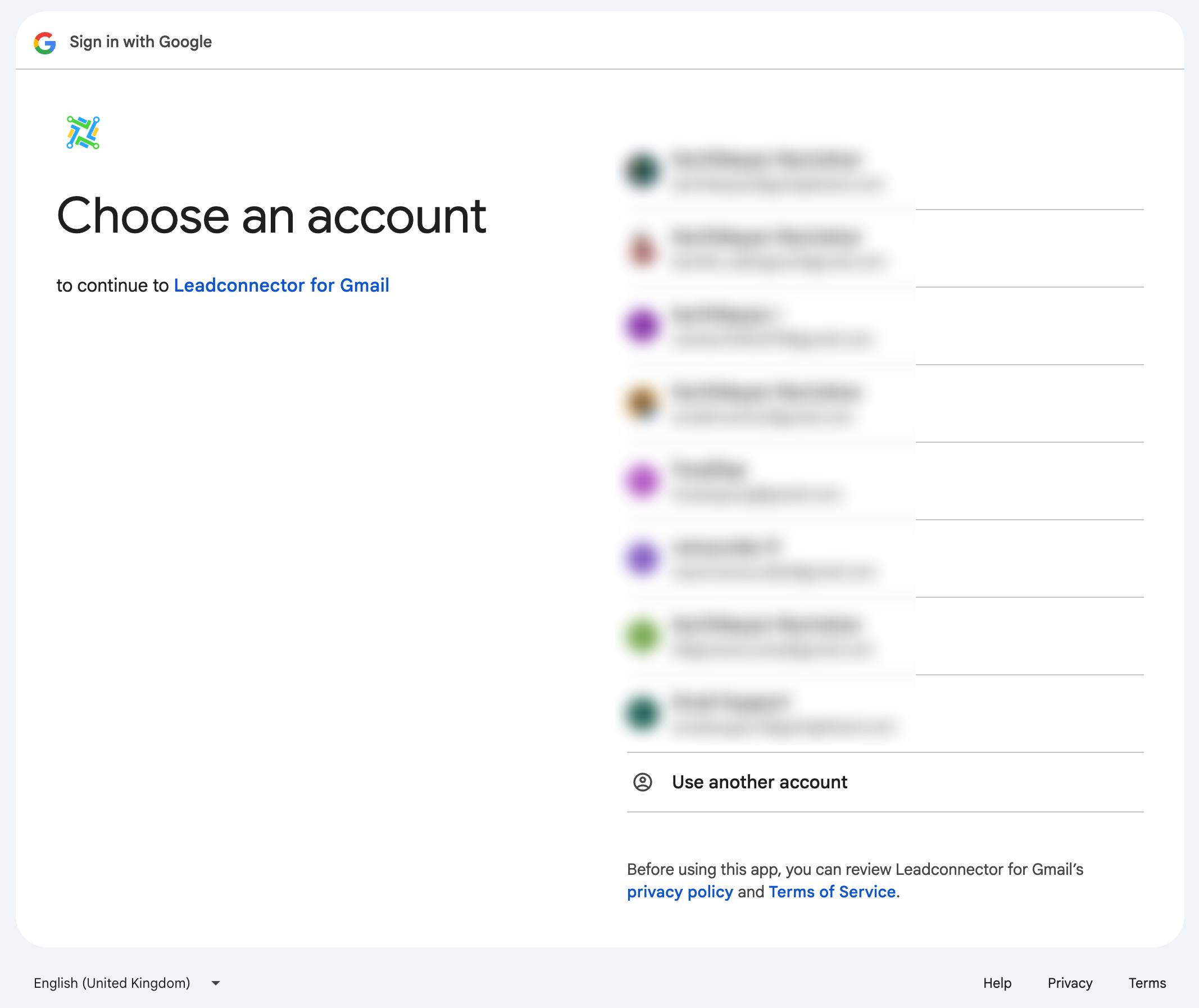
- Sign in with the Google account that holds the registered domains.
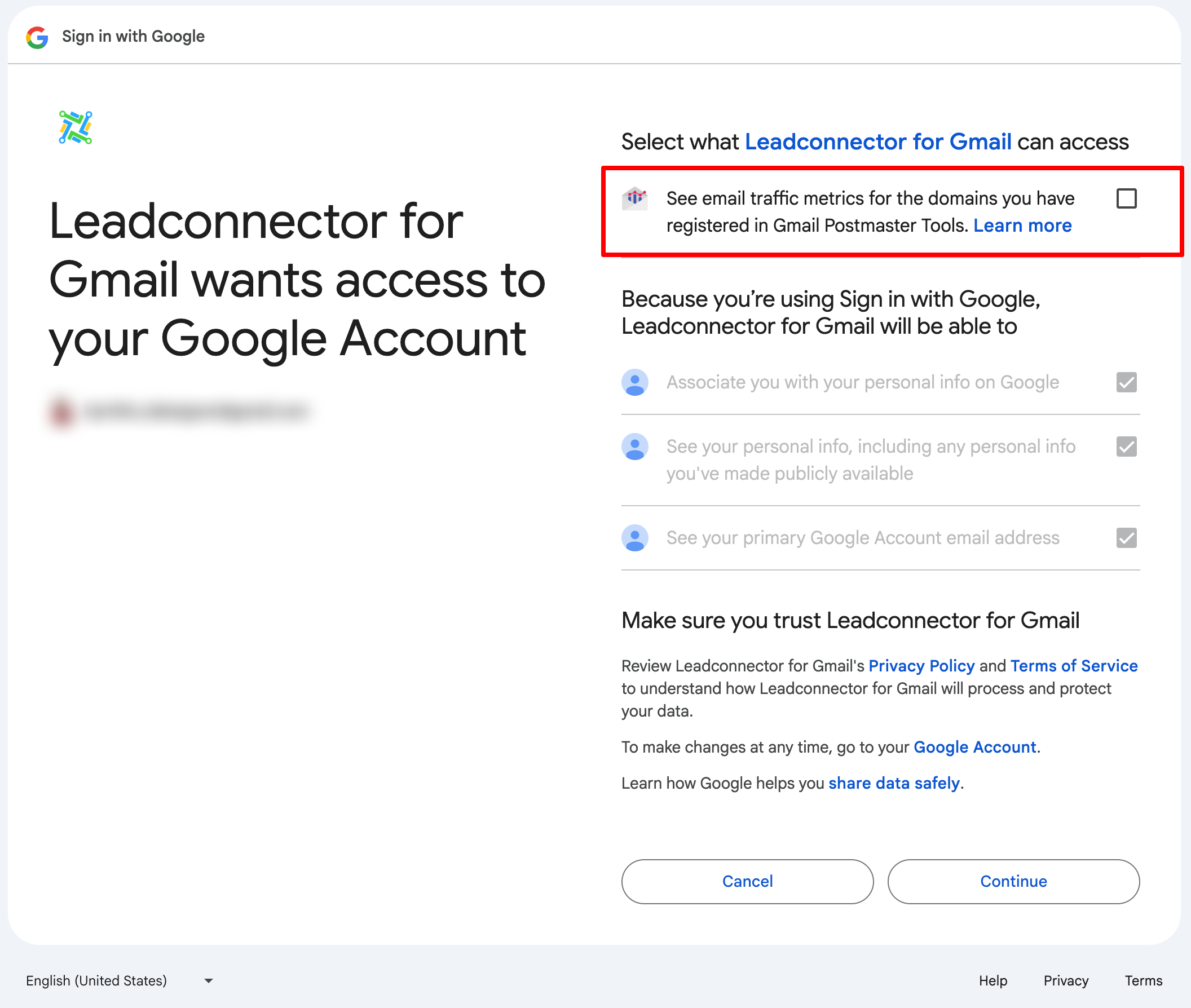
- Check the permission box for email traffic metrics and click Continue.
Reauthenticate to Postmaster API v2
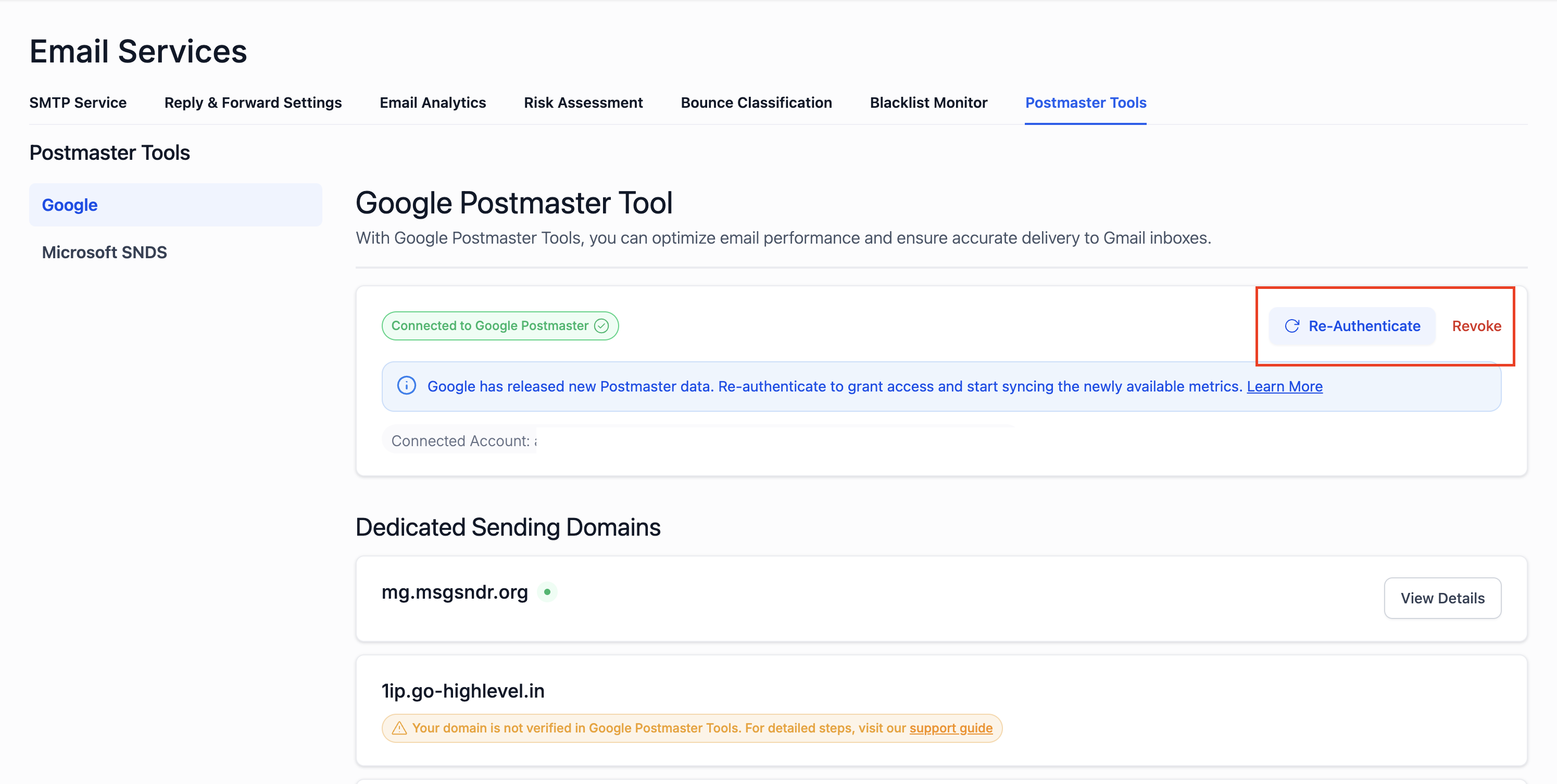
- Locate the Re Authenticate button on the Google Postmaster tab.
- Click Re Authenticate and confirm access through the Google sign in flow.
- After confirmation, the connection switches to API v2 and the banner disappears.
07What it looks like in HighLevel
08Settings that matter
- Connect to Google Postmaster. Initiates the OAuth link between HighLevel and your Google Postmaster account to pull deliverability data.
- Re, Authenticate. Updates the integration to use Google’s Postmaster Tools API version 2 and unlocks the new Compliance Status tab.
09Things to know before you rely on it
- Low volume domains may see partial or empty dashboards until enough Gmail traffic is generated.
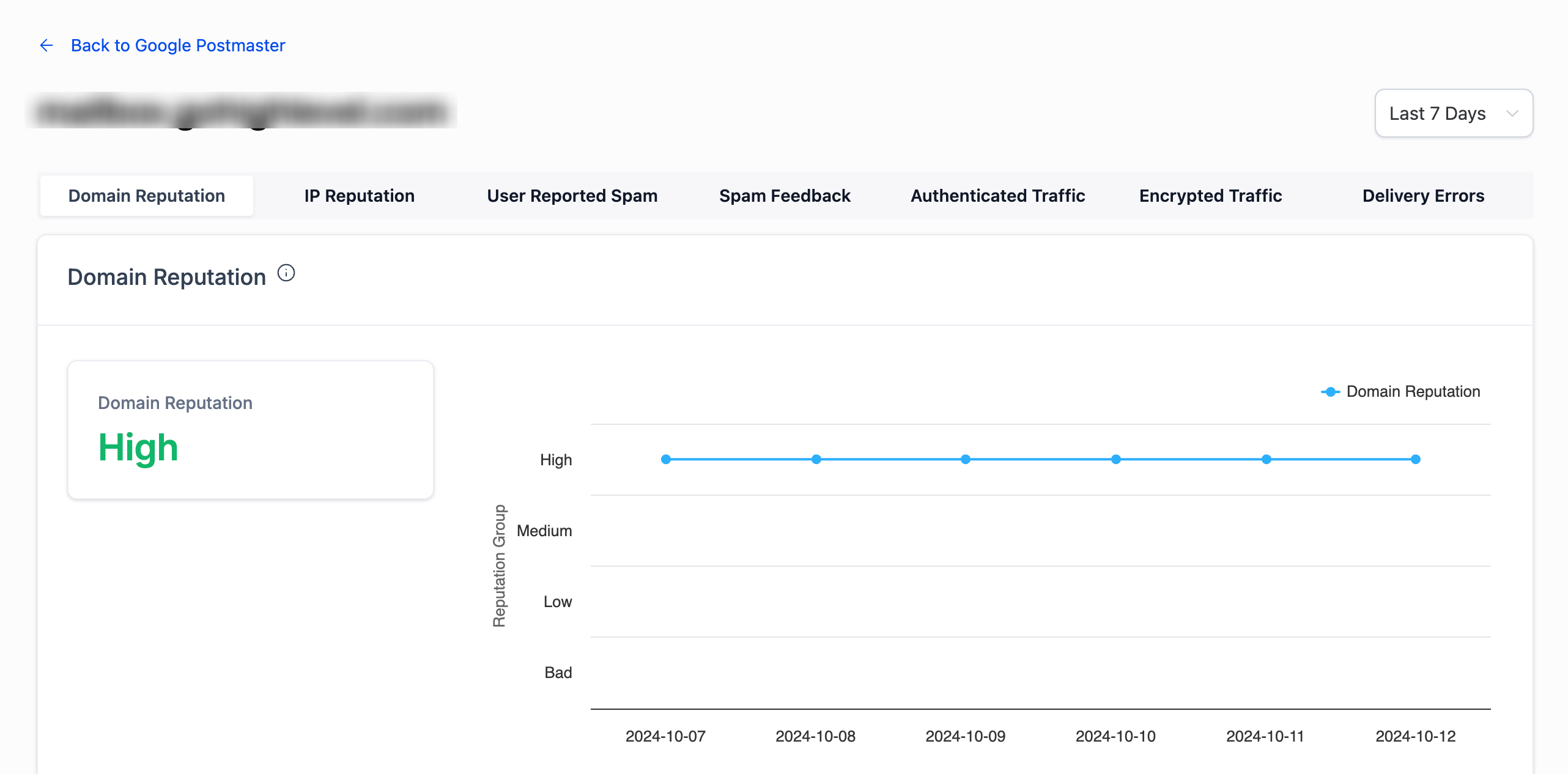
- Google will soon deprecate the IP Reputation and Domain Reputation tabs; they will stop appearing once Google removes them.
- The integration only reads email traffic metrics; it does not access contact lists or campaign content.
10If something goes wrong
- No data appears after setting up Postmaster Tools. Increase the volume of emails sent to Gmail addresses until it meets Google’s threshold for reliable reporting.
11How it connects to the rest of HighLevel
- Configure SPF, DKIM and DMARC for your sending domain DMARC guide
- Set up a dedicated email sending domain in HighLevel Dedicated domain setup
- Warm up your email address to improve deliverability Email warm up guide
Michael's take

Getting your emails stuck in Gmail’s spam folder kills any campaign’s ROI. The first thing I would get right is the domain’s authentication records. Make sure SPF, DKIM and DMARC are all verified before you even think about connecting Postmaster.
Once the records are solid, linking the tool inside HighLevel gives you a daily pulse on how Gmail sees you. That visibility lets you tweak content, volume or sending infrastructure before your reputation takes a hit.