
01Who this is for
- Founders who oversee email marketing can clean up unused domains while keeping active campaigns alive.
- Marketing managers need to ensure that domain deletions do not interrupt scheduled email sends.
- Small business owners handling their own email infrastructure benefit from a clear step by step removal process.
02Domains, explained
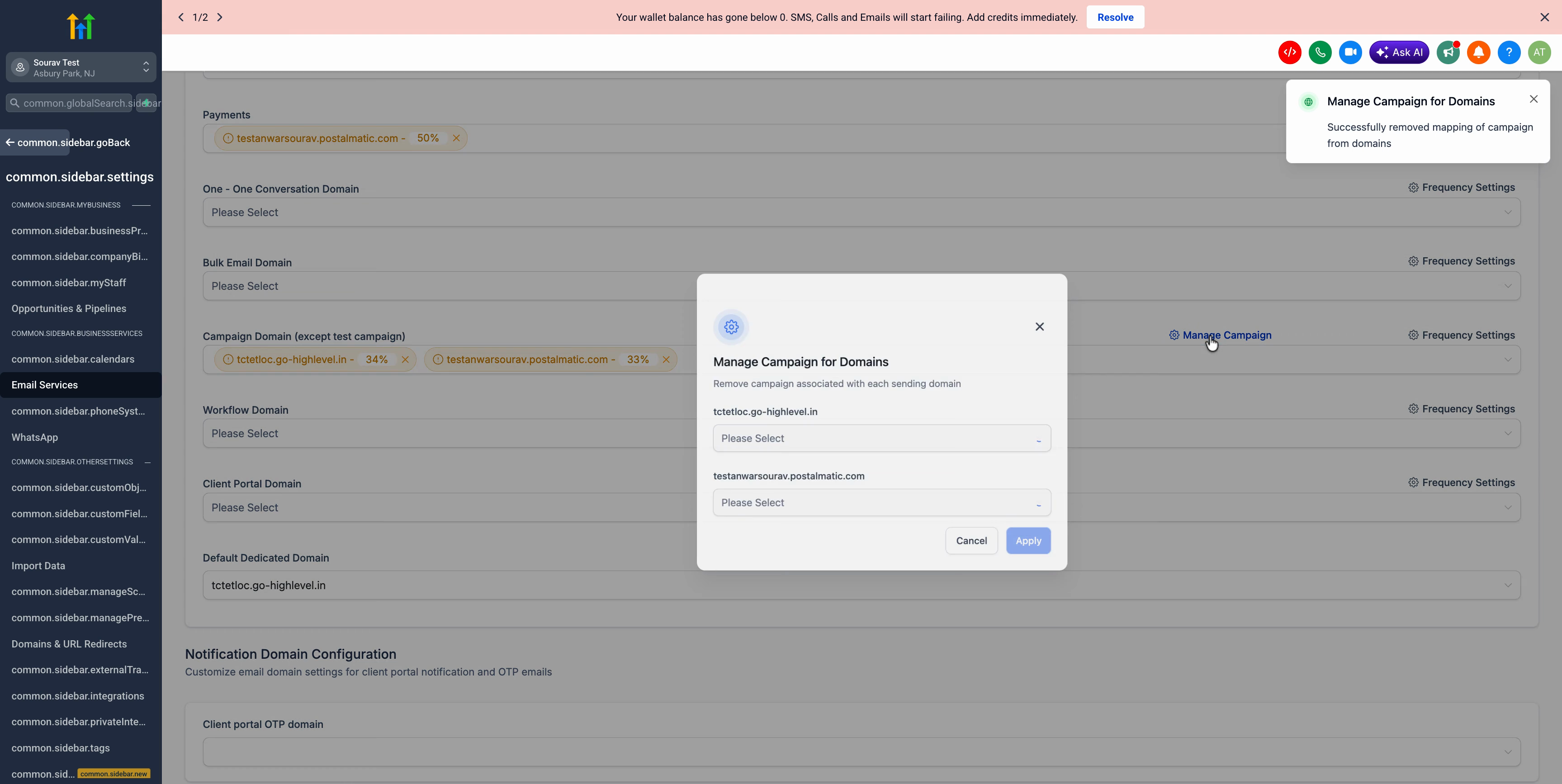
The feature lets you detach a sending domain that is linked to one or more scheduled campaigns. When a domain is still assigned, HighLevel blocks deletion and shows an alert. By entering the Domain Configurator you can view every campaign that uses the domain, remove the association, and then delete the domain from the system.
All actions occur within the Email Infrastructure section of HighLevel. The process is limited to active (non test) campaigns; test campaigns are not considered when the system checks for assignments. Once the domain is fully unlinked, the delete option reappears on the main domain list.
The workflow is designed to run quickly, typically under two minutes, and does not affect the content or schedule of campaigns that have already been unlinked.
03How businesses use domains
- Ecommerce store. The store opens the Domain Configurator, selects the marketing domain, unlinks it from all promotional email campaigns, applies the changes, confirms no links remain, and then deletes the domain to retire an old brand domain.
- Real estate agency. The agency navigates to Manage Campaign for its listings update domain, removes the domain from every active drip campaign, saves the edits, checks that the campaign list is empty, and finally removes the domain from its account.
- Coaching business. The coaching business uses the domain list to locate the domain tied to its webinar invitation campaigns, unlinks the domain from those campaigns, confirms the unlink, and deletes the domain to replace it with a new branding domain.
04How to set up and use domains in HighLevel
Unlink and delete domain (7 steps)
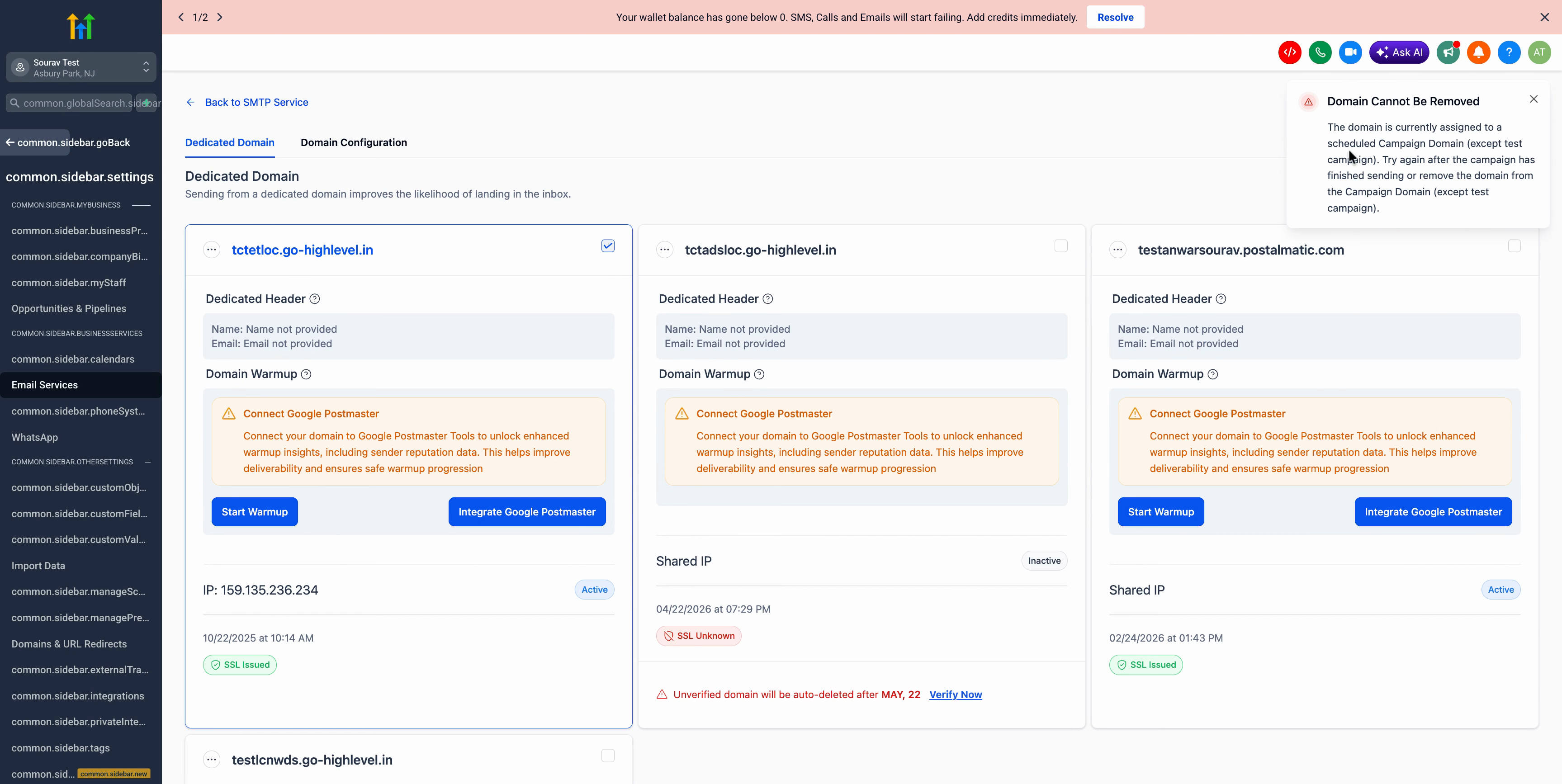
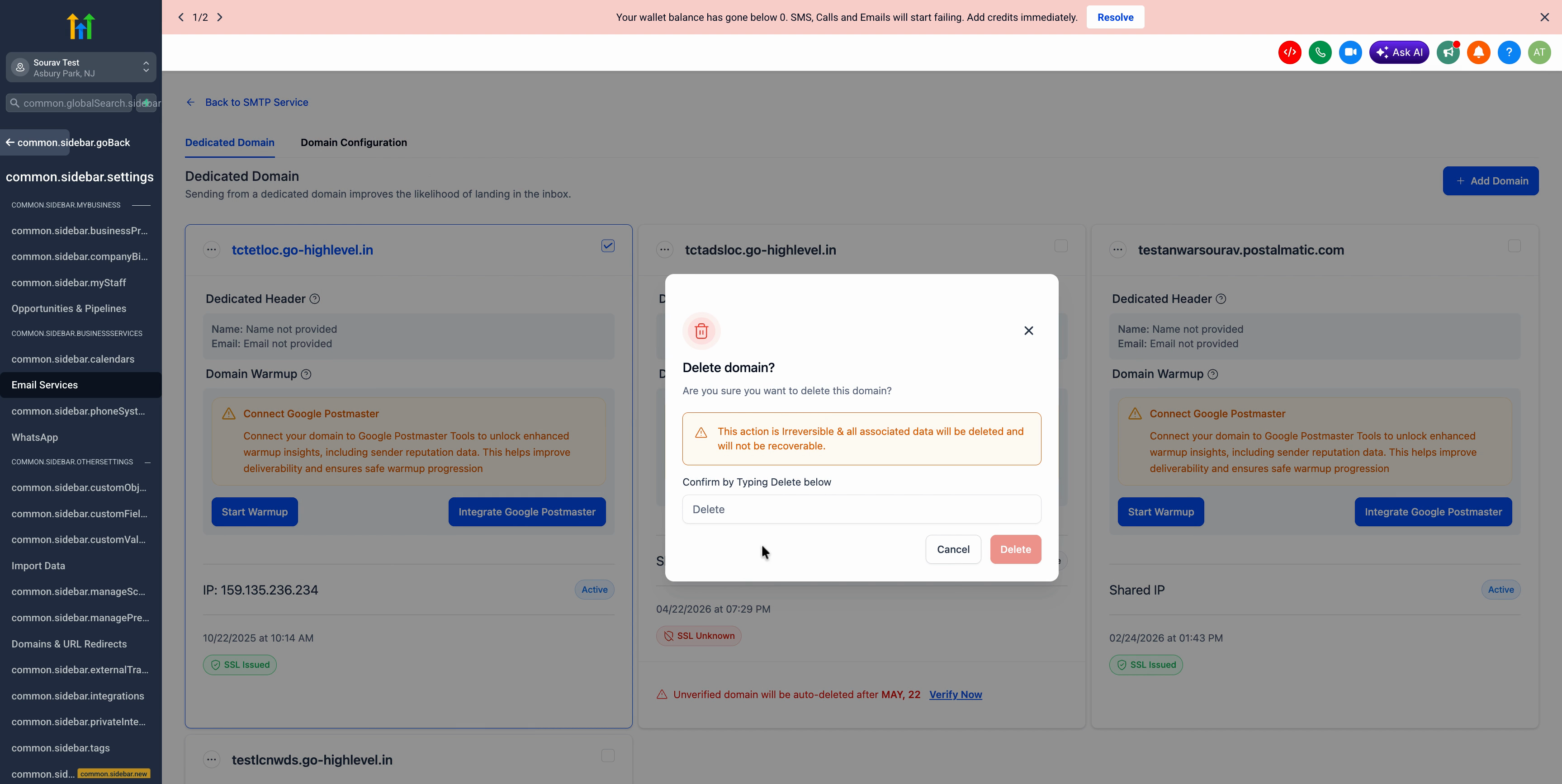
- Attempt to delete the domain by clicking Delete Domain; note the alert if the domain is still linked to a campaign.
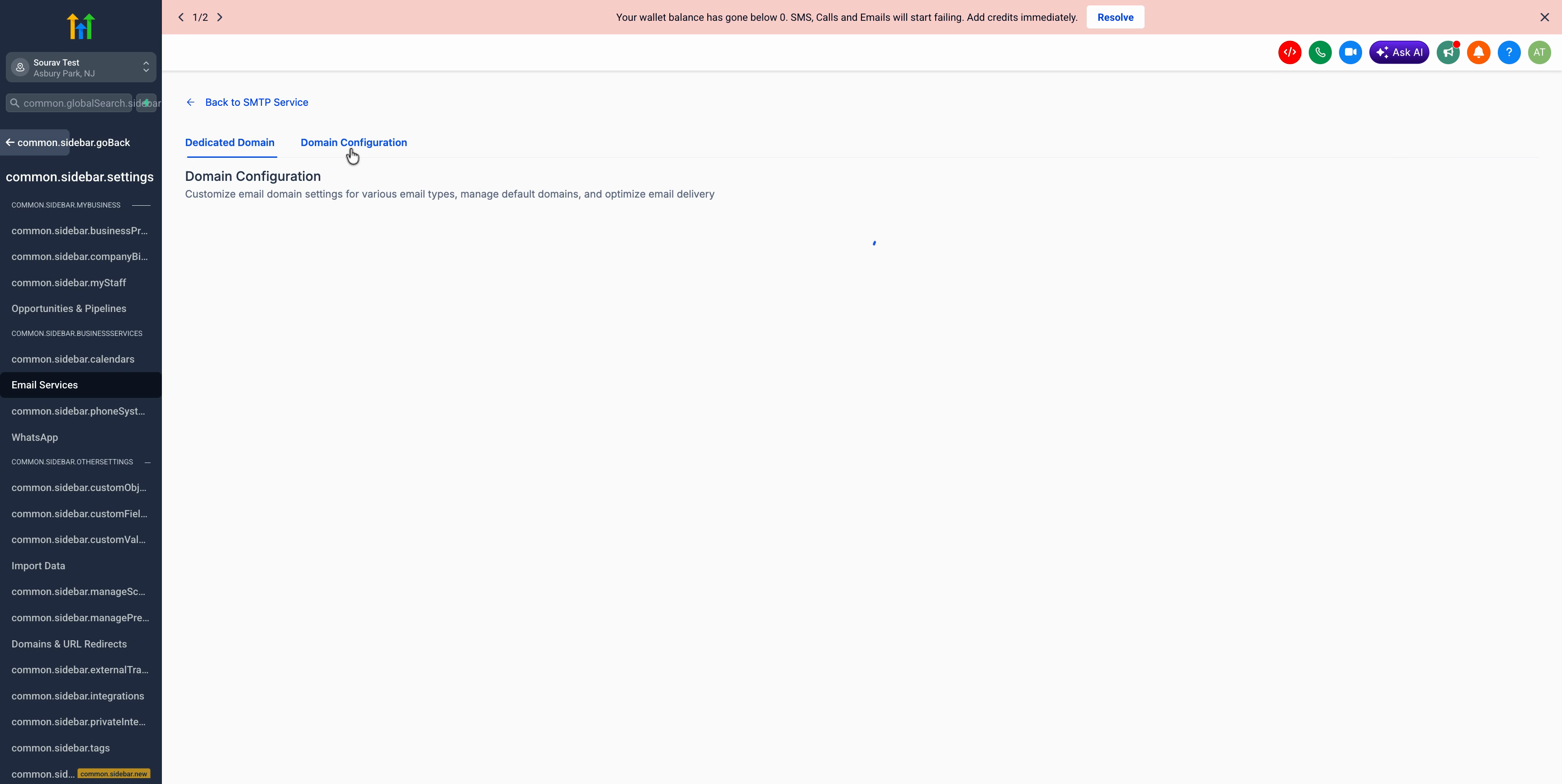
- Open the Domain Configurator from the menu and select the domain that triggered the alert.
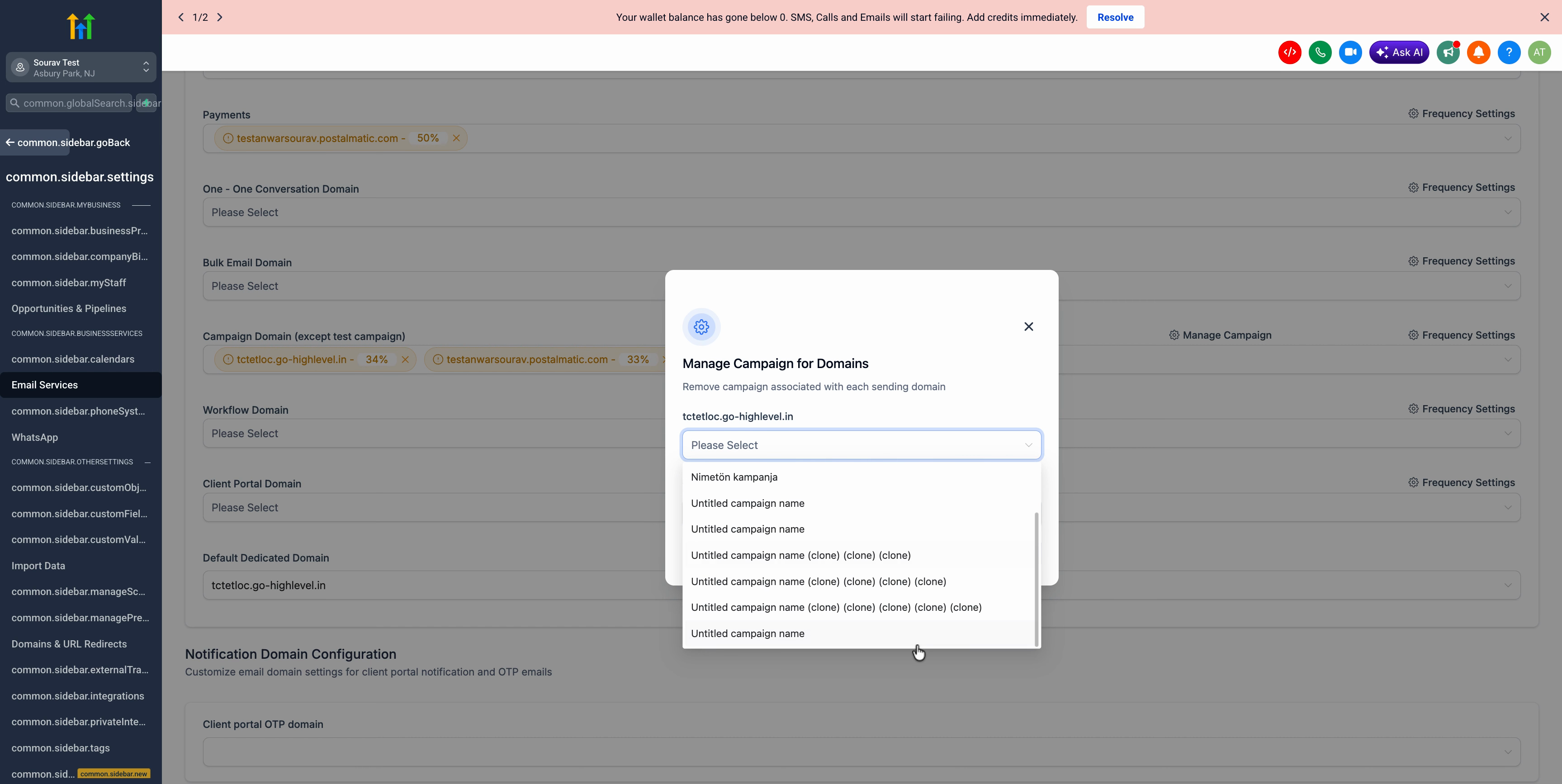
- Click Manage Campaign for the chosen domain to see all campaigns currently using it.
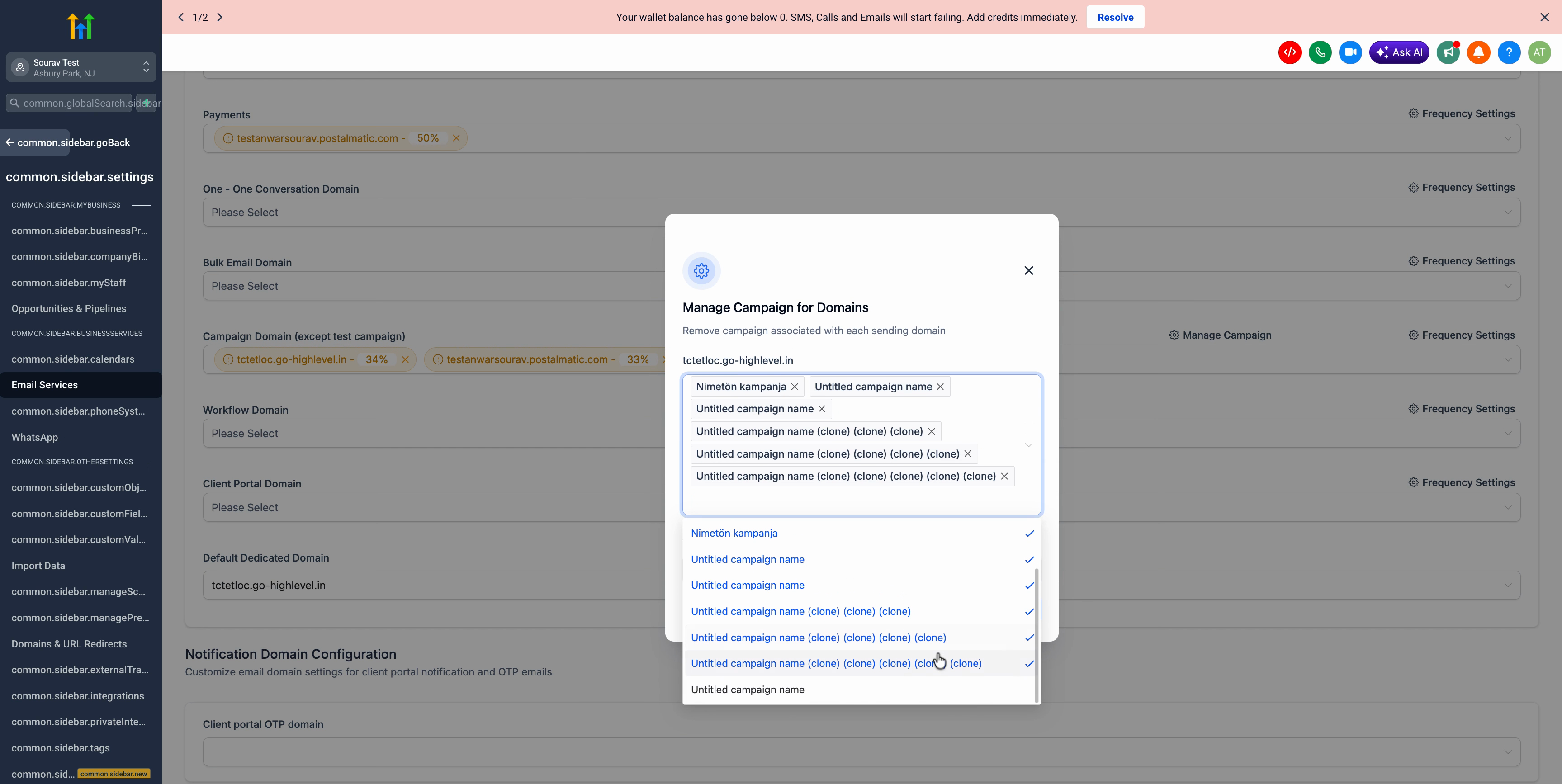
- Select every listed campaign and use the Remove option to unlink the domain from each one.
- Warning: missing even one campaign will block the delete in the next step.
- Press Apply to save the unlinking across the selected campaigns.
- Return to Manage Campaign and verify that the list of linked campaigns is now empty.
- Go back to the main domain list, enter the required confirmation text, and click Delete to remove the domain completely.
05What it looks like in HighLevel
06Things to know before you rely on it
- You must remove the domain from every active campaign; missing even one will prevent deletion.
- The error check excludes test campaigns, which are not considered when determining if a domain is assigned.
07If something goes wrong
- Error message: “The domain is currently assigned to a scheduled Campaign Domain (except test campaign).”. Open the Domain Configurator, use Manage Campaign to view all linked campaigns, unlink the domain from each, apply the changes, and then delete the domain.
08How it connects to the rest of HighLevel
- Set up dedicated sending domains Dedicated domain setup
- Verify sender email addresses for campaigns Email verification
- Best practices for email warm up and DMARC Email warm up guide
Michael's take

This is a straightforward cleanup step that only matters if you actually have domains tied to live campaigns.