
01Who this is for
- Founders who need to route customer chats to specific agents based on location and priority.
- Support managers who want to track conversation stages using dispositions and generate performance metrics.
- Administrators responsible for integrating external notifications through webhooks.
02Eliza Agent Platform Settings, explained
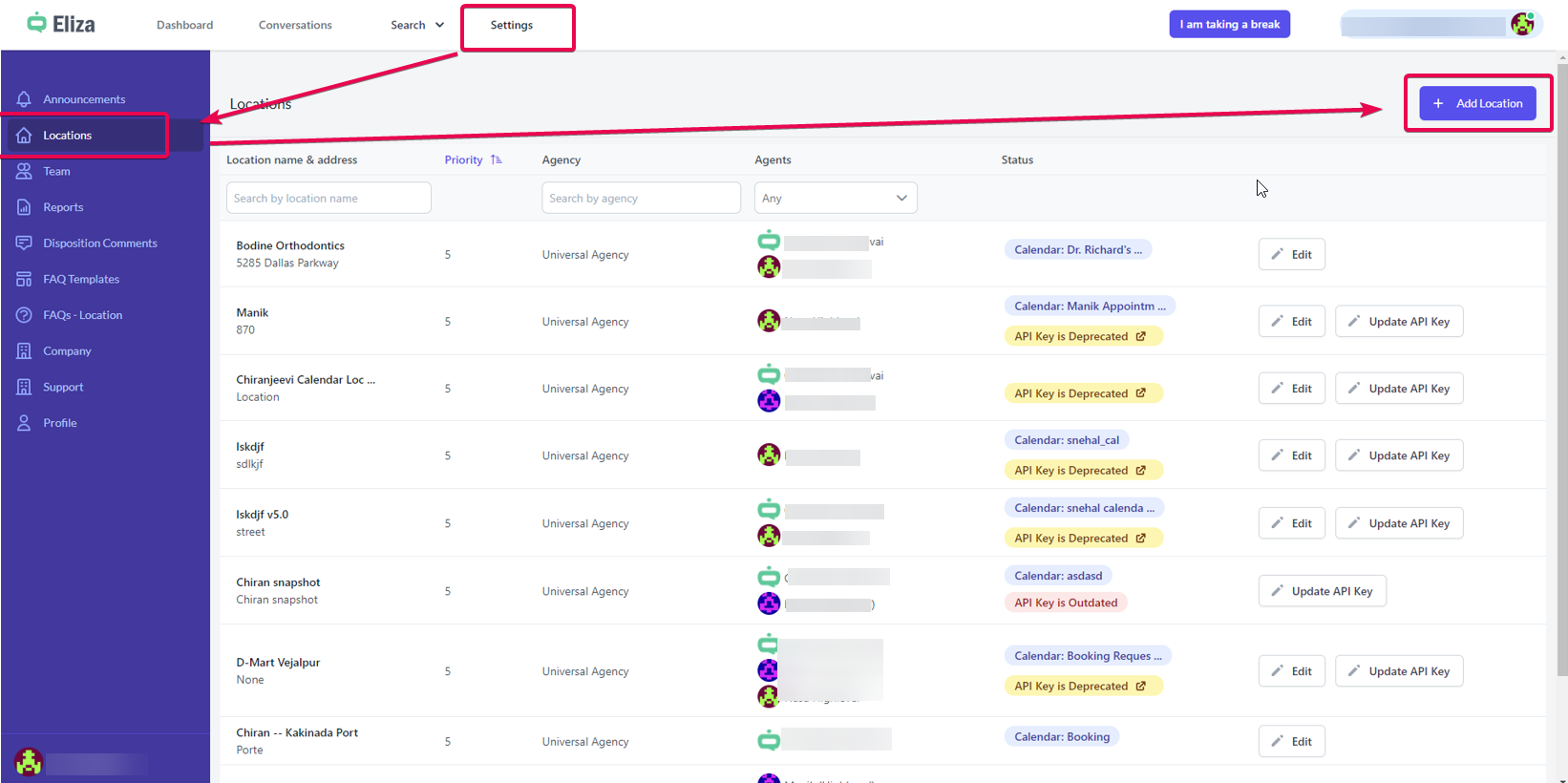
The platform provides a settings hub where locations are added, each tied to an optional default calendar and a priority value. Agents are linked to locations, and a note can be posted for agents in the Announcements area. Team members can be added as agents or admins, triggering an email invitation to set a password.
Webhooks are defined under Company settings. They send JSON payloads for manual or automatic assignments, unassignments, new messages, disposition changes and appointment bookings. Dispositions are created with a name, short name, tag, comment permissions and an optional delete flag. Comments entered when a disposition is assigned are stored and can be filtered or exported. Reports include a Leads report and an Agent Performance report, the latter limited to a 90 day date range.
03How businesses use Eliza Agent Platform Settings
- Real estate brokerage. The brokerage adds each office as a location, selects a priority based on time zone, and assigns agents to those offices. When a client messages, the platform routes the chat to an online agent in the correct office. The broker downloads disposition comments to refine FAQs for common buyer questions.
- Dental practice. The practice creates a location for each clinic, adds dental hygienists and front desk staff as agents, and configures a webhook that notifies the appointment system when a conversation receives the "Appointment Booked" disposition. Dispositions such as "Waiting for the customer's response" help track pending follow ups.
- SaaS customer support team. Support managers define custom dispositions for issue types, enable mandatory comments, and run the Agent Performance report to see average response times across locations. Webhooks alert a Slack channel whenever a conversation is auto assigned, keeping the team aware of workload distribution.
04The numbers and rules that matter
- Webhooks include keys: Type, LocationName, Priority, Agent Email, Conversation Count, contactId, contactName.
- Maximum date range for Agent Performance Report is 90 days.
05Before you start
- Create at least one location in HighLevel before adding agents to it.
- Ensure agents exist in the system to assign them to locations.
- For FAQ template assignment, the subaccount must have the Eliza Service tab enabled in User permissions.
06How to set up and use Eliza Agent Platform Settings in HighLevel
Add a new location
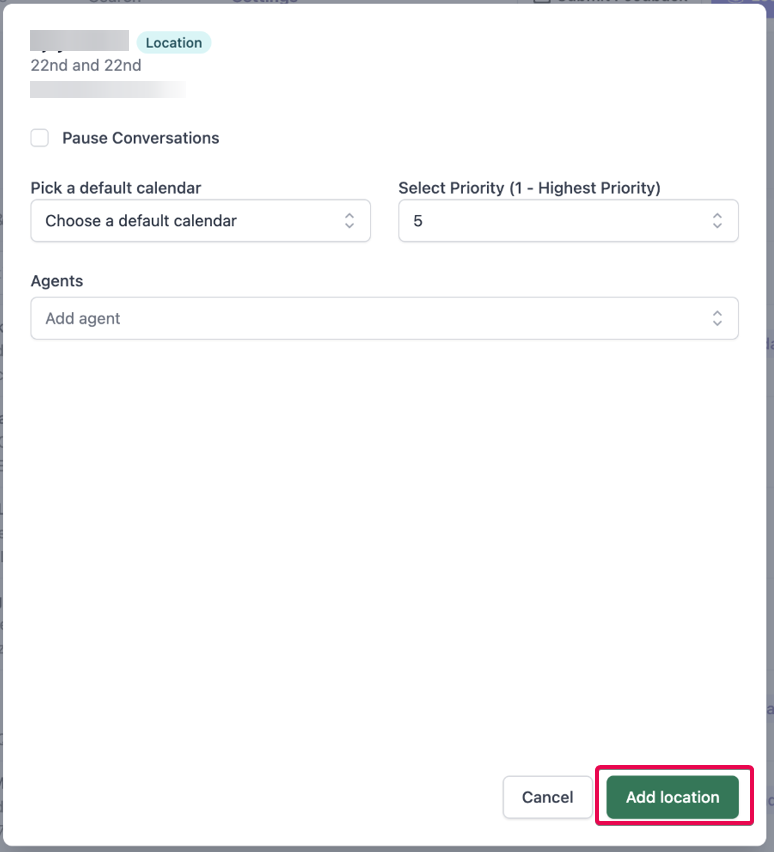
- Click the Add Location button in Settings > Locations.
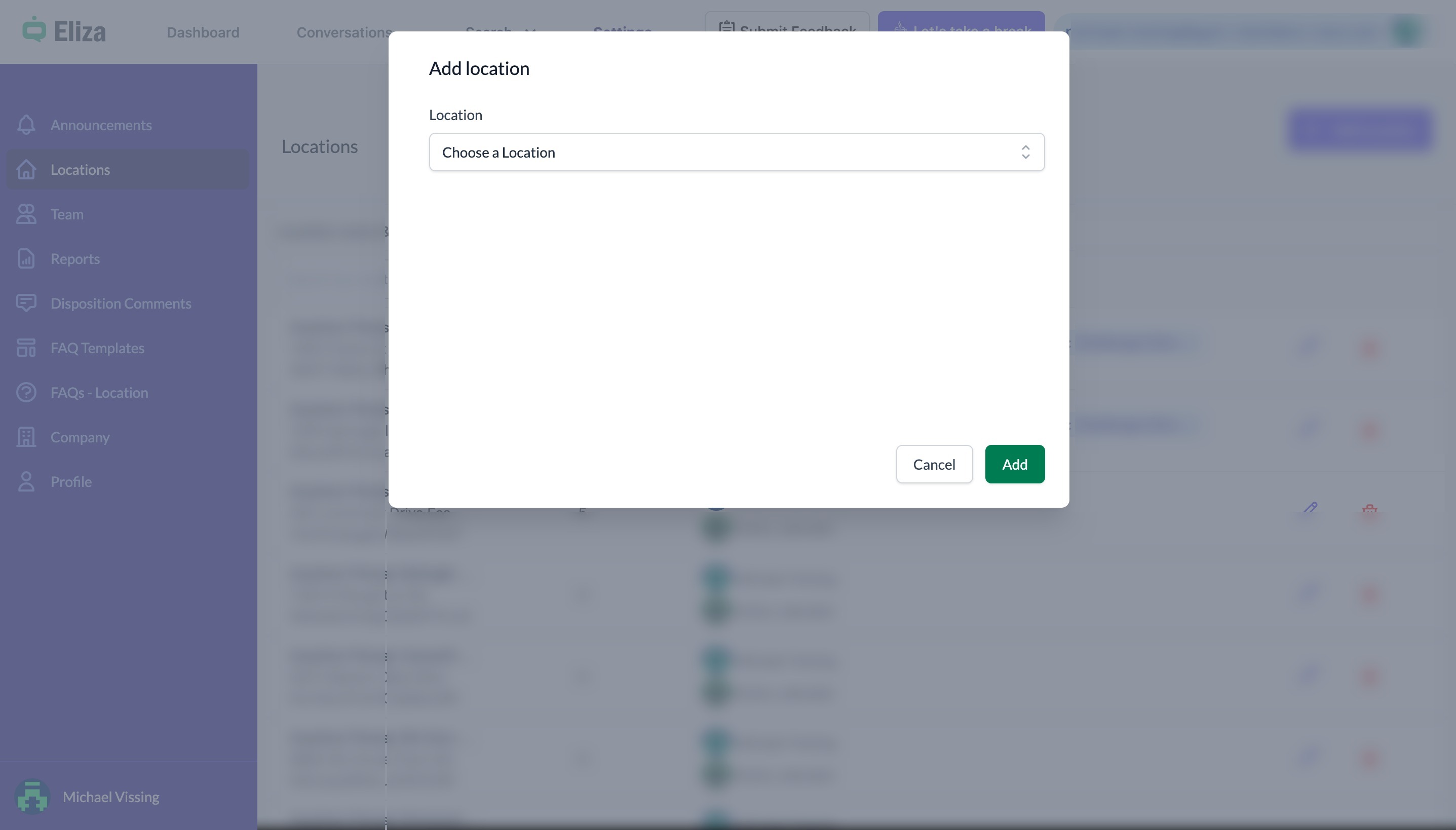
- Choose the desired location from the dropdown list.
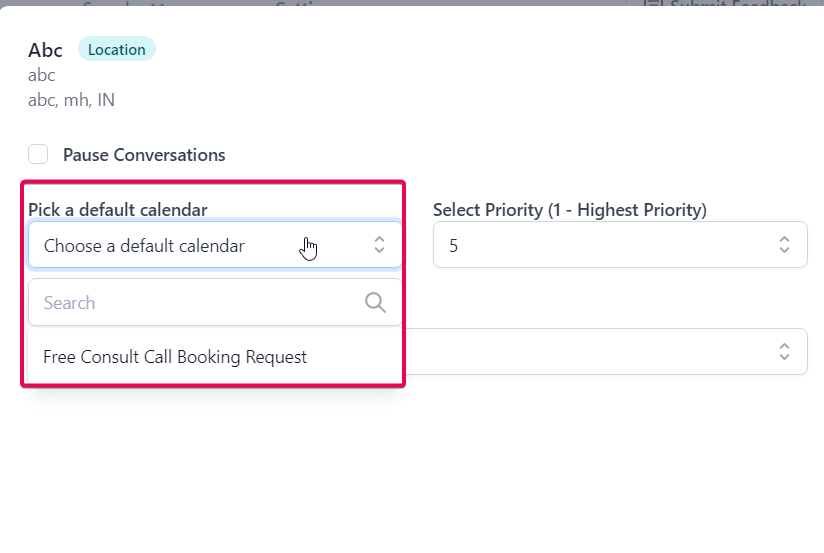
- Select an optional default calendar for the location.
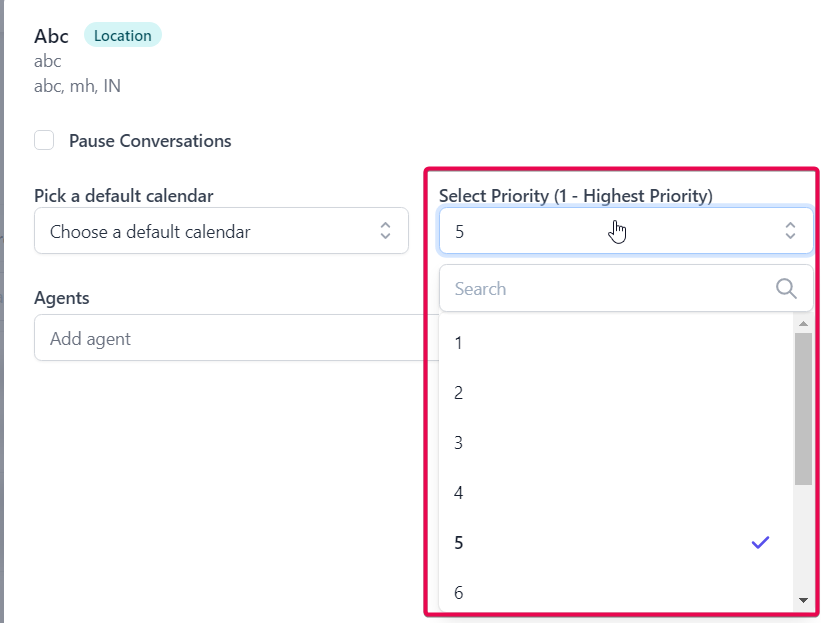
- Set a priority value for the location.
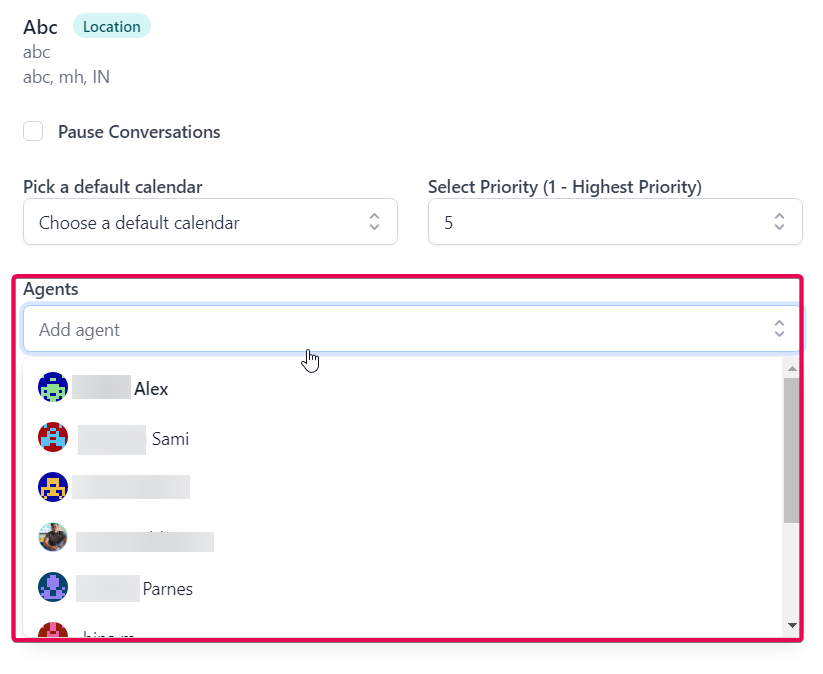
- Pick agents who will handle conversations for this location.
- Enter a note to appear in Settings > Announcements for the chosen agents.
- Press Add Location to save the new location in Eliza.
Configure team members
- Open Settings > Team.
- Add a new member and designate the role as agent or admin.
- Save the member record.
- The system sends an email invitation to the new member.
- The member follows the link in the email to create a password.
Configure webhooks
- Navigate to Settings > Company.
- Select the webhook type to configure (e.g., Manual assignment, Auto Assignment).
- Enter the URL or endpoint for the webhook.
- Save the webhook configuration.
Create a disposition
- Enter the disposition name.
- Provide a short name for the disposition.
- Specify the tag that will be applied when the disposition is used.
- Choose whether comments are allowed for this disposition.
- Set whether comments are mandatory when the disposition is assigned.
- Optionally enable the delete option for the disposition.
Download disposition comments
- Open Settings > Disposition Comments.
- Apply filters for location, disposition name, and agent as needed.
- Click the download button at the top right corner.
- Save the generated Excel file.
Run agent performance report
- Go to the Reports section.
- Select the Agent Performance report.
- Choose one or all locations and set a date range (up to 90 days).
- Generate the report to view performance metrics.
07What it looks like in HighLevel
08Settings that matter
- Default calendar. Specifies which calendar is used for scheduling appointments for the location.
- Priority. Determines the order in which locations are considered for conversation routing.
- Agents. Lists the users who can receive and answer conversations for the location.
- Announcements. Shows a note to agents assigned to the location on the Announcements screen.
- Team role. Defines whether a new team member acts as an agent or an admin.
- Webhook keys. Identifies which data fields are sent with each webhook event.
- Disposition name. The label displayed when selecting a disposition at the end of a chat.
- Short name. A concise identifier for the disposition used in reports.
- Tag. A marker applied automatically when the disposition is chosen.
- Allow comments. Enables agents to enter free form notes when assigning the disposition.
- Comments mandatory. Requires agents to provide a comment before the disposition can be saved.
09Things to know before you rely on it
- The Agent Performance report date range cannot exceed 90 days.
- Only dispositions that have comments enabled appear in the Disposition Comments tab.
- Announcements are visible only to agents assigned to the relevant location.
10How it connects to the rest of HighLevel
- Introduction and FAQs for the Eliza Agent Platform Eliza Agent Platform: intro
- Dashboard overview showing where settings are accessed Dashboard overview
- Search tools for locating settings and reports Search tools
Michael's take

Be aware that the Eliza Agent Platform Settings require careful coordination of locations, agents and webhook URLs before any live traffic reaches your team. Missing a priority rule or assigning webhook keys that don’t match your needs may cause confusion when conversations are handed off.
When the pieces are in place, the platform gives you clear visibility into how each conversation moves through stages, lets you pull disposition comments for FAQ creation, and provides performance metrics that help you coach your agents.