
01Who this is for
- Customer support teams, they can quickly find a client record and place the conversation with the right support agent.
- Sales groups, they use the search to add new leads to a subaccount and assign them to a salesperson for follow up.
- Marketing departments, they review audit logs to see past interactions before launching a new campaign.
02Eliza Agent Platform search tools, explained
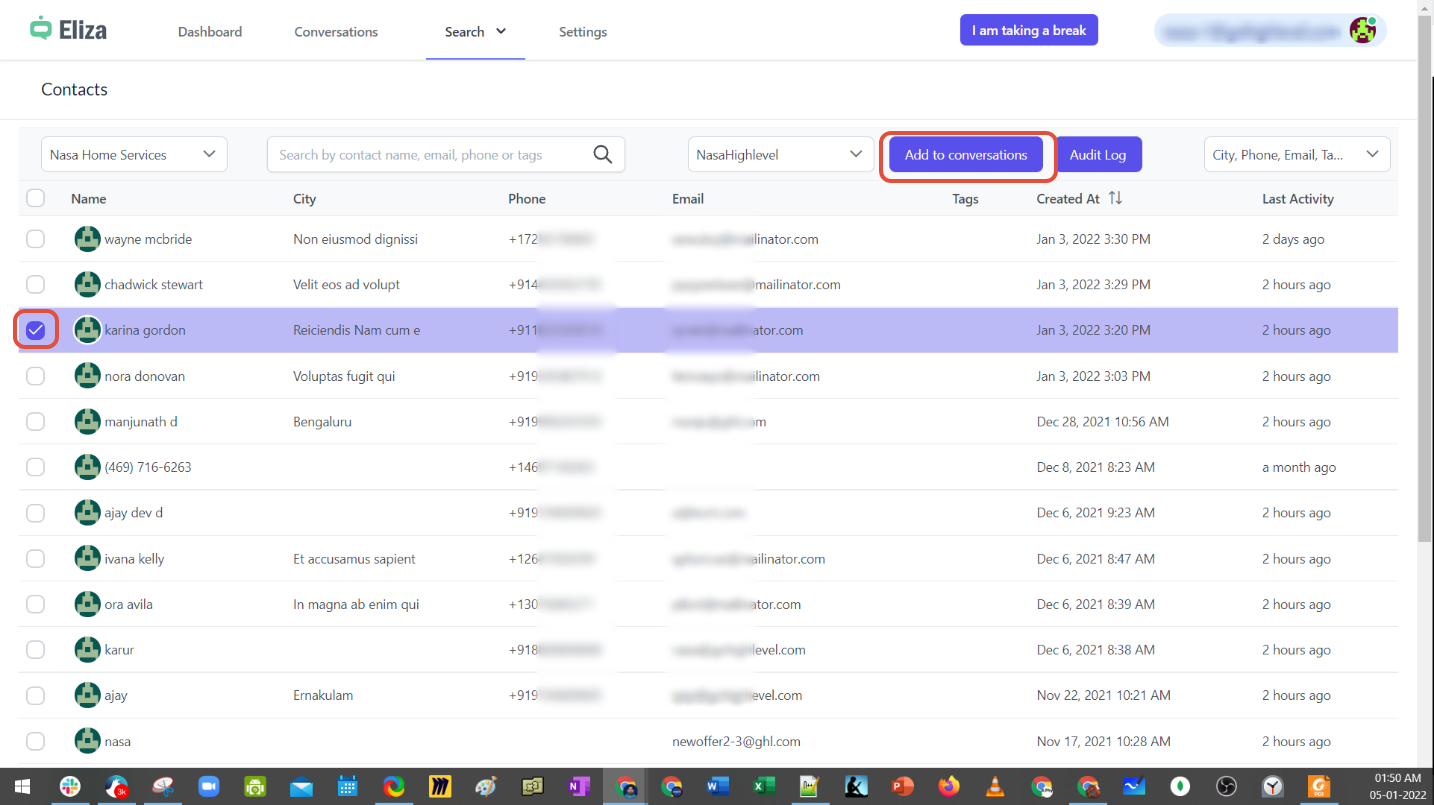
The search functions reside under the Search menu of the Eliza Agent Platform. Users can choose Contacts or Conversations as the search target. When searching contacts, a location filter appears and the system lists every contact stored for that location. Filters include first name, last name, tags, phone number and address.
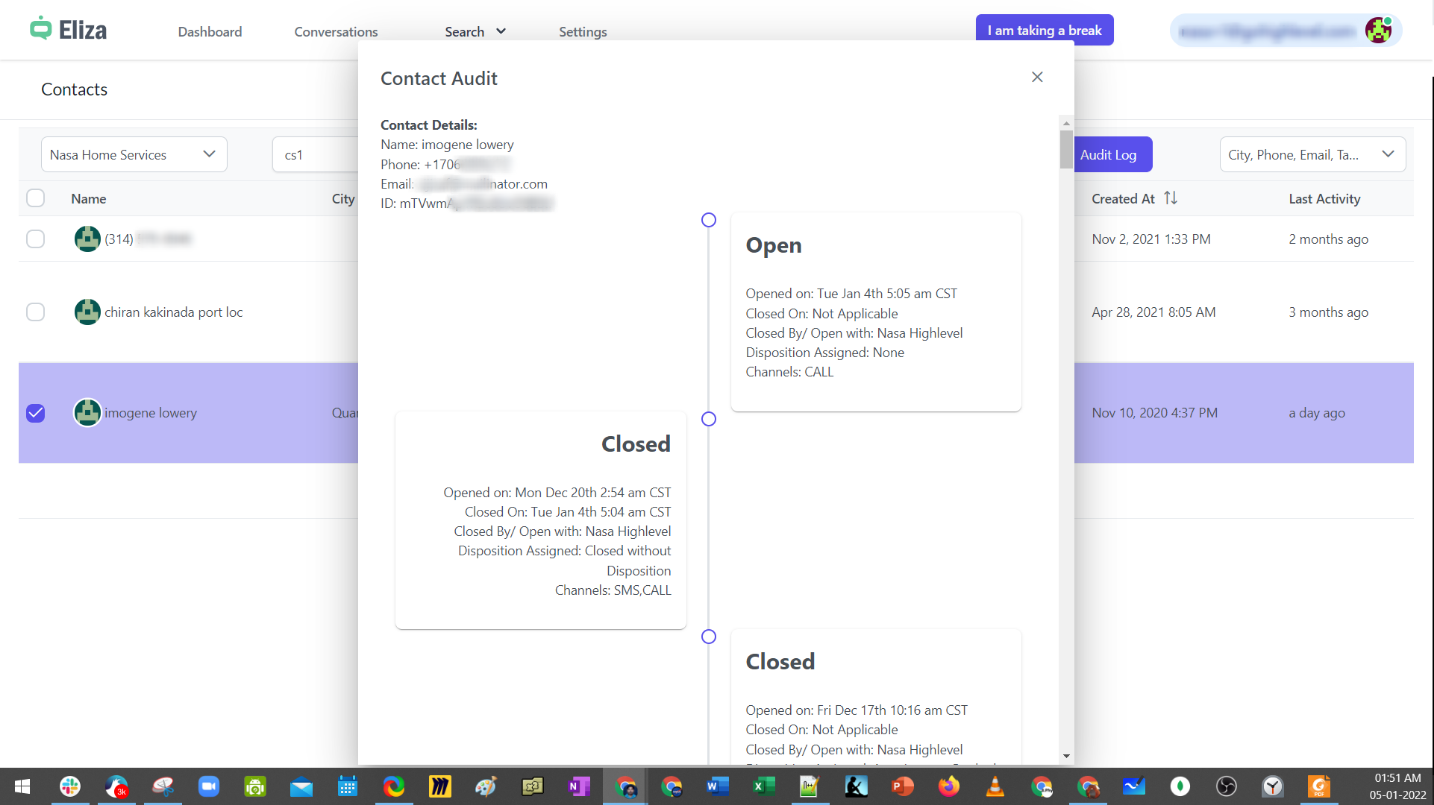
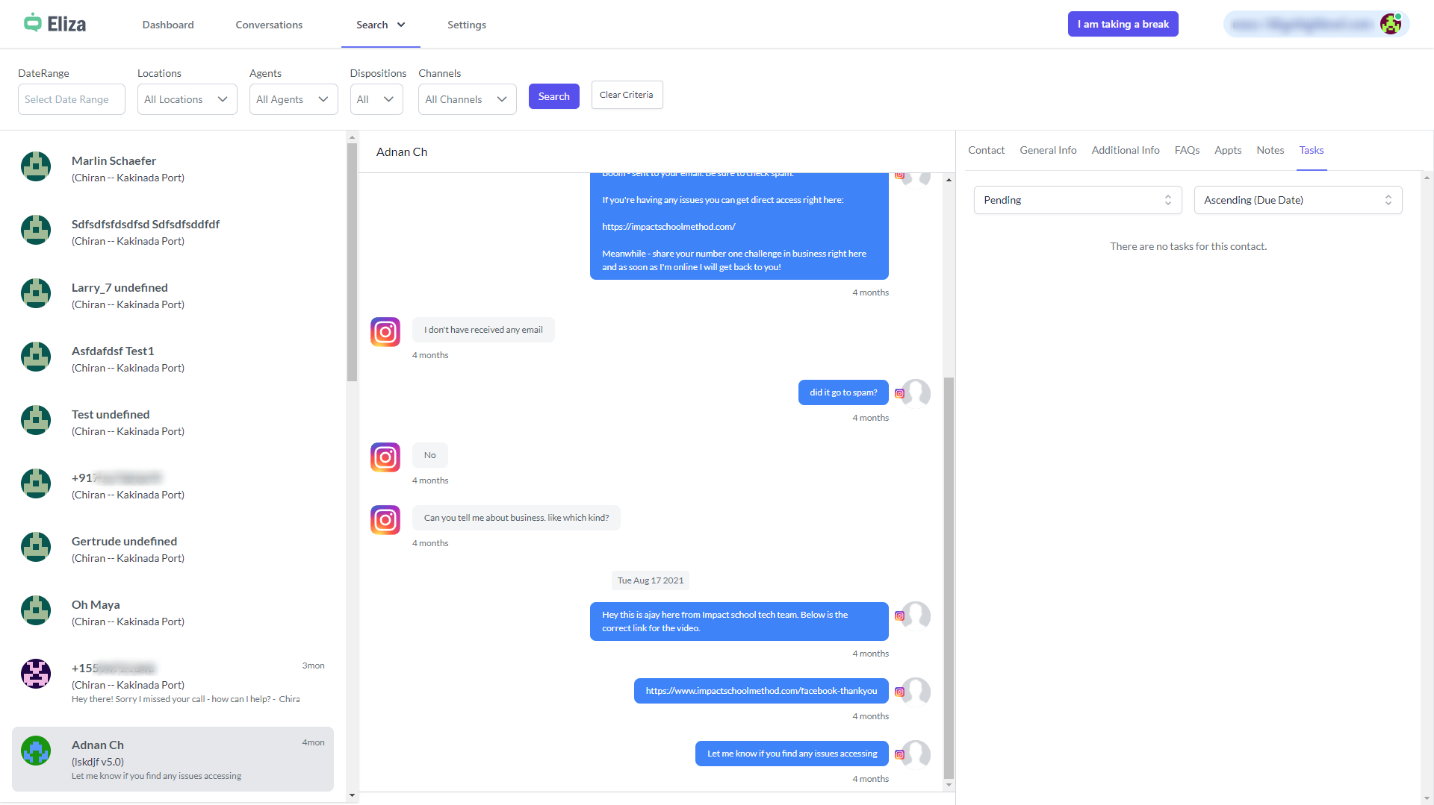
After locating a contact, the Add to Conversations button moves the contact into the selected agent’s inbox. Adding a new contact syncs it to the related subaccount and marks its source as ‘Eliza_User’. An audit log records each addition and shows past conversations, dispositions and dates. Conversation search displays a read only list of interactions for contacts nurtured inside the platform.
03How businesses use Eliza Agent Platform search tools
- Call center. Agents locate callers by name or phone number, then click Add to Conversations to bring the call into the appropriate representative’s queue. The audit log lets supervisors review past call outcomes.
- Real estate brokerage. Realtors search for property leads by address or tag, add new prospects to a subaccount, and assign them to the correct sales agent. The read only conversation view helps track communication history.
- Healthcare clinic. Staff search patient contacts by last name or phone, add them to the clinic’s subaccount with the Eliza_User source, and assign to a care coordinator. The audit log provides a timeline of patient interactions.
04How to set up and use Eliza Agent Platform search tools in HighLevel
Search contacts
- Open the Search menu and choose Contacts.
- Pick the location where you want to look for contacts.
- The platform lists all contacts stored for that location.
- Enter a first name, last name, tag, phone number, or address to filter the list.
- Click Add to Conversations on a chosen contact to place it in an agent’s inbox.
Add contact
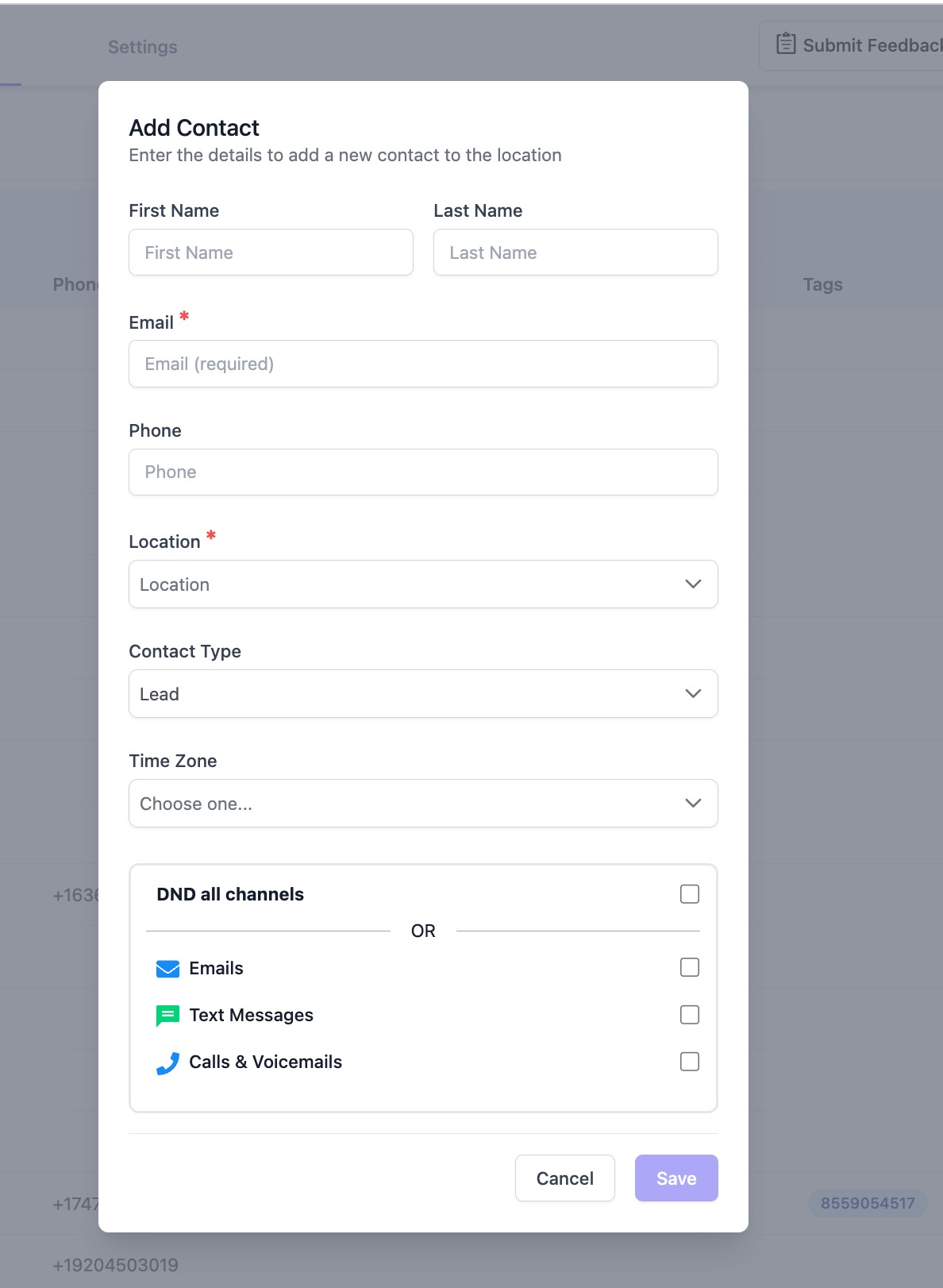
- Go to Search > Contacts inside the Eliza Agent Platform.
- Add a new contact.
- The contact syncs to the associated subaccount with the source set to ‘Eliza_User’.
- Assign the new contact to an agent manually if needed.
Add to conversation
- Select one or more contacts from the search results.
- Choose an agent from the dropdown menu.
- Confirm to add the contacts to the selected agent’s inbox.
View audit log
- Select a contact to open its record.
- Open the audit log view for that contact.
- Review the listed conversations, dispositions, and dates.
Search conversations
- Navigate to Search and select Conversations.
- Review the read only list of conversations for the chosen contact.
- Remember that only contacts nurtured within the Eliza Agent Platform appear in the results.
05What it looks like in HighLevel


06Settings that matter
- contact source field. Marks the origin of contacts synced from Eliza; it is set automatically to ‘Eliza_User’.
- Add to Conversations. Button that moves a selected contact into the inbox of the chosen agent.
07Things to know before you rely on it
- Search can only locate contacts that have been nurtured within the Eliza Agent Platform.
- Conversation search provides a read only view; records cannot be edited from this screen.
- Contacts added via the platform appear in the subaccount with the source field set to ‘Eliza_User’.
08How it connects to the rest of HighLevel
- Learn the basics of the Eliza Agent Platform. Eliza introduction
- See how conversations are filtered, scheduled, and closed. Eliza conversations
- Configure locations, teams, and webhooks for the platform. Eliza settings
Michael's take

The biggest risk is assuming the search will pull every lead in your system. It only shows contacts that originated inside the Eliza Agent Platform, so you could miss external prospects if you rely solely on it.
When you need a quick way to pull a contact into an agent’s inbox or check the conversation trail, these tools are straightforward and save time. I’d use the audit log first to confirm a contact’s history before assigning it, then jump straight into the inbox for follow up.