
01Who this is for
- Support agents benefit because they can see all channel messages and act on them without switching tools.
- Service businesses that rely on appointments, such as clinics, can book directly from a contact’s chat view.
- Sales teams gain efficiency by tagging and tracking conversation outcomes with dispositions.
02Conversations, explained
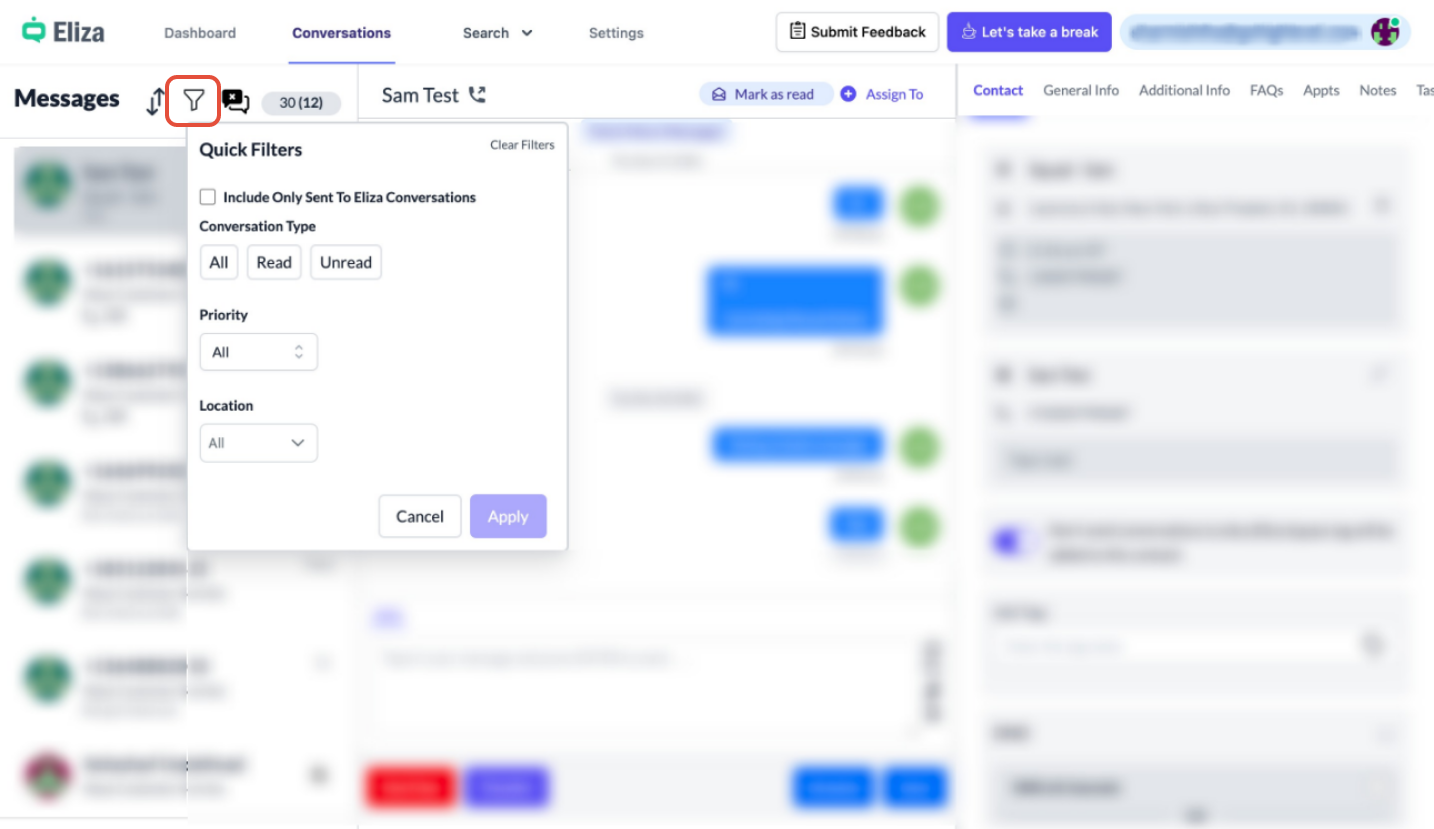
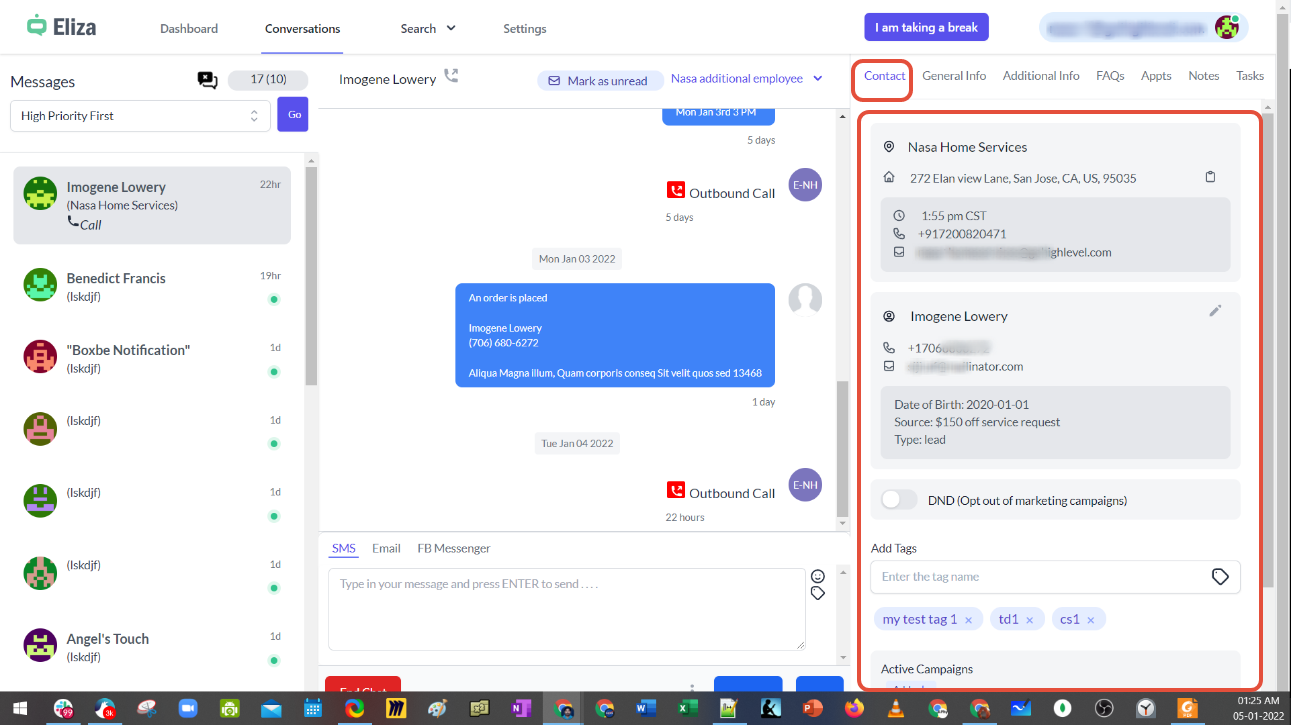
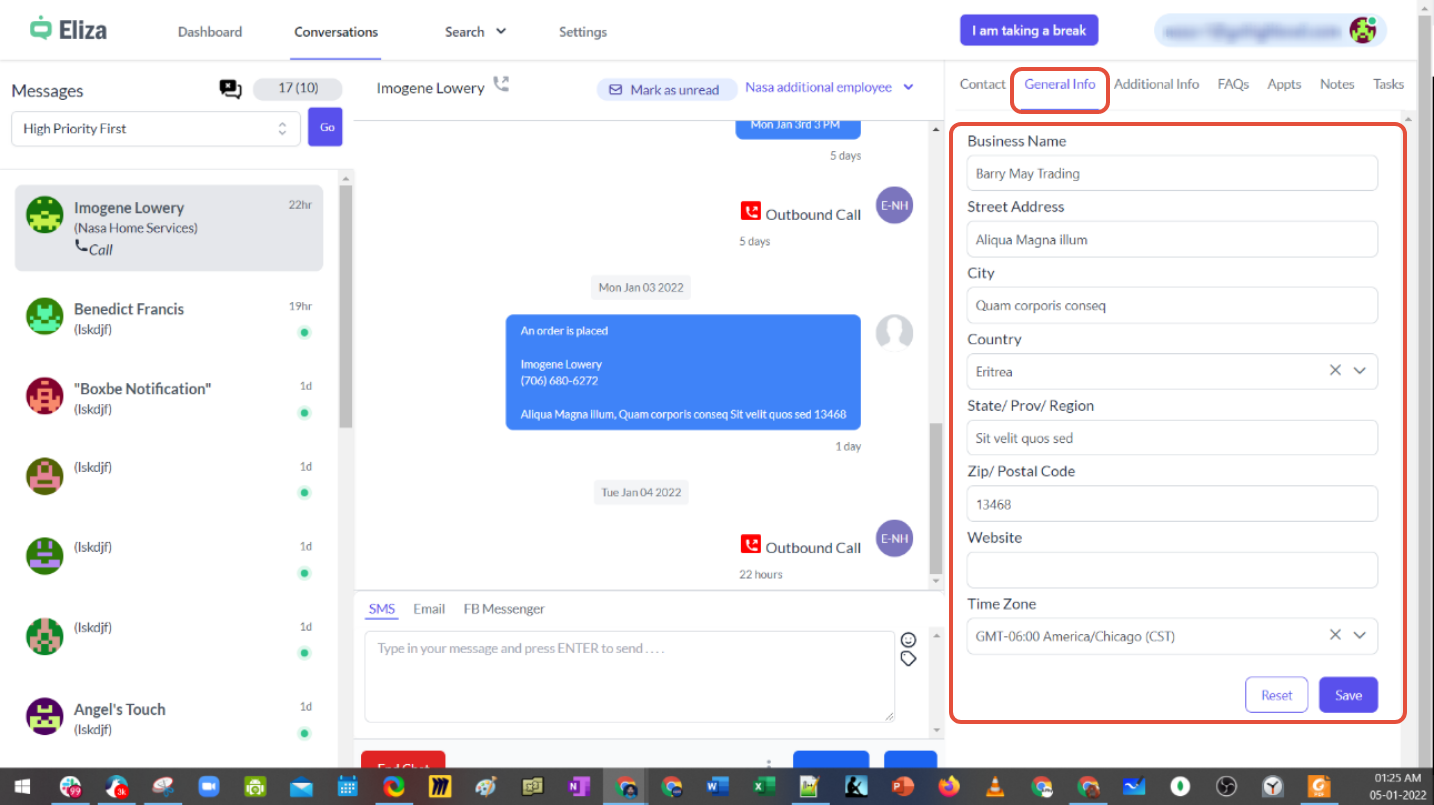
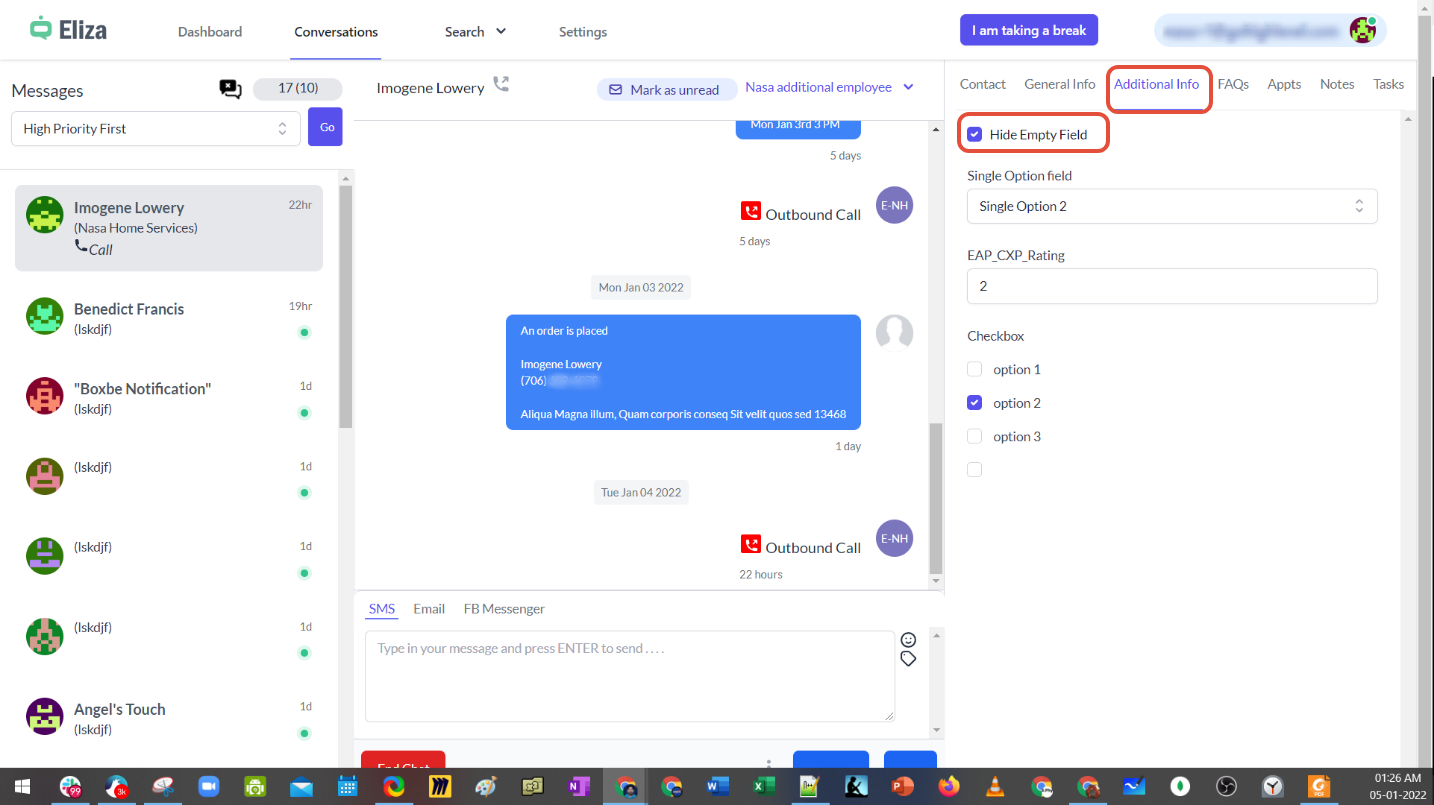
The Conversations feature aggregates messages from Email, Text, GMB, Facebook Messenger, Instagram, Reviews, and Calls into a single inbox. Agents can filter by Read/Unread/All, Priority Location, or Sent to Eliza, and sort by High Priority First, Low Priority First, Latest First, or Oldest First. An icon lets agents close all replied conversations with one click. Each contact record displays tabs for contact details, general info, custom fields, FAQs, appointments, notes, and tasks. Scheduling is built into the Appt tab, where agents select a calendar, date, and time slot, optionally view hidden slots, and set the status to Confirmed or New. Closing a chat prompts the agent to select a disposition; a comment may be mandatory and a tag can be auto assigned. Outbound calling is available from the contact header when a phone number exists, with blind and warm transfer options.
03How businesses use conversations
- Medical clinic. A front desk agent opens a patient’s conversation, filters unread messages, and books a visit using the Appt tab. The agent selects the clinic calendar, chooses an open slot, sets the status to Confirmed, and saves the appointment.
- Digital marketing agency. A marketing specialist views incoming social media messages, filters by priority, and tags contacts for specific campaigns. When a lead needs follow up, the agent adds a task from the Tasks tab and notes key details.
- Home services company. A service dispatcher sees a text request, filters for contacts Sent to Eliza, and ends the chat by selecting a disposition that automatically assigns a “No Show” tag if required.
04The numbers and rules that matter
- Supported channels: Text, Email, GMB, Facebook Messenger, Instagram, Reviews, Calls.
- 30 represents the total number of conversations in the inbox and 12 conversations that need a response.
05How to set up and use conversations in HighLevel
Filter conversations
- Open the Conversations tab in the Eliza Agent Platform.
- Click the filter icon near the top of the list.
- Select a filter category such as Read/Unread/All, Priority Location, or Sent to Eliza.
- Choose a sorting option if needed and apply the filter.
Schedule an appointment
- Open the contact’s conversation record.
- Select the Appt tab on the right hand side.
- Click the button to schedule a new appointment.
- Choose the appropriate calendar from the dropdown menu.
- Pick the desired date for the appointment.
- Select a time slot, or check the "Show all available slots" box to view hidden options.
- Set the appointment status to Confirmed or New and save the entry.
End a chat with disposition
- In the conversation view, click the End Chat option.
- Choose either a specific disposition or select "Close without disposition".
- If the chosen disposition requires a comment, type the required note.
- Confirm the action; any configured tag will be added automatically.
Close all replied conversations
- In the Conversations list, locate the icon that closes replied conversations.
- Click the icon to close all replied conversations in one click.
06What it looks like in HighLevel


07Settings that matter
- Read/Unread/All. Filters messages based on whether they have been opened.
- Priority Location. Filters conversations by the assigned priority of the contact’s location.
- Sent to Eliza. Shows only contacts that have been pushed to the Eliza Agent Platform.
- High Priority First. Sorts the list so the most urgent messages appear at the top.
- Low Priority First. Sorts the list so less urgent messages appear first.
- Latest First. Orders conversations by newest message first.
- Oldest First. Orders conversations by oldest message first.
- Show all available slots. Expands the time slot dropdown to include slots not visible to leads.
- Confirmed. Sets the appointment status to automatically confirm the booking.
- New. Sets the appointment status to indicate the booking is not yet confirmed.
- Close without disposition. Allows an agent to end a chat without selecting a disposition.
- DND toggle. Enables or disables Do Not Disturb for the contact.
08Things to know before you rely on it
- The platform supports exactly seven conversation channels: Email, Text, GMB, Facebook Messenger, Instagram, Reviews, and Calls.
- Outbound calling is only possible when a phone number exists on the contact record.
- A comment is required for a disposition only if the system is configured to enforce it.
- Tags are added automatically only when the disposition is set up with an associated tag.
09How it connects to the rest of HighLevel
- See full Eliza Agent Platform settings Eliza settings
- Explore the Eliza Agent Platform dashboard overview Dashboard
- Start a 30 day trial of HighLevel 30 day trial
- Review HighLevel pricing and plans Pricing
Michael's take

When agents juggle emails, texts, reviews and calls, important messages can slip through the cracks. Consolidating those channels into a single Conversations view lets you see everything at a glance and act fast.
The first setting I would get right is the filter for "Send to Eliza" so that inbound messages land in the right spot without delay.