
01Who this is for
- Admin users, they can reassign unassigned conversations to ensure no message is left unattended.
- Agents, they can also move unassigned conversations to another colleague when needed.
02Eliza agent platform dashboard, explained
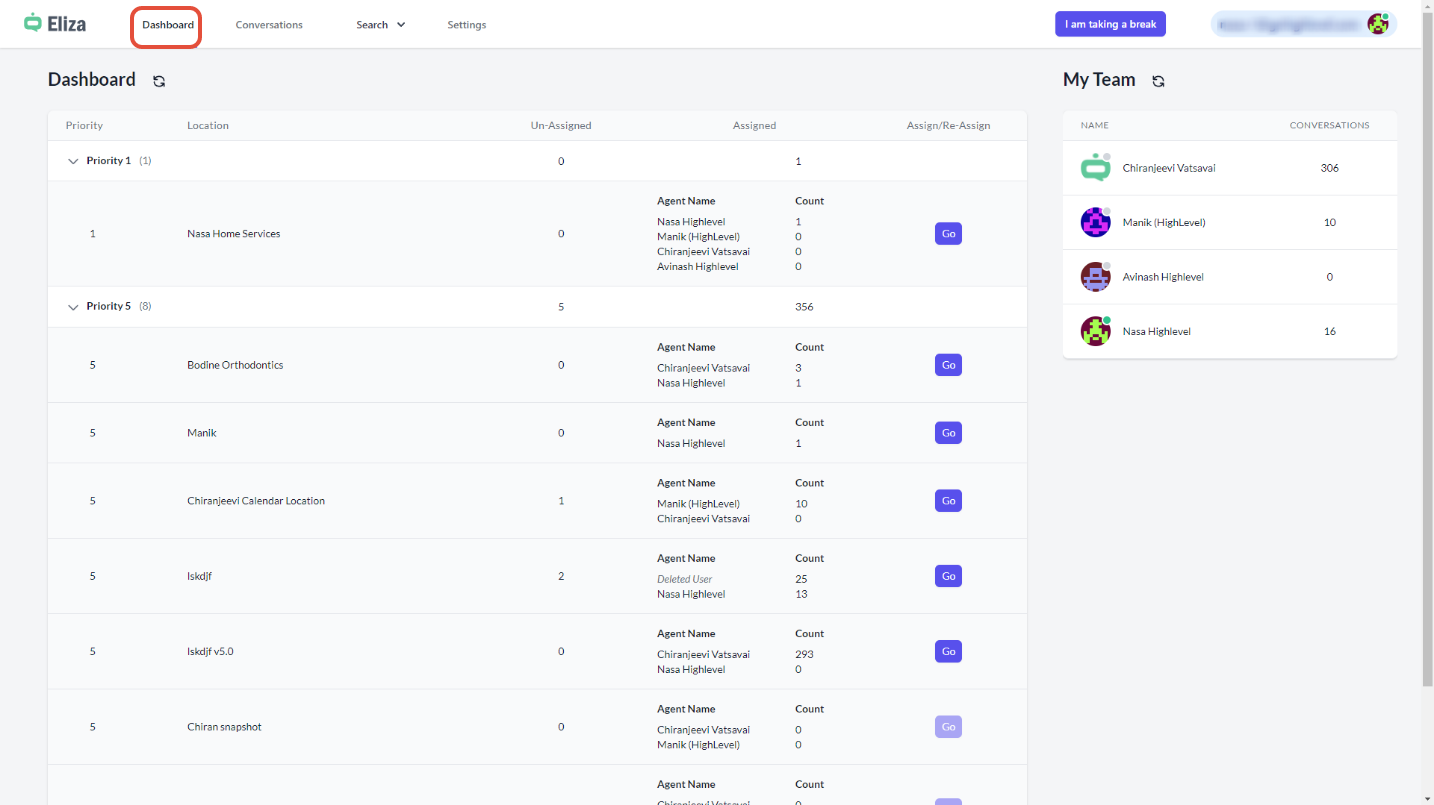
The dashboard gives a snapshot of all locations, showing priority levels, how many conversations are open with each agent, and how many are still unassigned. On the right side, admin users see a list of agents, their online status, and each agent’s open conversation total.
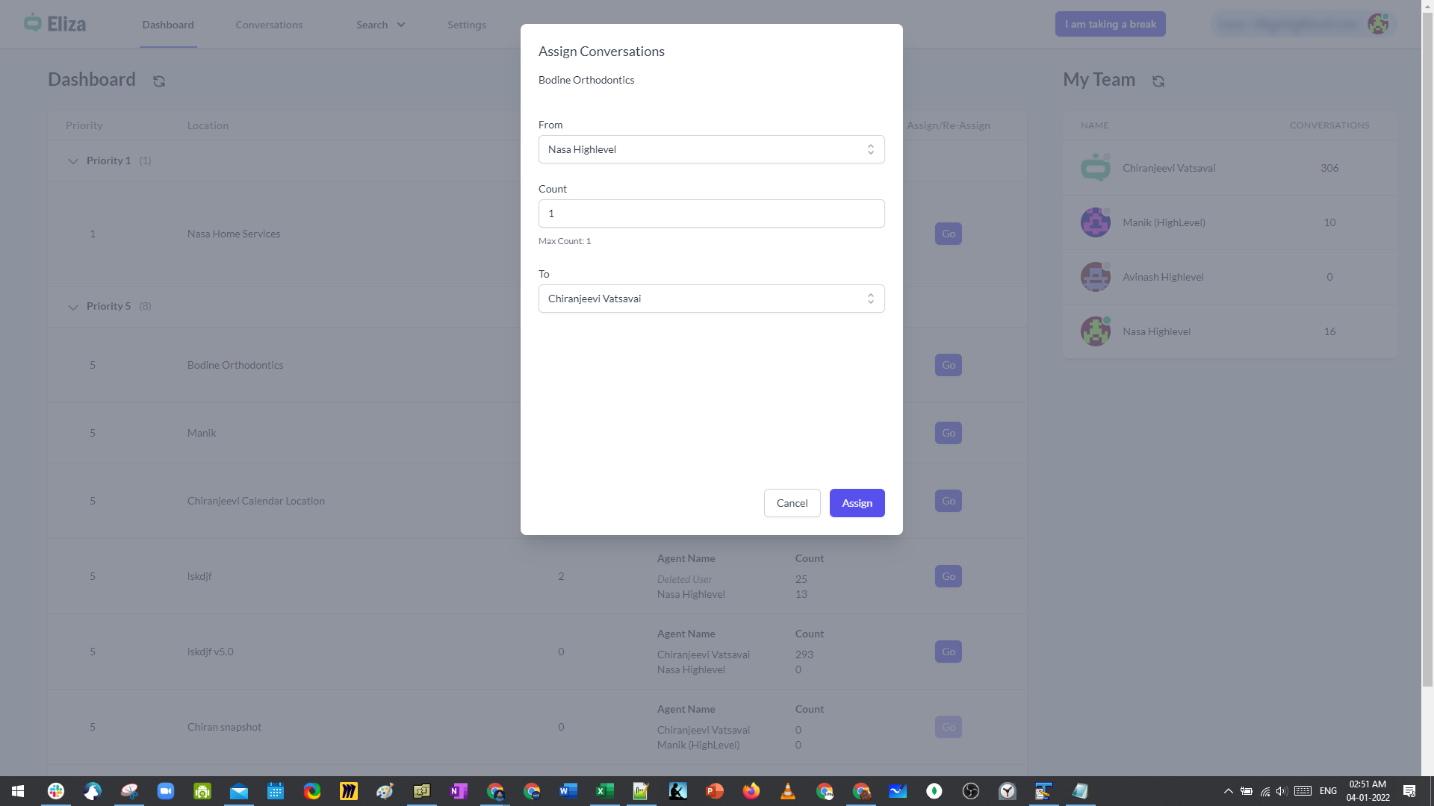
Unassigned conversations appear in a separate section. Because they are not in any agent’s inbox, an admin or an agent must click the Go button to move them. The dialog lets the source (either unassigned or another agent) and the destination agent be selected, then the Assign button finalises the transfer.
03How businesses use Eliza agent platform dashboard
- Call center. A supervisor opens the Eliza dashboard, finds the unassigned call chat count, clicks Go, selects an available agent, and presses Assign so the chat appears in that agent’s inbox.
- Real estate agency. The office manager views the dashboard, notes unassigned inquiries about property listings, uses the Go button to assign each inquiry to the agent responsible for that region, then confirms with Assign.
- Online tutoring service. A coordinator checks the unassigned student messages, clicks Go, picks the tutor covering the relevant subject, and clicks Assign to place the conversation in the tutor’s queue.
04How to set up and use Eliza agent platform dashboard in HighLevel
Transfer unassigned conversations to an agent
- Open the Eliza Agent Platform dashboard in HighLevel.
- Locate the Unassigned Conversations area on the dashboard.
- Click the Go button next to the number of unassigned conversations.
- In the dialog, choose the source (unassigned) and the target agent.
- Press Assign to move the selected conversations to the chosen agent.
05What it looks like in HighLevel
06Things to know before you rely on it
- Only admin users or agents can use the Go button to reassign conversations.
- Unassigned conversations are not automatically placed in any inbox; they require manual transfer.
07How it connects to the rest of HighLevel
- Introduction and FAQs for the Eliza Agent Platform Eliza intro
- How to filter, schedule, and close Eliza conversations Conversation guide
- Configure locations, teams, and webhooks for the Eliza platform Platform settings
Michael's take

The dashboard gives a clear view of chat activity across locations and agents.
Don’t forget to actually move unassigned chats; leaving them idle defeats the purpose.