
01Who this is for
- Founders of online stores who need all order data inside HighLevel for unified marketing.
- Agency owners managing multiple client stores and wanting a single place to trigger workflows.
- Small retailers using WooCommerce who require automated messages when orders are placed or paid.
02WooCommerce integration, explained
The integration creates a link between a WooCommerce shop and a HighLevel subaccount. Once connected, contacts who have ordered, order records, transactions and product listings are imported. Ongoing sync keeps future purchases, product updates and transaction details current.
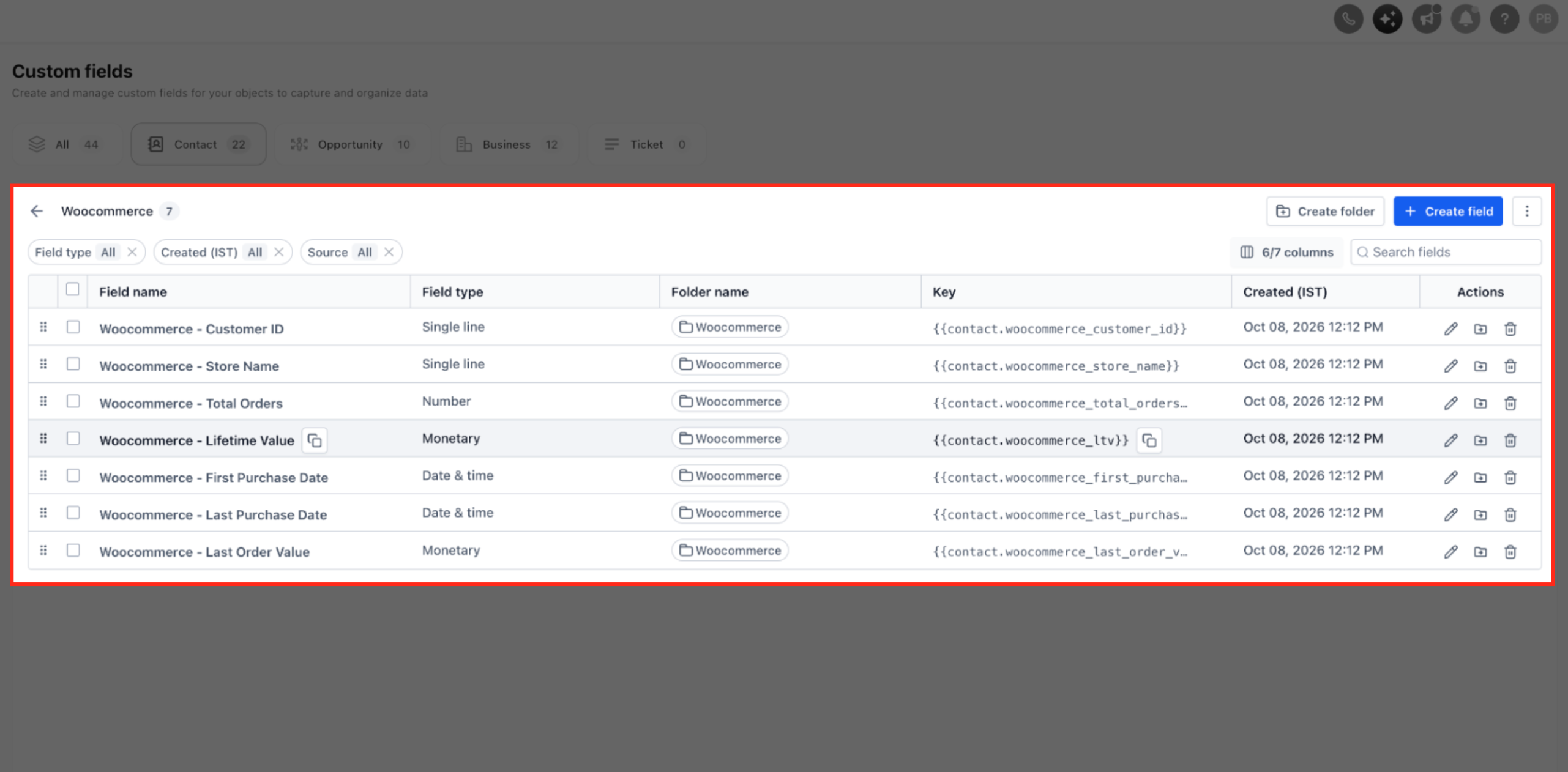
All imported data appears in HighLevel where you can use the automatically generated WooCommerce contact fields for segmentation and workflow conditions. Order related triggers, Order Received and Payment Received, become available in the Automations section for building automated actions.
03How businesses use the WooCommerce integration
- Boutique clothing retailer. The retailer connects its WooCommerce shop, imports past customer orders, and uses the Order Received trigger to send a welcome email when a new purchase is made. The custom fields let the retailer segment high value shoppers for targeted offers.
- Online course provider. After linking the store, the provider imports transaction data and enables the Payment Received trigger to deliver course access details right away after payment. Product sync imports published courses and keeps them up to date in HighLevel.
- Subscription box service. The service imports customers and their order histories, then builds a workflow that fires on Order Received to schedule the next box shipment. Guest checkout buyers are added as contacts, but no further sync is performed for them.
04Before you start
- Access to a HighLevel subaccount.
- A WooCommerce store with a URL.
05How to set up and use the WooCommerce integration in HighLevel
Set up the WooCommerce integration
- Log in to your subaccount.
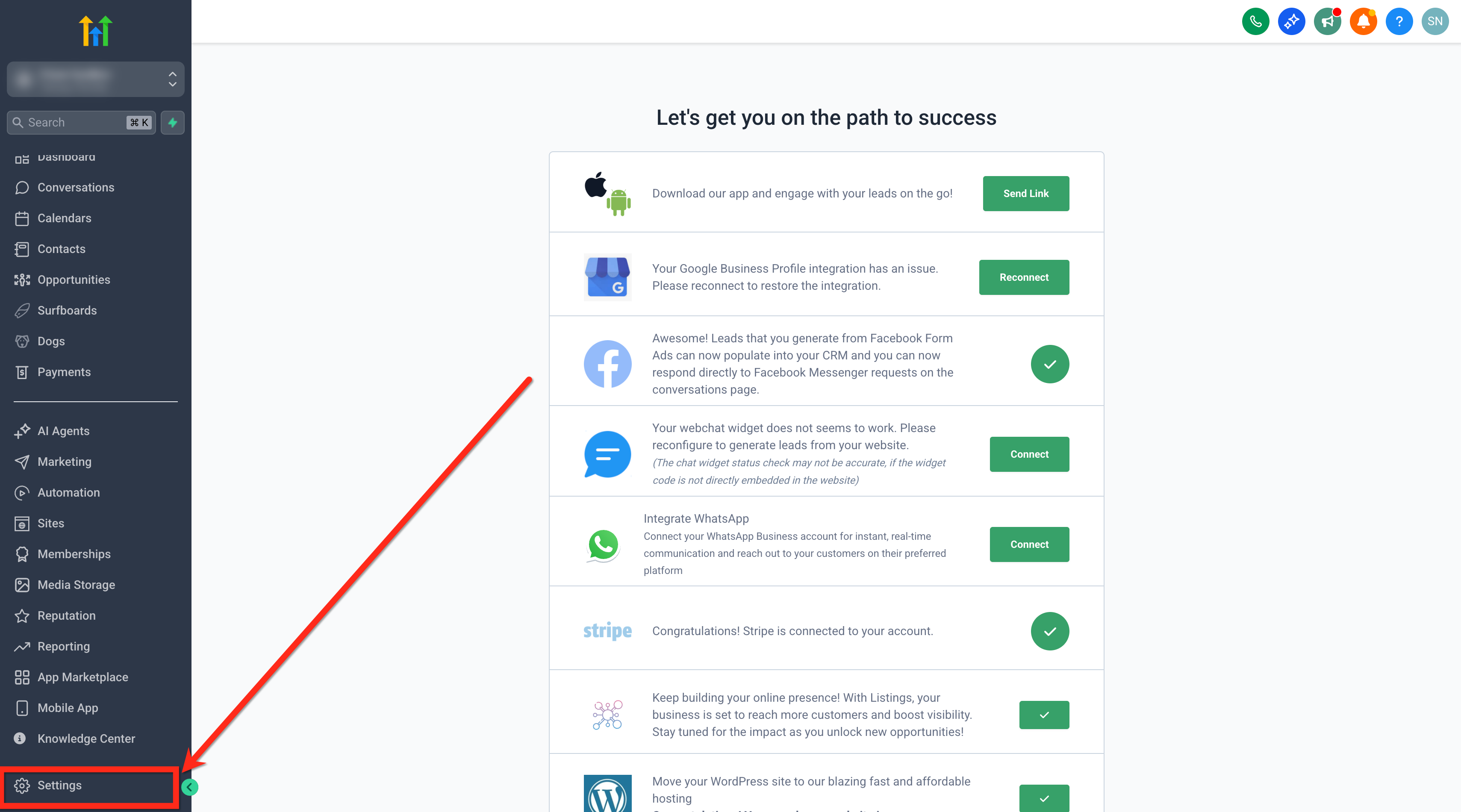
- Open Settings.
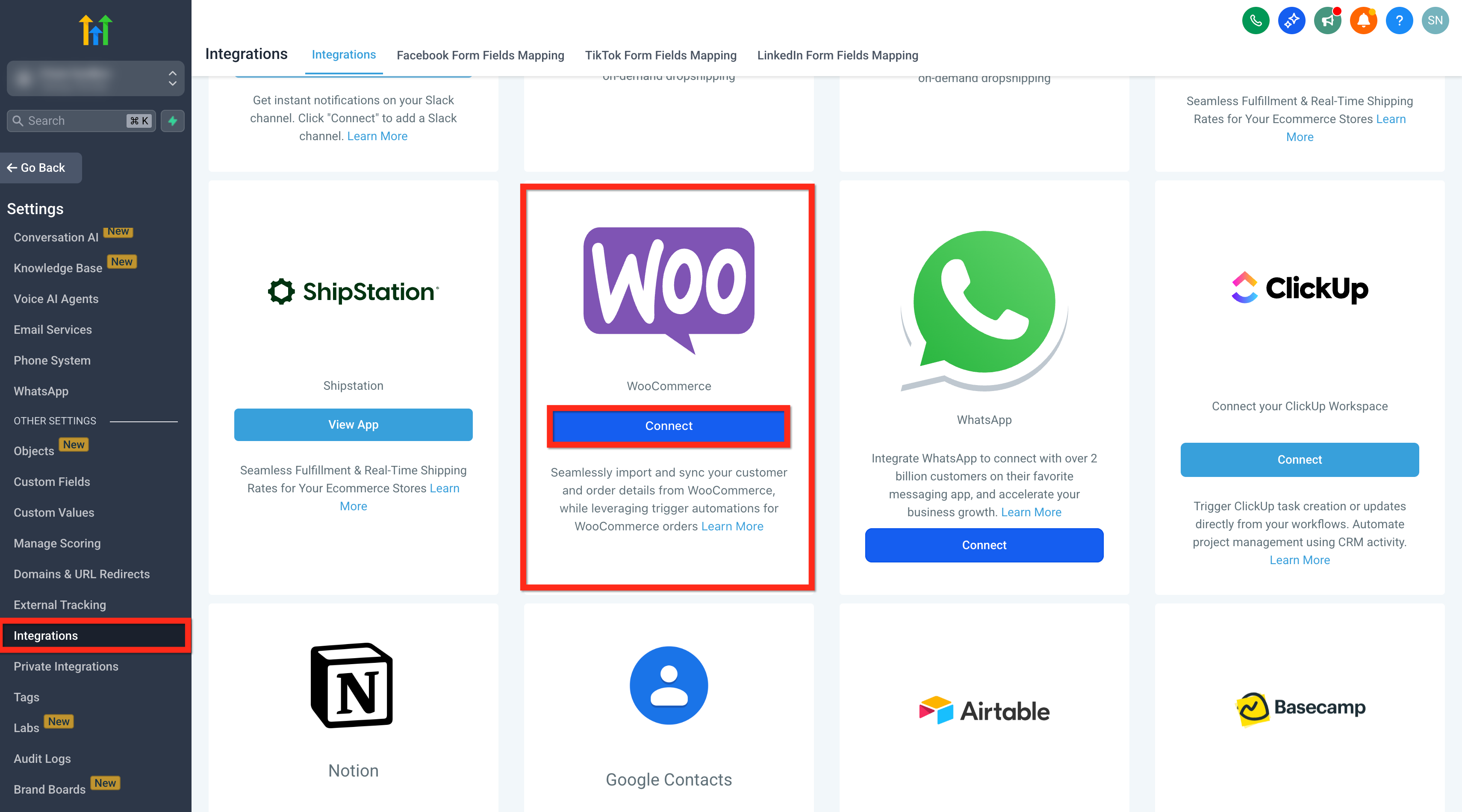
- Select Integrations > WooCommerce and click Connect.
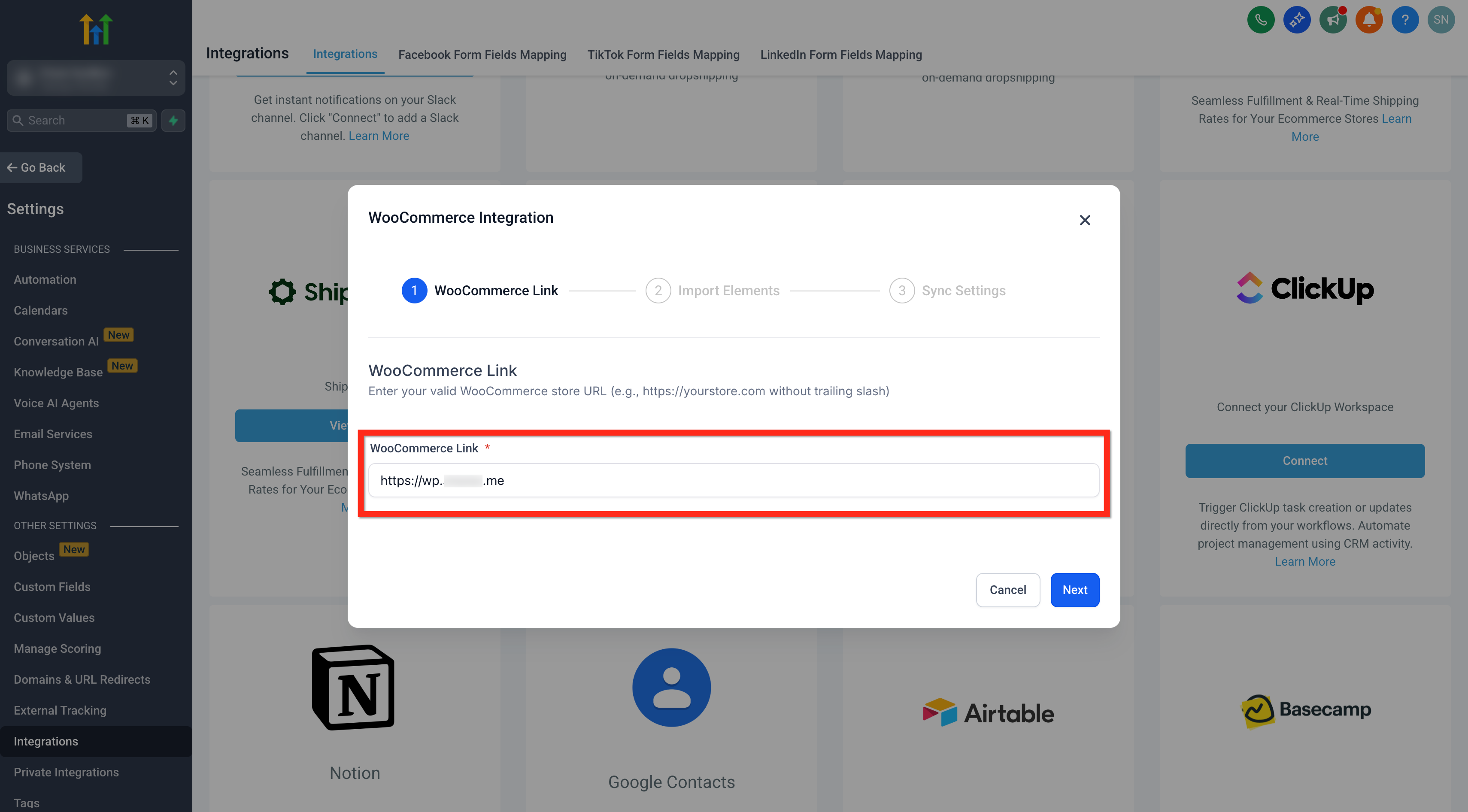
- Enter your store URL without a trailing slash and approve the connection.
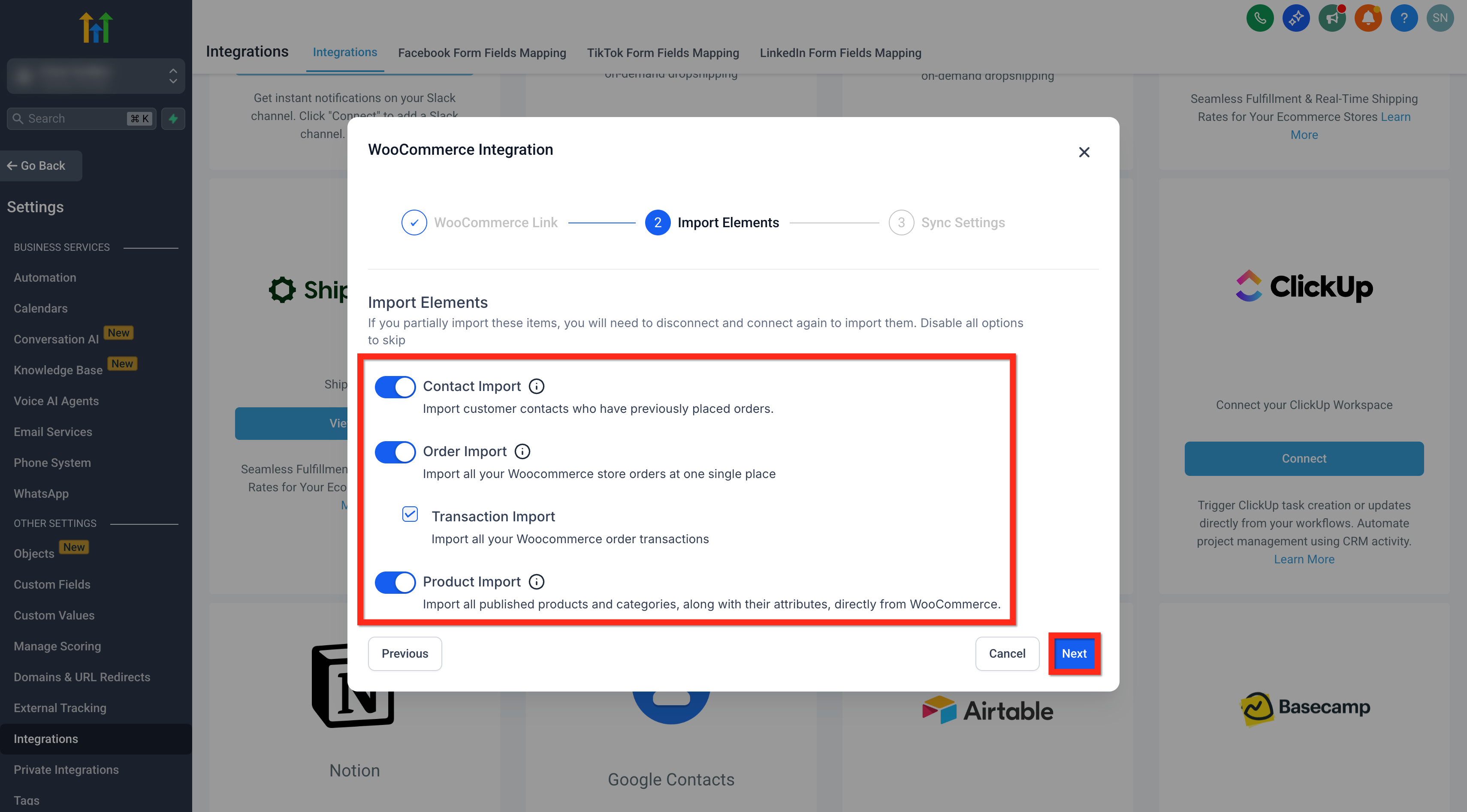
- Choose Contact Import, Order Import, Transaction Import and Product Import.
- Click Next.
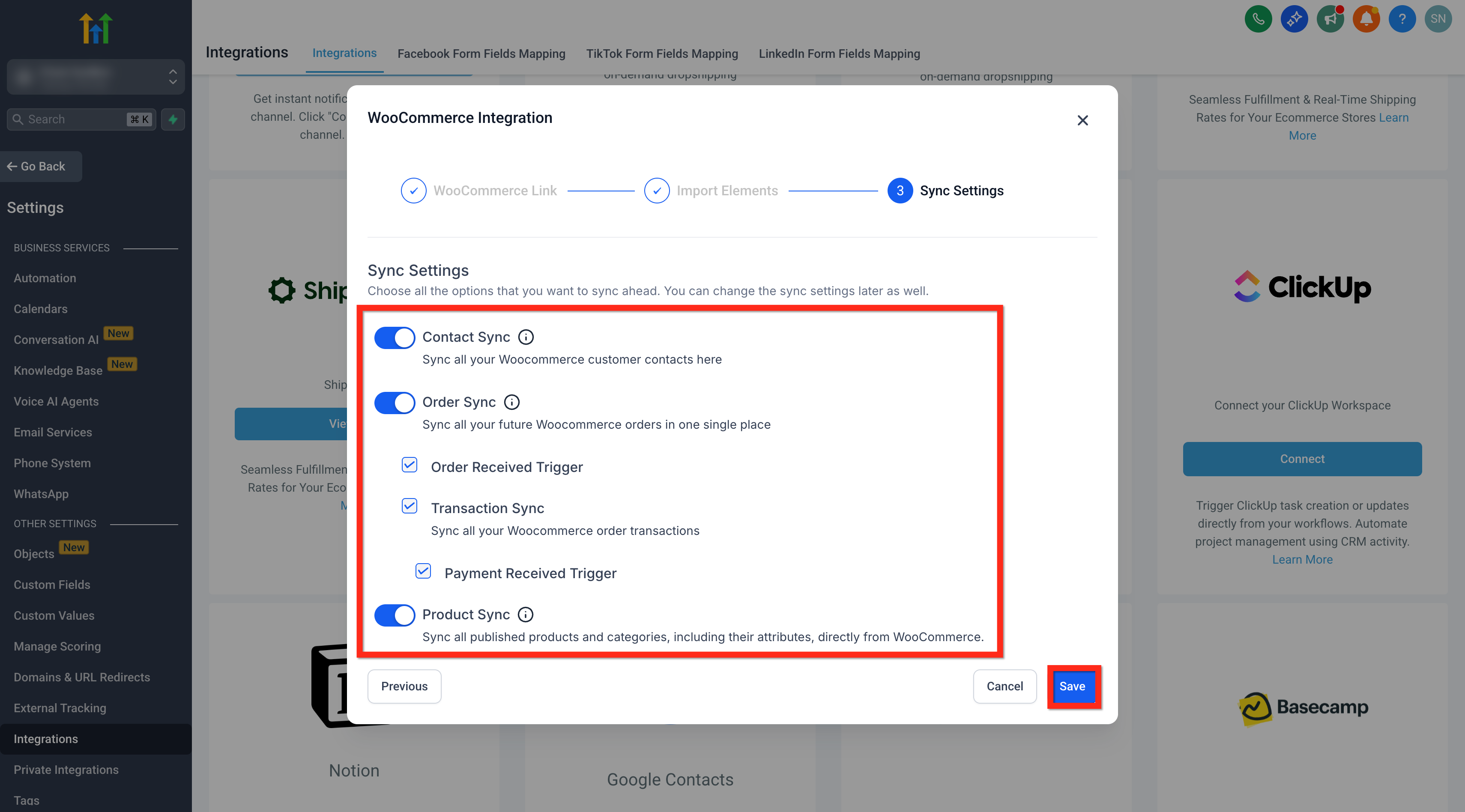
- Select Contact Sync, Order Sync, Transaction Sync, Product Sync and enable Order Received and Payment Received triggers as needed.
- Click Save.
- If you need to reimport data later, disconnect and reconnect then select the elements to import again.
Create an Order Received trigger
- Log in to your subaccount.
- Go to Automations > Workflows.
- Create a new workflow or edit an existing one.
- Click + Add New Trigger.
- Search for and select the Order Submitted trigger.
- Add a filter: Order Source is External.
- Add a second filter: Sub Source is WooCommerce.
- Click Save and add any desired actions.
Create a Payment Received trigger
- Log in to your subaccount.
- Go to Automations > Workflows.
- Create a new workflow or edit an existing one.
- Click + Add New Trigger.
- Search for and select the Payment Received trigger.
- Add a filter: Source is External.
- Add a second filter: Sub Source is WooCommerce.
- Click Save and add any desired actions.
06What it looks like in HighLevel
07Settings that matter
- Contact Import. Controls whether contacts who have placed an order are imported into HighLevel.
- Order Import. Controls importing order records and enables order related triggers.
- Transaction Import. Controls importing transaction details for each order.
- Product Import. Controls importing all published WooCommerce products.
- Contact Sync. Controls syncing future contacts created from new orders.
- Order Sync. Controls syncing future orders into HighLevel.
- Transaction Sync. Controls syncing new transaction records.
- Product Sync. Controls syncing product and category updates from WooCommerce; changes in HighLevel do not flow back.
- Order Received Trigger. Enables the Order Received automation trigger when a new order appears.
- Payment Received Trigger. Enables the Payment Received automation trigger when a payment is recorded.
08Things to know before you rely on it
- Only orders with statuses Processing, On hold, Completed or Refunded affect enrichment fields.
- Guest checkout buyers become contacts but receive no future sync updates.
- Only one agency can link to a given WooCommerce account; other agencies cannot connect.
- Only customers with the roles Customers or Subscribers are imported as contacts.
- The store URL must be entered without a trailing slash.
- Product changes made in HighLevel do not sync back to the WooCommerce store.
09If something goes wrong
- Agency cannot connect because another agency already linked the WooCommerce account.. Only one agency may be connected; disconnect the other agency before linking.
- Contacts are not created despite Contact Sync being disabled.. Contacts are still generated from orders when Order Sync is enabled.
- Guest checkout orders do not receive future updates.. Guest buyers are added as contacts, but no further synchronization occurs for them.
- Store URL with a trailing slash is rejected.. Enter the URL without a trailing slash.
10How it connects to the rest of HighLevel
- Set up a HighLevel ecommerce store to sell products online. HighLevel ecommerce store setup
- Connect Stripe to handle payments in HighLevel. Connect Stripe
- Review HighLevel pricing and plan options. HighLevel pricing
- Start a 30 day trial of HighLevel. 30 day trial
Michael's take

The WooCommerce integration is a solid way for a small ecommerce business to bring all its sales data into HighLevel, giving you a single place to run marketing, segment customers and fire automated messages based on purchases.
Avoid forgetting to remove the trailing slash from the store URL. The connection will fail.