
01Who this is for
- Founders of online retail businesses benefit because they can manage product listings from a single platform while Google updates the catalog.
- Digital marketers who run paid Shopping campaigns need a reliable feed, and this integration keeps product data current without a separate feed file.
- Small business owners with a live website gain a free way to list products on Google Search and Shopping by syncing eligible items.
02Google Merchant Center integration, explained
The integration creates a link between a HighLevel ecommerce store and a Google Merchant Center account. Once the app is installed, the store’s eligible products, those with a one time payment option, are sent to a data source called leadconnector inside Merchant Center. The platform then updates prices, inventory, availability, images and supported variants whenever changes occur in the store.
Synchronization runs automatically after the initial connection. New eligible products are added, and supported edits are pushed without manual effort. A manual Force Sync option is available to re push the catalog if updates do not appear, or if the leadconnector data source has been removed. All connections are listed within the Google Merchant Center app, where you can view sync status, errors and warnings.
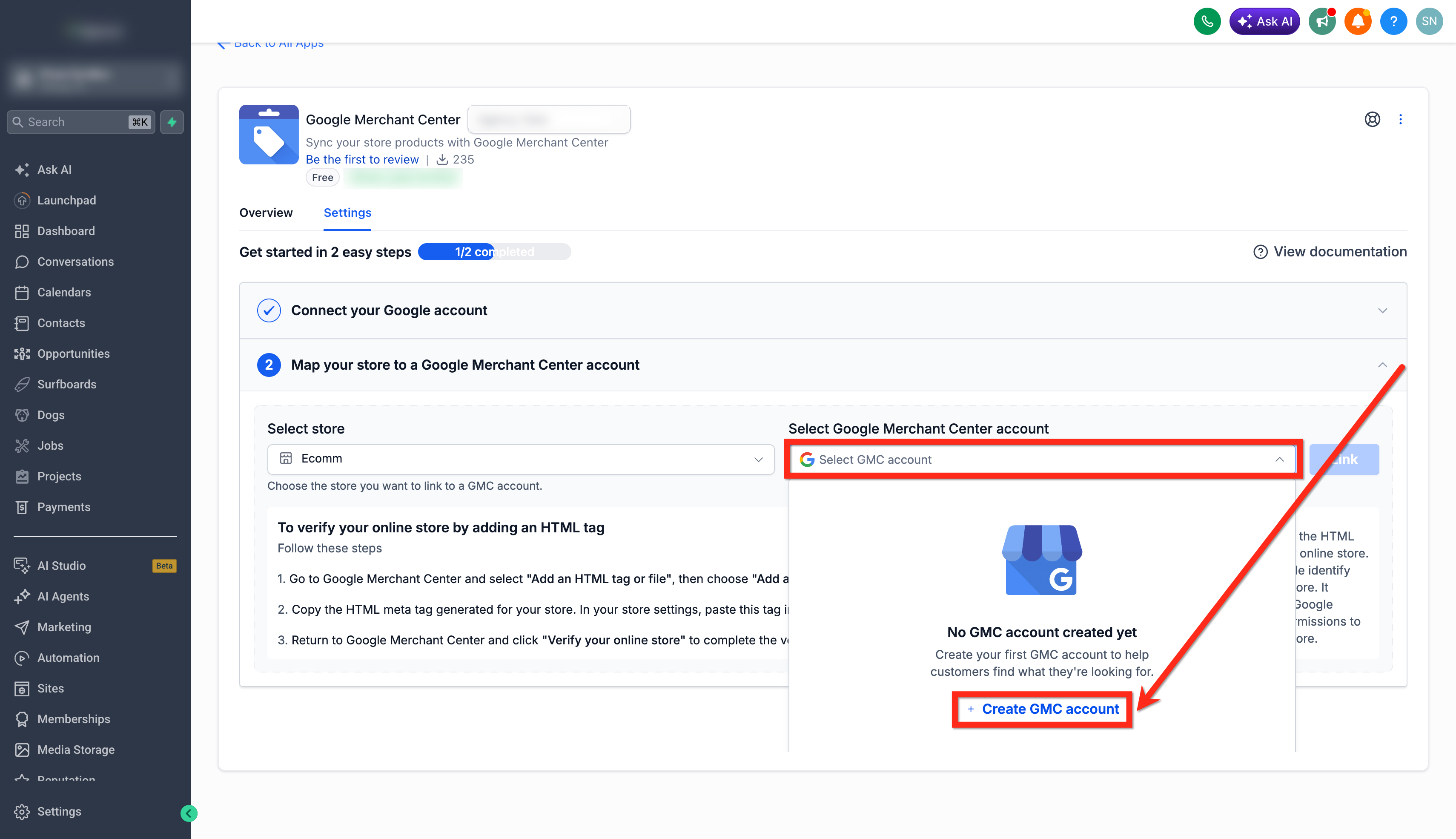
The integration lives inside the HighLevel App Marketplace as the Google Merchant Center app. After installation, you access the connection workflow from the app’s settings, where you can select or create a Merchant Center account, verify your store’s domain, choose the store to map, and confirm the mapping to start syncing.
03How businesses use Google Merchant Center integration
- Fashion retailer. The retailer installs the app, connects their Google account, selects their Merchant Center account and maps their online store. Eligible clothing items with one time purchase options are automatically synced, keeping prices and stock levels current on Google Shopping.
- Home goods ecommerce business. The business verifies its website domain, selects the appropriate store in HighLevel, and confirms the mapping. When a new sofa is added to the catalog, the integration pushes the product information, images and inventory to Google without creating a separate feed.
- Digital product seller (single payment downloads). The seller connects the store, ensures each downloadable item uses a one time payment option, and runs a Force Sync after a price change. The updated details appear in Merchant Center, allowing the items to be listed in free Google listings.
04Before you start
- A Google account must exist.
- The HighLevel ecommerce store needs a live, connected domain.
- A Google Merchant Center account must be available or created during setup.
- Shipping origin country and language must be configured in the store.
- Products must be assigned to the store you intend to connect.
05How to set up and use Google Merchant Center integration in HighLevel
Connect store to Google Merchant Center
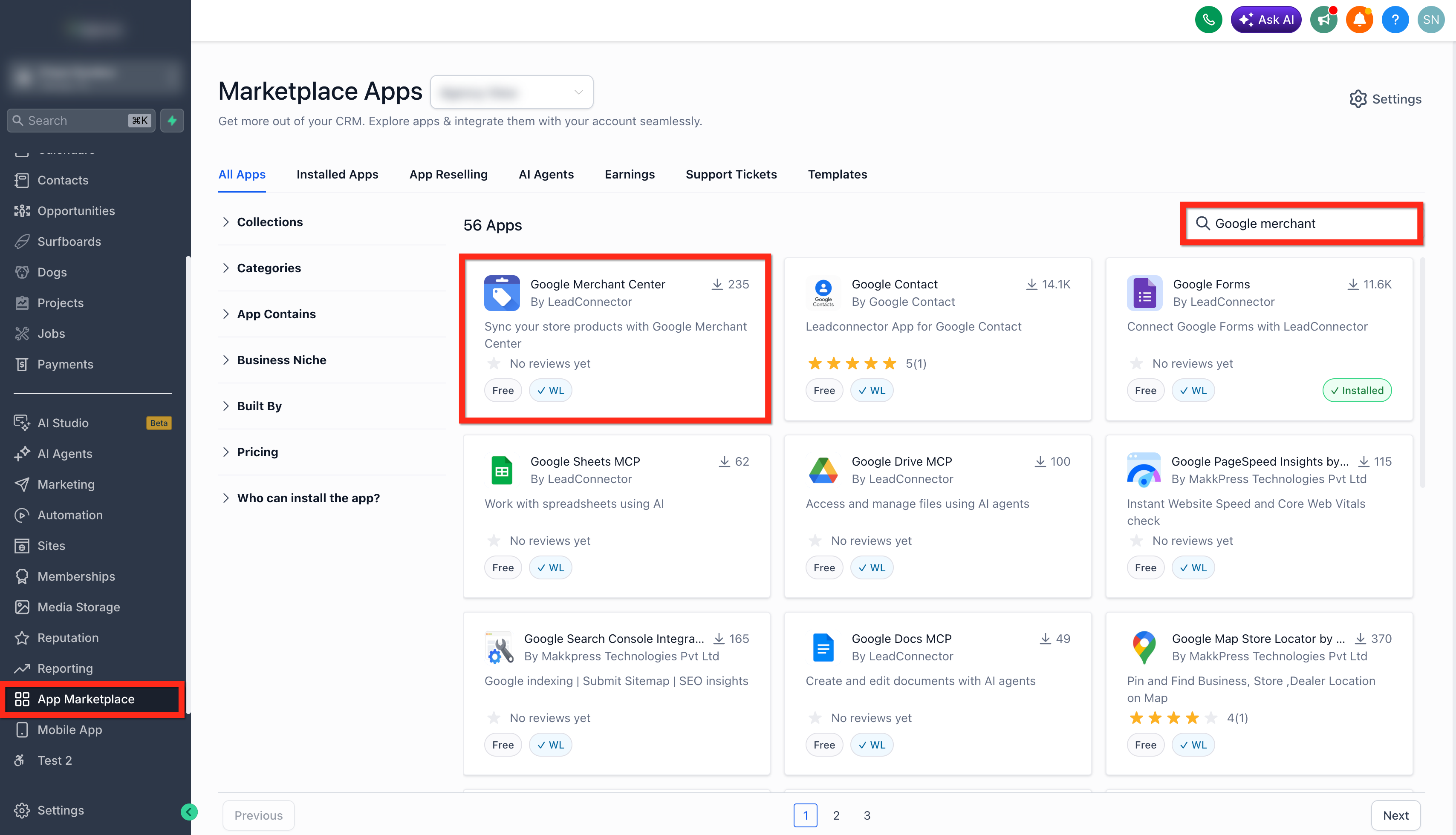
- Open the App Marketplace in HighLevel.
- Search for "Google Merchant Center".
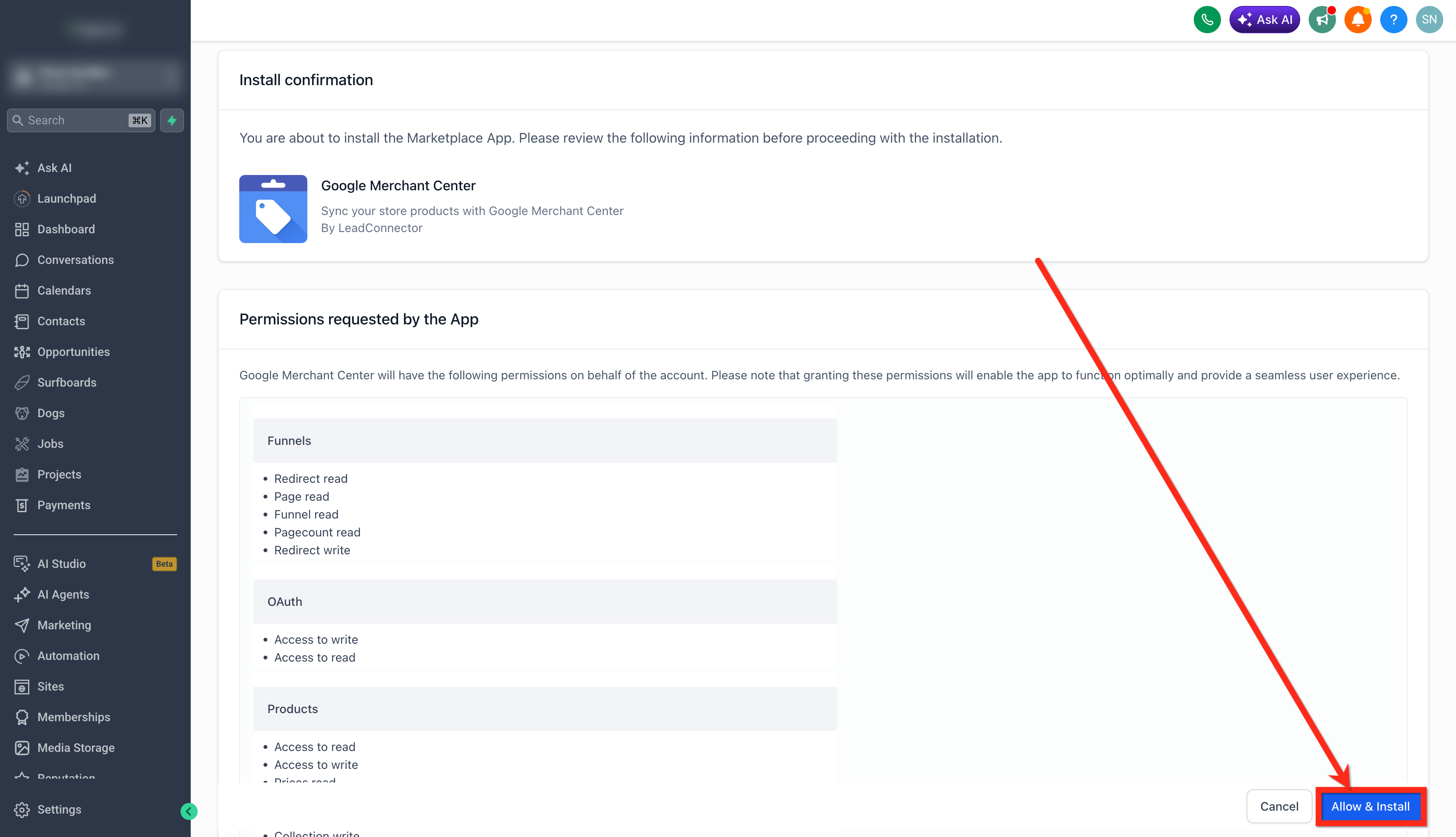
- Click Install to add the app.
- After installation, begin the Google account connection flow.
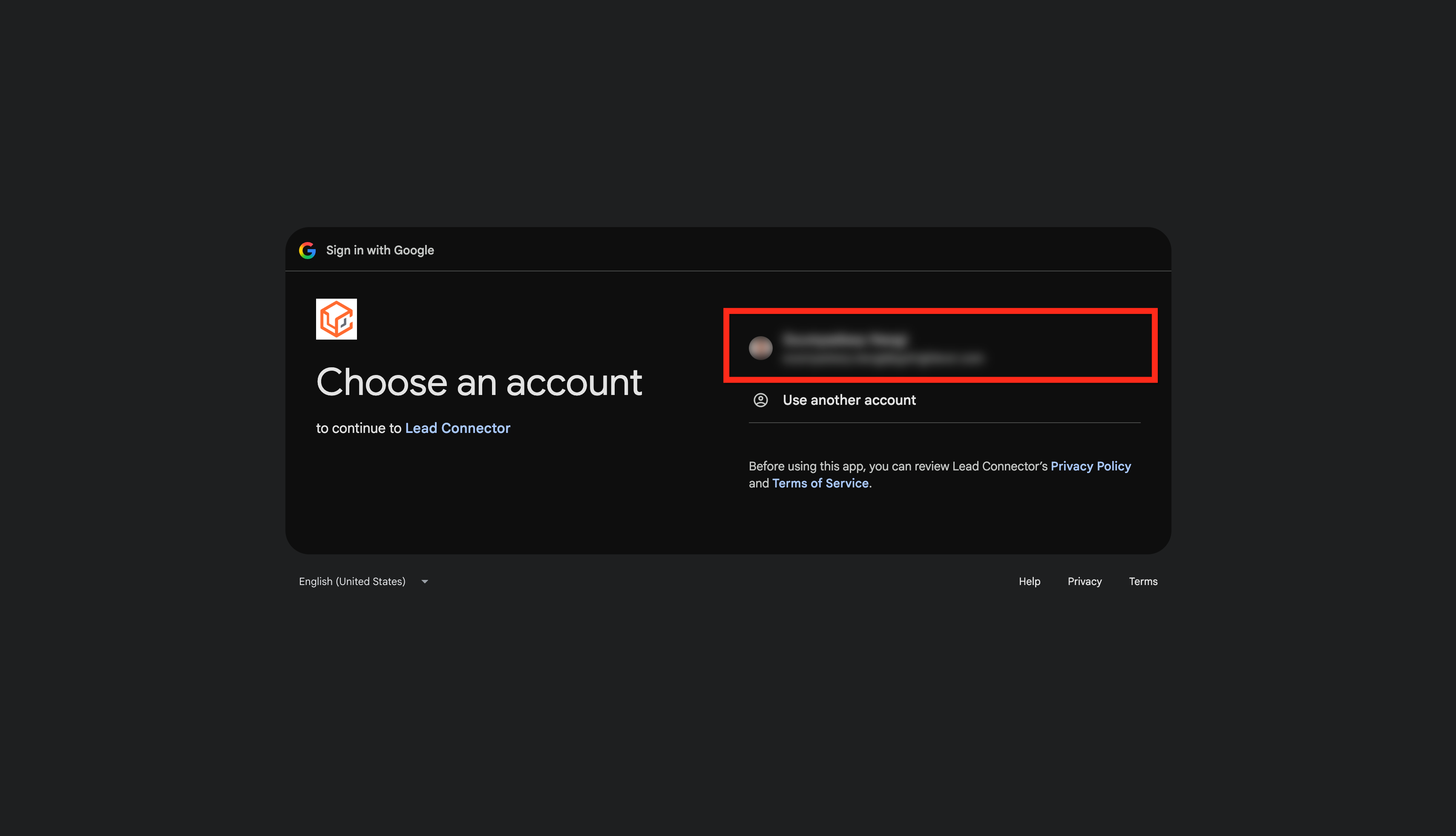
- Sign in with the Google account you intend to use.
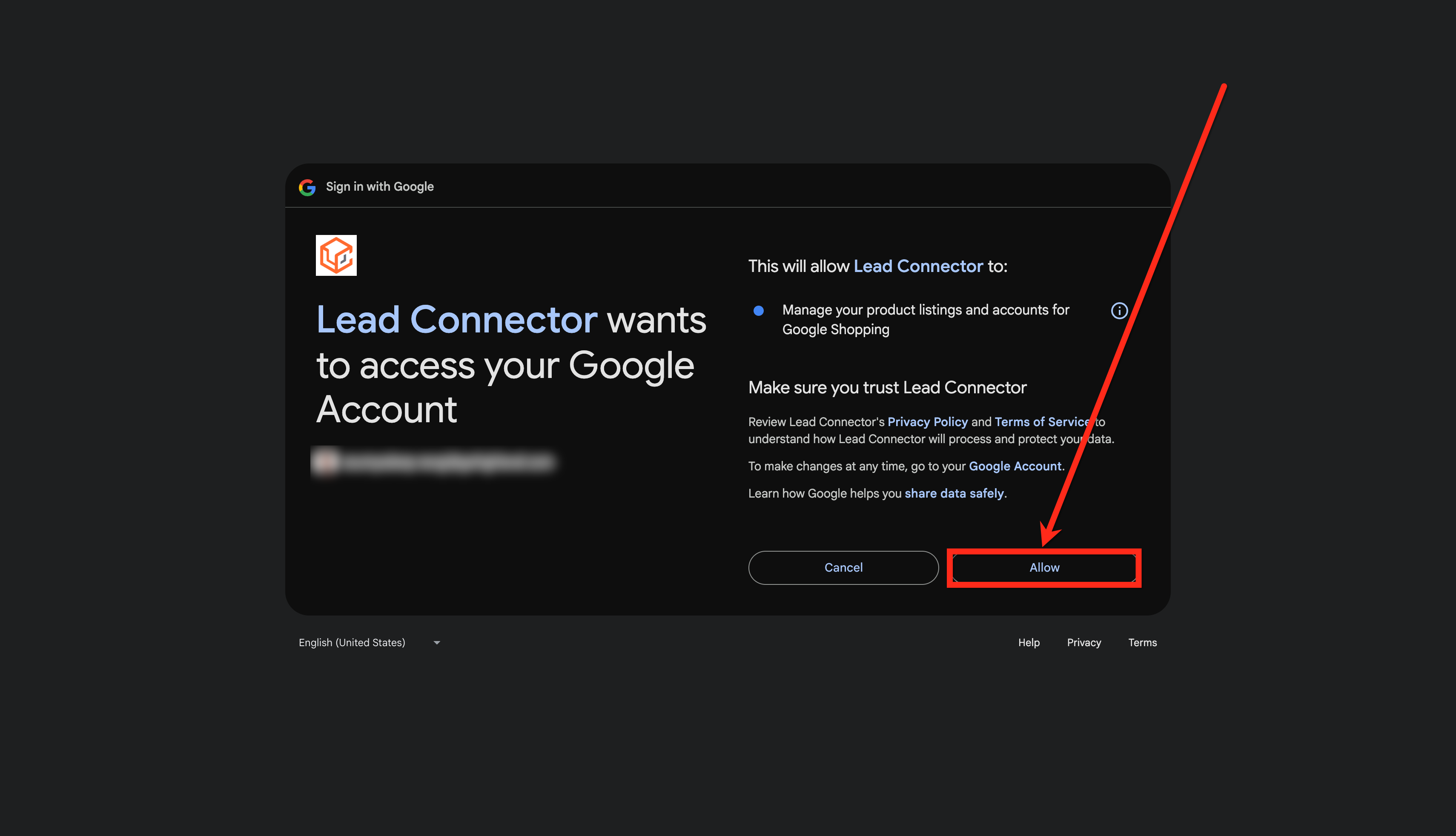
- Ensure the account has access to an existing Merchant Center account or will create a new one, then finish authorization.
- Choose an existing Merchant Center account from the list, or click Create New GMC Account if none appear.
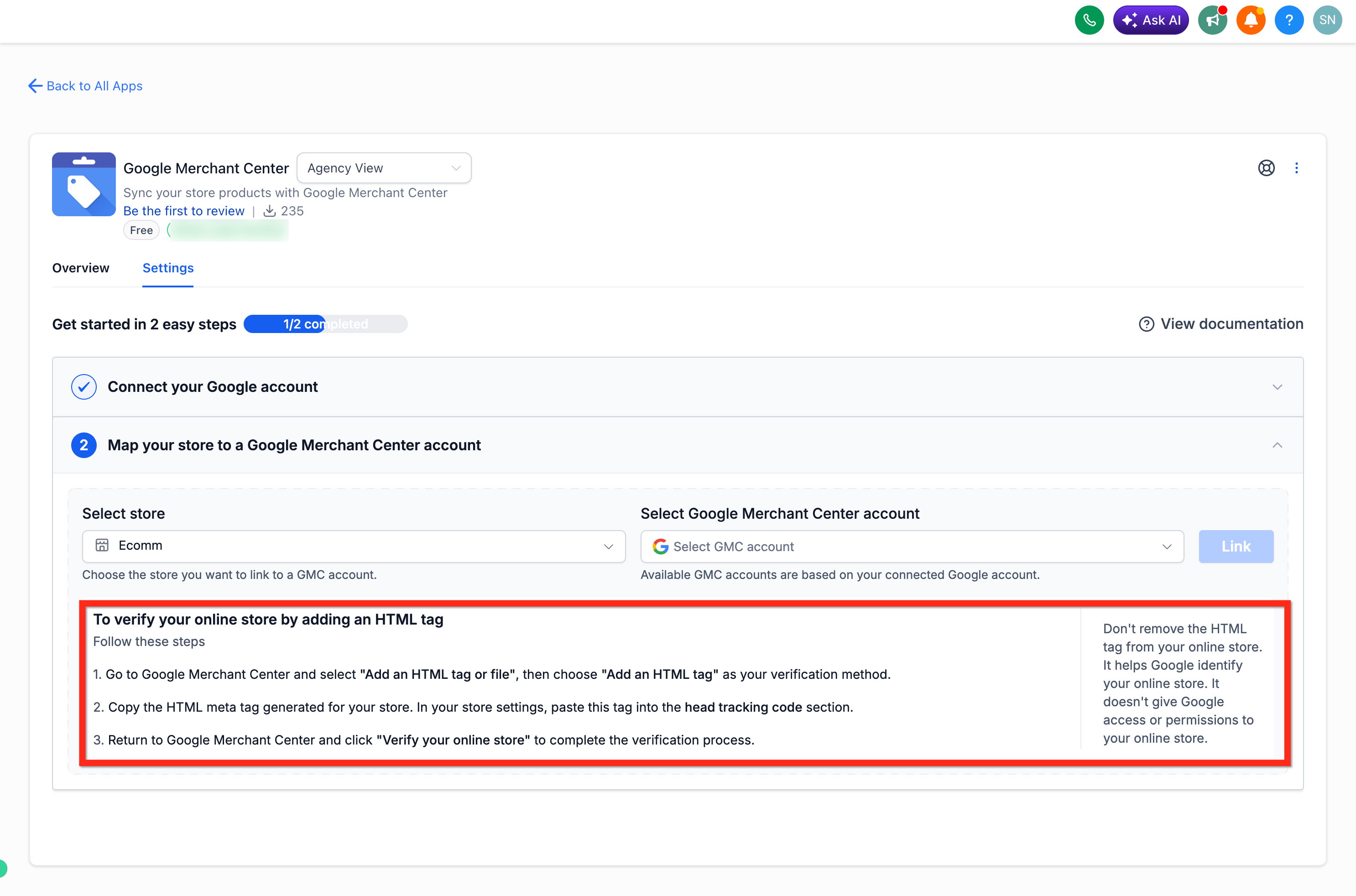
- Complete any required business information and verification steps in Google.
- Verify that the domain linked to your e commerce store is approved in Merchant Center; follow manual verification if needed.
- In HighLevel, pick the e commerce store you wish to link.
- If the store shows "Domain not connected," open its settings and attach the domain.
- Confirm the mapping between the store and Merchant Center; the initial product sync will start automatically.
Remove a connection
- Locate the existing store to Merchant Center mapping in the integration interface.
- Select the option to unlink or remove the connection.
- Confirm the removal, which disconnects the store and frees the Merchant Center account for other mappings.
Force sync
- Open the Google Merchant Center integration for the connected store.
- Click the Force Sync button.
- Review the progress messages that display eligible product counts and synchronization status.
06What it looks like in HighLevel
07Things to know before you rely on it
- Only products with a one time payment option are synchronized; recurring payment items are excluded.
- Each store and each Merchant Center account can belong to only one active connection at a time.
- Domain verification is required; stores without a verified domain cannot be linked.
- The integration does not guarantee product approval or visibility on Google; approval is determined by Google.
- Connecting a store does not automatically create paid Shopping campaigns; a separate Google Ads account is needed for ads.
08If something goes wrong
- My Products Aren't Syncing. Check that the store remains connected, the product is assigned to that store, the product uses a one time payment option, the store domain is valid, the leadconnector data source exists, and no sync errors are shown. If everything is correct, run a Force Sync.
- My Product Was Synced but Isn't Visible on Google. Review the product’s status and any issues reported by Google in Merchant Center, as synchronization and Google approval are separate.
- My Product Was Not Approved. Examine the error or warning shown in the integration and the Needs attention section in Merchant Center. Fix the underlying issue, then request another review if applicable.
- My Domain Isn't Verified. Complete the store URL verification process in Google Merchant Center. Follow automatic verification or manual instructions provided by Google.
- I Deleted the “leadconnector” Data Source. Return to the integration and use Force Sync to recreate the data source and resubmit eligible products.
- I Can't Connect a Store or Merchant Center Account. Verify that the store or Merchant Center account is not already part of another active connection; remove the existing connection before creating a new one.
09How it connects to the rest of HighLevel
- Set up a HighLevel ecommerce store HighLevel ecommerce store guide
- Configure WooCommerce integration in HighLevel WooCommerce integration
- HighLevel pricing and plans Pricing page
Michael's take

In my experience, the automatic sync removes the need to maintain separate product feeds, but you still need to monitor Google’s policies and handle any disapprovals manually. The integration does not run Shopping ads and does not guarantee product approval.