
01Who this is for
- Real estate agents benefit because they can send purchase agreements to buyers, sellers and lenders, assigning each a signature field.
- Insurance brokers gain efficiency by delivering policy contracts to the client, the underwriter and the agent, with the client as the primary recipient for invoicing.
- SaaS Founders can circulate service agreements to the buyer, legal counsel and a finance contact, ensuring each party signs only their portion.
02Multiple recipient support on documents & contracts, explained
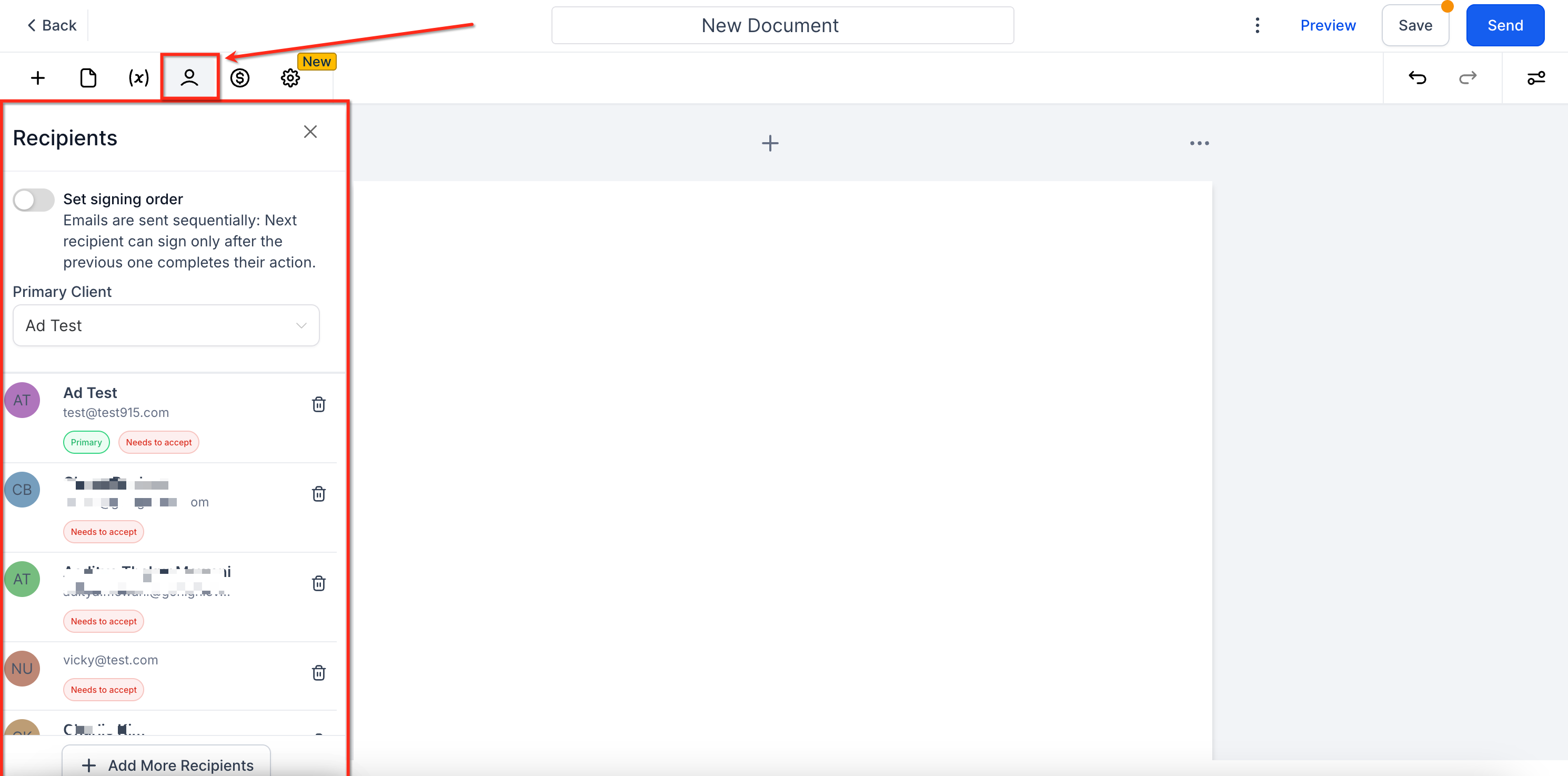
The feature expands Documents & Contracts so a single file can include more than one signer. Any contact given at least one signature element becomes a Signer; contacts added without signature elements are treated as CC recipients who only receive the completed document. The first contact added is automatically set as the Primary Recipient, whose information fills custom fields and, if automatic invoicing is enabled, receives the invoice after the document is completed.
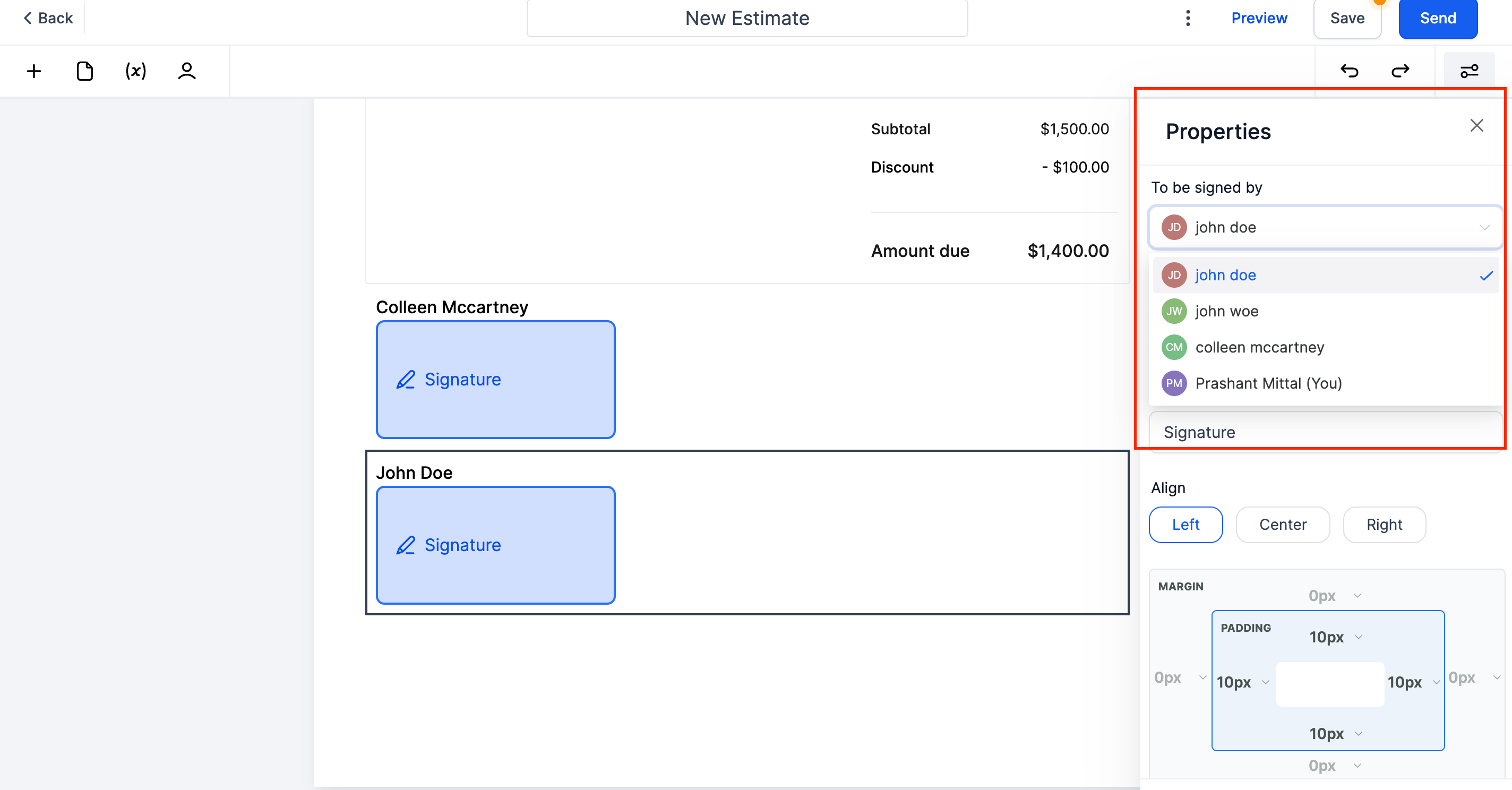
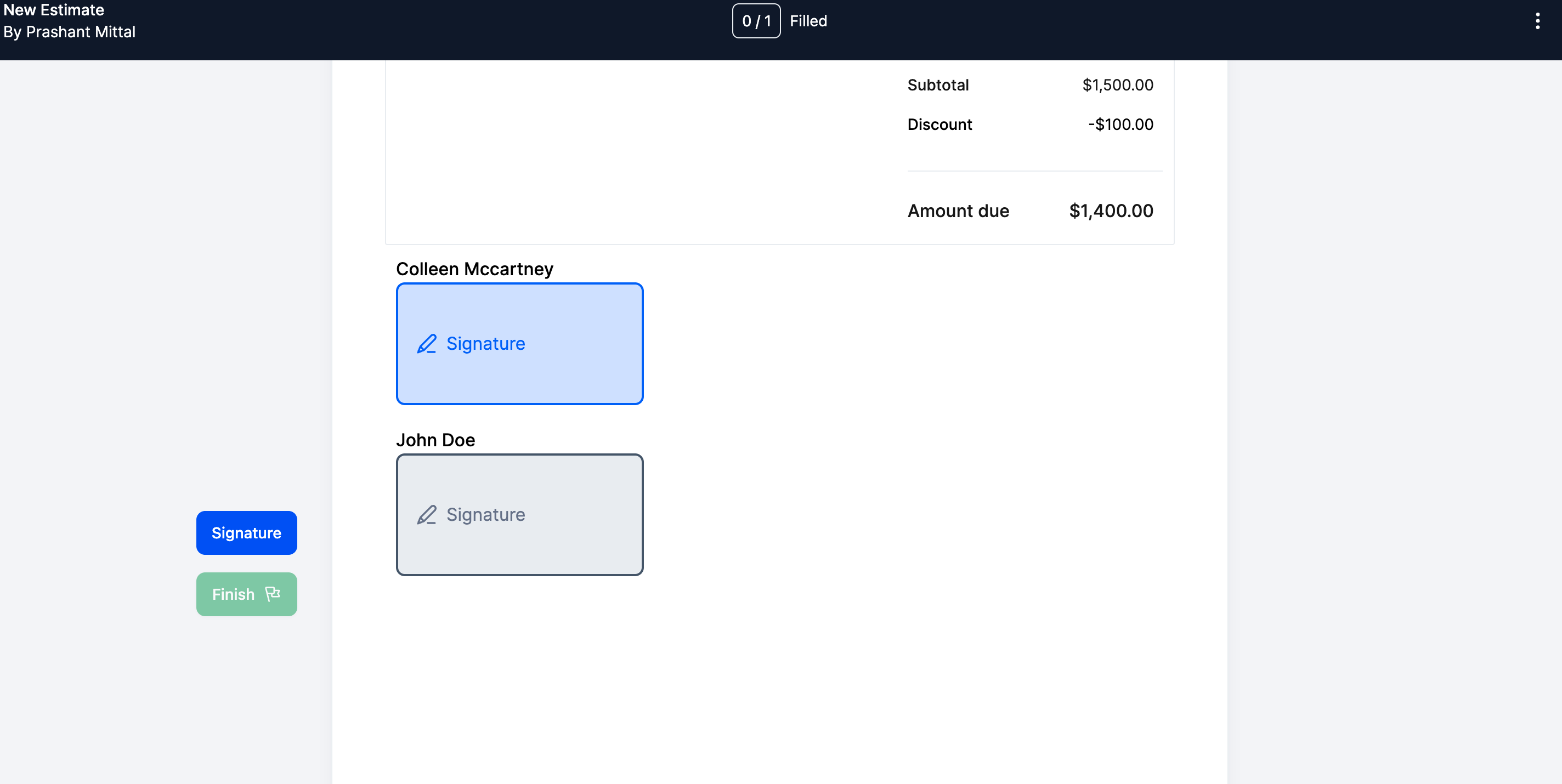
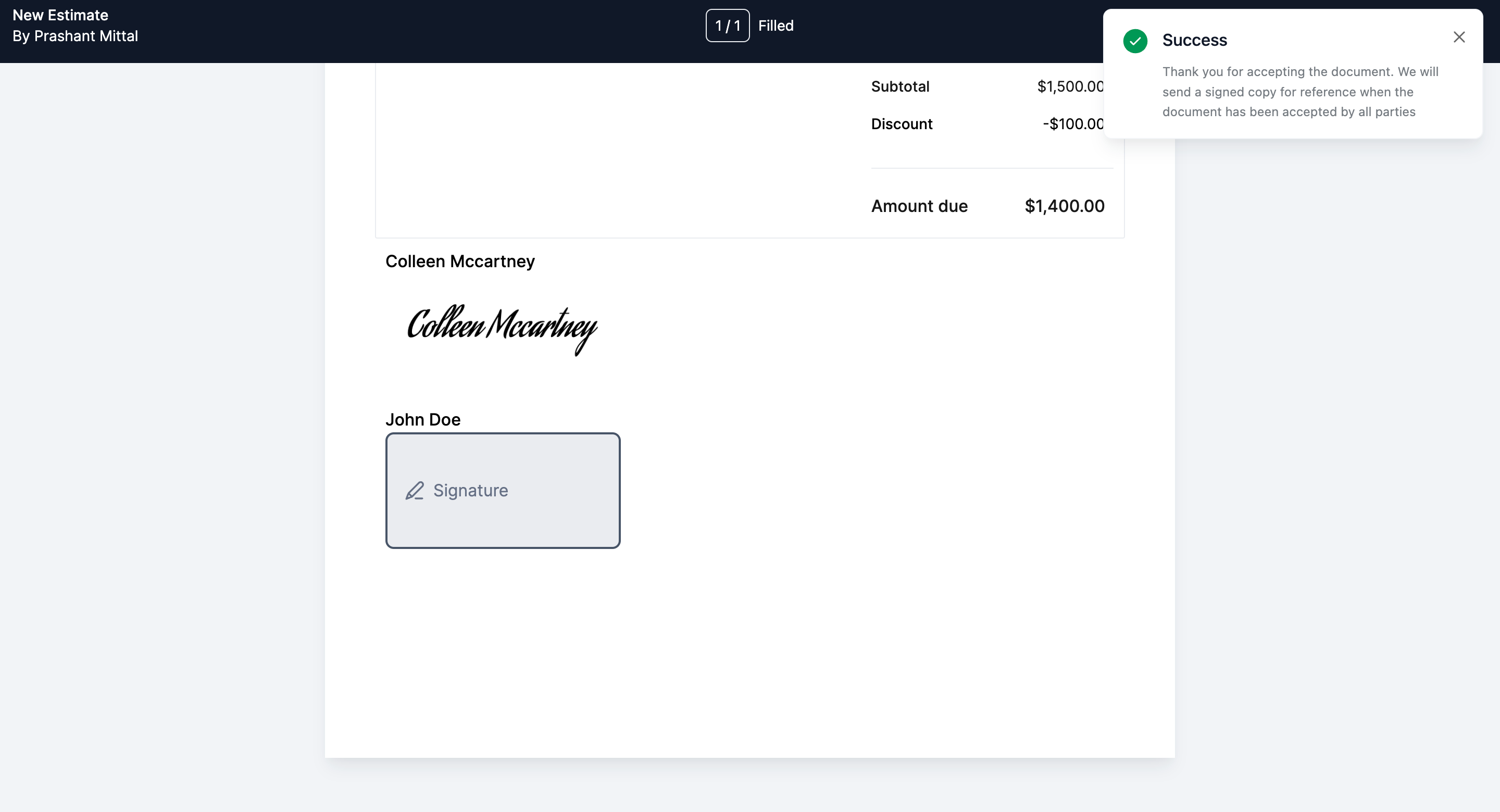
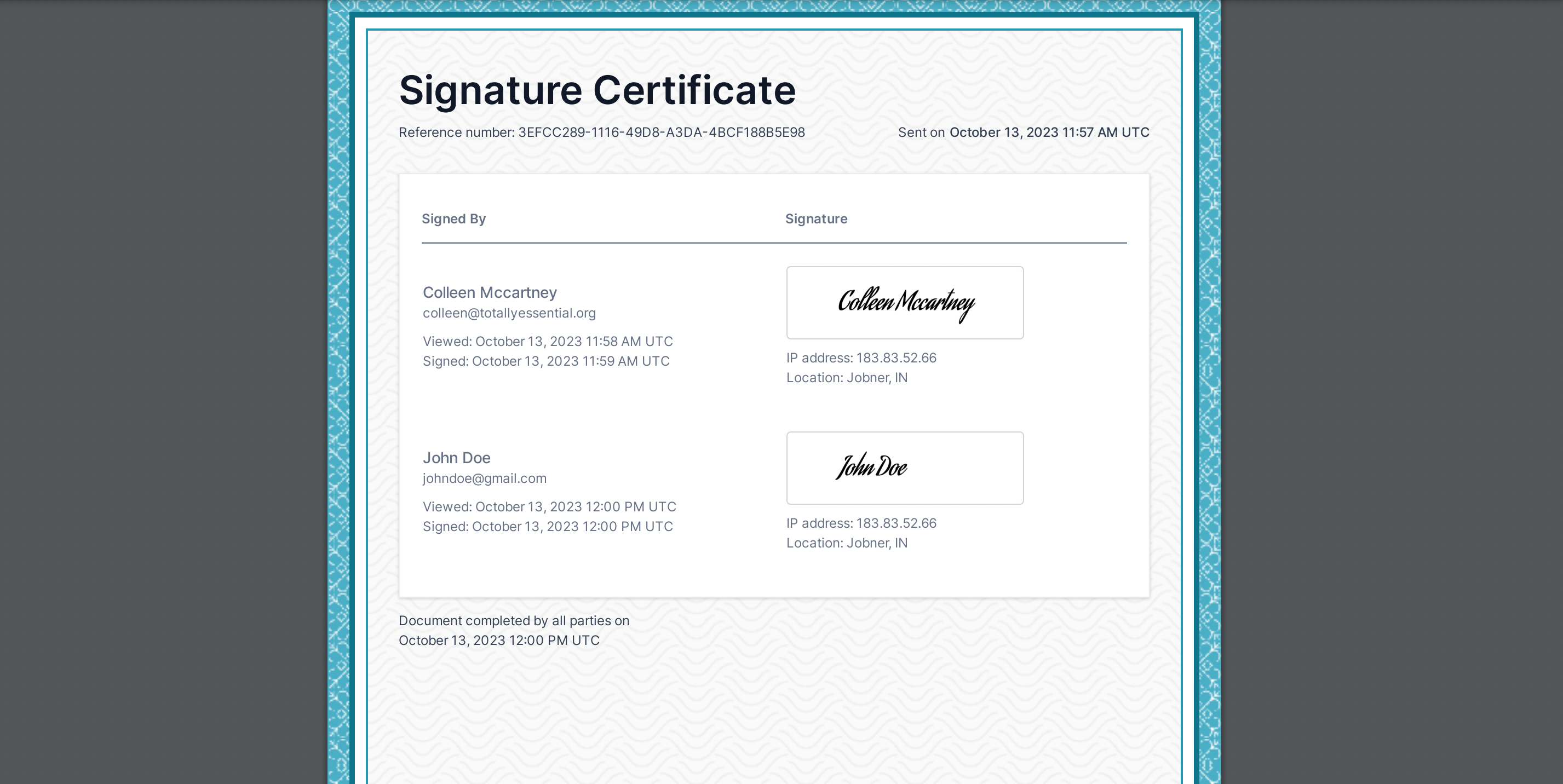
Each Signer is sent a distinct URL that opens directly to their assigned fields, preventing them from seeing other parties’ sections. Once every Signer has signed and every CC has viewed the file, HighLevel assembles a final PDF that contains all signatures together with a certificate. The certificate records IP address, geographic location when available, and the exact date and time each participant viewed and signed.
These controls are accessed in the Documents & Contracts area of a subaccount. Users create a new document or edit an existing template, add contacts in the Recipients panel, and drag or assign signature fields to each contact as needed.
03How businesses use multiple recipient support on documents & contracts
- Real estate brokerage. The broker creates a purchase agreement, adds the buyer, seller and escrow officer as contacts, and assigns signature fields to each. After sending, each party receives a unique link to sign only their portion, and the broker receives a completed PDF with a certificate.
- Insurance agency. An agent prepares a policy contract, includes the client, underwriter and agency manager as recipients, and marks the client as the Primary Recipient. The client’s details automatically fill custom fields, and the agency gets an invoice generated for the client once all signatures are collected.
- Software SaaS company. The company drafts a service agreement, adds the customer, legal reviewer and finance officer, assigning signature fields accordingly. Each receives a personalized signing link, and the final signed document together with a signature certificate is stored in the customer’s contact record.
04Before you start
- Log into the appropriate subaccount where the document will be stored.
- Ensure automatic invoice creation is enabled if you want an invoice generated for the Primary Recipient.
05How to set up and use multiple recipient support on documents & contracts in HighLevel
Create or edit a document/contract with multiple recipients
- Open the subaccount that will hold the document.
- Navigate to Documents & Contracts and click Create New Document or open an existing template to edit.
- In the Recipients section, add each contact you want to involve, adding the intended Primary Recipient first if you need them to receive the invoice or populate custom fields.
- Drag and drop or otherwise assign signature fields to each contact that should sign; contacts without fields become CC recipients.
- Review all signature field assignments to confirm each Signer has the correct number and placement of fields.
- Send the document; each Signer will receive a unique link that directs them to their assigned portion.
06What it looks like in HighLevel
07Things to know before you rely on it
- The first contact added is automatically set as the Primary Recipient.
- A recipient without any signature field is treated as a CC and cannot sign.
- If a Signer does not finish their portion, the document stays in a Pending state until the signer completes or the fields are reassigned.
- An invoice is only generated for the Primary Recipient when automatic invoice creation is enabled.
08If something goes wrong
- A Signer does not complete their portion of the document. Resend a reminder email to the signer, or cancel the document and reassign the signature fields as needed.
09How it connects to the rest of HighLevel
- Overview of Documents & Contracts features All Documents & Contracts features
- Automatically generate invoices from signed documents Invoices from signed documents
- Create and send document templates automatically in a workflow Workflow automation for documents
Michael's take

Great feature if you need multiple parties to sign the same contract.
Skip it if your agreements only ever involve a single signer.