
01Who this is for
- Founders who need consistent, branded communication with clients for proposals and contracts.
- Sales managers who want their reps to receive real time alerts when a document is viewed or signed.
- Operations teams that require a single place to control CC recipients and internal notification details.
02Email templates and team notifications, explained
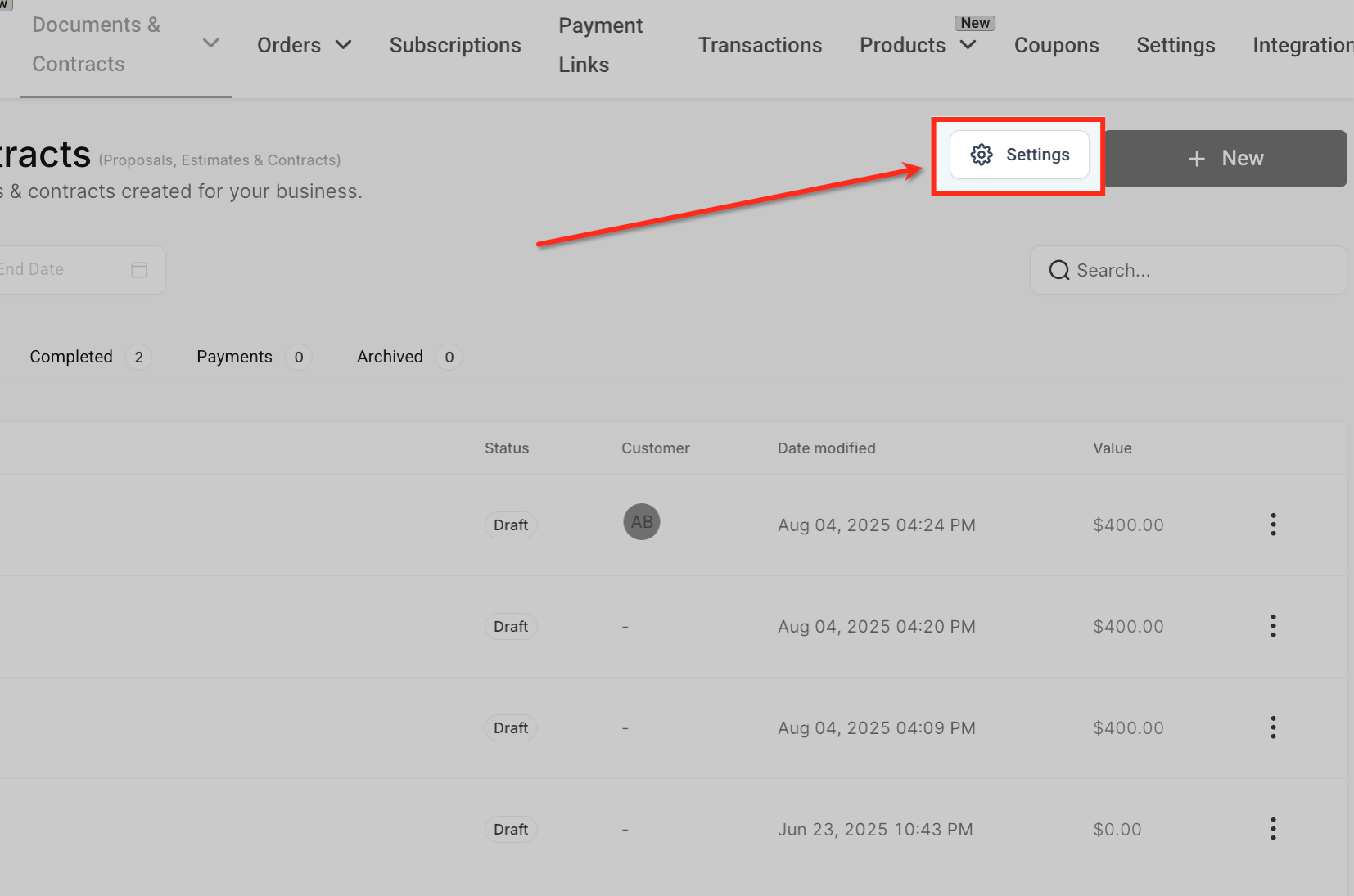
The feature lives inside the Documents & Contracts workspace. It provides two main areas: Customer Notifications, which define how clients receive emails, and Team Notifications, which control internal alerts. Both sections are accessed through the Settings button on the Documents & Contracts page.
Templates are created in the Marketing email builder, then linked to specific document events such as Received, Signed, and Expiry Warning. Dynamic variables pull live data from the document or contact record, so each email reflects the current proposal details without manual edits.
03How businesses use email templates and team notifications
- Real estate agency. The agency creates a template that inserts the property address and price using {{proposal.total}}. When an offer document is sent, the agent selects the appropriate template, edits the subject if needed, and the client receives a personalized email with a direct link to the offer.
- Software SaaS provider. The provider builds a contract template that includes the client’s name via {{contact.first_name}} and the contract URL via {{proposal.url}}. After the contract is sent, the internal sales lead receives a notification because a Workflow adds an Internal Notification action for the contract signed event.
- Consulting firm. The firm sets up a document expiry warning that triggers one day before a proposal expires. The warning email uses a custom template with a dynamic due date placeholder {{proposal.due_date}} and is automatically sent to the client without further input.
04The numbers and rules that matter
- Dynamic variables include {{proposal.URL}}, {{contact.first_name}}, {{proposal.total}}, {{proposal.due_date}}, {{contact.email}}.
05How to set up and use email templates and team notifications in HighLevel
Configure email templates and team notifications for Documents & Contracts
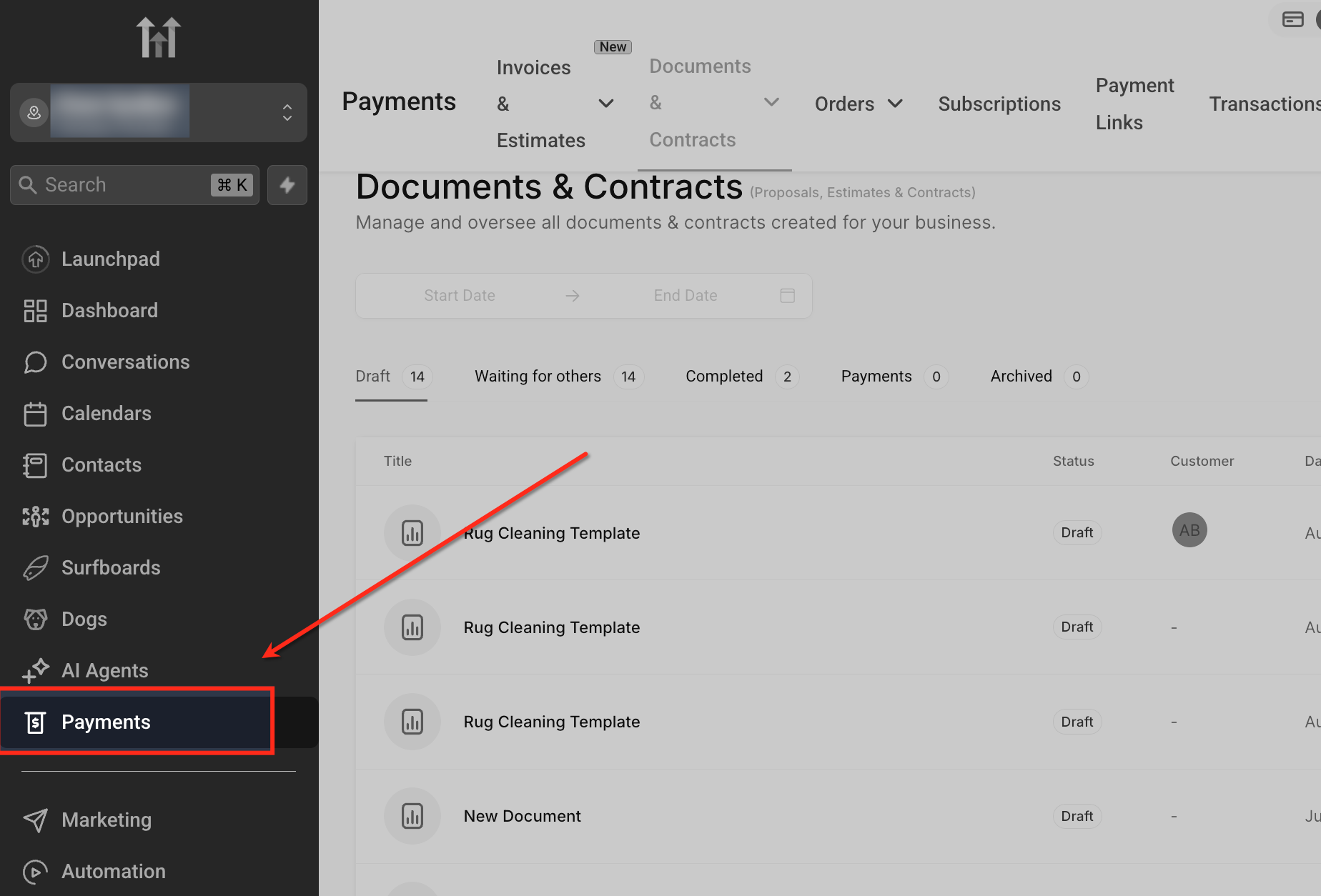
- Click Payments in the left hand sidebar.
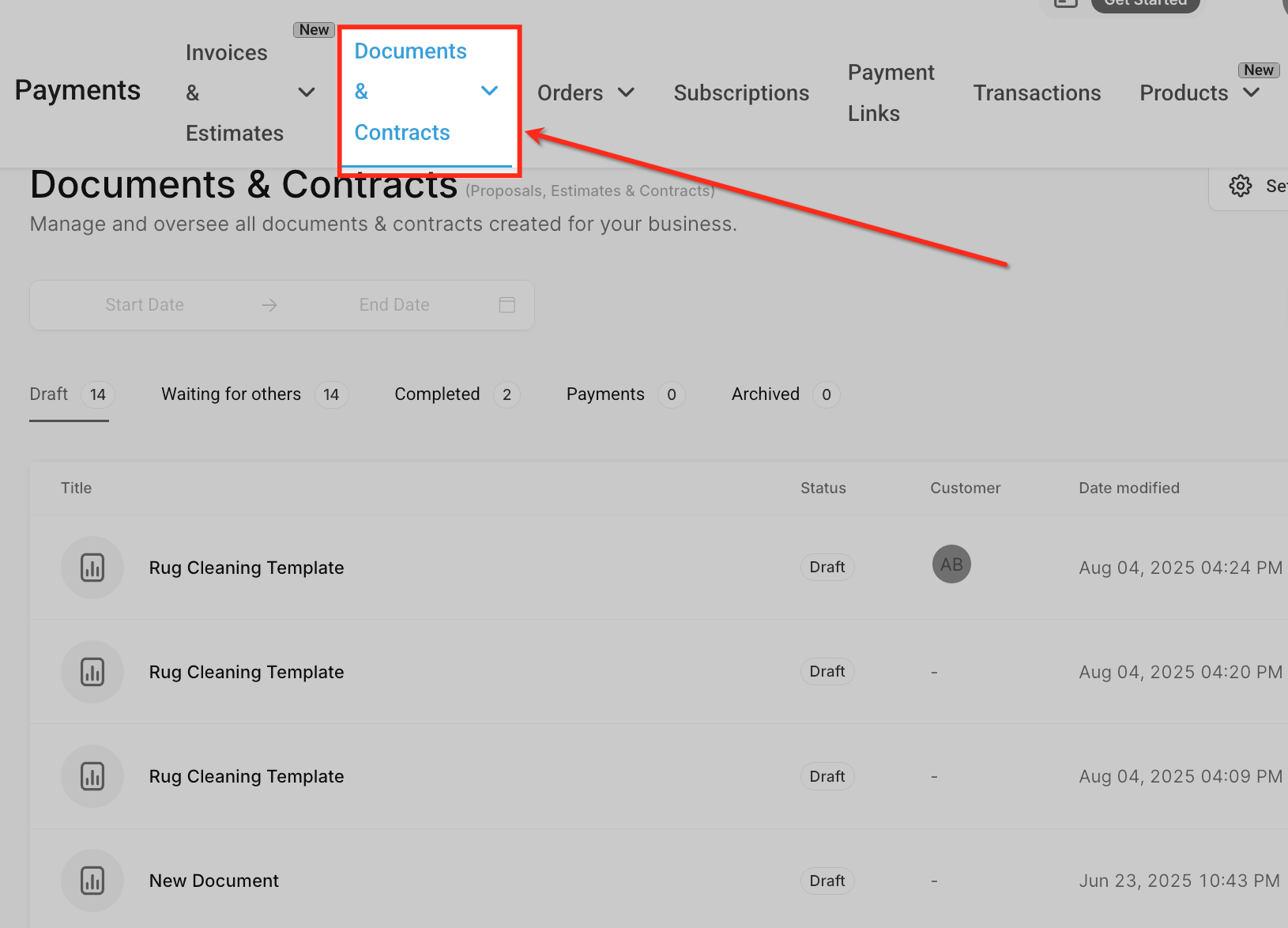
- Select Documents & Contracts from the top navigation bar.
- Press the Settings button at the top right of the Documents & Contracts page.
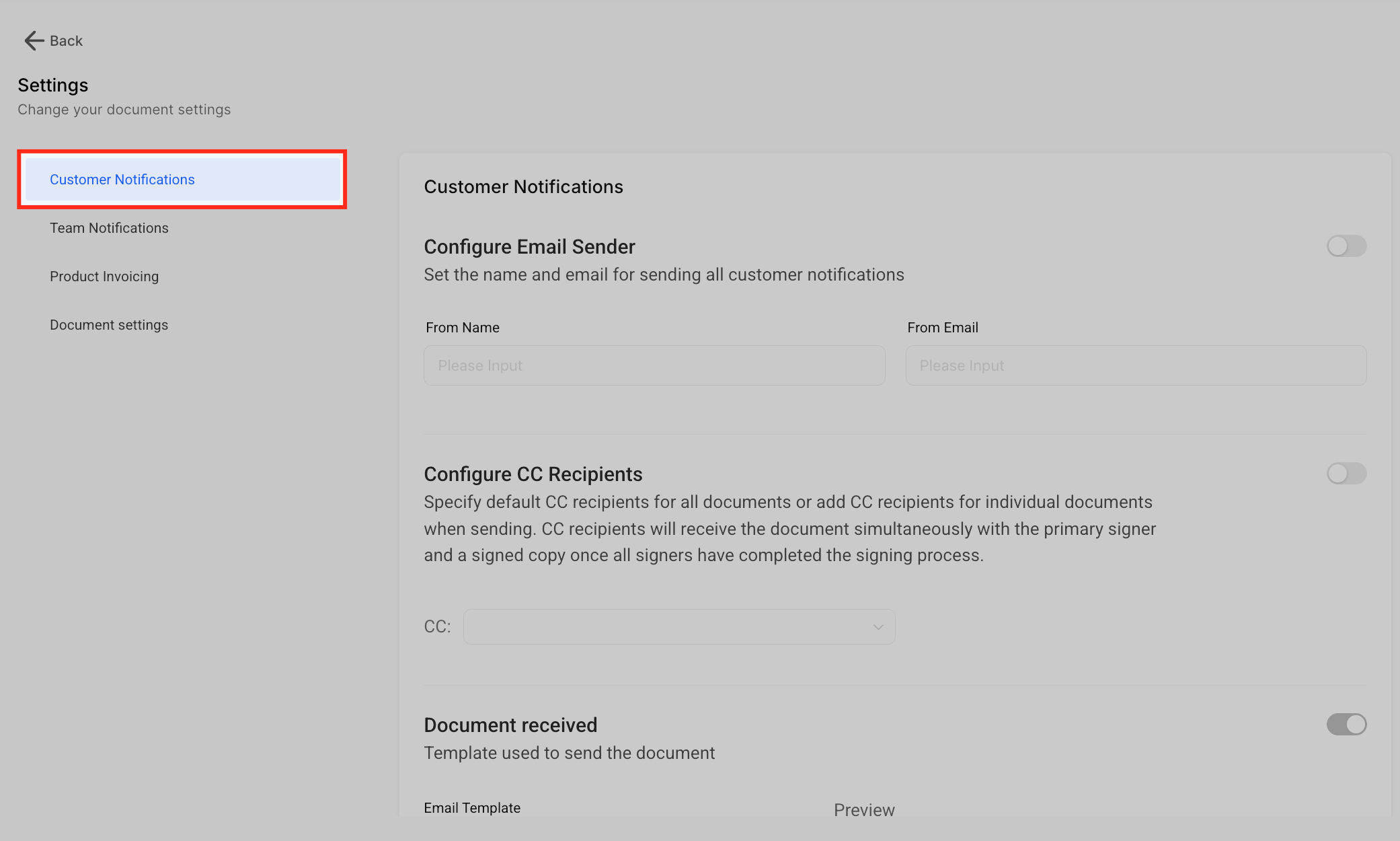
- Open Customer Notifications to manage client email delivery.
- Enter the desired From Name and From Email for client messages.
- Toggle the feature on to use the custom sender details.
- Add email addresses in the CC field and enable the toggle to include them.
- Navigate to Marketing > Emails > Templates.
- Click Create Template.
- Design the email content.
- Click Save as Template.
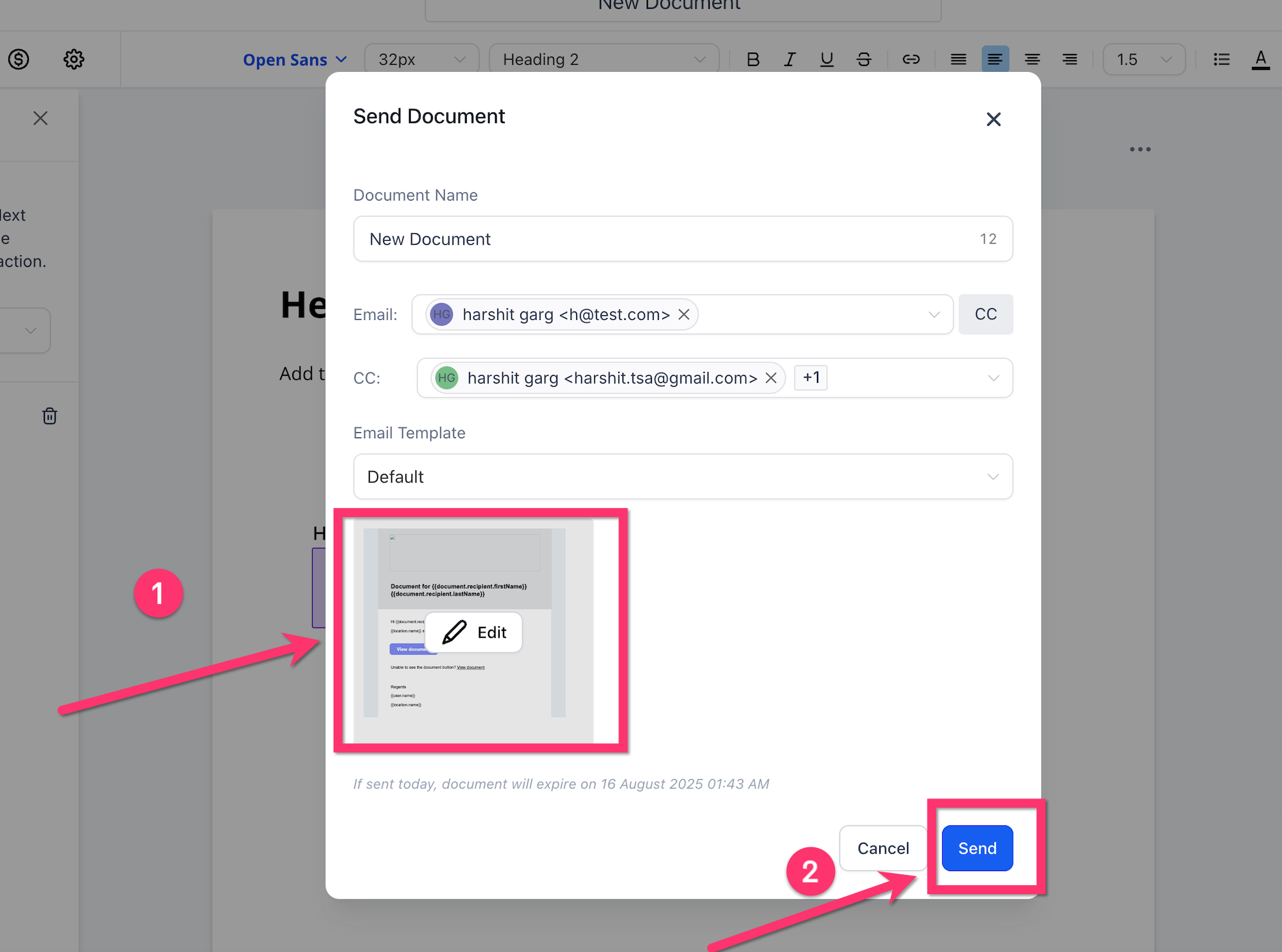
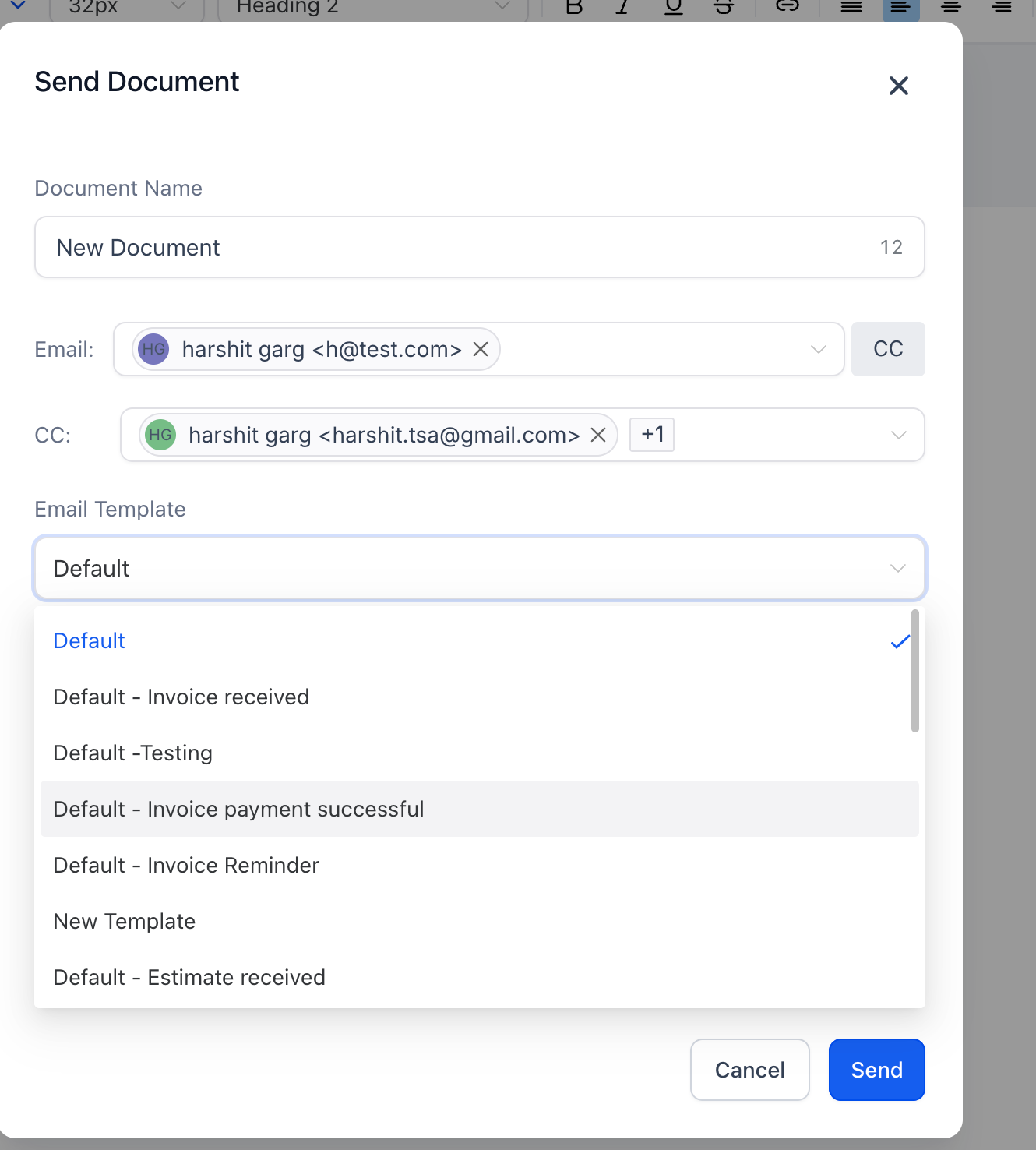
- In Document Received Notification, choose a template and edit the subject line.
- In Document Signed Notification, choose a template and edit the subject line.
- Enable Document Expiry Warning Email, edit its subject, and select a template.
- Open Team Notifications settings.
- Toggle Override Sender Details and set the From Name and From Email for internal alerts.
- In Document Signed Alert, edit the subject line and select a template.
- Enable Document Viewed Alert, edit the subject and body, and insert {{Preview URL}} if desired.
- Click Save at the bottom of the page to apply all changes.
06What it looks like in HighLevel
07Settings that matter
- Customer Notifications. Controls how clients receive emails for document events such as receipt, signing, and expiry warnings.
- From Name. Defines the display name shown to clients in customer facing emails.
- From Email. Specifies the email address used as the sender for customer notifications.
- CC Recipients. Adds additional email addresses that receive the same client email copy.
- Team Notifications. Sets which internal users receive alerts when a document is sent, viewed, or signed.
- Override Sender Details. Allows custom From Name and From Email for internal team notifications, separate from customer settings.
- Document Received Notification. Template and subject used when a client first receives a document.
- Document Signed Notification. Template and subject used after a client signs a document.
- Document Expiry Warning Email. Automatic reminder sent before a document expires, with its own template and subject.
- Document Signed Alert. Internal alert template sent to the team when a document is signed.
- Document Viewed Alert. Internal alert triggered the first time any recipient views a document, with optional {{Preview URL}} placeholder.
08Things to know before you rely on it
- Email templates must be created first in Marketing > Emails > Templates; they cannot be built directly inside Documents & Contracts settings.
09How it connects to the rest of HighLevel
- Create document or contract templates automatically in a workflow Workflow automation guide
- Documents & contracts workflow trigger details Workflow trigger guide
- HighLevel pricing and plans overview Pricing page
Michael's take

Your clients need clear, on brand messages when you send a proposal or contract, and your team needs to know the moment a document moves forward. The first thing I would lock down is the From Name and From Email for both client and internal alerts so every email feels familiar and trustworthy.
After the sender details are set, I’d build a simple template that pulls the client’s first name and the proposal link. Test it with a dummy record, make sure the dynamic fields populate, then turn on the team notification toggles. That way you get professional client communication and instant internal visibility without extra steps.