
01Who this is for
- Sales leaders, can generate proposals on demand and ensure they reach prospects at the right stage.
- Onboarding teams, automatically deliver service agreements when a client moves to the onboarding pipeline.
- Freelance consultants, send contracts with e signatures to clients without leaving the platform.
02Documents & contracts, explained
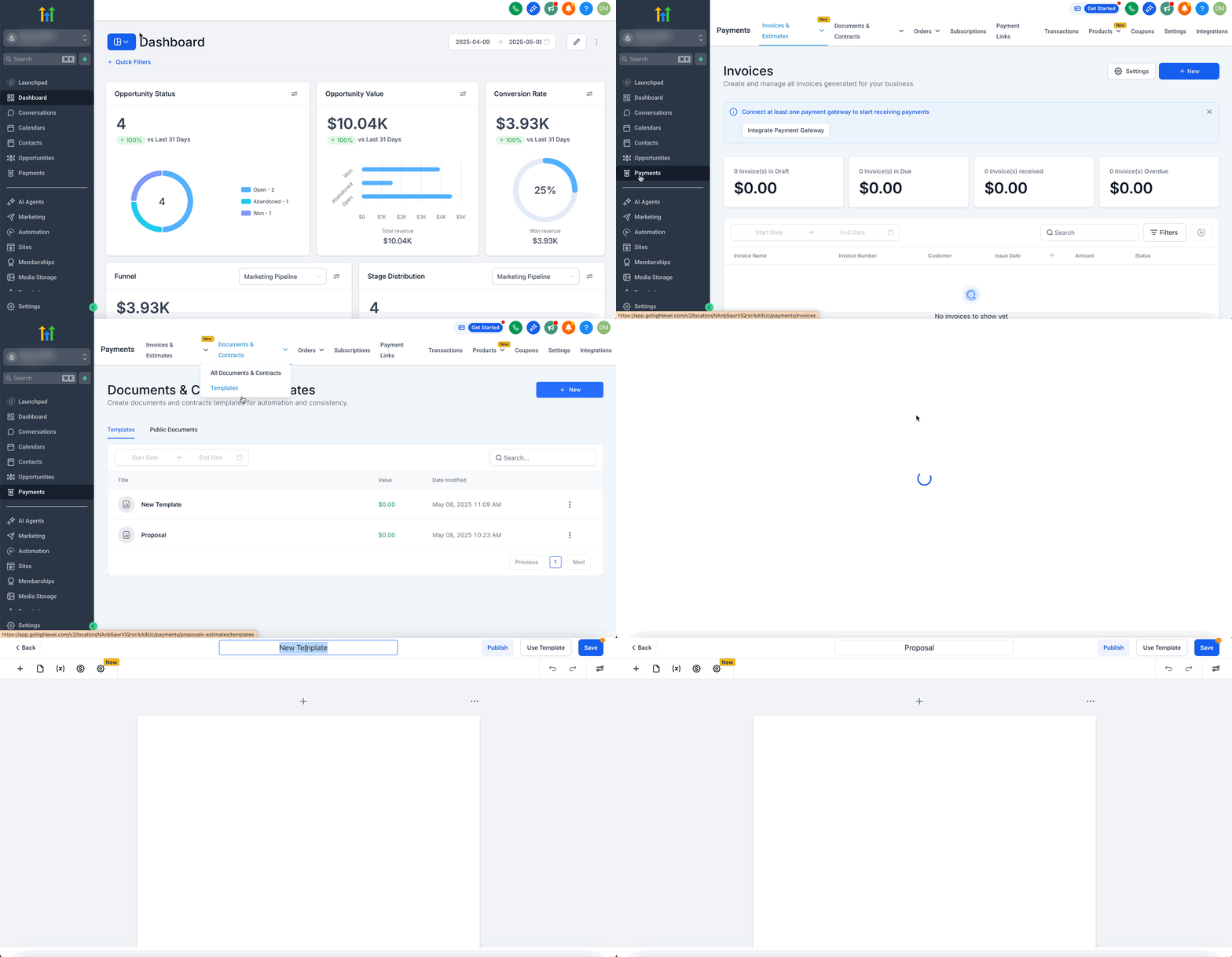
The feature provides a template builder where you add images, text, dynamic fields, product lists and signature boxes. After saving, the template becomes a reusable asset that can be referenced in any workflow. The system tracks each document’s status, from draft to completed, in the Documents & Contracts dashboard.
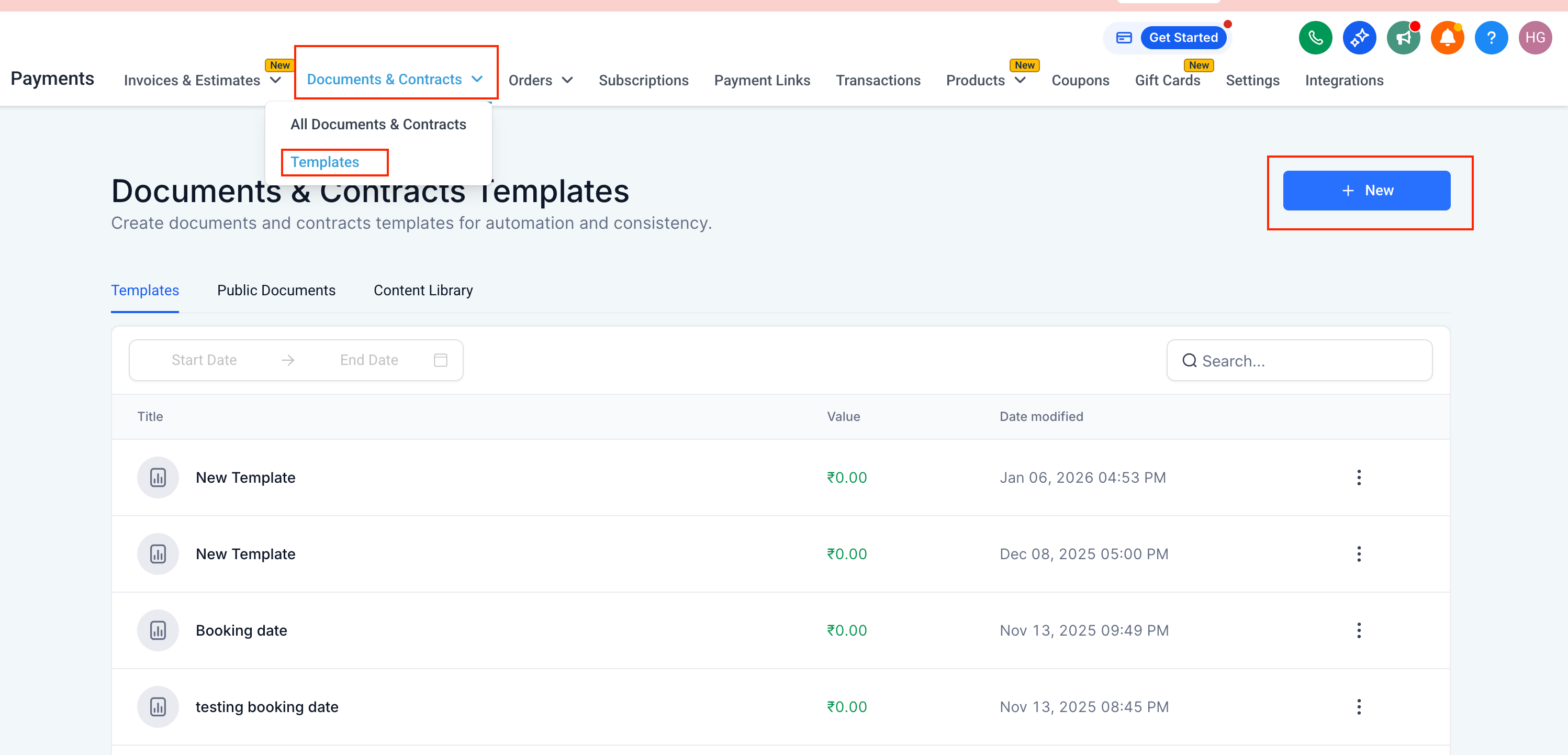
Templates live under Payments > Documents & Contracts > Templates. Workflow actions that send documents are configured in Automation > Workflows. When a trigger fires, the selected template is generated, delivered via email or SMS, and the recipient can sign directly in the browser. Status updates appear in the All Documents & Contracts view.
03How businesses use documents & contracts
- Real estate agency. The agency creates a listing agreement template with custom fields for property address and agent name. When an agent adds the "Listing Ready" tag to a contact, a workflow sends the agreement automatically for the client to sign.
- Digital marketing firm. The firm builds a service contract template that includes a product list of monthly retainers. Upon moving an opportunity to the "Proposal Sent" stage, a workflow dispatches the contract, collects the e signature, and updates the status to Completed.
- Health coach practice. A health coach designs a intake form template with signature and custom value fields for client details. When a new client is added to the onboarding pipeline, a workflow sends the form so the client can sign and return it before the first session.
04Before you start
- A document template must be saved before it can be used in a workflow.
- The contact record must contain a valid email address for the document to be sent.
05How to set up and use documents & contracts in HighLevel
Create a document or contract template
- Navigate to Payments > Documents & Contracts > Templates, click + New > Create New Template, and enter a name for the template.
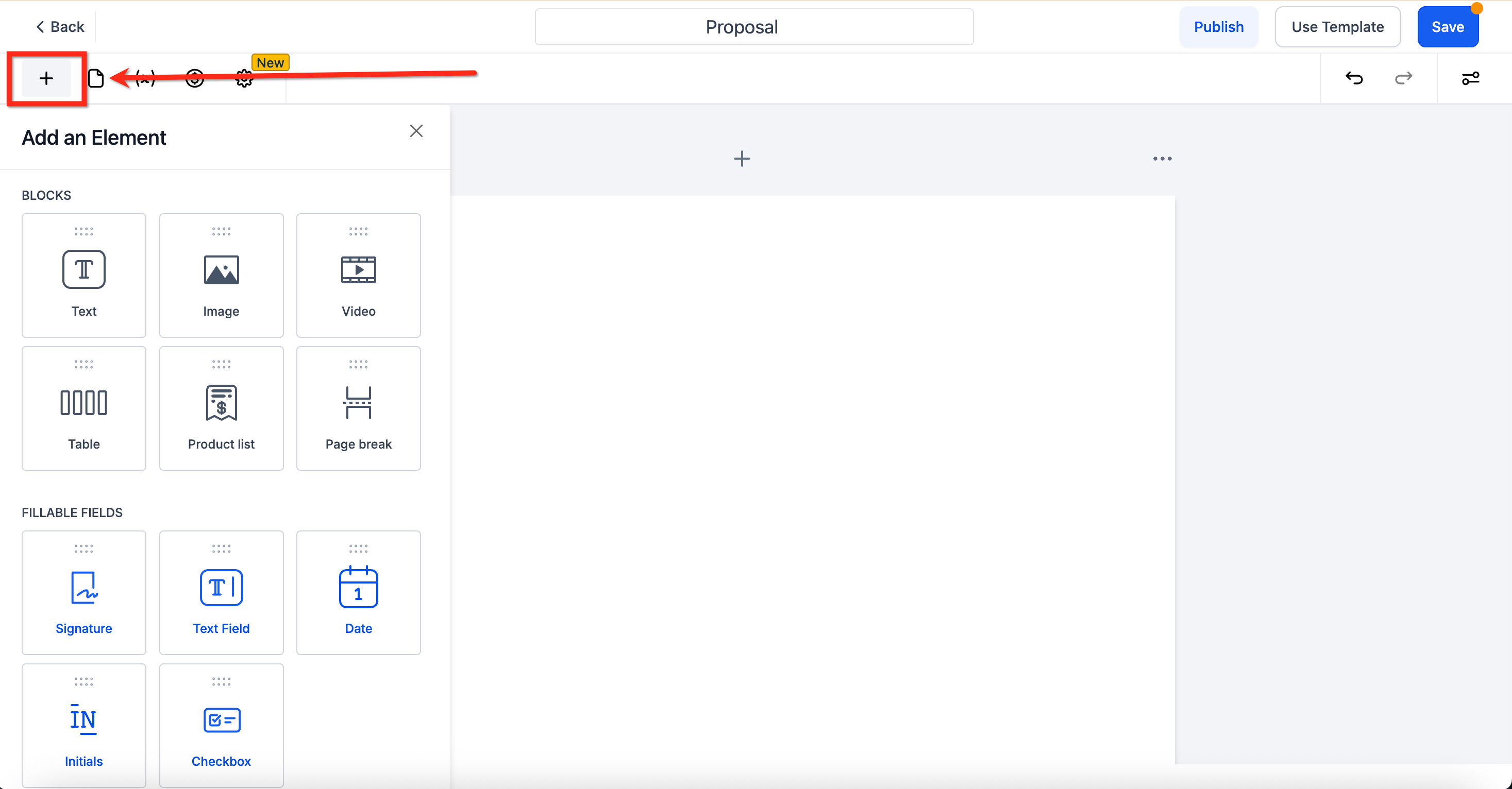
- Click Add Element and insert an Image element to upload your logo or branding graphic.
- Add Text, Custom Values, and Product List elements as needed; configure product list options such as Show image in list.
- Insert a Signature Box element where the client will sign the document.
- Click Save to store the template for future use.
Send a document automatically via workflow
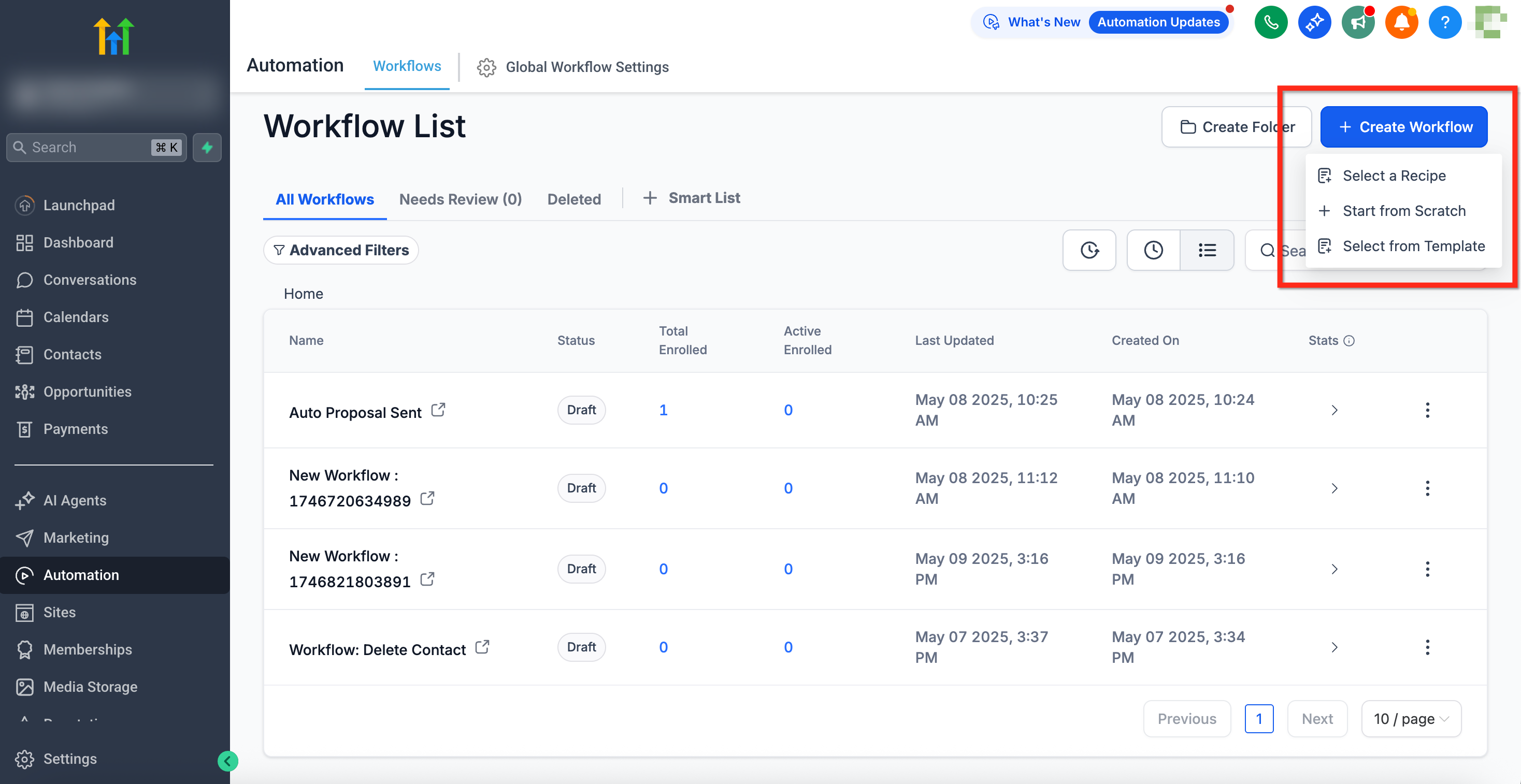
- Go to Automation > Workflows, click + Create Workflow and choose Start from Scratch.
- Select a trigger such as Tag Added or Opportunity Updated that will start the workflow.
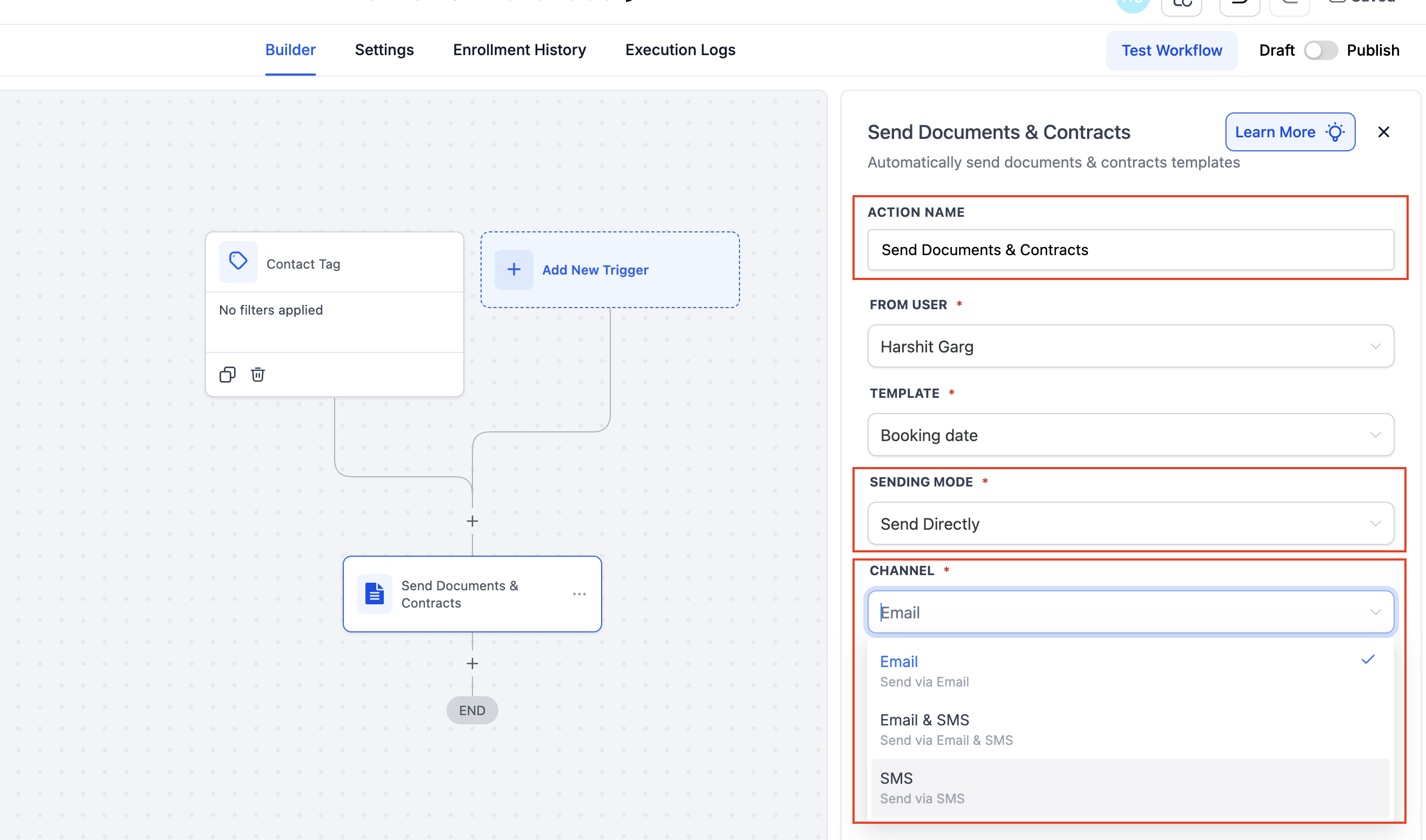
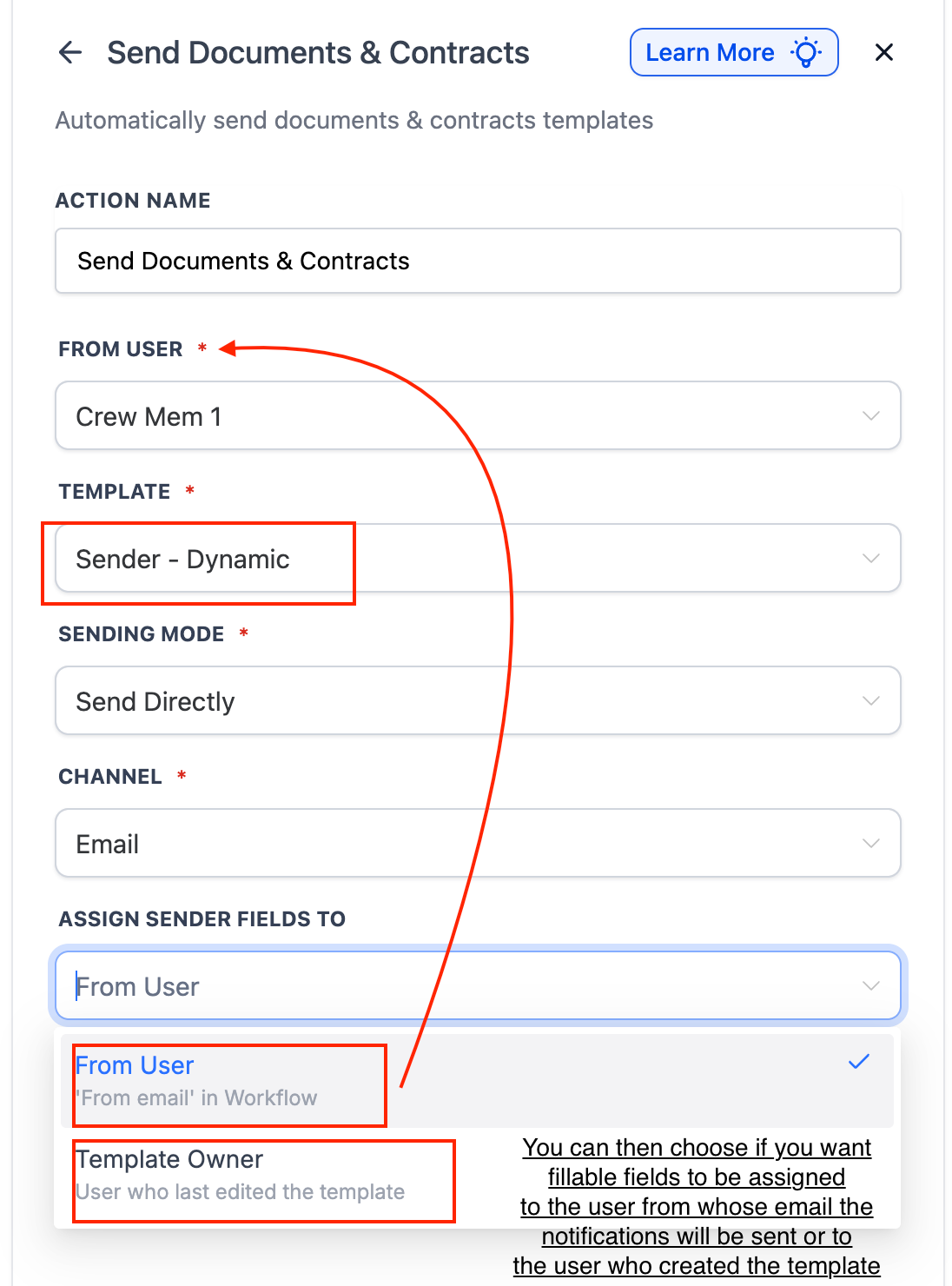
- Add the Send Documents & Contracts action and give the action a descriptive name.
- Choose the user who will send the document in the From field.
- Select the saved template that should be used for this action.
- Pick whether to Send Directly or Create as Draft for the document.
- Choose the delivery channel, Email, SMS, or both, knowing that SMS still requires a contact email.
- Click Save and then Publish the workflow.
06What it looks like in HighLevel
07Settings that matter
- To be signed by. Defines who is expected to sign a fillable field; setting it to Sender makes the workflow assign the internal user who sends the document.
- Assign Sender Fields To. In the workflow action, determines whether the Sender field is signed by the workflow’s From user or by the template owner.
- Send Directly. Sends the document immediately to the contact; the document becomes locked and cannot be edited after sending.
- Create as Draft. Generates the document in Draft status, allowing a manual review before it is sent to the contact.
- Channel. Specifies the delivery method, Email, SMS, or both, for the document; SMS still requires an email address on the contact.
- From user. Selects the internal user that the system uses as the sender of the document and notifications.
08Things to know before you rely on it
- Changes made to a saved template do not affect documents that have already been sent or saved as drafts.
- Even when the SMS channel is chosen, the contact must have an email address; otherwise the contract stays in Drafts.
- A document sent directly cannot be edited after delivery.
- Multiple recipients can be added only by using Multiple Recipient Support, which is a separate feature.
09How to share document templates in HighLevel
Document templates in HighLevel let agencies share templates and the media library components used inside them across subaccounts, helping to minimize the effort needed to recreate reusable templates.
When a template is shared, any media library components used inside it are also shared with the target subaccount.
Share a document template
- Go to Templates Section of Documents and Contracts.
- Click on share within the hamburger menu for the template that you want.
- Select the Subaccount you want to share it to.
10How it connects to the rest of HighLevel
- Learn how to create, clone, and send documents in HighLevel. Documents & Contracts overview
- Explore the workflow trigger options for Documents & Contracts. Workflow trigger guide
- Review HighLevel pricing and plan options. Pricing page
Michael's take

Most people assume sending a contract by SMS works without an email address on file. That’s not true, HighLevel still needs an email to track the document, so the contract will sit in Drafts until you add one.
If I were setting this up, I’d start with a Draft mode template, review it, and then switch to Direct send once I’m confident everything looks right. That way I avoid the locked document issue and keep the process smooth.