
01Who this is for
- Agencies that need to send service agreements quickly and keep all client contracts together in one view.
- Small businesses that want to embed payment options directly into proposals without using a separate invoicing system.
- Service providers who require legally binding signatures and an audit trail for each agreement.
02Documents & Contracts, explained
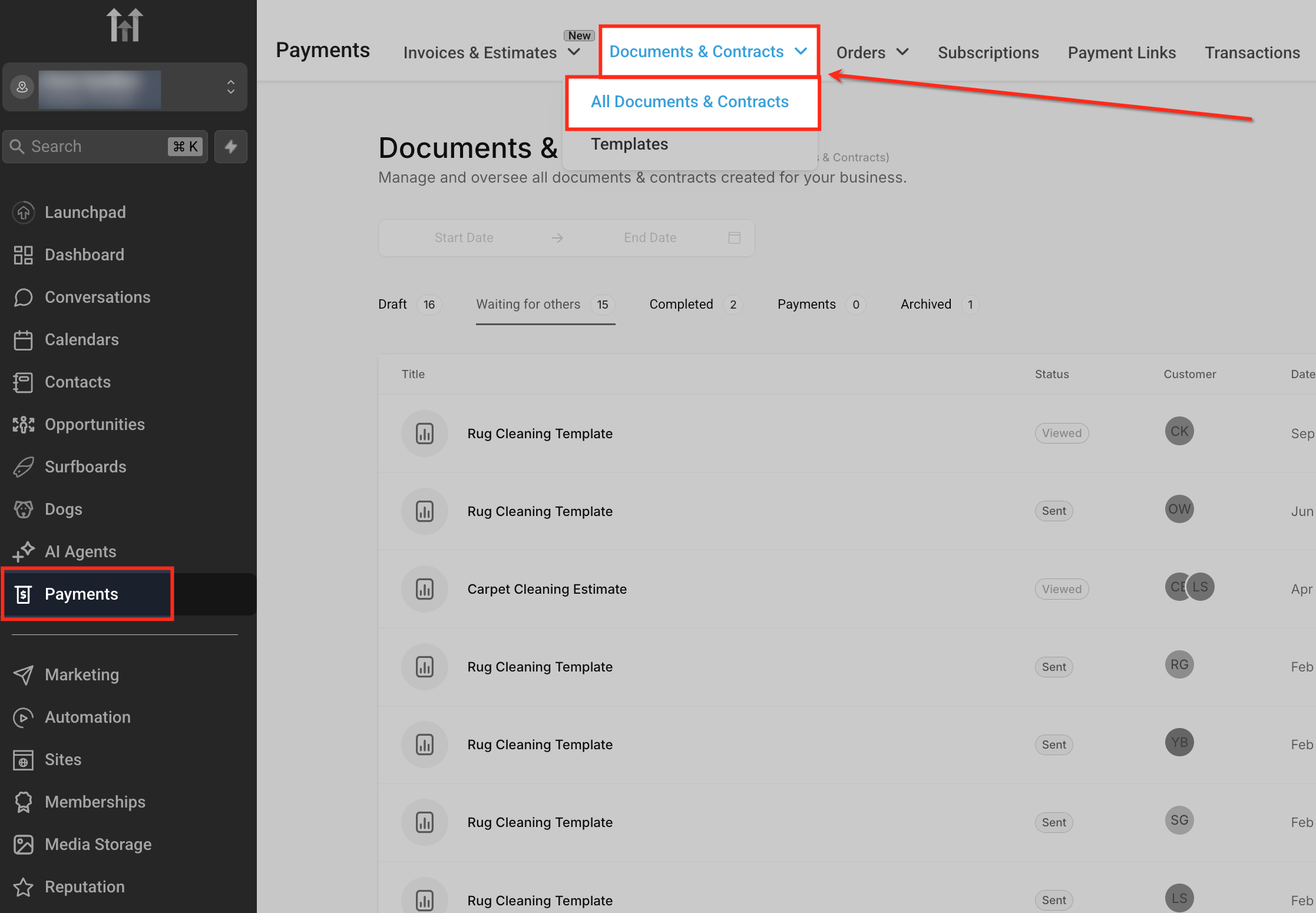
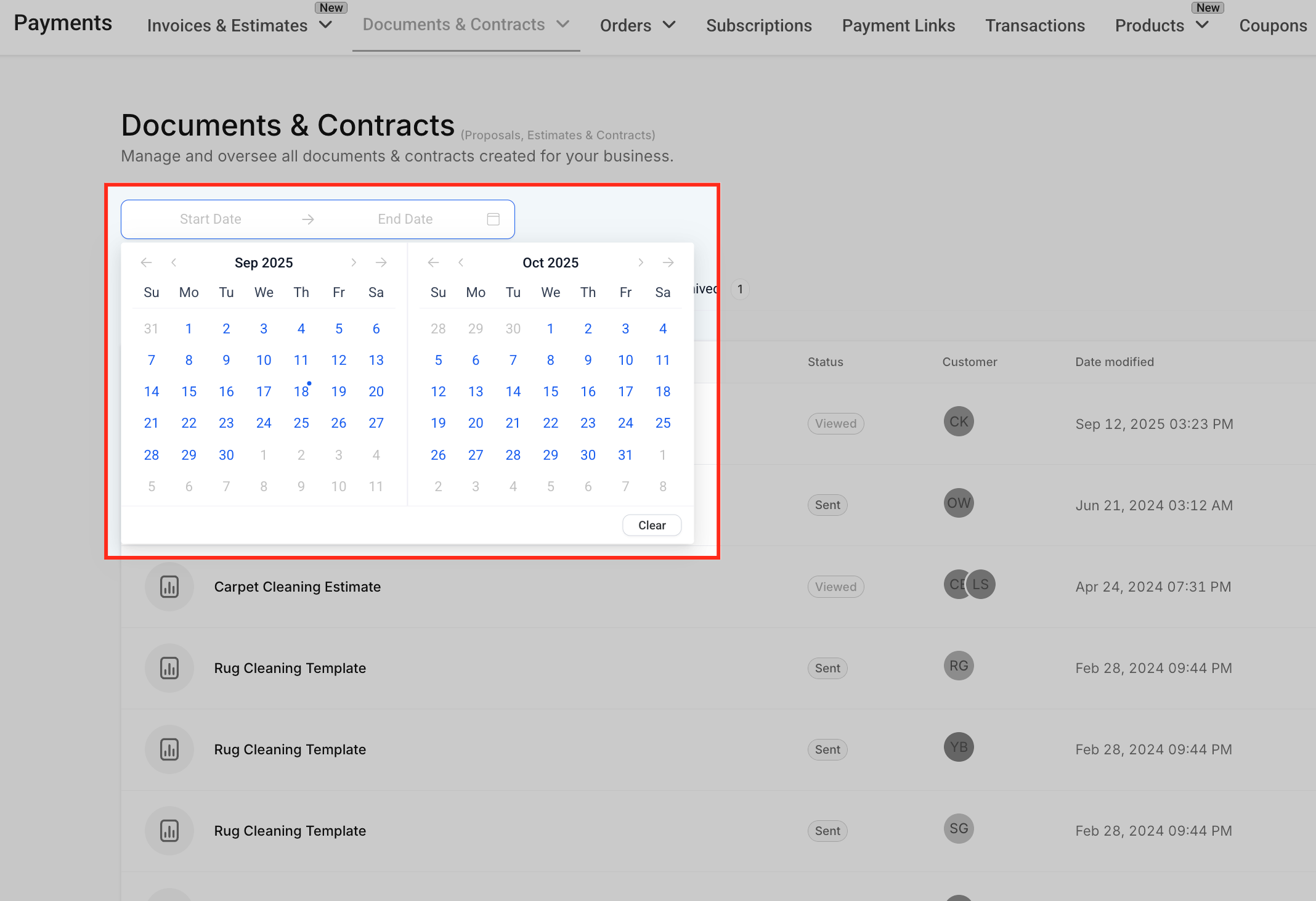
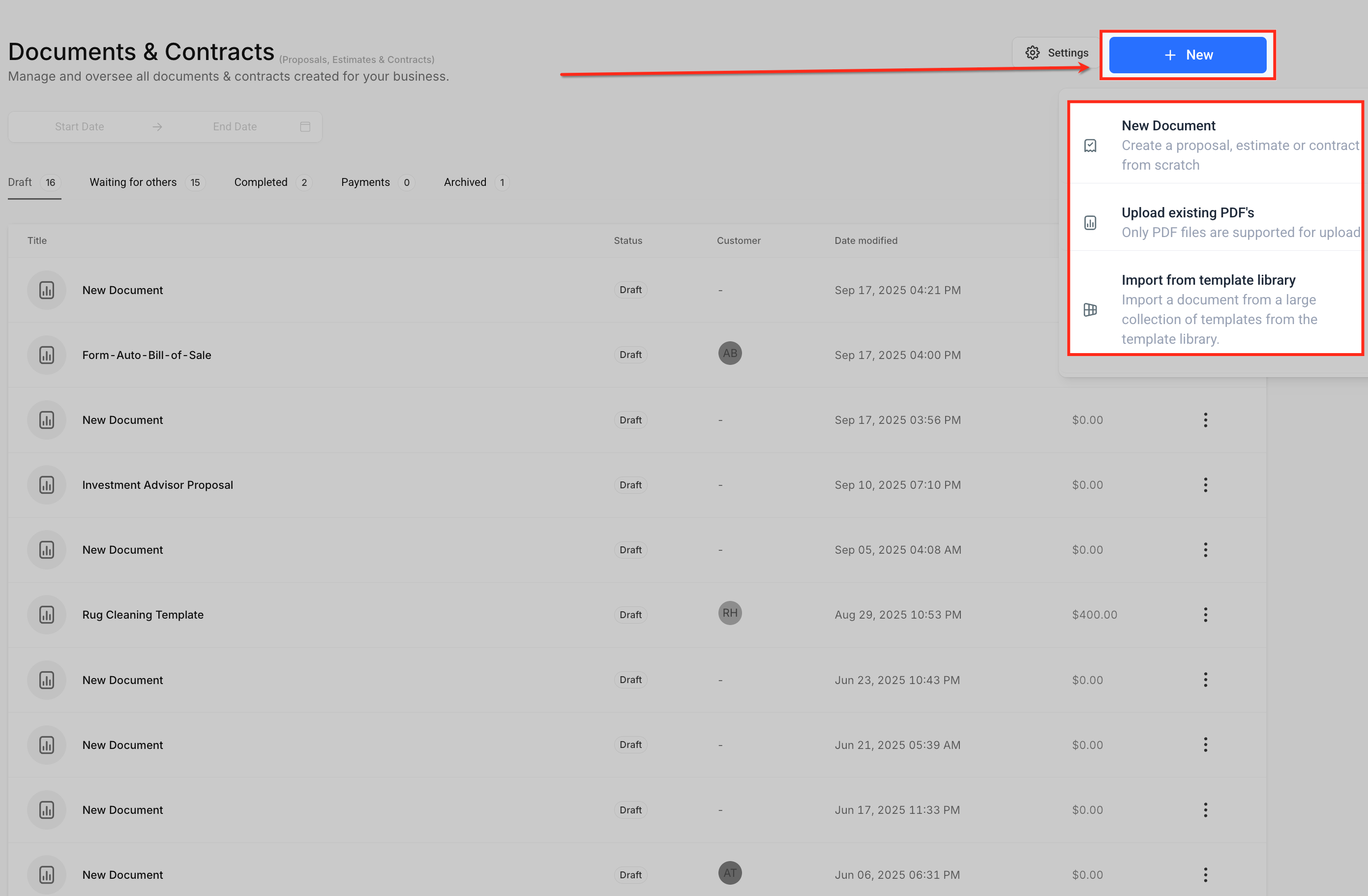
Documents & Contracts lives under the Payments menu and provides a dedicated dashboard for all agreement types. From the dashboard you can start a brand new document, upload a PDF, or pick a pre built template. The editor offers drag and drop blocks, fillable fields and dynamic variables, letting you build fully customized contracts.
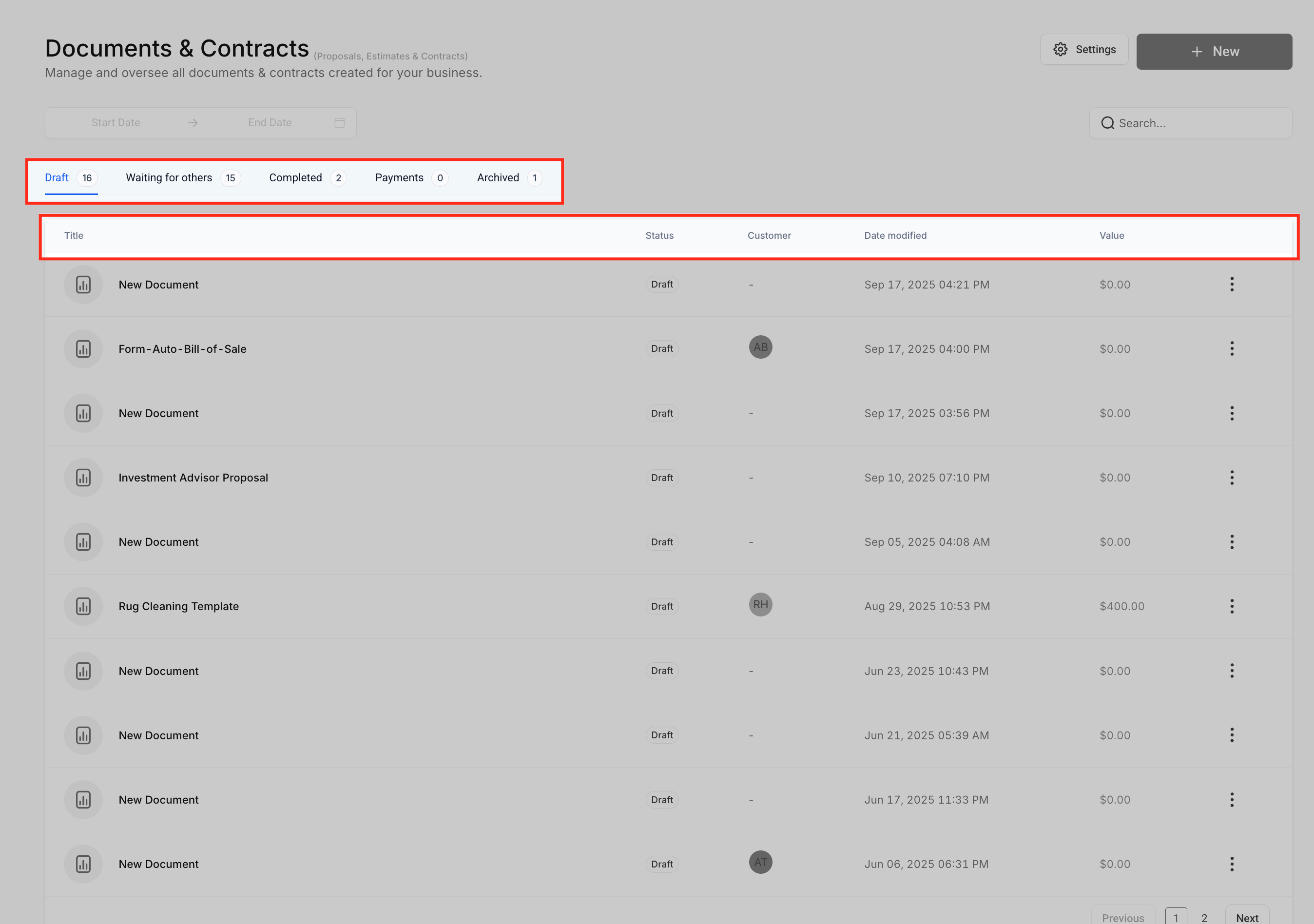
When a document is ready you can assign recipients, set signing order and embed payment options. The platform records signatures with a certificate that includes signer details, IP address and timestamps. After sending, you can monitor status through tabs such as Draft, Waiting for others, Completed, Payments and Archived.
Automation is built in: workflows can trigger on document creation, view, send or sign events. Email templates and custom messages can be edited at send time, and documents can be shared by link or delivered via email.
03How businesses use documents & Contracts
- Digital marketing agency. The agency creates a proposal template with pricing tables and signature fields. When a new client is added, the agency selects the template, assigns the client as a signer, adds a one time payment field and sends the document directly from the client record.
- Real estate brokerage. The brokerage uploads a standard lease PDF, overlays signature and date fields, assigns the tenant as the primary signer, and adds a recurring payment option for monthly rent. The broker then sends the lease via email from the document’s send modal.
- Fitness studio. The studio builds a membership agreement that includes an initial payment and a recurring billing clause. Using the editor it adds a signature field for the member, sets the member as the signer, and shares the document link with new members for quick signing.
04How to set up and use documents & Contracts in HighLevel
Create a new document
- Open the HighLevel left menu and go to Payments > Documents & Contracts.
- Click the + New button at the top right of the dashboard.
- Select New Document to open the blank editor.
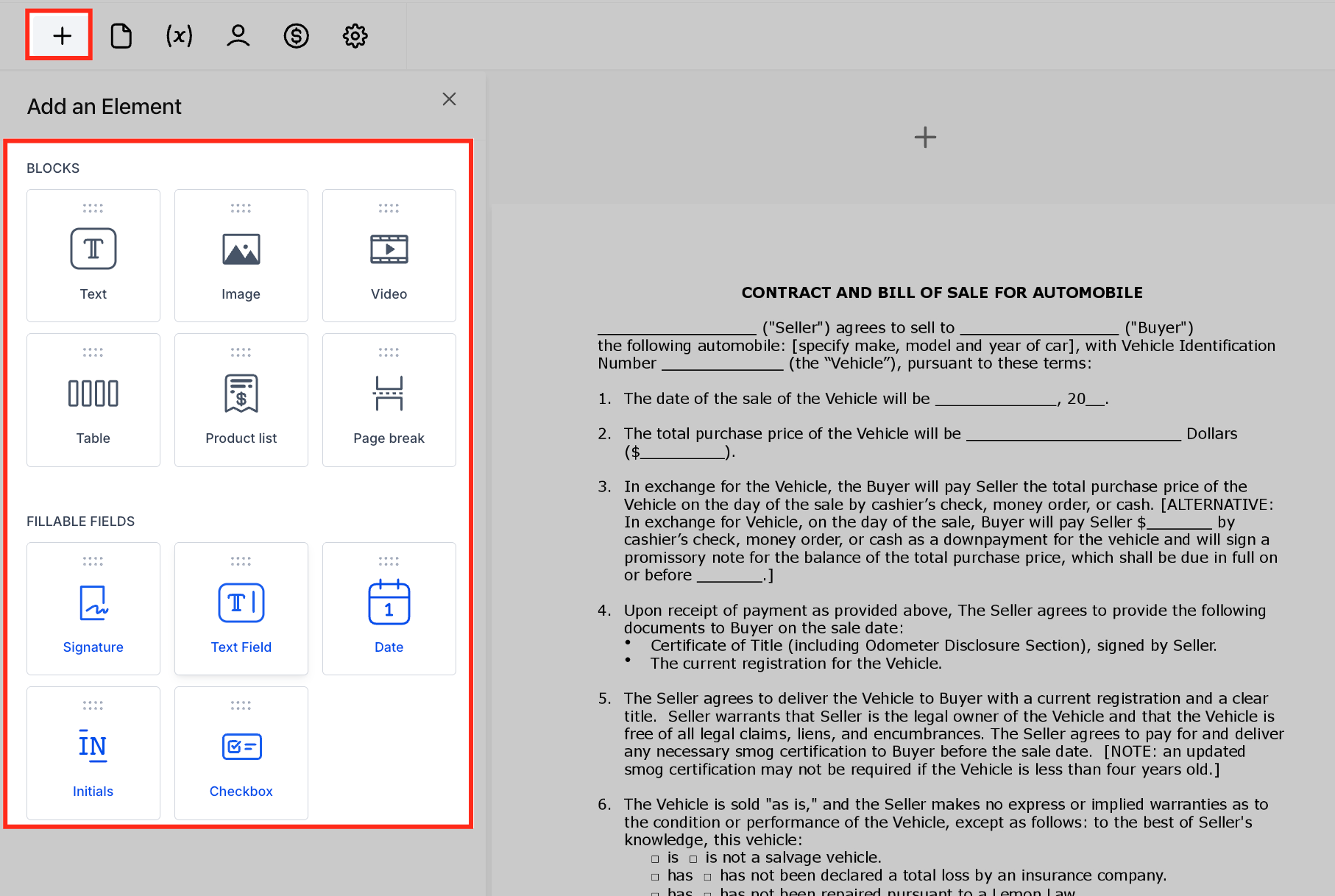
- Add text, images or tables using the toolbar.
- Insert fillable fields such as Signature or Date where needed.
- Place dynamic variables like Created Date or Subaccount Name in the content.
- Save the document as a draft.
Clone an existing document
- Navigate to Payments > Documents & Contracts.
- Locate the document you want to duplicate.
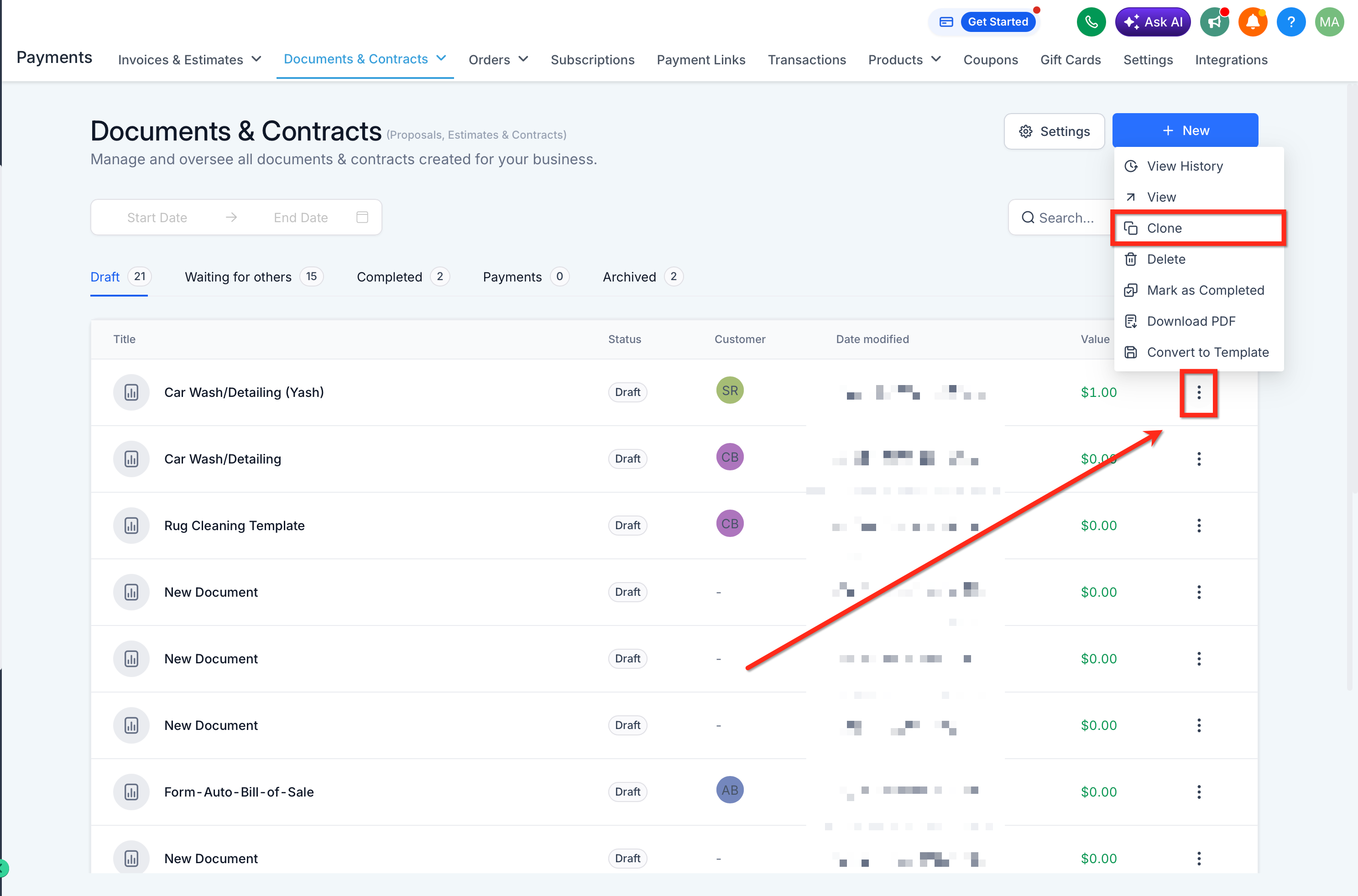
- Open the three dot menu next to that document.
- Choose Clone from the menu.
- Verify that a new document appears with “Copy” added to the title.
Send a document
- Open the document record you wish to send.
- Click the Send button to open the send modal.
- Select an Email Template from the dropdown list.
- Click Edit to modify the subject line or email body if needed.
- Confirm the preview and click Send to deliver the document.
05What it looks like in HighLevel
06Settings that matter
- Document Settings. Controls delivery options such as the From Name, From Email, email Subject, custom URL after signing, and any attached files.
- Payment Settings. Enables one time or recurring payment fields inside the contract and decides whether payment is required upon signing.
07Things to know before you rely on it
- Conditional content cannot be added inside a document; each document remains static after creation.
- Changes made to a template do not affect documents that have already been sent.
- If only some signers complete their fields, the document stays in Waiting for others until all required signatures are collected.
- An expiry date can be set; once it passes, the document moves to Expired and cannot be signed.
08How it connects to the rest of HighLevel
- Set up a workflow trigger that fires when a document is created or signed. Workflow trigger guide
- Configure email templates and team notifications for document sends. Email template setup
- Automatically generate an invoice when a document is signed. Invoice automation
Michael's take

Documents & Contracts feels like a modest convenience that can help businesses that still rely on email attachments and manual signatures. Putting contracts, proposals and payments into one place centralizes the process.
A cleaning service that uses recurring service agreements will love the ability to upload its standard contract, add a recurring payment option, and let clients sign online. If I were setting it up, I’d start with a template, test the esignature flow, then consider adding a workflow based on document status for agreements that linger in Waiting for others.