
01Who this is for
- Sales teams keep client proposals sorted per contact, reducing time searching for files.
- Customer support agents locate shared resources quickly by using custom folders attached to each ticket.
- Marketing managers store campaign assets per lead, ensuring each prospect has its own library.
02Contact document folders, explained
Contact Document Folders are a feature inside the Documents panel of a contact record. They let you build a hierarchy of custom folders that exist only for that contact, while the platform also provides System Folders such as Internal, Sent, and Received.
Custom folders can be created, nested, moved, and deleted. Files placed inside custom folders can be moved to other folders without re uploading. Deleting a custom folder sends its contents to Trash. The Trash holds deleted items for up to 60 days, after which they are erased permanently.
System Folders are fixed; they cannot be removed, and files inside them cannot be moved or deleted. All folder actions occur from the Documents panel on an individual contact page.
03How businesses use contact document folders
- Real estate brokerage. Agents open a contact record for each client, create a folder named "Offers" and a subfolder for each property. They drag signed offer PDFs into the appropriate subfolder, then move documents to a "Closed" folder when a sale completes.
- Dental practice. Staff open a patient’s contact record, add a custom folder called "Treatment Plans" and upload consent forms. When a plan changes, they delete the old folder, which moves its files to Trash, and later restore any needed files within the 60 day window.
- IT consulting firm. Consultants create a folder hierarchy per client project, move proposal PDFs from the "Drafts" folder to "Final" after approval, and delete obsolete temporary files, knowing they can recover them from Trash if needed.
04The numbers and rules that matter
- Trash retains items for 60 days before permanent deletion.
05How to set up and use contact document folders in HighLevel
Create a folder or subfolder
- Navigate to Contacts and open the desired contact record.
- Open the Documents panel within that record.
- Click the plus (+) icon to start a new folder.
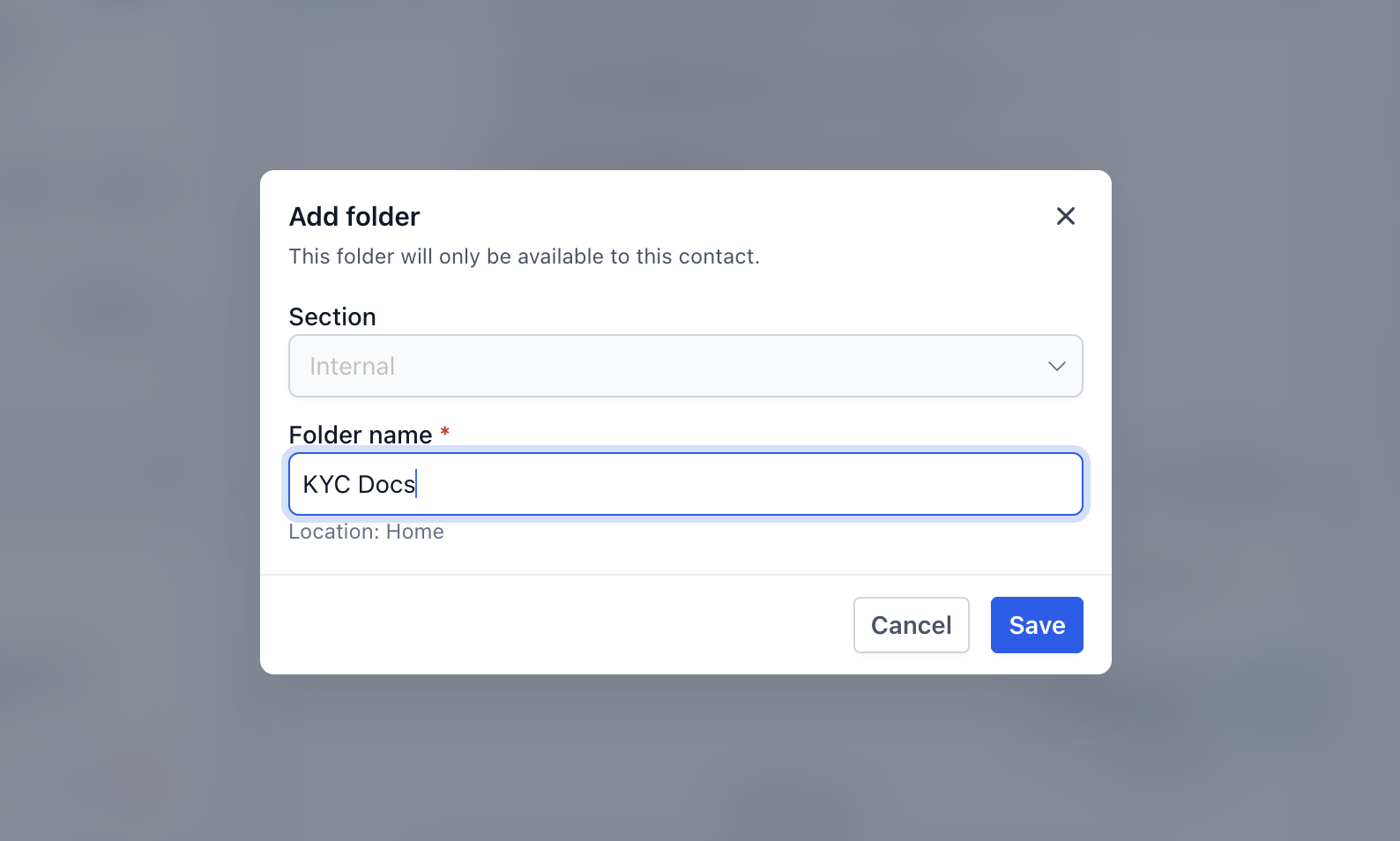
- Enter the folder name and confirm the location under Section.
- Press Save to add the folder.
- To make a subfolder, open the parent folder and repeat steps 3 to 5.
Move files or folders
- Open the Documents panel of the contact.
- Find the file or custom folder you wish to relocate.
- Open its action menu and pick Move to.
- Select the target folder and confirm the move.
Delete files and folders
- Open the Documents panel for the contact.
- Locate the file or custom folder you want to remove.
- Open its action menu and choose Delete.
- Confirm the deletion when prompted.
Restore deleted items
- Open the Documents panel on the contact record.
- Click Trash at the bottom of the panel.
- Find the deleted file or folder you need back.
- Select it and click Restore.
06What it looks like in HighLevel
07Settings that matter
- System Folders. These are predefined folders such as Internal, Sent, and Received that cannot be deleted or have their files moved or removed.
- Custom Folders. User created folders that can be nested, moved, and deleted, with full control over the files they contain.
08Things to know before you rely on it
- System folders cannot be deleted and their contents are protected from deletion or movement.
- Moving files into system folders is not supported.
- Deleted items stay in Trash for 60 days before permanent removal.
- Deleting a custom folder also moves all its nested content to Trash.
09How it connects to the rest of HighLevel
- Learn how to store and edit files in HighLevel media storage Media storage guide
- Explore all Documents & Contracts capabilities Documents & Contracts overview
- Check pricing and plan options for using document features HighLevel pricing
Michael's take

Wondering if setting up folders for each client is worth the effort? It keeps contracts, receipts and other paperwork right where you need them, without hunting through a flat list of files. You get a clear hierarchy per contact and a safety net with Trash for accidental deletions.
If I were starting a new client onboarding flow, I’d add a top level folder for “onboarding” and subfolders for “Forms”, “Agreements” and “Notes”. That way every new file lands in the right spot the first time.