
01Who this is for
- Users who need to enforce a consistent signing method across all documents.
- Teams that must meet hand drawn signature requirements for compliance.
02Signature types, explained
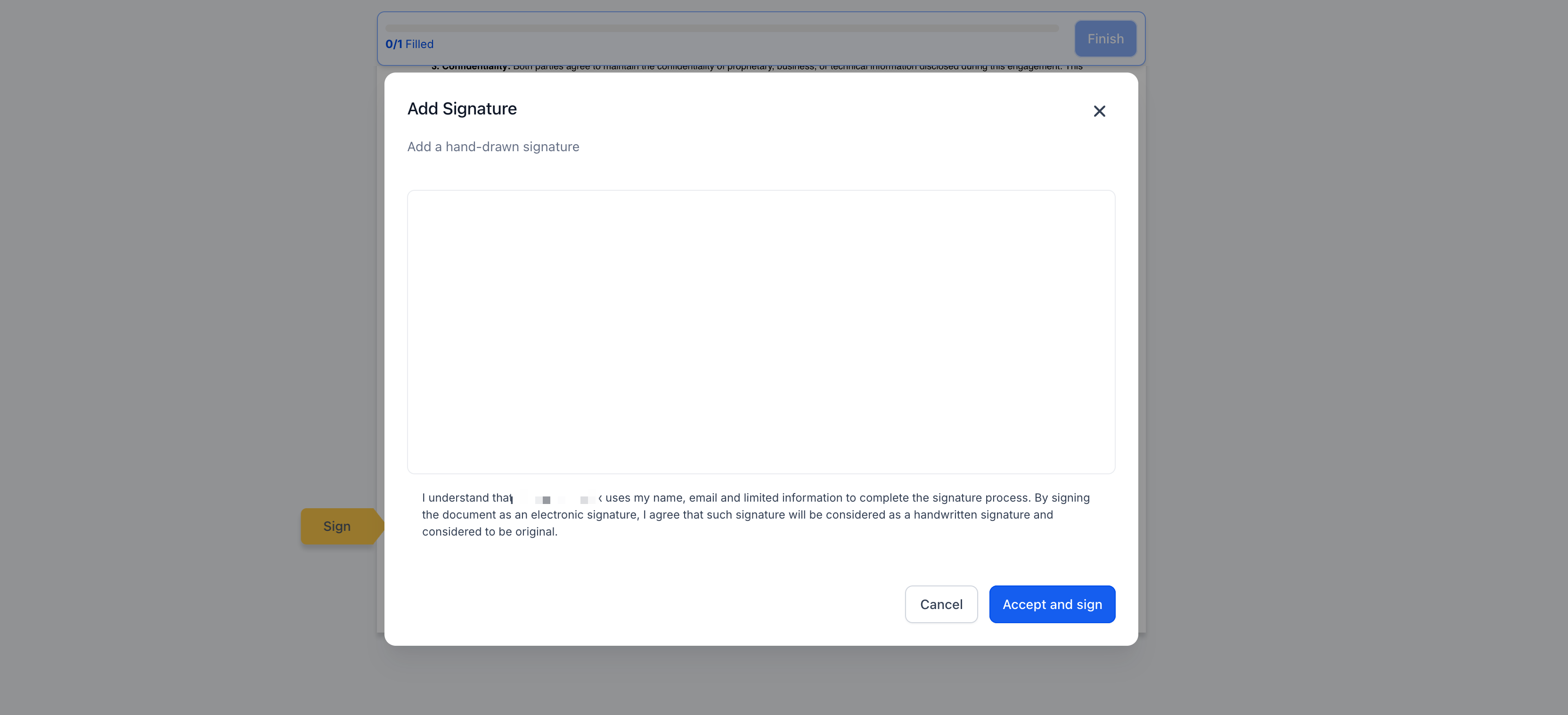
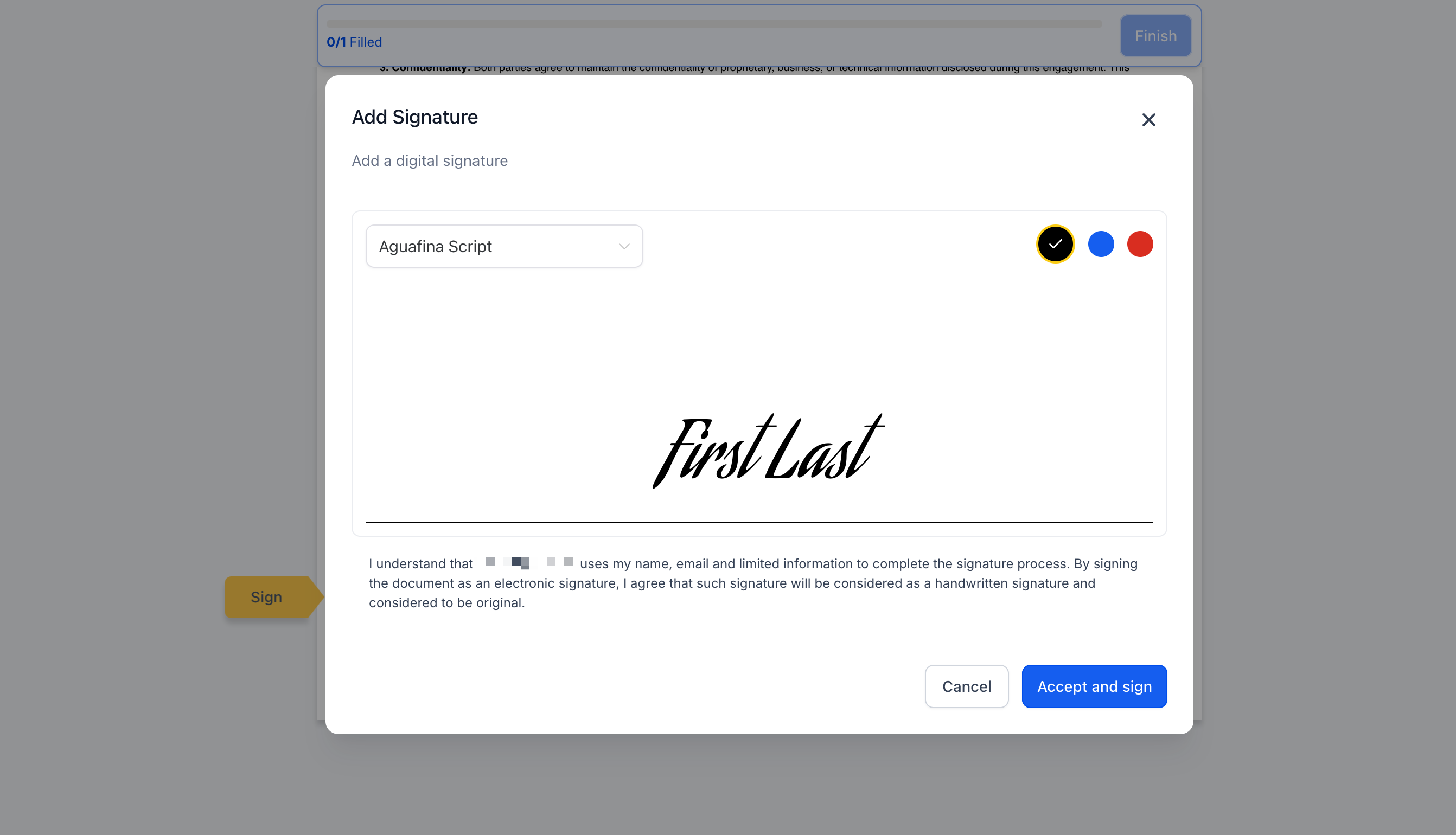
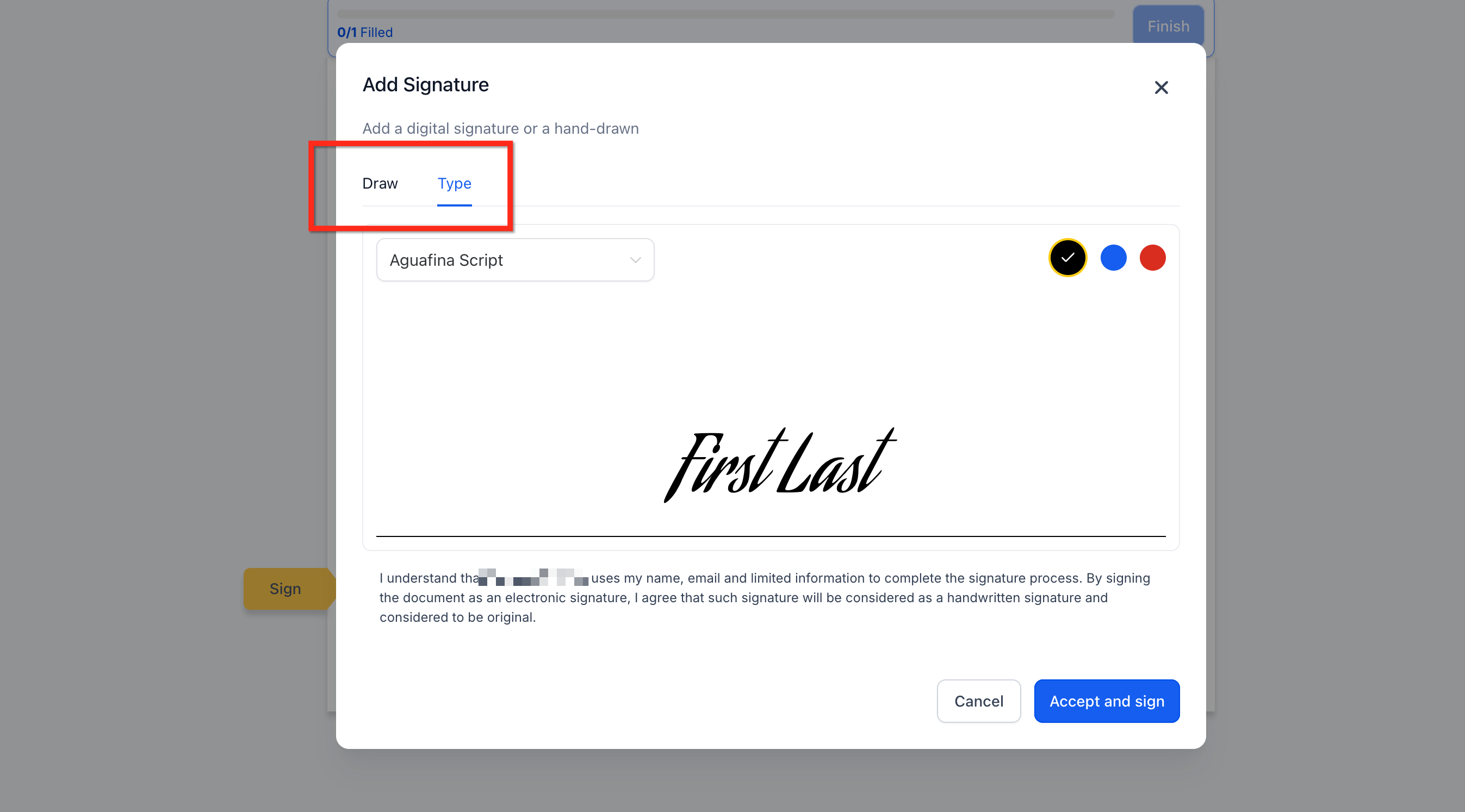
The feature offers three ways a recipient can sign: a hand drawn mark, a typed name displayed in a script font, or either method. You choose one of these options at the subaccount level, and the choice automatically applies to all documents you create.
The control lives under Document & Contracts Settings. Once set, every new signing session follows the selected method. Existing open documents must be refreshed to see a change.
Changing the setting does not alter the document’s audit trail, status indicators, or any workflow triggers that rely on the signing process.
03How businesses use signature types
- Compliance enforcement. Select the Draw Signature option to satisfy regulatory requirements for hand drawn signatures.
- Speed optimization. Choose Type Signature to allow signers to type their name, reducing turnaround time.
- Flexibility for signers. Enable Both so signers can decide whether to draw or type their signature.
04How to set up and use signature types in HighLevel
Set signature type controls
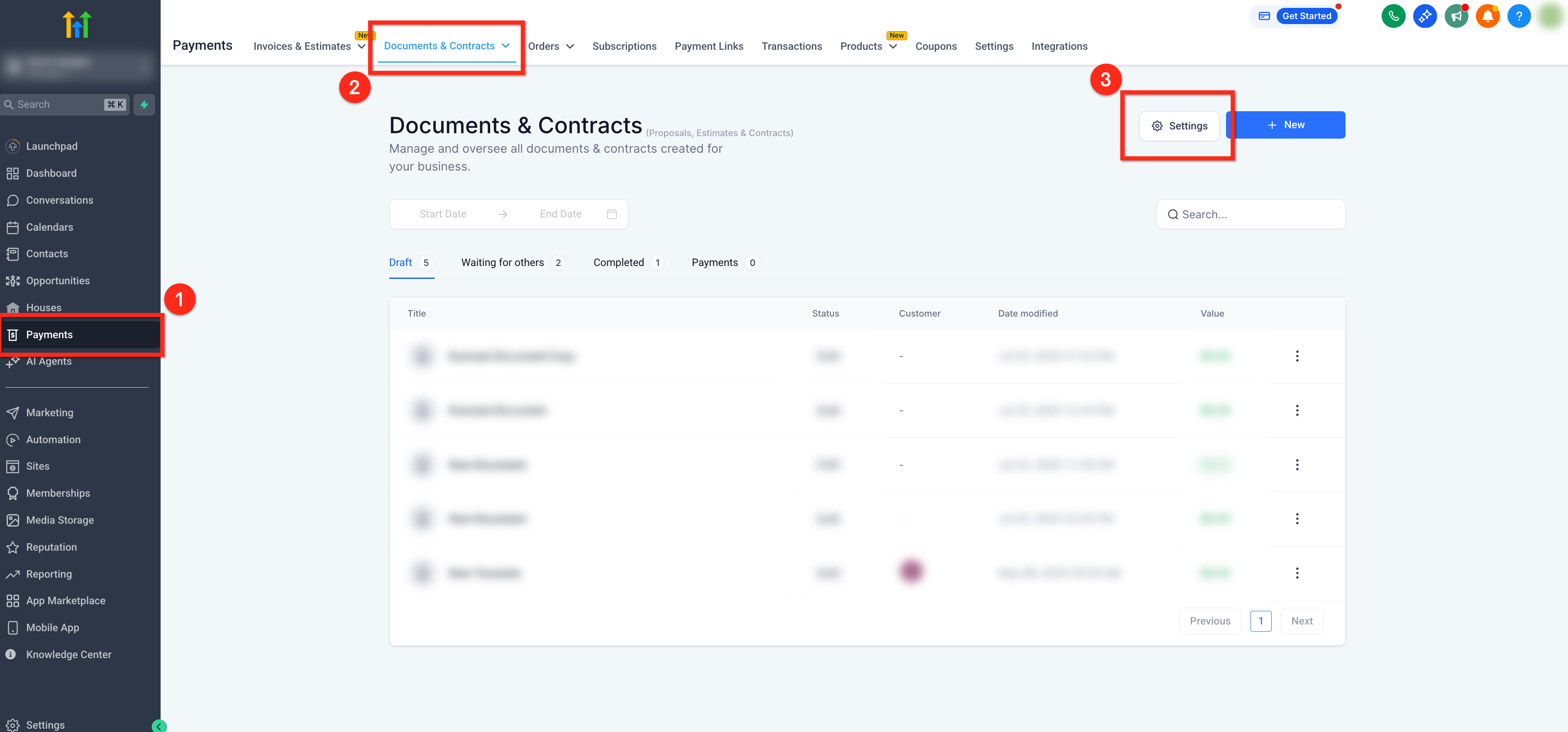
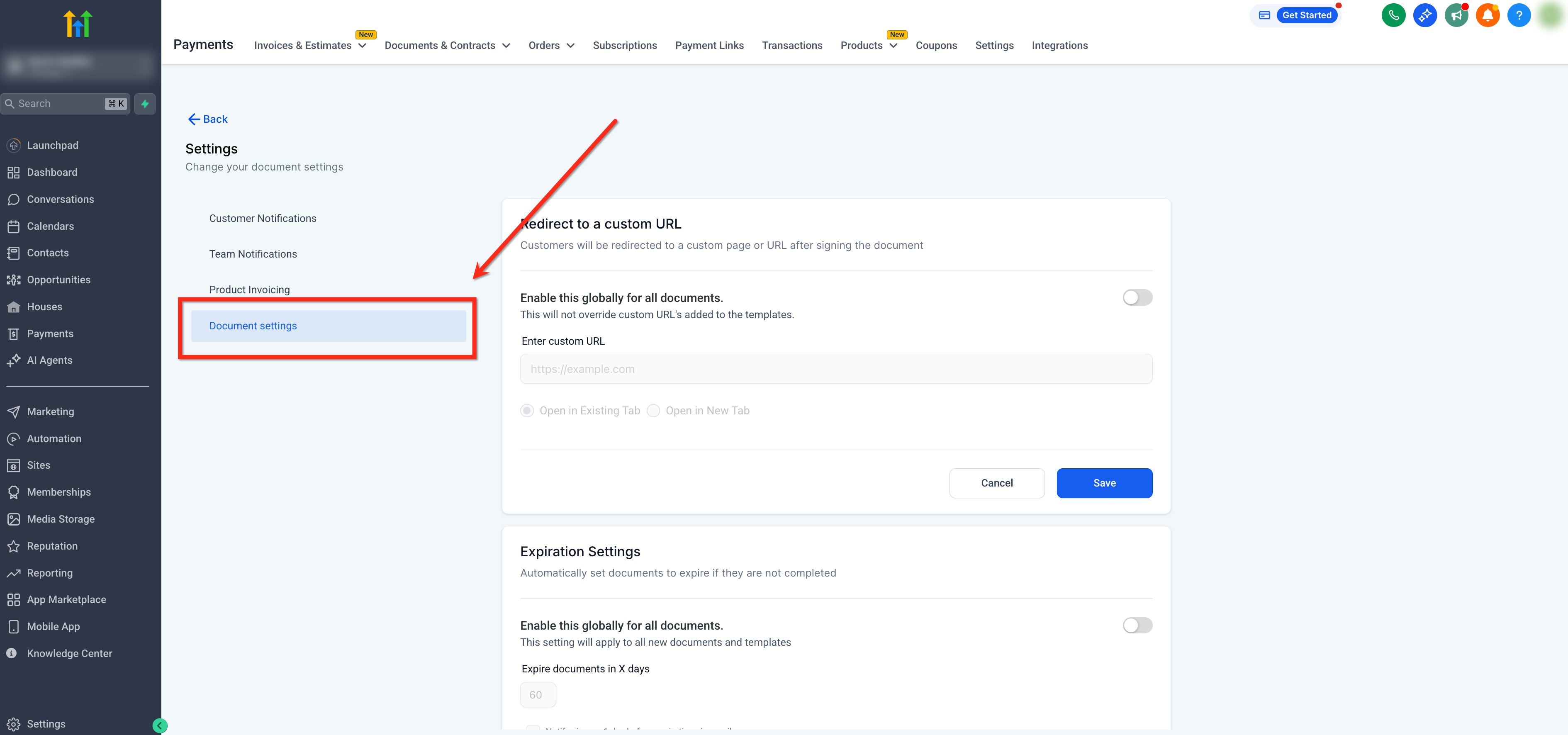
- Open the main left navigation and click Payments.
- Select the Documents & Contracts tab from the top ribbon.
- Press the Settings icon located in the upper right corner.
- In the side navigation, choose Document Settings.
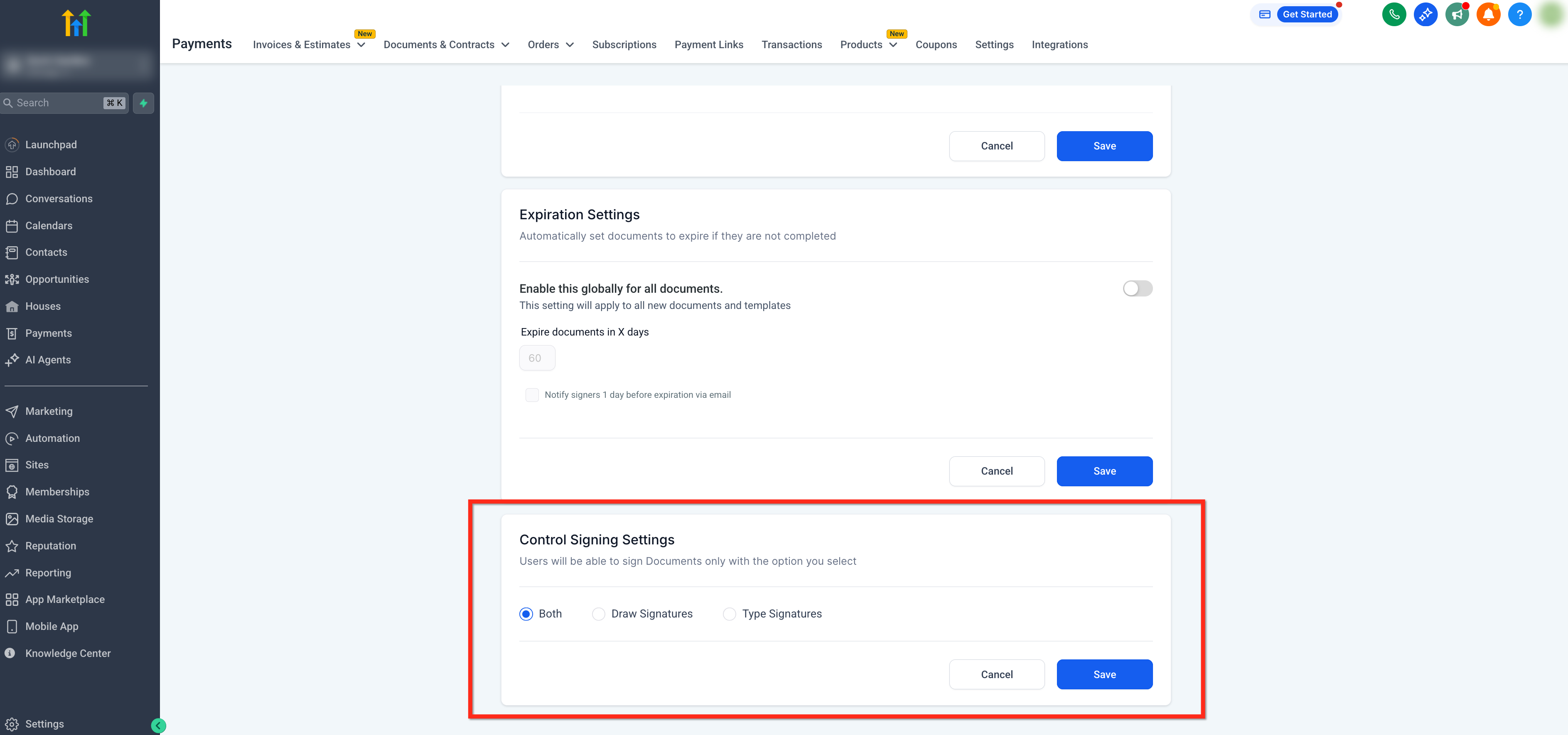
- Scroll to the Control Signature Settings section.
- Pick Draw Signatures, Type Signatures, or Both.
- Click the blue Save button to apply the choice.
05What it looks like in HighLevel
06Settings that matter
- Control Signature Settings. Defines whether signers must draw, type, or can use either method when signing any document from the subaccount.
07Things to know before you rely on it
- The option is global for the subaccount and cannot be set per individual document.
- Changes affect only new or refreshed signing sessions; users with an open document must reload it.
- Selecting a method does not modify audit logs, document status, or workflow trigger behavior.
08How it connects to the rest of HighLevel
- All Documents & Contracts features Features overview
- How to create and send document templates automatically in a workflow Workflow automation
- Managing documents and contracts within contacts Contact management
Michael's take

The first thing I would lock in is the control setting under Document Settings. Pick the option that matches your compliance needs. Draw only for hand drawn rules, type only for speed, or both for flexibility. And save it. That single choice then governs every contract you send, so you don’t have to remember to toggle it each time.