
01Who this is for
- Founders who want to capture payment information at the contract stage, reducing the need for later follow ups.
- Small business owners who issue recurring invoices, so they can store a card for future auto pay workflows.
- Service providers that use templates for proposals and need a consistent way to collect card details from each client.
02Card details, explained
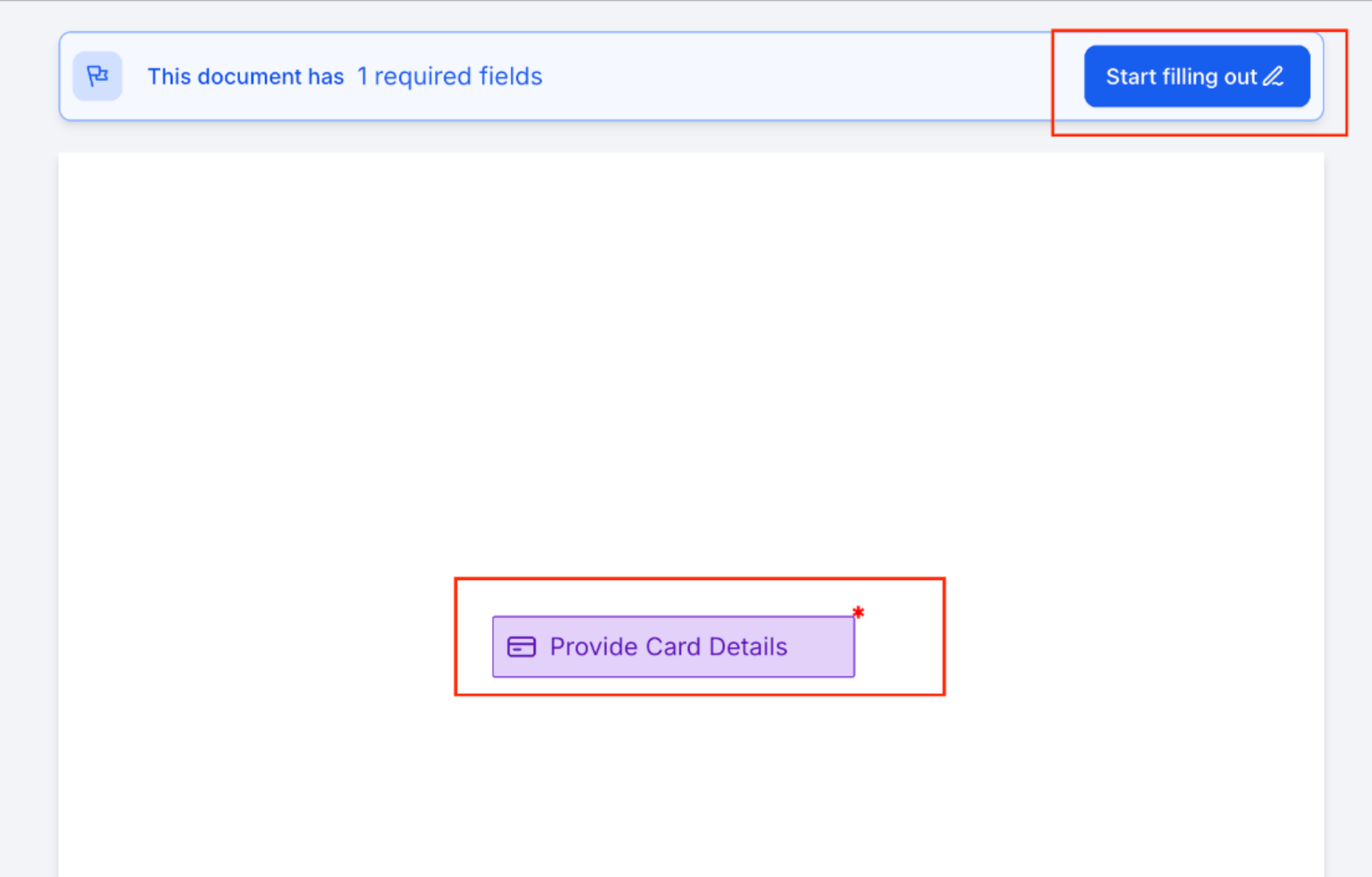
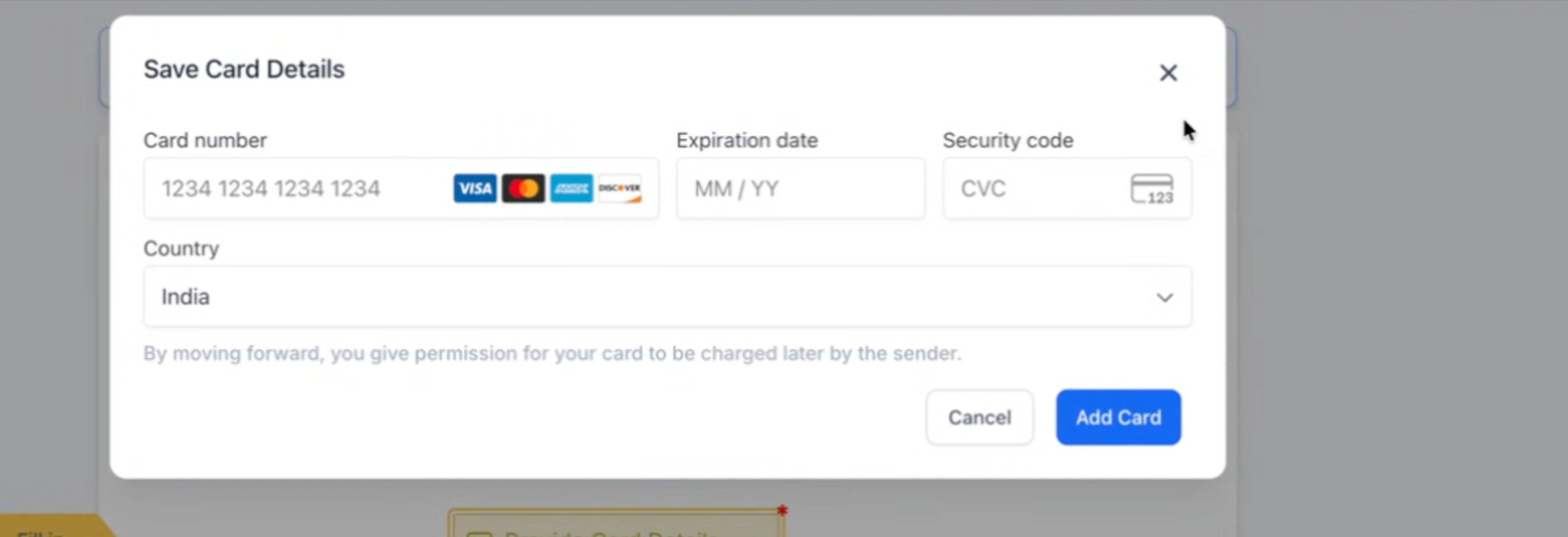
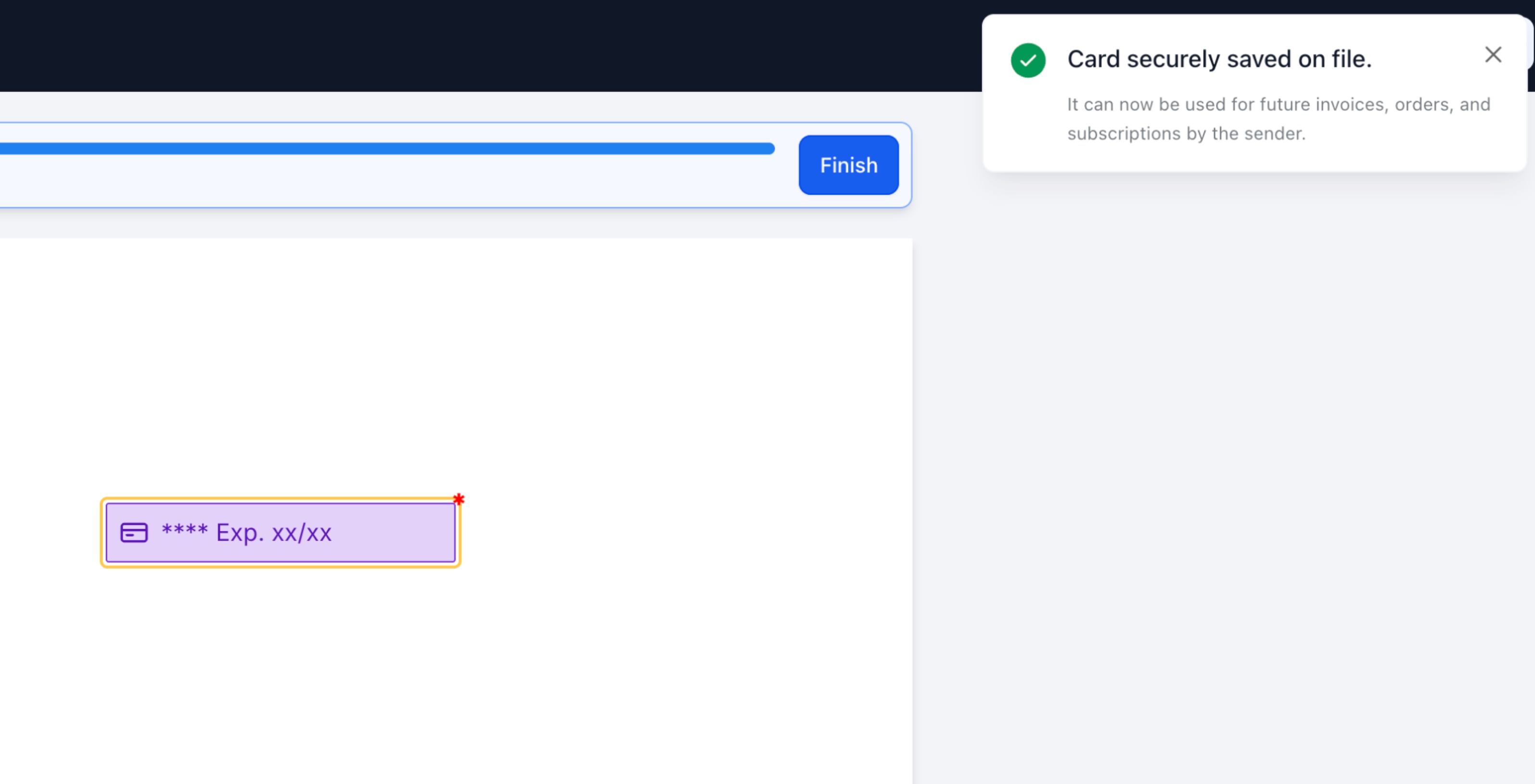
The Card Details field appears alongside other fillable elements in the Document Builder. When a signer reaches the field, a secure modal asks for card number, expiration, security code and country. After entry, the platform saves the card on file via the connected payment provider.
You add the field from the Add Element panel, configure its properties, and then send the document. The saved card can be used later in invoices, subscriptions or any payment workflow that your provider supports, but the signer is not charged at the moment of signing.
03How businesses use card details
- Co working space. The manager adds a Card Details field to membership agreements, assigns it to the member signer, and marks it required. When a new member signs, their card is stored for future monthly billing without a separate payment request.
- Online fitness coach. A coach includes the Card Details field in program enrollment contracts, designates the client as the signer, and makes the field required. After signing, the coach can bill the client for scheduled sessions using the saved card.
- Legal consultancy. The firm adds the Card Details element to retainer agreements, assigns it to the client signer, and enables the Required option. The saved card later funds hourly invoices or recurring service fees.
04The numbers and rules that matter
- Available settings: To be filled by, Required, Placeholder.
05Before you start
- A supported payment provider must be connected to the location.
- The payment provider must be active and available for the document workflow.
06How to set up and use card details in HighLevel
Set up Card Details field
- Navigate to Payments > Documents & Contracts.
- Open an existing document or template, or create a new document.
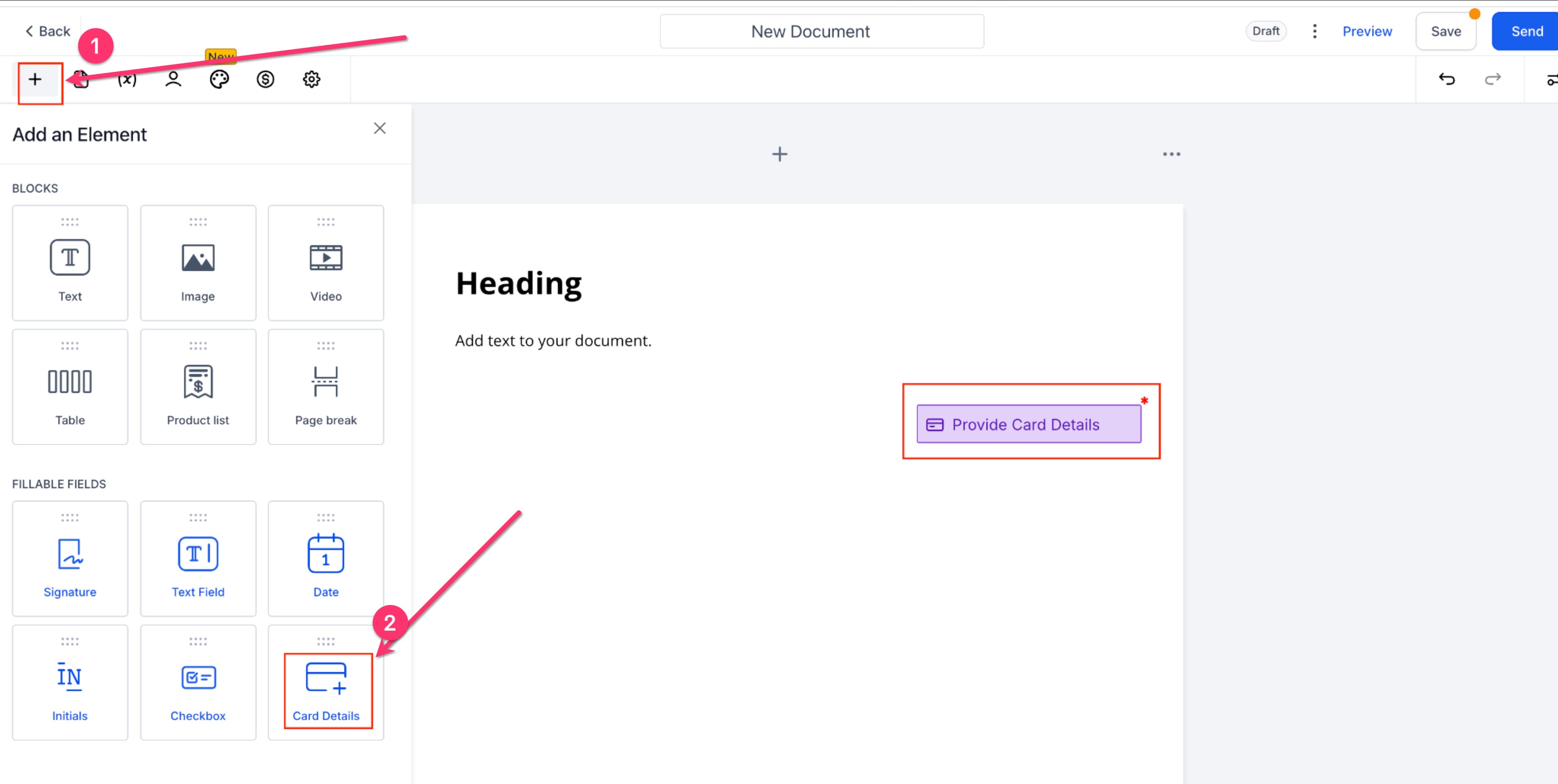
- Click + Add Element in the Document Builder.
- In the Fillable Fields list, drag Card Details onto the document.
- Select the Card Details field to open its Properties panel.
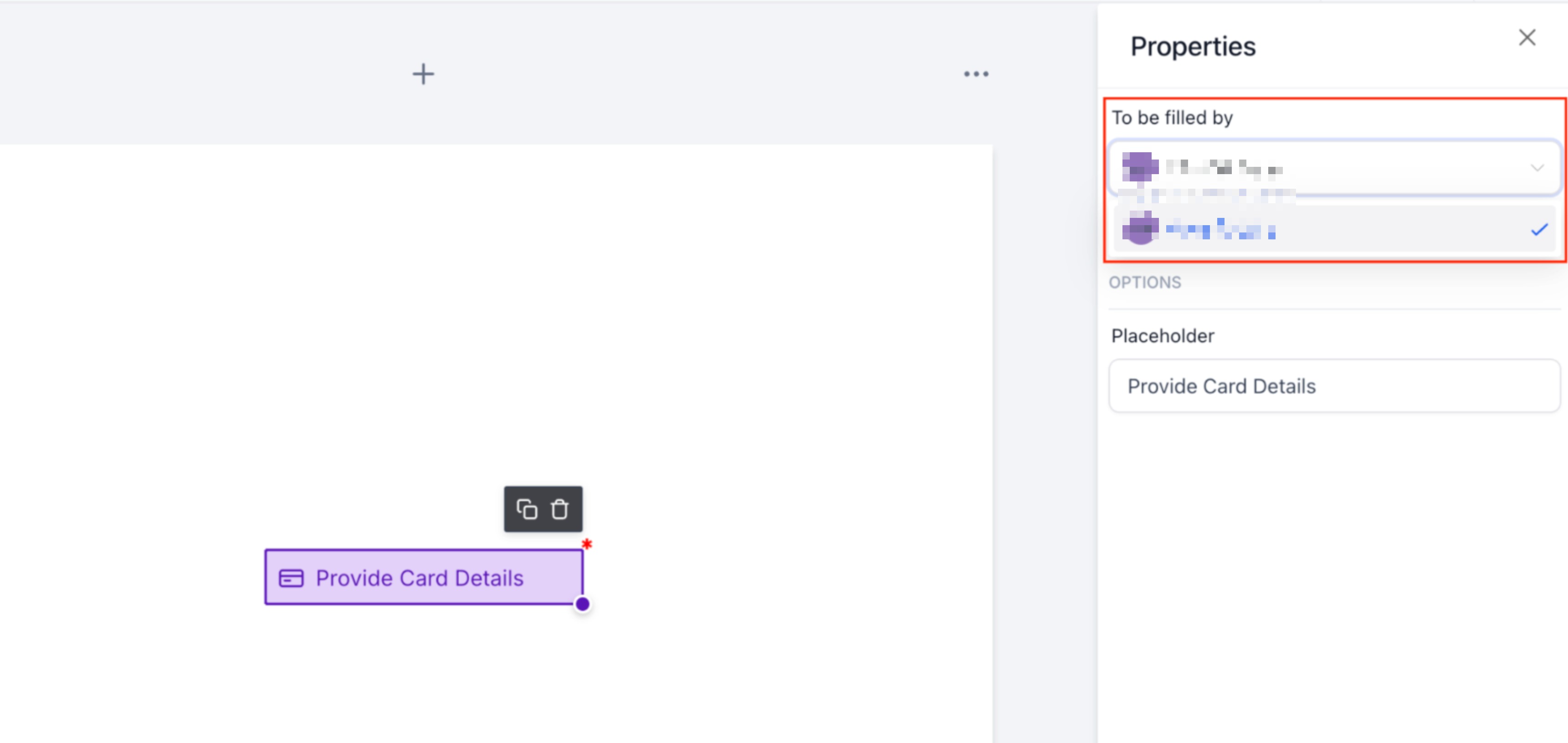
- Choose the appropriate signer under To be filled by.
- Turn on Required if the signer must provide a card before finishing.
- Edit the Placeholder text to change the field label if desired.
- Confirm that a payment provider is connected to the location.
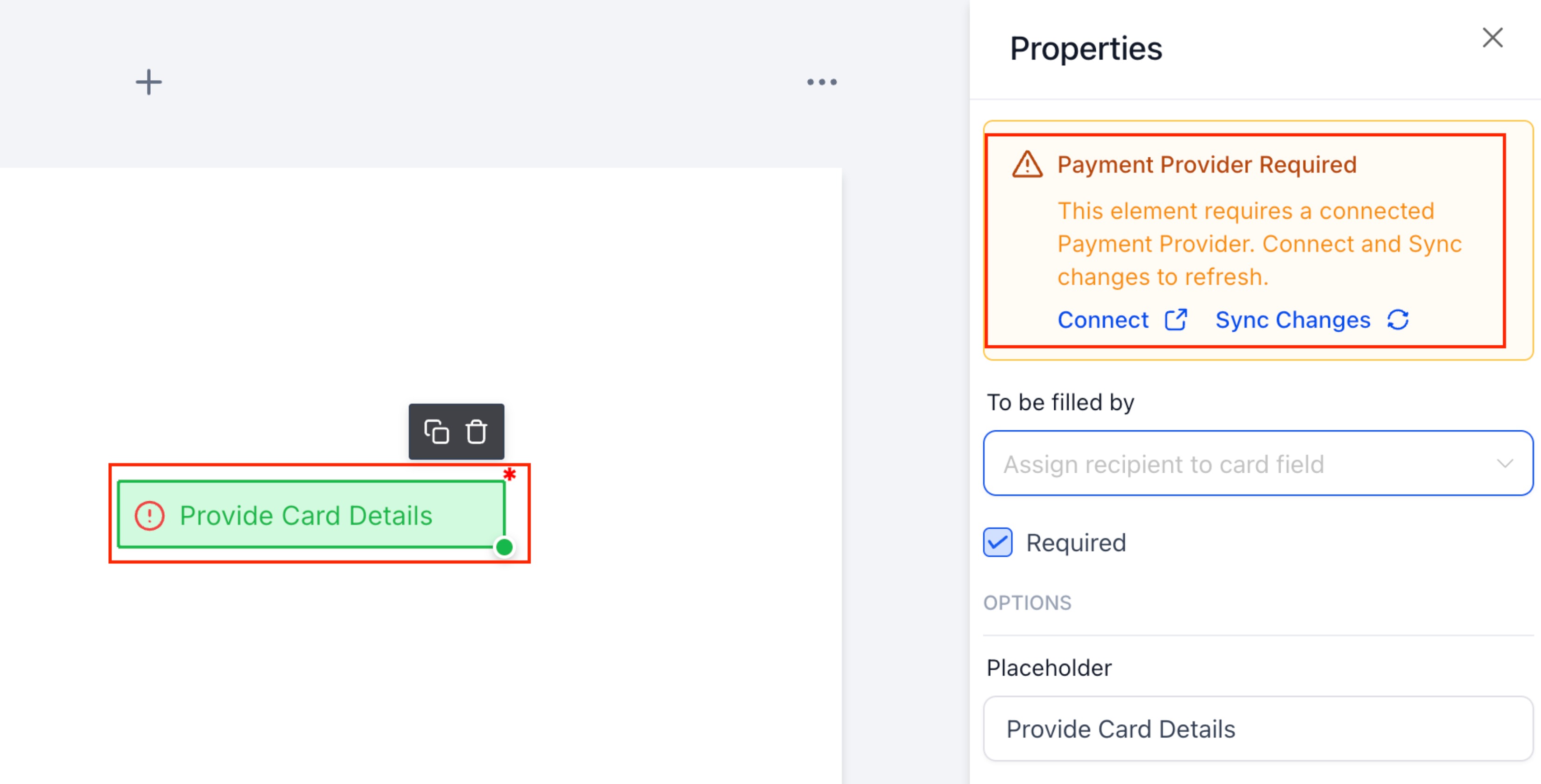
- If a Payment Provider Required warning appears, click Connect or update the provider settings then click Sync Changes.
- Save the document or template.
- Send the document to the signer.
07What it looks like in HighLevel
08Settings that matter
- To be filled by. Specifies which signer is responsible for entering the card information.
- Required. Makes the Card Details field mandatory before the signer can complete the document.
- Placeholder. Sets the label that appears on the field for the signer.
09Things to know before you rely on it
- The field stores the card but does not charge the signer at signing.
- A connected and active payment provider is mandatory; otherwise a Payment Provider Required warning is shown.
- Saved cards can be used only in future payment workflows that your provider supports.
- Full card numbers are never displayed after storage; only brand, last digits and expiration are shown.
10If something goes wrong
- Payment Provider Required warning appears in the Properties panel.. Click Connect to attach a supported payment provider, ensure it is active, then click Sync Changes.
11How it connects to the rest of HighLevel
- Learn how to create, clone and send documents in HighLevel Document basics
- Automatically generate invoices from signed documents and contracts Invoice automation
- View HighLevel pricing and plans for payment provider access Pricing
Michael's take

Michael ReimerFounder of CRM Pros, HighLevel Commander and Certified Admin
In my experience, using Card Details simplifies collecting a payment method during the signing process.
Get More InformationOpens on HighLevelPublished November 2, 2026 · Updated November 17, 2026