
01Who this is for
- Agency owners who manage subaccounts offering appointment services or rentals.
- Managers responsible for monitoring staff performance and location revenue across multiple subaccounts.
02Services & rentals reporting widgets, explained
The widget set is split into two groups. Appointment Service widgets show total revenue, revenue by service or category, average order value, top grossing staff, top locations, cancelled revenue and coupon related metrics. Rental widgets display total rentals booked, status distribution, revenue excluding deposits, security deposits collected, average order value, revenue by listing and upcoming, overdue, unconfirmed and active rentals.
All widgets live in the Appointments sub module of the widget library. They can be added to any dashboard or to a custom report. The widget library also provides quick filters and custom metrics for the same data points.
Visibility of these widgets depends on the Calendar Settings of the subaccount. If a service or rental feature is switched off, the related widgets, filters and metrics disappear from the library.
03How businesses use services & rentals reporting widgets
- Dental practice. A dental practice adds the Total Revenue and Top Grossing Staff widgets to its dashboard, selects Bar Chart for revenue breakdown, and applies a filter for the current month. The view lets the practice monitor earnings per dentist and overall clinic performance.
- Car rental agency. The agency creates a dashboard with Upcoming Rentals, Overdue Rentals and Security Deposit Collected widgets. It chooses Table Chart for the deposit widget and filters to only show rentals in a specific city. This setup provides a snapshot of inventory health and deposit cash flow.
- Fitness studio. A fitness studio adds Average Order Value and Revenue by Category widgets, sets them as Numeric and Donut Chart respectively, and adds a filter for members only. The dashboard quickly reveals how class packages compare to personal training revenue.
04The numbers and rules that matter
- 11 appointment service widgets are available.
- 11 rental widgets are available.
- Chart types include Numeric, Donut Chart, Line Chart, Bar Chart, Horizontal Bar Chart, Table Chart.
05Before you start
- The subaccount must have Calendar Appointment Services or Rentals enabled in its Calendar Settings.
- Users need access to the Dashboard tab in the left hand navigation.
06How to set up and use services & rentals reporting widgets in HighLevel
Add Services or Rentals widgets to a dashboard
- Open the Dashboard view from the left hand menu.
- Click Edit dashboard at the top right, or create a new blank dashboard via Add Dashboard and give it a name.
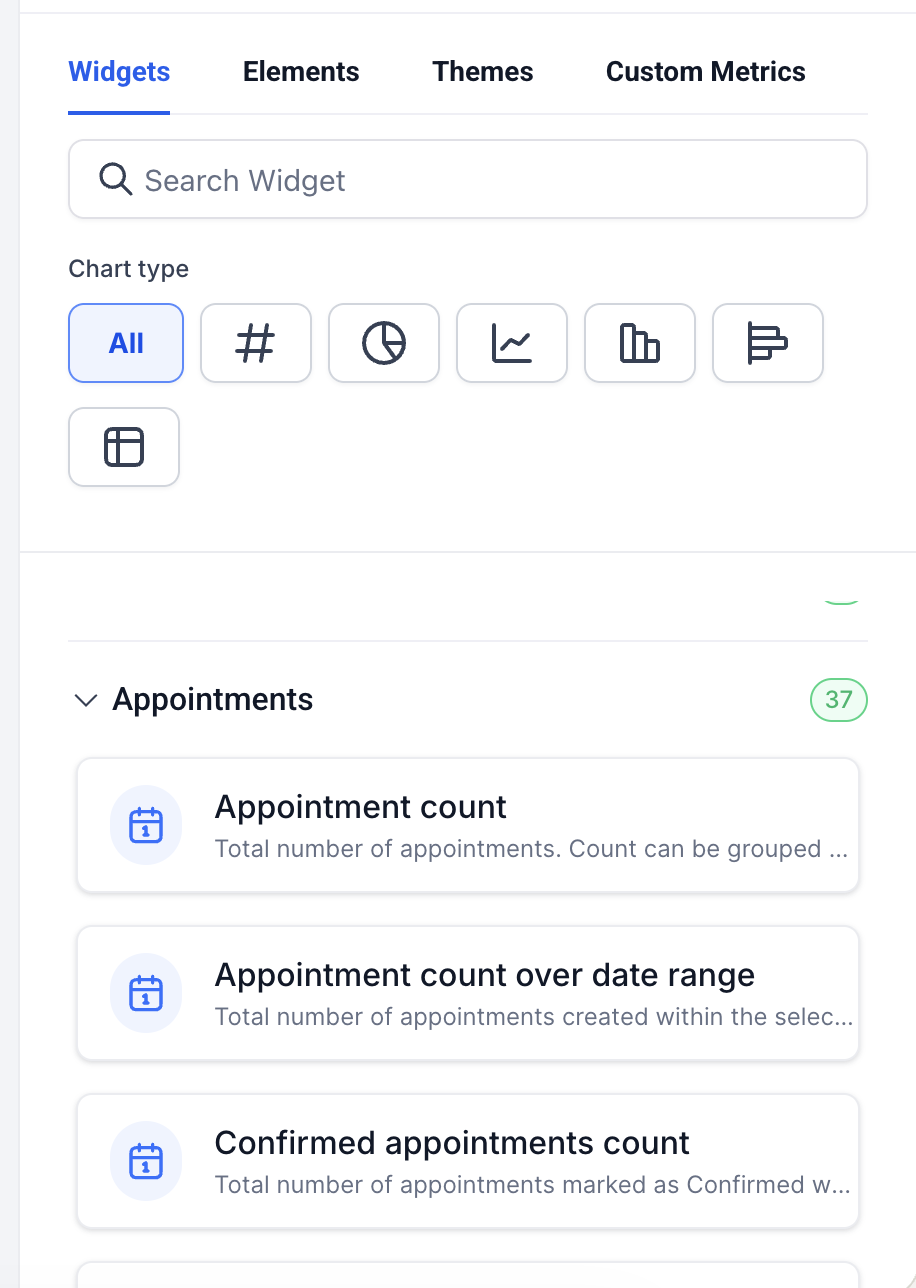
- Click Add Widget to display the widget selection panel.
- Select the Appointments sub module in the panel or use the search bar to find a specific widget.
- Pick a visual format such as Numeric, Donut, Line, Bar, Horizontal Bar or Table.
- Enter a custom title and description, adjust the chart type if needed, and review the live preview.
- (Optional) Open the Conditions tab, click Add Filter to create a filter group, use +AND for additional filters, and click +Add Filter again to create a new group for OR logic.
- Click Save to place the widget on the dashboard.
- Drag the widget to the desired spot and resize it for a clear layout.
- Press Save Changes at the top to finalize the dashboard layout.
07What it looks like in HighLevel
08Settings that matter
- Calendar Settings. Toggles that turn service or rental features on or off; when a feature is disabled, its widgets, quick filters and custom metrics are hidden from the library.
09Things to know before you rely on it
- Widgets only appear if the matching service or rental option is enabled in Calendar Settings.
- The Appointment Count widget now shows only meeting appointments; service and rental counts have separate widgets under the Services sub module.
- All widgets are located in the Appointments sub module of the widget library.
10If something goes wrong
- A widget does not show up in the widget library.. Check Calendar Settings for the subaccount and ensure the related service or rental feature is turned on.
11How it connects to the rest of HighLevel
- Add and customize dashboard widgets in HighLevel Dashboard widgets guide
- Create and add dashboard widgets Create widgets
- Edit a dashboard in HighLevel Edit dashboard
Michael's take

I think the new service and rental widgets are handy because they bring key metrics like revenue, staff performance and inventory together in one place.
If I were setting up a business that rents equipment, I would add the Upcoming Rentals and Overdue Rentals widgets side by side to keep an eye on the rental schedule.