
01Who this is for
- Team members can use titles to segment dashboard views for easier navigation.
- Managers can add textboxes to provide instructions or reminders directly on the dashboard.
02Dashboard elements, explained
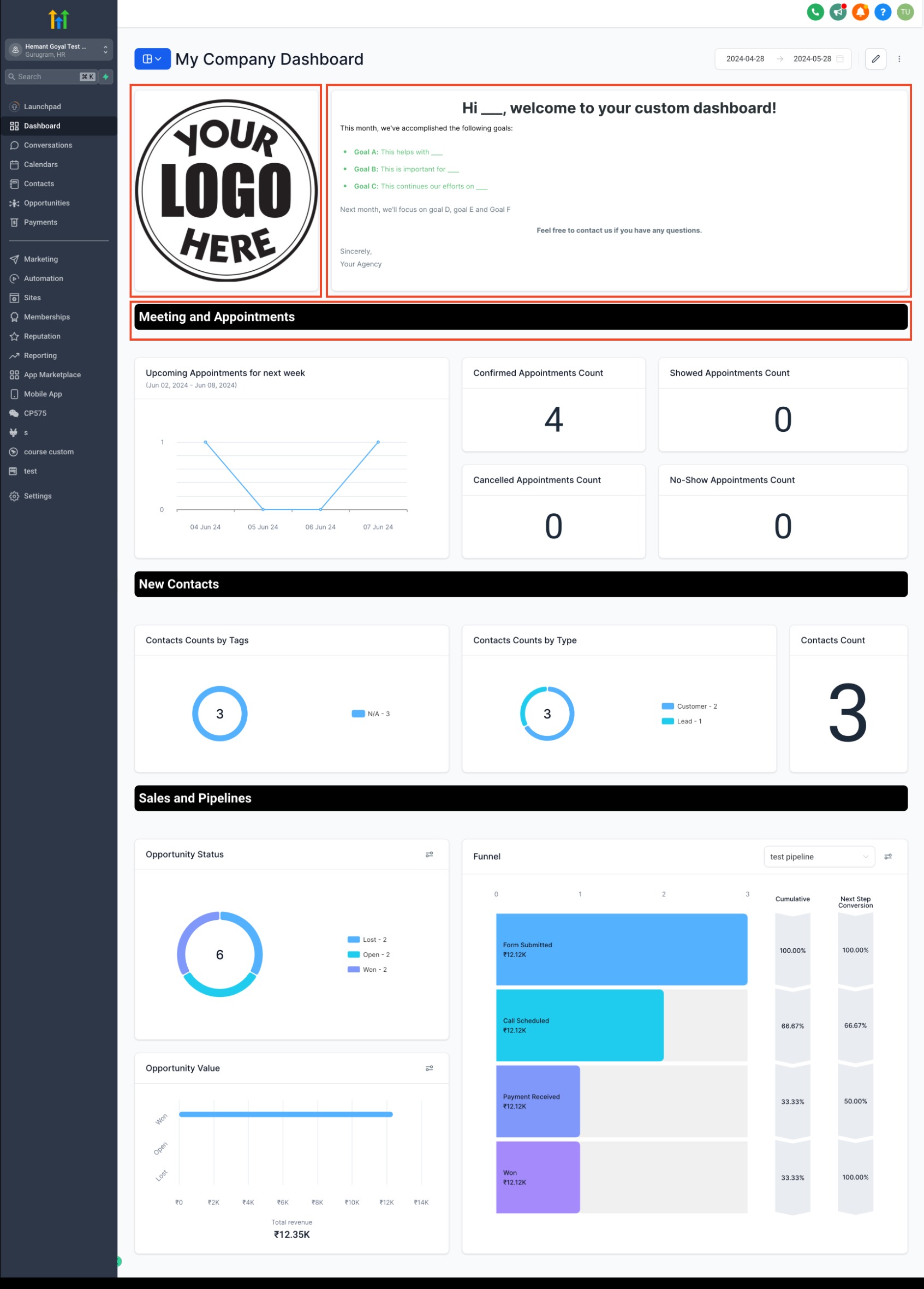
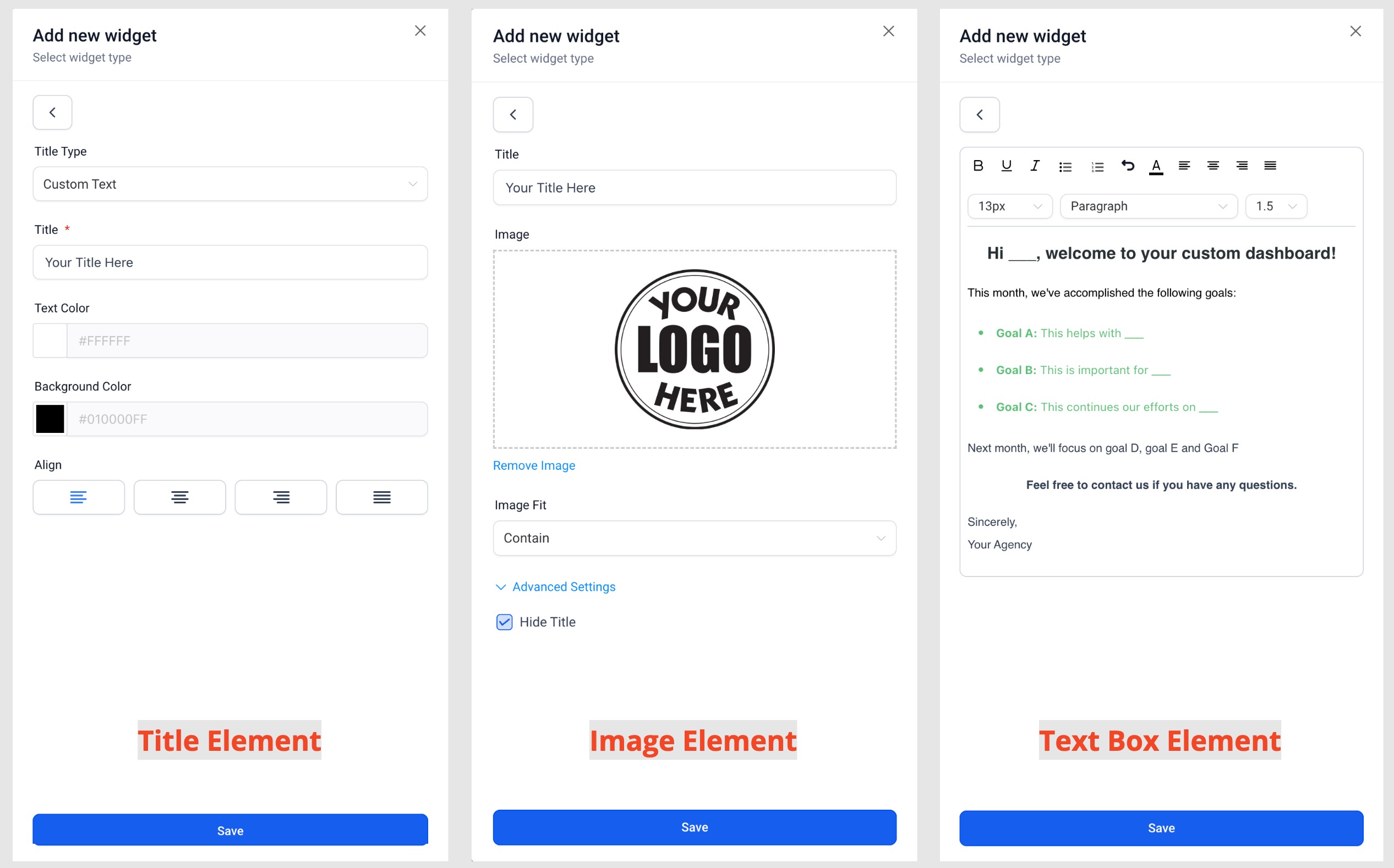
The new dashboard elements let users enhance organization, communication, and visual appeal. A Title serves as a heading that groups widgets by theme. A Textbox provides a place for instructions, reminders, or any text the team needs to see. An Image lets you upload graphics like logos, charts, or infographics to add context.
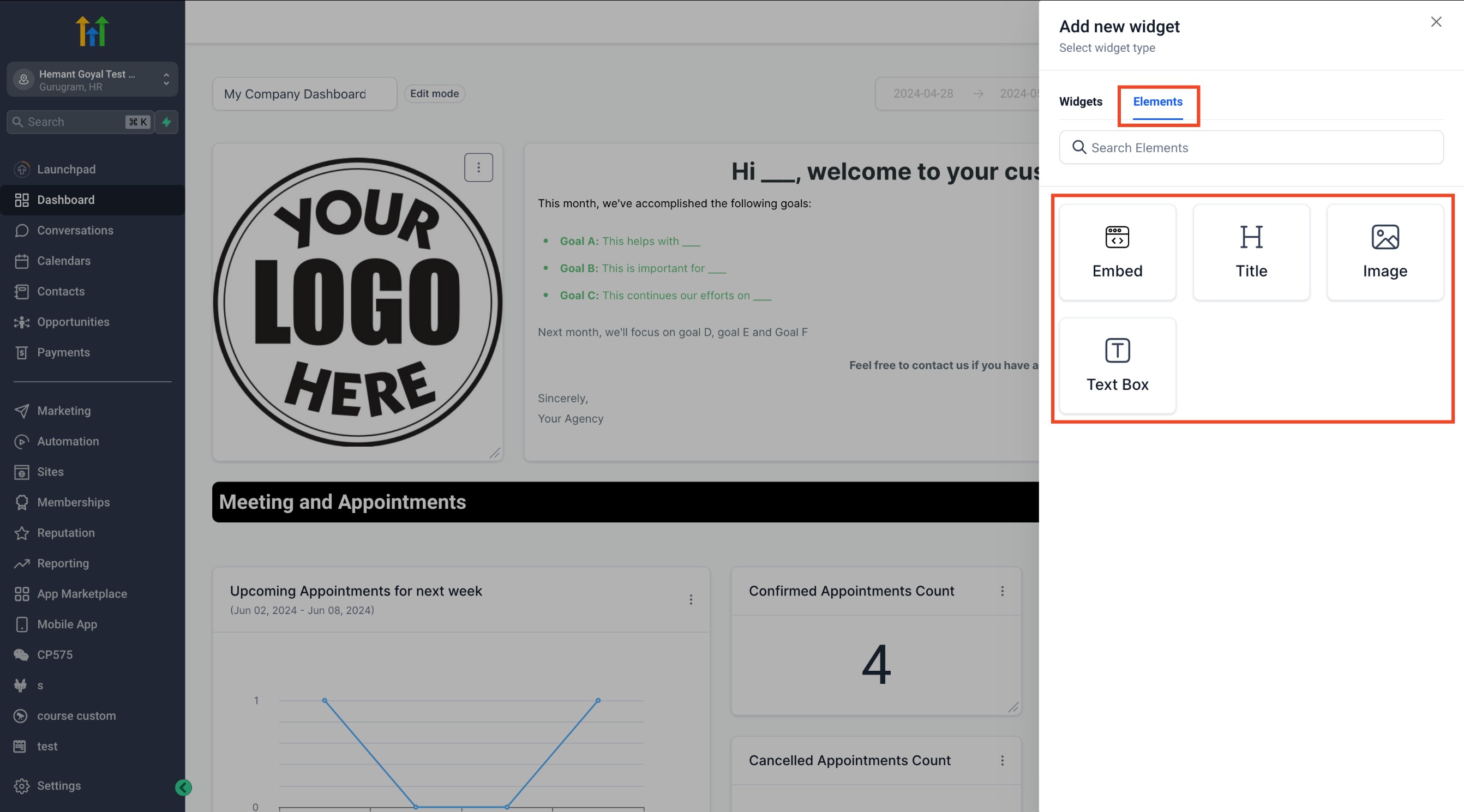
These elements are added while editing a dashboard. Enter edit mode, click Add widget, switch to the Elements tab, choose the desired element type, configure its content or upload an image, and then save the changes. The added element appears alongside other widgets and can be moved or resized as needed.
03How businesses use titles, textboxes, and images
- SaaS startup. The team adds Title elements to label sections such as "Acquisition" and "Retention" on their performance dashboard. They place Textboxes with brief explanations for each chart, ensuring new hires understand the metrics. An Image element displays the company logo for branding consistency.
- Digital marketing agency. Agents create Textboxes on client dashboards to list campaign priorities and deadlines. They also use Image elements to embed visual mockups of ad creatives, keeping all relevant assets visible next to performance graphs.
- Co working space. Management adds a Title to separate daily usage statistics from upcoming event schedules. A Textbox provides a quick reminder about the Wi Fi password. An Image of the space’s floor plan is uploaded to help members locate meeting rooms.
04How to set up and use titles, textboxes, and images in HighLevel
Add a title, textbox, or image to a dashboard
- Open the target dashboard and click the Edit button to enter edit mode.
- Select the Add widget option.
- In the widget dialog, choose the Elements tab.
- Pick Title, Textbox, or Image from the list of element types.
- Enter the desired text or upload an image to configure the element.
- Click Save to apply the new element to the dashboard.
05What it looks like in HighLevel
06How it connects to the rest of HighLevel
- Learn how to add and customize other dashboard widgets. Dashboard widgets
- Find instructions for creating and adding custom widgets to your dashboards. Create widgets
- Explore ways to edit an existing dashboard, including moving or removing elements. Edit dashboard
Michael's take

Wondering if adding headings and notes to a dashboard is worth the effort? It’s a quick way to make a cluttered screen readable and keep everyone on the same page without extra emails.
I’d drop a Title at the top of each data group, then a Textbox with a short cheat sheet for the most confusing metric. Once everything is labeled and explained, the dashboard feels like a living report rather than a static dump of numbers.