
01Who this is for
- Marketing agencies, customize client dashboards to match brand colors and improve visual consistency.
- Coaching firms, apply a uniform look across performance boards for easier client review.
- SaaS startups, set a distinctive dashboard appearance for internal metrics to aid team orientation.
02Dashboard themes, explained
A dashboard theme controls the overall look of a HighLevel dashboard, including background, text and widget styling. Selecting a theme changes the color scheme and visual elements that appear on the board.
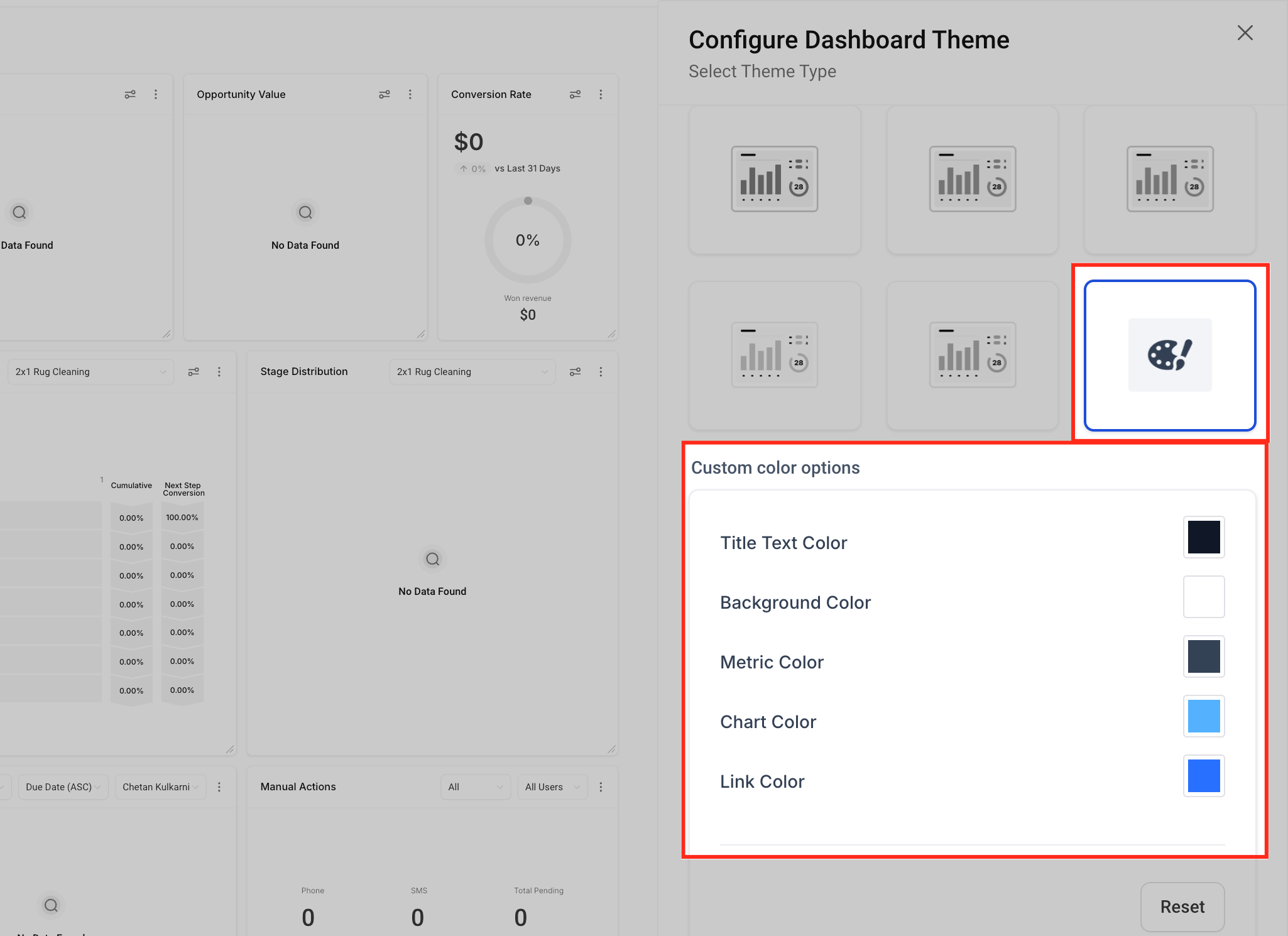
Themes can be chosen from prebuilt options or built from scratch by setting each element’s colors and styles. After saving, the dashboard right away reflects the chosen design. Themes can also be applied to individual widgets for finer control.
03How businesses use dashboard themes
- Marketing agency. The agency opens a client dashboard, enters edit mode, selects a predefined theme that matches the client’s branding, saves it, and then optionally customizes key widgets with their own theme settings.
- Coaching practice. A coach creates a custom theme with calm colors and clear text, applies it to the performance dashboard, saves the changes, and fine tunes the appearance of specific progress widgets.
- SaaS startup. The startup team navigates to their internal metrics dashboard, builds a custom theme that reflects company colors, saves the theme, and adjusts the theme of a sales widget to highlight key figures.
04How to set up and use dashboard themes in HighLevel
Customize dashboard theme
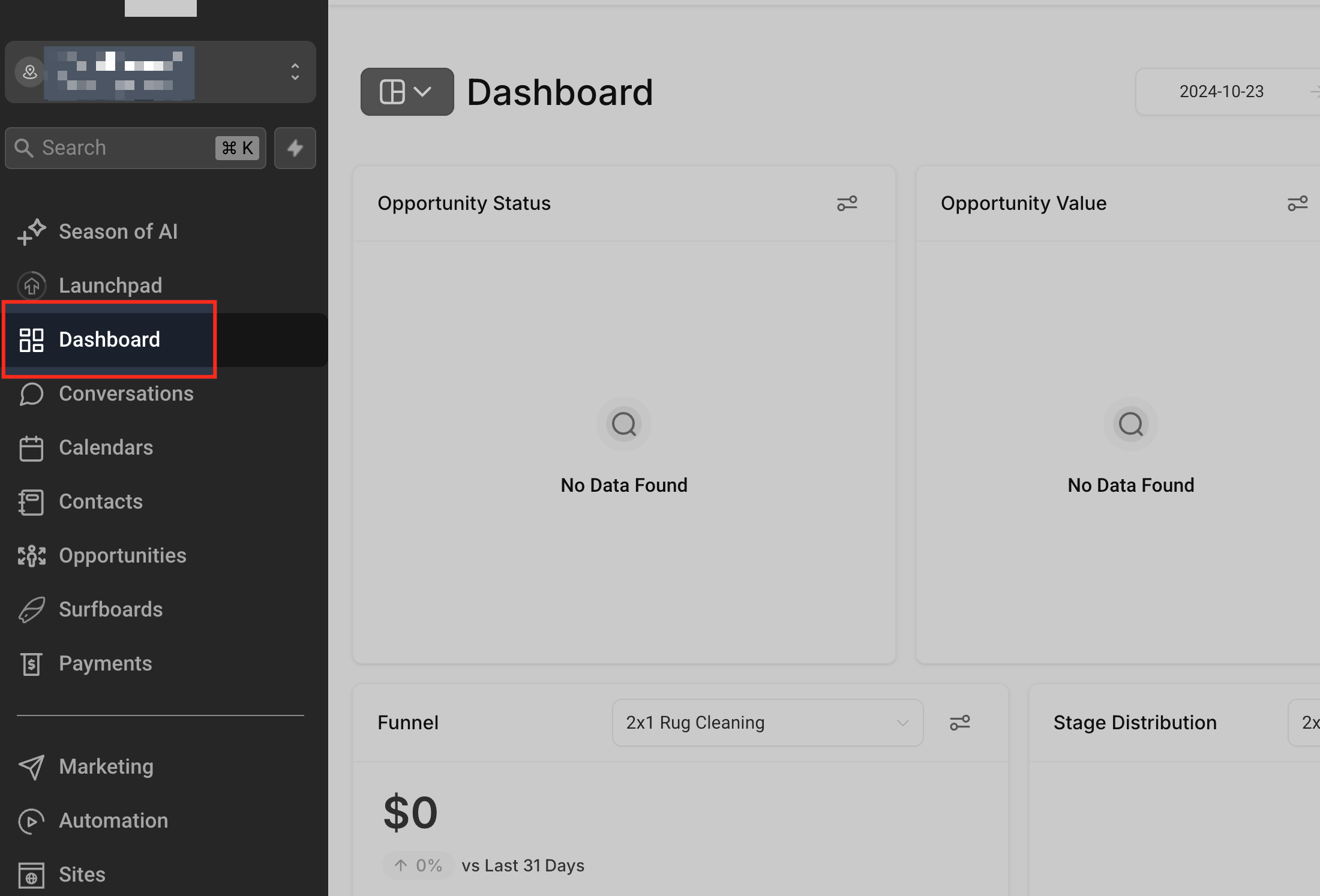
- Navigate to the dashboard you want to customize.
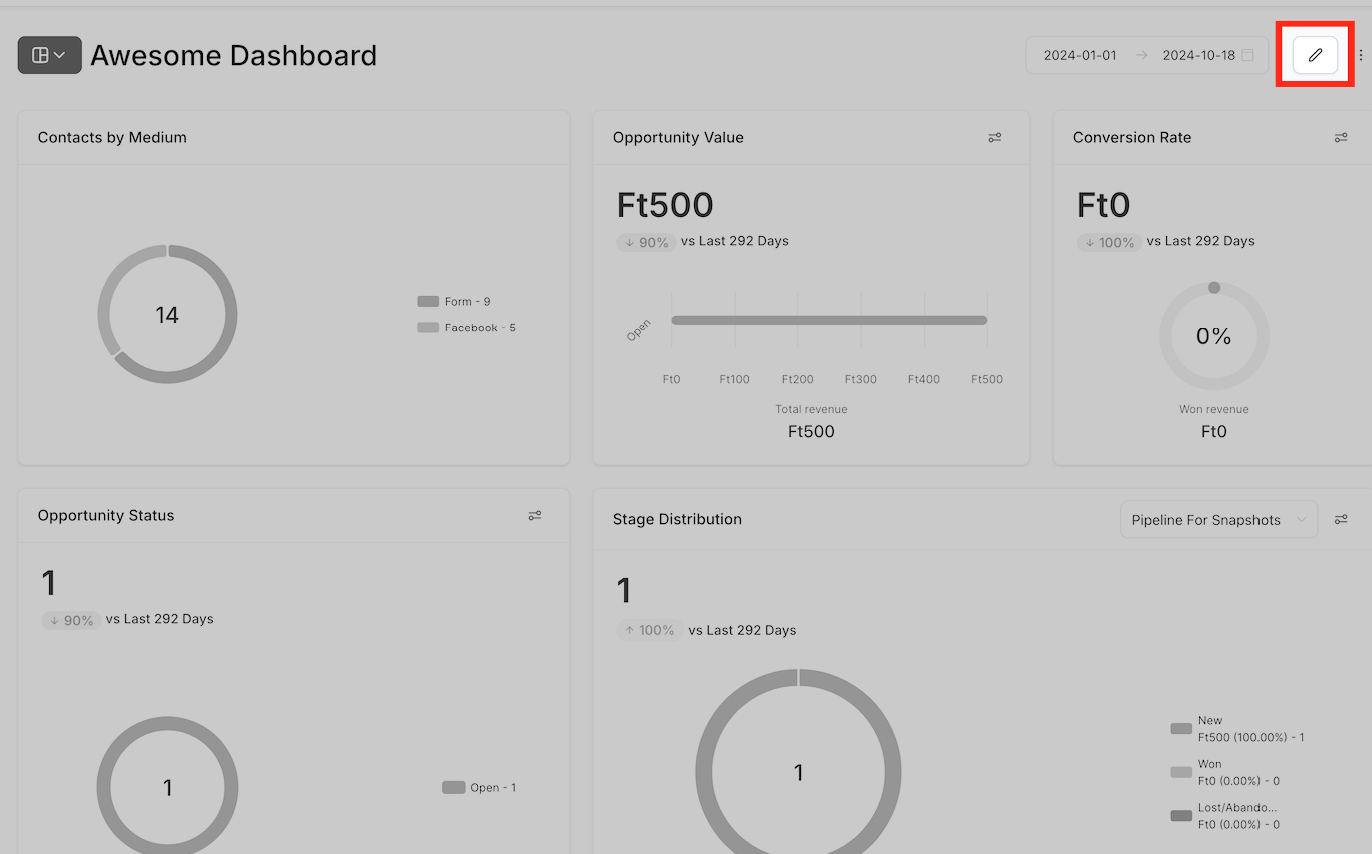
- Click the Pencil icon in the top right corner to enter edit mode.
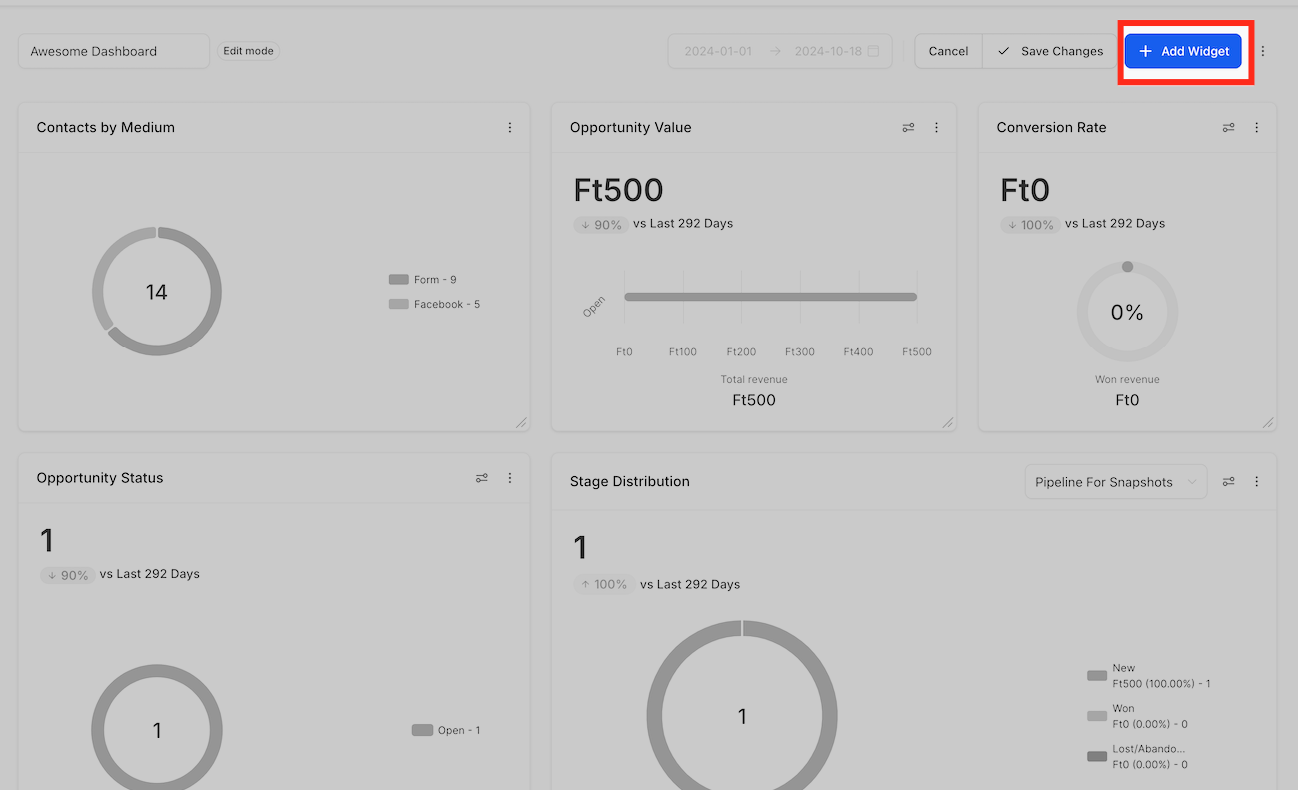
- Select Add Widget to open customization options.
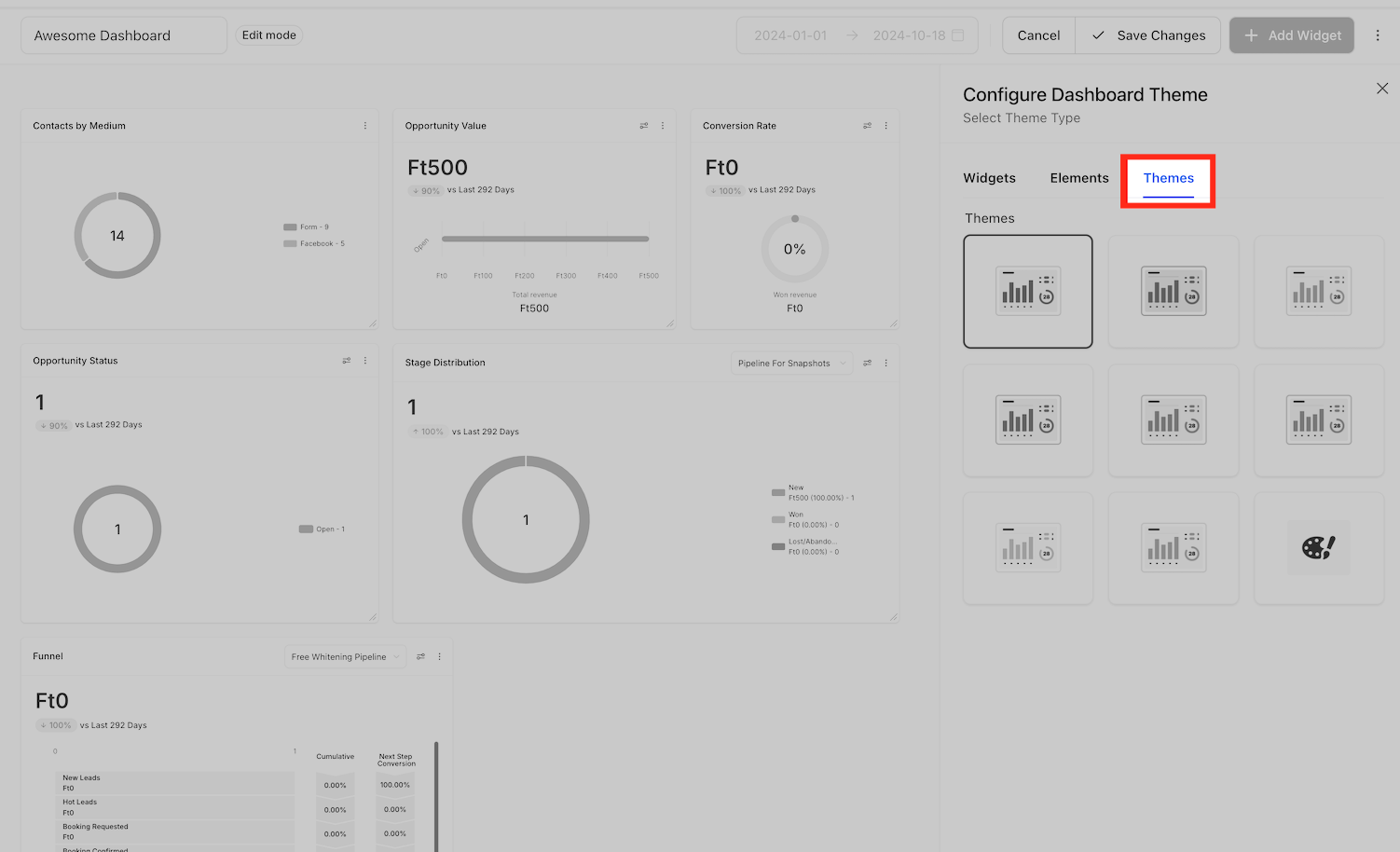
- In the sidebar, switch to the Themes tab.
- Pick a predefined theme or configure a new theme by setting colors, text and widget styles.
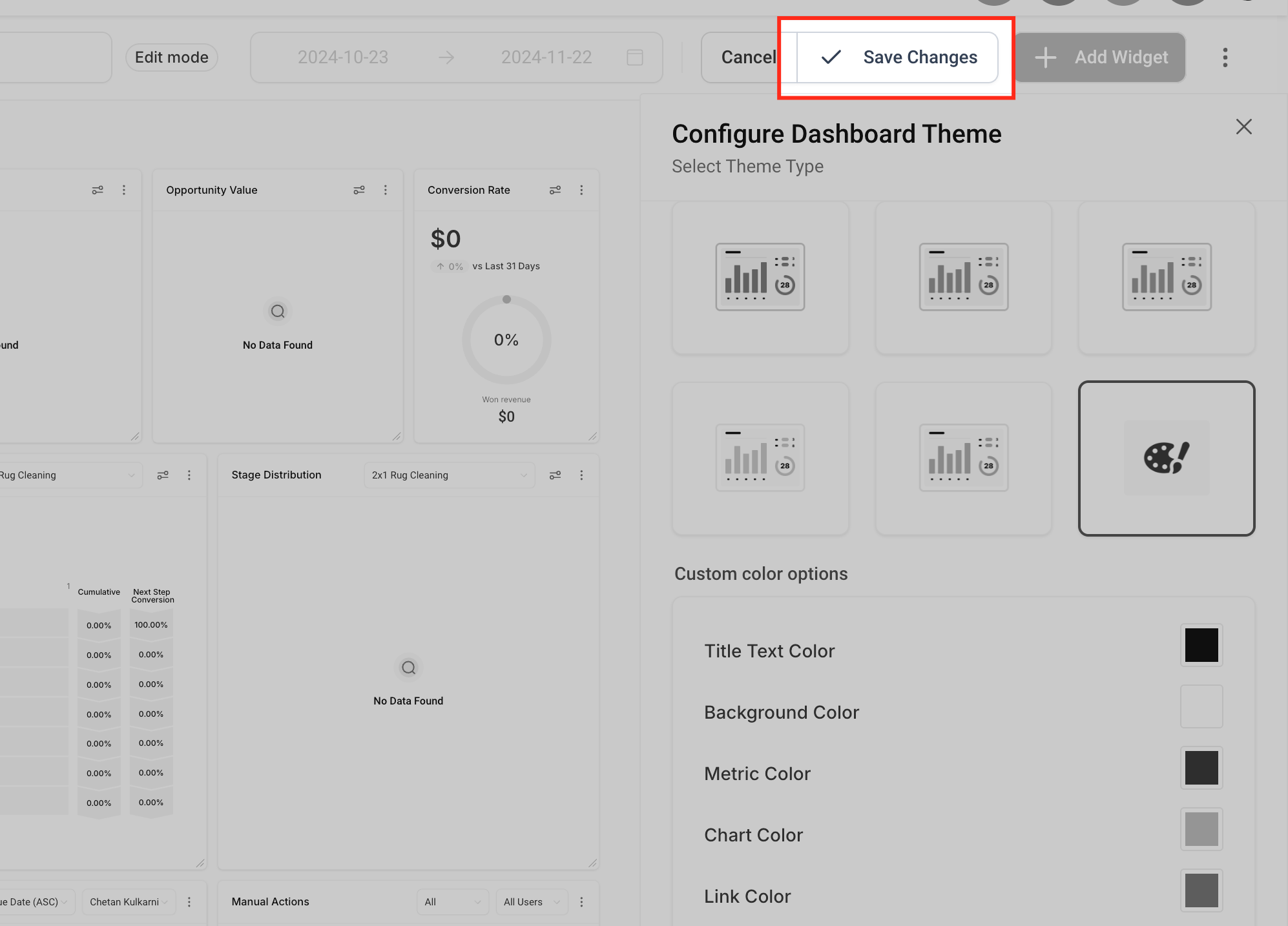
- Click Save to apply the theme to the dashboard.
- Edit a widget, open its sidebar and select the theme section to set a widget specific theme.
05What it looks like in HighLevel
06How it connects to the rest of HighLevel
- Create dashboard templates to reuse themed layouts Dashboard templates
- Add and customize dashboard widgets for richer visual data Dashboard widgets
- Manage who can view or edit dashboard themes Dashboard permissions
Michael's take

A cluttered dashboard can distract a team and make data harder to act on. Giving the board a look that matches your brand or highlights key info solves that problem in a few clicks.
I would get the overall dashboard theme right first, picking colors that reflect the business’s visual identity, then fine tune any widget themes as needed.