
01Who this is for
- Real estate agencies can measure total property values directly from Opportunity fields, gaining quick insight without exporting data.
- Dental practices can track treatment cost totals across patients by using a Number custom field on contacts.
- Sales teams can monitor projected deal sizes by aggregating a custom monetary field on opportunities for better pipeline visibility.
02Custom field metrics, explained
Custom field metrics convert eligible numeric or monetary custom fields into aggregatable data points. The platform separates the field selected from the calculation applied, allowing the same field to be summed, minimized, maximized or averaged as needed. These metrics appear automatically in the metric picker once the custom field exists.
Metrics can be used in three locations: dashboard widgets for at a glance KPIs, custom reports for detailed analysis, and the Custom Metric module for complex formula based KPIs. Each location provides its own configuration interface where the field and the aggregation are chosen.
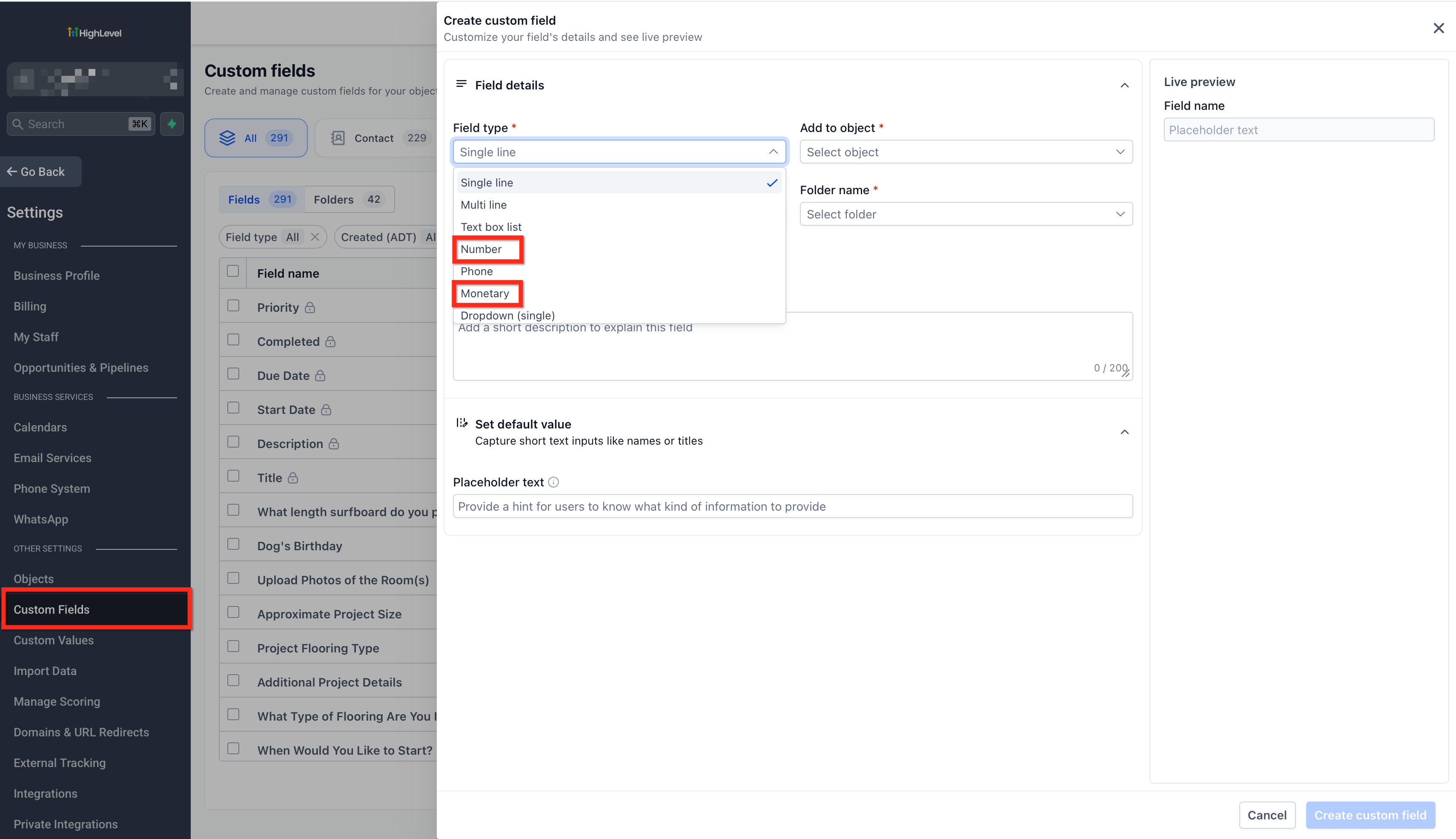
The feature works only with custom fields on Contacts or Opportunities that are of type Number or Monetary. No additional enablement is required after creation, but the field must be created under the correct object because it cannot be switched later.
03How businesses use custom field metrics
- Real estate agency. Create a Monetary custom field called Property Value on Opportunities. Add that field to a dashboard widget, choose Sum as the aggregation, and filter the widget to won opportunities. The widget then shows the total value of closed deals.
- Dental practice. Define a Number custom field for Treatment Cost on contacts. Insert the field into a custom report, select Average as the aggregation, and group results by patient segment. The report displays the average cost per segment.
- Software sales team. In the Custom Metric module, start a new metric, give it a name, and select Display format. Add the custom field Estimated Deal Size as a metric, choose Max as the aggregation, and combine it with other metrics using mathematical operators. The resulting KPI shows the highest estimated deal value.
04Before you start
- A custom field of type Number or Monetary must already exist on Contacts or Opportunities.
- Access to the reporting feature where the metric will be used (Dashboard, Custom Report, or Custom Metric module) is required.
05How to set up and use custom field metrics in HighLevel
Add a custom field metric to a dashboard widget or custom report
- Confirm that the custom field belongs to Contacts or Opportunities and uses a Number or Monetary type.
- If the field does not exist, create it via Settings > Custom Fields under the appropriate object.
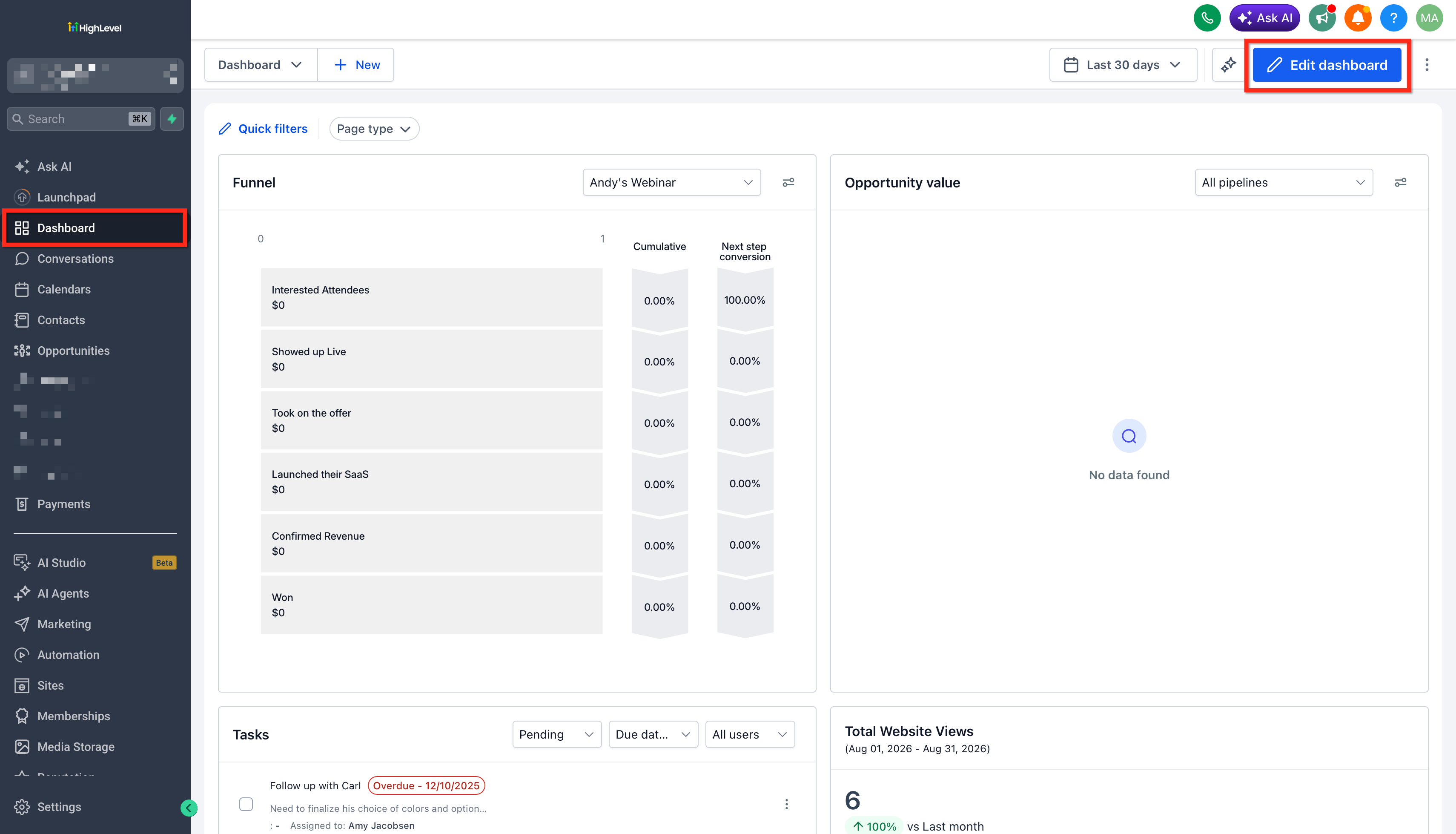
- Open the dashboard widget or custom report where the metric will be placed and select Edit.
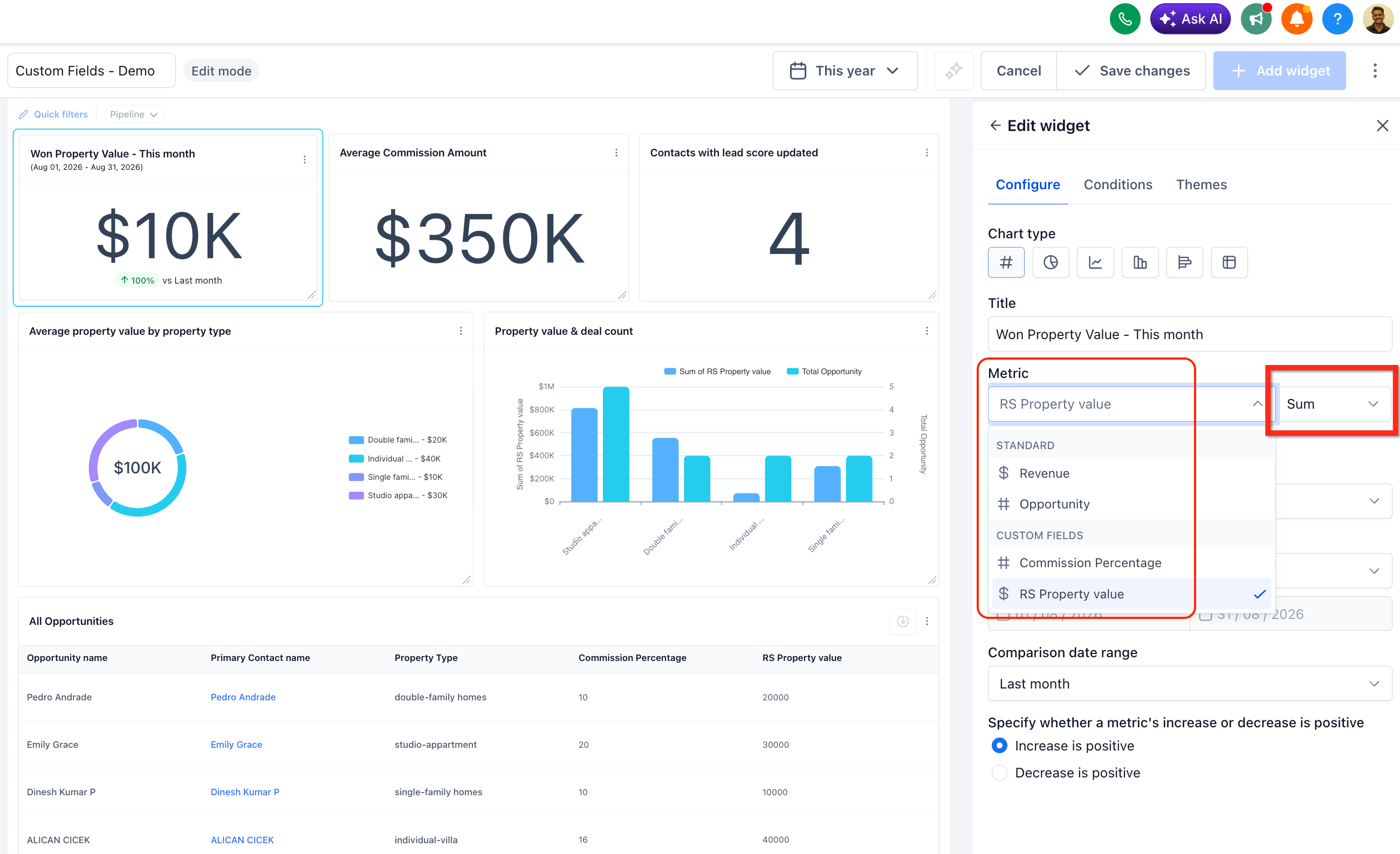
- Open the metric configuration area and select the desired custom field from the Field dropdown.
- Choose an aggregation, Sum, Min, Max, or Average, from the Aggregation dropdown.
- Apply any needed filters or a View By dimension to narrow the data.
- Save the widget or report to store the new configuration.
Create a custom metric that includes a custom field
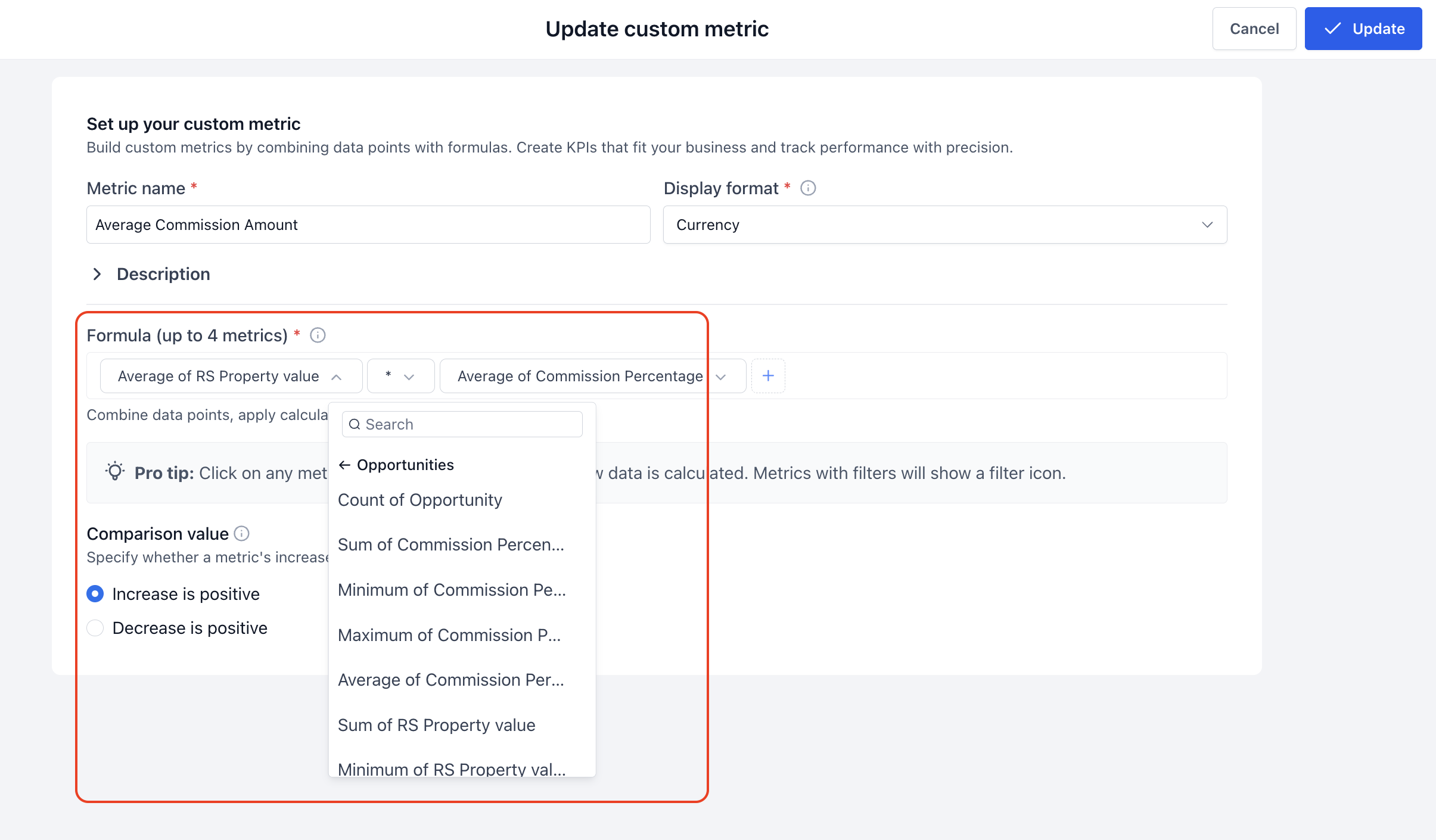
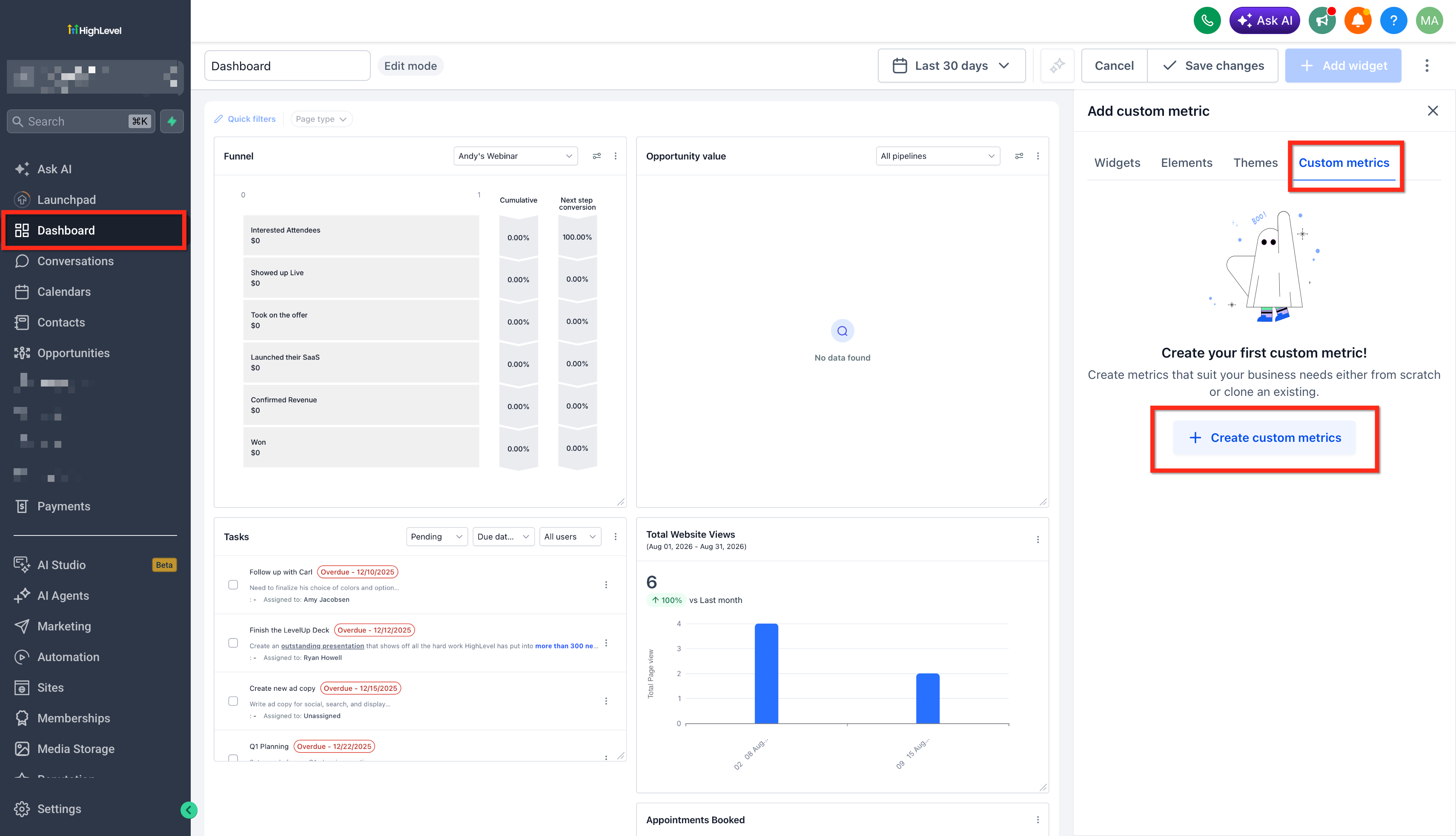
- Navigate to the Custom Metric module and start a new Custom Metric.
- Enter the Metric name and pick a Display format for the result.
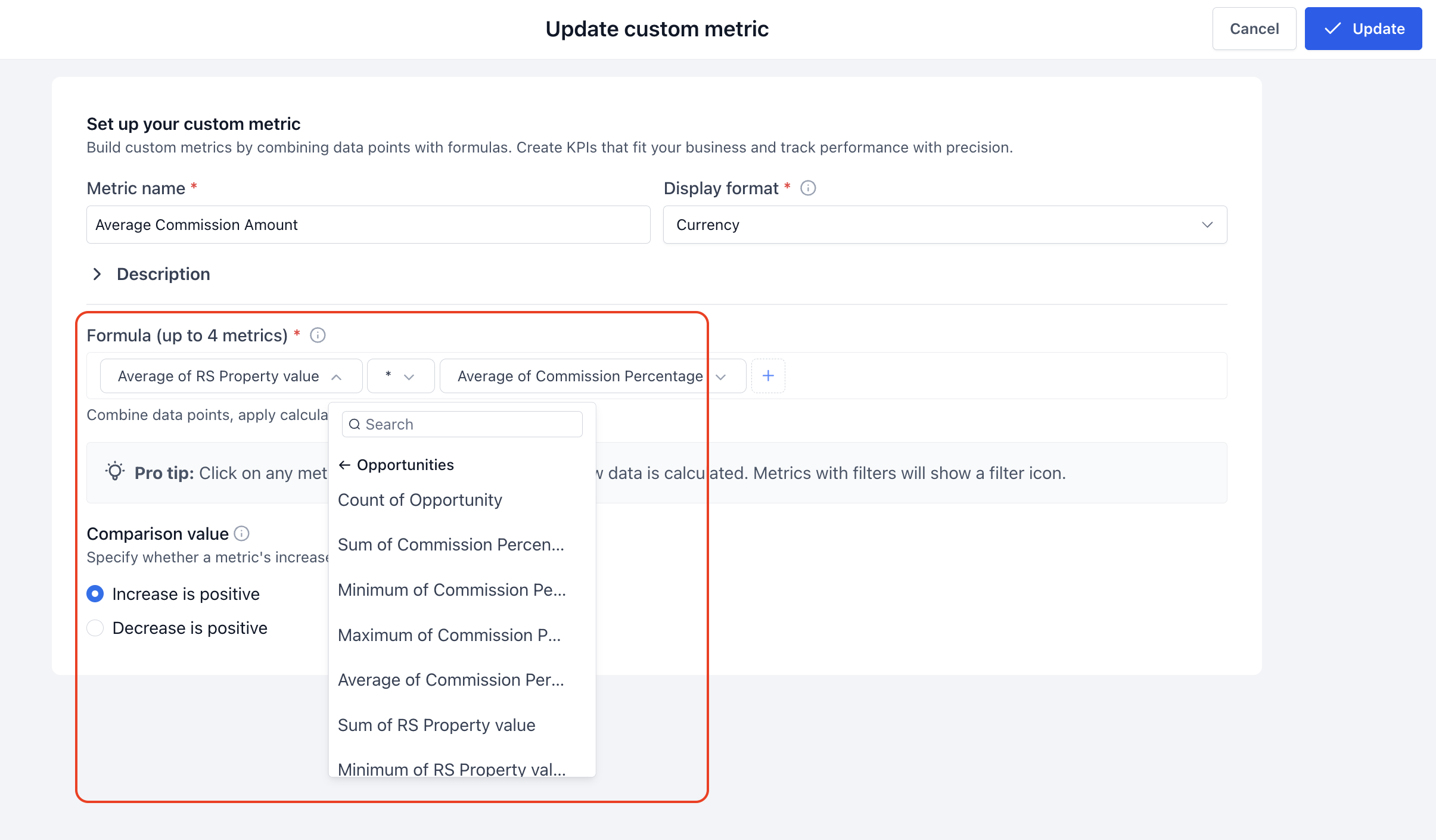
- Add a metric component in the Formula builder and select the custom field metric to use.
- Press the + button to insert another element into the formula.
- Choose the type of element to add, Metrics, Operator, or Number.
- If Operator is chosen, select the desired mathematical symbol such as +,, , *, /, (, or ).
- Continue adding components until the formula reflects the required calculation.
- Set the comparison value behavior to define whether an increase or decrease is treated as positive.
- Click Create/Update to save the finished custom metric.
06What it looks like in HighLevel
07Settings that matter
- Field. Specifies which eligible custom field will be measured.
- Aggregation. Determines how the field values are combined, Sum, Min, Max, or Average.
- Metric name. Provides a label for the custom metric within the formula builder.
- Display format. Defines how the metric’s result is shown, such as currency or number.
- Comparison value behavior. Sets whether an upward or downward change is treated as a positive trend.
08Things to know before you rely on it
- Only custom fields on Contacts or Opportunities are eligible.
- Eligible fields must be of type Number or Monetary.
- Aggregations are limited to Sum, Min, Max, and Average.
- A custom field cannot be changed from Contact to Opportunity or vice versa after creation.
09If something goes wrong
- Custom field does not appear in the Field dropdown. Confirm the field belongs to Contacts or Opportunities and uses a Number or Monetary type.
- Attempt to convert a Contact custom field to an Opportunity field. Impossible to change; create a new field under the correct object instead.
- Confusion between a monetary custom field and Opportunity Monetary Value. Recognize they are separate; the custom field stores business specific values distinct from the built in metric.
- Uncertainty about plan access for custom metrics. Check the Custom Metrics documentation to confirm module availability for the current plan.
10How it connects to the rest of HighLevel
- Explore how custom values work in dashboards and reports Custom values guide
- Review HighLevel pricing and plan details Pricing page
- Learn about the Founder Plan for advanced reporting Founder Plan
Michael's take

When you have a numeric custom field that drives revenue or costs, turning it into a metric can streamline reporting within HighLevel.
If your business rarely uses numeric Custom Fields, or you already have a solid external BI process, the feature adds little extra value. In those cases you might keep the data where it is and avoid the extra step of configuring metrics inside HighLevel.