
01Who this is for
- Agency owners can build one dashboard and reuse it for every client, saving time on repeat setup.
- Marketers who need to display different phone numbers or office hours per location will see the correct info automatically.
02Custom Values, explained
Custom values act as dynamic tags that HighLevel replaces with actual data at view time. They work in widget filter fields, embed URLs, title blocks and text boxes. The platform groups them into three sources: the current subaccount (Location), the logged in person (User) and any values you define under Settings > Custom Values.
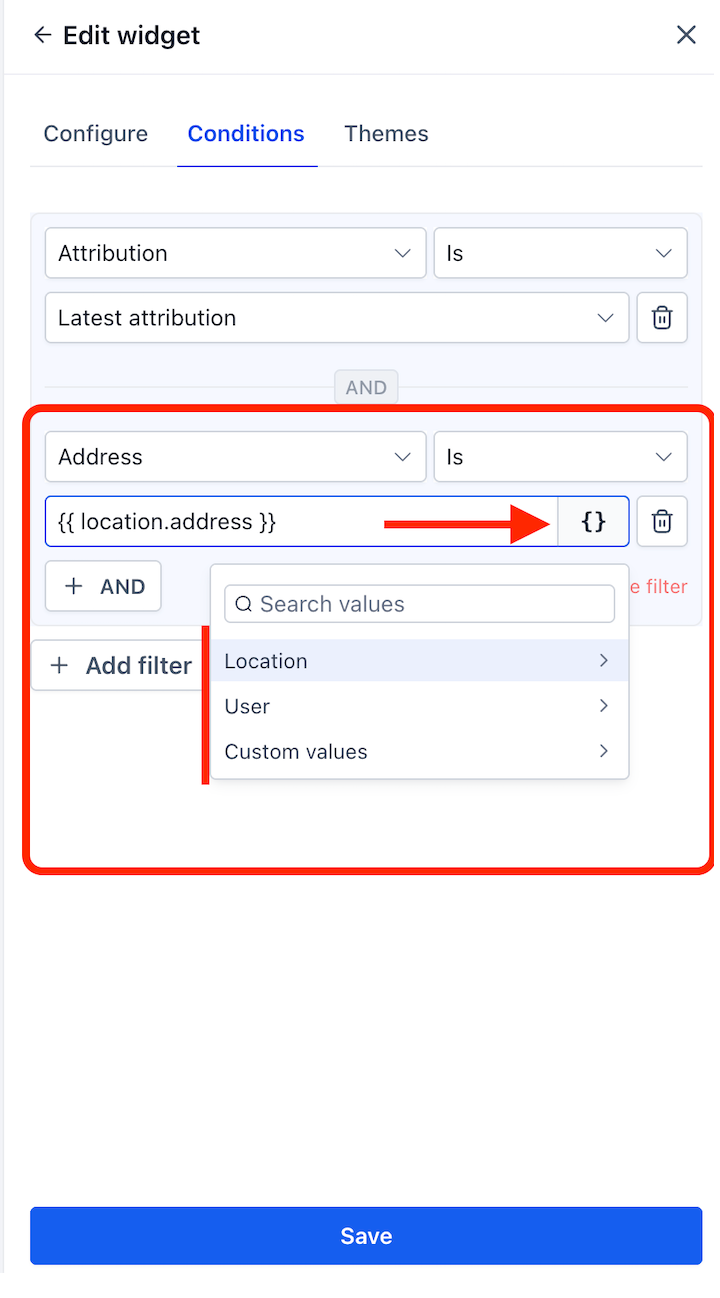
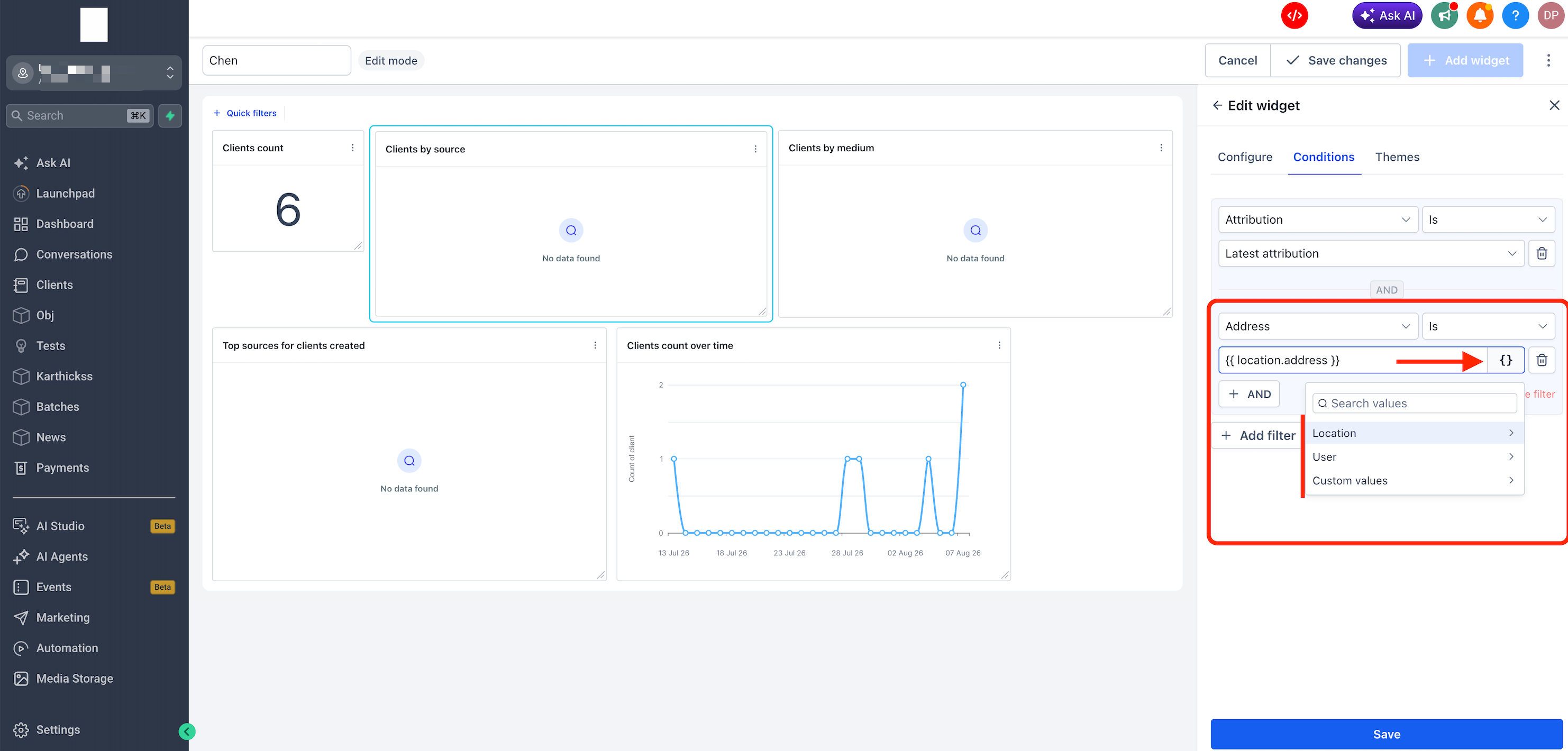
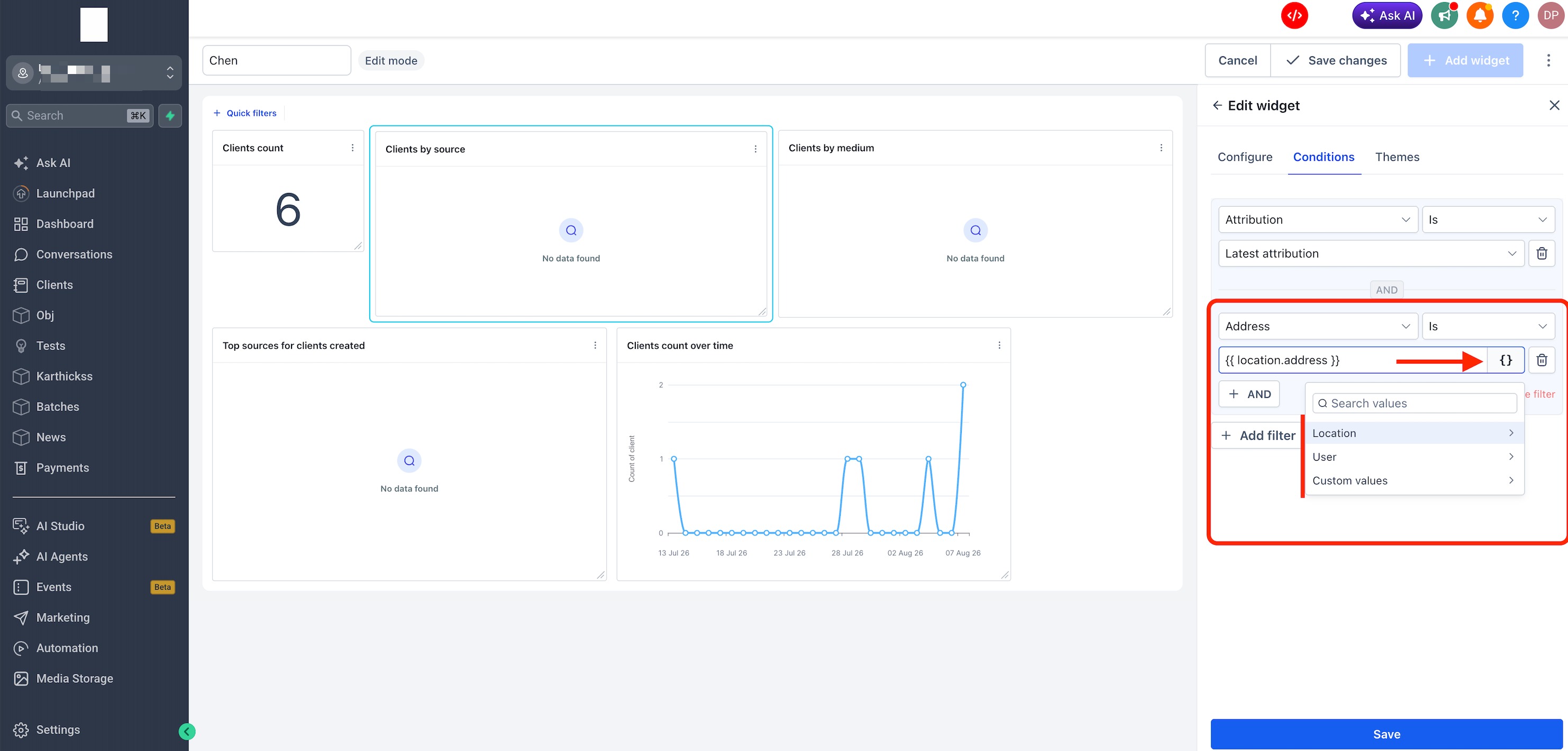
To insert a value you click the curly brace button that appears next to a supported field. A picker opens, letting you browse or search for the needed placeholder. HighLevel then writes the tag such as {{ location.address }} into the field. When the dashboard loads, the tag is swapped for the real address of the subaccount that opened it.
03How businesses use Custom Values
- Marketing agency. The agency creates a single client performance dashboard. It adds {{ location.name }} and {{ location.phone }} to title and text elements. Each client views the same dashboard and sees its own company name and phone number without the agency copying the dashboard for every client.
- Real estate team. Agents use a widget that filters leads by {{ user.email }}. When an agent opens the dashboard, the widget automatically limits the view to leads assigned to that agent’s email address.
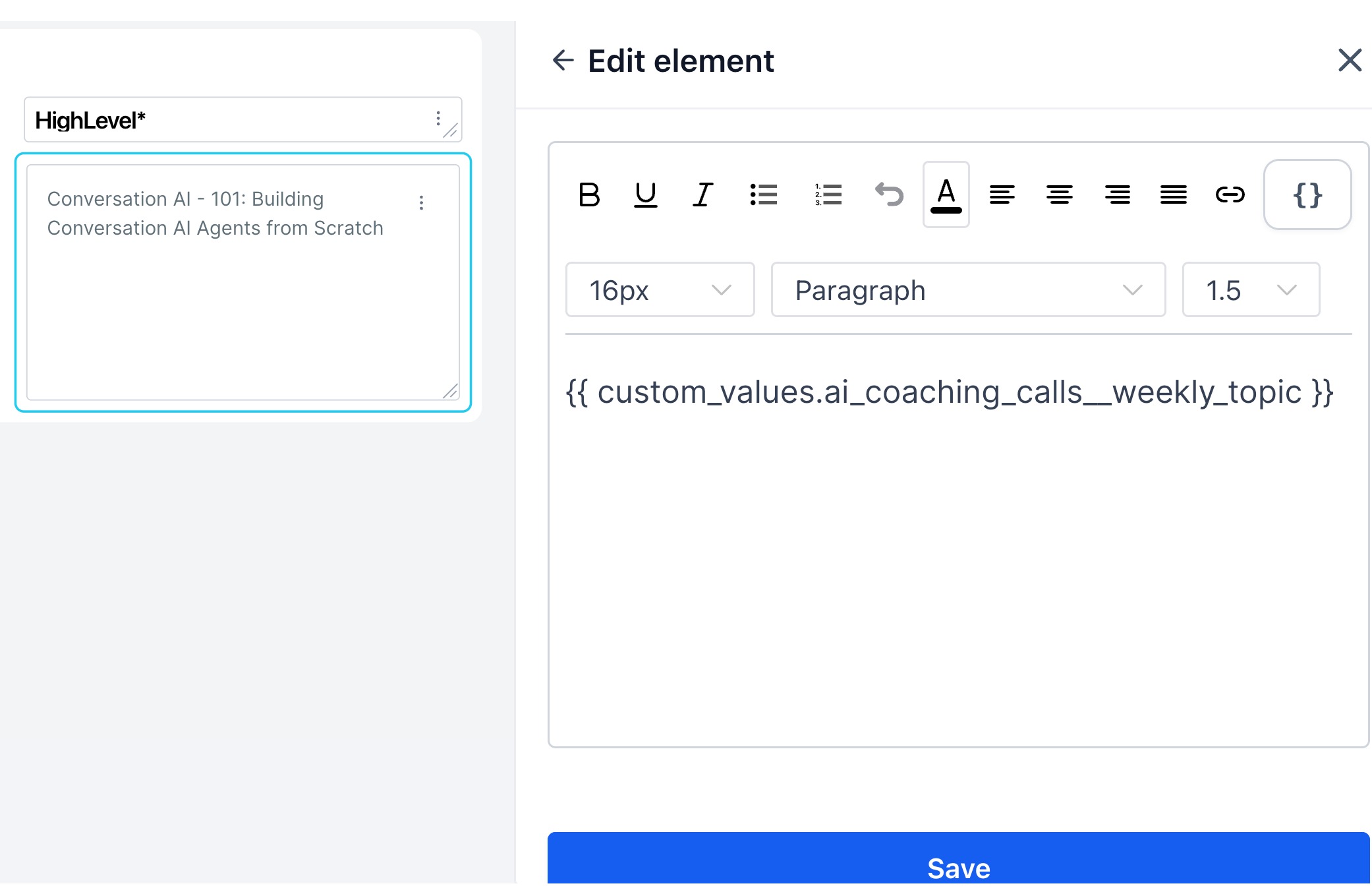
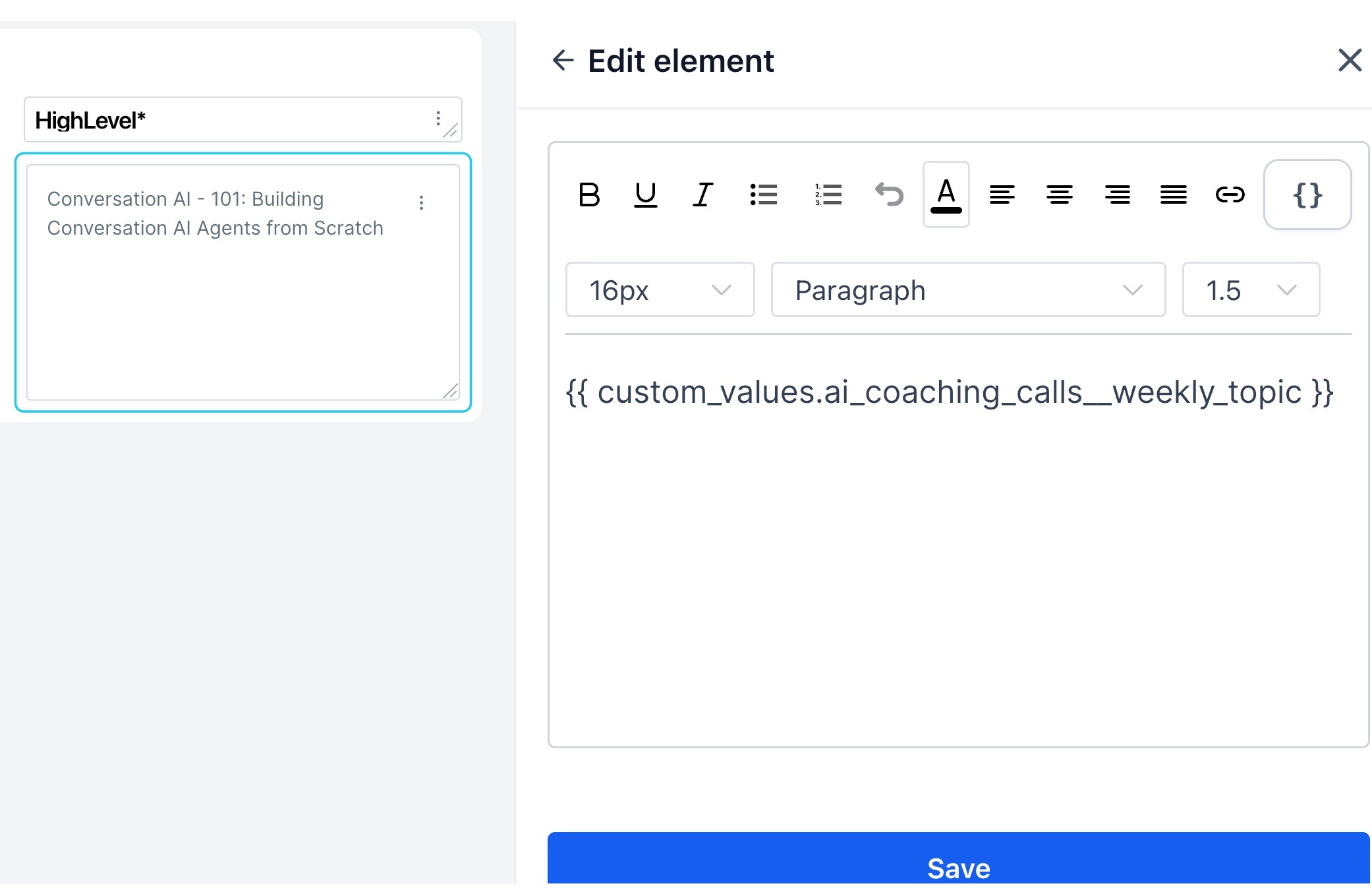
- Coaching business. The coach defines a custom value called weekly_topic under Settings > Custom Values. A text box on the dashboard includes {{ custom_values.weekly_topic }} so the weekly focus appears for all users without manual edits.
04The numbers and rules that matter
- Supported fields: Widget conditions, embed URLs, title elements, text box elements.
05Before you start
- A custom value must already exist in Settings > Custom Values before it can be placed in a widget or element.
- The dashboard must be opened in edit mode to modify widgets or elements.
06How to set up and use Custom Values in HighLevel
Add a custom value to a widget condition
- Open the dashboard in Edit mode.
- Select the widget you want to modify.
- Open the Conditions tab.
- Add or edit a condition that contains a supported text field.
- Press the curly brace button next to the field.
- Choose one of the sources: Location, User, or Custom.
- Find and select the placeholder you need.
- Confirm that the placeholder appears in the field.
- Click Save.
- Save the dashboard changes.
Add a custom value to a dashboard element
- Open the dashboard in Edit mode.
- Add or edit a supported element.
- Choose an Embed, Title, or Text box element.
- Click the curly brace button where available.
- Select Location, User, or Custom values.
- Choose the value you want.
- Confirm that the placeholder appears in the element.
- Click Save.
- Save the dashboard changes.
Create a custom value first
- Go to Settings > Custom Values.
- Create the custom value.
- Add it to a folder if needed.
- Save the value.
- Return to the dashboard you are editing.
- Open the {} picker.
- Locate the new entry under Custom values.
07What it looks like in HighLevel
08Settings that matter
- Settings > Custom Values. Stores reusable placeholders that can be inserted into supported dashboard fields.
09Things to know before you rely on it
- Dynamic values work only in fields that display the curly brace button.
- If a custom value is empty for a subaccount, the dashboard will show a blank spot where the placeholder is used.
- Location values pull data from the subaccount that is viewing the dashboard.
- User values pull data from the person who is currently logged in.
10If something goes wrong
- The curly brace button does not appear. Confirm the field you are using supports dynamic values.
- The custom value is missing. Open Settings > Custom Values and verify the value exists and is saved.
- The dashboard shows a blank value. Check that the source custom value contains data for the subaccount.
- The wrong location information appears. Make sure the dashboard is being viewed from the intended subaccount.
- The wrong user information appears. Confirm the correct user is logged in when viewing the dashboard.
11How it connects to the rest of HighLevel
- Use custom fields as metrics in HighLevel reports Custom report metrics
- Customize dashboard themes in HighLevel Dashboard themes
- Create dashboard templates for quick reuse Dashboard templates
Michael's take

People often type the actual address or phone number straight into a widget, then wonder why they have to rebuild the same dashboard for each client. Instead, I’d drop a {{ location.address }} placeholder into the condition and let HighLevel fill in the right data for every subaccount.
Once the placeholder is in place, I’d double check the {} picker to make sure the field supports dynamic values and that the source custom value actually contains content. That simple step saves a lot of copy and paste work down the road.