
01Who this is for
- Agency owners managing multiple client subaccounts; they keep reports consistent across all clients.
- Teams that need consistent dashboards across accounts; they save time by reusing templates.
02Dashboard templates, explained
Dashboard templates are reusable blueprints that capture the configuration of an existing dashboard. They store widget layout, data sources, and visual settings so the same view can be replicated.
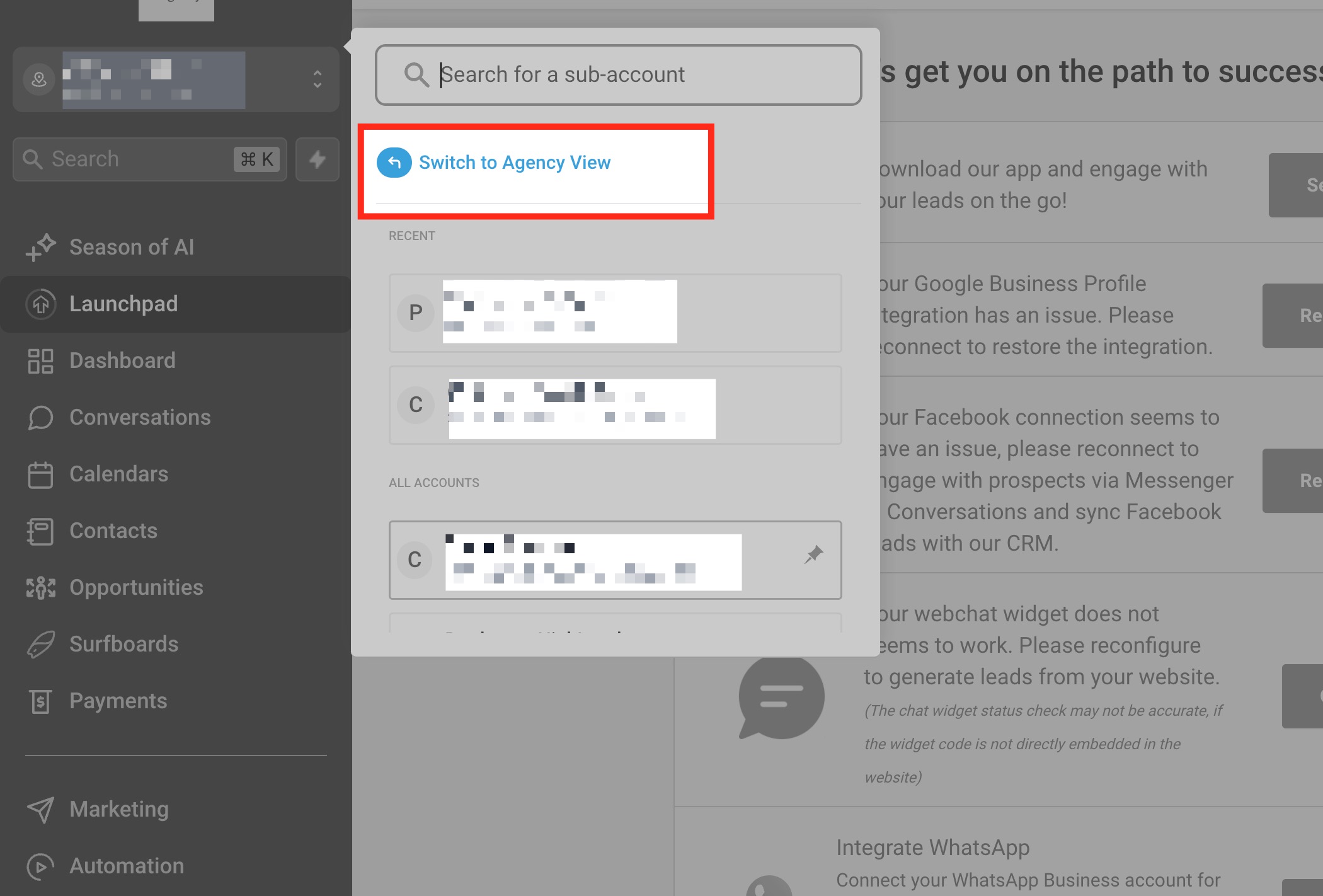
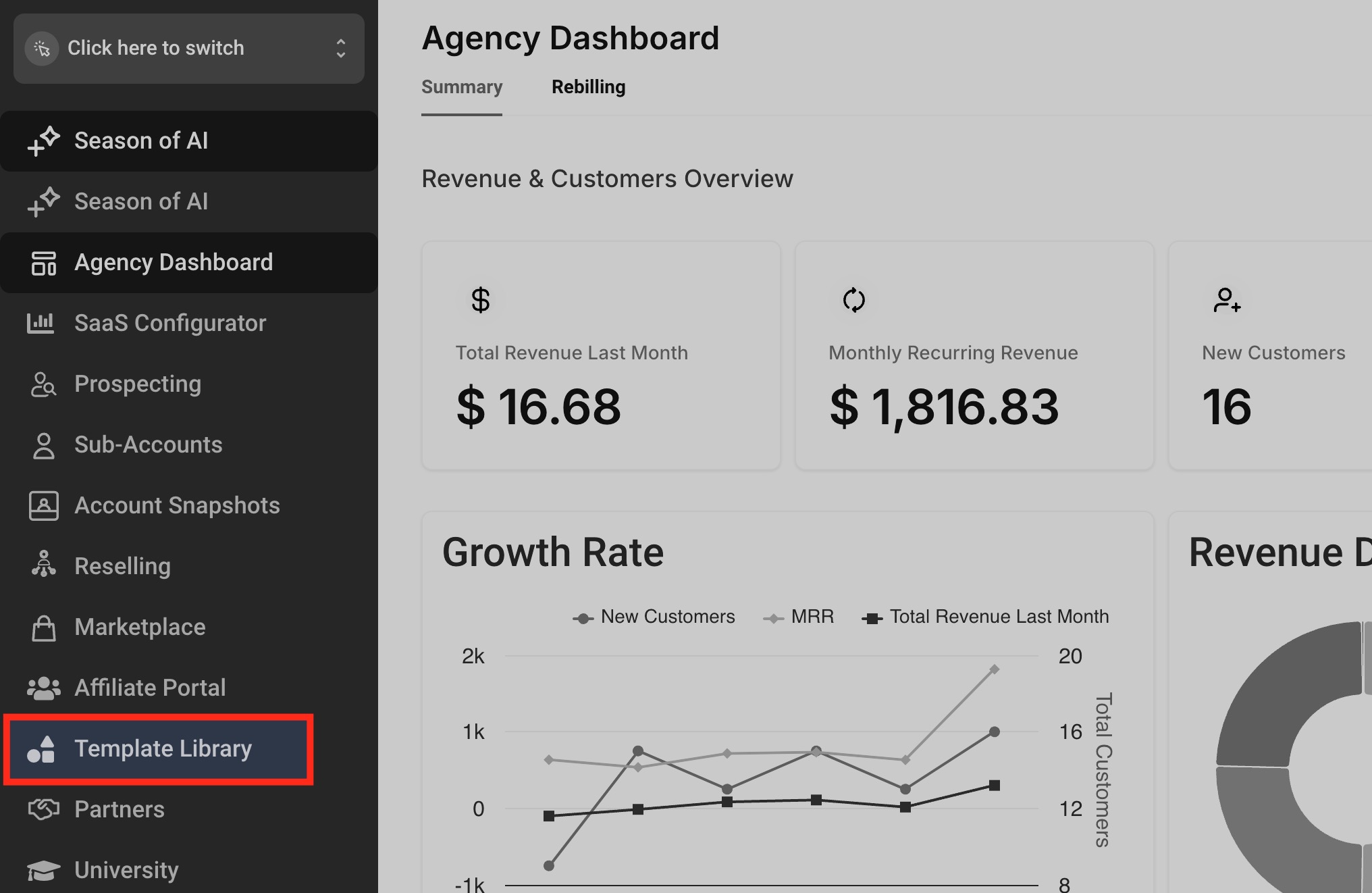
In HighLevel, templates are accessed through Agency View. Open the navigation menu, select Template Library, and manage templates there. You create a template by choosing a source subaccount, selecting the dashboard, adding optional details, and publishing it.
After a template is published, any user with access to the Template Library can generate a new dashboard from it. The new dashboard appears on the Dashboard page and can be edited further if needed.
03How businesses use dashboard templates
- Dental practice. Create a template from a master patient intake dashboard in Agency View. Then generate a fresh dashboard for each new clinic location, ensuring each office tracks the same metrics without rebuilding the layout.
- Digital marketing agency. Save a campaign performance dashboard as a template. When a new client is added, apply the template to right away provide the client with a ready made reporting view that matches the agency’s standards.
- Ecommerce store. Build a sales and inventory dashboard template once. Use the template to roll out identical dashboards for each regional store subaccount, keeping data representation uniform across the business.
04Before you start
- Be in Agency View mode to access the Template Library.
05How to set up and use dashboard templates in HighLevel
Create a dashboard template
- Switch to Agency View mode.
- Open the navigation menu and click Template Library.
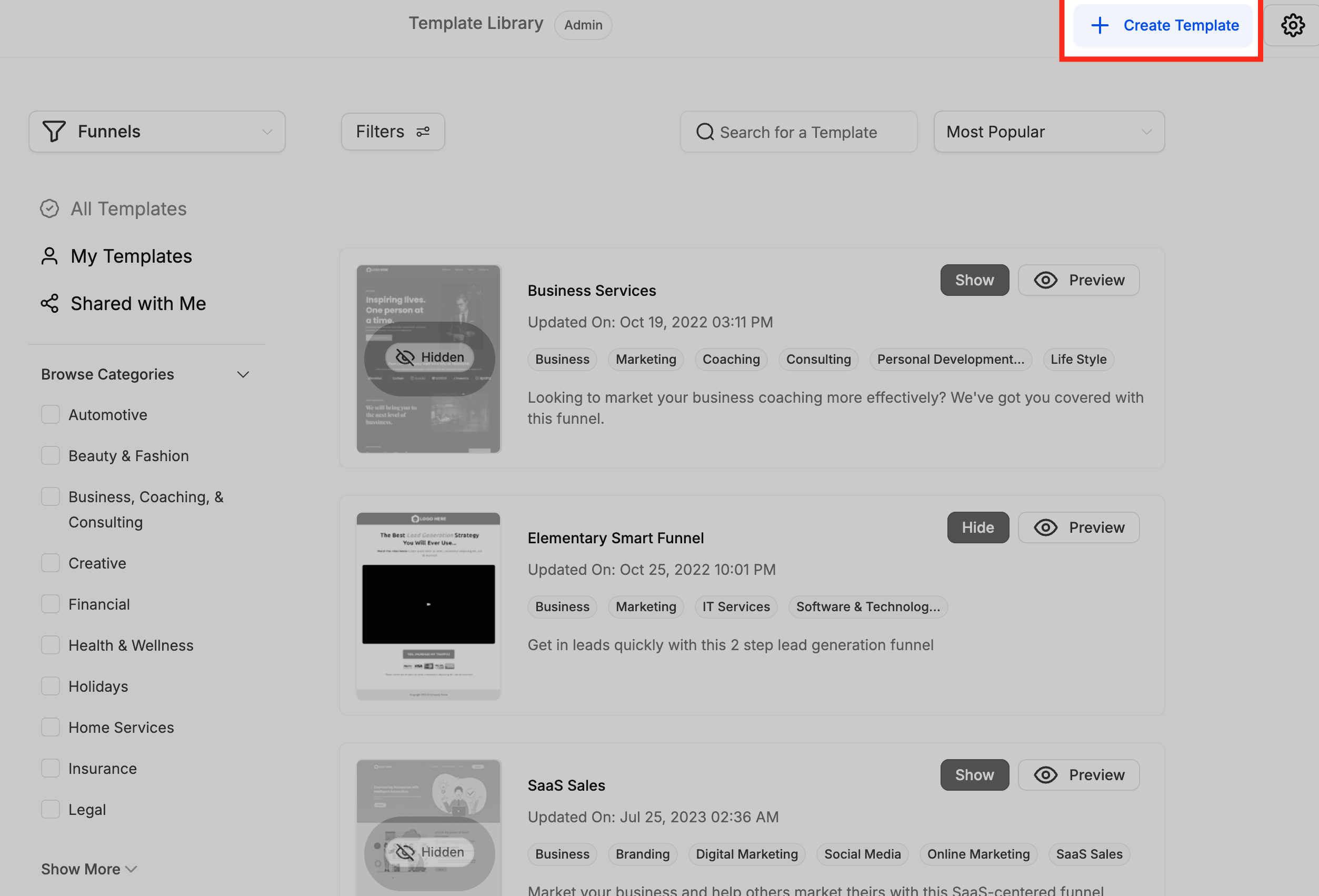
- Select Create a Template to begin.
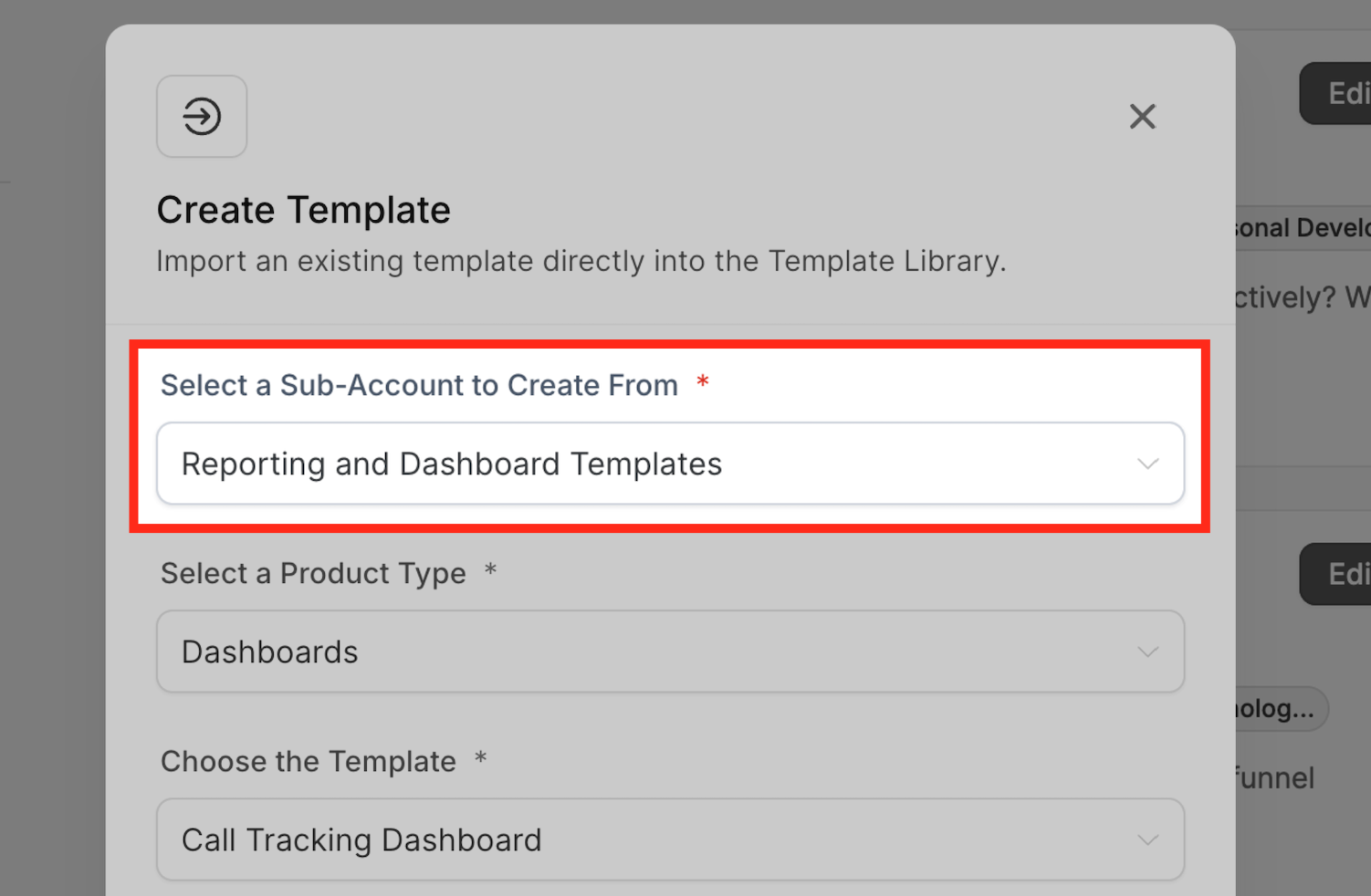
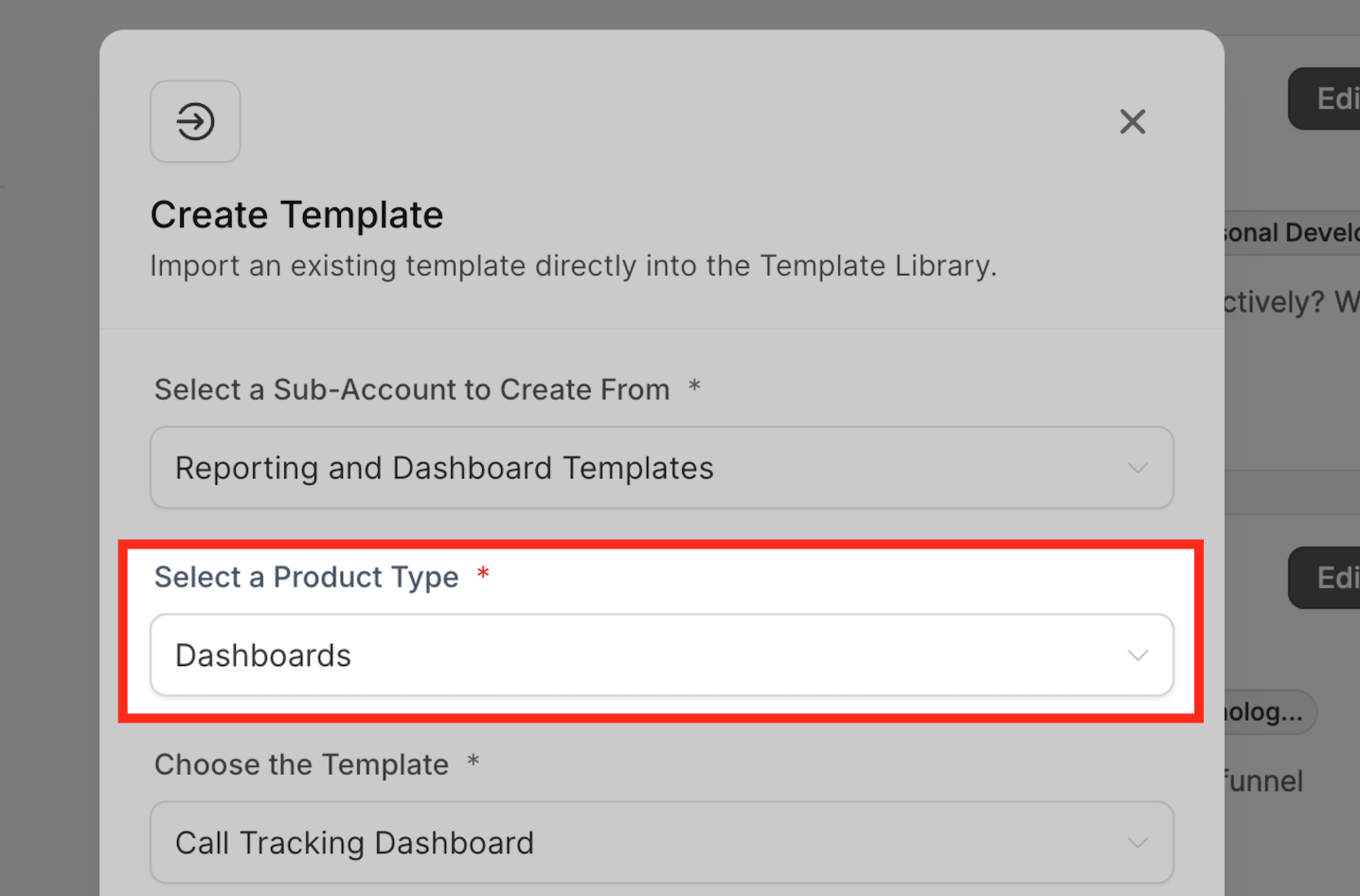
- Choose the subaccount that holds the source dashboard.
- From the dropdown, pick Dashboards as the product type.
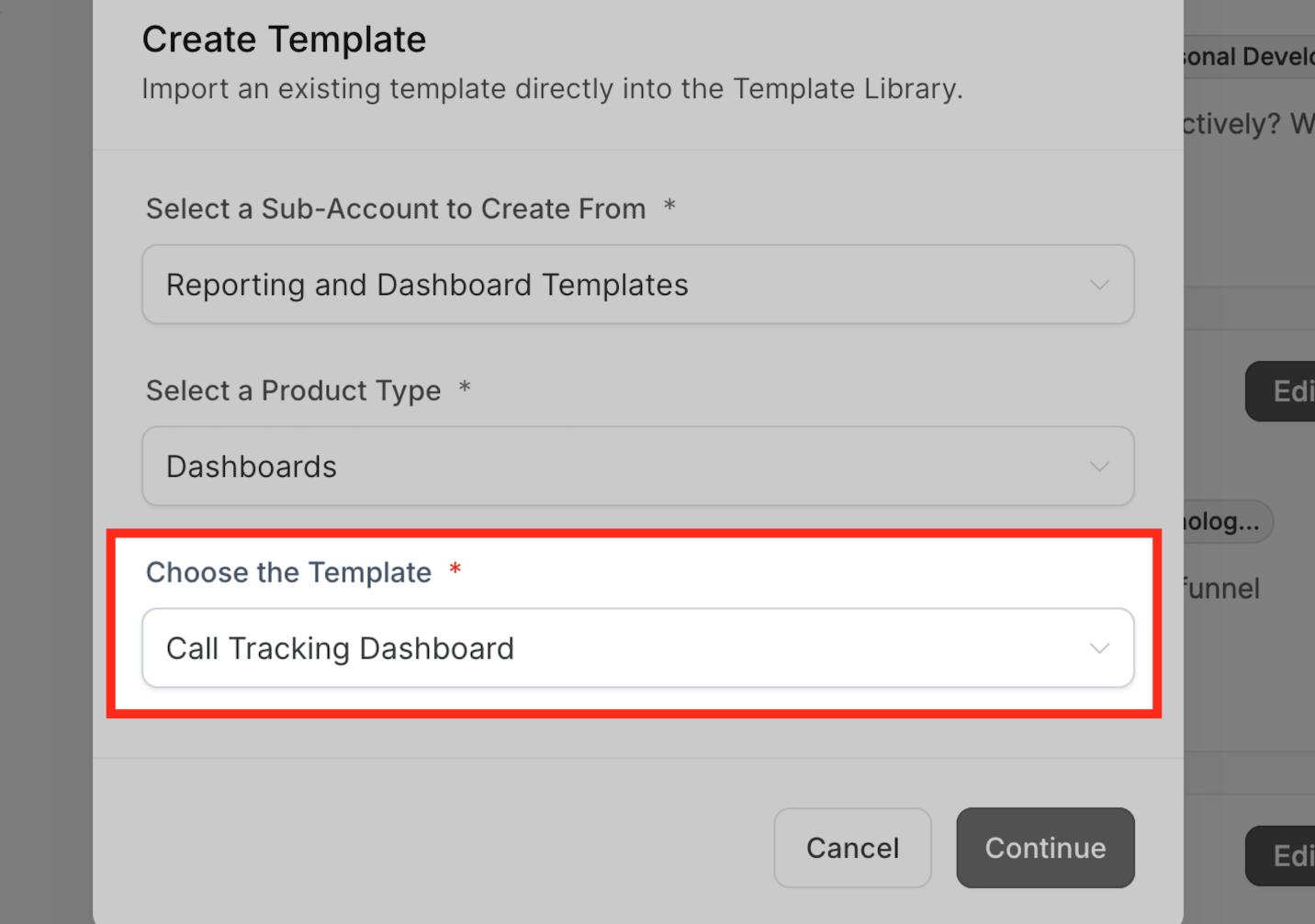
- Select the desired dashboard and click Continue.
- Enter a category, add tags, write a description, and upload a cover image.
- Click Publish Template to add it to the Template List.
Create a new dashboard from a template
- Navigate to the Dashboard page in your account.
- Click the blue dashboard icon, open the dropdown, and choose Add Dashboard.
- Select From Template Library and click the Select tab at the bottom.
- Browse, pick the desired template, and click the Continue button at the top right.
- Wait for the template to load, then open the edit option to adjust the layout if needed.
06What it looks like in HighLevel
07Settings that matter
- Category. Organizes the template within the library for easier browsing.
- Tags. Adds searchable keywords that help locate the template quickly.
- Description. Provides a brief summary that identifies the template’s purpose.
- Cover image. Shows a visual preview of the template in the library.
- Product Type. Specifies that the template applies to Dashboards.
08How it connects to the rest of HighLevel
- Customize the look of dashboards after they are created from a template Custom dashboard themes
- Add or modify widgets on a dashboard generated from a template Dashboard widgets
- Check which plans include Agency View needed for templates HighLevel pricing
Michael's take

Ever wonder how to give every client the same polished dashboard without rebuilding it from scratch each time? Dashboard templates let you capture a perfect layout once and spin it out to any subaccount with a few clicks.