
01Who this is for
- Agency owners who need a quick view of client email health without leaving the platform.
- Marketing managers who must track deliverability and engagement for specific campaigns or workflows.
- Client service teams that want to share scheduled email performance reports with stakeholders.
02Email widgets, explained
The feature provides eleven ready made widgets that show counts for accepted, delivered, opened, clicked, replied, bounced, failed and unsubscribed emails. Each widget can be displayed as a single number, donut, bar, line, horizontal bar or table, and two widgets support group by breakdowns out of the box.
Widgets live either on a Subaccount dashboard for continuous monitoring or inside a Custom Report for scheduled delivery. Users edit them through Configure, Conditions and Themes tabs, applying filters and visual settings directly within the HighLevel interface.
03How businesses use email widgets
- Digital marketing agency. The agency adds an Opened Emails widget to a client’s dashboard, sets the Source condition to Workflow, and selects the specific workflow that drives the campaign. This gives the client a live snapshot of email engagement for that workflow.
- Ecommerce store. The store builds a custom report that includes the Unsubscribed Emails Daily widget. By filtering on Source = Email Marketing Campaign and the name of the promotion, the report shows daily unsubscribe trends for that campaign and can be scheduled to email the owner each week.
- Non profit organization. The organization creates a dashboard section with the Emails By Domain widget. After adding a Domain filter, it highlights which email providers are rejecting messages, helping the team adjust sending practices for better inbox placement.
04The numbers and rules that matter
- 11 email widgets are available.
05Before you start
- Confirm the user has permission to view or edit dashboards and to create or schedule custom reports.
- No extra integration is required; email data is already available inside HighLevel.
06How to set up and use email widgets in HighLevel
Add email widgets to a dashboard
- Open the subaccount, go to Dashboards and select the dashboard you wish to modify or create a new one.
- Press the Edit Dashboard button located at the top right corner.
- Click the + Add Widget control to open the widget selection panel.
- Scroll within the panel until the Emails section appears, where all eleven widgets are listed.
- Select the desired widget; it will appear on the dashboard canvas.
- Use the Configure, Conditions and Themes tabs to set visual style, filters and colors.
- Choose Save Changes to publish the widget on the dashboard.
Add email widgets to a custom report
- Navigate to Reporting > Custom Reports in the subaccount and open an existing report or click New Report.
- Pick a blank canvas, a template, or import a dashboard layout as the starting point.
- Hit the Add Widget / Element button in the top left of the report builder.
- Find the Emails section and drag the chosen widgets onto the report layout.
- Configure each widget via the Configure, Conditions and Themes tabs.
- Click Save to store the report design.
- Select Send or Schedule to arrange automatic email delivery of the report.
07What it looks like in HighLevel
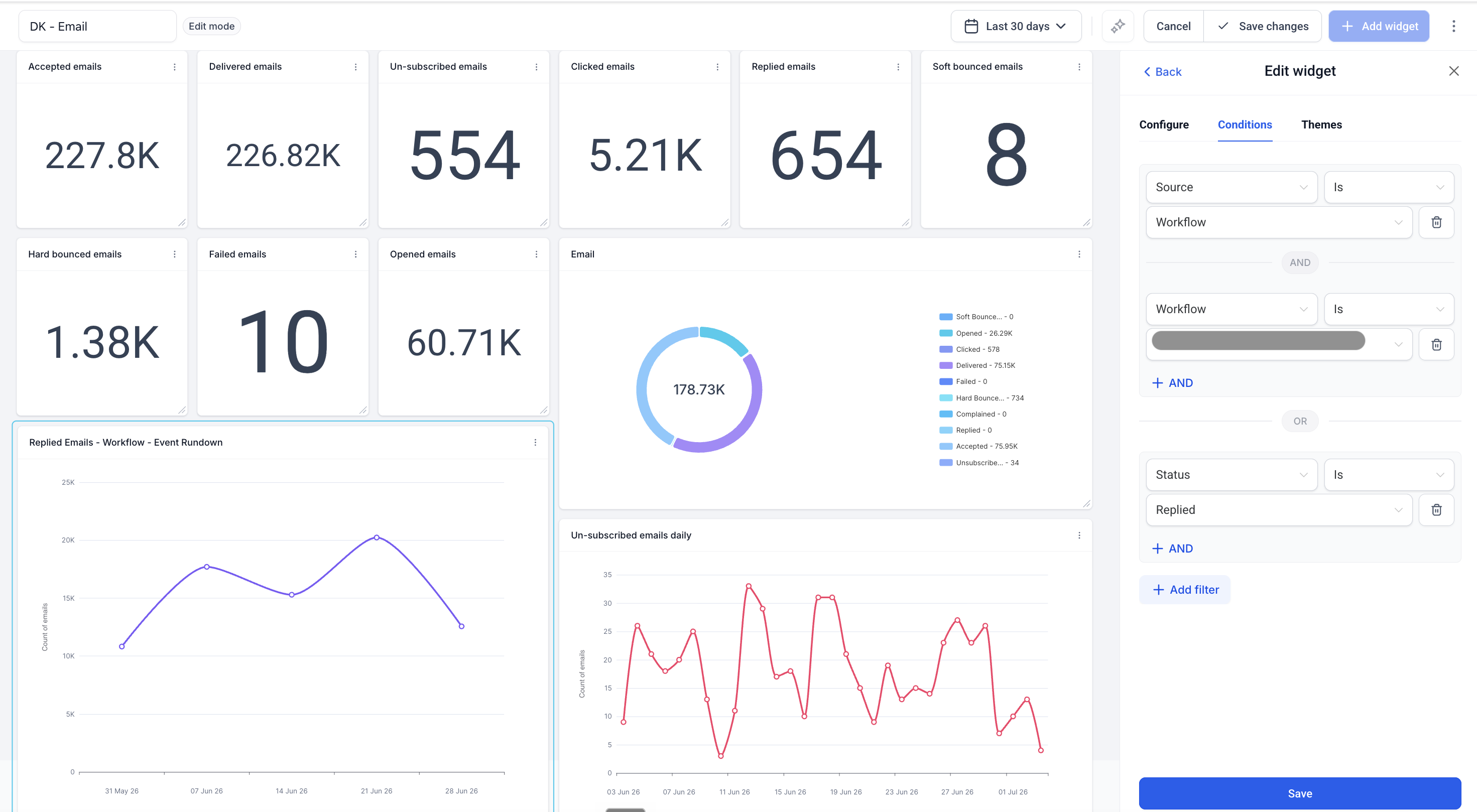
08Settings that matter
- Metric. Selects the count type the widget will display, such as Count of Emails.
- Group. Determines how the data is visually broken down, with options like Source, Status, Sent By, Domain and conditional choices (Workflow, Campaign, Template, Email Marketing Campaign, Bulk Action).
- Source. Filters the widget by what triggered the email send, for example Workflow or Campaign.
- Status. Limits the data to specific delivery or engagement outcomes like Delivered, Opened or Soft Bounced.
- Sent By. Filters email activity to a particular team member.
- Domain. Restricts results to recipient email domains.
- Workflow. Appears when Source is set to Workflow and lets you narrow the widget to a specific workflow.
- Campaign. Appears when Source is set to Campaign and lets you narrow the widget to a specific campaign.
- Email Marketing Campaign. Appears when Source is set to Email Marketing Campaign and lets you narrow the widget to a specific email marketing campaign.
- Template. Appears when Source is set to Template and lets you narrow the widget to emails sent from a particular template.
- Bulk Action. Appears when Source is set to Bulk Action and lets you narrow the widget to a specific bulk send.
- Themes. Controls the color scheme of the widget to match dashboard or brand styling.
09Things to know before you rely on it
- Only eleven email widgets are available; each can be shown as a single number or switched to donut, bar, line, horizontal bar, or table view.
- Group options for Workflow, Campaign, Template, Email Marketing Campaign and Bulk Action are disabled until a matching Source filter is set in the Conditions tab.
- Widgets update automatically; no manual refresh is needed.
10If something goes wrong
- The email widget shows no data. Check that the selected date range contains email activity, broaden any narrow filters, or verify that email sending is enabled in the subaccount.
- Group dropdown options are greyed out. Add a Source filter in the Conditions tab with the appropriate value; then return to the Configure tab where the matching Group option becomes selectable.
11How it connects to the rest of HighLevel
- Learn how to create a custom dashboard that can host email widgets. Custom dashboard guide
- See the full list of dashboard widget types, including SMS and call widgets. Dashboard widgets overview
- Start a 30 day trial to explore email widgets and other reporting features. Start trial
Michael's take

Email widgets give a clear view of every email send without leaving HighLevel.
Don’t forget to set a Source filter before trying to group by Workflow or Campaign; otherwise the Group dropdown stays grey.