
01Who this is for
- Agency users, each subaccount can connect its own Meta ad account for isolated reporting.
- Team members with edit permissions, can add and configure widgets on dashboards and reports.
02Meta Ad Widgets, explained
Meta Ad Widgets are pre built visual blocks that retrieve data from a Meta (Facebook/Instagram) ad account linked to a subaccount. The widgets appear on the subaccount’s dashboard or inside a custom report and refresh automatically, so the latest ad numbers are always shown.
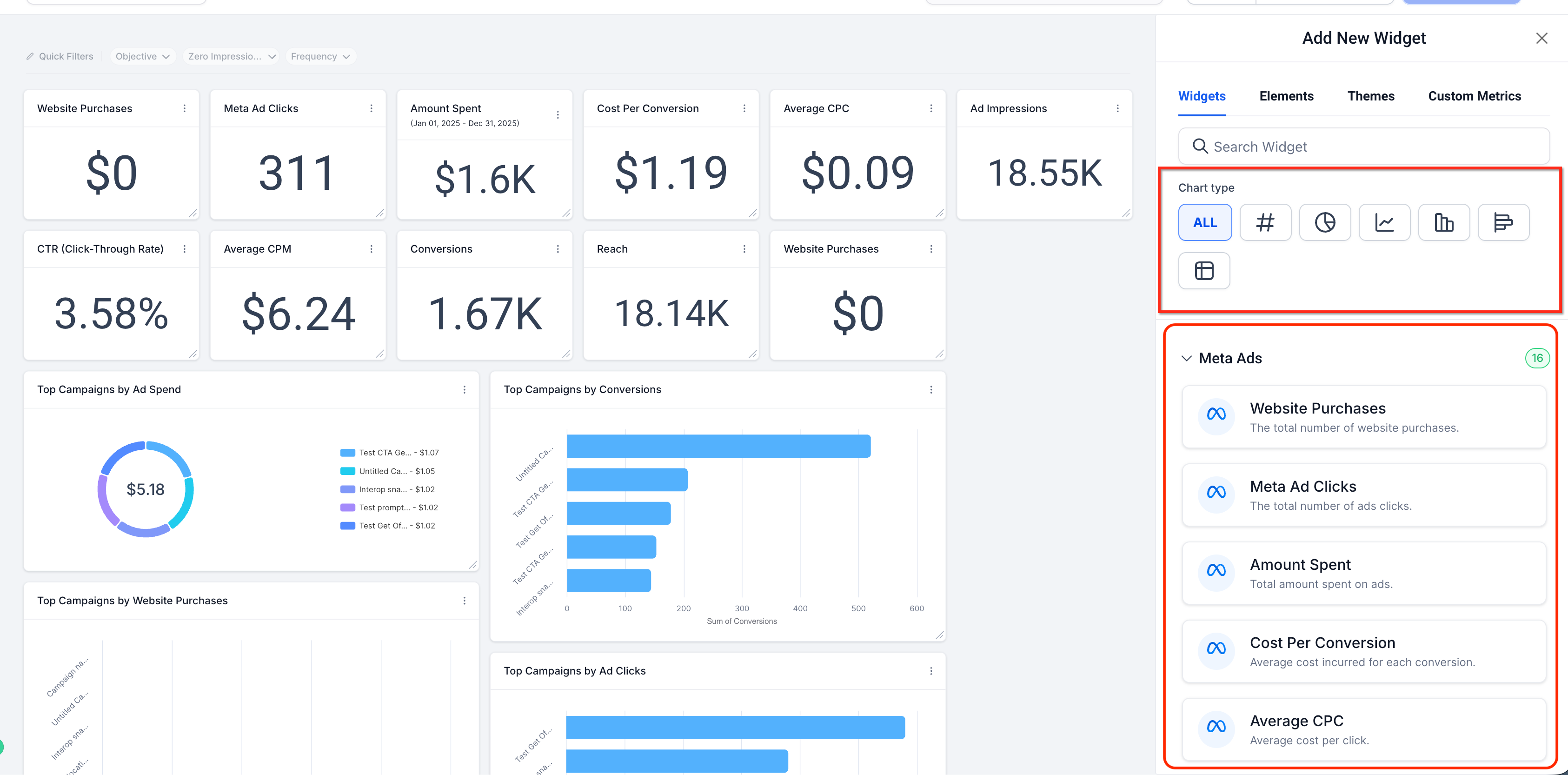
The widget library includes numeric, donut, line, bar and table styles, plus ready made top campaign tables. Users can filter by campaign, date range or other parameters and apply custom themes or colors to match branding. The same library works in both dashboards for at a glance monitoring and in custom reports for scheduled email delivery.
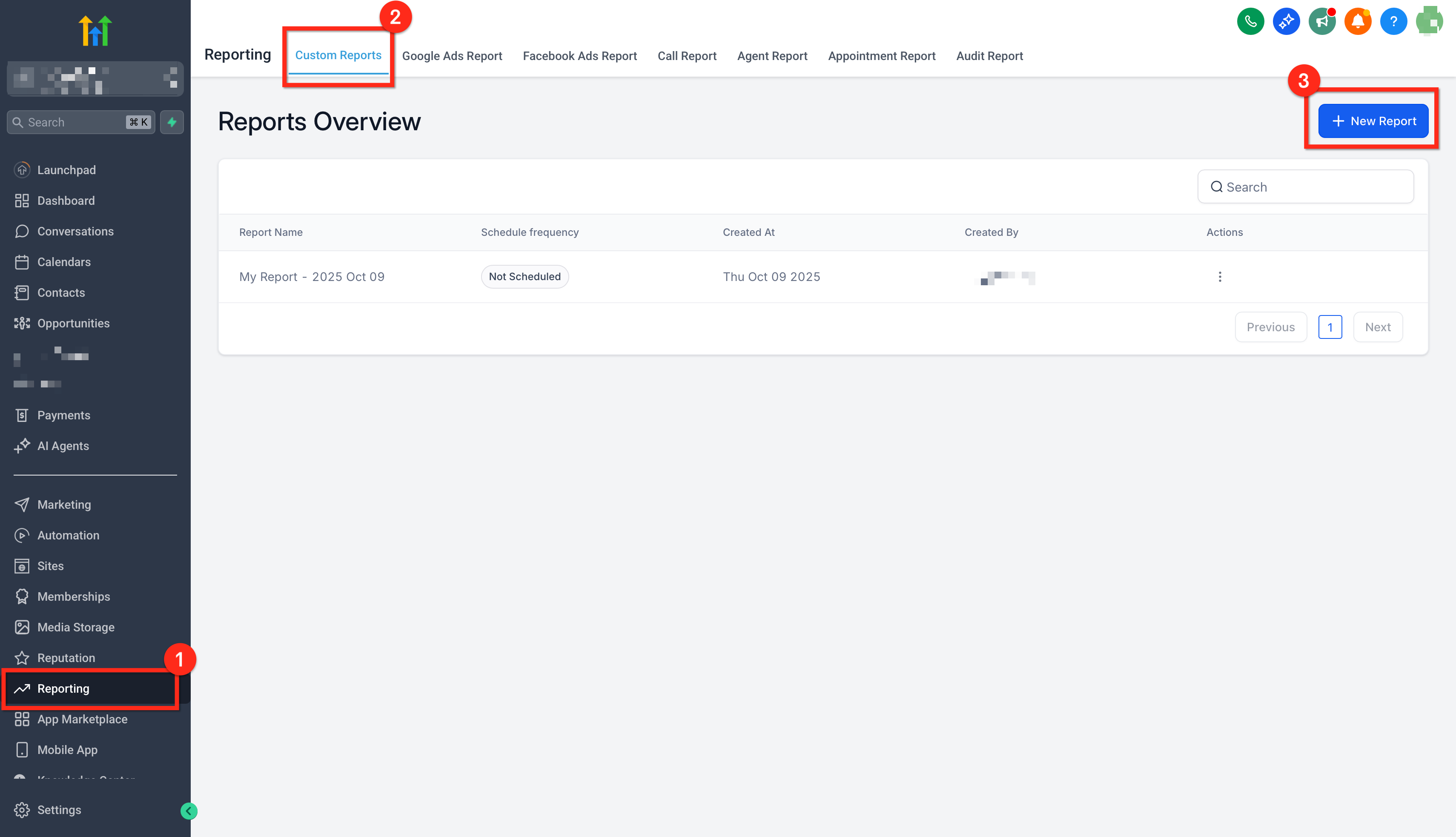
These widgets live in the dashboard area of each subaccount or within the custom report builder under Reporting > Custom Reports. They share the same metric list, so you can mix Meta data with other ad network widgets on the same screen.
03How businesses use Meta Ad Widgets
- Ecommerce store. Open the store’s subaccount dashboard, add a line chart widget from the Meta Ads category to track daily spend and conversions, and set a date range filter for the last 30 days. Save the widget to see real time results alongside sales metrics.
- Local service agency. Create a custom report for each client, drag a table style Top Campaigns by Conversions widget onto the layout, configure campaign filters to show only the client’s ad sets, and schedule the report to email the client weekly.
- Digital marketing consultancy. In a master dashboard, add a donut widget that displays the current CTR for all managed Meta accounts, apply a universal theme to keep branding consistent, and share the dashboard with team members who have edit permissions.
04The numbers and rules that matter
- Metrics include Website Purchases, Conversions, Meta Ad Clicks, Amount Spent, Average CPC, Cost Per Conversion, Ad Impressions, Reach, Average CPM, CTR.
- Chart types available: Numeric, Donut, Line, Bar, Table.
05Before you start
- Connect a Meta ad account via Settings > Integrations > Facebook (LeadConnector).
- Grant LeadConnector permissions for the Business Manager, ad account and any pages to be reported.
- Confirm that users have permission to view or edit dashboards and to create or schedule reports.
06How to set up and use Meta Ad Widgets in HighLevel
Add widgets to a dashboard
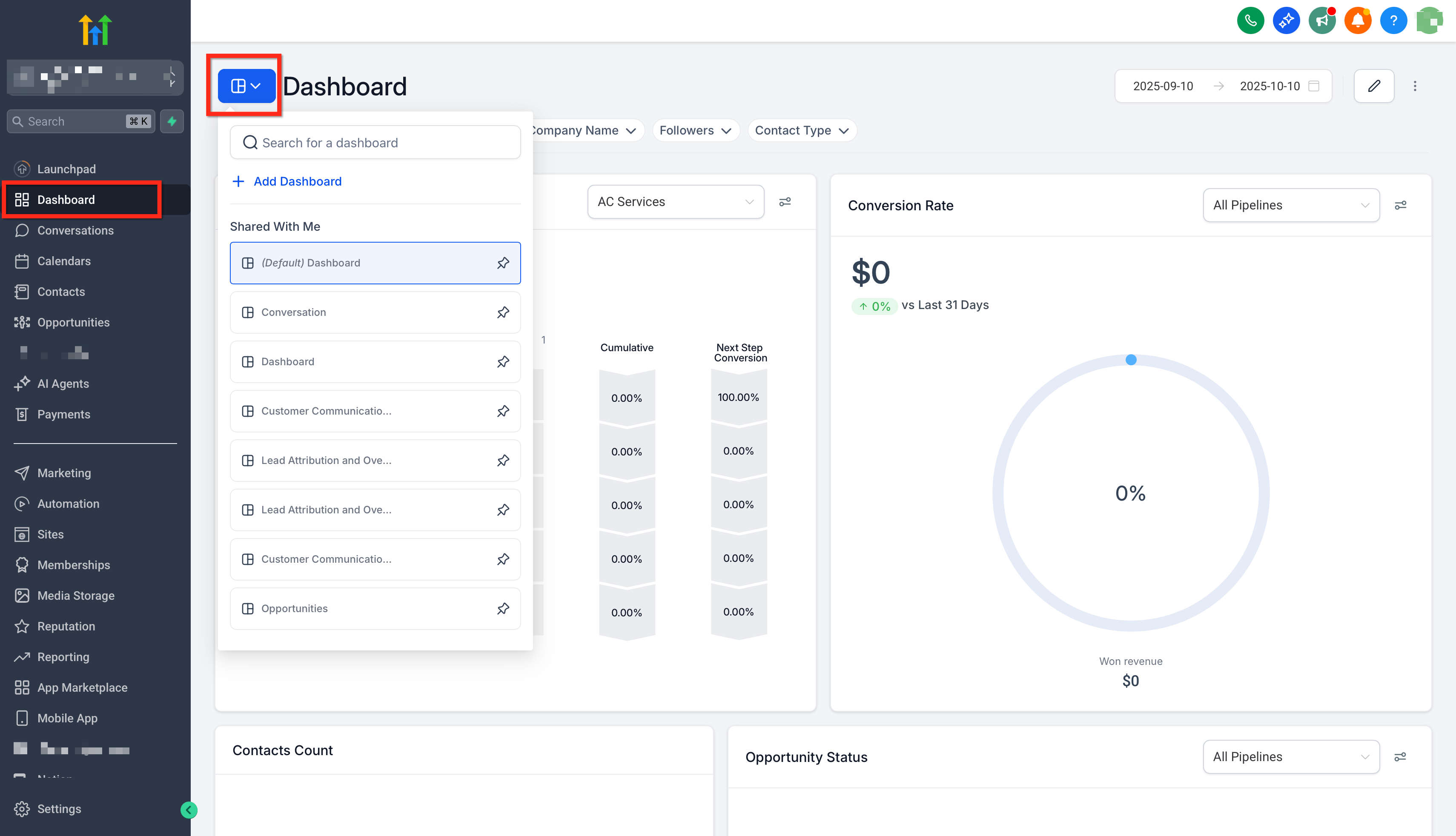
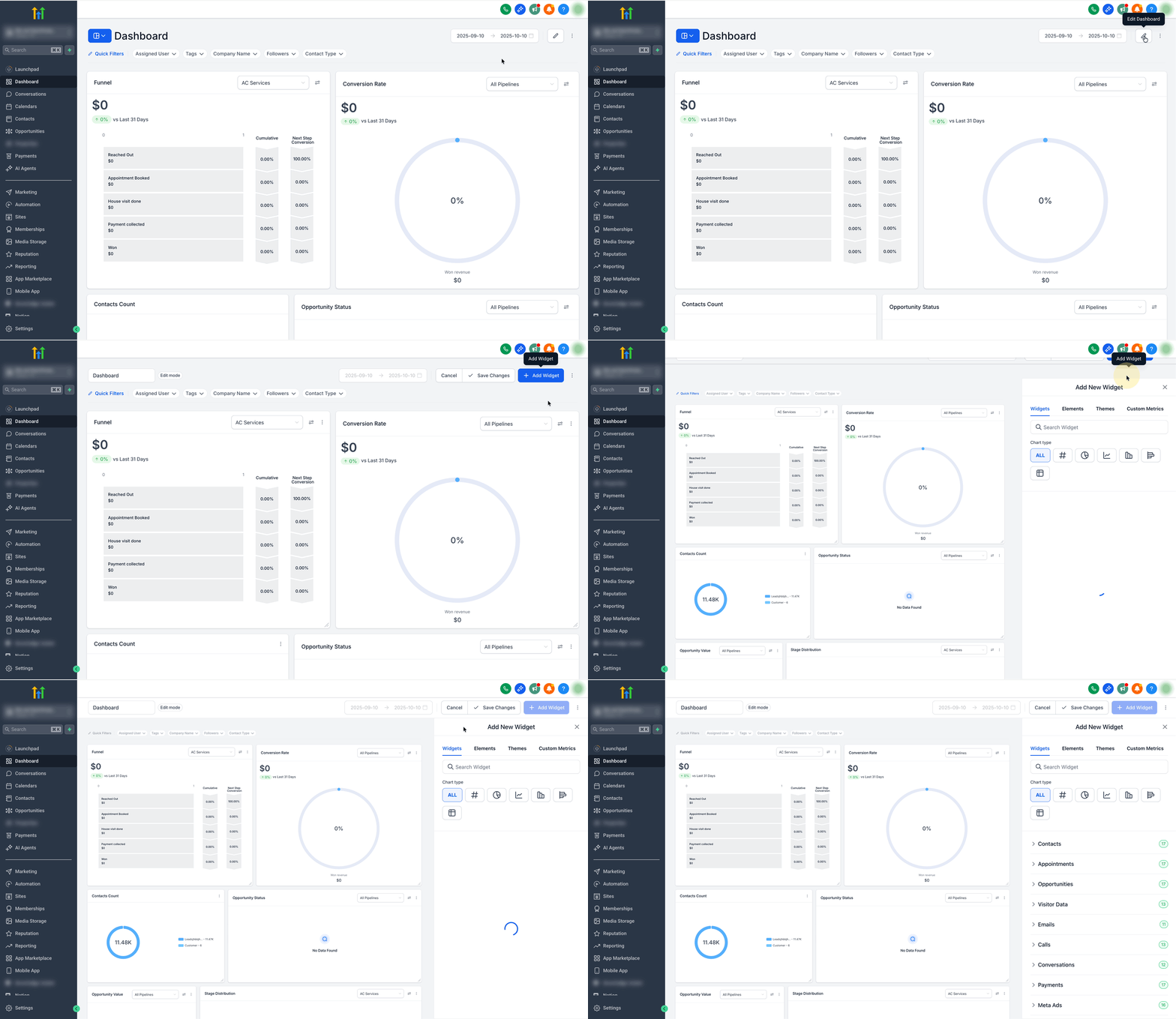
- In the subaccount, open the desired dashboard and click the blue button in the top left corner.
- Select Edit Dashboard and then click Add Widget.
- Pick a chart type such as Numeric, Donut, Line, Bar or Table, scroll to the Meta Ads category, and choose a metric or a Top Campaigns widget.
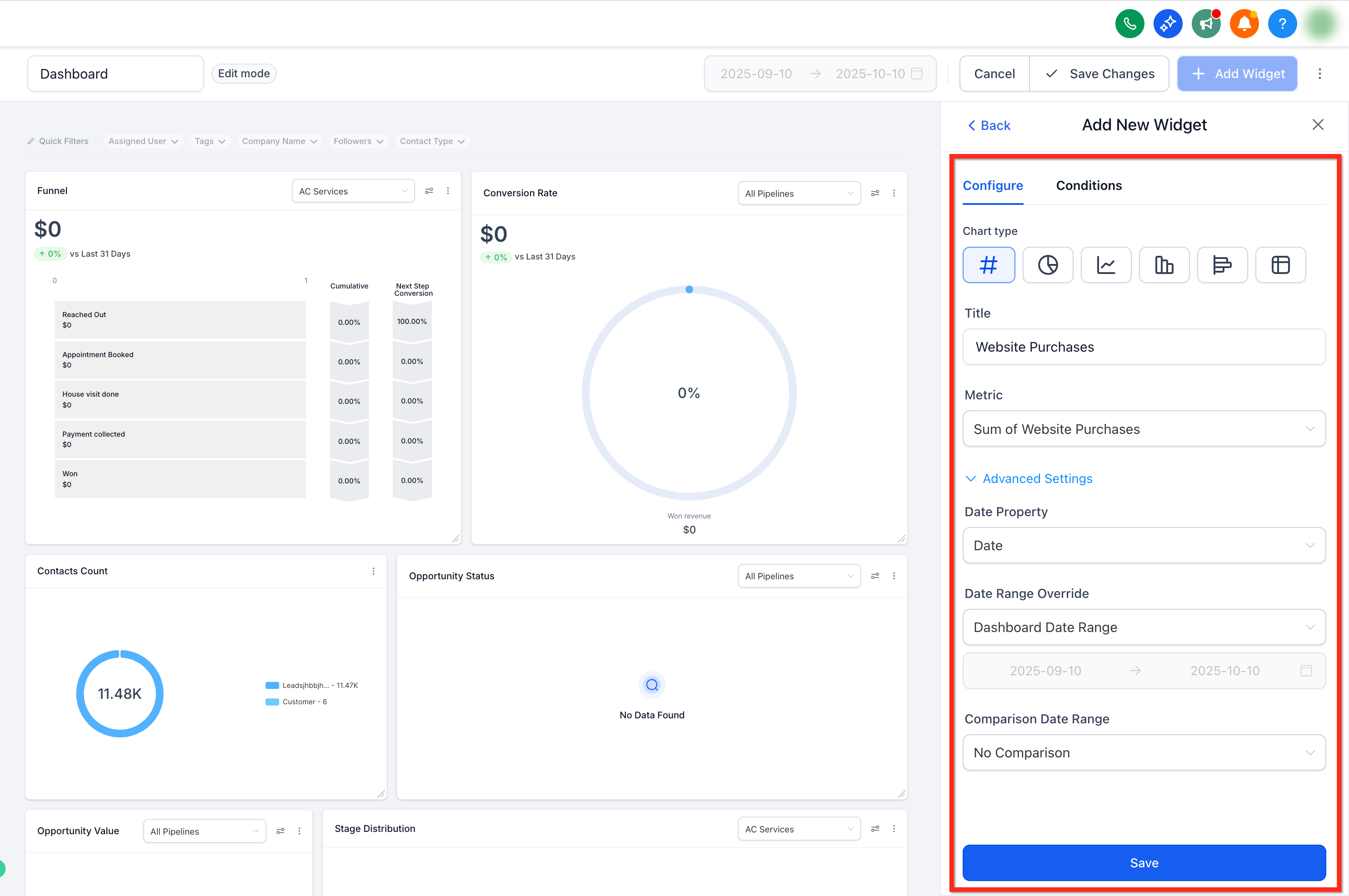
- Apply any filters like campaign, metric or date range, and adjust the theme or colors if needed.
- Click Save so the widget begins streaming ad data.
Add widgets to a custom report
- In the subaccount, go to Reporting > Custom Reports and open an existing report or click New Report.
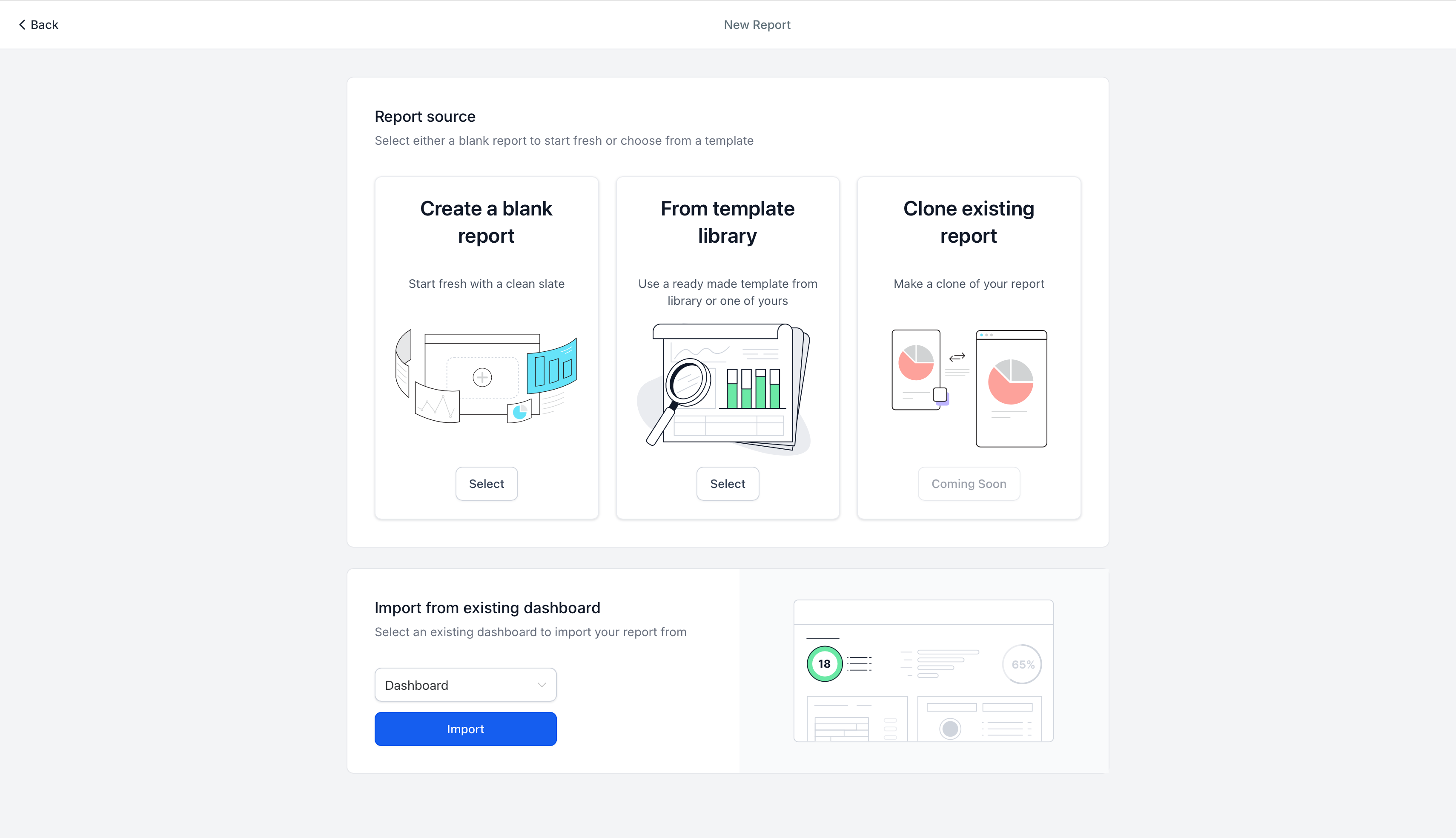
- Choose a blank canvas, a template, or import a dashboard layout as the starting point.
- Click Add Widget/Element at the top left, locate Meta widgets, and drag the desired ones onto the layout.
- Configure each widget’s chart type, filters and theme, then click Save.
- Press Send or Schedule to set up automatic email delivery of the report.
07What it looks like in HighLevel
08Settings that matter
- Chart type. Selects the visual representation for the widget, such as Numeric, Donut, Line, Bar or Table.
- Filters. Limits the data shown in the widget by campaign, metric, date range or other criteria.
- Theme/Colors. Customizes the widget’s appearance to match brand colors or dashboard styling.
09Things to know before you rely on it
- Each subaccount requires its own Meta ad account connection; data does not cross between subaccounts.
- Widgets update automatically; there is no manual refresh option.
- If a widget shows no data, the cause may be an overly narrow date range, restrictive filters, missing permissions, or an unselected eligible ad account.
- Disabling the Meta integration stops data display but retains widget layout and settings.
10If something goes wrong
- Widget appears blank after adding it. Remove restrictive filters, widen the selected date range, and verify that LeadConnector permissions and the Meta ad account connection are correct.
11How it connects to the rest of HighLevel
- Learn how to add and customize dashboard widgets in HighLevel. Dashboard widgets guide
- Step by step instructions for creating custom dashboards. Custom dashboard guide
- View pricing details and plan eligibility for Meta widget access. Pricing page
Michael's take

Meta Ad Widgets are a clear win for anyone who wants ad data in the same screen as their sales funnel.
If you never look at Facebook ad numbers while working in HighLevel, you can skip this feature.