
01Who this is for
- Founders who need a quick overview of multiple performance areas without opening each chart.
- Marketing teams that want to spot lead source shifts or ad spend trends at a glance.
- Operations managers looking for task completion alerts and potential bottlenecks.
02Dashboard Summary AI, explained
Dashboard Summary AI scans the widgets on a chosen dashboard and writes a concise narrative of the most important findings. It groups insights by modules such as Opportunities, Lead Sources or Tasks, and highlights performance highlights, potential risks and a final takeaway. The feature lives within the Ask AI panel and can be accessed from any dashboard header.
When you click the Dashboard summary button, Ask AI generates the summary based on the dashboard’s current date range and any applied quick filters. You can view the result as a visual card set or a text based report, use suggested follow ups to dig deeper, or save the output as a permanent dashboard widget for future visits.
03How businesses use Dashboard Summary AI
- Digital marketing agency. The agency opens its client performance dashboard, clicks Dashboard summary, and lets AI highlight revenue related trends. It then adds the AI summary as a widget so the team can see key metrics each morning.
- SaaS startup. The startup selects its sales dashboard, generates a text summary, adjusts the module priority to focus on Opportunities and Tasks, and saves the summary widget to monitor pipeline health without opening each chart.
- Real estate brokerage. The brokerage uses the widget level AI icon on a specific KPI widget to get a focused explanation of pending tasks, then applies a follow up request to explore why task completion rates have dropped.
04The numbers and rules that matter
- Maximum of one AI Summary Widget per dashboard.
- Automatic daily refresh occurs once per day when the dashboard is first opened.
05Before you start
- Ask AI must be enabled for the account.
- A dashboard with at least one widget must exist.
06How to set up and use Dashboard Summary AI in HighLevel
Set up and use Dashboard Summary AI
- Log in to your HighLevel subaccount.
- Navigate to Dashboards and open the desired dashboard.
- Select the date range and apply any quick filters you need.
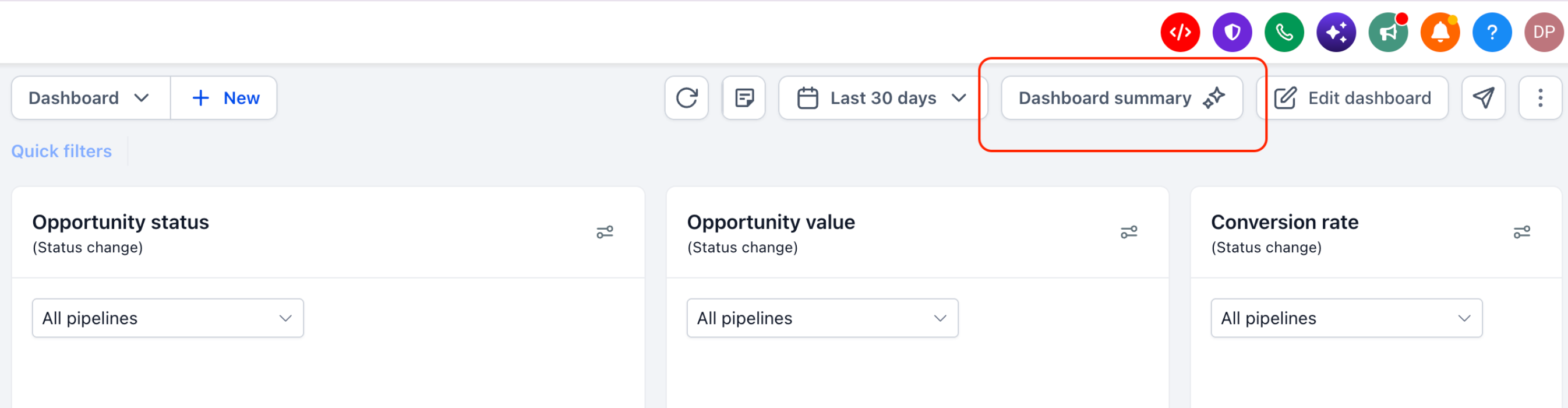
- Click Dashboard summary in the dashboard header.
- Wait for the Ask AI panel to generate the summary.
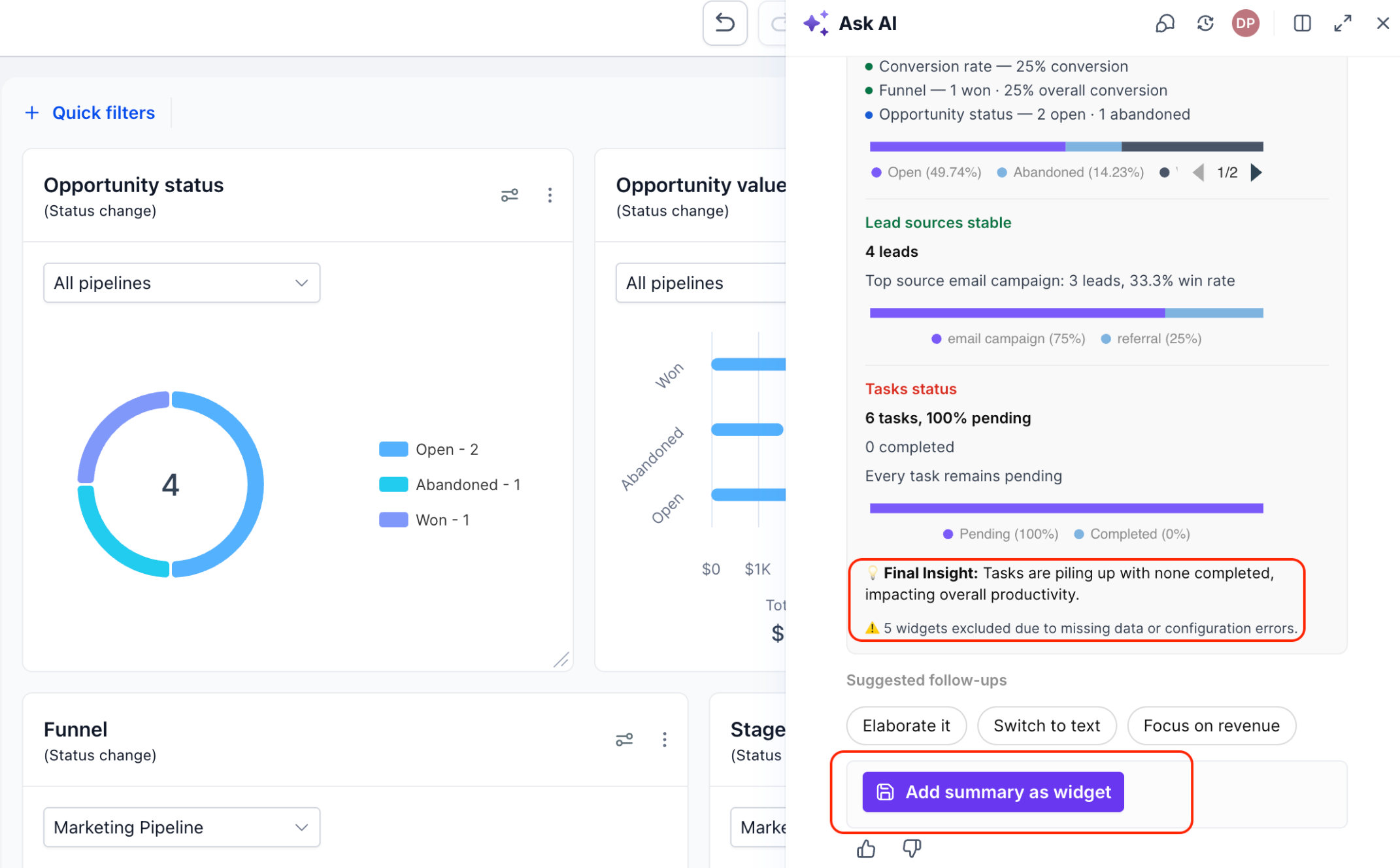
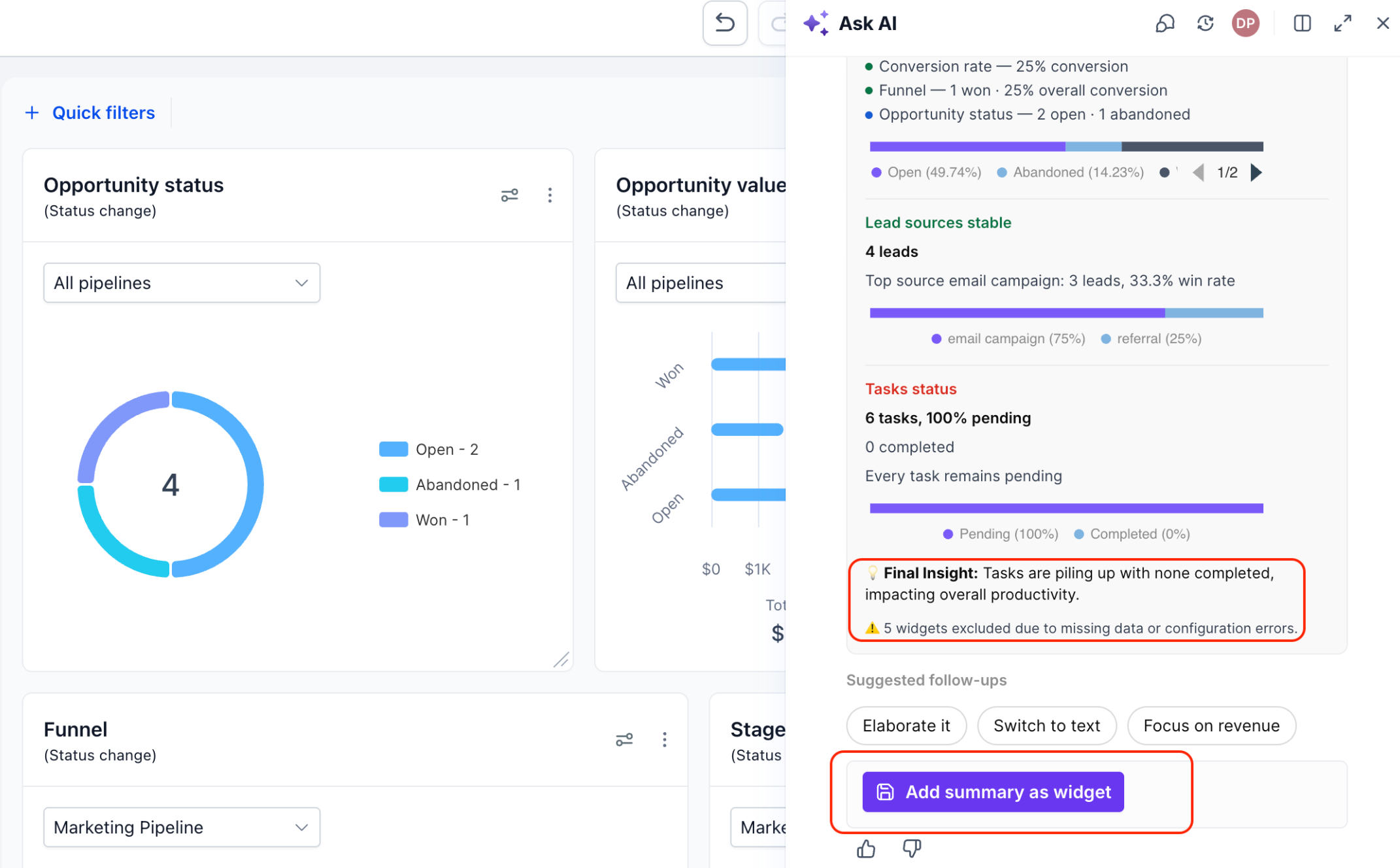
- Review the AI generated insights, performance highlights and any exclusion warnings.
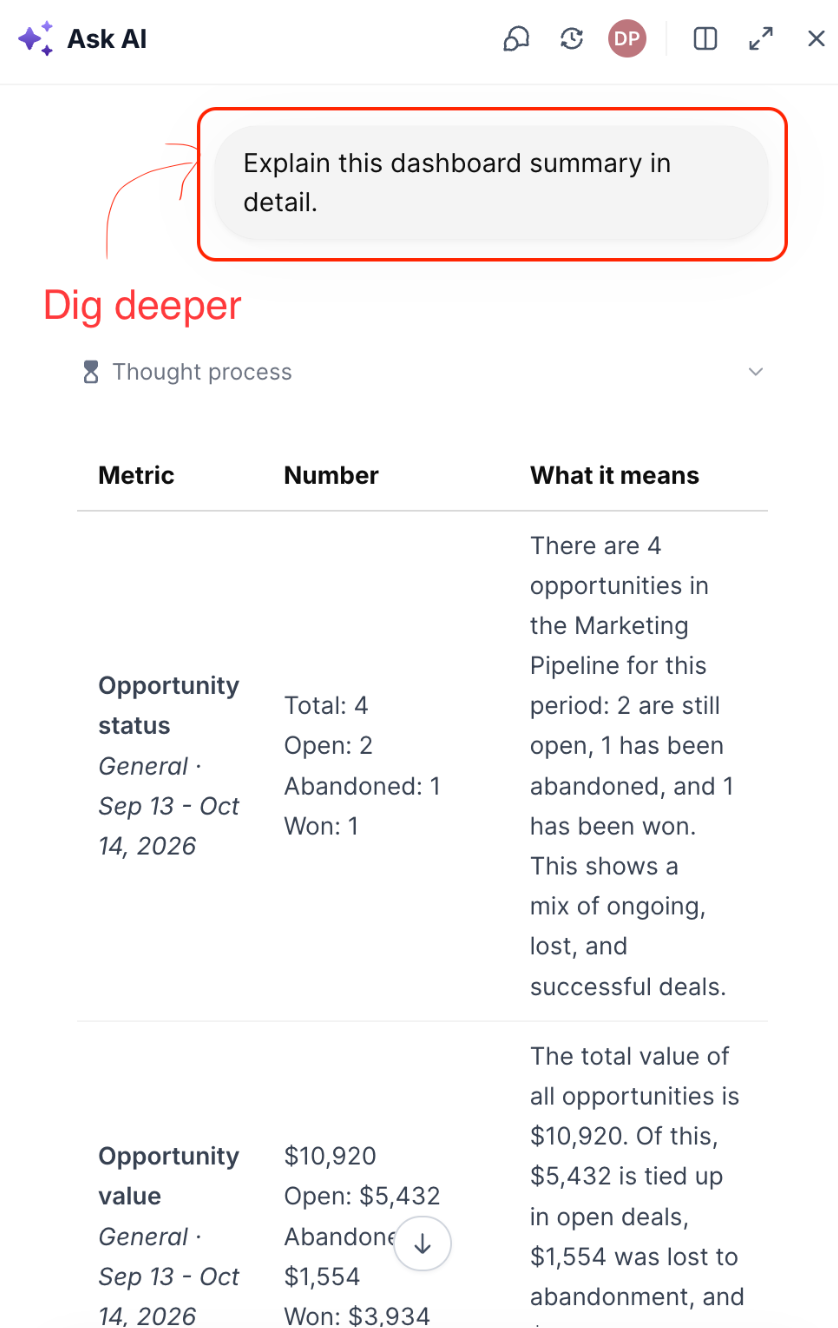
- Choose a suggested follow up such as Elaborate it or Switch to text.
- If desired, click Add summary as widget to save the AI summary on the dashboard.
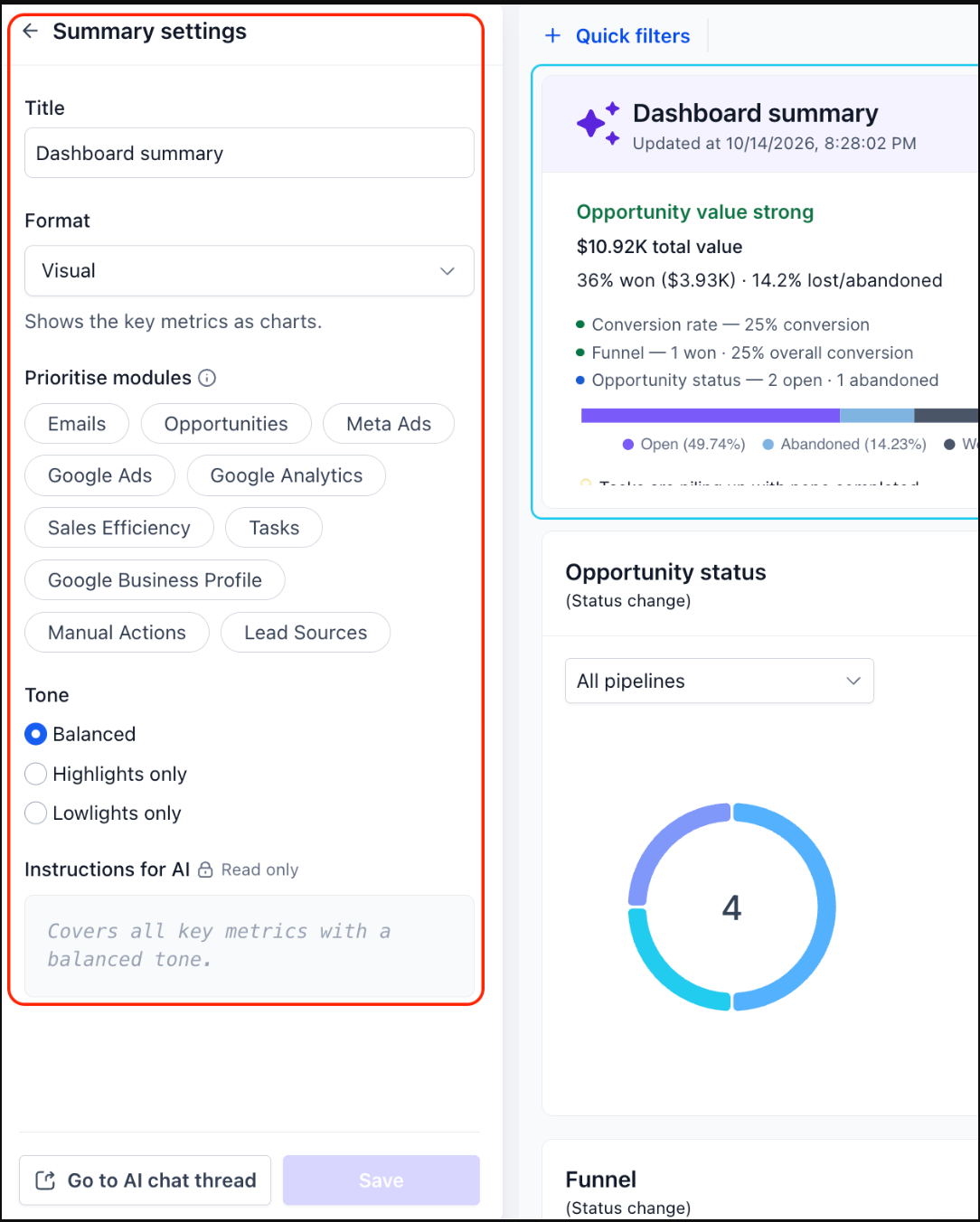
- Open the Summary settings on the saved widget and adjust Title, Format, Prioritised modules and Tone.
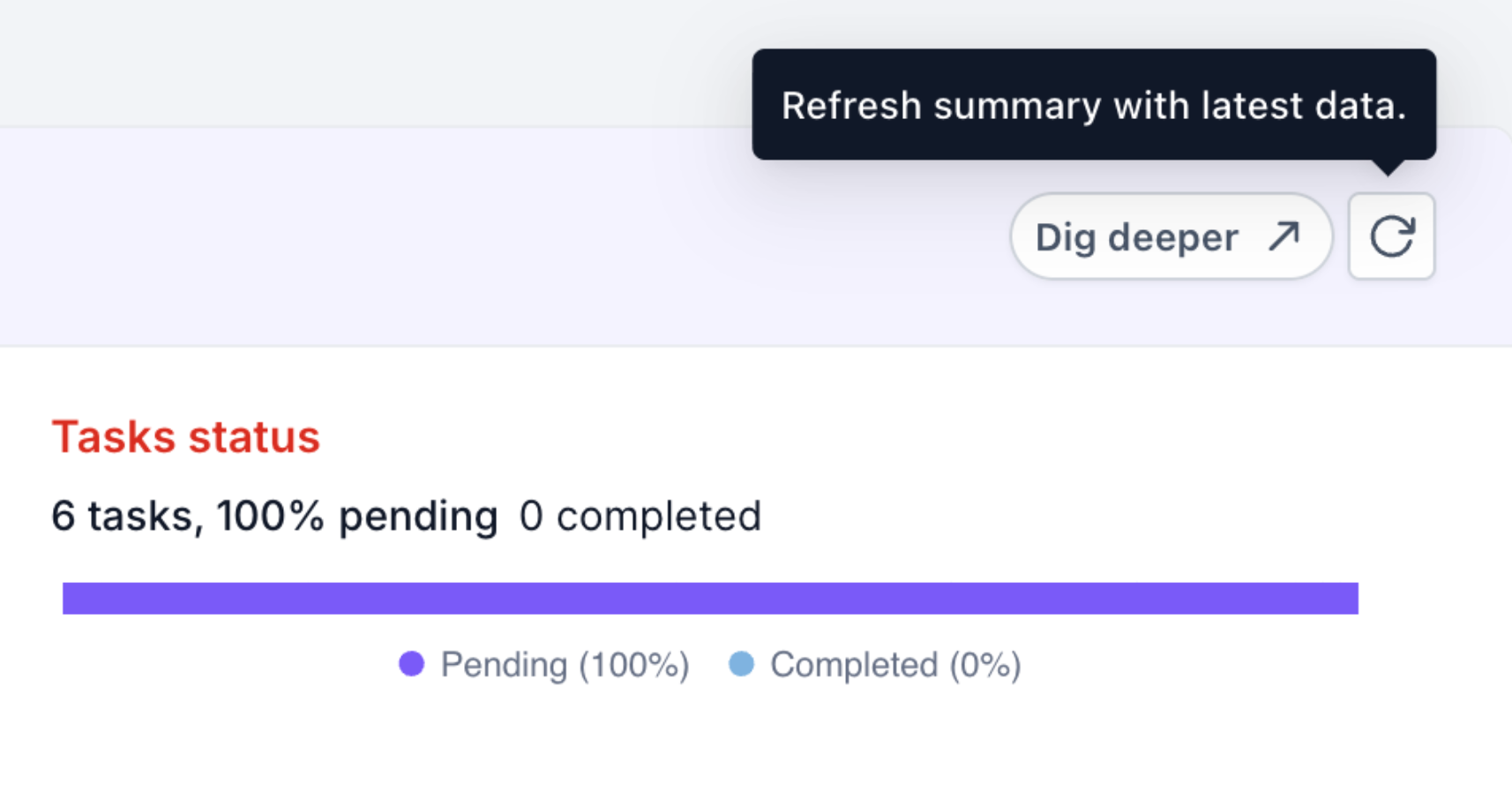
- To refresh manually, locate the Refresh icon on the widget and click it; otherwise it updates automatically once per day when the dashboard is first opened.
07What it looks like in HighLevel
08Settings that matter
- Title. Sets the display name of the saved summary widget for easy identification.
- Format. Chooses between a visual card layout or a text based written summary.
- Prioritise Modules. Selects which data modules (e.g., Opportunities, Tasks) the AI should emphasize in the summary.
- Tone. Determines whether the summary highlights balanced findings, only positives, or only areas needing improvement.
- Instructions for AI. Read only field that currently shows default guidance; custom instructions are planned for a future update.
- Go to AI chat thread. Opens the associated Ask AI conversation so you can continue exploring the summary.
09Things to know before you rely on it
- Only one AI Summary Widget can be added to each dashboard.
- The feature is not available on mobile dashboards.
- Widgets that lack data or have configuration errors are excluded from the AI summary and a warning is shown.
- Automatic refresh occurs once per day the first time the dashboard is opened.
10How it connects to the rest of HighLevel
- Create and add custom widgets to enhance your dashboard layout. Create dashboard widgets
- Set permissions to control who can view or edit dashboards. Dashboard permissions
- Review pricing options if you need to upgrade to a plan that includes Ask AI. HighLevel pricing
- Start a free trial to explore Dashboard Summary AI and other AI features. 30 day trial
Michael's take

Dashboard Summary AI feels like a small convenience that can become a real shift for anyone who spends hours combing through charts each week. It turns a jumble of numbers into a readable snapshot, so you can spend more time acting on insights instead of hunting them down.
A boutique marketing agency that tracks leads, ad spend and task completion will love it. The AI pulls together lead source performance, opportunity conversion and task bottlenecks, then presents the top takeaways in a single widget that updates daily.