
01Who this is for
- Founders who track marketing spend across platforms can isolate the exact data needed for each KPI.
- Marketing teams can filter contacts by tags or owners while blending ad performance metrics into one view.
02Custom metrics, explained
Custom Metrics provide a full page editor where you compose formulas from metric tokens. Each token can carry its own filter, letting you limit data by tag, pipeline, owner, or other attributes. The formula can also include values from Meta Ads and Google Analytics, so you can calculate metrics such as cost per conversion or cost per opportunity without leaving the platform. The builder lives inside a dashboard widget; while editing a widget you open the Custom Metric Builder, add tokens, set filters, and save. The resulting metric appears on the dashboard and reacts to the dashboard’s date range. Filtered tokens show a filter icon for quick identification.
03How businesses use custom metrics
- Agency managing multiple client ad accounts. The agency selects a Meta Ads metric like Sum of Spend, adds a filter for a specific source, and divides it by a platform metric to produce a client specific cost per conversion figure displayed on a shared dashboard.
- Ecommerce store tracking website traffic. The store pulls Google Analytics sessions, filters the metric by source (e.g., Facebook), and combines it with sales data to calculate revenue per visitor directly inside a custom metric widget.
- Consulting firm measuring lead quality. The firm adds a filter to the contact count token to include only contacts tagged as "Qualified," then divides that number by total opportunities to see a win rate metric on their performance dashboard.
04The numbers and rules that matter
- Meta Ads metrics available: Sum of Spend, Impressions, CTR, CPC, CPM, Conversions, Reach, etc.
05Before you start
- Connect your Google Analytics account under Settings > Integrations before GA metrics appear.
06How to set up and use custom metrics in HighLevel
Add filter to a metric token
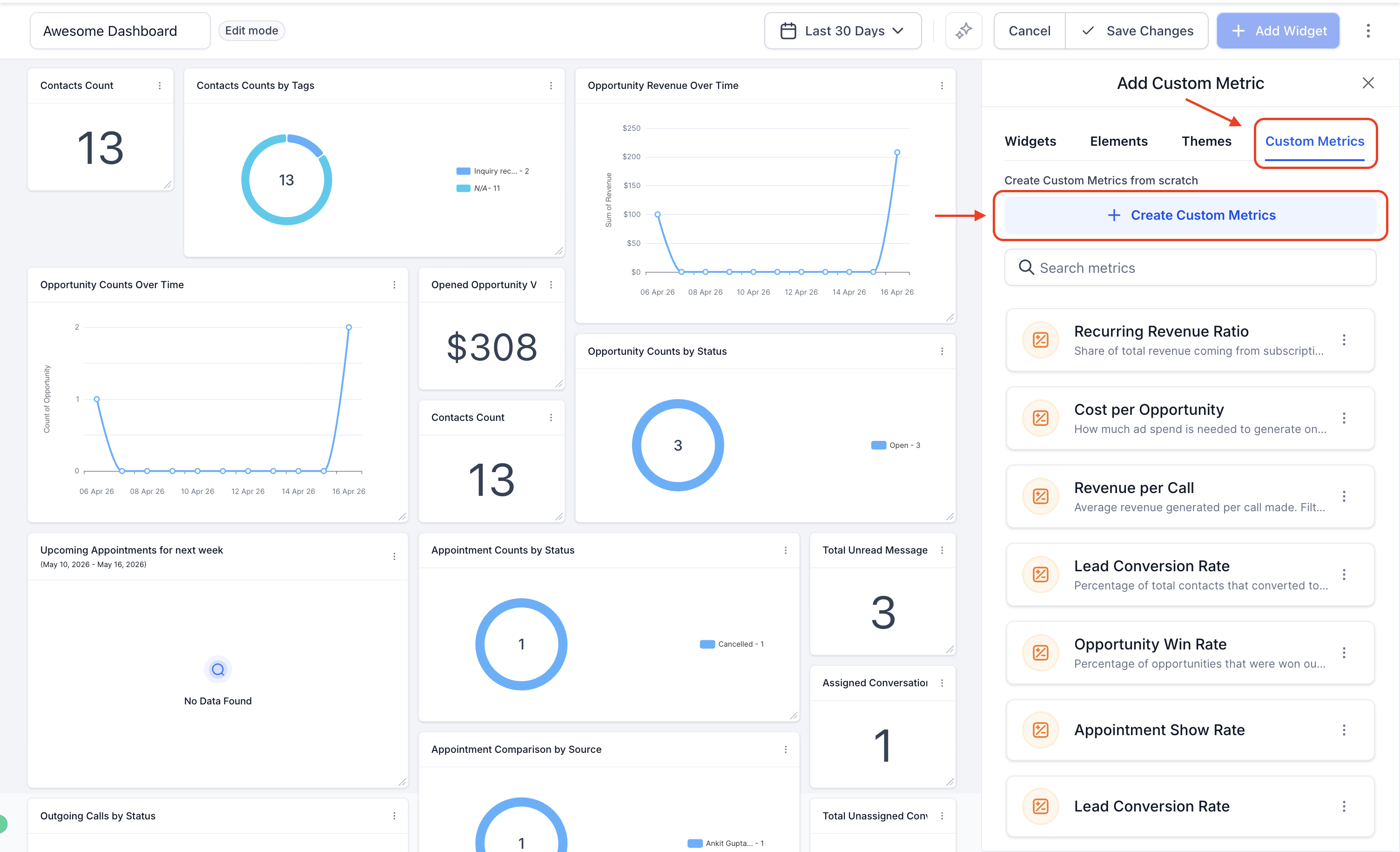
- Open the Custom Metric Builder by navigating to the dashboard, entering edit mode, clicking Add Widget, and opening or creating a custom metric.
- Insert the desired metric tokens into the formula area.
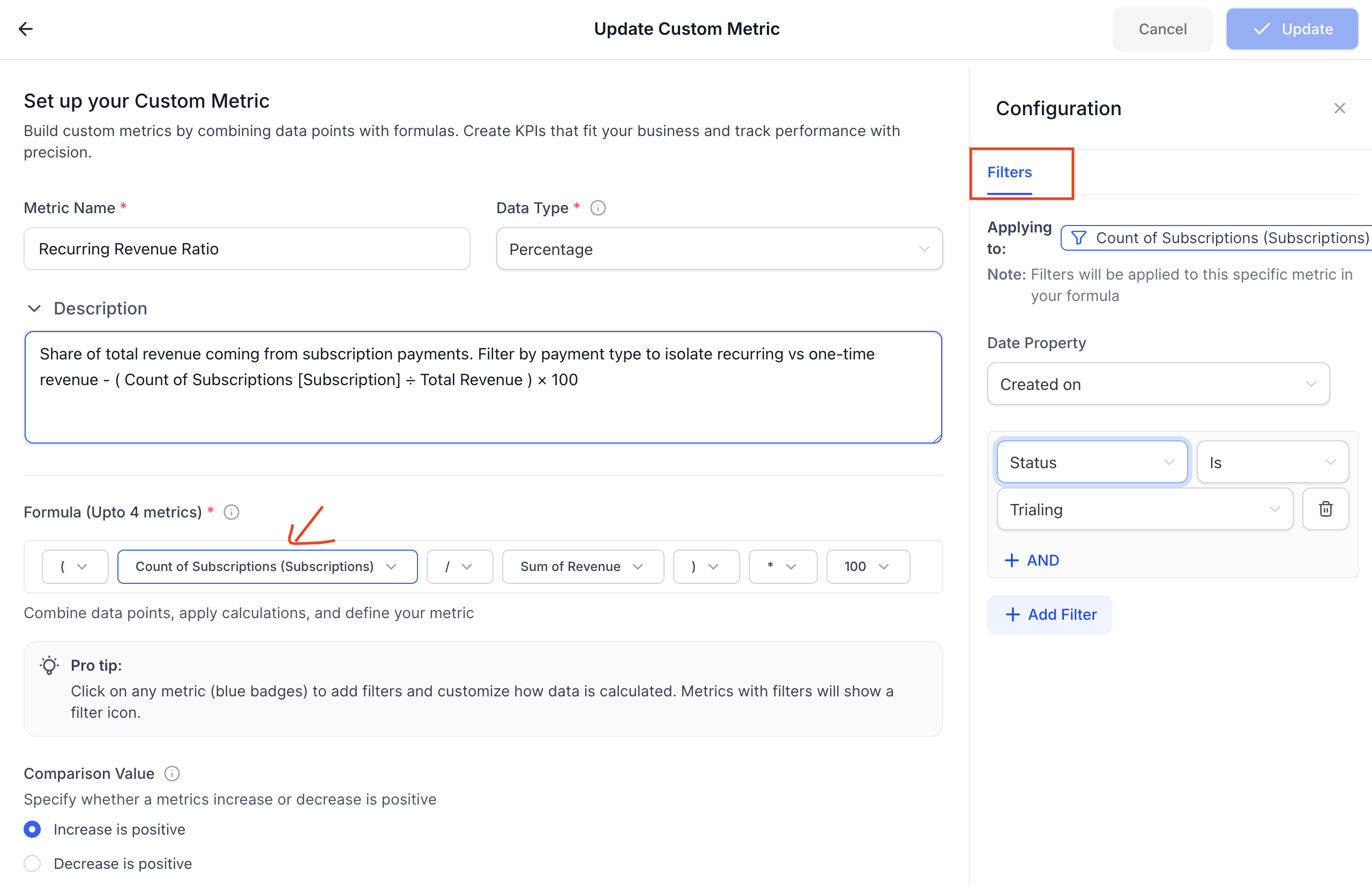
- Click a metric token to reveal the Configuration panel with a Filters tab.
- Choose the date property that the metric will use for its calculations.
- Select a filter attribute, pick an operator, and enter the filter value.
- Click + AND to add additional conditions to the same metric if needed.
- Click + Add Filter to create another filter row for the same metric token.
- Click Update at the top right to save the metric with its filters applied.
Use Meta Ads metrics
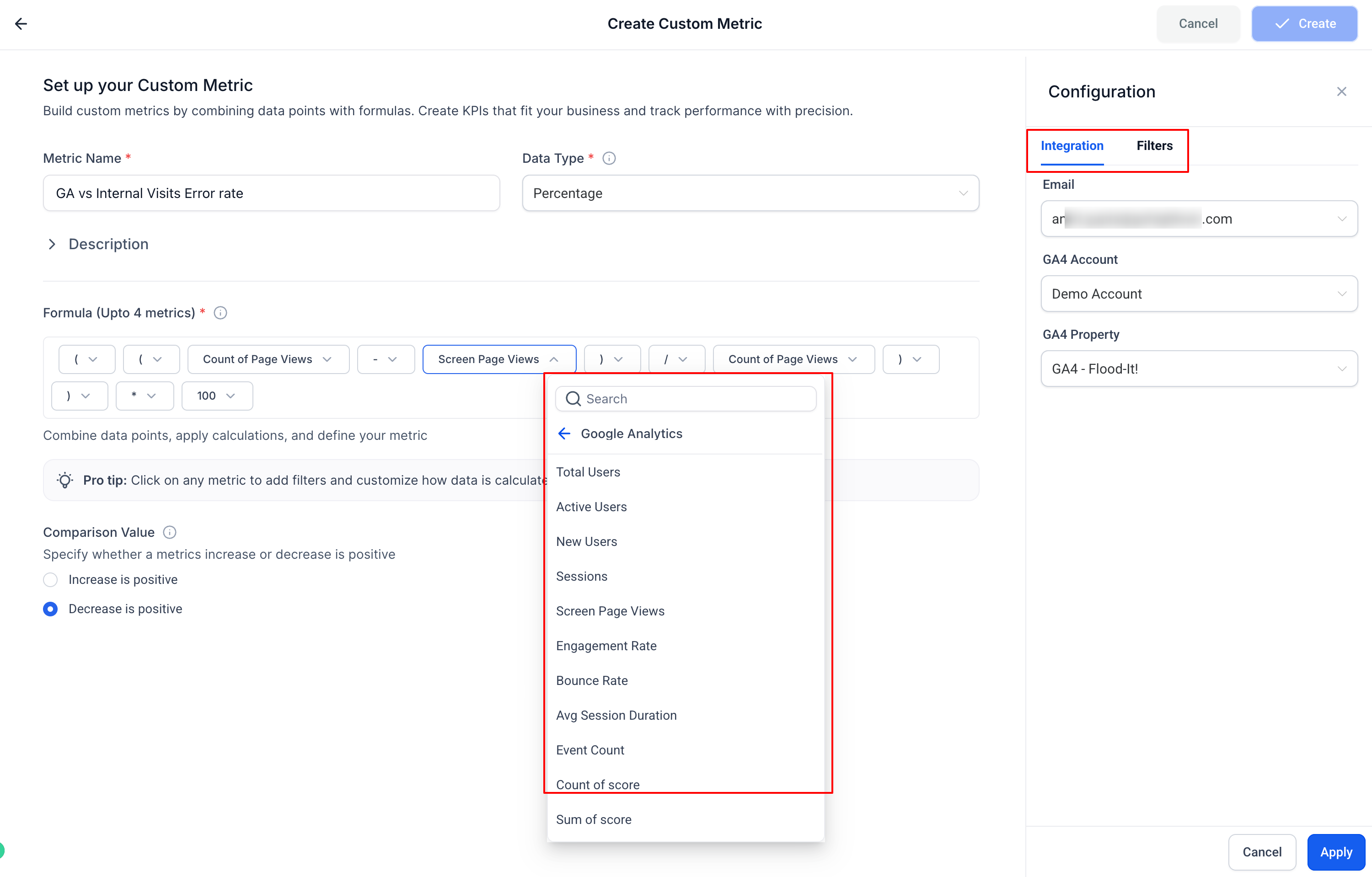
- Click inside the formula field to open the metric picker.
- Select the Meta Ads category from the list of metric groups.
- Pick the specific Meta Ads metric you need, such as Sum of Spend.
- Insert the chosen metric into your formula.
- Combine the Meta Ads metric with other tokens using operators to complete the calculation.
Use Google Analytics metrics
- Click inside the formula field to open the metric picker.
- Select the Google Analytics category from the list of metric groups.
- Choose the required Google Analytics metric, for example Sum of Spend.
- Add the selected GA metric to your formula.
- Combine the GA metric with platform metrics using operators to finish the formula.
07What it looks like in HighLevel
08Settings that matter
- Applying to. Shows which metric token the filter is being applied to.
- Date Property. Specifies the date field (e.g., Created On) that determines the time frame for the filtered metric.
- Filter attribute. The data field used for filtering, such as Tag, Pipeline, Owner, or Source.
- Operator. Defines the condition type, for example Is one of or Is not.
- Filter value. The specific value or list of values the attribute must match.
- + AND. Adds another condition that must also be true for the same metric.
- + Add Filter. Creates an additional filter row for the same metric token.
09Things to know before you rely on it
- Each metric token can hold multiple AND conditions within its filter.
- Filters affect only the token they are attached to; other tokens stay unchanged.
- Meta Ads and Google Analytics metrics honor the dashboard's date range.
- Filtered custom metrics retain their settings when copied via Snapshots, provided the target account has matching data sources and field values.
10If something goes wrong
- Google Analytics or Meta Ads data does not appear in the metric picker. Confirm the appropriate integration is linked under Settings > Integrations for the subaccount.
11How it connects to the rest of HighLevel
- Step by step guide to creating custom metrics Create custom metrics
- Details on embedding external content in dashboard widgets Embed external content
- Information on dashboard permissions and user specific widget settings Dashboard permissions
Michael's take

Most people try to filter the whole formula and end up muddying their numbers. The builder lets you attach a filter to each token, so you can slice contacts by tag while keeping the opportunity count untouched. I would begin with picking the metric I need to narrow. Say contacts with the Customer tag. And add the filter right on that token.
Once the token is filtered, I combine it with the unfiltered totals to get a clean ratio. The result is a metric that tells you exactly how many customers you have without skewing the overall contact count. Test the filters in a sandbox dashboard first, just to confirm the badge icons show up and the numbers match expectations.