
01Who this is for
- Founders of SaaS startups benefit by keeping project details attached to specific custom objects, reducing the need to switch between records.
- Real estate teams gain by attaching property notes directly to listings, ensuring agents see the latest information without searching separate timelines.
02Notes on Custom Objects, explained
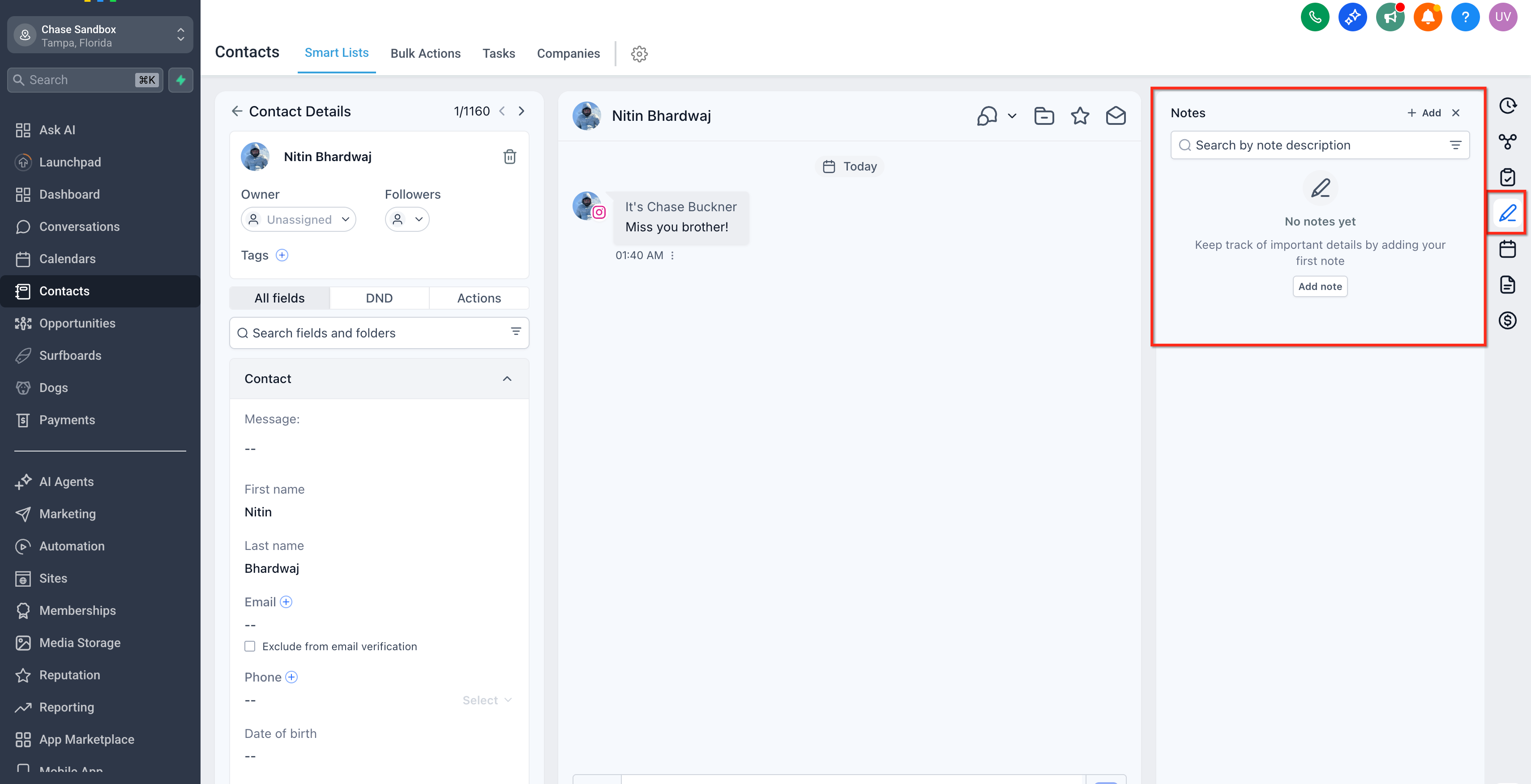
Notes on Custom Objects add the familiar notes interface to any custom object record in HighLevel. The notes appear in a panel on the right side of the record and support typing, saving, searching by keyword, and filtering.
When a note is linked to a contact or opportunity, the same note shows on all associated records, avoiding duplicate copies. Editing the note updates it everywhere it is associated, and associations can be removed without deleting the original note.
The feature lives inside each custom object record page and can also be triggered by workflows that add notes automatically during automated processes.
03How businesses use notes on Custom Objects
- SaaS product team. The team opens a custom object that tracks feature requests, adds a note describing a client conversation, and uses the search box to locate that note later when reviewing the request.
- Real estate brokerage. Agents add a note to a listing custom object with property insights and associate existing client notes, so all relevant information appears on the listing without duplication.
- Marketing agency. The agency creates a workflow that adds a note to a campaign custom object each time a milestone is reached, ensuring the record automatically captures status updates.
04How to set up and use notes on Custom Objects in HighLevel
Add a note manually
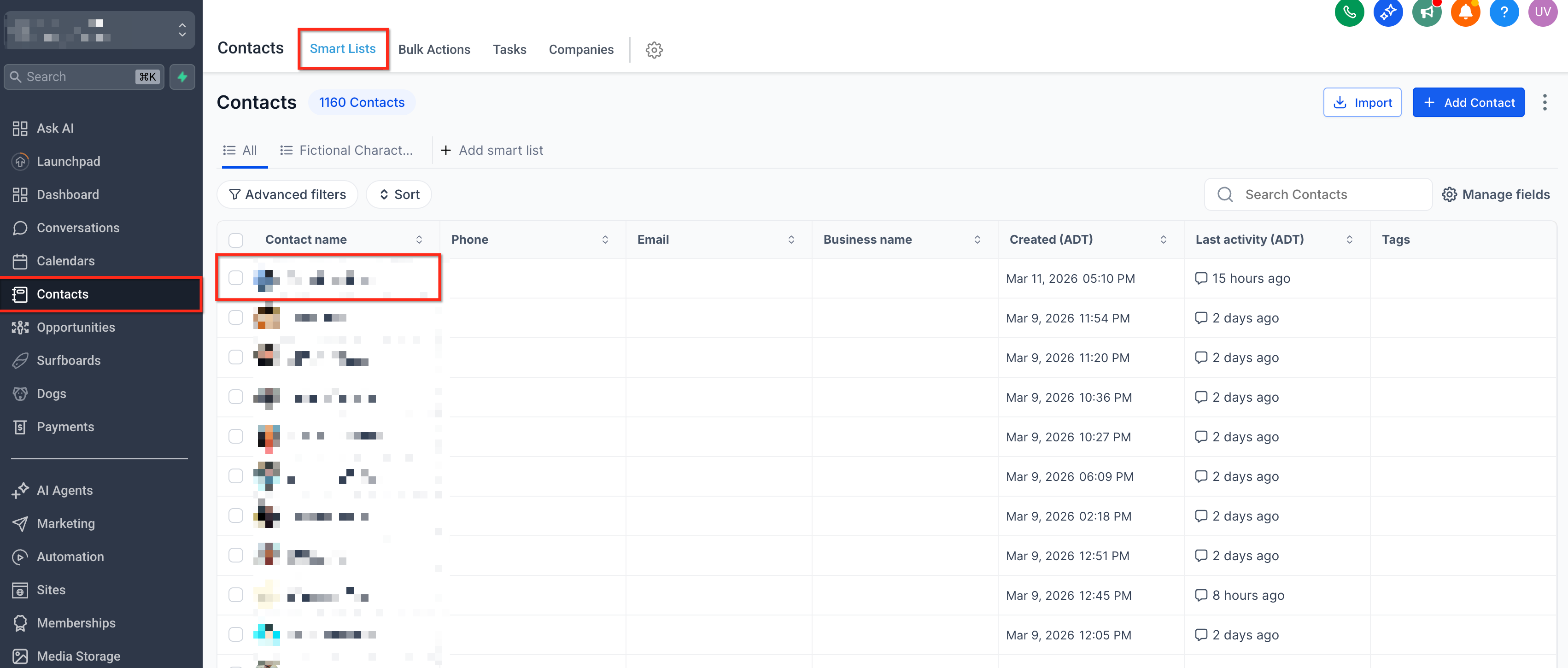
- Navigate to Custom Objects in HighLevel.
- Open the specific Custom Object record where the note is needed.
- Find the Notes panel on the right side of the record.
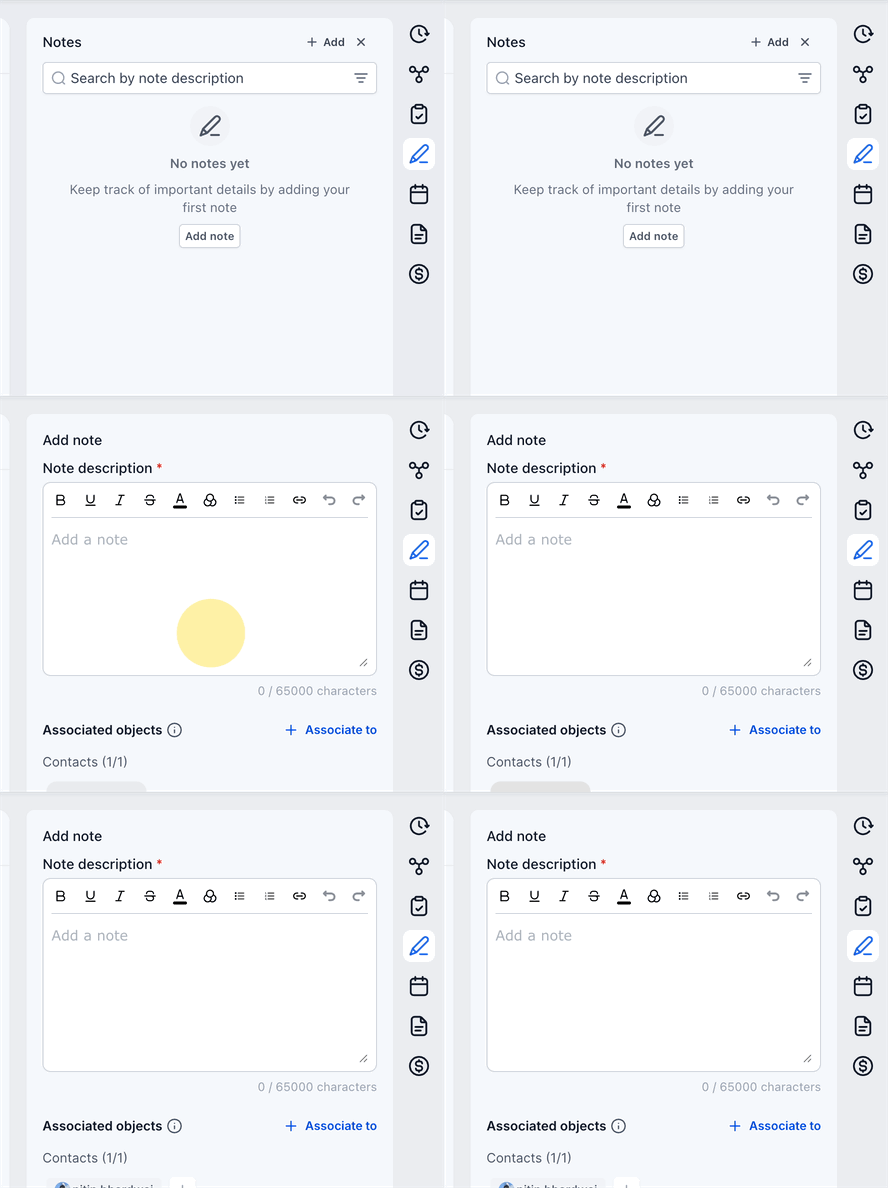
- Click the Add Note button.
- Type the details of the note.
- Click Save to store the note.
Automate notes with a workflow
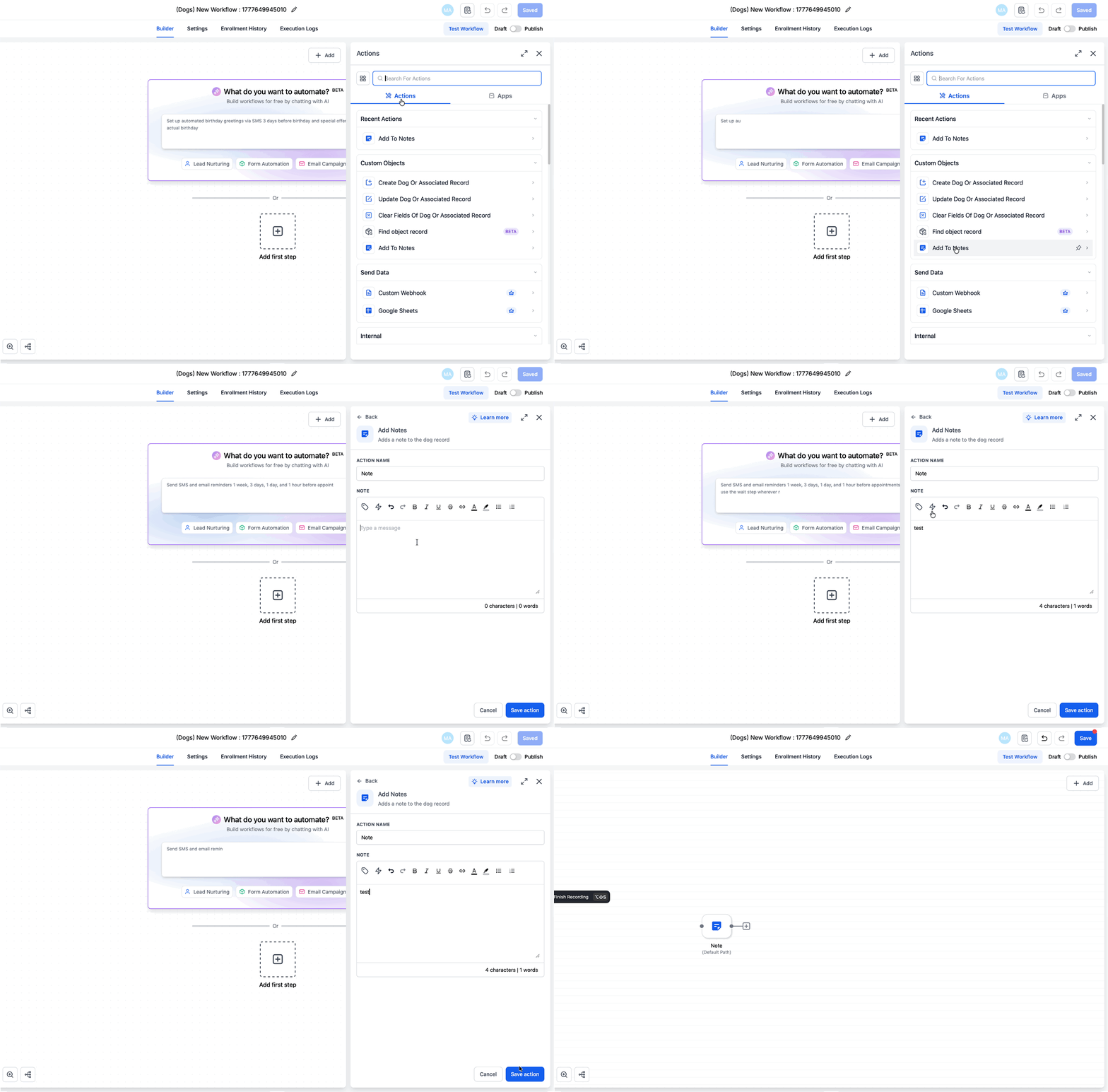
- Open a workflow that targets your custom object.
- Add the Add to Note action within the workflow.
- Enter the note content, then save and publish the workflow.
05What it looks like in HighLevel
06Settings that matter
- Add to Note action. creates a note on a custom object record automatically when the workflow runs
07Things to know before you rely on it
- Note title and note color are not supported for notes added via workflow actions.
- Associated notes appear as a single instance across linked records; they do not generate duplicate copies.
08How it connects to the rest of HighLevel
- Learn how to begin using custom objects in HighLevel. Getting started
- See how to create, edit, and delete custom objects. Create edit delete
- Review a real estate team example of custom objects in use. Real estate case
Michael's take

Wondering if you really need a separate place to keep details for a custom object? The answer is yes when you want that information right where the record lives, instead of hunting through contacts or opportunities. Adding notes directly on a custom object keeps the context visible to anyone working on that record.
If I were setting this up, I’d first add a few notes to a key custom object and then link an existing contact note to see how the single source view works. The workflow option is handy for automated updates, just remember you can’t set a note title or color there yet.