
01Who this is for
- Marketing agencies that need to migrate client data and keep relationships between contacts and custom objects without manual linking.
- Real estate teams importing property listings and automatically tying them to owner contacts or companies.
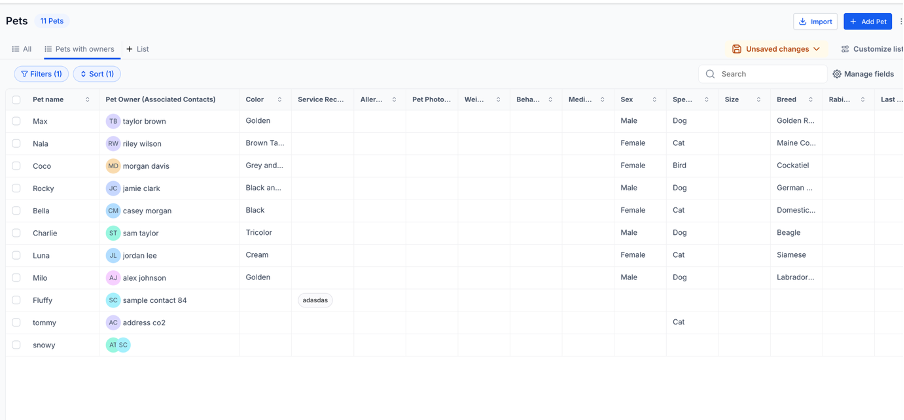
- Veterinary clinics moving pet records and associating each pet with its owner contact.
02Import custom object records with associations, explained
The feature combines the custom object bulk import tool with the Associate Records workflow action. When a CSV is uploaded, each row creates a new custom object record. The workflow then runs, looks for an existing record that matches a specified field, and creates the association defined by the association label.
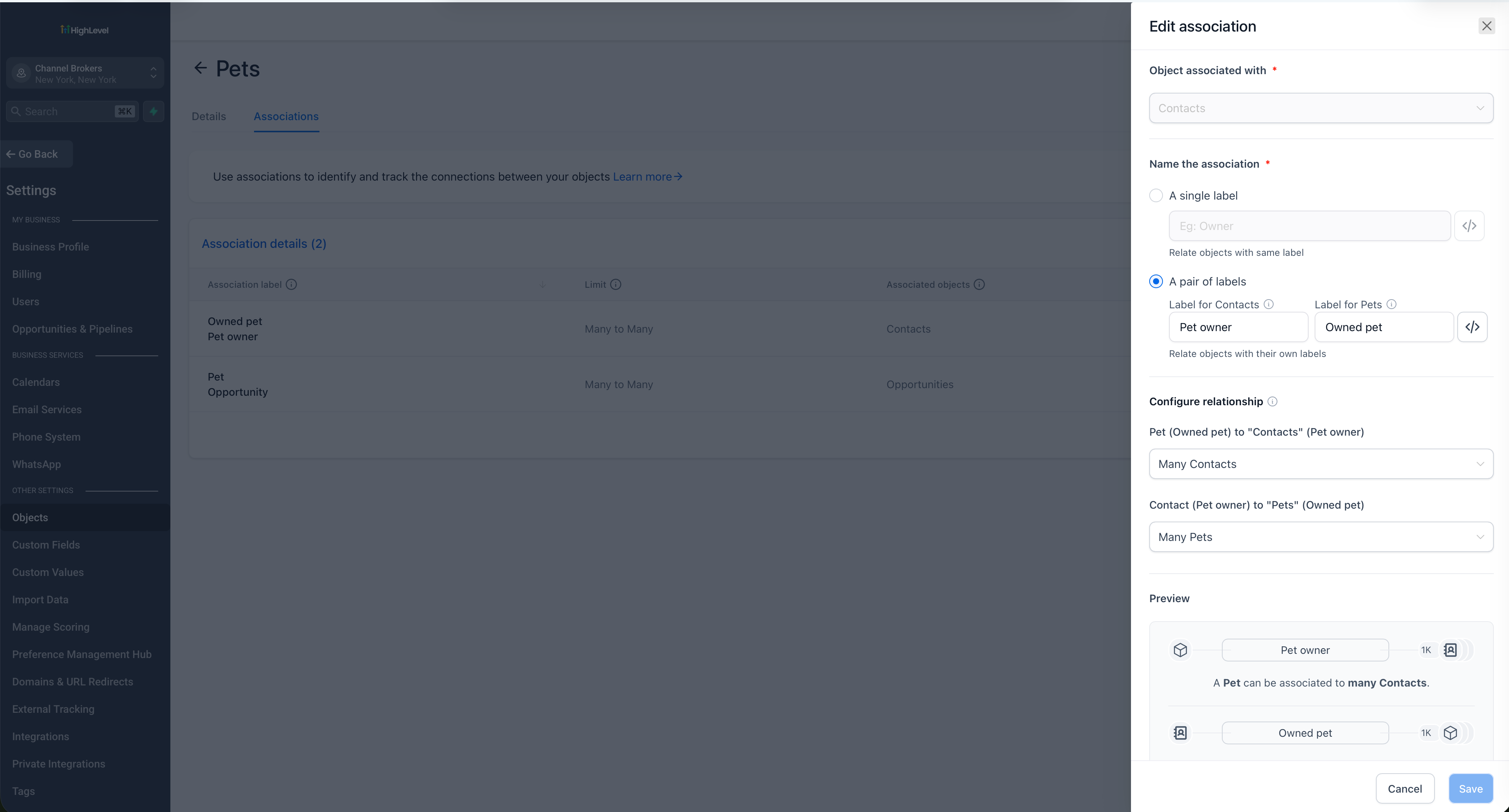
Configuration occurs in three places. First, define the association under Settings > Objects for the custom object. Next, build a workflow for the custom object under Automation > Workflows and add the Associate Records action with the appropriate filters and label. Finally, import the CSV from the custom object’s Import button and monitor the process via Bulk Actions.
03How businesses use import custom object records with associations
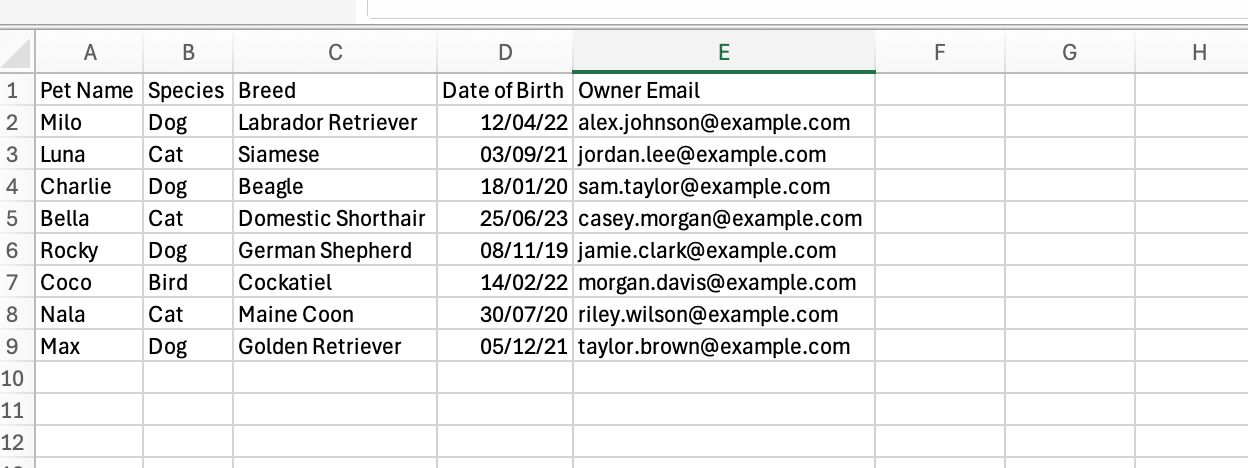
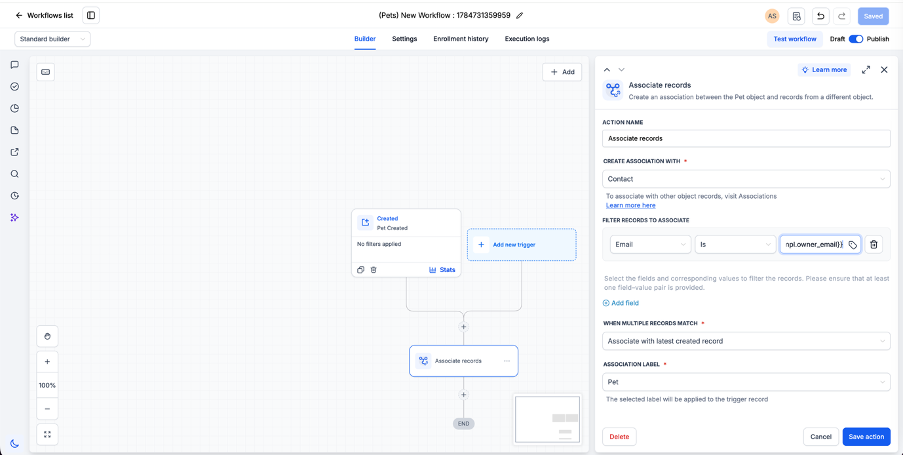
- Veterinary clinic. Create a Pet custom object and include an Owner Email column in the CSV. Build a workflow that triggers on Pet Record Created, adds an Associate Records action that matches Contact Email to Owner Email, and publish it. Import the CSV; each pet record will automatically link to its owner contact.
- Insurance agency. Set up a Policy custom object with a Policyholder Email field. Design a workflow that, on Policy Record Created, associates the record with a Contact whose Email matches the Policyholder Email. After publishing, import policy data; policies connect to the correct policyholder contacts.
- Event management company. Define an Event Registration custom object that contains an Attendee Email column. Create a workflow that triggers on Registration Record Created and uses the Associate Records action to find a Contact with a matching Email, applying an "Attendee" association label. Import registrations to link them automatically.
04The numbers and rules that matter
- Recommended matching fields include email, phone, customer ID, account number, external system ID.
- Association limits configured between objects still apply.
05Before you start
- The custom object and all required fields must already exist.
- An association between the custom object and the target object must be configured.
- The CSV file must contain a column whose values can identify the matching target records.
- A workflow that includes the Associate Records action must be created and published before the import starts.
06How to set up and use import custom object records with associations in HighLevel
Create the required association
- Navigate to Settings > Objects.
- Select the custom object you will import.
- Open the Associations tab and define the associated object and association label.
Prepare the CSV
- Add columns for all fields needed to create the custom object record.
- Add a column that contains the value used to locate the matching target record.
- Make sure a corresponding field exists on the custom object to map the matching column during import.
Create the workflow
- Go to Automation > Workflows and start a new workflow for the custom object.
- Name the workflow appropriately for the object being imported.
- Add a trigger of type "Record Created" for the custom object.
- Insert the "Associate Records" action into the workflow.
- Select the target object under "Create Association With".
- Add a filter that compares a target field to the matching field from the CSV.
- Choose how the workflow should handle multiple matching target records.
- Set the association label and publish the workflow.
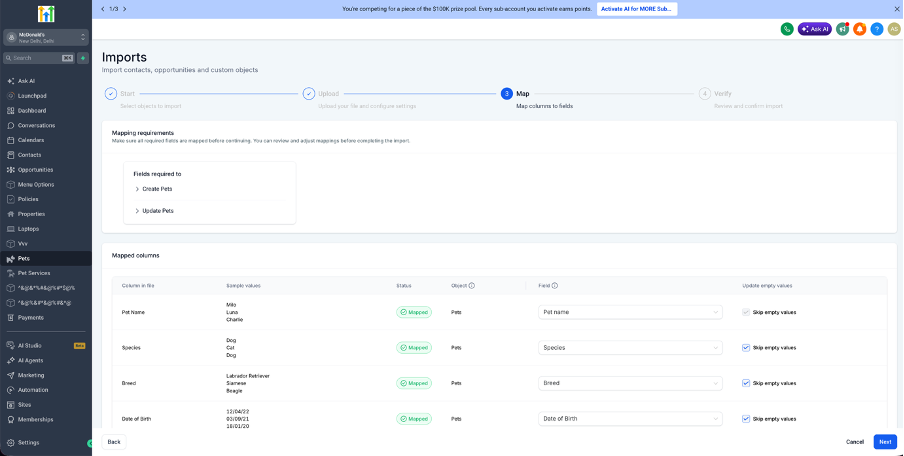
Import the custom object records
- Open the custom object you configured.
- Click the Import button.
- Upload the prepared CSV file.
- Map each CSV column to the appropriate custom object field.
- Review the field mappings for accuracy.
- Start the import process.
- Monitor the import progress under Bulk Actions.
Verify the associations
- Open several of the newly imported custom object records.
- Check the associated records displayed on each record.
- Confirm that the expected association label appears.
- Examine the workflow execution logs for any records that did not receive an association.
07What it looks like in HighLevel
08Settings that matter
- Associate Records. Controls the creation of an association between the imported custom object record and a target object based on matching field criteria.
- Association Label. Specifies the name shown on the custom object record to describe the relationship to the associated target record.
09Things to know before you rely on it
- The association limits configured between the two objects still apply; ensure the limit can accommodate the expected number of links.
- Imports can finish successfully even if the workflow does not find a matching target record for a given custom object record.
10How it connects to the rest of HighLevel
- Learn how to set up custom objects before importing records. Getting started with custom objects
- Details on the Associate Records workflow action used for linking records. Workflow actions and triggers
- Guide to bulk importing custom object records with the platform’s Bulk Actions feature. Bulk import custom object records
Michael's take

It removes the need to manually associate each record after an import, especially for businesses that already have contacts or companies set up.
I’d test with a handful of rows first, just to make sure the email match works, then let the bulk import handle the rest.