
01Who this is for
- Founders who need to clean large data imports quickly, reducing manual effort.
- Operations managers overseeing company and task records who must guard against accidental loss.
- Marketing teams that use custom objects for lead tracking and require a fast way to purge outdated entries.
02Bulk delete and restore records, explained
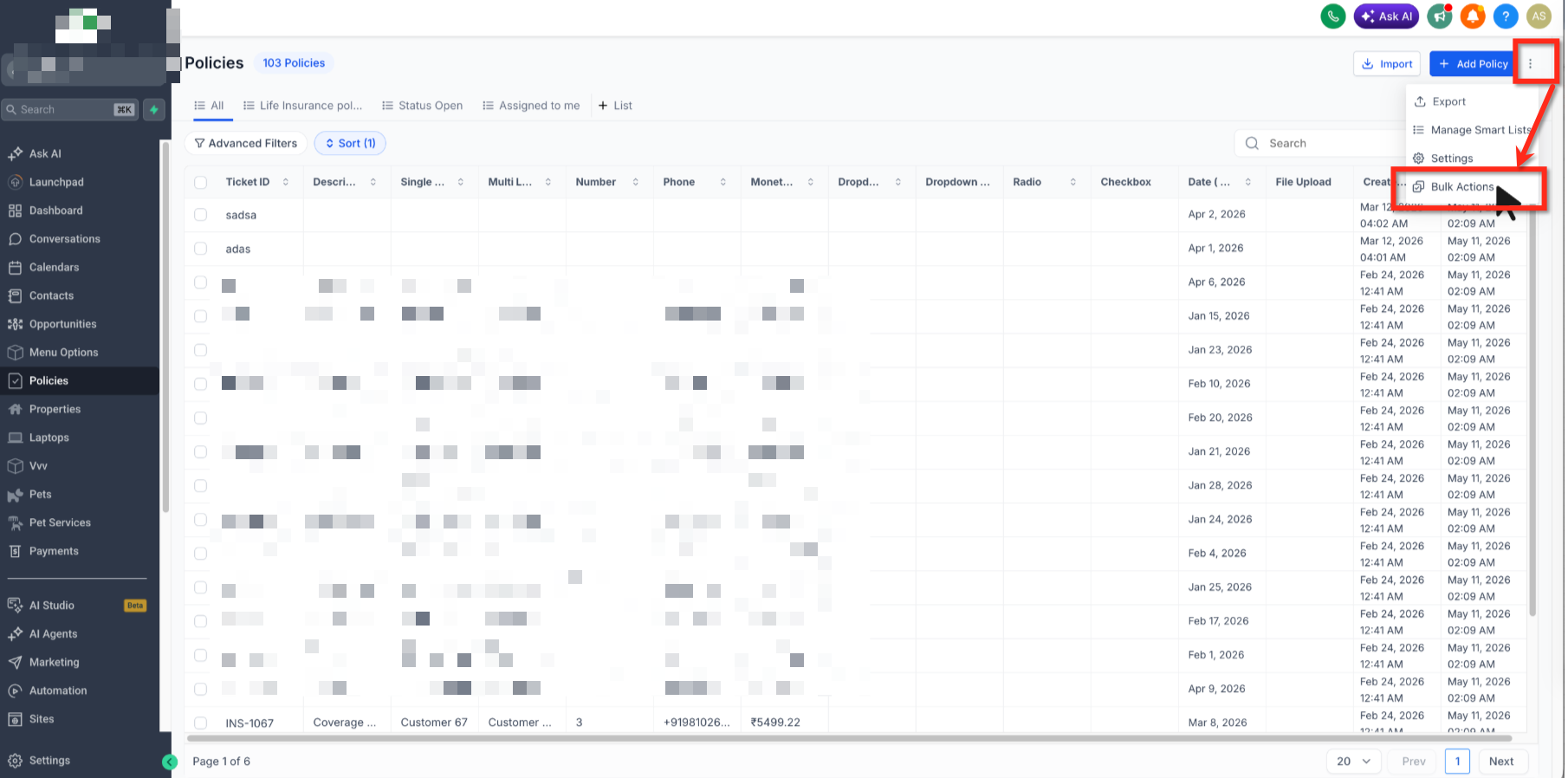
Bulk delete works from the list view of Custom Objects, Companies, or Tasks. You select multiple rows with checkboxes and trigger a single delete command. The platform removes the chosen records and also clears any relations, associations, and association labels tied to them, while leaving the related records untouched.
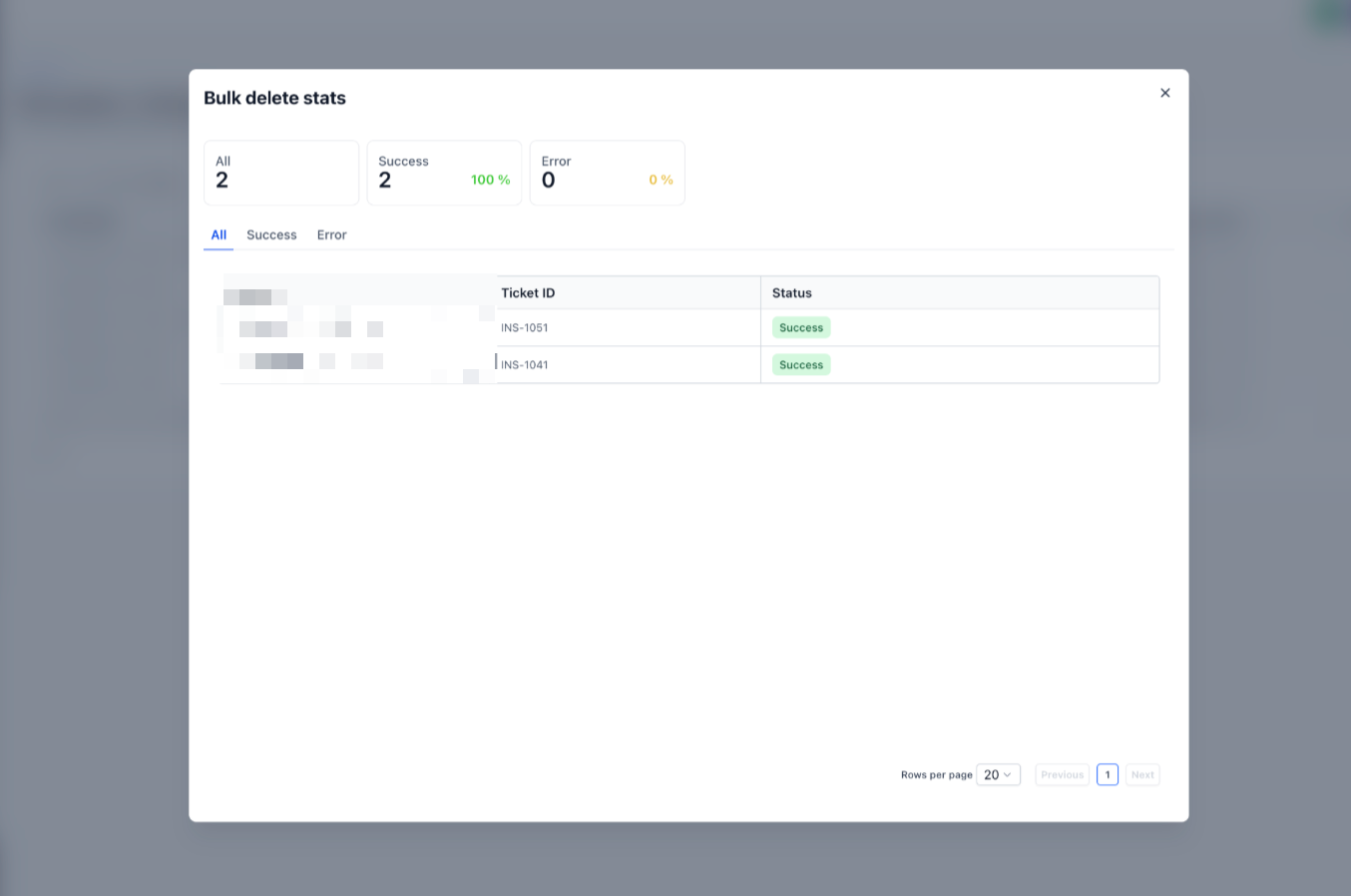
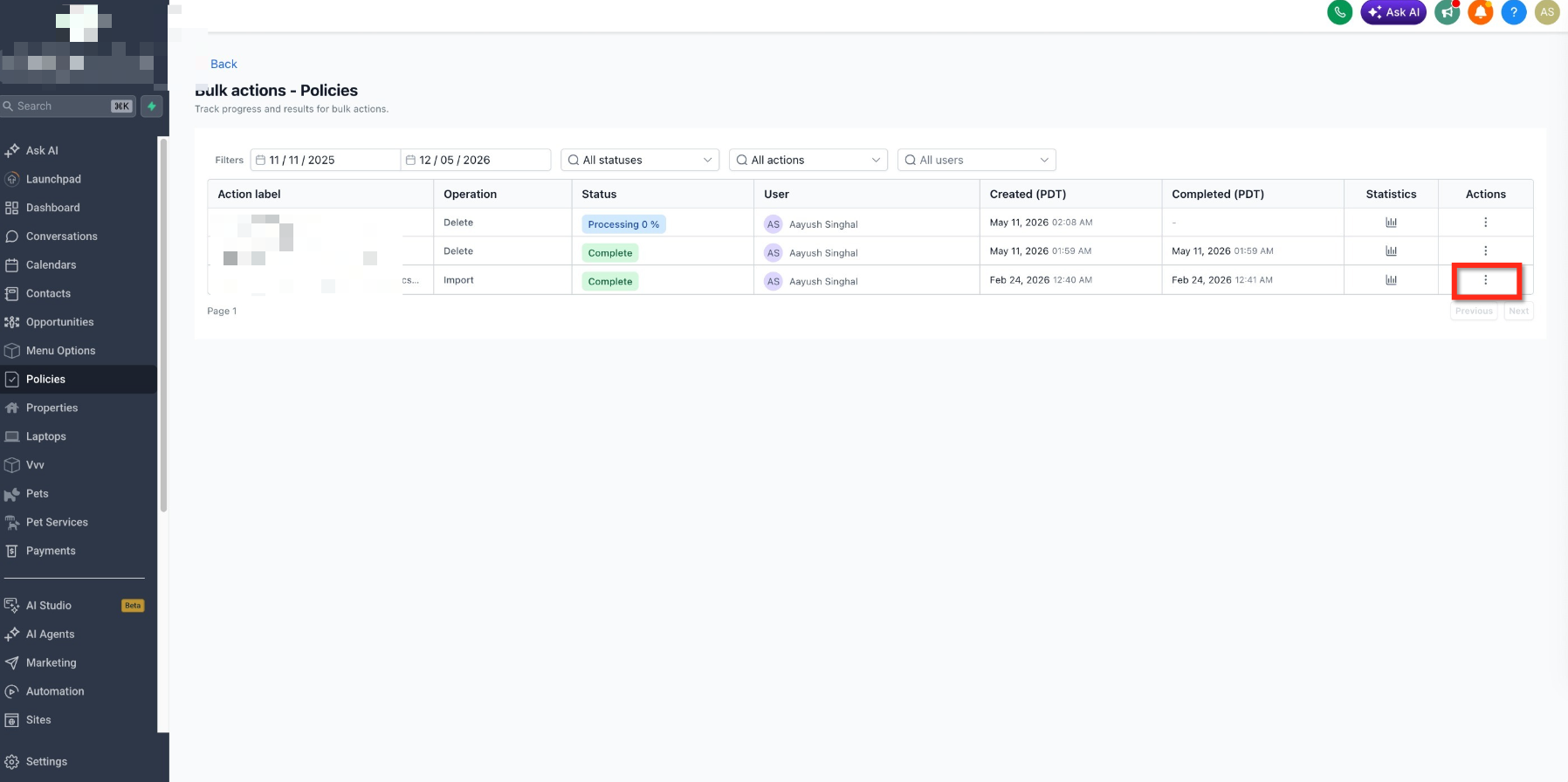
After the delete job runs, HighLevel logs it on the Bulk Actions page. From there you can monitor progress and, if needed, restore the records while the 60 day recovery window is open. Restoring recreates the deleted entries but does not automatically rebuild the cleared relationships.
The feature lives in the main area of each module (Custom Objects, Companies, Tasks) and the Bulk Actions page, which is scoped to the current subaccount.
03How businesses use bulk delete and restore records
- Real estate agency. The agency can select dozens of property listing custom object records that were imported incorrectly and delete them in one step. If the import error is discovered later, the agency can restore those listings from the Bulk Actions page within 60 days.
- Marketing firm. The firm can bulk delete old campaign task records after a launch without worrying about the previous 100 record limit. Should any task need to be recovered, the firm can restore it from the Bulk Actions page during the allowed window.
- SaaS startup. The startup can remove a large batch of company records that were created during a test phase. If the test data must be recovered, the startup uses the Bulk Actions page to restore the deleted company entries without affecting the associated contacts.
04The numbers and rules that matter
- Supported record types: Custom Object records, Company records, Task records.
- Bulk deleted records can be restored within 60 days from the Bulk Actions page.
- The previous 100 record limit for Companies and Tasks bulk deletions has been removed.
05Before you start
- Apply any needed filters to the list view before selecting records.
- Verify that the highlighted records are the exact ones you intend to delete.
- Export important data if you might need a backup before the cleanup.
06How to set up and use bulk delete and restore records in HighLevel
Delete multiple Custom Object, Company, or Task records in one action
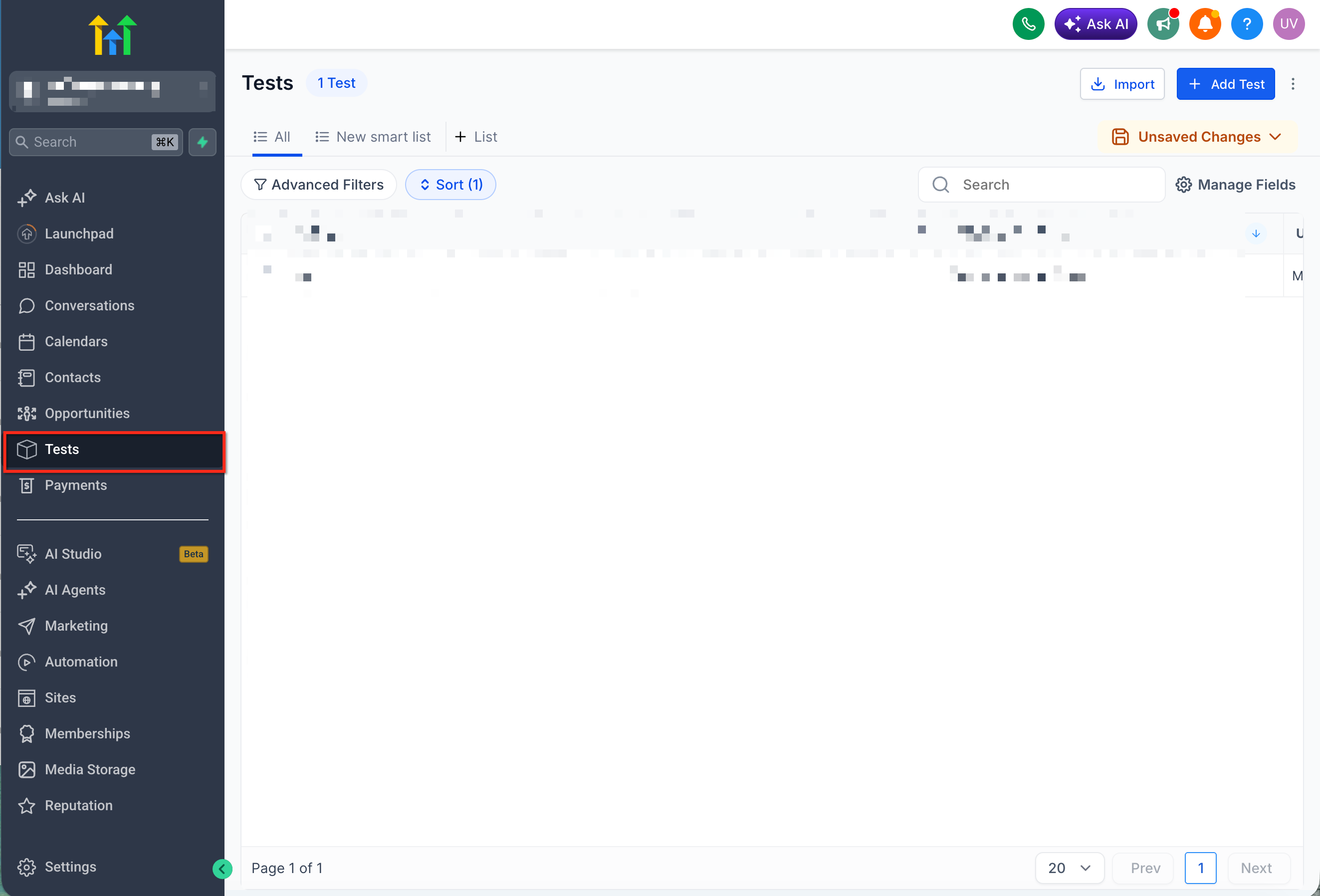
- Open the Custom Objects, Companies, or Tasks section in HighLevel.
- Navigate to the list view that contains the records you want to remove.
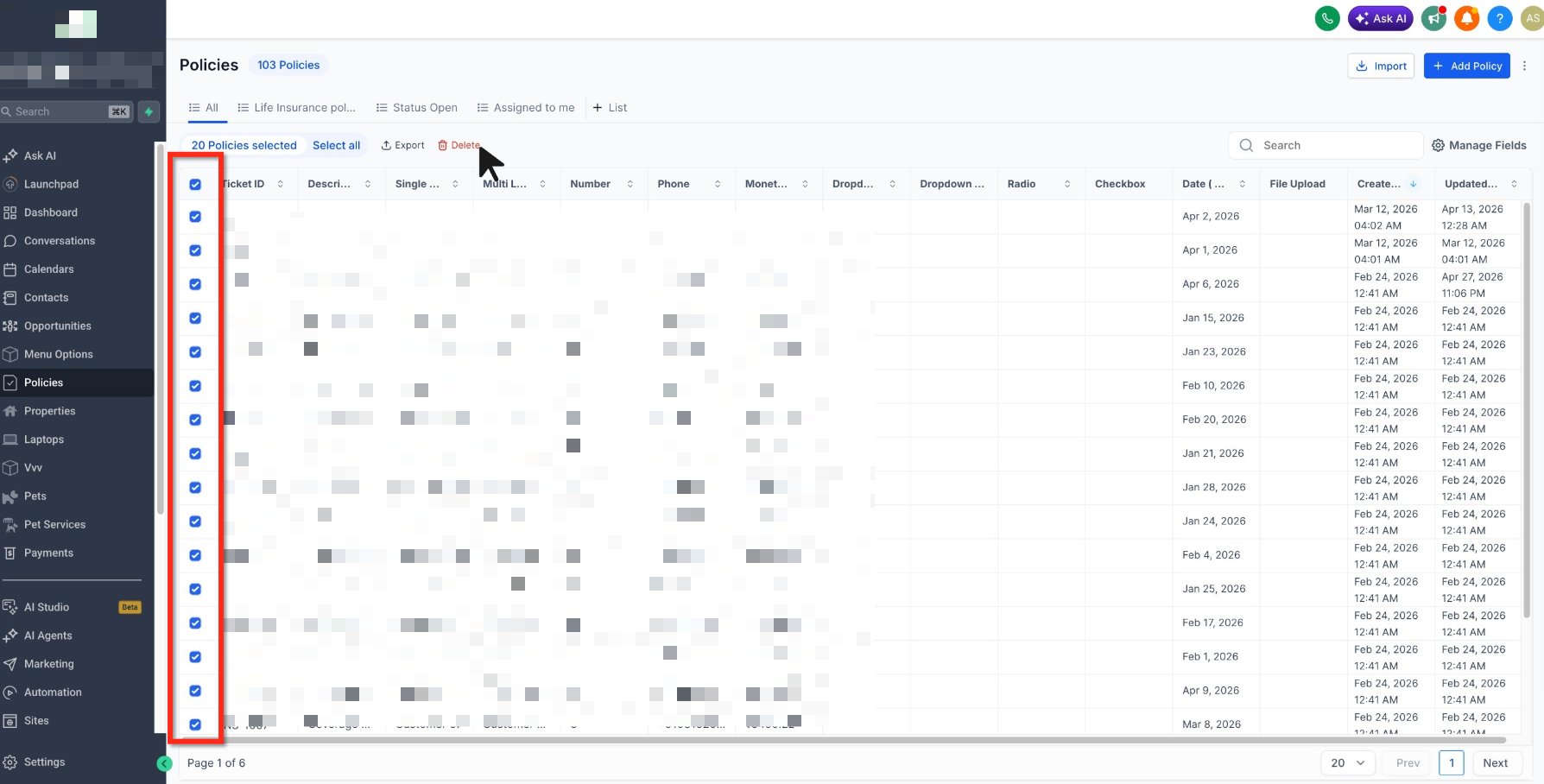
- Mark the desired rows by checking their selection boxes.
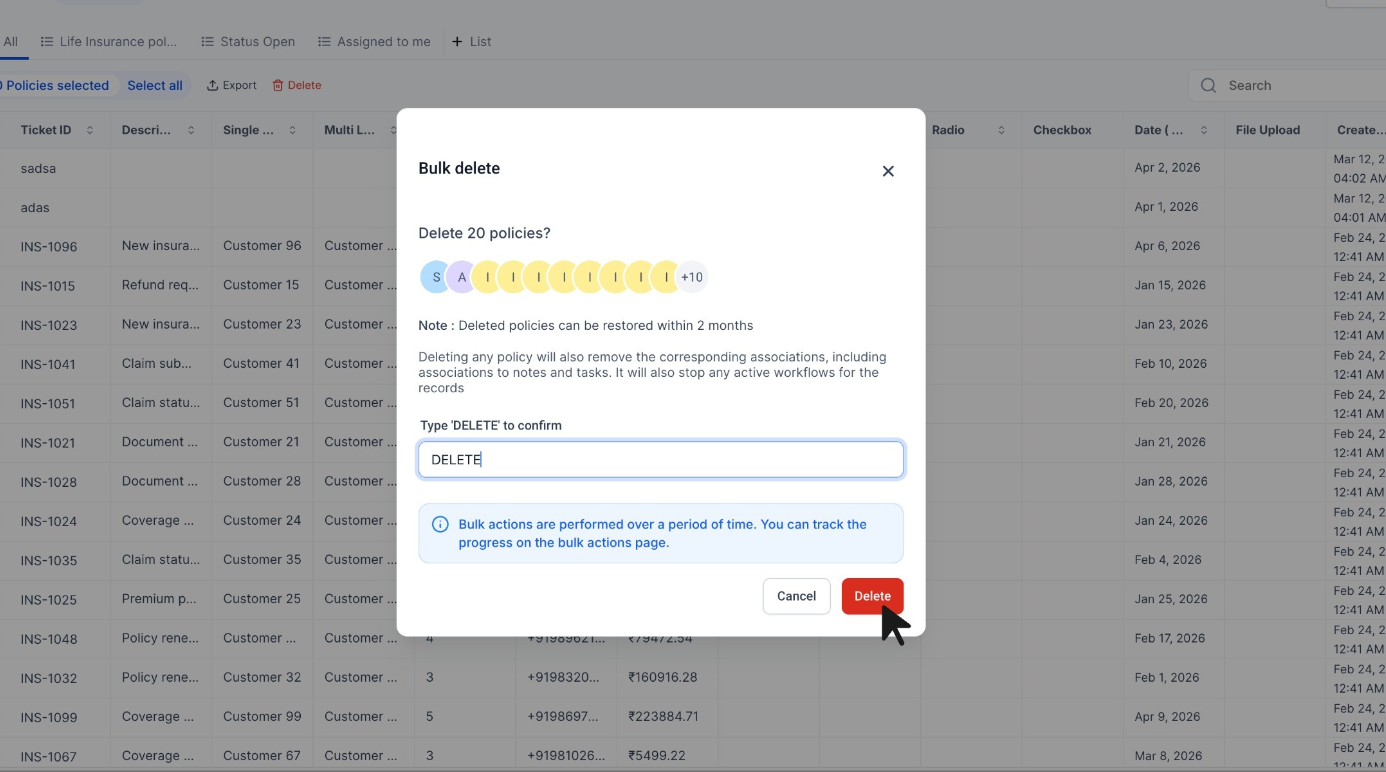
- Press the Delete button.
- Read the confirmation prompt carefully.
- Approve the deletion when you are certain.
- Open the Bulk Actions page for the current subaccount.
- Examine the deletion job to see its progress, completion status, and statistics.
Recover records that were bulk deleted within the 60 day window
- Open the Bulk Actions page in the subaccount.
- Find the deletion job that corresponds to the records you wish to bring back.
- Select the three dot menu next to that job.
- Choose the Restore option.
- Read the confirmation message that appears.
- Confirm that you want to restore the records.
- Watch the restore operation’s progress on the Bulk Actions page.
07What it looks like in HighLevel
08Things to know before you rely on it
- Companies and Tasks no longer have the earlier 100 record bulk delete cap, allowing larger deletions.
- Only records removed by supported bulk deletion jobs can be restored, and only within 60 days of deletion.
- When a record is bulk deleted, its relations, associations, and association labels are cleared; related records remain.
09How it connects to the rest of HighLevel
- Getting started with custom objects Custom objects guide
- Create, edit, delete and automate custom objects Custom object CRUD
- HighLevel pricing and plans Pricing page
Michael's take

People often assume that bulk delete wipes everything clean and that a restore will bring back every link. In reality the deleted record’s relationships, associations, and association labels disappear, and a restore only brings back the record itself.
I would double check any filters and export a backup before kicking off a large delete, then use the Bulk Actions page to watch the job and, if needed, restore within the 60 day window. That way you keep the data you need and still get the speed of bulk removal.