
01Who this is for
- Customer support teams benefit because they can answer website inquiries without switching tools.
- Marketing managers gain a single view of visitor interactions, making follow up easier.
- Small business owners appreciate that chat messages join existing conversation streams, simplifying workload.
02Web Chat inside Conversations, explained
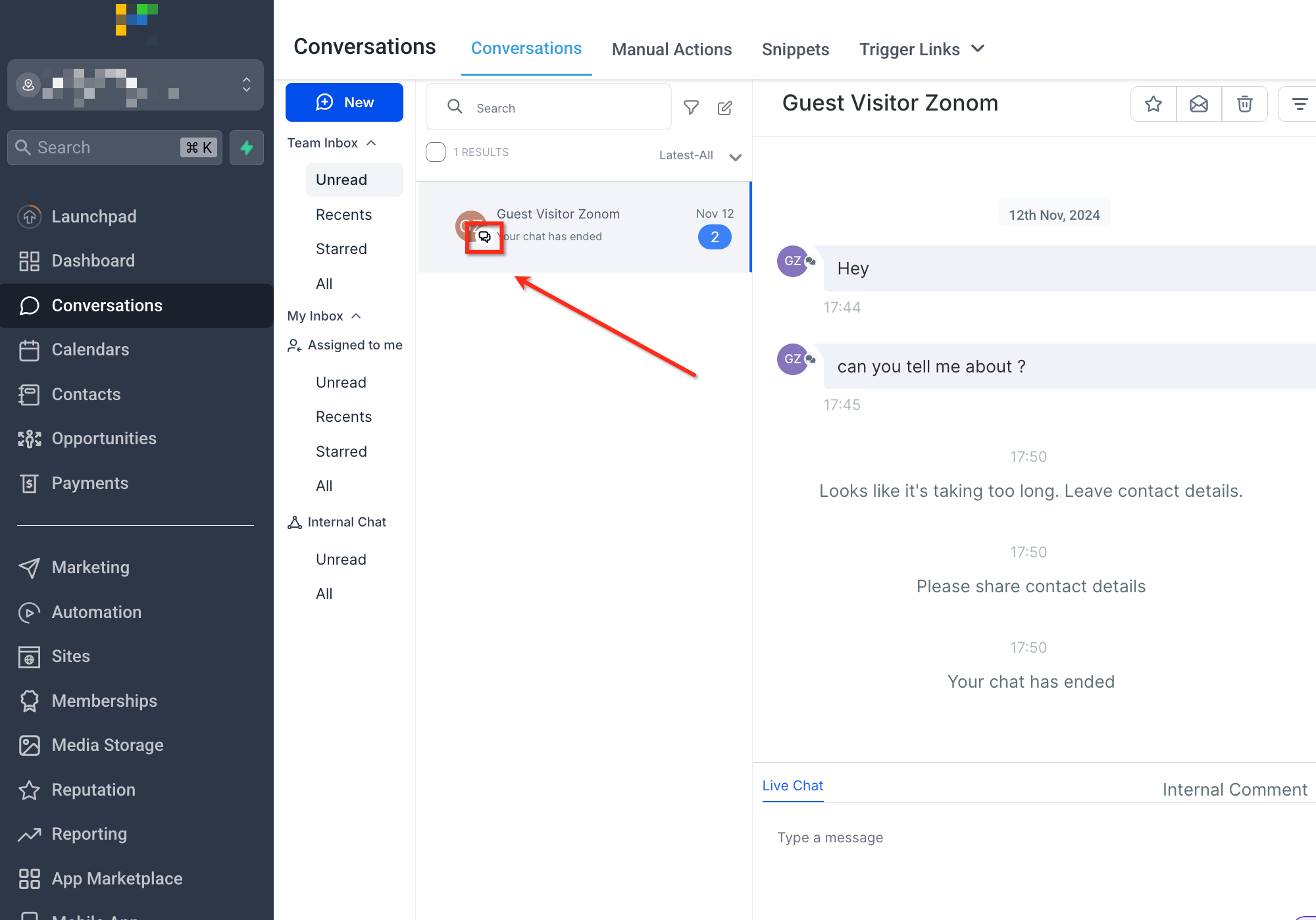
Web Chat is a channel that brings website chat messages into the HighLevel Conversations inbox. When a visitor types a message in the embedded widget, the platform creates a thread marked with the Live Chat icon and displays it in real time. Agents can reply, assign, or close the chat the same way they handle SMS or email.
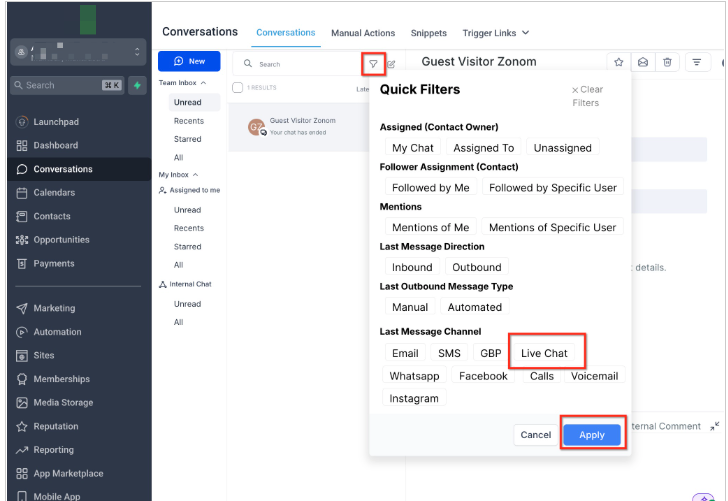
The feature lives under the Sites > Chat Widget area for setup, and the conversations are managed inside the Conversations view. A filter can narrow the inbox to show only these Live Chat threads, helping teams focus on website originated chats.
03How businesses use Web Chat inside Conversations
- Dental practice. The practice adds the widget to its appointment page. When a patient asks about availability, the message appears in Conversations, allowing the front desk to reply right away or route the chat to a specific staff member.
- Online boutique. The store installs the widget on product pages. A shopper inquires about sizing; the sales associate answers in the chat thread and can assign the conversation to a specialist if needed.
- Property management company. A prospective renter contacts the company via the website widget. The leasing agent sees the chat in Conversations, responds, and logs the interaction alongside email follow ups.
04The numbers and rules that matter
- Widget settings include Intro message, Agent avatar and branding, Inactivity fallback message, Chat timeout message.
05Before you start
- A chat widget must be created in Sites > Chat Widget.
- The widget script needs to be placed in the website’s footer or body.
- WordPress sites require the LeadConnector plugin to enable the widget.
06How to set up and use Web Chat inside Conversations in HighLevel
Set up web chat widget
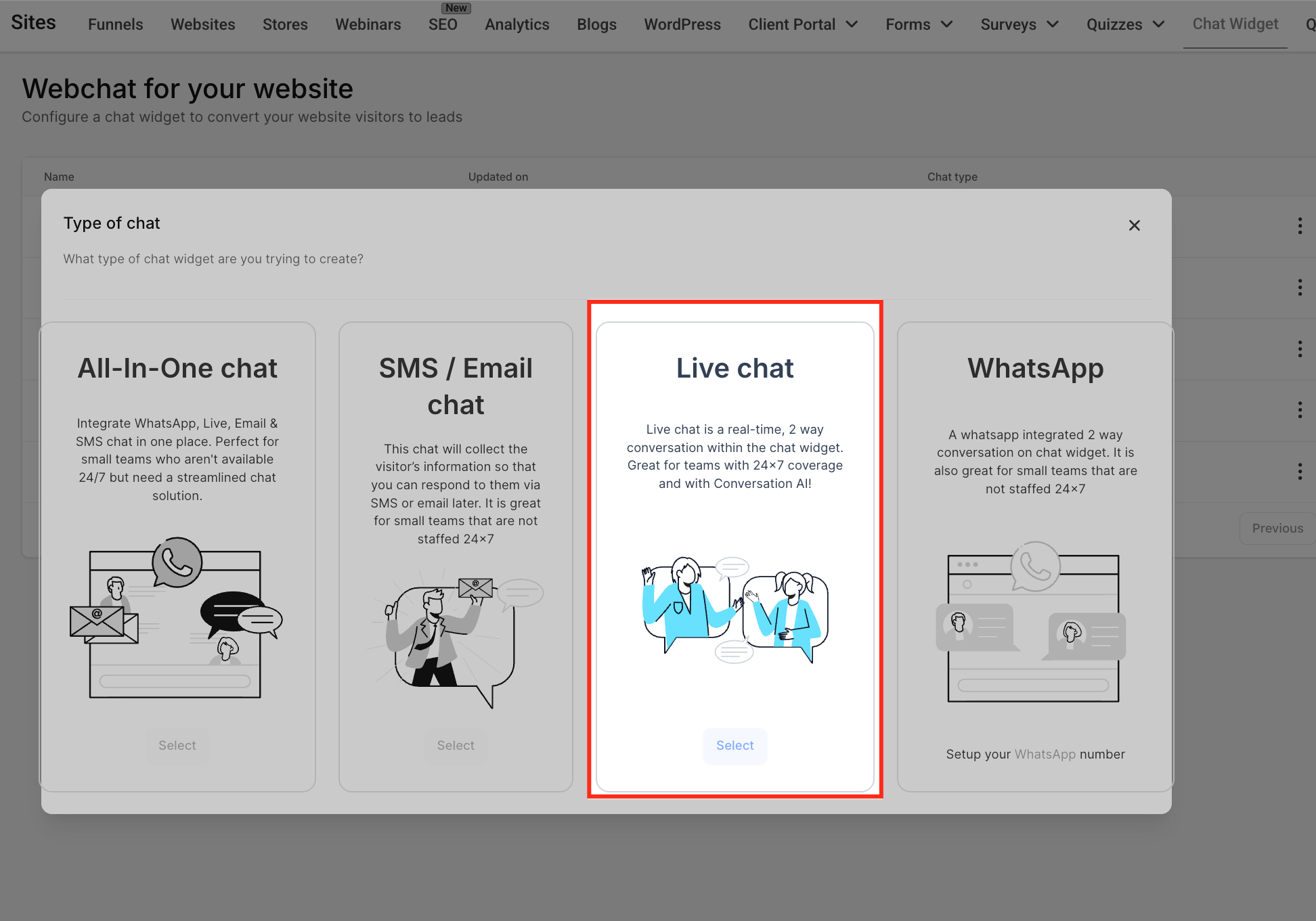
- Open Sites > Chat Widget and click the + New button.
- Select Live chat as the chat type, which configures the Web Chat channel.
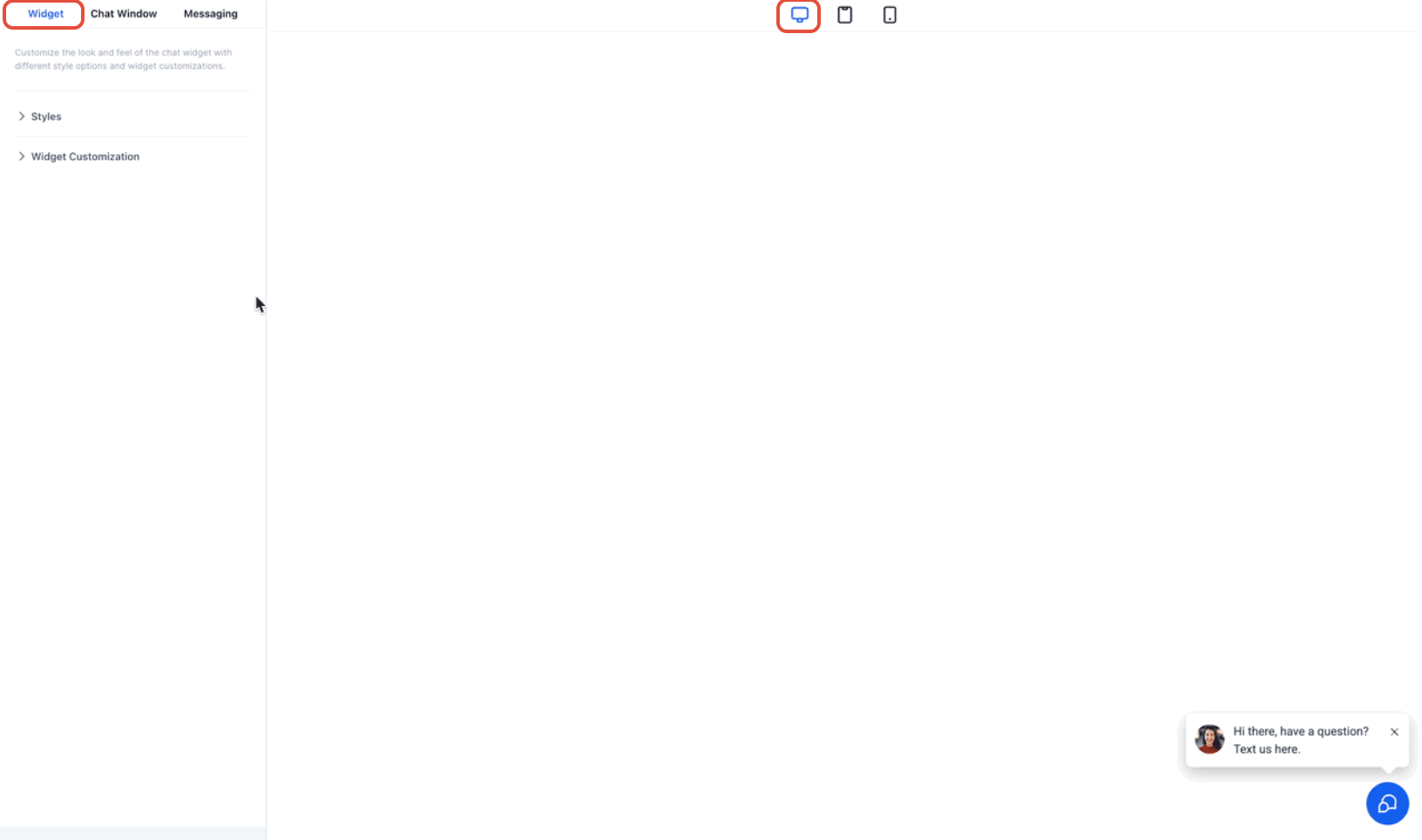
- Enter an intro message, choose an agent avatar and branding, and set inactivity fallback and timeout messages.
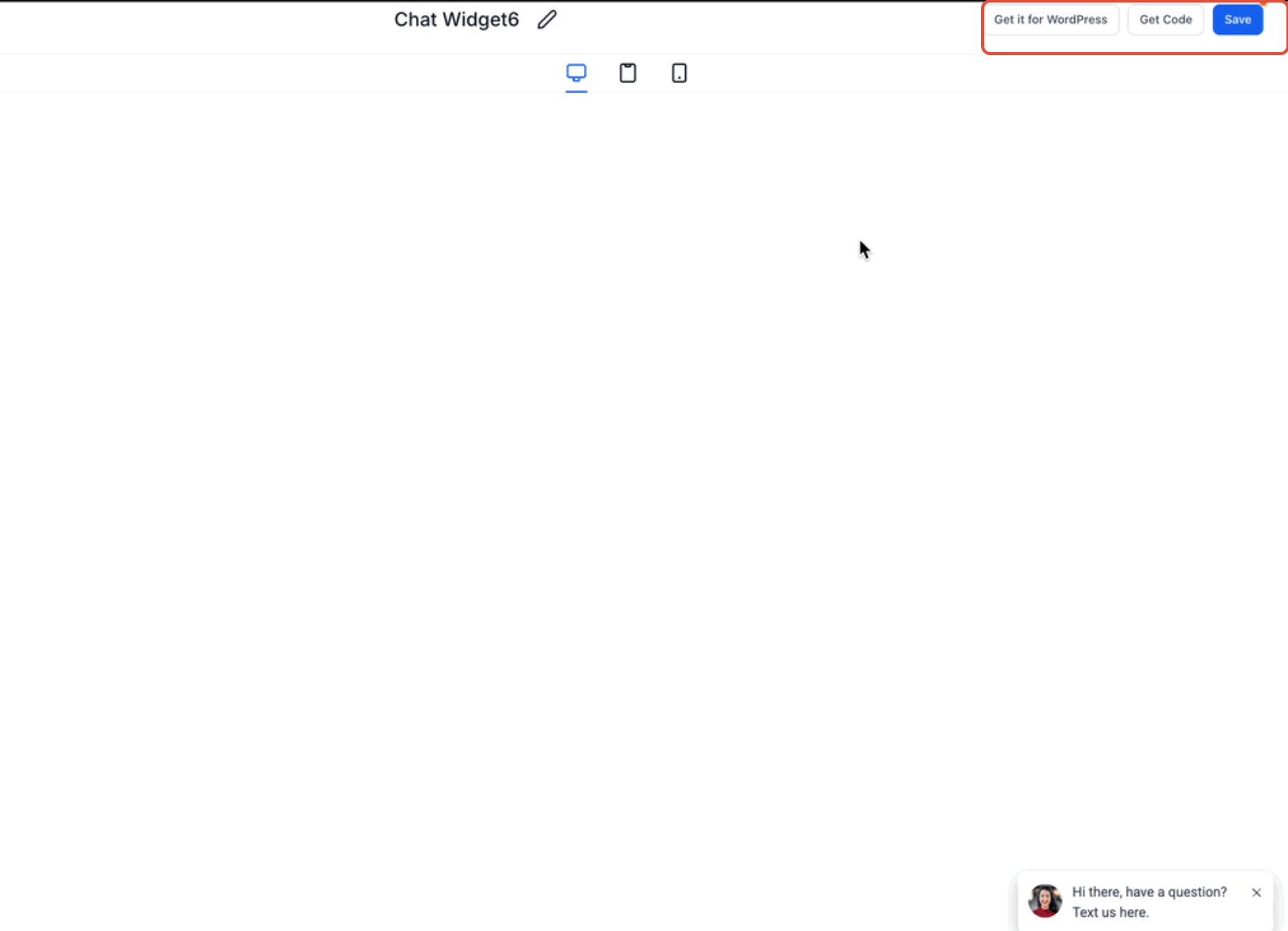
- Save the widget configuration.
- Copy the generated script and add it to the website’s footer or body, or install the LeadConnector plugin if using WordPress.
Filter web chat conversations
- Open the Conversations inbox.
- Click the filter menu.
- Locate the Last Message Channel option.
- Choose Live Chat and apply the filter to view only Web Chat threads.
07What it looks like in HighLevel
08Settings that matter
- Intro message. Sets the initial greeting shown to visitors when the widget opens.
- Agent avatar and branding. Defines the visual representation of the agent and applies brand colors or logos to the chat window.
- Inactivity fallback message. Displays a prompt after a period of no agent response, asking the visitor to leave contact information.
- Chat timeout message. Shows a message when the chat closes automatically because of the configured inactivity timeout.
09Things to know before you rely on it
- The widget setup screen labels the option as “Live chat,” but it actually creates a Web Chat channel that routes messages to Conversations.
- Web Chat and Live Chat are separate experiences; channel labels are used to differentiate them across the platform.
10How it connects to the rest of HighLevel
- How to install a chat widget and automate assignments Live chat installation
- Customize the chat widget and add a video avatar Widget customization
- Step by step guide to adding a HighLevel chat widget to your site Chat widget setup
Michael's take

When you have a steady flow of website visitors looking for quick answers, Web Chat inside Conversations lets you handle those visits within the same inbox, so agents can respond, assign, and follow up without juggling tabs.
If your site gets only occasional traffic or you already use a dedicated live chat platform that your team prefers, the extra widget may add little value. In those cases you might find the setup and maintenance of another channel unnecessary, especially if you aren’t planning to route chats through HighLevel’s workflows.