
01Who this is for
- Operations managers benefit because they can share a filtered task view with any teammate via a simple link.
- Call center agents gain speed by using keyboard shortcuts and a side panel that shows contact details without extra clicks.
- Marketing teams running SMS campaigns appreciate bulk reassignment to quickly shift workloads between users.
02Manual actions pages, explained
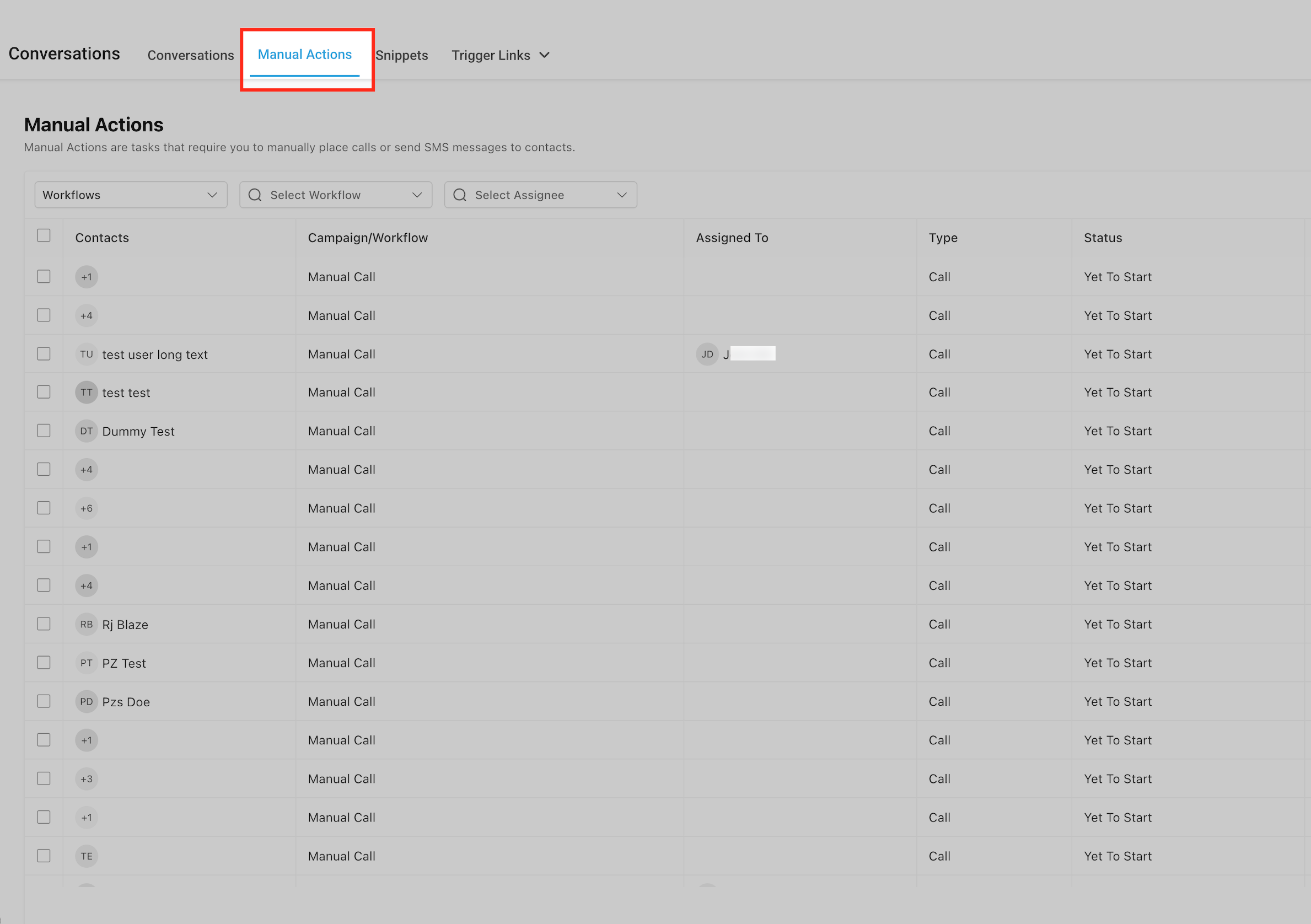
The Manual Actions page lives under Conversations > Manual Actions on both the web app and mobile app. It displays a list of tasks on the right and a collapsible filter sidebar on the left. Filters such as task status, assigned user and date are added to the page URL, so the exact view can be bookmarked or shared.
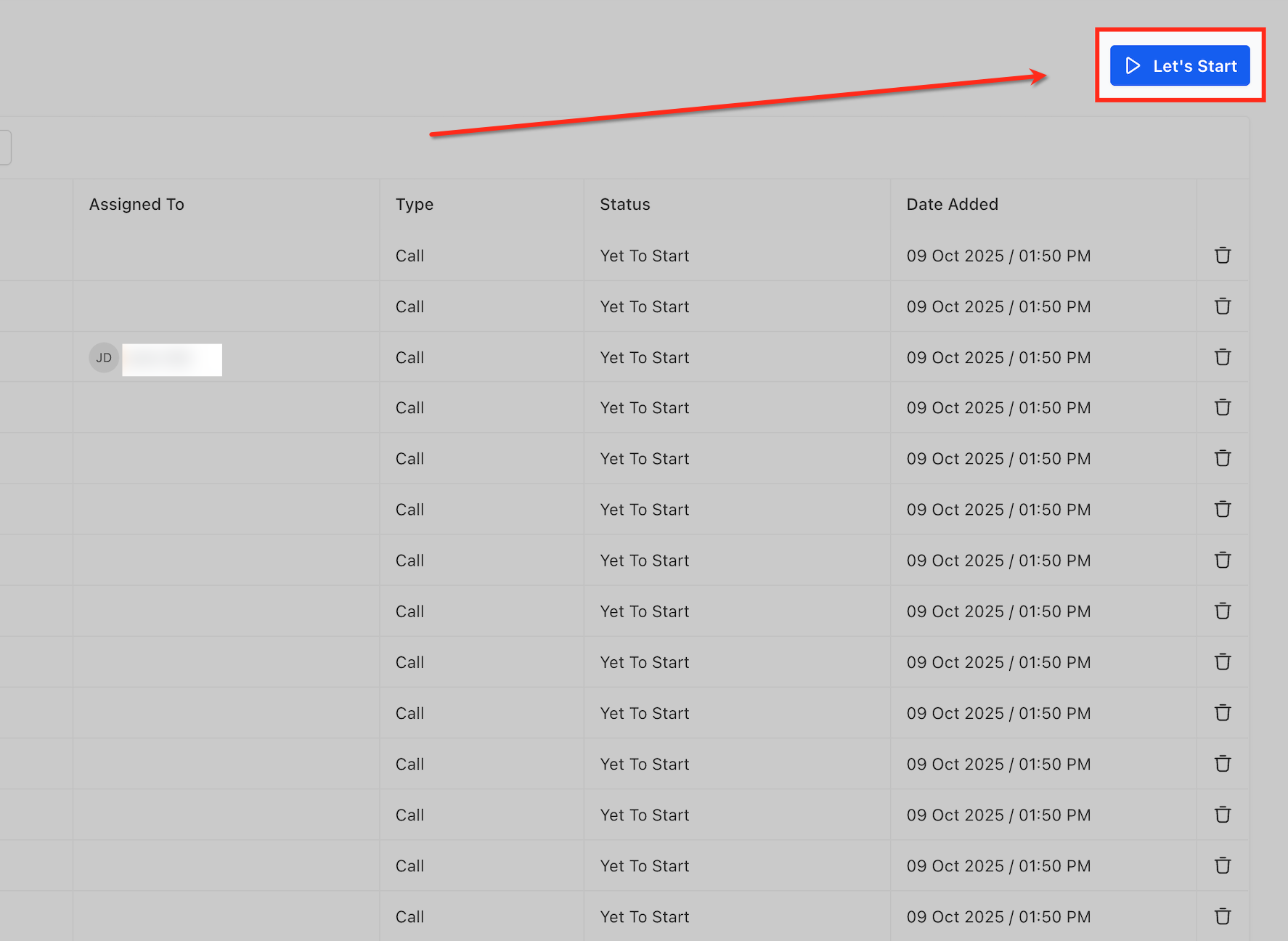
When a user clicks the blue Let’s Start button, the next task opens in the side panel. Outcomes are logged there, and the task can be marked Complete, Skipped or Re queue. The interface supports keyboard navigation; pressing Enter while a task is selected moves to the following item.
Tasks can be selected with checkboxes, then bulk reassigned by choosing Bulk Actions and Assign User. This updates the assignee without leaving the page.
03How businesses use manual actions pages
- Call center. Agents open the Manual Actions page, click Let’s Start, record call results in the side panel and mark each call as Complete, Skipped, or Re queue. The two column view lets them see contact details while dialing.
- SMS marketing team. Team members filter the queue to show only Yet to Call SMS tasks, copy the resulting URL and share it with a colleague. The colleague opens the same filtered view and processes the messages.
- Operations manager. The manager selects multiple tasks, clicks Bulk Actions, picks Assign User and chooses a new assignee. All selected tasks are transferred to the chosen teammate in one step.
04How to set up and use manual actions pages in HighLevel
Begin working on tasks
- Click the blue Let’s Start button to load the first task.
- Enter the call outcome or SMS reply in the side panel.
- Mark the task as Complete, Skip, or Re queue.
Apply and share filters
- Choose filter options such as status, assignee or date in the left sidebar.
- Observe that the selected filters are added to the page URL automatically.
- Copy the browser URL and share it; anyone opening the link sees the same filtered queue.
Bulk reassign tasks
- Select the desired tasks using the checkboxes next to each row.
- Click the Bulk Actions button that appears above the table.
- Choose Assign User and pick the new owner for the selected tasks.
05What it looks like in HighLevel
06Settings that matter
- Task status filter. Controls which tasks appear based on their current state, such as Yet to Call, Completed or Skipped.
- Assigned user filter. Limits the view to tasks that are allocated to a specific team member.
- Date filter. Shows tasks added within a chosen date range.
07Things to know before you rely on it
- Filters are stored in the URL; the view is identical on any device that opens the same link.
- If the mobile app does not support the deep link, the URL opens the queue in a mobile browser.
- The HiRise redesign does not alter existing workflow generated tasks, notes or history.
08How it connects to the rest of HighLevel
- Learn to build and use conversation filters for advanced task views. Conversation filters
- Set up a manual call task that will appear in the Manual Actions queue. Manual call task
- Configure manual SMS actions that populate the SMS task list. Manual SMS action
Michael's take

Manual actions pages give a small business a fast, organized place to finish outbound calls and texts, turning a chaotic list into a tidy, shareable queue. It’s worth the time to set up filters and use the URL link for team oversight.
Don’t forget to clear the URL parameters after a campaign so you don’t carry over old filters.