
01Who this is for
- Sales managers who need to queue outbound calls after a lead fills a form, ensuring reps follow up promptly.
- Support teams that want to assign personal follow up calls after a ticket is created, keeping call records in one place.
- Small business owners who automate call assignments from marketing triggers to streamline outreach.
02Manual call actions, explained
Manual Call is a type of Manual Action available inside the HighLevel workflow builder. When a workflow reaches the Manual Call step, HighLevel generates a call task and places the contact in the Manual Actions view. Users can see the task status, such as Yet to Call or Completed, and add notes after the call.
The action is configured like any other workflow step. You select it from the list of manual actions, give the step a name, and optionally assign it to a specific team member or use round robin distribution. Once saved and the workflow is published, any contact that meets the trigger criteria will automatically receive a call task.
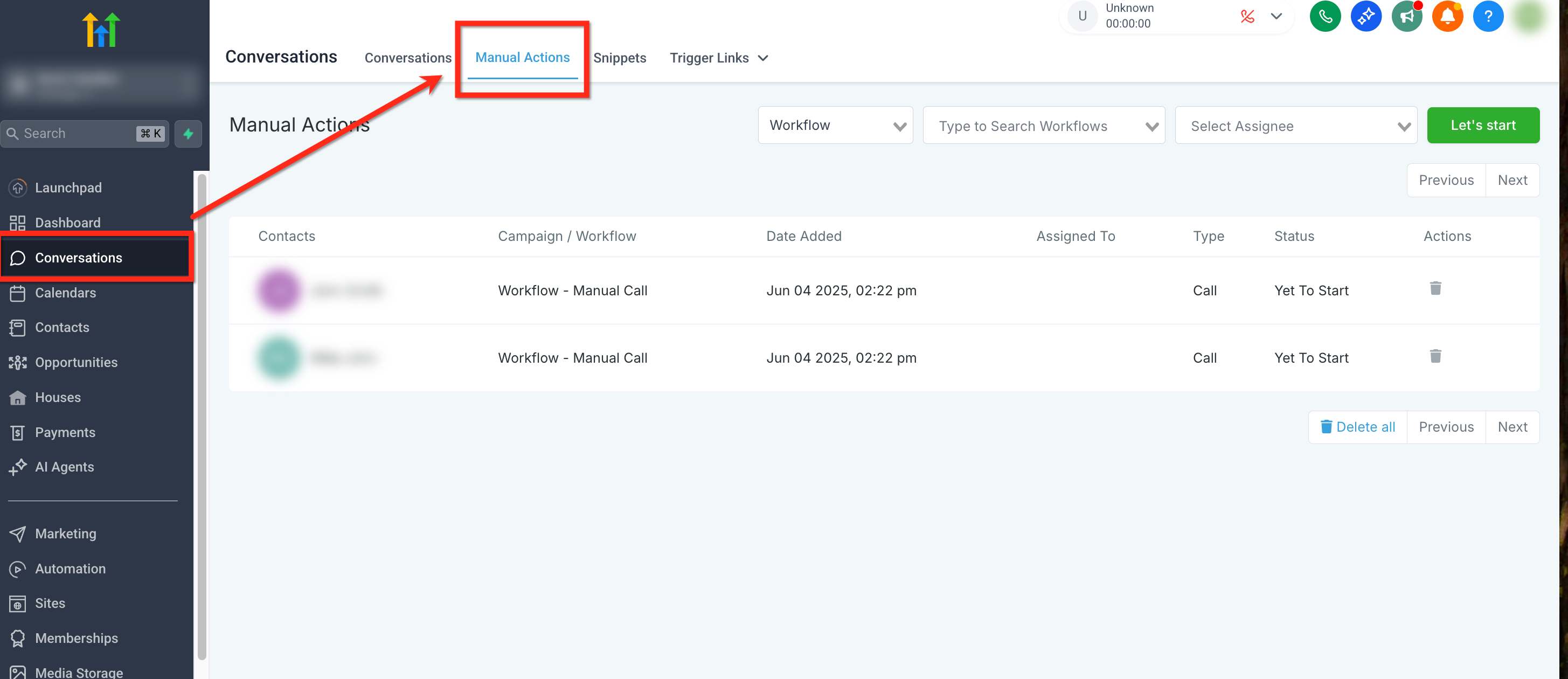
All generated tasks are listed under the Manual Actions tab in the Conversations section, where reps can start the call, log outcomes, and mark the task as finished.
03How businesses use manual call actions
- Real estate agency. Create a workflow that triggers when a new property inquiry form is submitted. The Manual Call action assigns a call task to the listing agent, who then starts the call from the Manual Actions tab and records the conversation notes on the contact record.
- Dental practice. Set up a workflow that fires after a patient books an appointment online. The Manual Call step creates a follow up call task for the front desk staff to confirm the visit, and the staff logs any confirmation details directly in the contact’s page.
- Software SaaS startup. Use a workflow triggered by a trial sign up tag. The Manual Call action assigns a sales rep to call the prospect for onboarding, and the rep updates the call result in the contact record after the conversation.
04How to set up and use manual call actions in HighLevel
Add manual call action to a workflow
- Navigate to the Marketing section in the left hand navigation bar.
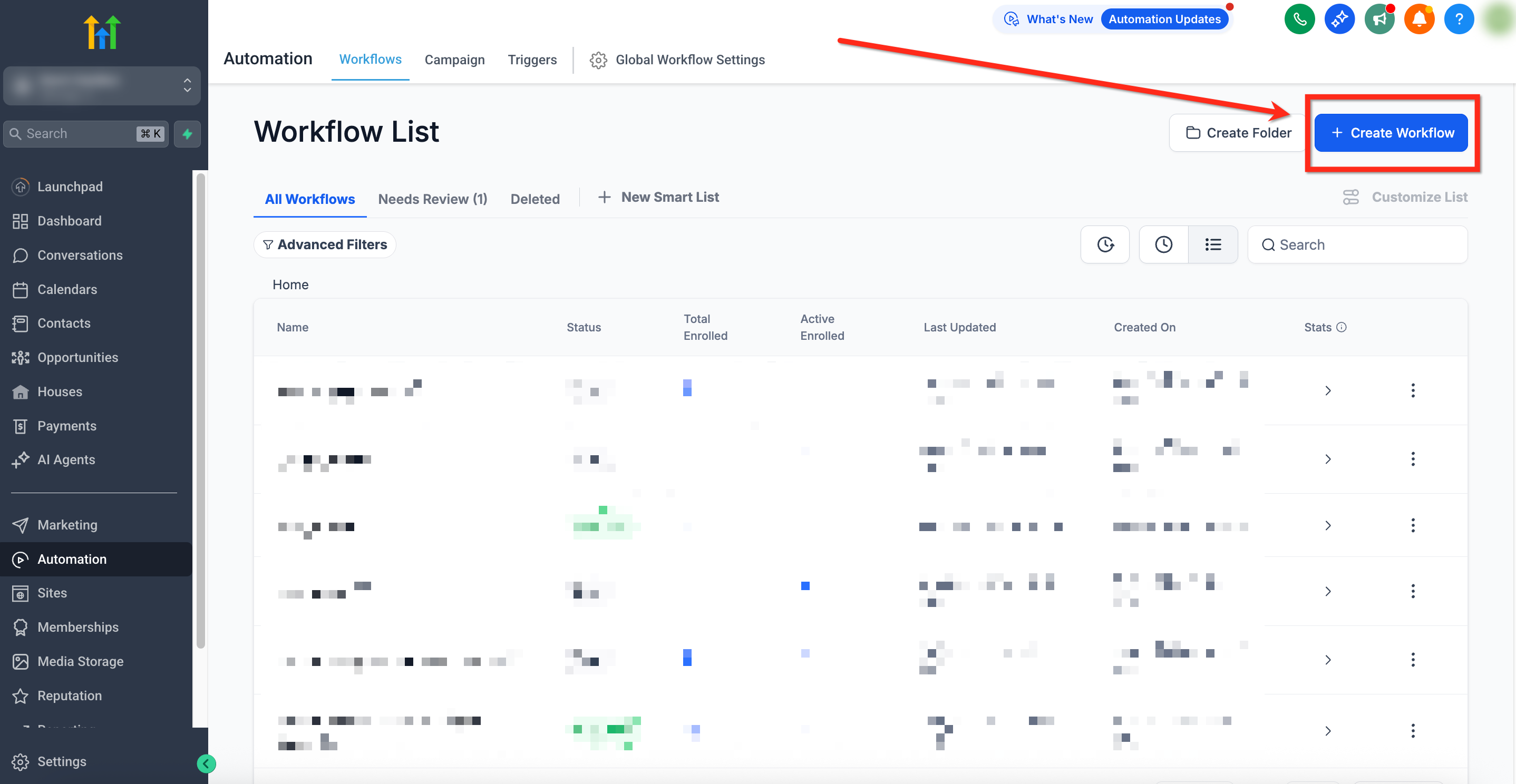
- Click the + Create Workflow button to start a new workflow.
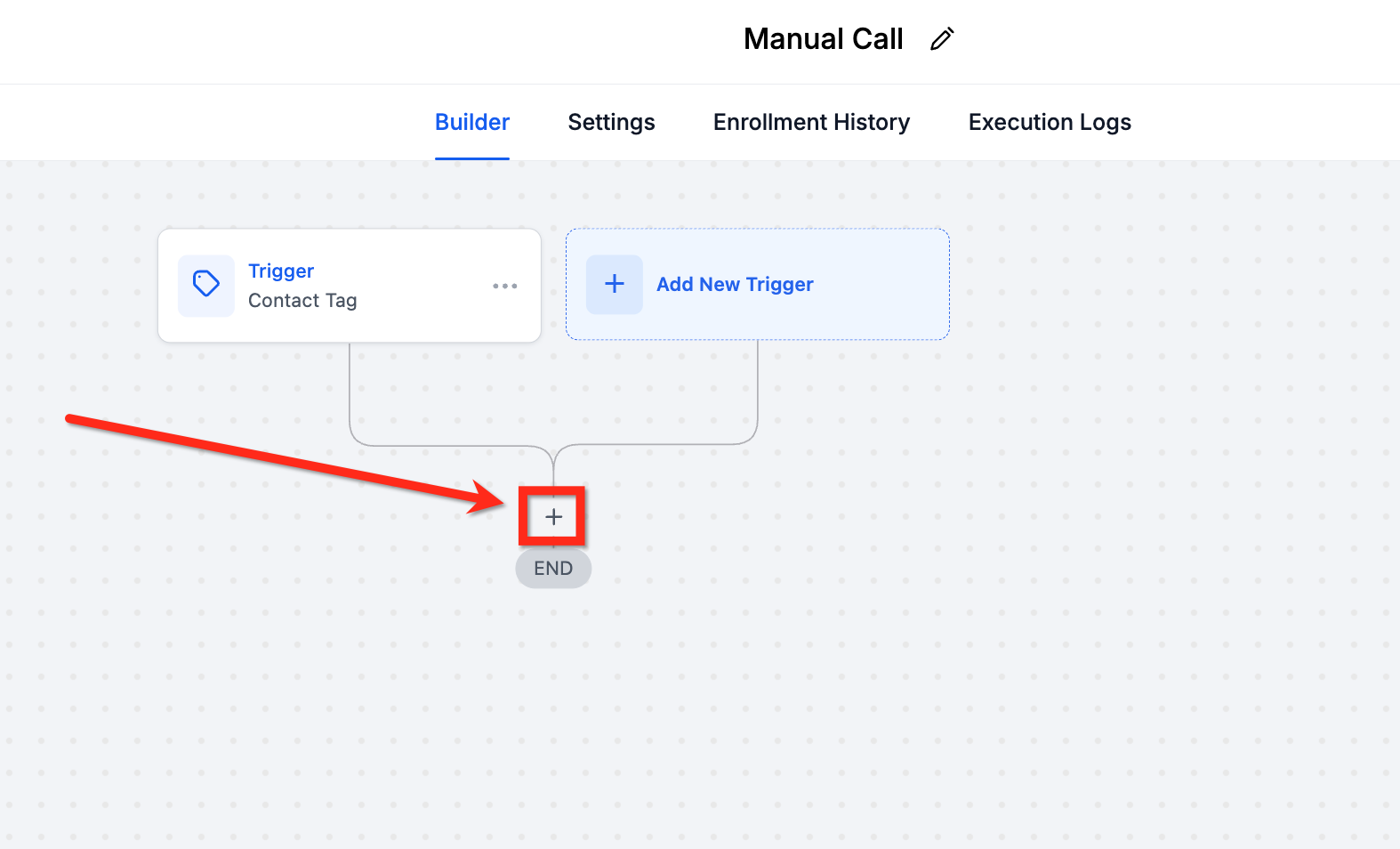
- Click the + Add Trigger button and select a trigger.
- Click the + icon beneath the trigger to add a new action.
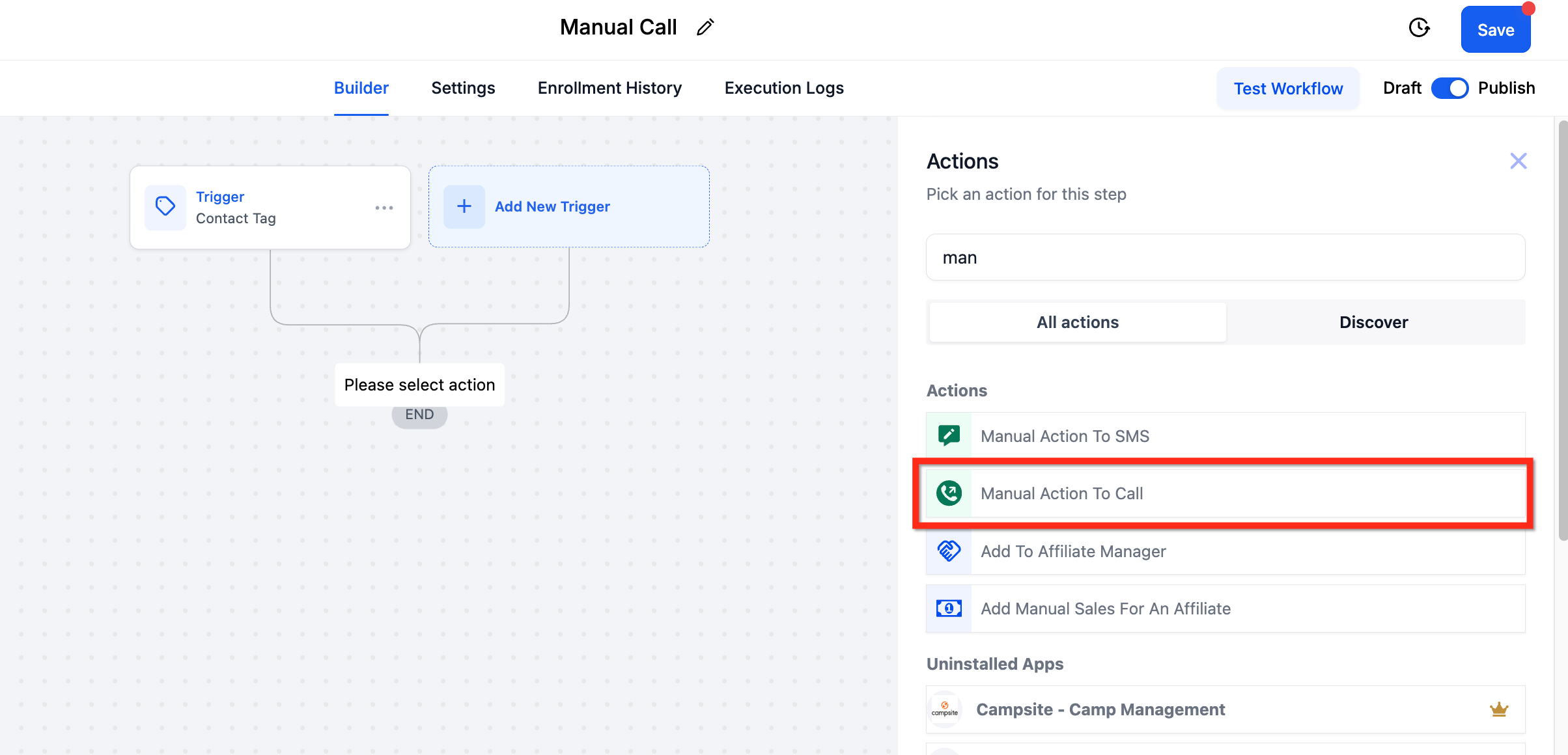
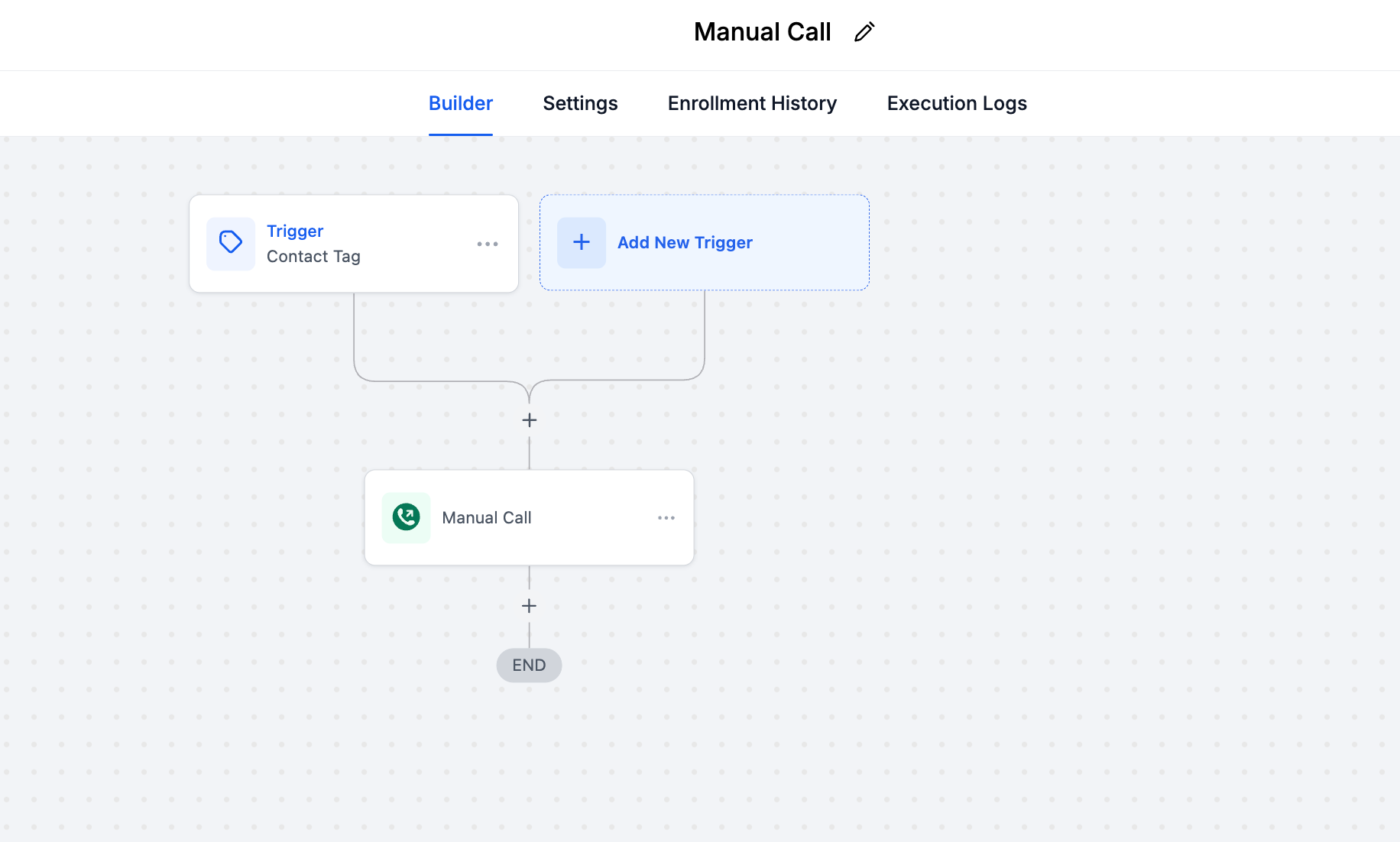
- Select the Manual Action To Call option and enter a name such as “Manual Call”.
- Click Save and then publish the workflow.
View assigned manual calls
- In the left navigation, click Conversations.
- Click the Manual Actions tab at the top of the page.
- Review the list of manual call tasks generated by the workflow.
05What it looks like in HighLevel
06Settings that matter
- Manual Action To Call. Specifies that the workflow step creates an outbound call task for a designated user or round robin pool.
07How it connects to the rest of HighLevel
- Set up manual SMS actions Manual SMS guide
- Explore live chat capabilities Live chat
- Review HighLevel pricing and plans Pricing
Michael's take

Don’t forget to assign the task to a real user or round robin; otherwise the call will sit idle.