
01Manual SMS actions, explained
Manual SMS actions are a step in a workflow that requires a team member to send an SMS manually.
02How businesses use manual SMS actions
- Customer interaction. A support team can see a pending manual SMS action and reply personally to a customer inquiry, ensuring a tailored experience.
- Approval processes. Designated staff can review a manual SMS step to approve a decision or sensitive information before the workflow proceeds.
- Verification and validation. Send an automated SMS with a verification link, then have a team member check the response and take the next action manually.
- Complex workflows. In workflows that involve multiple systems or teams, a manual SMS step serves as a checkpoint for human oversight.
03Before you start
- Switch to workflows instead of campaigns and triggers.
04How to set up and use manual SMS actions in HighLevel
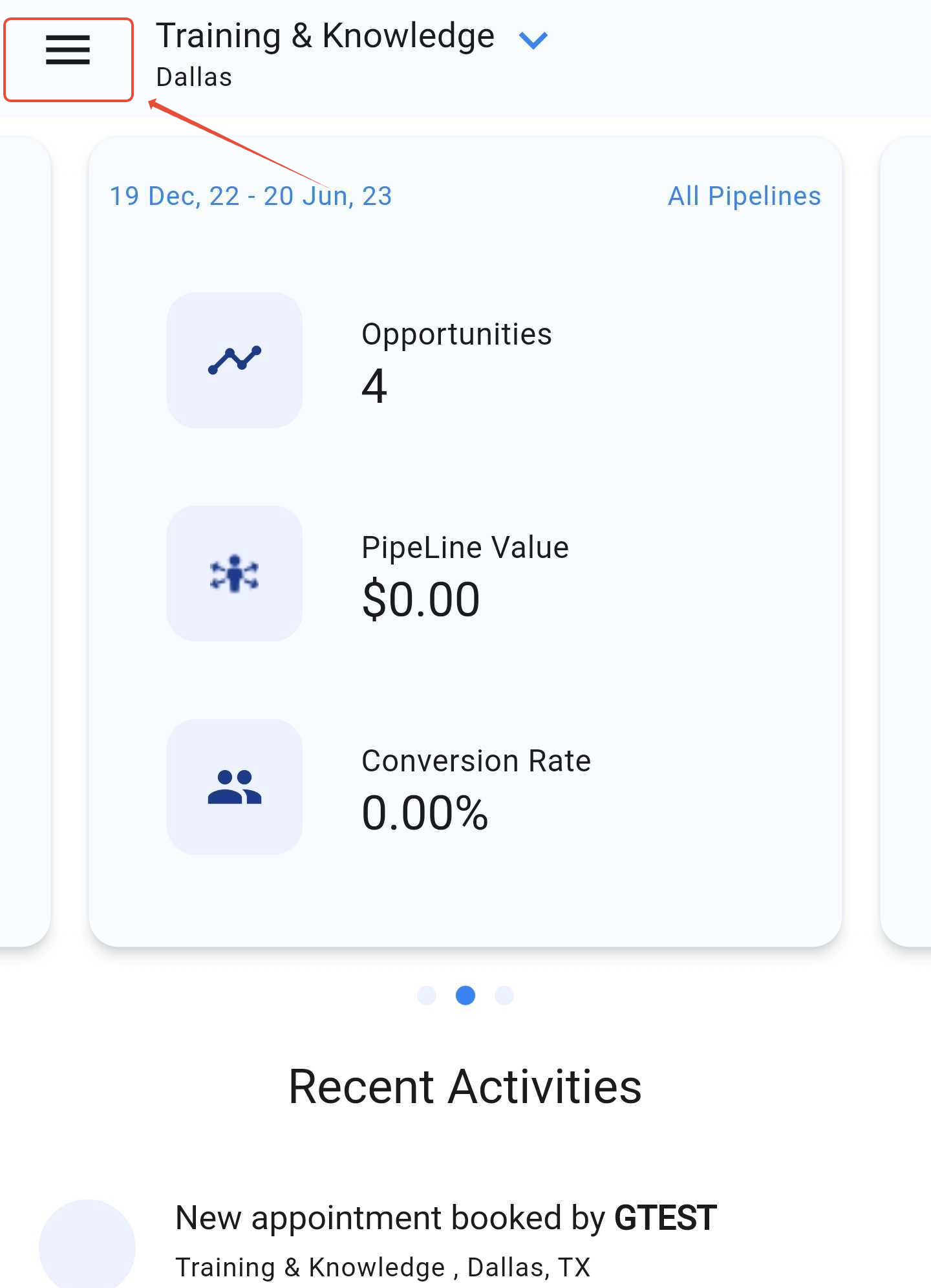
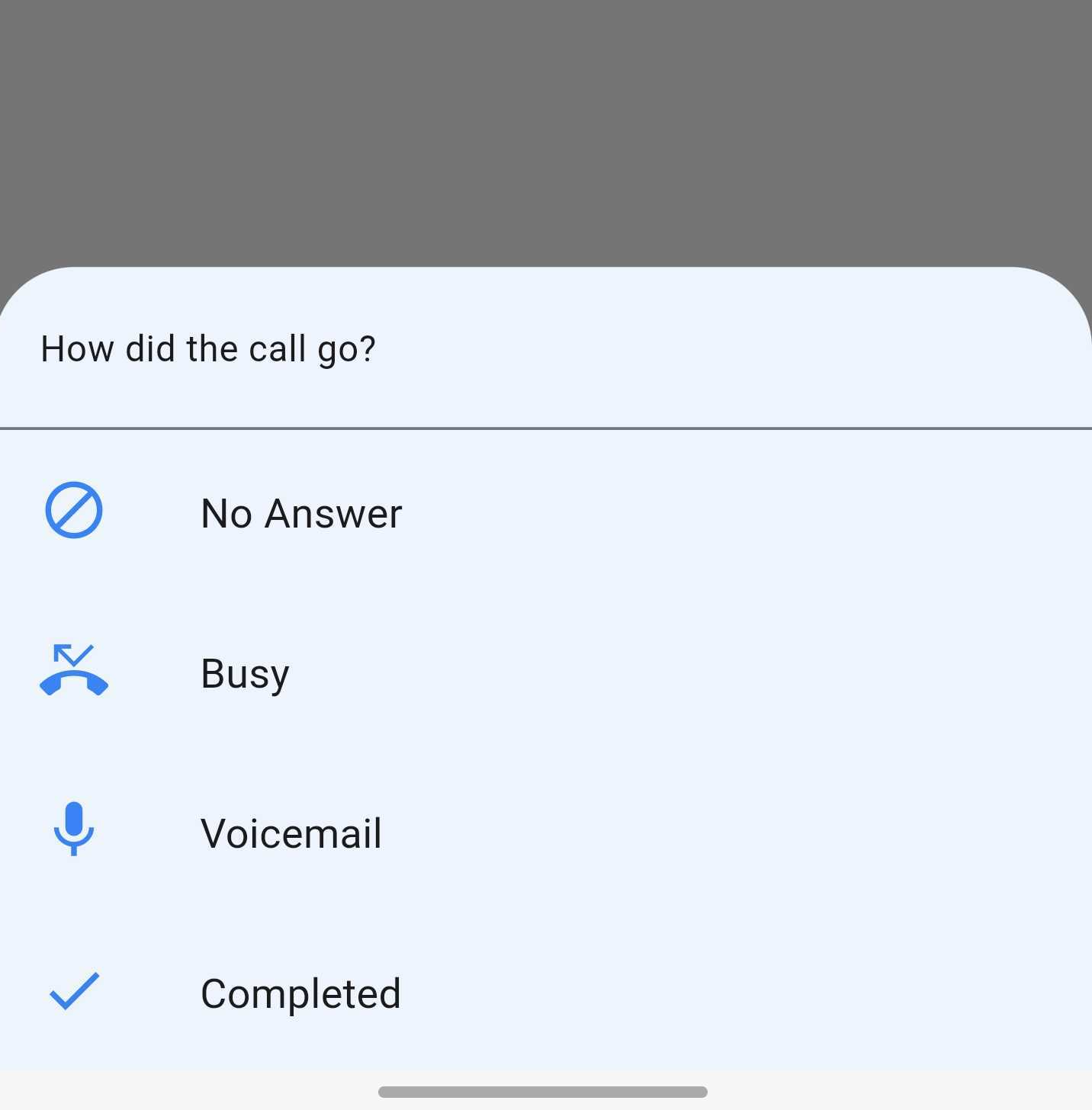
Access manual actions on mobile app
- Click on the hamburger menu.
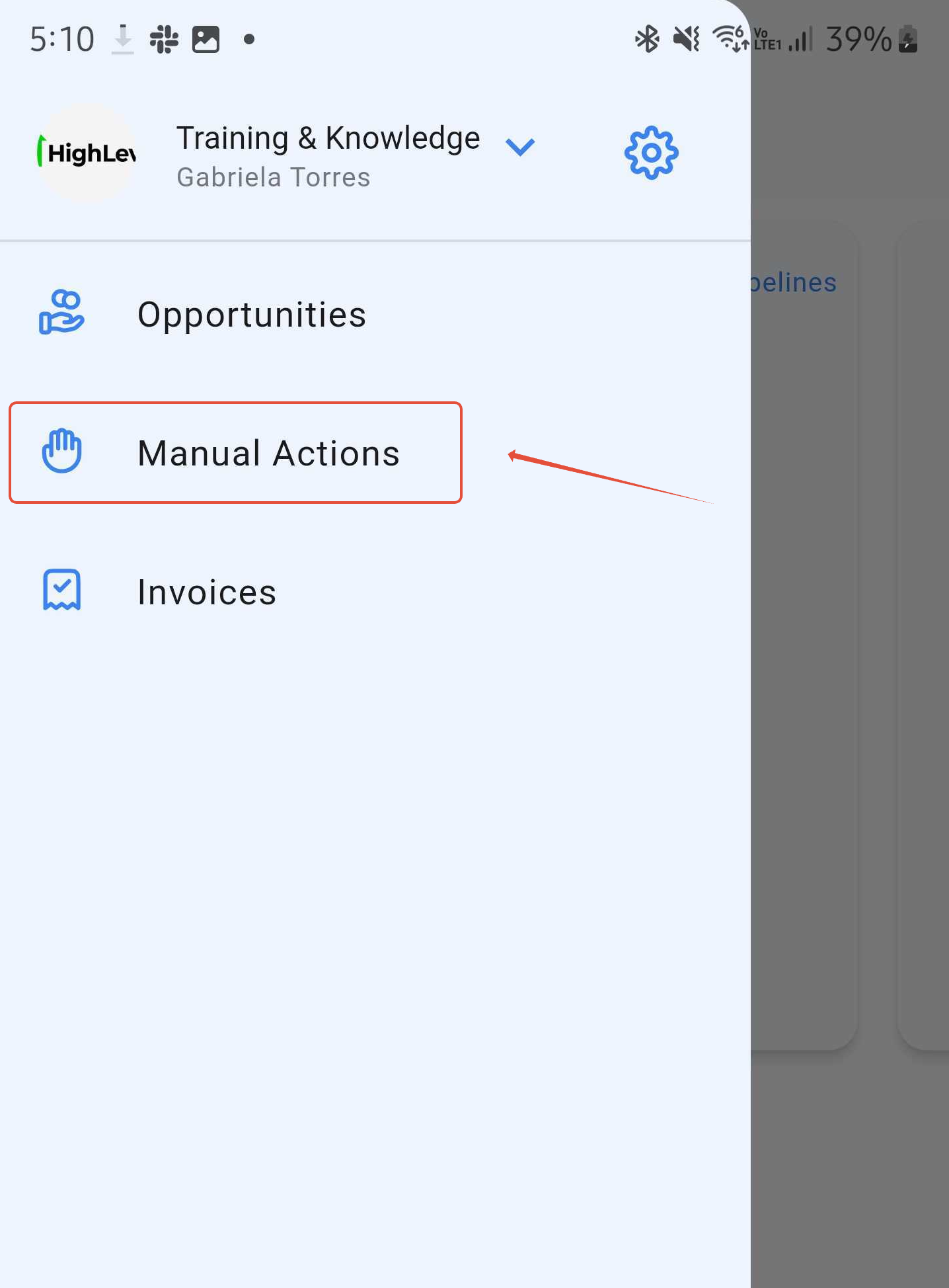
- Click on "Manual Actions"
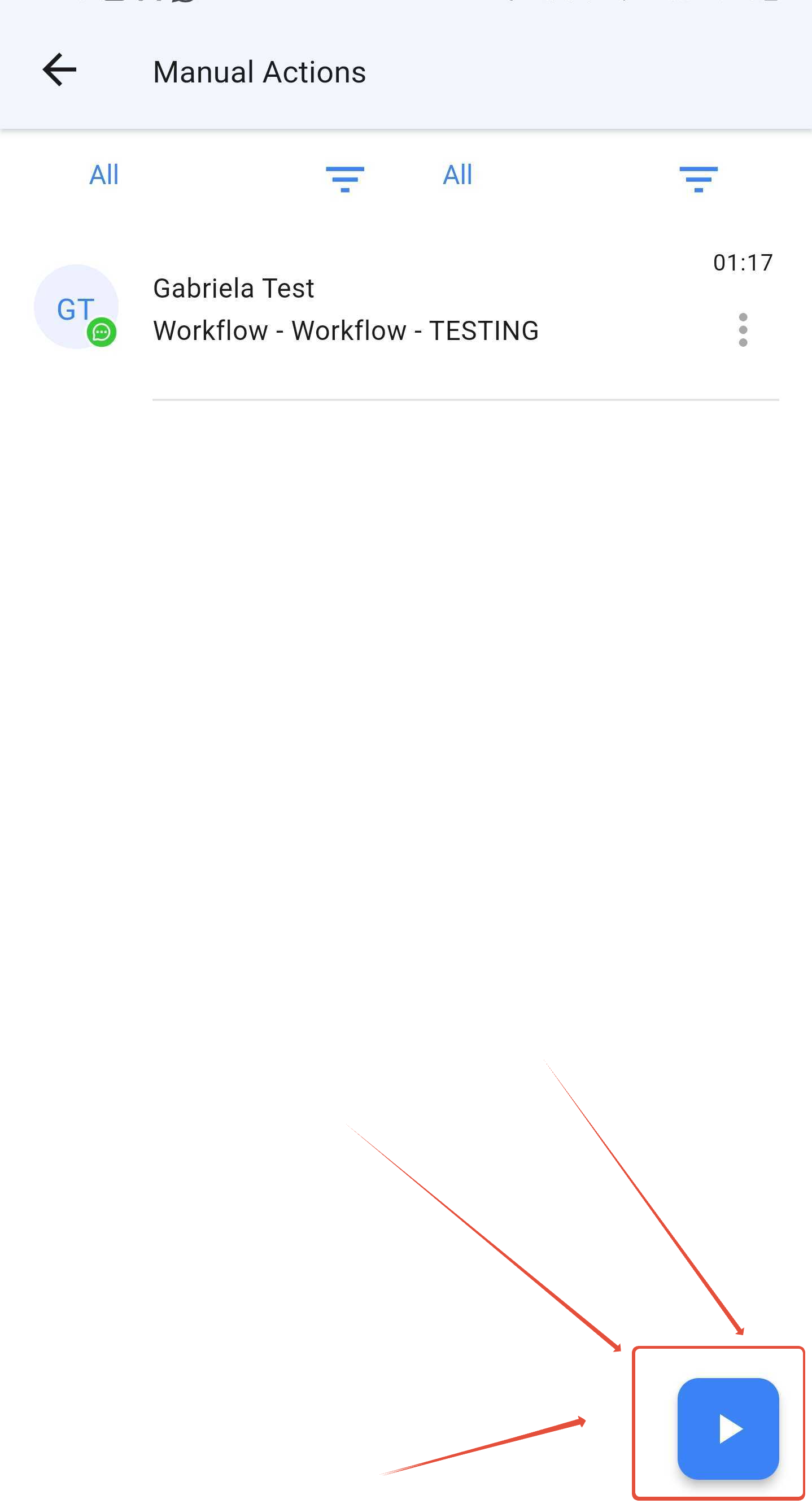
- The blue "PLAY" button will display the pending manual actions.
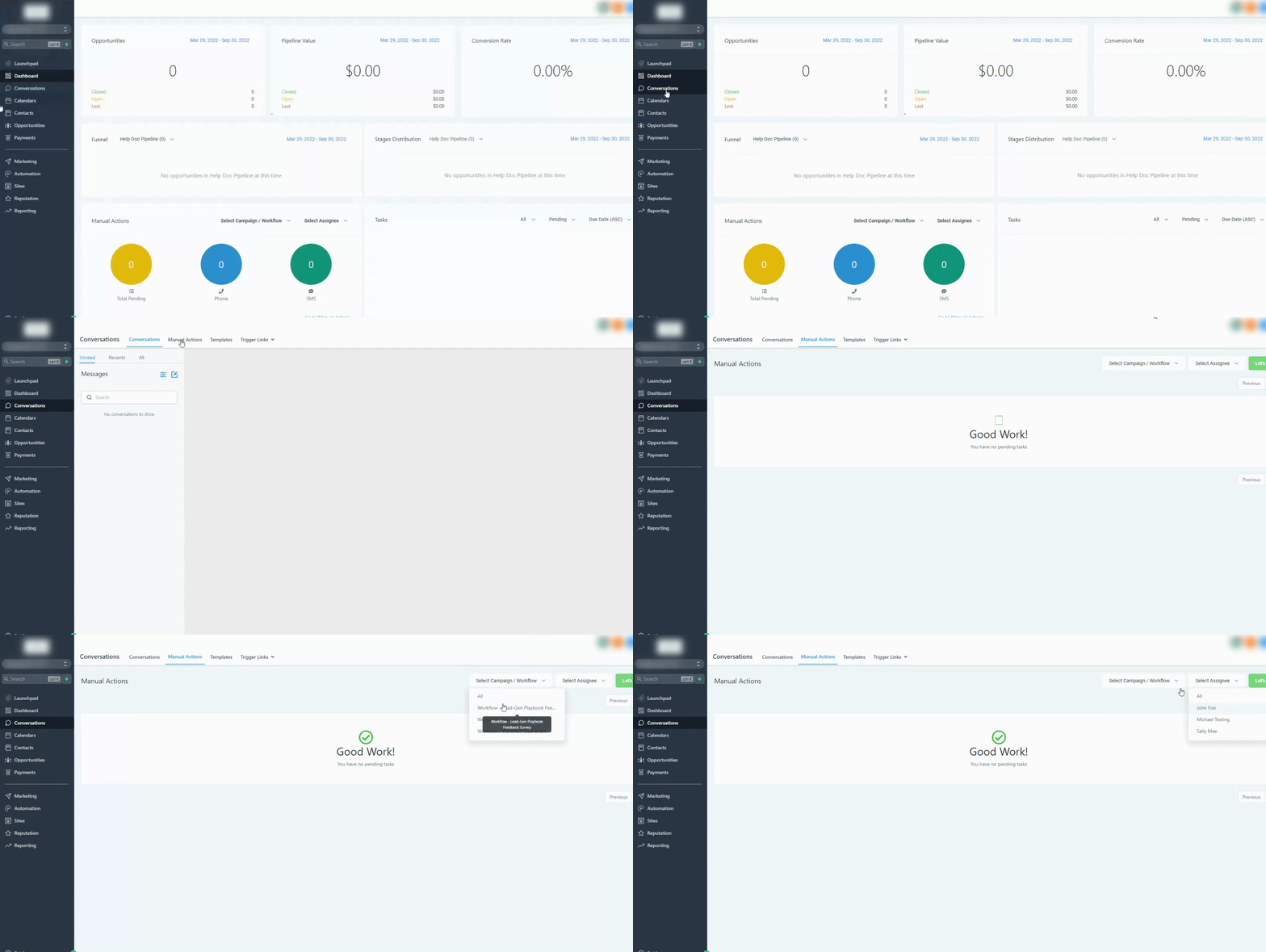
05What it looks like in HighLevel
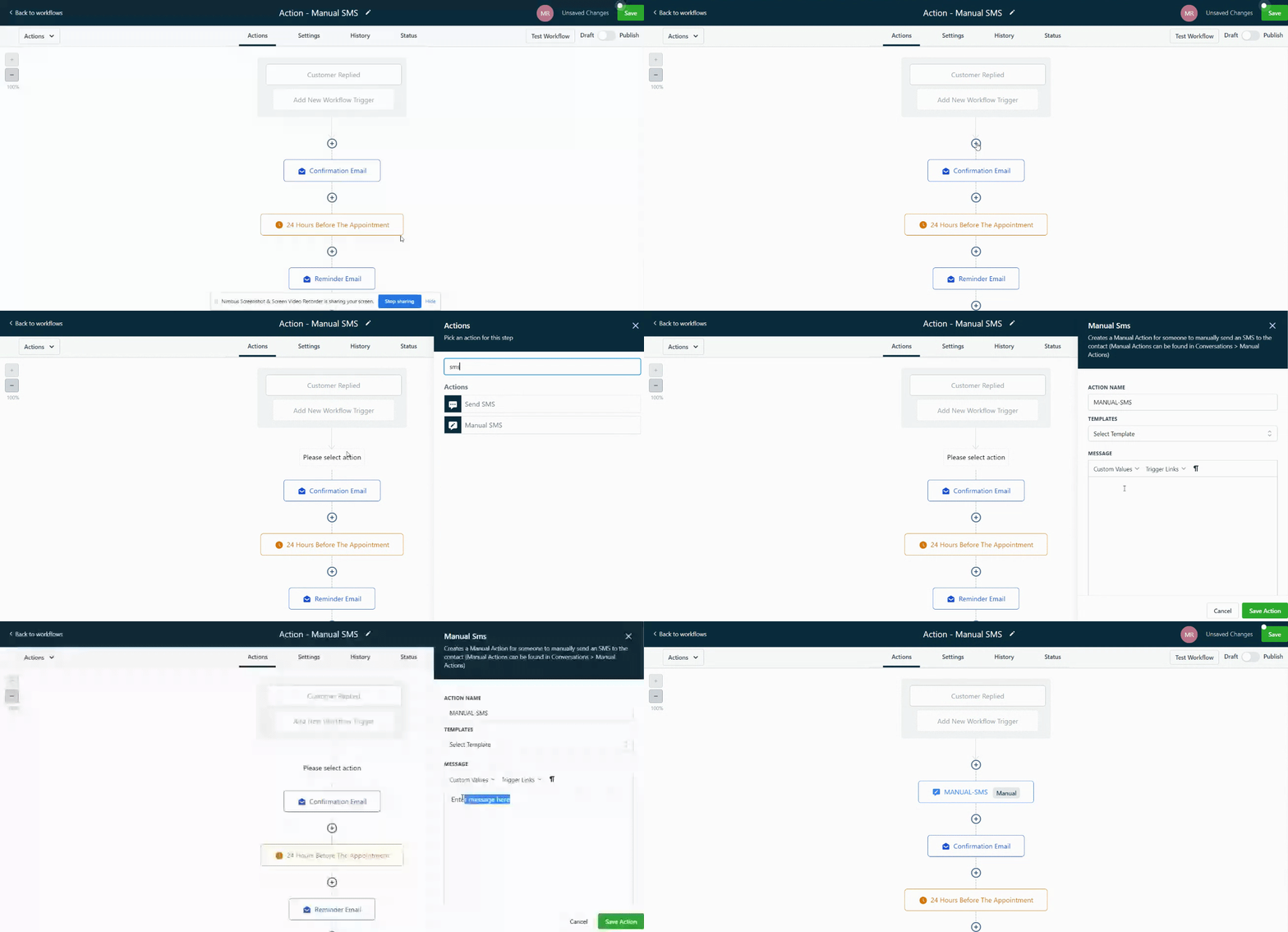
06Things to know before you rely on it
- Campaigns and triggers will be deprecated TBD.
Michael's take

Michael ReimerFounder of CRM Pros, HighLevel Commander and Certified Admin
Wondering if you really need a human to send each SMS in an automated flow? The answer is yes when you want that personal touch, an approval checkpoint, or a quick verification that a machine can’t handle alone.
If I were setting this up, I’d add a manual SMS step right after the automated welcome message. That way the team can confirm the lead’s interest before the next follow up fires.
Get More InformationOpens on HighLevelPublished November 2, 2026 · Updated November 3, 2026