
01Who this is for
- Customer support teams can charge a client during a live call without leaving the contact view.
- Sales representatives can add a subscription the moment a deal closes, keeping data accurate.
02Subscriptions and invoices, explained
The feature adds billing actions directly to a contact’s record. From the Payments tab you can start a new subscription or draft an invoice without opening the global Payments lists. All customer fields are pre populated, and the created billing item shows up on the contact timeline and in the Payments section. This keeps the conversation and the billing steps together in one place.
To use it, open the contact record, choose the Payments tab, and click Actions. Select either Create Subscription or Create Invoice. The system loads a form that already contains the contact’s name and email. You then pick the product, set dates or amounts, choose a saved card if available, and finish by sending the bill.
The subscription’s billing cycle follows whatever interval is defined on the recurring product. If a payment method is not saved or the provider does not support auto pay, that option will not appear.
03How businesses use subscriptions and invoices
- Digital marketing agency. During a strategy call the account manager opens the client’s profile, creates a subscription for the monthly SEO package, sets the start date, selects the client’s saved card for auto pay, and saves. The new subscription appears on the timeline right away.
- SaaS startup. When a trial user upgrades, the sales rep opens the user’s contact, creates a subscription for the premium plan, chooses the recurring product, applies a coupon if needed, and sends the first charge using the stored payment method.
- Consulting firm. After completing a project, the consultant opens the client’s contact, selects Create Invoice, fills the invoice details such as line items and due date, then saves and emails the bill without leaving the contact page.
04Before you start
- Connect a supported payment provider in Payments > Integrations, such as Stripe.
- Ensure payment methods are enabled for your product areas.
- Create at least one recurring product to use for subscriptions.
- Confirm tax and discount settings match your accounting rules.
- Confirm user permissions for Payments allow creating subscriptions and invoices.
- Optionally add a card on file for the contact to enable AutoPay and reduce failures.
05How to set up and use subscriptions and invoices in HighLevel
Create a subscription from a contact’s profile
- Important: the subscription’s billing cycle is inherited from the recurring product you select.
- Open the desired contact’s record from Contacts.
- Select the Payments tab, then choose Actions and click Create Subscription.
- Pick a recurring product and set the start date, quantity, and any coupon.
- Choose a saved payment method for auto pay, or add one if the provider allows it.
- Review the first charge amount and schedule before confirming.
Create an invoice from a contact’s profile
- Navigate to Contacts and open the contact’s details.
- Go to the Payments tab, open Actions and select Create Invoice.
- The invoice page opens with the customer’s information already filled in.
- Enter the required invoice line items and other details.
- Save the invoice and send it to the customer.
06What it looks like in HighLevel
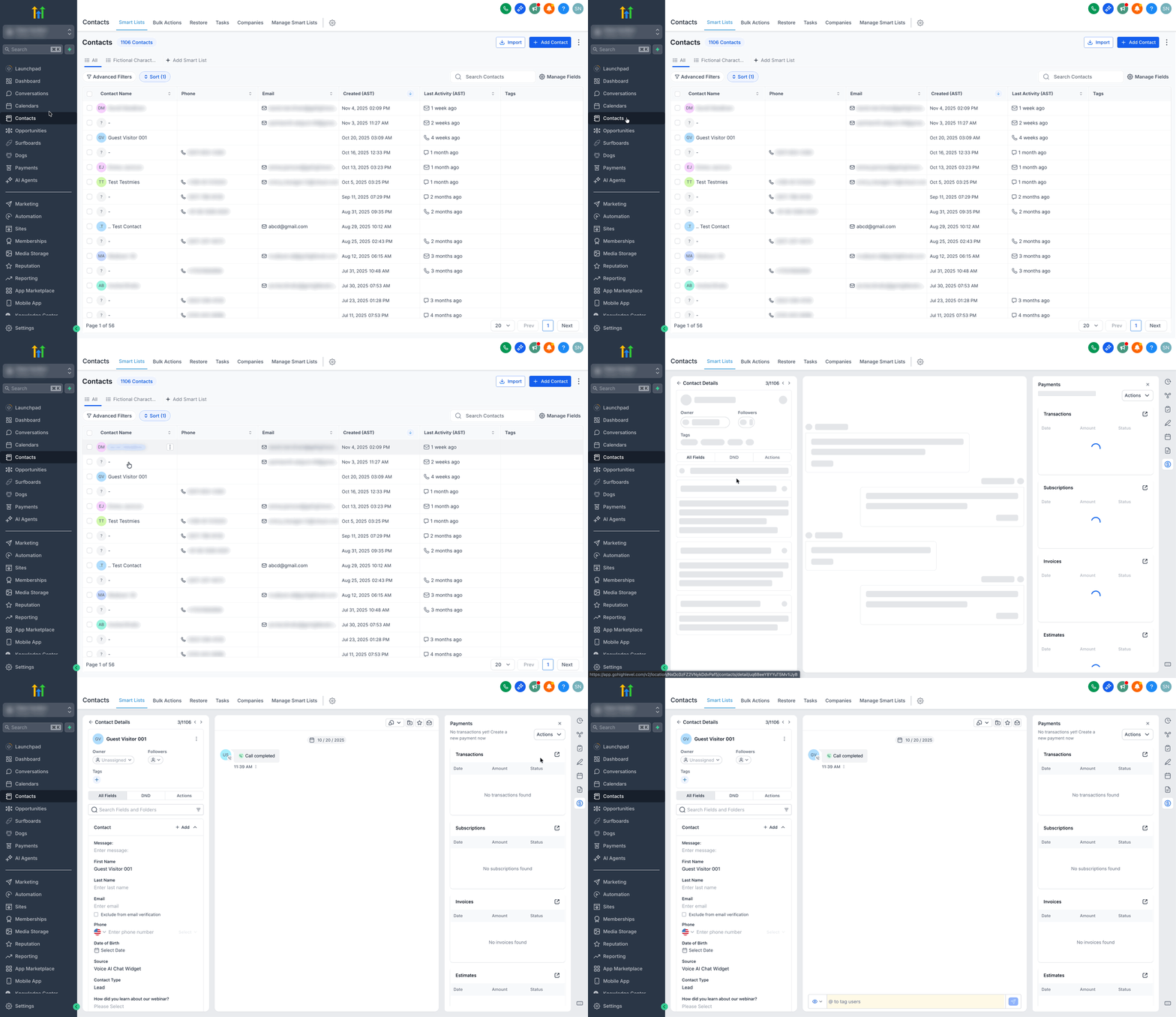
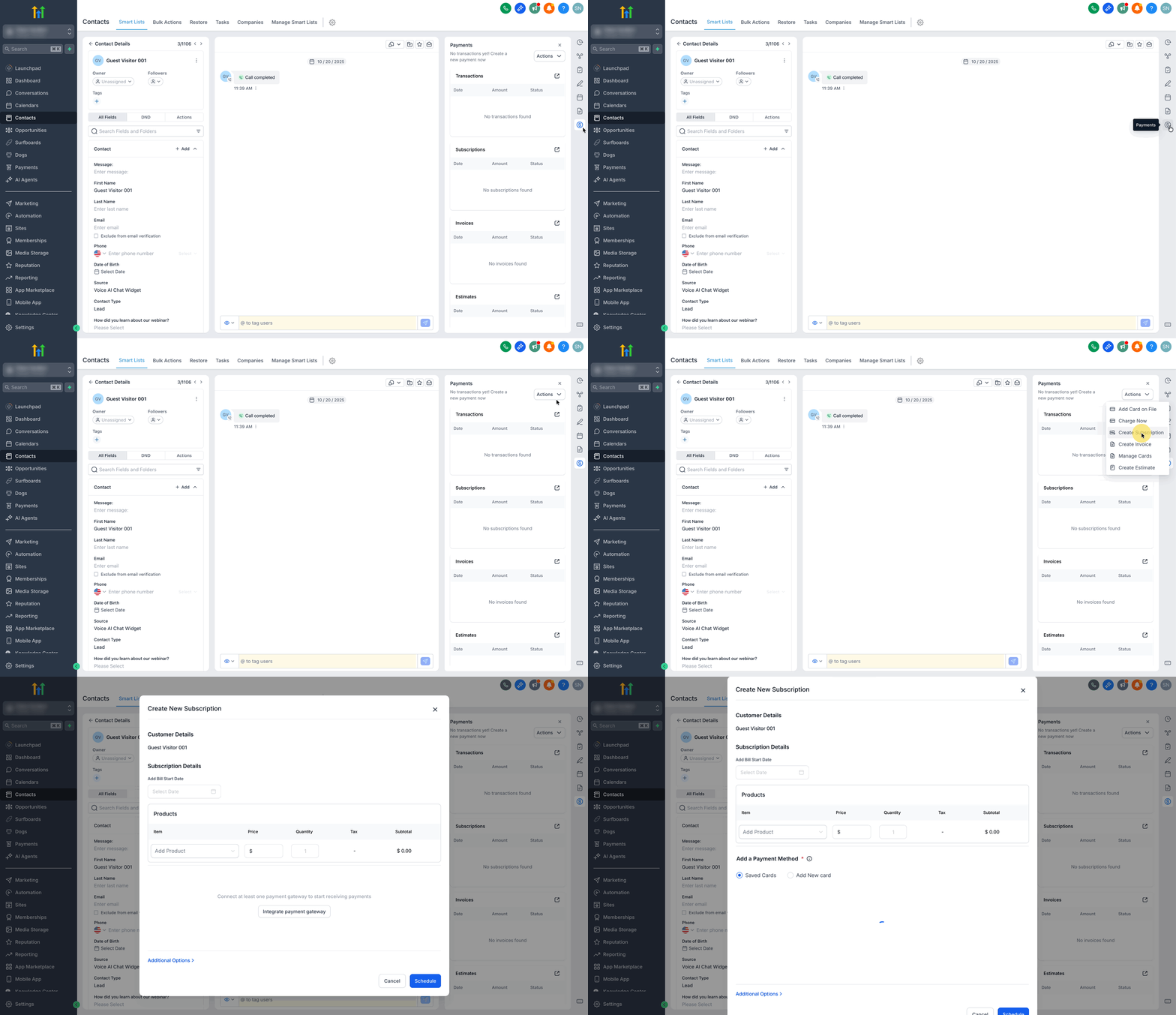
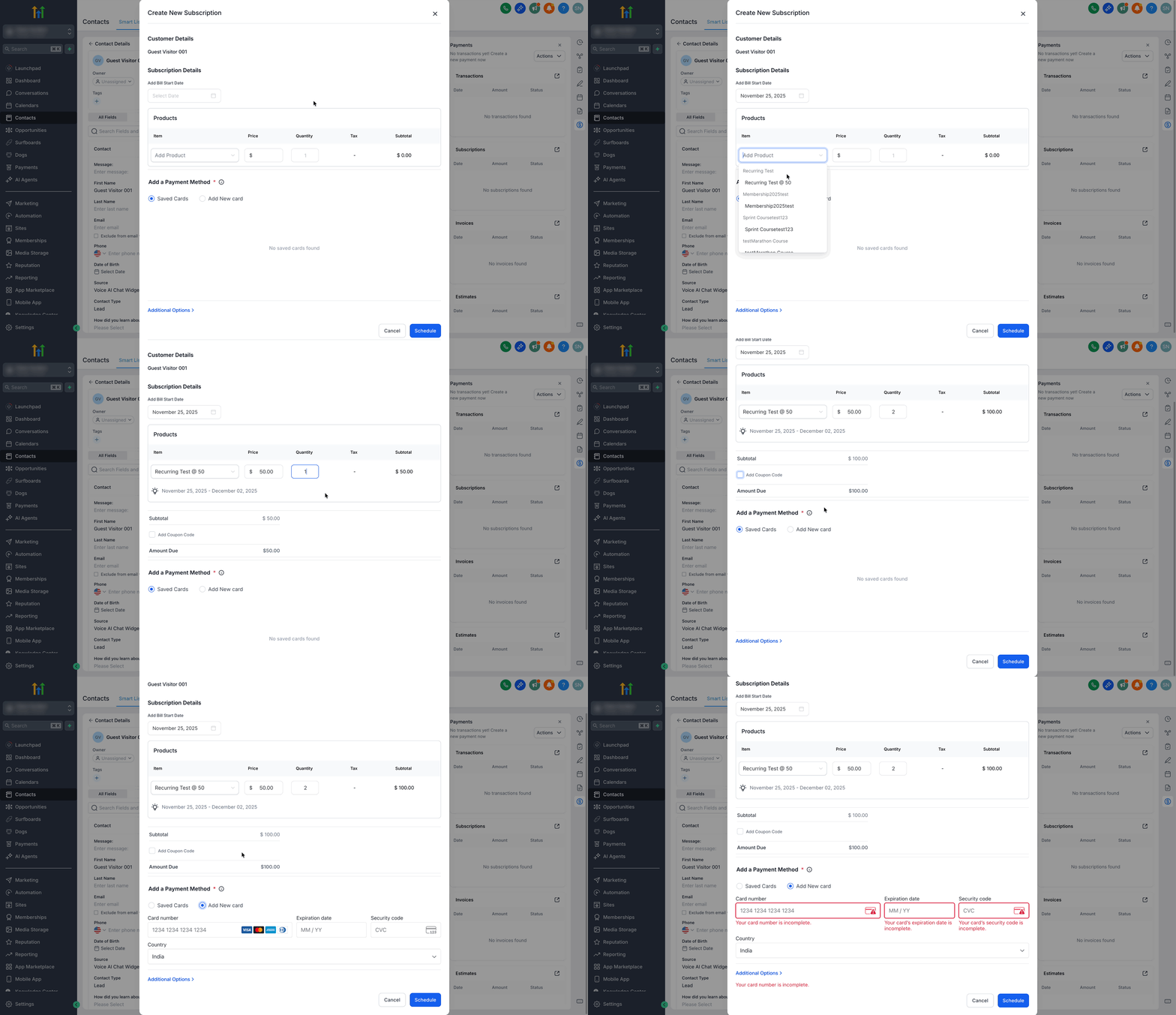
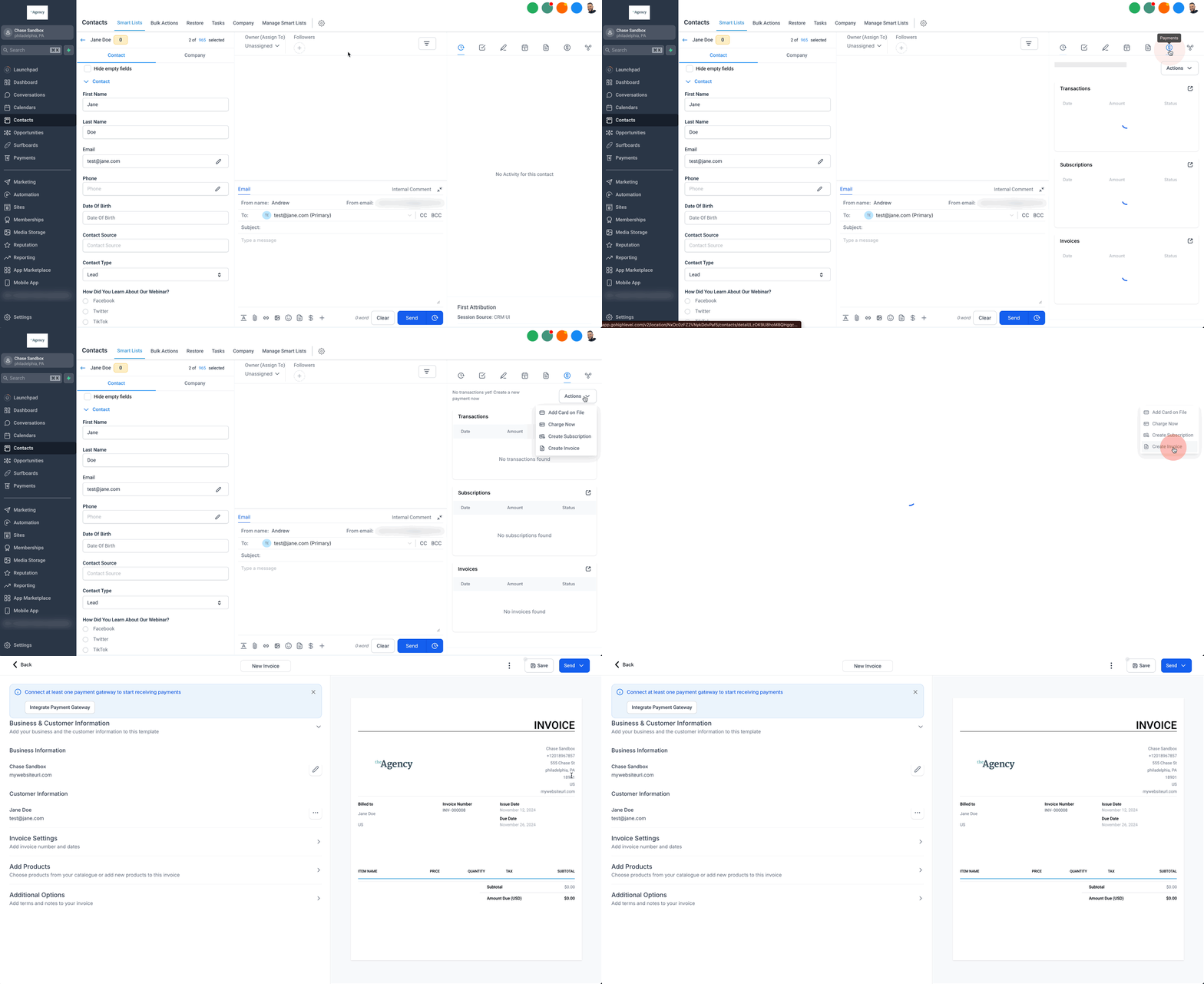
07Settings that matter
- Recurring Product. Determines which product is sold and defines the billing interval for the subscription.
- Start date. Sets the day the subscription’s first charge will be applied.
- Quantity. Specifies how many units of the selected product are included in the subscription.
- Coupon. Applies a discount code to the subscription if one is provided.
- AutoPay. Enables automatic charging using a saved payment method when the provider supports it.
08Things to know before you rely on it
- AutoPay will not appear if the chosen payment provider does not support saved cards for subscription schedules.
- The subscription’s billing cycle cannot be changed manually; it follows the recurring product’s cycle.
09If something goes wrong
- Payment method fails during subscription setup. Select a different saved card or add a new one; the subscription will only activate once a valid method is provided.
10How it connects to the rest of HighLevel
- See the new contact detail layout where the Payments tab resides All new contact detail page
- Learn how to add and manage cards on file for contacts HighLevel pricing and plans
- Start a free trial to test the subscription and invoice creation workflow 30 day trial
- Review the Founder Plan for unlimited access to billing features Founder Plan
Michael's take

A great shortcut for anyone who bills while on the phone, but it isn’t a must have for teams that only send quotes after a meeting.
If you never need to charge a customer during a live conversation, you can stick with the main Payments list.