
01Who this is for
- Compliance officers can enforce stricter sharing rules and keep audit trails for sensitive client files.
- Sales teams benefit from password protected or OTP links when sending proposals to external prospects.
- Support staff can limit downloads on troubleshooting documents to prevent uncontrolled distribution.
02Enhanced document privacy & access controls, explained
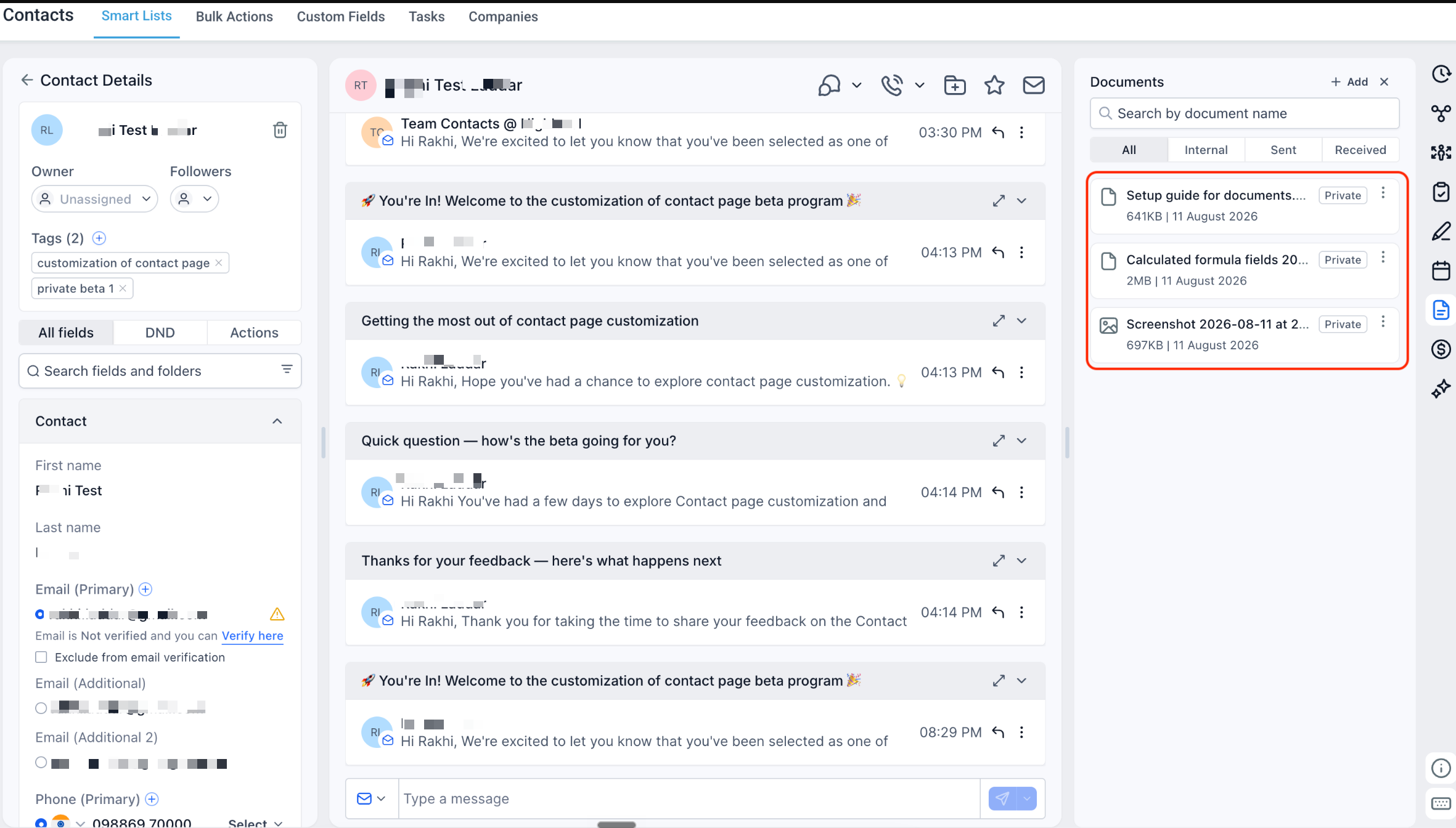
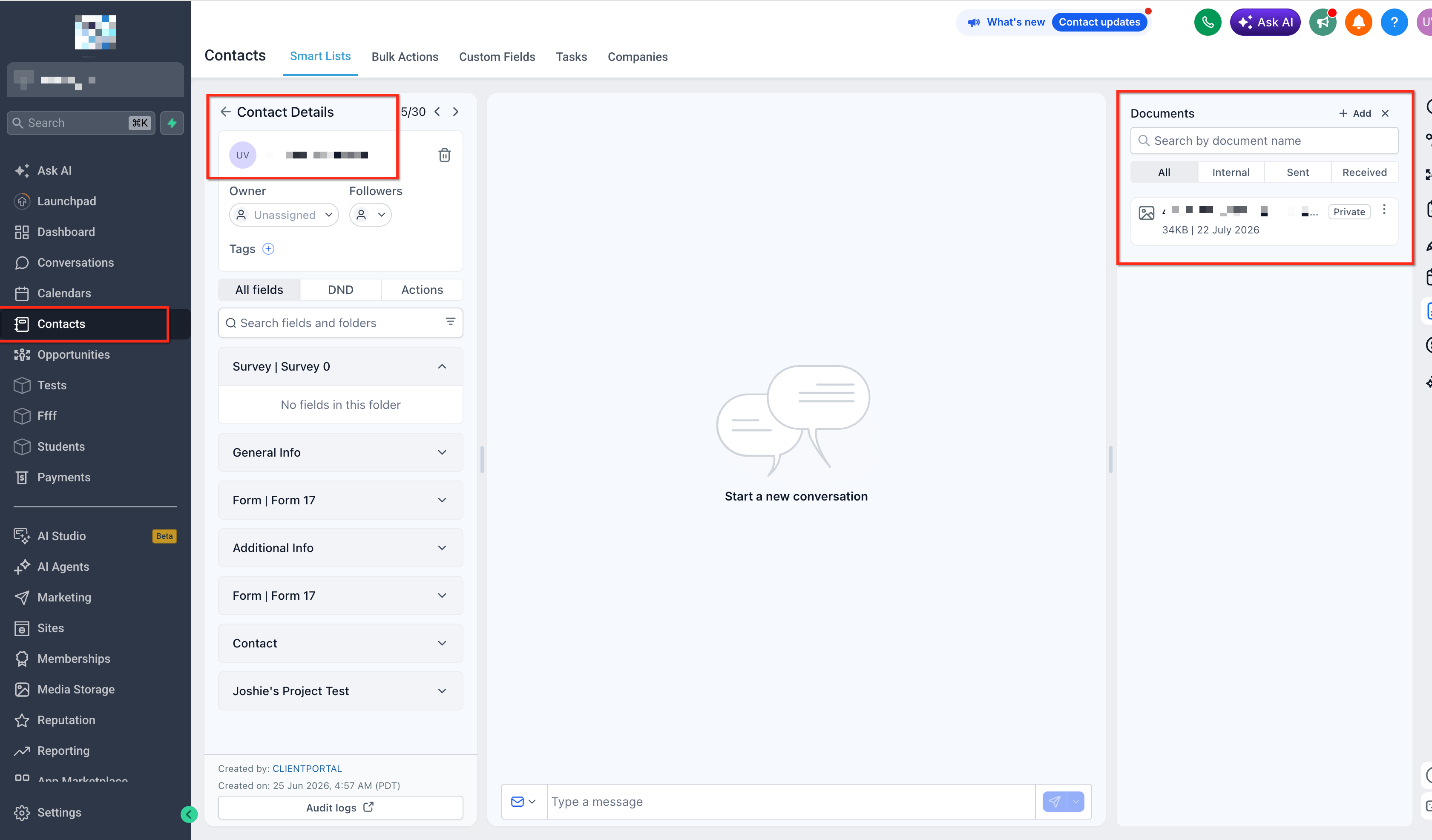
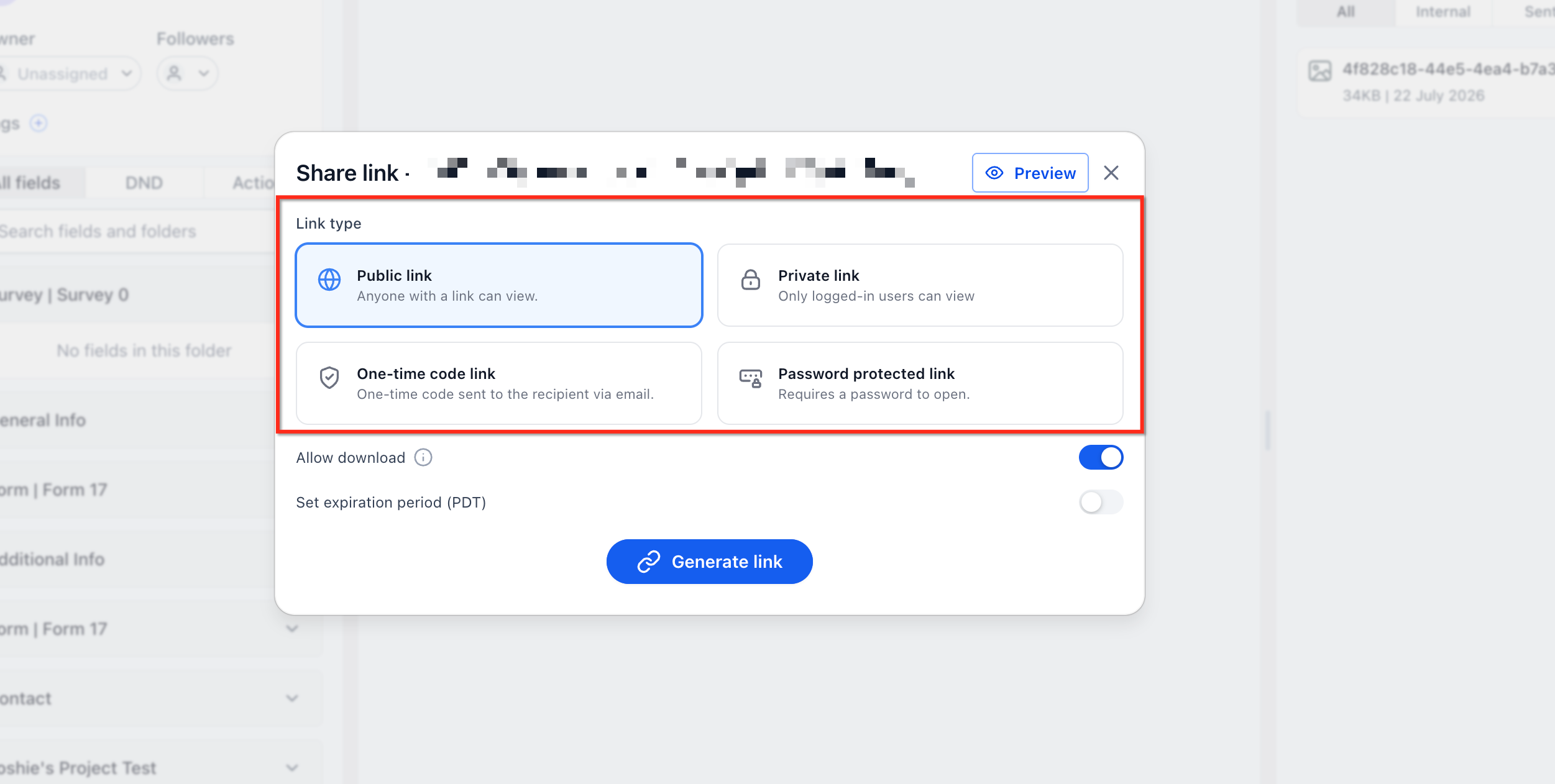
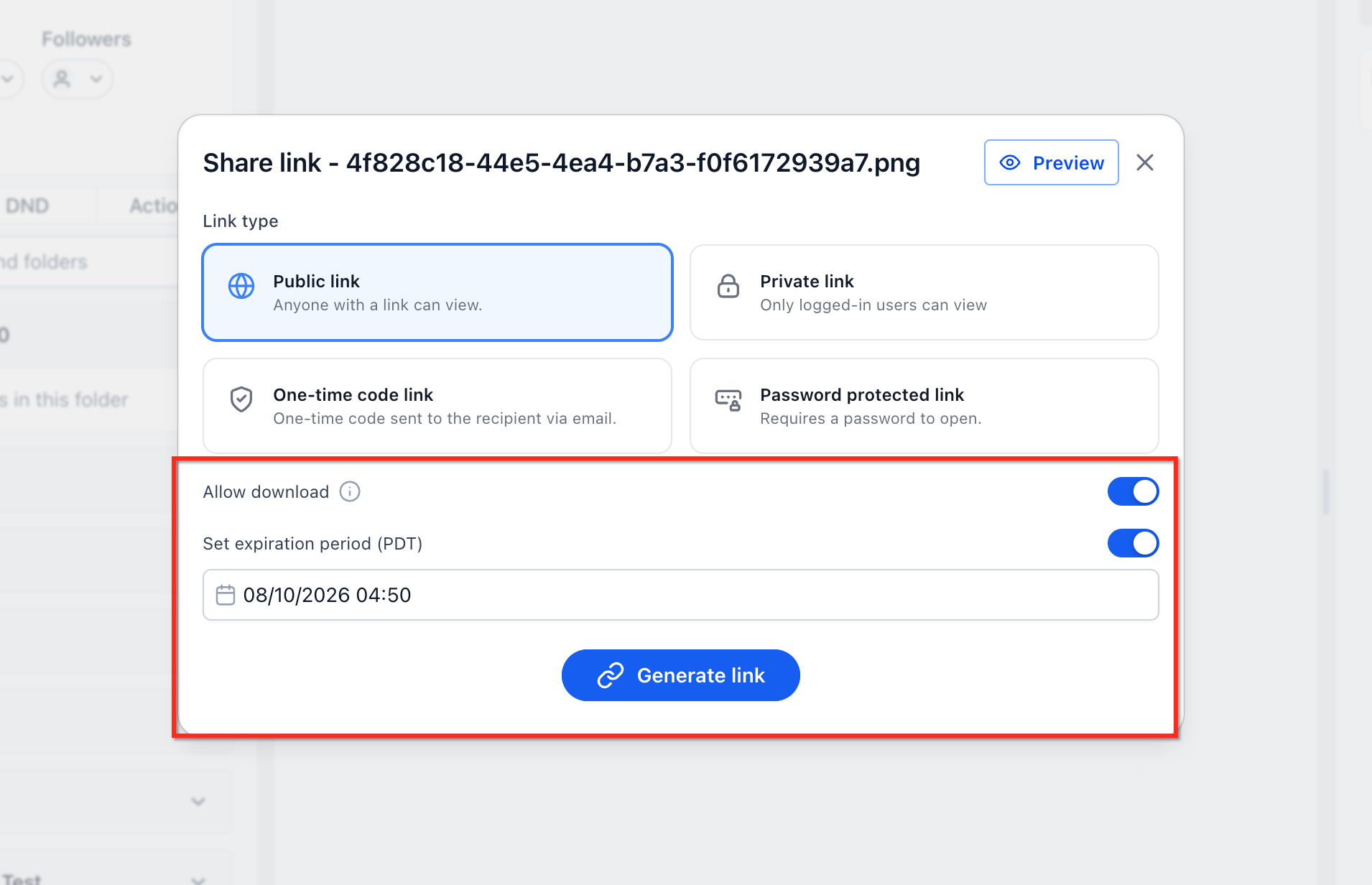
The feature lives inside the Documents panel of a contact’s detail page. When you click a file’s Share option, a dialog offers four link types, public, private, one time passcode, and password protected, plus optional expiration dates and download toggles. New attachments added through Notes are stored privately by default, while older Note attachments stay public unless you create a new link.
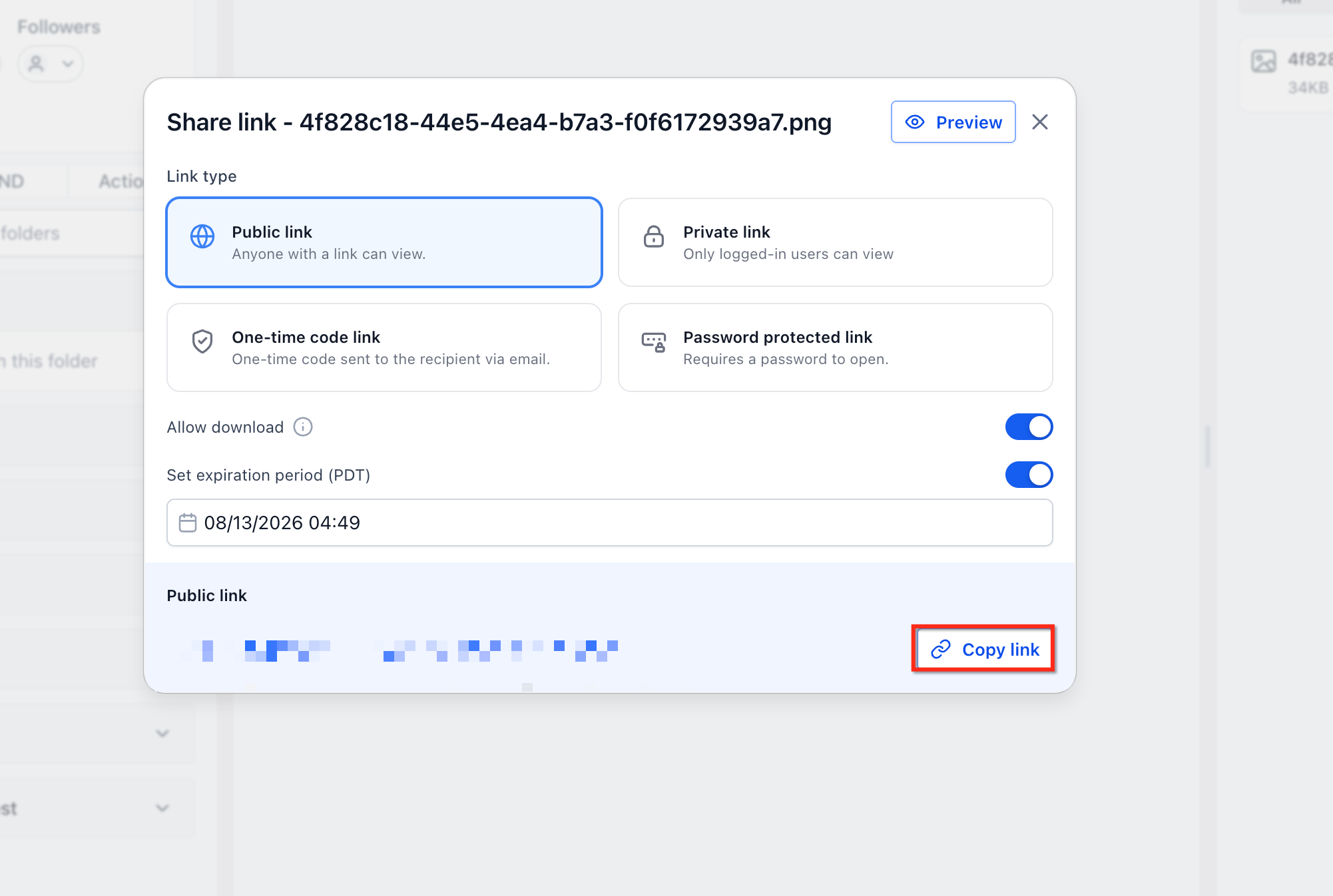
All share links are generated on demand; they do not replace the original file URL. After a link is created you can copy it and send it through any channel. A separate details view shows the chosen link type, expiry, download setting, and a log of when the link was opened and by whom, when that data is available.
03How businesses use enhanced document privacy & access controls
- Legal firm. A lawyer opens a client’s record, selects a confidential contract from the Documents tab, and generates a password protected link that expires in three days. The link is then emailed to the client while the password is sent via text. The firm later checks the access history to confirm the document was viewed.
- Real estate agency. An agent shares a property brochure using an OTP link sent to the buyer’s email. The link is set to expire after one week and download is disabled, ensuring the buyer can view the brochure without saving a copy. The agent reviews the access log to see when the buyer opened the file.
- Digital marketing consultancy. A consultant uploads a performance report to a contact’s Documents panel and creates a public link with a two day expiration. The link is placed in a client portal message. The consultant later opens the document details to verify the link’s expiry and whether the client downloaded the report.
04The numbers and rules that matter
- Access history shows when links were opened and, where available, by whom.
05Before you start
- An Agency Admin or Subaccount Admin must be signed in to access Settings > Labs.
- The contact record must contain the file you want to share in its Documents panel.
06How to set up and use enhanced document privacy & access controls in HighLevel
Enable Enhanced Document Privacy in Labs
- Log in with an admin account that can reach Settings and Labs.
- Navigate to Settings > Labs in the appropriate workspace.
- Find the card named similar to “Enhanced document privacy & access controls”.
- Switch the toggle to ON and, if offered, assign the desired subaccounts or locations.
- Refresh the Contact Detail page and verify new sharing options appear.
Share a document with controlled access
- Open the Contacts list and select a contact record.
- Click the Documents tab on the right side to list the contact’s files.
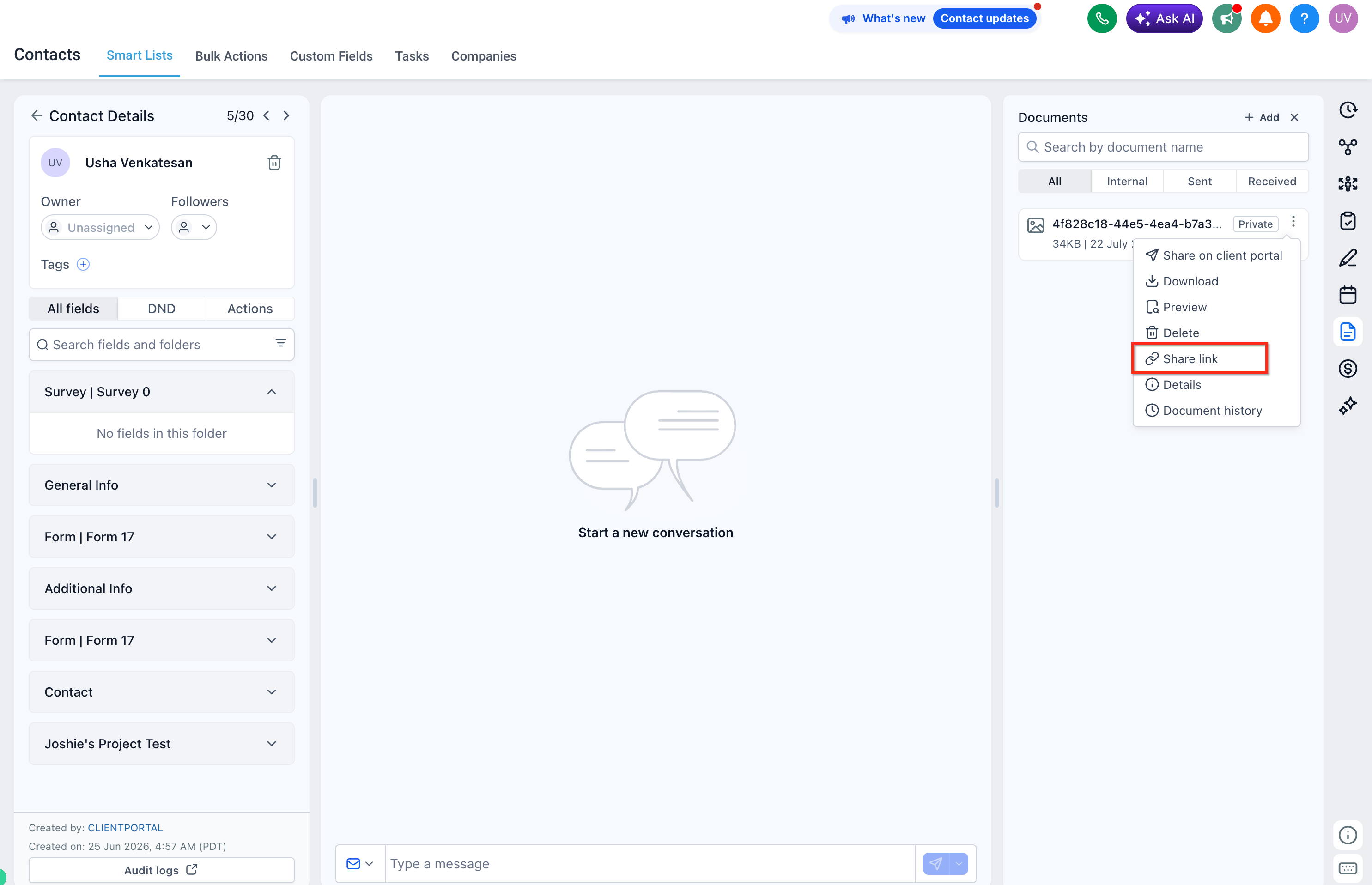
- Locate the desired file and open its three dot actions menu.
- Choose the Share link option.
- In the popup, pick the required link type, public, private, one time passcode, or password protected.
- Enter an expiration date if you want the link to stop working after a certain day.
- Toggle the Allow downloads switch on or off depending on whether saving is permitted.
- Review the summary of settings and confirm they are correct.
- Click the Create/Generate button, copy the URL, and send it via your chosen channel.
Review document details and access history
- Return to the contact’s Documents tab.
- Open the details view for the shared file using the details icon or the actions menu.
- Check the displayed link type, expiration date, and download permission.
- Look at the access history list to see timestamps and, where available, the users who opened the link.
07What it looks like in HighLevel
08Settings that matter
- Enhanced document privacy & access controls (Labs toggle). Turns the entire document sharing feature on or off for the selected locations.
- Link type. Selects whether the generated URL is public, private, requires a one time passcode, or needs a password.
- Expiration date. Defines the calendar day when the shared link automatically stops working.
- Allow downloads. Controls whether recipients can download a copy of the file or only view it in the browser.
09Things to know before you rely on it
- The feature is only available through Labs and may change as the product team updates it.
- Only files stored in the contact’s Documents panel are affected; custom field and note attachments are not covered yet.
- Documents uploaded via Notes before the update keep their original public status unless you generate a new link.
- New links default to private; you must select public if that behavior is desired.
10How it connects to the rest of HighLevel
- All new contact detail page overview Contact detail page
- How to customize the contact detail page Customize contact page
- HighLevel pricing and plans Pricing
- Start a 30 day trial of HighLevel Free trial
Michael's take

Provides tighter control over document sharing.