
01Who this is for
- Sales teams, they can quickly see calls, appointments and form submissions linked to a prospect.
- Marketing agencies, the grouped view helps track campaign clicks, page visits and lead forms for each client contact.
- Customer support managers, they can review recent chats, surveys and ticket related activity in one place.
02Activity Section Upgrade, explained
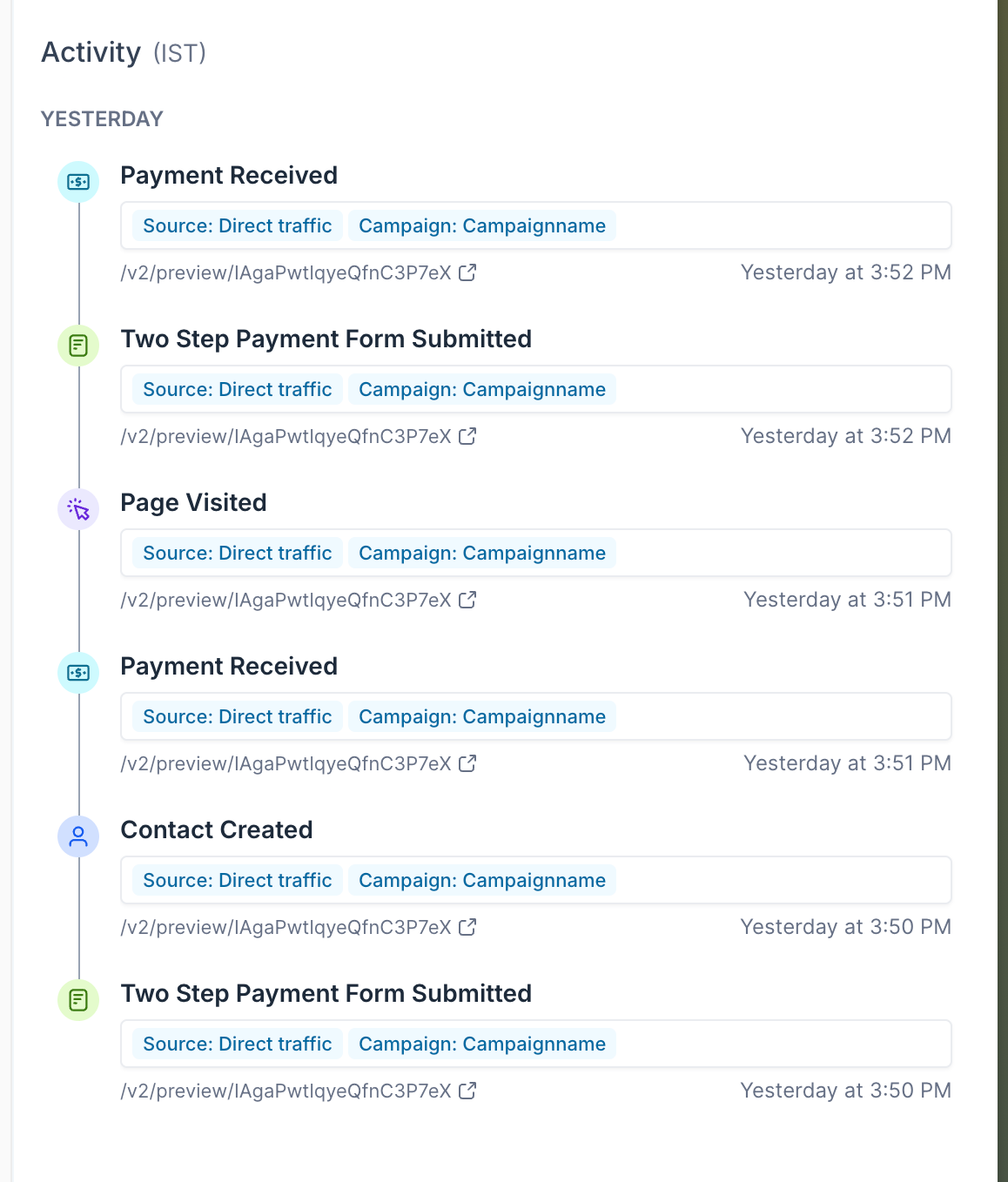
The upgrade adds a new Activity section to a contact’s detail page. It displays every recorded event for that contact, such as calls, appointments, form submissions and website visits. Each event appears as a card that includes a title, timestamp, source label and a link icon.
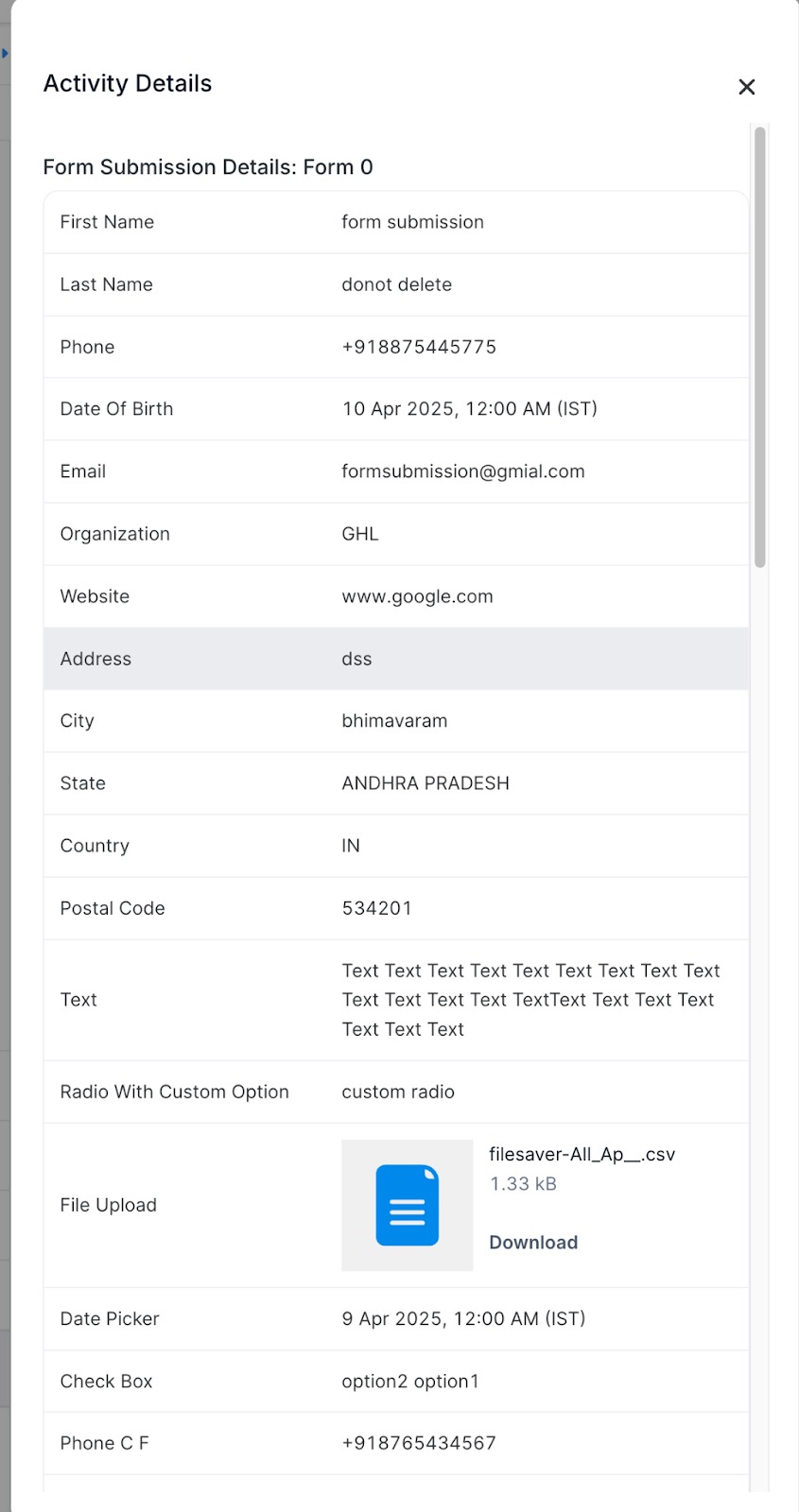
Cards are organized under headings like “Today” and “Yesterday” so users can scan recent actions chronologically. Clicking a card opens a detailed view of that event, and clicking the link icon jumps directly to the external URL linked to the activity. The redesign also improves loading speed and adapts to both desktop and tablet screens.
The feature lives inside the Contacts area. To turn it on, users go to a contact’s detail page, locate the Activity Section Upgrade toggle, and enable it. Once active, the new layout replaces the previous activity list for every contact they view.
03How businesses use the Activity Section Upgrade
- Digital marketing agency. An agency opens a client contact, enables the upgrade, and then reviews the grouped activity cards to confirm which ads and landing pages the contact clicked. The team clicks a card to see the exact campaign label and follows the link icon to view the landing page.
- Sales consulting firm. A salesperson selects a prospect’s contact record, checks the activity section for recent call and appointment cards, and clicks a card to read the call notes. The link icon is used to open the calendar event that was scheduled.
- Customer service department. Support staff open a ticket submitter’s contact, view the activity feed for recent chat widget form submissions, and click the cards to see the full chat transcript. They use the link icons to jump to any external resources the customer shared.
04The numbers and rules that matter
- Tracked events include Contact Created, Appointment, Call, Page Visit, Trigger Link, One Step and Two Step Contact Forms, One Step and Two Step Payments, Form Submission, Survey, Quiz, Facebook Lead Form, Chat Widget Form, LinkedIn Lead Form.
05Before you start
- Open the detail view of a contact in HighLevel.
06How to set up and use the Activity Section Upgrade in HighLevel
Enable activity section upgrade
- Open the detail view of a contact.
- Locate the “Activity Section Upgrade” setting.
- Switch the toggle to the on position.
View activity for a contact
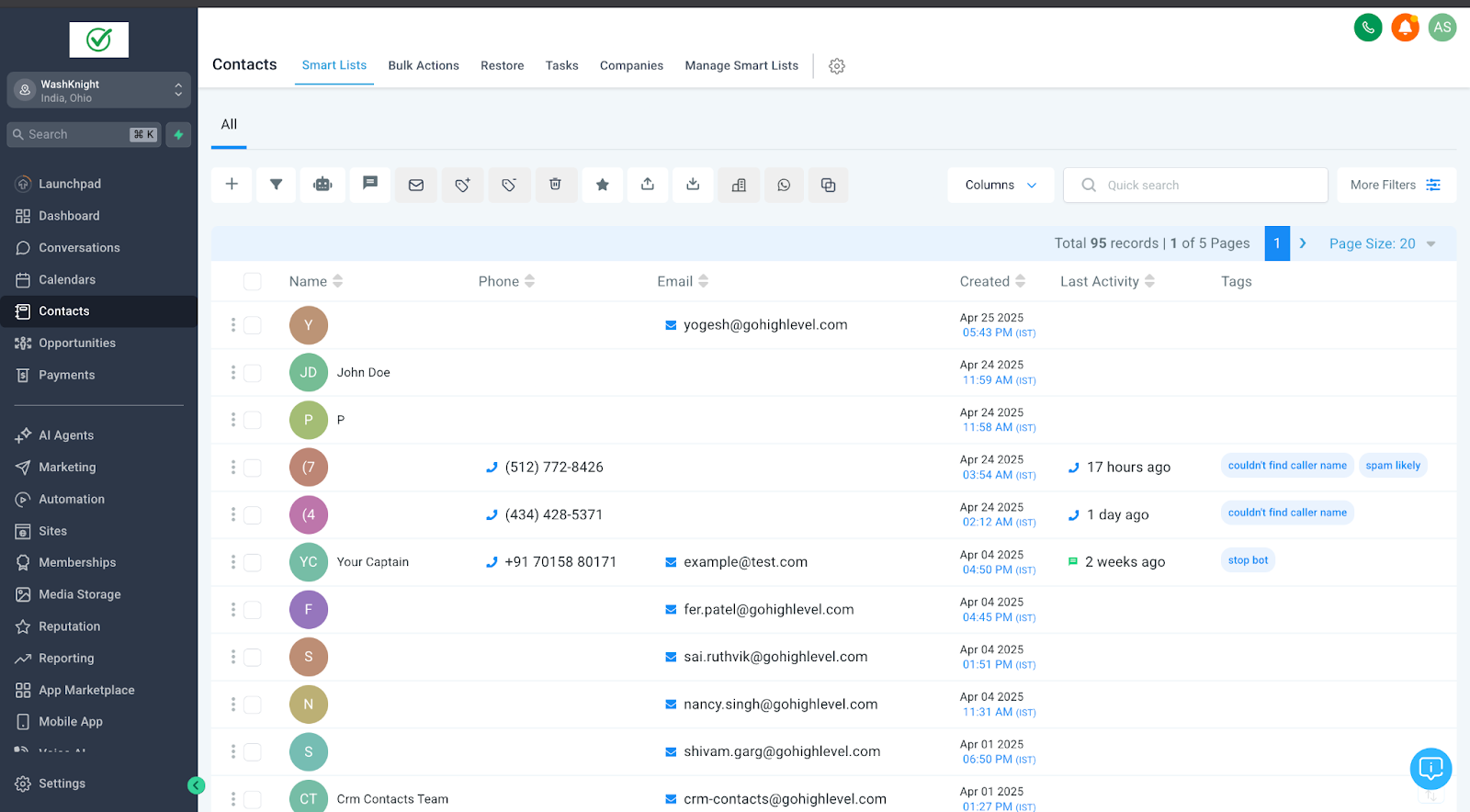
- Open the Contacts area.
- Select the contact you want to examine.
- Click any event card to see its details.
- Click the event’s link icon to open the associated URL.
07What it looks like in HighLevel
08Settings that matter
- Activity Section Upgrade. Controls whether the redesigned activity layout with date groupings and clickable cards appears on contact detail pages.
09How it connects to the rest of HighLevel
- See the full new contact detail page layout. All new contact detail page
- Learn how to customize fields and sections on a contact’s page. Customize contact detail page
- Review HighLevel pricing and plan options. Pricing
Michael's take

When you need a quick snapshot of every interaction a prospect has had with your brand, this upgrade provides visual grouping and clickable cards that let you see recent activity without digging through multiple screens.
If you rarely use the detailed activity feed or your team works mostly offline, the added UI polish may feel like extra fluff.