
01Who this is for
- Marketing managers can isolate contacts that meet exact engagement criteria, reducing the need to sift through irrelevant records.
- Sales teams can pull lists of prospects based on opportunity stage or score thresholds, helping them prioritize follow up.
- Compliance officers can quickly identify contacts with Do Not Disturb enabled to ensure outreach respects preferences.
02Advanced filters, explained
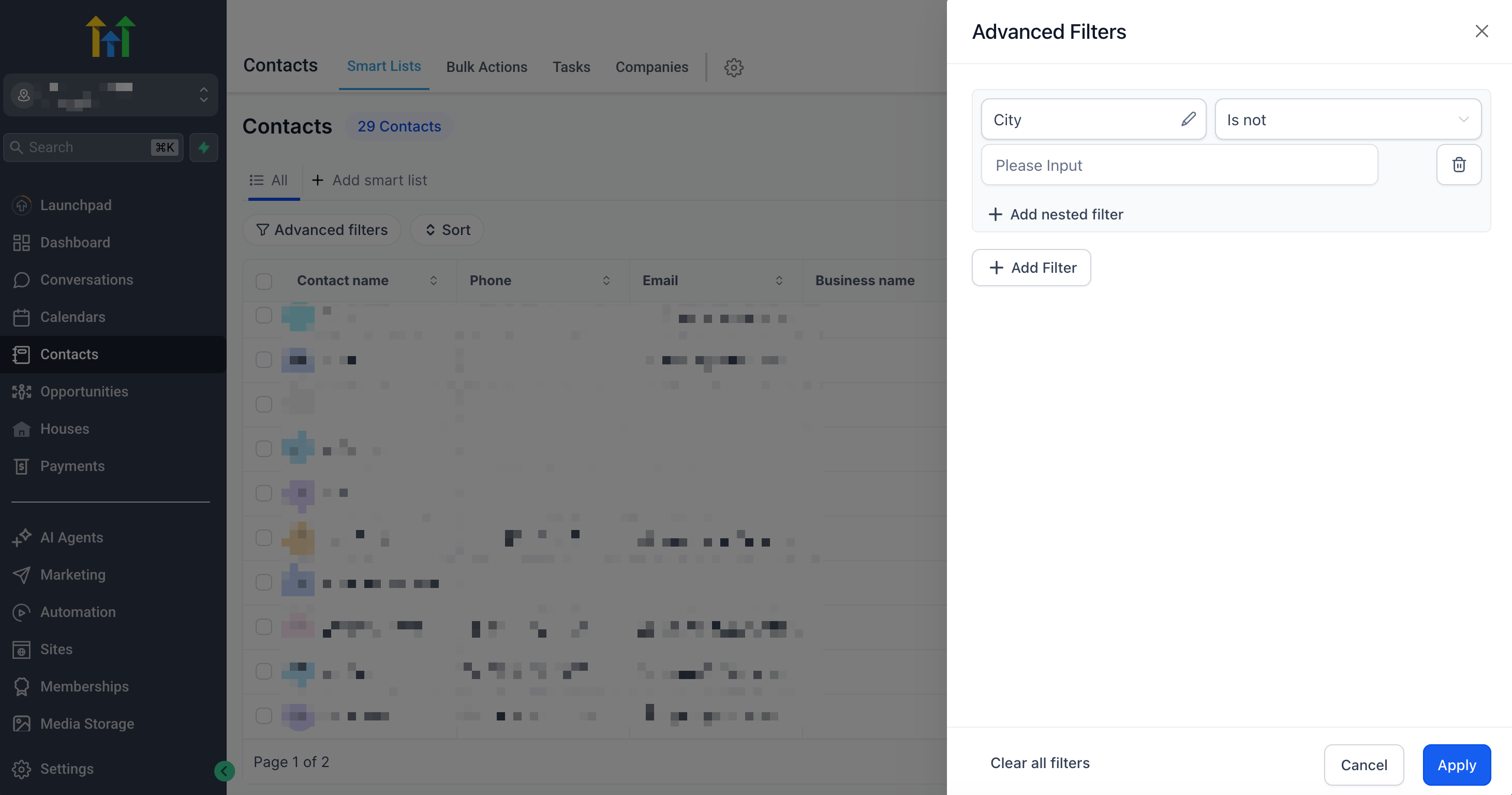
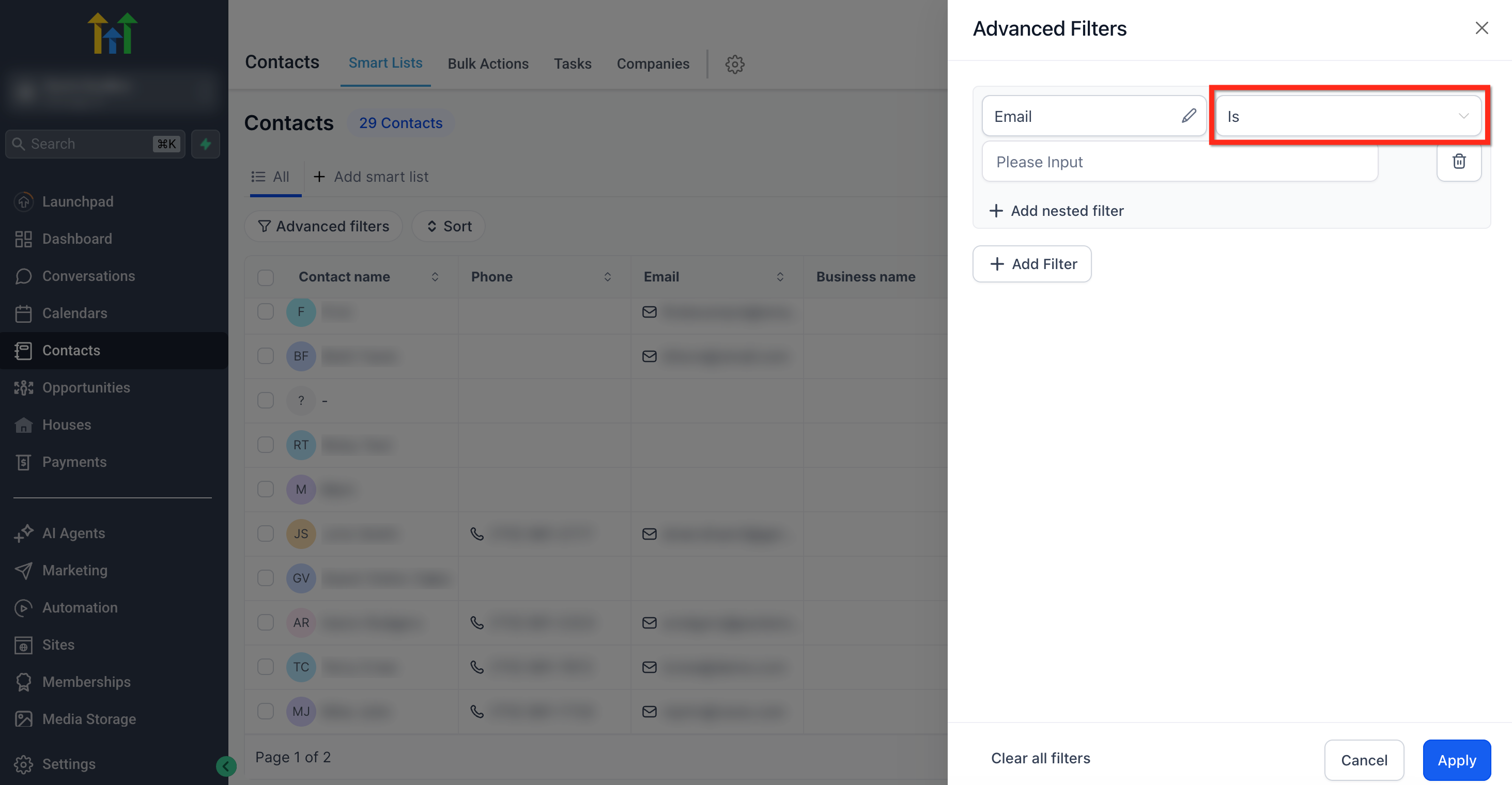
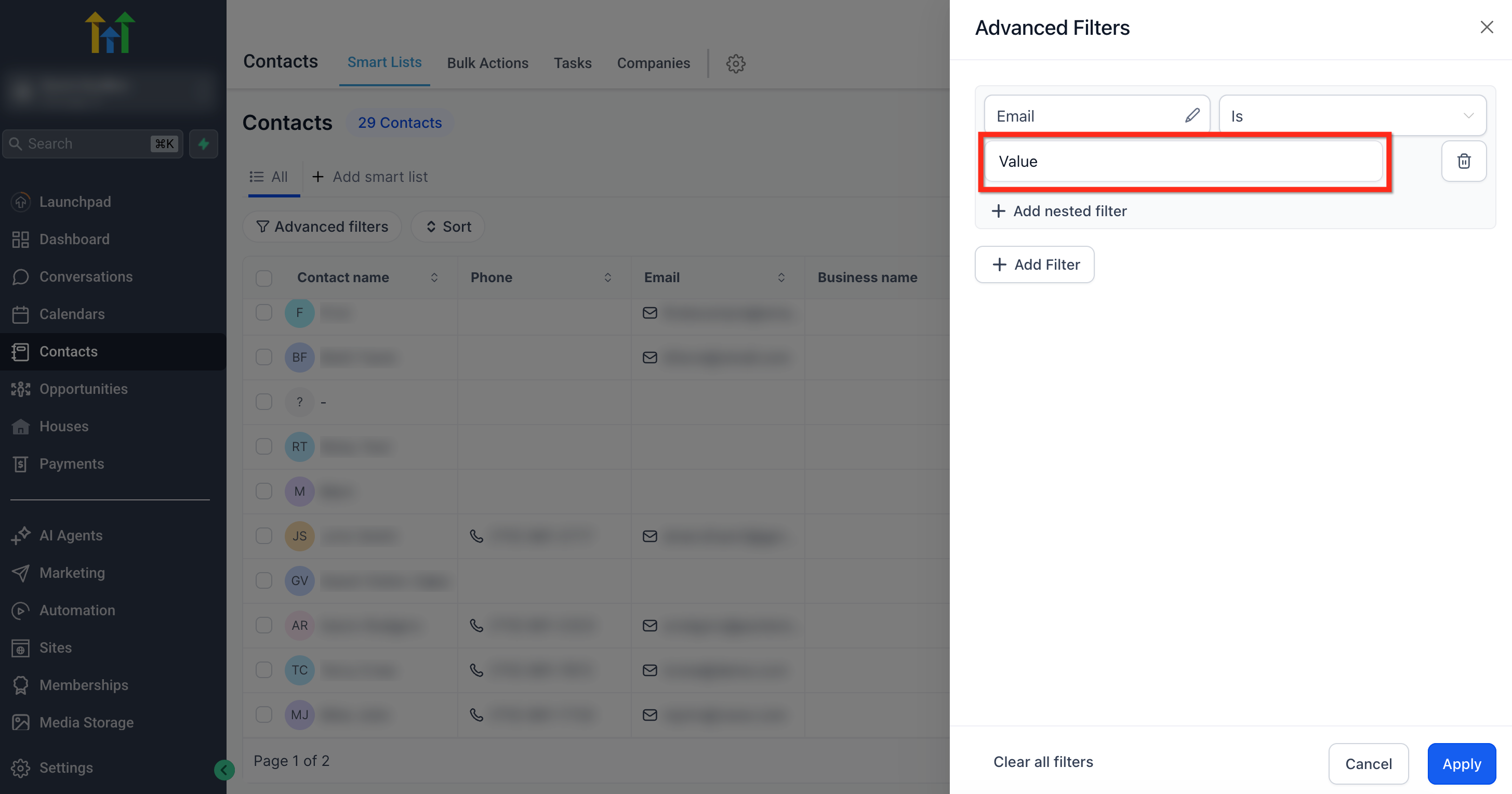
Advanced Filters are a feature inside the Smart List tool that adds rule based logic to contact searches. Each rule consists of a field, an operator that matches the field type, and a value to compare against. The platform adjusts the available operators automatically, so date fields show date operators, number fields show numeric comparisons, and boolean fields show enabled/disabled choices.
When you apply one or more filters, the Smart List displays only contacts that satisfy the defined conditions. You can combine filters with AND logic using nested filters or with OR logic using additional filters. The filters live in the Contacts section under Smart Lists, and they are built directly within the list editor.
The result is a dynamic list that updates in real time as contact data changes, allowing precise segmentation for campaigns, reporting, or data cleanup.
03How businesses use advanced filters
- Real estate agency. A realtor can add a date filter for "Last Activity On" is "In the Last" 30 days to find clients who have engaged recently. They may also add a string filter for "City" is "Chicago" to focus on a specific market. The filtered Smart List can then be used for targeted email follow ups.
- Fitness studio. The studio can create a numeric filter on "Engagement Score" greater than 80 to target highly active members. Adding a DND filter set to "Enabled" for "SMS DND" ensures the list excludes members who opted out of text messages. The final list feeds into a campaign for a new class.
- B2B software vendor. The sales team can build an opportunity filter where "Pipeline" is "Enterprise" and "Stage" is "Proposal Sent". Coupling this with a date filter "Last Email Opened Date" is "More Than" 14 days ago surfaces prospects that need a follow up reminder. The list can be used in a workflow for outreach.
04The numbers and rules that matter
- Date fields include Last Appointment At, Date of Birth, Created On, Last Activity On, Last Updated On, Last Email Clicked Date, Last Email Opened Date.
- DND fields include DND all, SMS DND, Email DND, Calls & Voicemails DND, WhatsApp DND, Inbound DND, FB Messenger DND, GMB Messenger DND.
- String fields include First name, Last name, Email, Address, Timezone, Last Updated By, Opportunity Pipeline, Email Status, Tags.
05How to set up and use advanced filters in HighLevel
Set up advanced filters in a Smart List
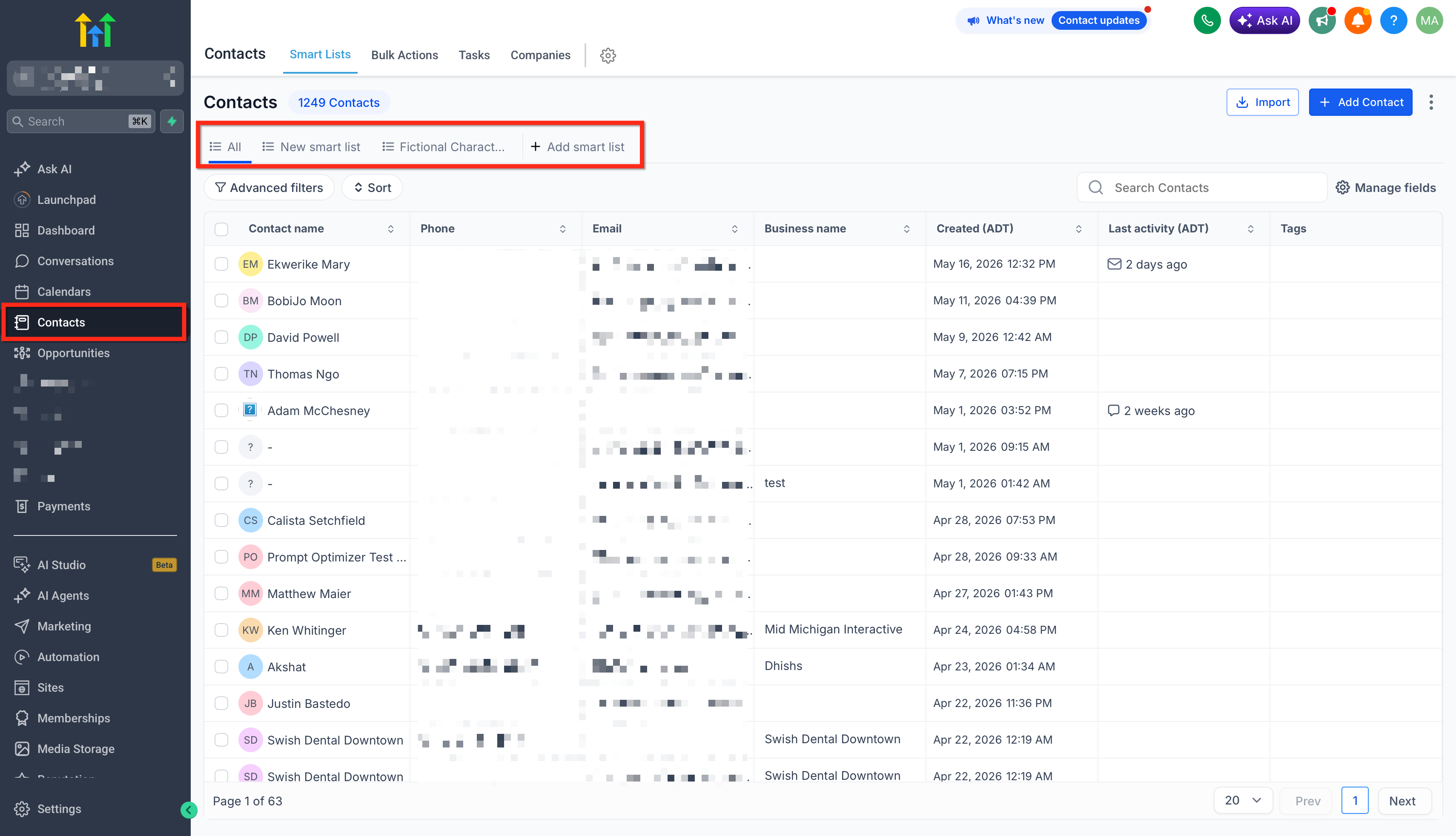
- Open the Contacts area and click + Add smart list or open an existing Smart List.
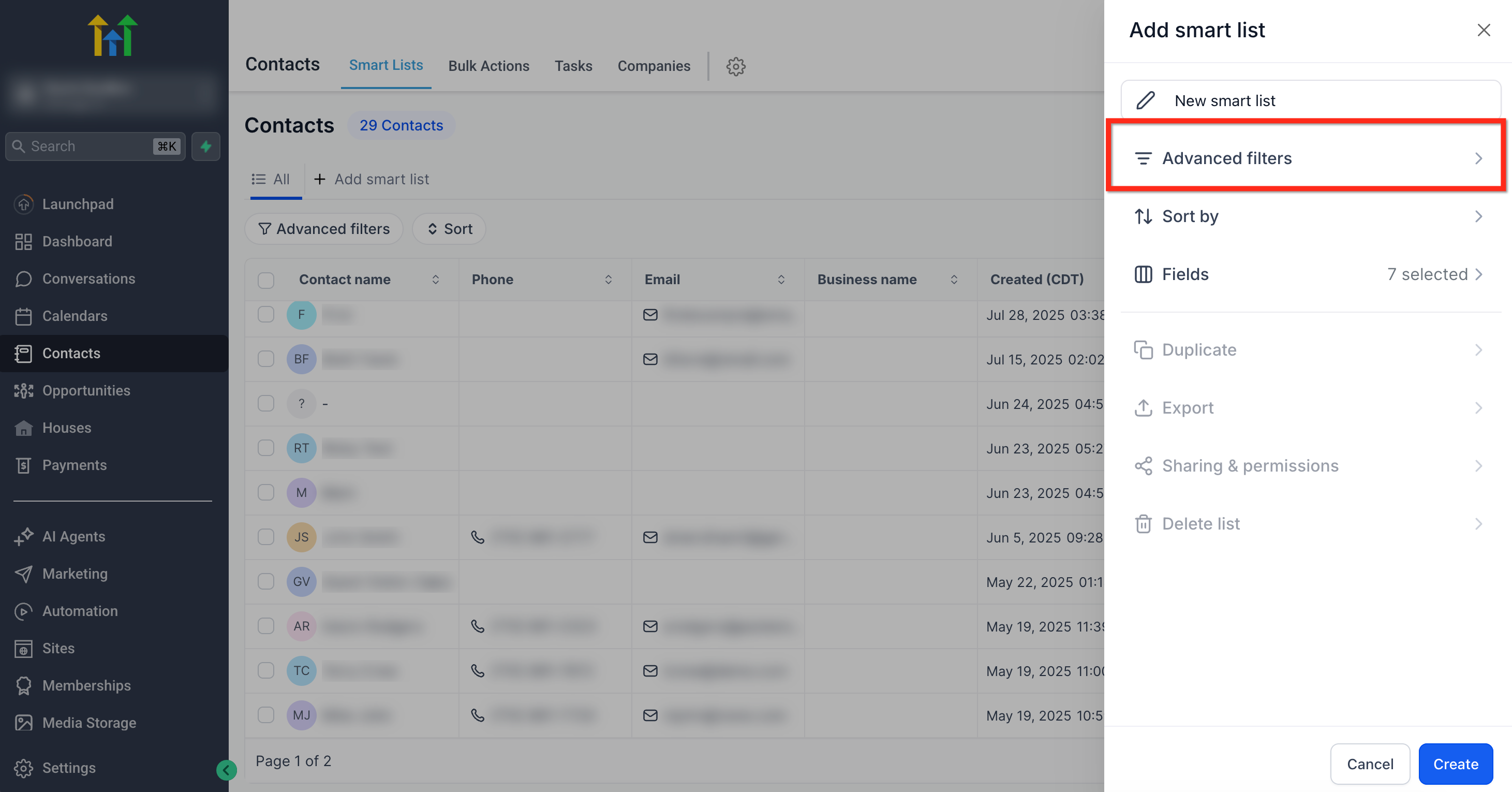
- Select the Advanced Filters option.
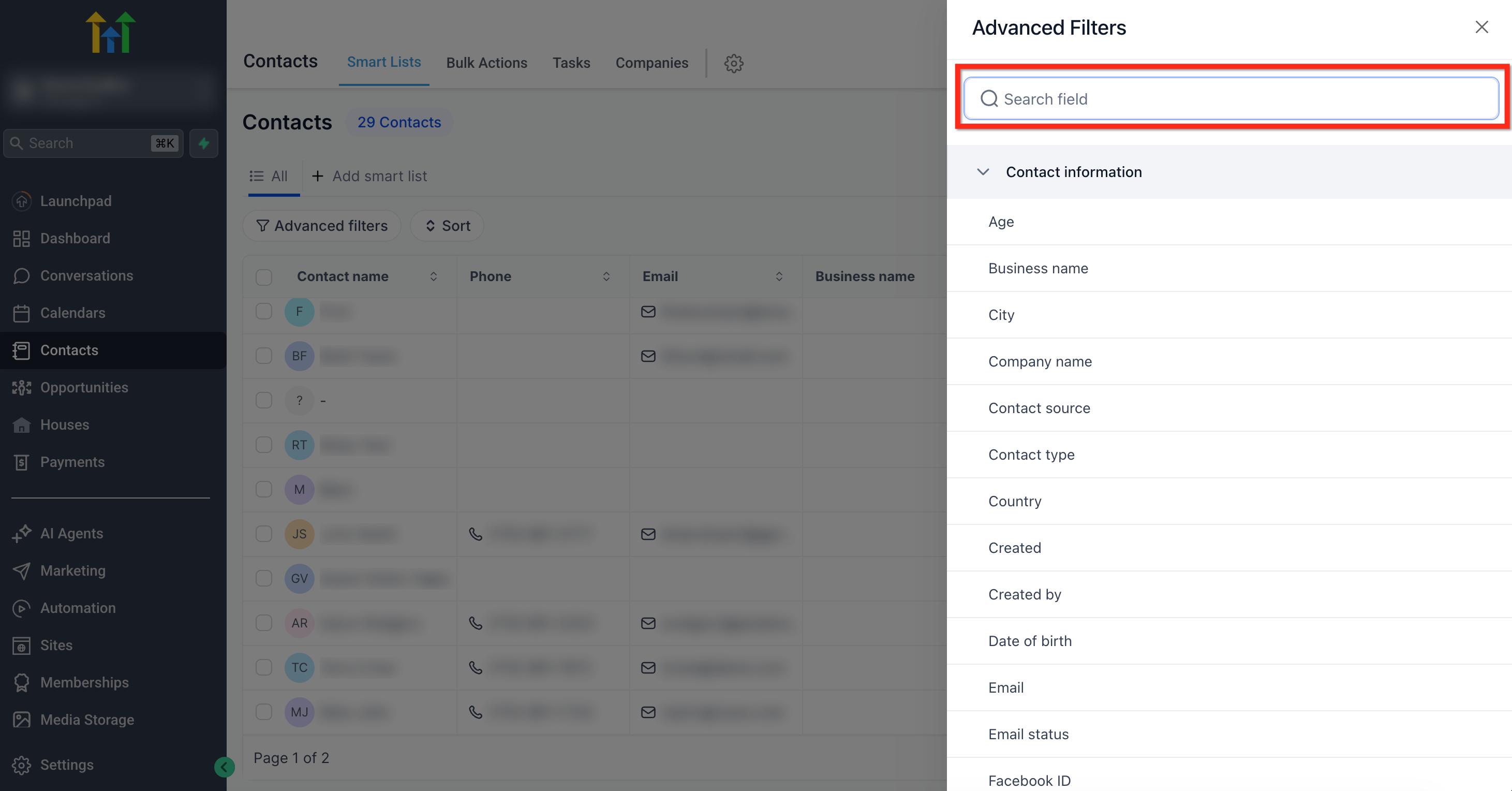
- Search for the desired field and choose it from the results.
- Pick the operator that matches the field’s data type.
- Enter or select the value required for the filter.
- Click + Add Nested Filter to add an AND condition that must also be true.
- Click + Add Filter to add an OR condition that can also satisfy the list.
- Press Apply to save the filter configuration.
06What it looks like in HighLevel
07Settings that matter
- Is → Today. Shows contacts whose selected date field matches the current calendar day.
- Is Not → This Week. Excludes contacts with dates that fall within the present week.
- Enabled. Filters contacts that have Do Not Disturb turned on for the chosen communication channel.
- Contains. Matches contacts whose text field includes the entered substring anywhere in its value.
- Greater Than. Selects contacts where a numeric field exceeds the provided number.
08Things to know before you rely on it
- Available operators differ by the type of field you select; date fields show date operators, number fields show numeric comparisons, and boolean fields show enabled/disabled options.
- Negative filters (Is Not) reverse the logic of their positive counterparts, removing contacts that meet the specified condition.
- Empty and Not Empty filters identify records that lack or contain any value for the chosen field.
09How it connects to the rest of HighLevel
- Advanced Filters are built inside the Smart List editor, which you can learn to create and manage in the Smart Lists guide. Smart Lists guide
- Use DND filters to respect communication preferences when building compliant outreach lists. Do Not Disturb settings
- After filtering contacts, you can run bulk actions such as tag updates or email sends directly from the Smart List view. Bulk actions
Michael's take

Advanced filters feel like a small convenience that can turn a vague contact list into a sharply focused group.
A health coach business that tracks client appointments and DND preferences will find this feature a natural fit. Setting a filter for appointments in the next three days and disabling contacts with SMS DND can help the coach reach people who are available and have opted in.