
01Who this is for
- Founders of online education platforms, they can decide which course updates reach learners.
- Coaches running certification programs, they gain control over email reminders for new modules.
- Membership site owners offering training, they can tailor communication to keep members engaged.
02Notification preferences for courses, explained
The feature adds a dedicated section for course related email alerts inside the Client Portal settings. It lets portal owners switch individual notifications on or off and choose which email template is sent for each event. All changes are made within the portal, providing a single place to manage messaging for every child app.
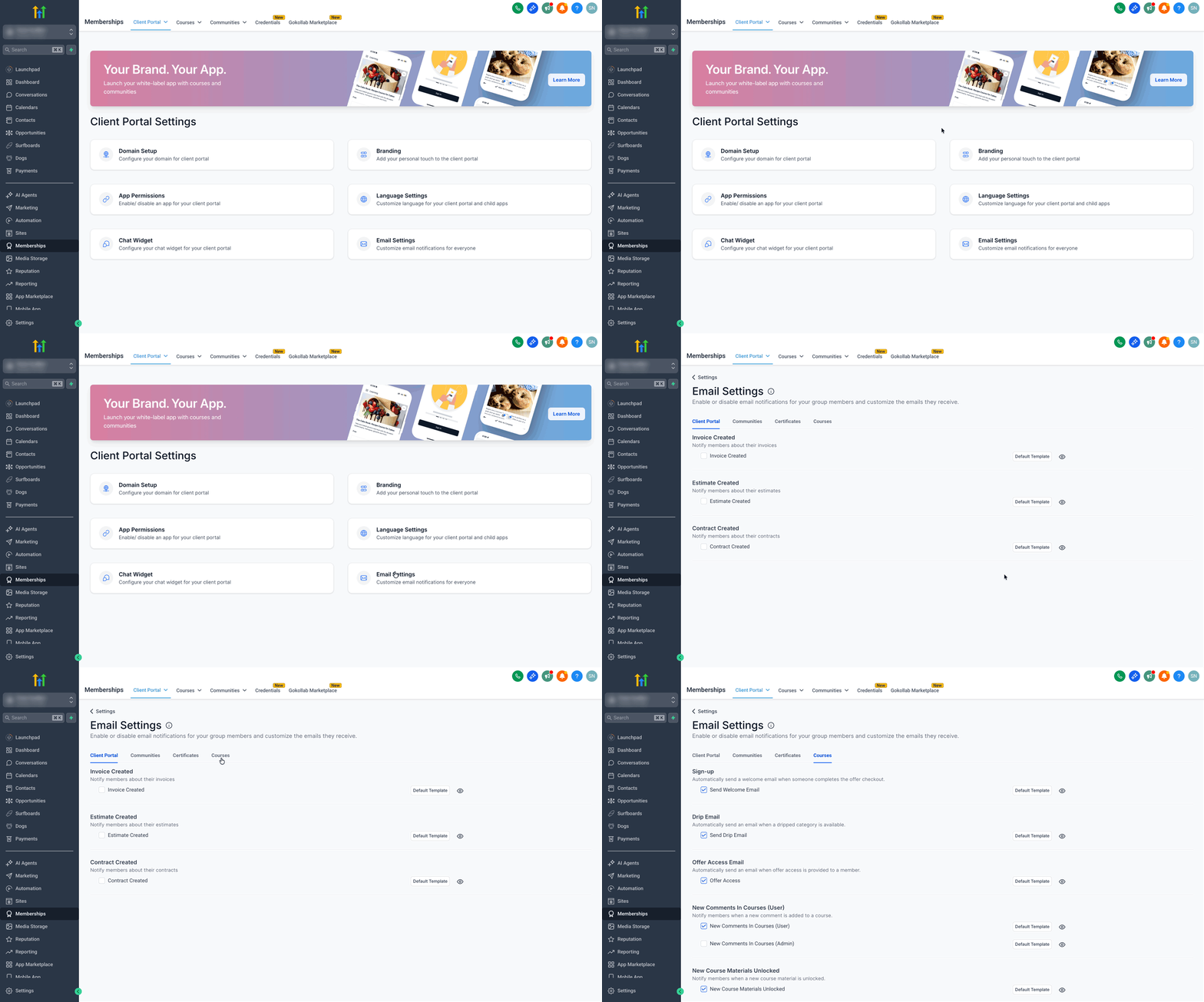
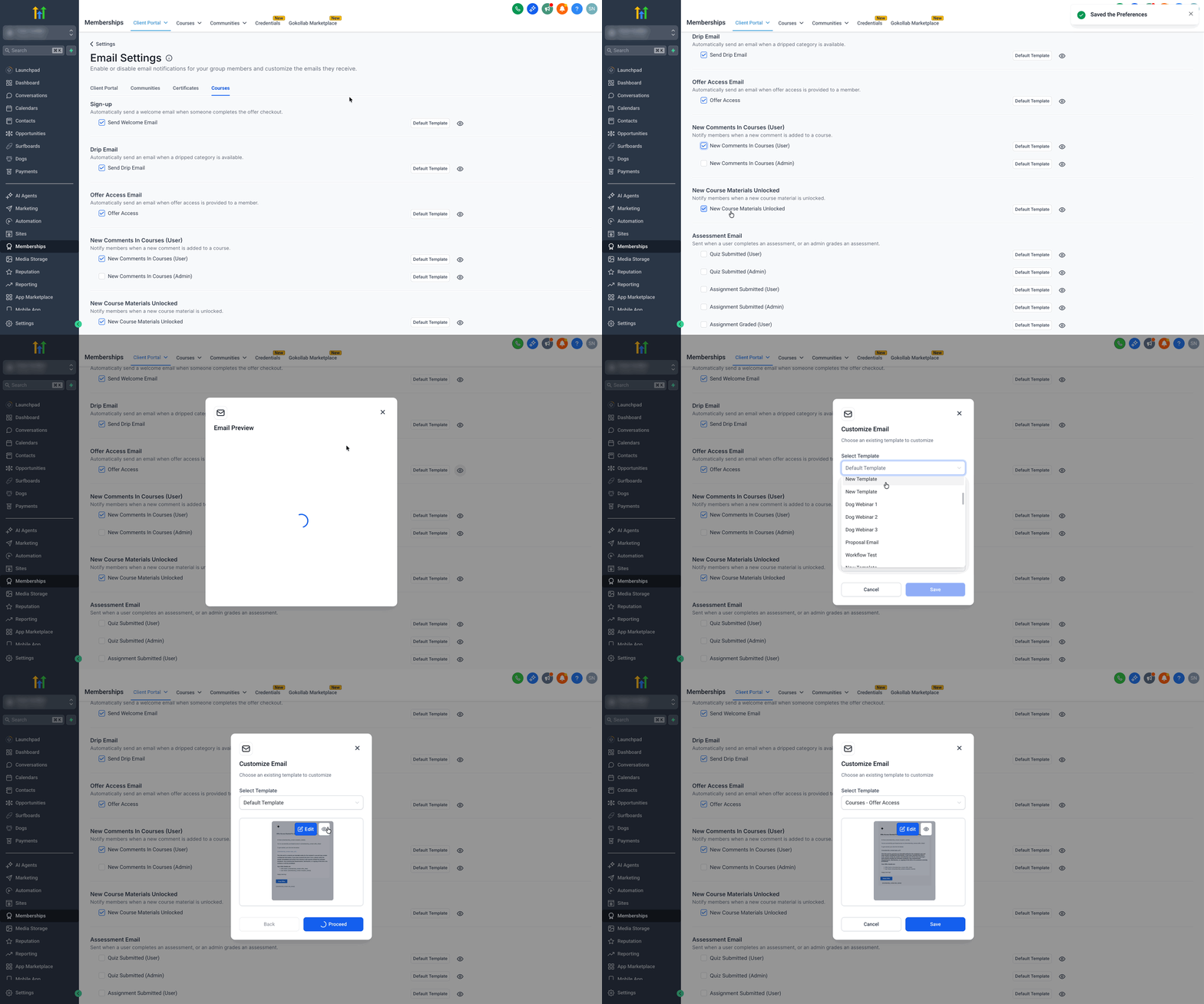
The settings appear under the Email Settings area, where check boxes represent each type of course notification. An eye icon offers a live preview of the selected template, and a Default Template button lets users replace or edit the current template using the Email Builder.
03How businesses use notification preferences for courses
- Online course provider. In HighLevel, the owner opens the Client Portal settings, navigates to Email Settings > Courses, and checks the boxes for notifications they want to send, such as new lesson releases. They also edit the email template to match their branding before saving.
- Coaching business with certification tracks. The coach accesses the same Email Settings > Courses area, disables the reminder for completed modules, and enables the alert for upcoming exams. Using the eye icon, they preview the exam reminder template and adjust wording via the Default Template button.
- Membership site offering training modules. The site admin logs into the subaccount, goes to Email Settings > Courses, and selects only the notifications for new content drops. They preview the template, then replace it with a custom version that includes a direct link to the member’s dashboard.
04Before you start
- You must be logged into a HighLevel subaccount that has the Client Portal feature enabled.
05How to set up and use notification preferences for courses in HighLevel
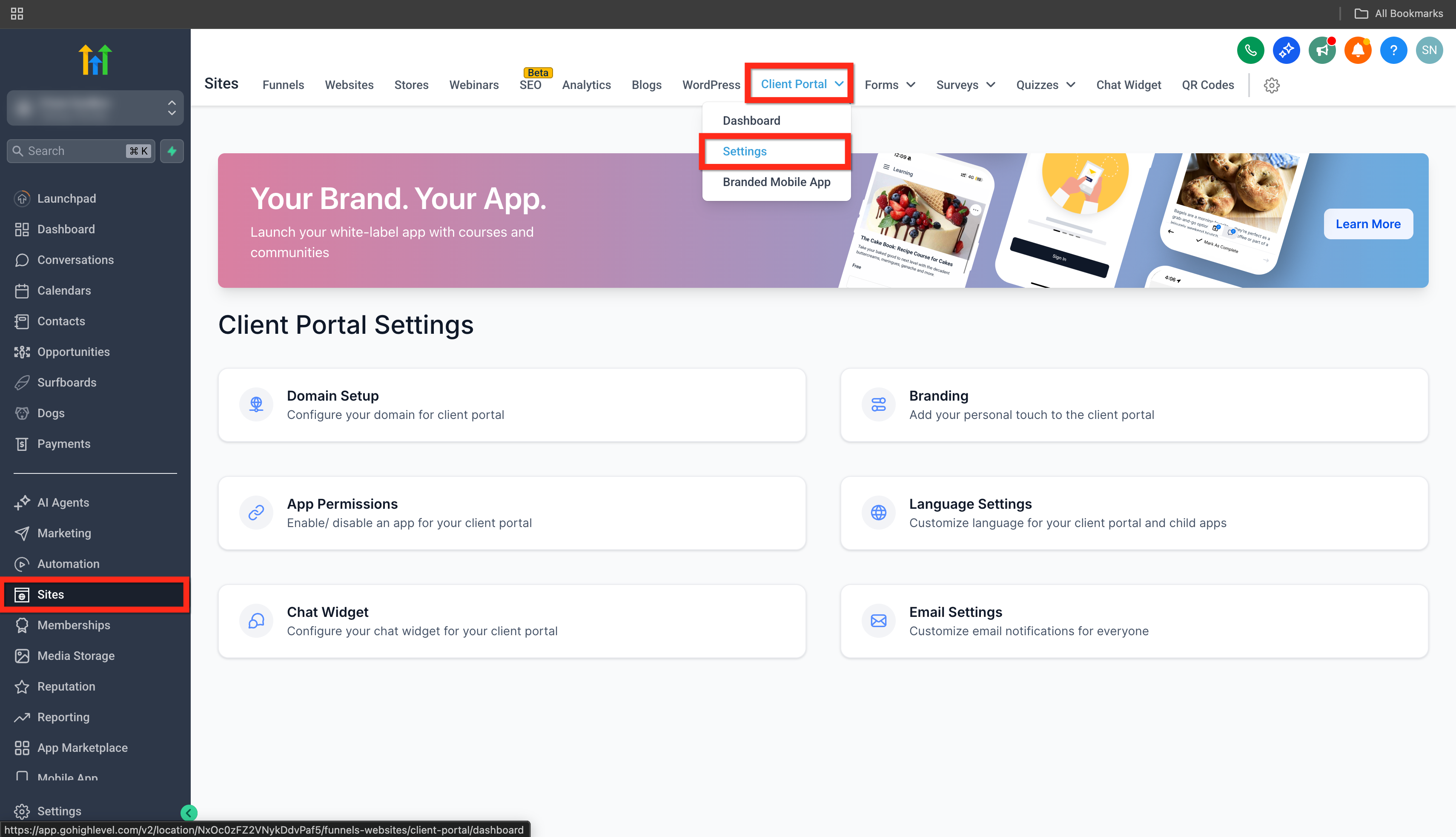
Set notification preferences for courses
- Sign in to the appropriate subaccount.
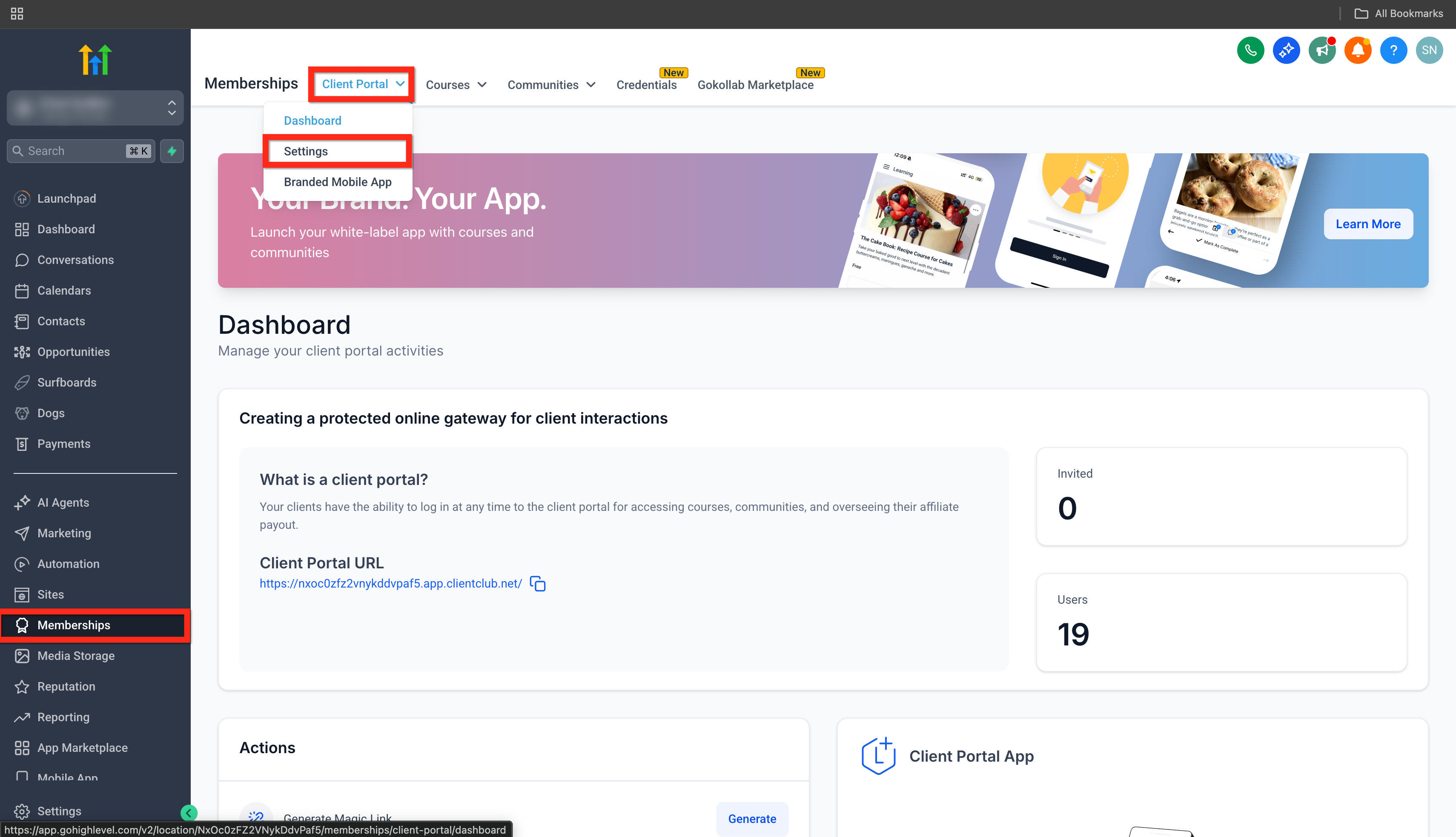
- Navigate to Sites > Client Portal > Settings.
- Or go to Memberships > Client Portal > Settings.
- Select Email Settings > Courses.
- Check or uncheck each box to turn specific course email alerts on or off.
- Click the eye icon to view a preview of the current email template.
- Press the Default Template button to choose a new template or edit the existing one.
06What it looks like in HighLevel
07Settings that matter
- Email Settings > Courses. Controls which course related email notifications are sent and which email template is used for each event.
- Default Template button. Opens the template editor so you can replace or modify the email layout applied to course notifications.
08Things to know before you rely on it
- The feature applies only to course related events within the Client Portal and does not affect notifications for other app types.
09How it connects to the rest of HighLevel
- How to manage all notifications in the Client Portal Manage notifications
- Discover courses and offers available to portal users Discover courses
- Step by step guide to set up the Client Portal Client portal setup
Get More InformationOpens on HighLevelPublished November 2, 2026 · Updated November 17, 2026