
01Who this is for
- Course creators who need a single place for learners to explore and purchase new content.
- Membership site owners who want to surface additional courses or bundles without sending separate links.
02Discover courses and offers, explained
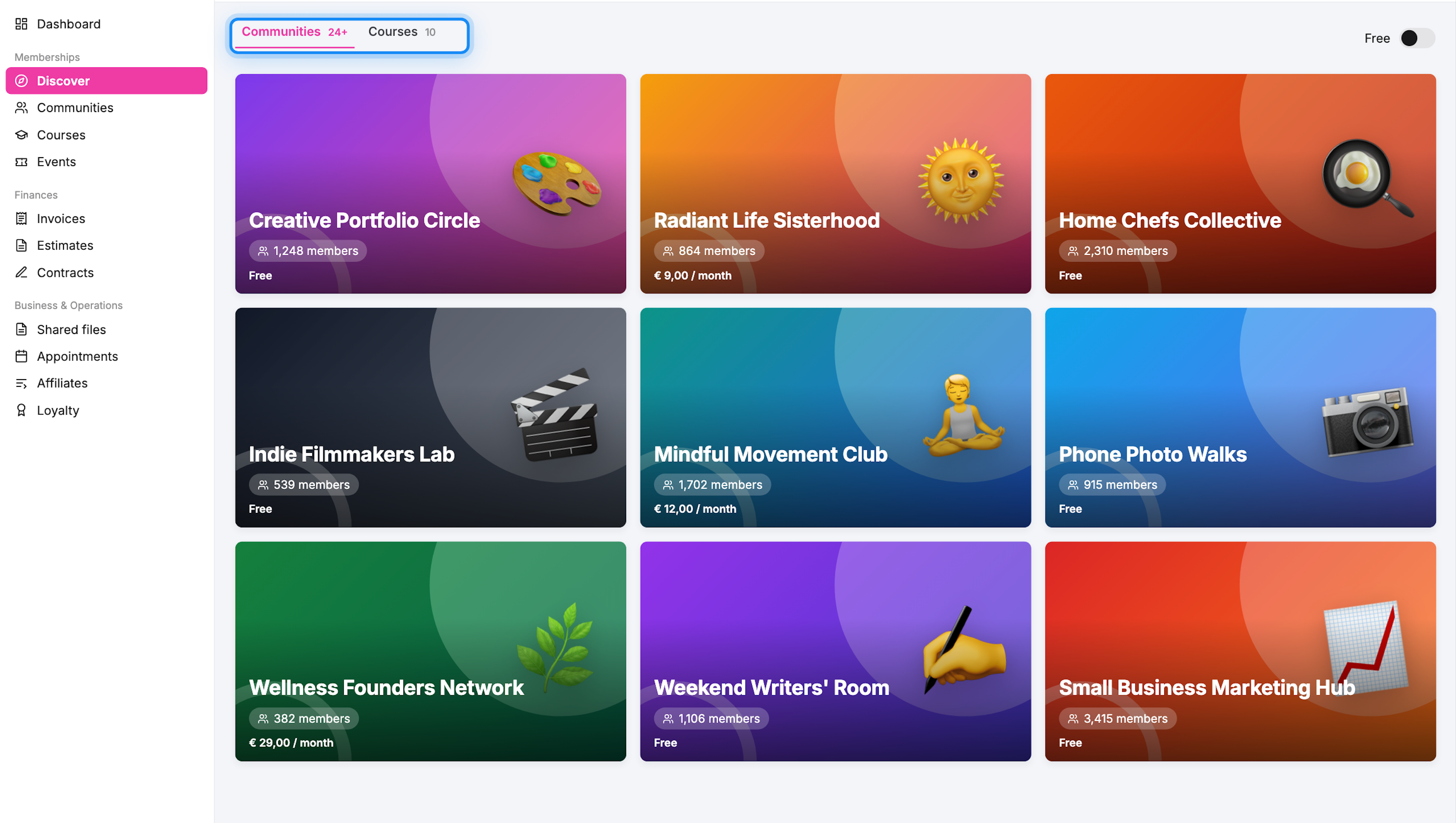
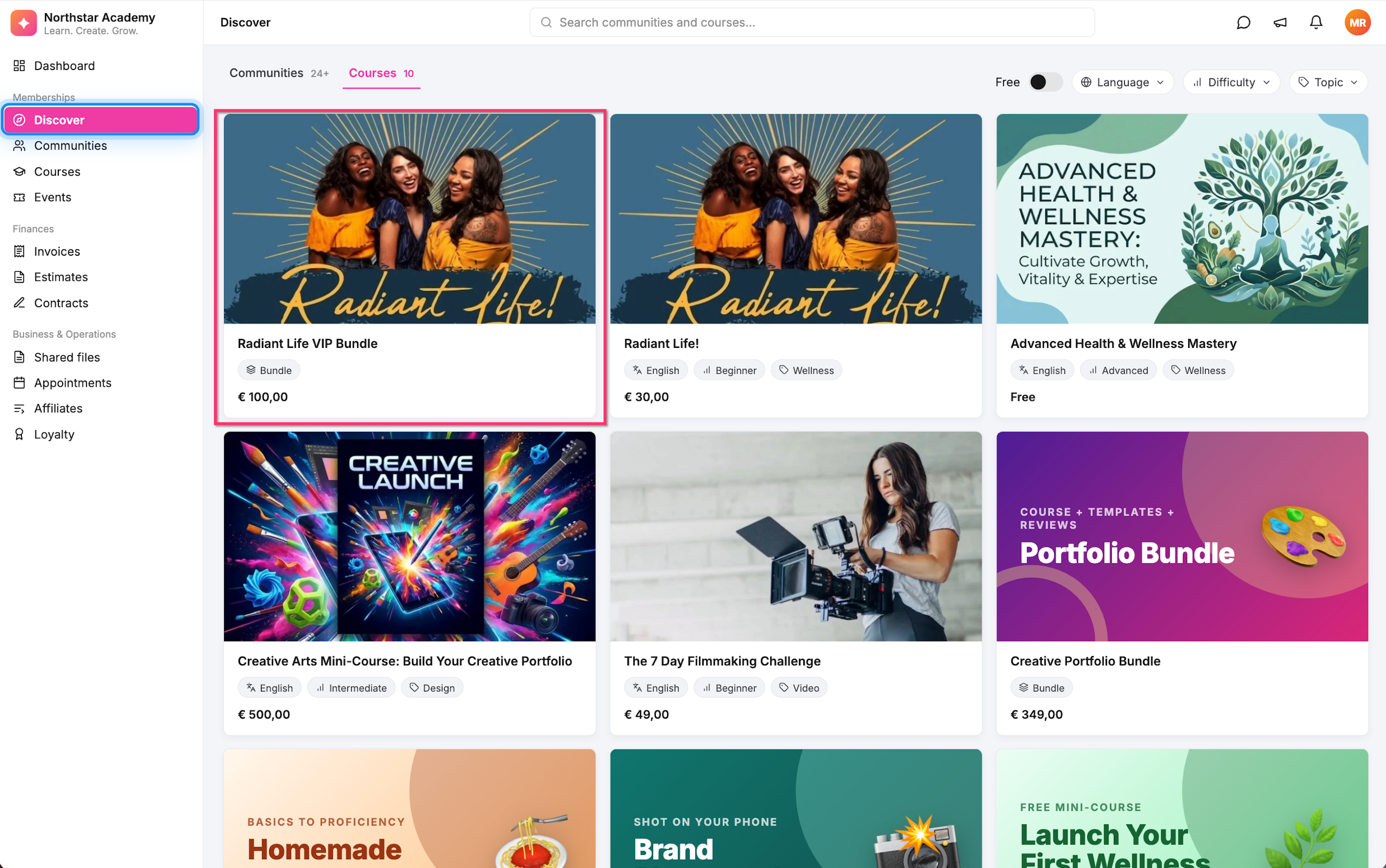
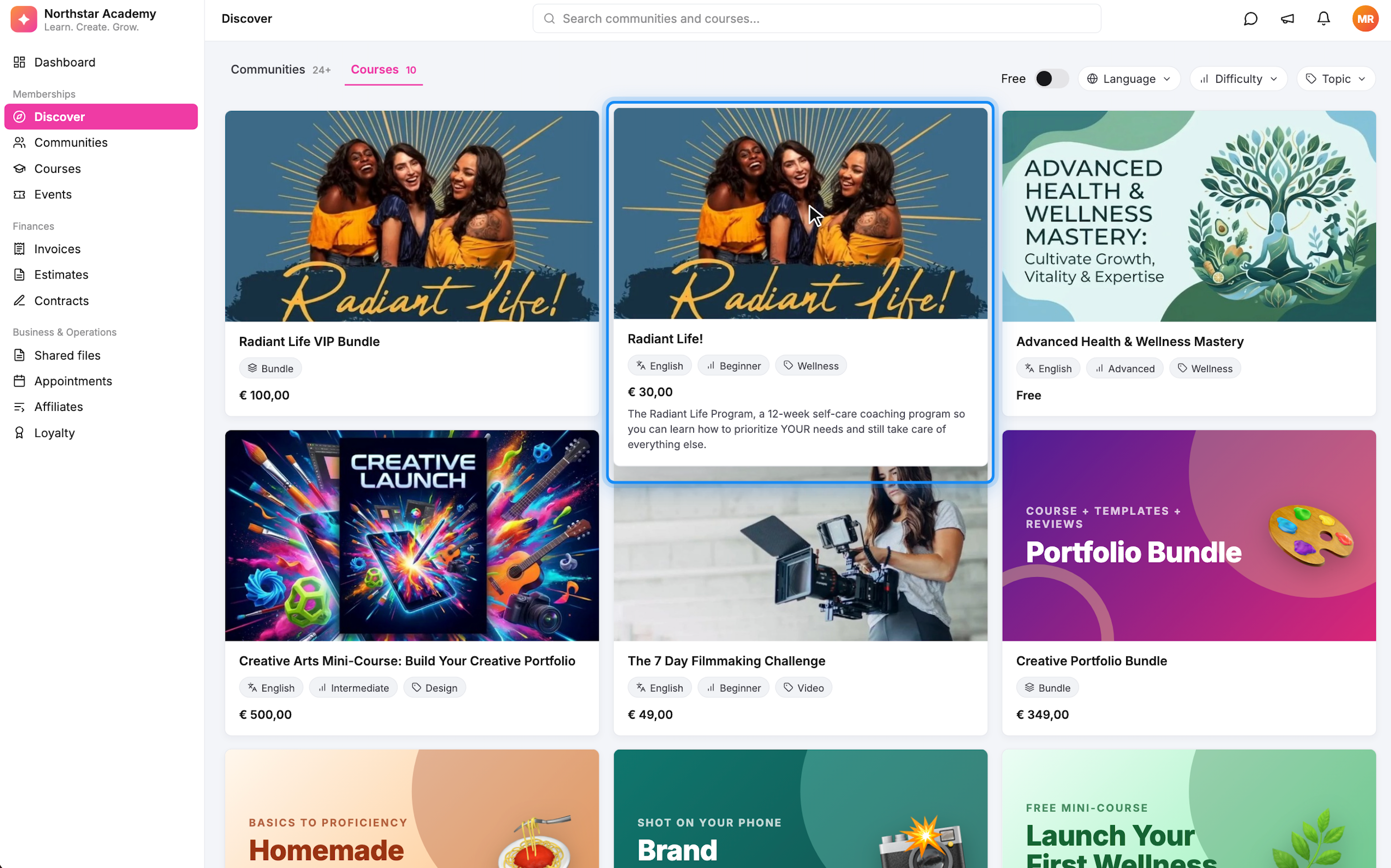
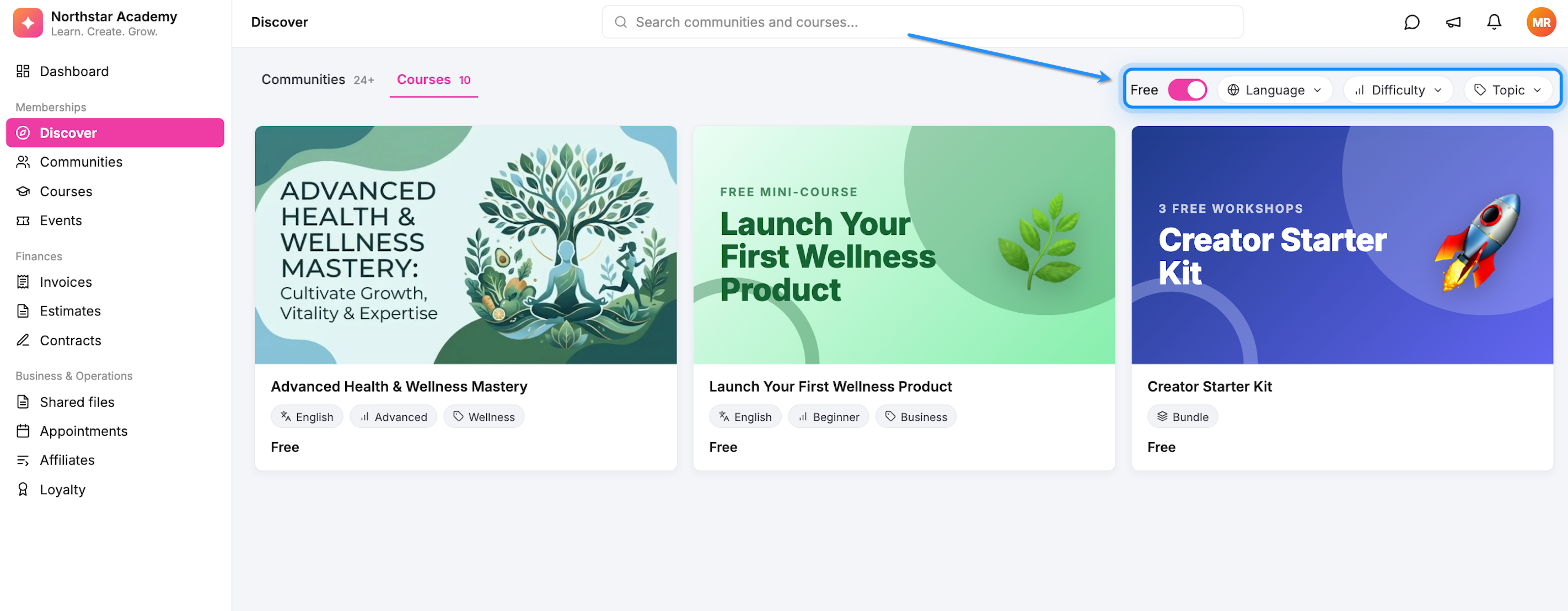
Discover adds a new app to the Client Portal where learners can browse courses, bundles and communities. It appears as a tab in the portal sidebar and includes search and filter tools. The page shows card previews with title, price, language, difficulty and more.
Visibility of each product is controlled by the Show in Discover toggle on the course pricing tab or the offer settings. Only items with that toggle turned on will appear. The feature must first be activated in Labs and then enabled in the portal’s app permissions.
03How businesses use discover for courses and offers
- Online fitness trainer. The trainer enables Discover, marks each workout program and membership bundle with Show in Discover, and then learners can browse and buy the program directly from the portal. The trainer can also set Discover as the default landing page so members see new offerings immediately.
- Digital marketing agency. The agency creates training courses and a bundled offer for a full marketing suite. By turning on Show in Discover for the courses and the published bundle, prospects can search for topics, filter by level and purchase the bundle without leaving the client portal.
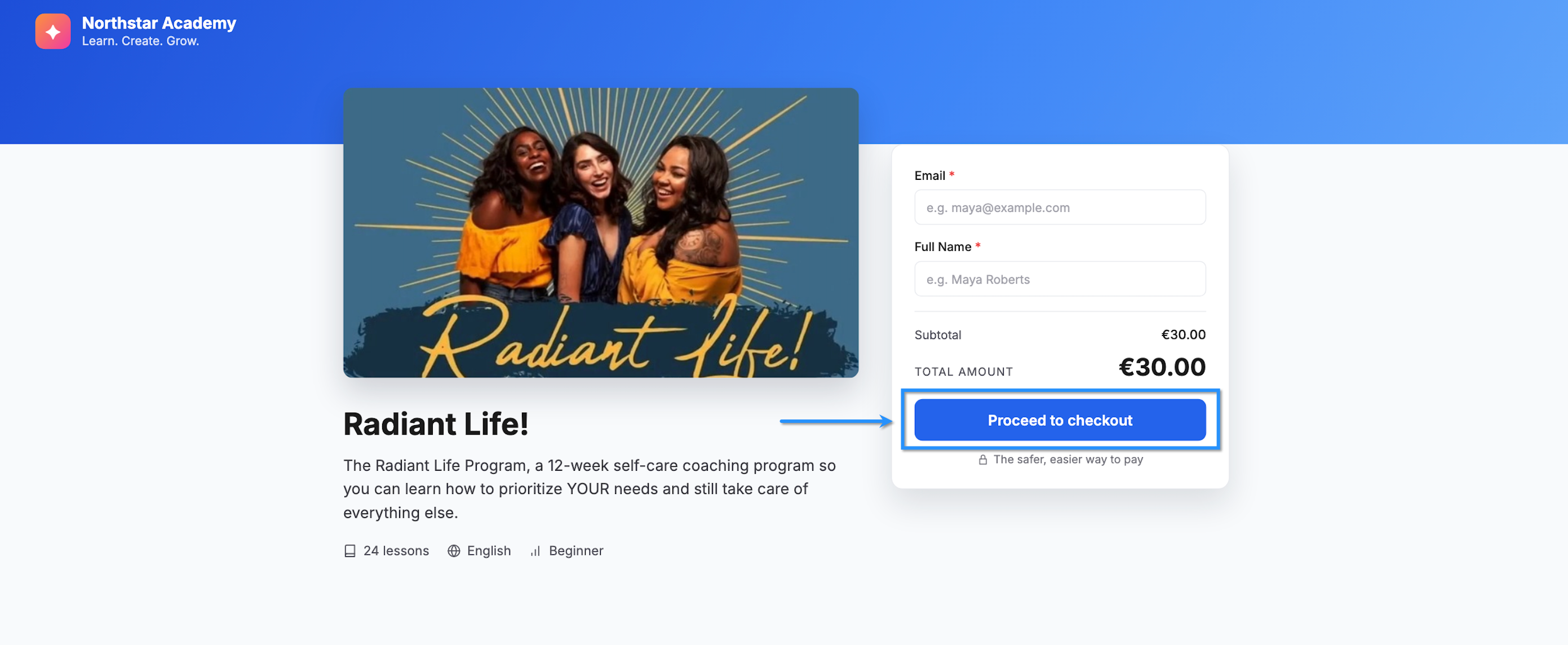
- Language school. The school lists individual language courses and a bundle of advanced classes. After enabling Discover and activating the visibility toggles, students log into the portal, use the filter to show only free courses, and enroll through the checkout page linked from the Discover cards.
04The numbers and rules that matter
- Pricing options (Free, One Time, Recurring) depend on the course pricing features supported in the account.
05Before you start
- Enable Discover for the subaccount in Labs.
- Create the course and configure its pricing, or create and publish an offer.
06How to set up and use discover for courses and offers in HighLevel
Enable discover in labs
- Log in to your HighLevel account.
- Open the Labs section.
- Select Subaccounts.
- Locate Discovery of Course and Offers.
- Enable the feature for the desired subaccount.
Enable discover in Client Portal settings
- Switch to the subaccount that holds your courses.
- Click Memberships in the left menu.
- Open Client Portal.
- Choose Settings.
- Scroll to the App Permissions area.
- Find Discover in the app list.
- Check the box beside Discover.
- Save the changes.
Make discover the default landing page (optional)
- Go to Memberships > Client Portal > Settings.
- Scroll to Select default landing page.
- Open the dropdown menu.
- Choose Discover.
- Click Save Settings.
Show an individual course in discover
- In the subaccount, click Memberships.
- Navigate to Courses.
- Open the course you want to display.
- Select Pricing from the course menu.
- Confirm the course pricing is set to Free, One Time, or Recurring.
- Locate the Show in Discover option.
- Toggle it on.
Show a published offer in discover
- Go to Memberships > Courses.
- Open the relevant course and select Offers, or open the appropriate offer editor.
- Select the published offer you want to display.
- Find the Show in Discover toggle in the offer settings.
- Turn the toggle on.
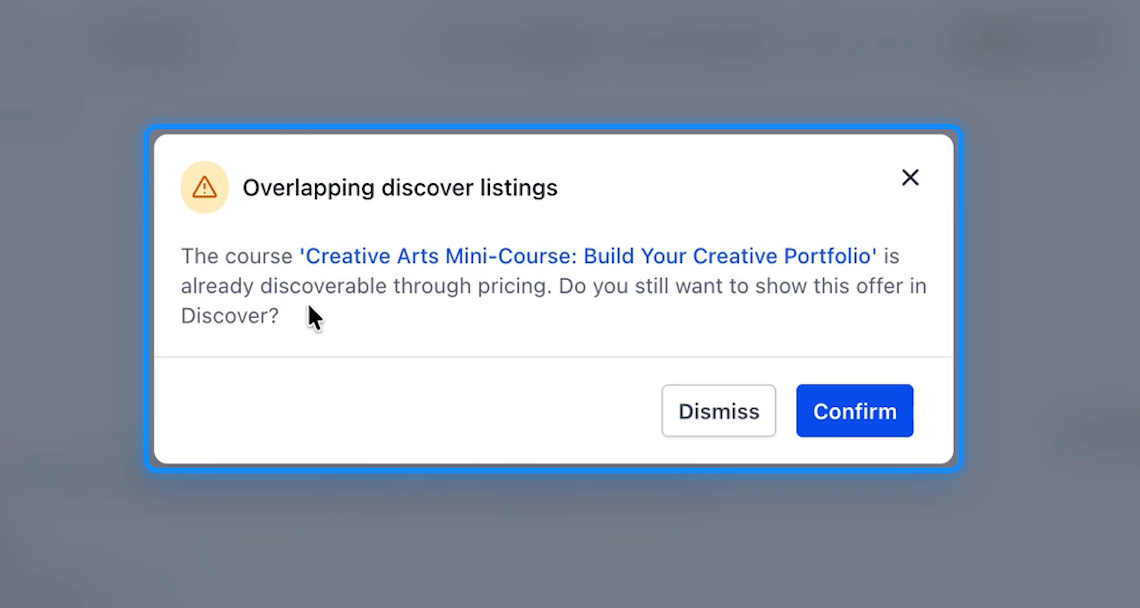
- If an overlapping listing warning appears, review the message and click Confirm to proceed.
Check what learners see
- Open your Client Portal.
- Log in with a learner account that has not enrolled in the test course.
- Click Discover in the sidebar.
- Open the Courses tab.
- Locate the course or bundle you enabled.
- Verify the title, thumbnail, price and other information are correct.
- Test the filter options to see how the item appears.
- Click the item to ensure its checkout page opens.
07What it looks like in HighLevel
08Settings that matter
- Show in Discover. Controls whether an individual course or a published offer appears on the Discover page.
- Discover (app permission checkbox). Enables the Discover app within the Client Portal so learners can access it from the sidebar.
- Select default landing page. Sets which page loads first when a learner opens the Client Portal; choosing Discover makes it the initial view.
09Things to know before you rely on it
- Discover must be enabled in Labs before it can be turned on in the Client Portal.
- The feature is available per subaccount; enabling it in one subaccount does not affect others.
- Only courses with a configured pricing option and offers that are published can be shown.
- If an offer contains a course already visible individually, an Overlapping discover listings warning will appear.
10If something goes wrong
- Discover does not appear in the Client Portal sidebar.. Confirm that Discover is enabled in Labs and that the Discover checkbox is selected in the App Permissions area, then save and refresh the portal.
- Courses are missing from Discover after enabling the feature.. Open each course’s Pricing tab and turn on Show in Discover. Ensure the course has a valid pricing option and that you are testing with a learner who has not enrolled.
- Overlapping discover listings warning shows when adding an offer.. Review the message to see which course is already listed, then choose Confirm if you want the bundle to appear despite the overlap.
11How it connects to the rest of HighLevel
- Set up the client portal and manage app permissions. Client portal setup
- Learn how learners can access the HighLevel client portal. Portal access
- View pricing options and start a trial if needed. Pricing
Michael's take

Swan dive into Discover without checking your Labs flag first and you’ll waste time chasing a missing app. The feature lives behind a Labs toggle and a separate permission in the Client Portal, so both must be on before anything shows up for learners.
Once those boxes are checked, you get a tidy marketplace inside your portal. Learners can scroll, filter and buy courses or bundles without leaving the site. It’s a clean way to surface new content and upsell, especially if you already have a few courses live.